How to print, save, and send Android text messages
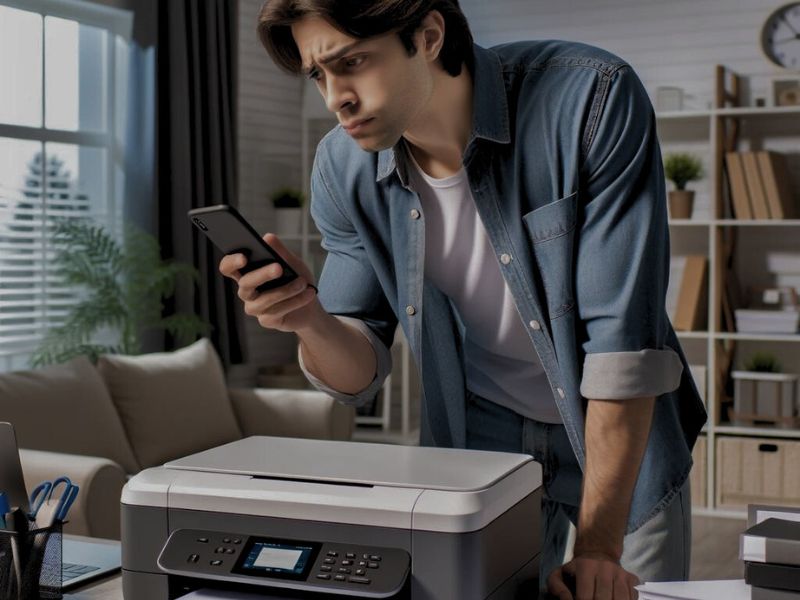
There are many reasons for wanting to print out a text message. Maybe someone sent you some exciting news via SMS, and you’d like to print it out and pin it on your bulletin board. Or, maybe someone has sent you directions on how to do something or how to get somewhere, and you want to have it for fast reference. Of course, there could also be times when you’re saving a text as documentation of a conversation or agreement that went awry, and you need it as proof to protect yourself.
Printing is one way to hold onto your text messages. But, if you want to stick with keeping everything on your device, then perhaps you’re just looking to know how to save the text messages to your Android phone so you can pull them up later. You may also want to know how to send precious text messages to someone else so they can have a copy, too, or so they can print it for you from their device.
The good news is that if you have an Android phone, it’s relatively easy to print, save, or send a text message. If you have an iPhone, here are 4 ways to print, save, and send text messages. For you Android owners, here’s what you need to know to do this.
Do I need to connect my Android phone to a printer to print text messages?
If you want to print text messages directly from an Android phone, you’ll need to connect your phone to your printer. However, if you want to print text messages without connecting your phone to a printer, you will need to send the message from your Android phone to the device that’s capable of printing.
What you need to know about printing, saving, and sending text messages on Android
Android doesn’t provide a native way to print text messages directly from your inbox. So, you have to take matters into your own hands. There are several strategies you can utilize to print your text messages, and the choice depends on factors such as ease of use, time efficiency, and the specific features of your Android device.
Many of these methods involve creating backups or copies of your messages, which can be stored externally (on a computer or in the cloud) rather than on your Android device itself. This is important because if you happen to lose the printed version, you don’t have to worry; you can access these backups to retrieve and print the messages again. However, it’s crucial to note that these backups are typically not stored on your Android device but rather in the location where you created the backup.
The #1 best option: take a screenshot to do everything you need
The best way to print, save, and send text messages if you have an Android is to take a screenshot of the text message itself. This method is particularly effective for capturing a few screens of text. Why? Because once you have a screenshot, you can do just about anything with it after that. However, if you’re looking to print out a very long thread that may go back many months or years, please refer to the section later in the article for more suitable options.
How to take a screenshot on your Android
Settings may vary depending on your Android phone’s manufacturer
- Open your messages, and select the conversation where you want to print, save, or share the text message
- Scroll to the part in the conversation you want to print or save
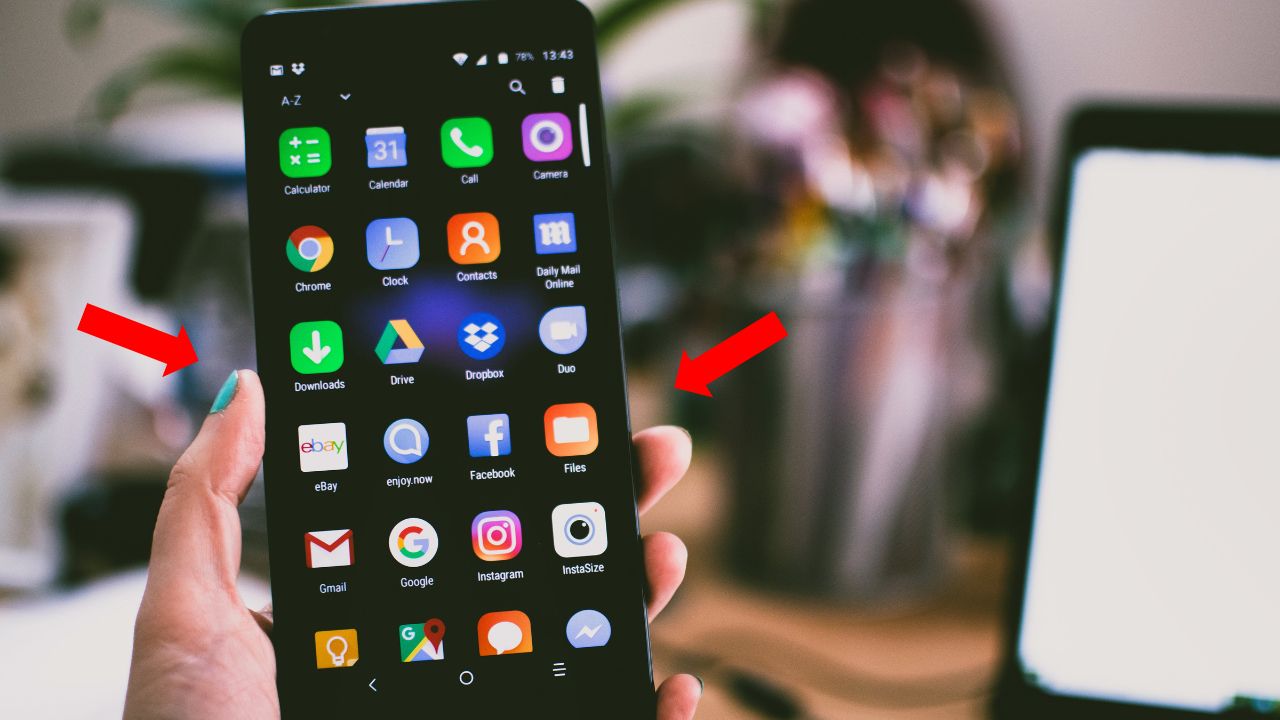
- Hold the power button and the volume down button at the same time, and this will take a screenshot
- Your screenshot will move to the bottom-left corner of the screen
- Then, wait. Head to the corresponding steps below, depending on what you’d like to do.
Note: If you can’t capture the entire message in one screenshot, you will need to take multiple screenshots of each part of the conversation.
How to print the screenshot directly from your phone
For this step, your phone and printer must be connected to the same Wi-Fi network, and your printer must support Android printing.
Settings may vary depending on your Android phone’s manufacturer
- Open Google Photos or Gallery
- Open the screenshot
- Tap the three dots (or Share, depending on device)
- Select Print
- Choose your printer
- Tap Print

How to send a screenshot to someone else or another device to print
If your Android phone is not connected to your printer, you can send the screenshot to another device that is. You can also use these steps to share the screenshot with someone else.
Settings may vary depending on your Android phone’s manufacturer.
- Take a screenshot of the text message.
- Tap the Share icon when it appears.
- If the share option disappears, open Google Photos or Gallery, find the screenshot in the Screenshots folder, then tap Share.
- Choose the app or contact you want to send it to.
To send it to yourself
- Select Gmail.
- Enter your own email address in the To field.
- Tap Send.
- Open the email on the device connected to your printer and print the screenshot.
To send it to someone else
- Select a recent conversation, or open an app such as Messages, WhatsApp, or Facebook Messenger.
- Choose the contact.
- Tap Send.
How to save and pull up the screenshot to print or send later
Let’s say that the share icon disappeared quickly after taking the screenshot. Now, you need to pull it up again later. Taking a screenshot automatically saves the text message you took a picture of to your phone. Here’s how you can find it:
Settings may vary depending on your Android phone’s manufacturer
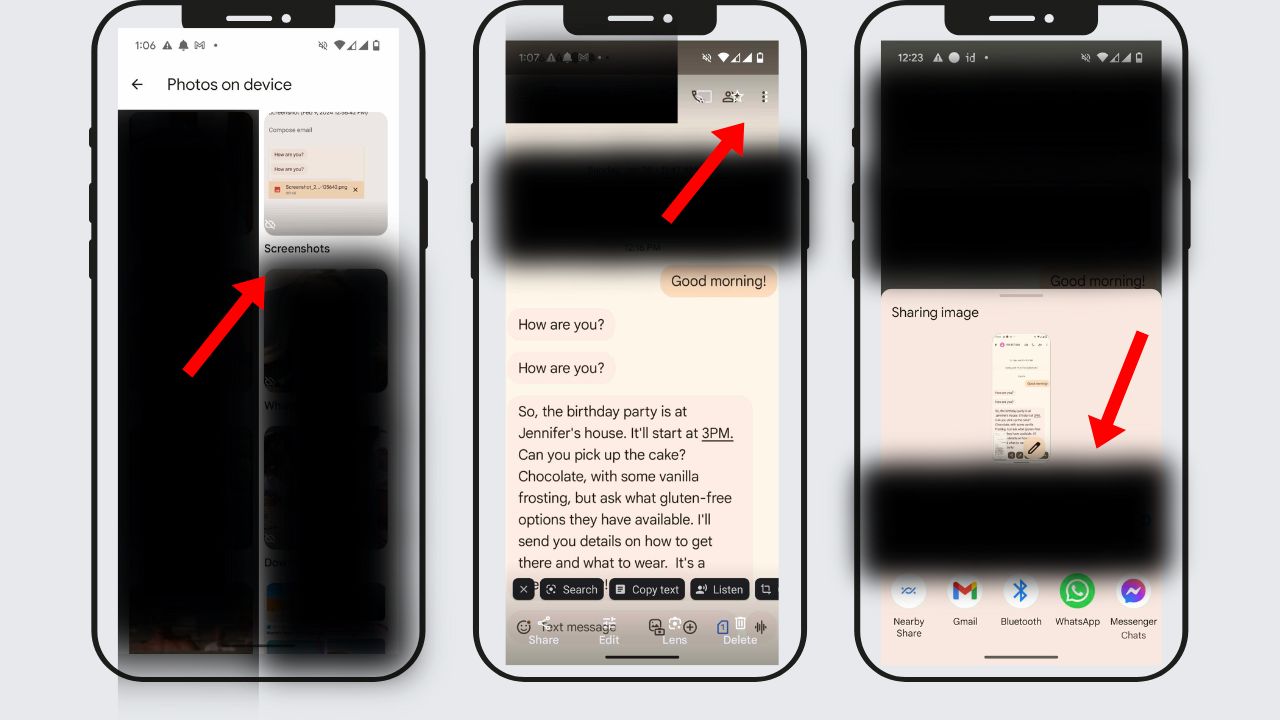
- Go to your Gallery or Google Photos to pull up the image under the “Screenshots” folder.
- Find the image of the text message screenshot.
- Then, to print, select the three dots in the upper-right corner.
- A toolbar will appear that will go about halfway up your screen. Look for the icons that say “Back up now”, “Move to folder”, “Copy to folder” etc., and keep scrolling to the right until you see “Print”.
- If your Android is connected to your printer (or if you’re choosing another printer, click the upper-left corner to select the printer.
- Select Print.
- If you want to send instead, in the bottom left corner will be the “share” icon.
- Select the conversation and/or app you want to send the image to. If you had a recent conversation with this person, that would appear. Otherwise, find the app (i.e. Facebook Messenger or WhatsApp) and pull up their contact.
- Click Send/
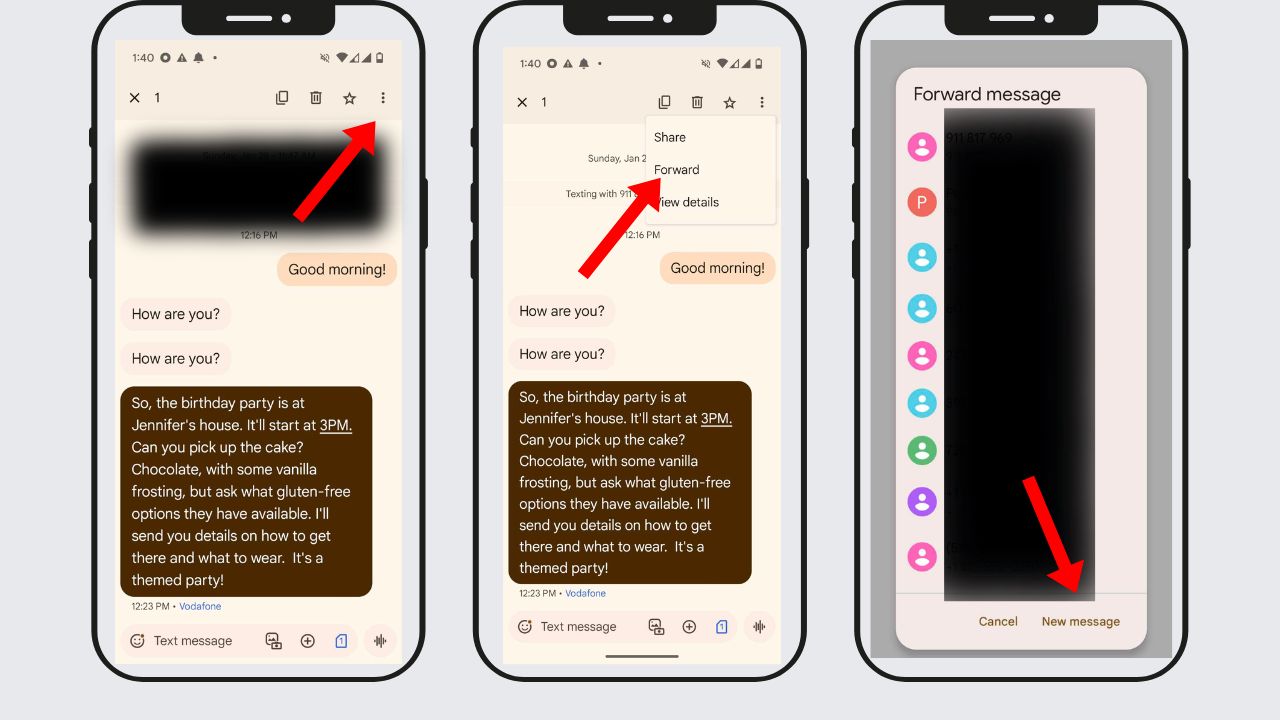
How to (only) send: Forward the text message
If you just want to send the text message to someone else, you can forward the specific text message from your conversation to someone else. To do this:
Settings may vary depending on your Android phone’s manufacturer
- Open the conversation where the text message is.
- Tap and hold on to the message you want to forward until it’s highlighted.
- Click the three dots in the upper-right corner of the screen.
- Select Forward.
- Choose who you want to send it to, or click “New message” if you don’t see the contact appear or the person is not saved in your contacts.
- Hit the send button.
Note: You can only forward one text at a time.
How to (only) print from another device: Open the Google Web Messaging app
Just as iPhone uses iMessage, Android phones use Google Messaging. It may be hard to recognize this on your phone, as it just looks like a standard text messaging app. But you can pull up Google Messaging on your laptop or another device, especially since most Google/Android products are synced if you have a Gmail account.
Settings may vary depending on your Android phone’s manufacturer
- On your other device, go to www.messages.google.com
- Follow the directions to pair your phone with Google Messages with your Android device via a QR code.
- Once you’re signed in, you will see your text messages from your phone appear here.
- Select the conversation with the text messages that you want to print.
- Click the three dots on the upper-right corner of your browser window (not the three dots just beneath them in the app)
- Select “Print”.
Alternatively, you can also take a screenshot of the text message conversation on your laptop following the screenshot directions that are unique for your computer, and then print that way.
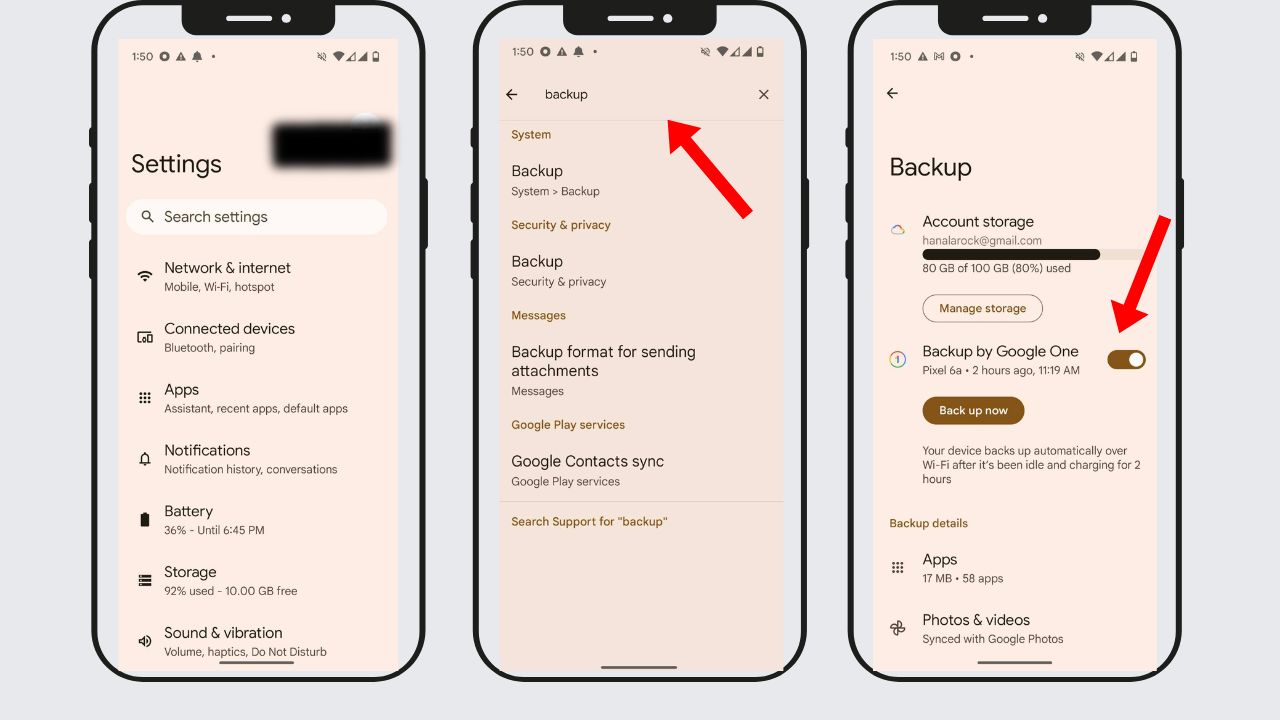
How to (only) save: Back up text messages to your device with Google One
Finally, you can save text messages to your phone with the help of Google Account storage on Google One. All Android devices come with 15GB of storage for Google One, but other accounts come with a free 100GB, depending on a few factors. To back up your text messages (as well as other data from your phone):
Settings may vary depending on your Android phone’s manufacturer
- Go to your phone’s “Settings”.
- Search Backup or Accounts and Backup.
- Click the first one under “System > Backup or under Google Drive > Backup data
- Then, click “Turn on” at the bottom right corner or click where it says Back up Now. This will automatically back up your texts to your Google Drive in the future.
Note: Having “backup” on doesn’t necessarily allow you to view specific text messages. What it does is save all your phone’s data so that if you lose your phone, you can back up the new one with the same data without having to worry about losing anything forever. When you do that, you’ll find those text messages as long as they were there during the backup.
Extract and print Android text messages (Spanning days, months, or years) with Droid Transfer
Here’s an option for extracting and printing messages from an Android phone. For this step, you’ll need Droid Transfer. Droid Transfer can access your Android device’s data and copy it to your PC or print it out. The software can find any SMS or MMS message conversations, including images, emojis, and timestamps on your device, save them to your PC, or print them out. Droid Transfer is capable of handling and printing text messages that span days, months, or even years.
To print text messages from Android:
- Download Droid Transfer on your PC and run it
- Get the free Transfer Companion App on your Android phone
- Scan the Droid Transfer QR code with the Transfer Companion App
- The computer and phone are now linked
- Click ‘Messages’ in Droid Transfer to view all your Android messages
- Select a conversation and click Print
Related Links:
- Chrome’s new AI podcast feature on Android
- Android Emergency Live Video gives 911 eyes on the scene
- How to free up space on your Android
Kurt’s key takeaways
In today’s world, most human interaction happens via a phone, whether on video chat, a messaging app, or good ole’ SMS text messaging (as well as MMS, which is for picture messages). For one reason or another, you may want to print these messages or know how to send and save them. Though there are many different ways to do this on Android, taking a screenshot is by far the most versatile option.
Have you ever printed a text message from your Android phone? What’s your preferred way to save or send messages? Let us know in the comments below.
FOR MORE OF MY SECURITY ALERTS, SUBSCRIBE TO MY FREE CYBERGUY REPORT NEWSLETTER HERE
Copyright 2025 CyberGuy.com. All rights reserved. CyberGuy.com articles and content may contain affiliate links that earn a commission when purchases are made.