Save loved ones’ voicemails with Android
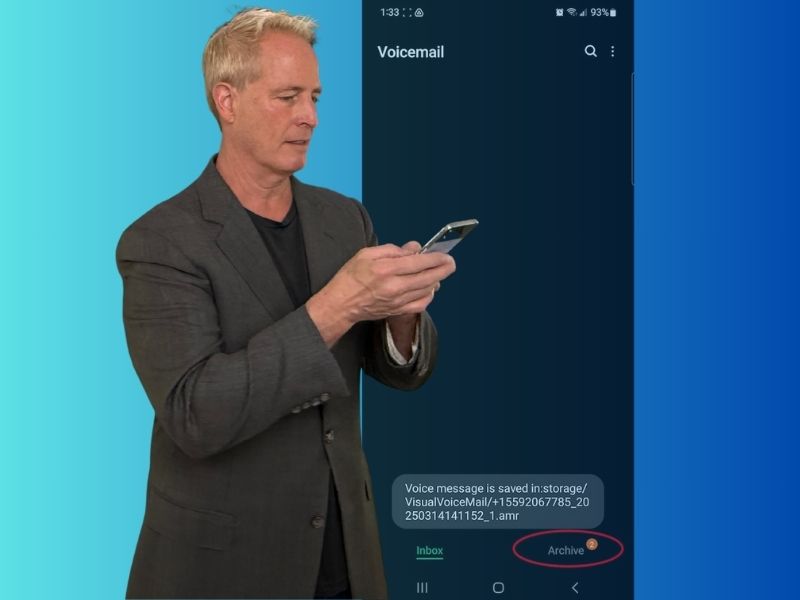
I still remember when my dad passed away; one of the most precious things I had left of him were the voicemails he had left on my phone. Preserving those messages became incredibly important to me, as they were a tangible connection to his voice and love. If you’re in a similar situation, or if you just want to keep a sweet message from your kid or a sentimental voice from a loved one, I’m here to guide you through the process on your Android. Here’s the process to go through on your iPhone.

How to archive voicemails on Android
Settings may vary depending on your Android phone’s manufacturer
- Open your voicemail app.
- Select the message you want to save.
- Press “Archive” at the bottom.
- Confirm your decision by clicking Archive again.

That’s it—your message is now safely saved on your device. To find it later:
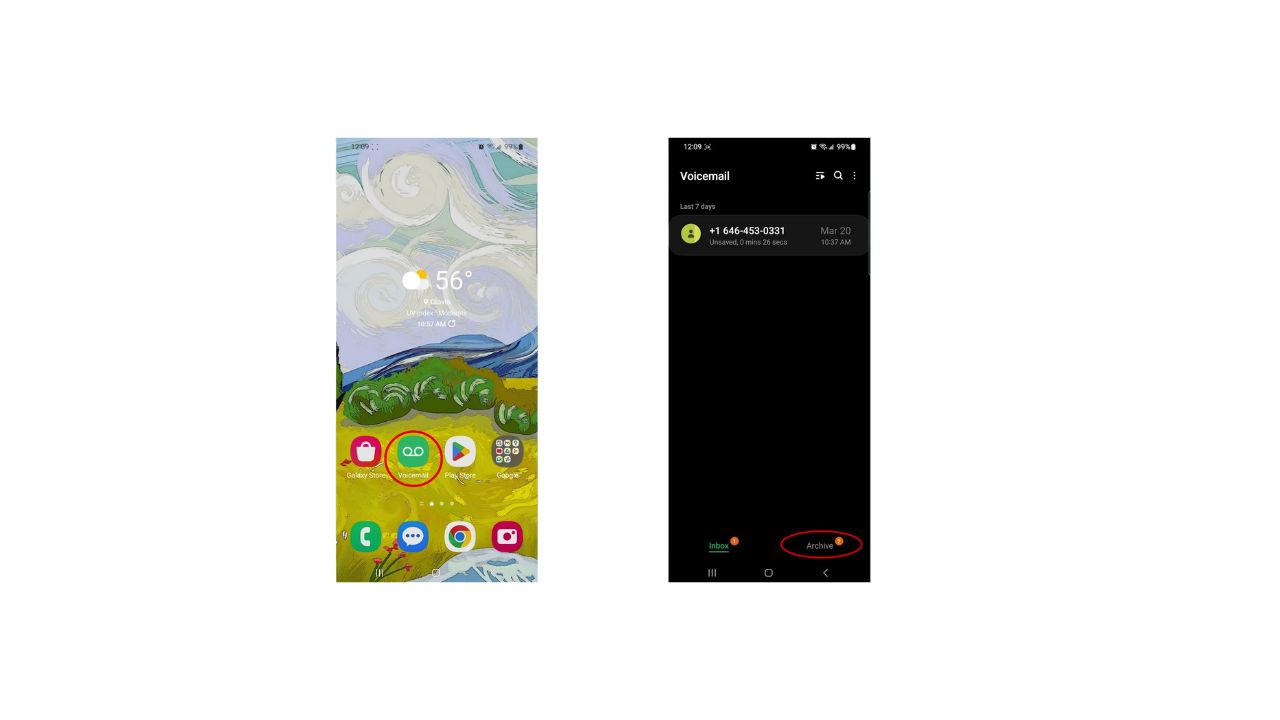
- From the home screen, select Voicemail.
- Tap Archive in the bottom right.
BEST ANTIVIRUS FOR ANDROIDS – CYBERGUY PICKS 2025
Want to share the voicemail? Here’s how
Settings may vary depending on your Android phone’s manufacturer
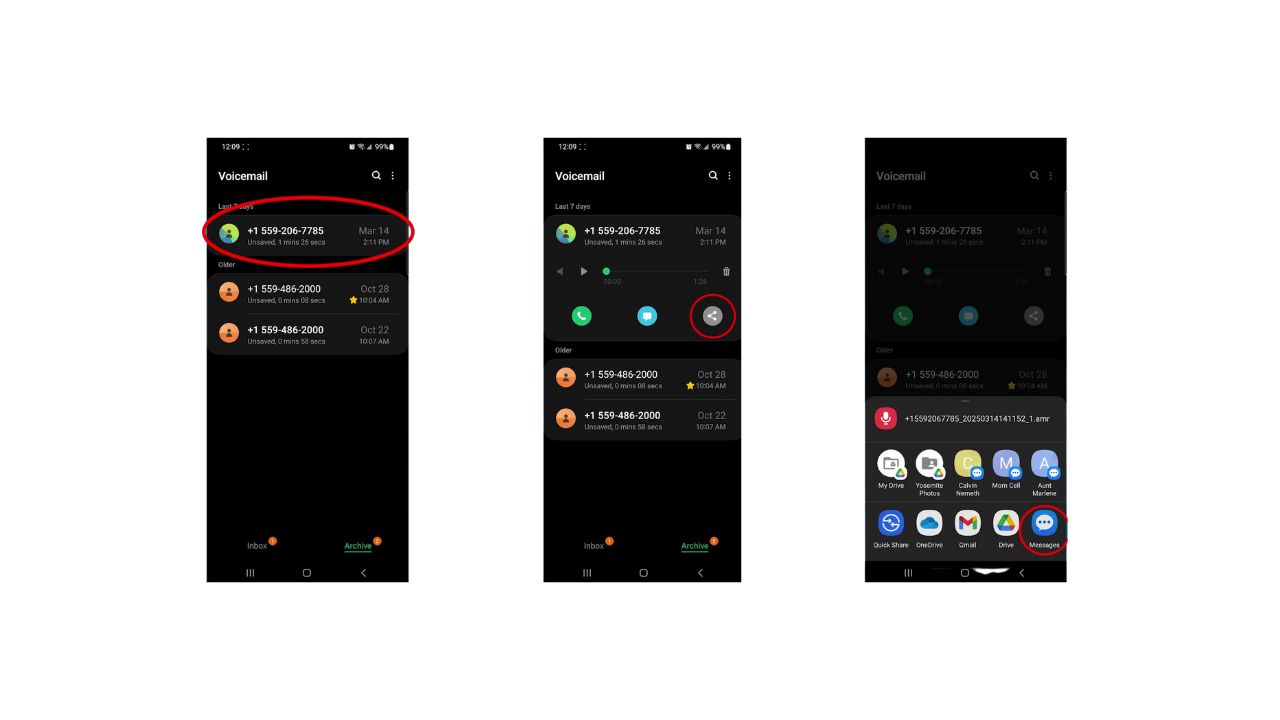
- Click the voicemail.
- Tap the share icon.
- Choose your desired destination (cloud service, email, or messaging app).
ANDROID BANKING TROJAN EVOLVES TO EVADE DETECTION AND STRIKE GLOBALLY
How to record a voicemail from another device and share it
Settings may vary depending on your Android phone’s manufacturer
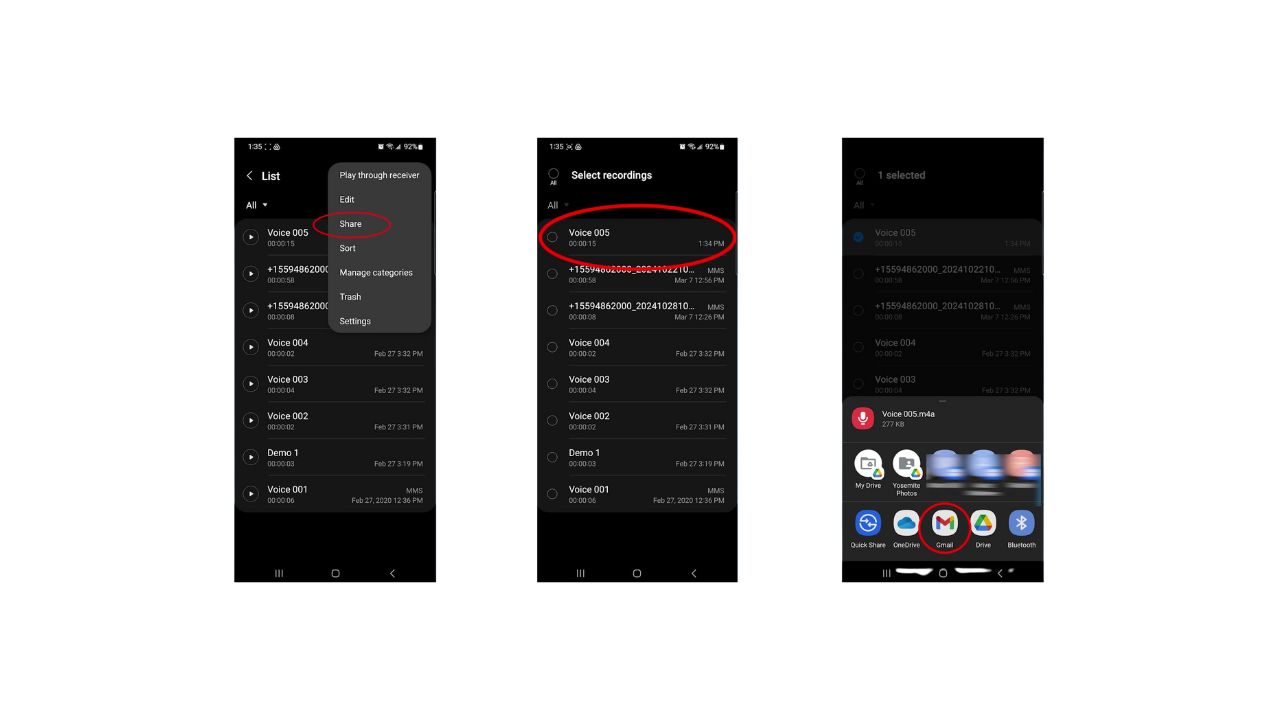
- Open the Voice Recorder app on your Android.
- Press record and play the voicemail out loud from another device (computer, laptop, or tablet).
- Once done, name it.
- Hit save.
- Tap the three dots (top-right).
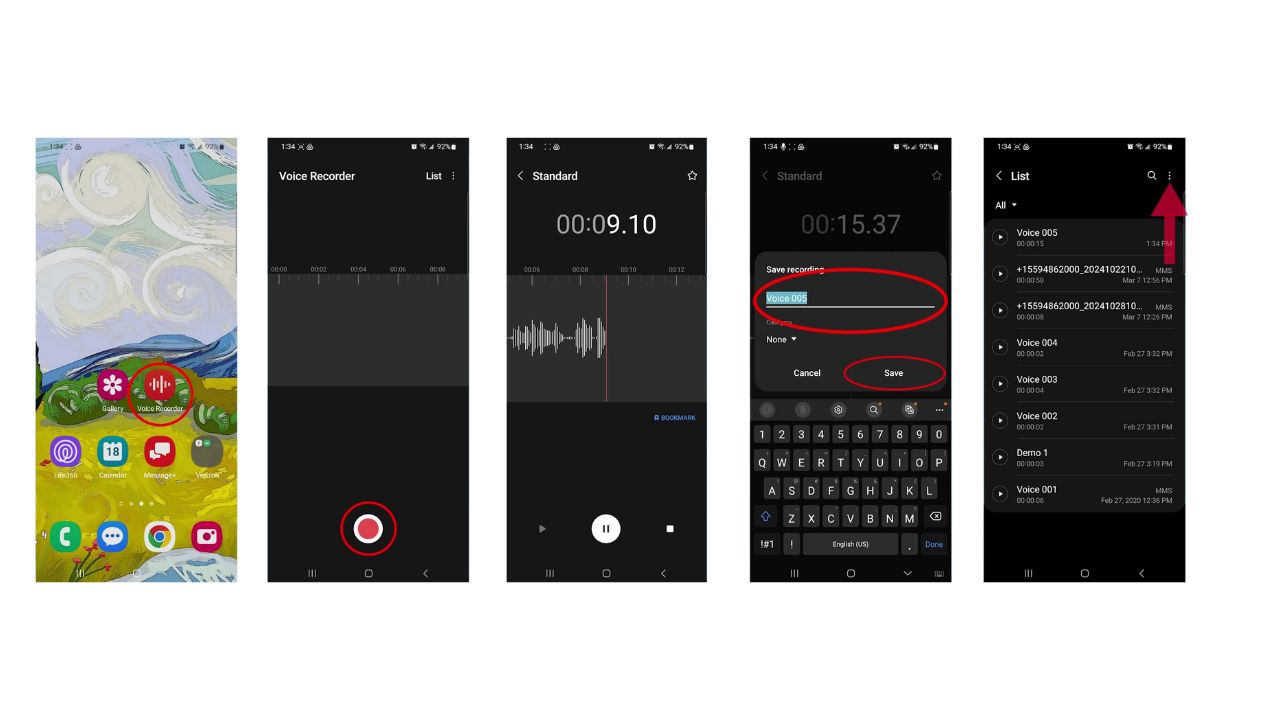
- Select Share.
- Pick your voicemail file.
- Then, share it via email, cloud storage, or Google Drive.
HOW TO REMOVE YOUR PRIVATE DATA FROM THE INTERNET
Step 3: Store and backup
Once you’ve saved or recorded the voicemails:
- Transfer them to your computer or cloud storage (e.g., Google Drive, Dropbox) or your hard drive.
- Consider creating multiple backups on external drives or USB sticks.
- Label files clearly with dates or descriptions for easy access later.
Kurt’s key takeaways
Saving those special voicemails is like preserving a piece of your heart. It’s a way to hold onto moments and voices that matter most. So go ahead, take a few minutes to safeguard those precious messages. Trust me; down the road, you will be so grateful you did.
What’s the most memorable voicemail you’ve ever received, and why is it so special to you? Let us know in the comments below.
FOR MORE OF MY TECH TIPS & SECURITY ALERTS, SUBSCRIBE TO MY FREE CYBERGUY REPORT NEWSLETTER HERE