How to stop spam text messages on your phone
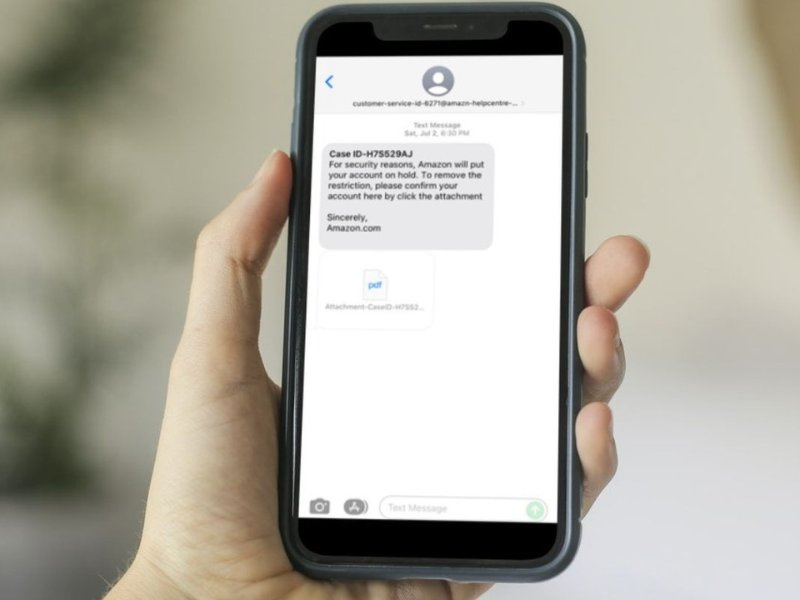
Have you been receiving spam text messages lately? These texts come from random phone numbers and strange email addresses. Spam text messages disrupt your day and try to trick you into giving away your personal information. If you receive a spam message, do not reply or open any link attached to the text message.
Now getting rid of those pesky spam text messages is easier than you think.
Follow the steps below to keep the spam text away.
How to stop spam text messages on iPhone
Step 1: How to filter text messages on an iPhone
- Open the ‘Settings’ app
- Scroll down to the ‘Messages’ app and open it
- Scroll down until you see ‘Filter Unknown Senders’
- Turn this feature on
- Open the Messages app, and you will see that your text messages have been filtered into five categories: ‘All Messages,’ ‘Known Senders,’ ‘Unknown Senders,’ ‘UnreadMessages,’ and ‘Recently Deleted.’
Now, when you receive a message from a sender that is not in your address book, the message will be sent to the ‘Unknown Senders‘ folder, and you will not receive a notification.
Tips
- Remember to check this filtered folder if you are expecting a text message from a new number. Any text message from a phone number and email address not in your contacts will be sent to the ‘Unknown Senders’ folder.
- To make sure you do not miss any text messages be sure to enter the person’s contact information in your address book.
Requirements:
- To use “Filter Unknown Senders,” you just need an iPhone that can run iOS 14 or later, which covers every model from the iPhone 6s and up. The feature works on all newer versions, including iOS 26. You also need to have iMessage turned on, since the filter won’t appear if iMessage is disabled.
- If you’re running iOS earlier than 14, you won’t have Apple’s “Filter Unknown Senders” tool. You can still block spam, but it’s more limited. You can block individual numbers by opening the message or call details and selecting Block this Caller, and you can silence unknown callers by going to Settings > Phone > Silence Unknown Callers (available in iOS 13 and later). Anything older than that can only block specific numbers one at a time.
Step 2: How to block spam phone numbers on an iPhone
- Open the spam text message
- Tap on the profile icon with the phone number under it
- Click ‘Info’
- Select ‘Block this Caller’
- Select ‘Block Contact’
How to review and manage spam texts in iOS 26
Apple makes it simple to find and clear unwanted messages. Just follow these quick steps.
- Open the Messages app.
- Tap the horizontal lines in the upper right corner.
- Select Unknown Senders.
- Review texts moved there automatically.
- Tap the right arrow > to Mark as known or Delete the spam.
You can check the folder anytime. Mark trusted contacts so they show up in your main inbox, or simply delete the clutter without being interrupted by lock screen notifications.
How to stop spam text messages on Samsung Galaxy (S10e – Android 12)
Settings may vary depending on your Android phone’s manufacturer
Step 1: Enable built-in spam protection
- Open the Messages app (the default Samsung Messages, unless you use another).
- Tap the three-dot menu in the top-right corner.
- Tap Settings.
- Tap Block numbers and spam.
- Tap Spam protection or Filter spam messages if you see it.
- Toggle Enable spam protection on.
This turns on Samsung’s built-in spam filter so suspected spam texts can be flagged or filtered automatically.
Step 2: Block specific numbers from texting you
- Open the spam text message thread in the Messages app.
- Tap the three-dot menu in the top-right corner.
- Tap Block number or Block contact.
- Confirm by tapping Block. If you see an option like Block & report spam, you can select that too.
- On some versions, you can also tap the name/number at the top of the conversation, tap Info, then tap Block.
Once blocked, that number will no longer be able to send you texts or call you.
Step 3: Block unknown or private numbers
- Open the Phone app (dialer).
- Tap the three-dot menu in the top-right corner, then tap Settings.
- Tap Block numbers.
- Toggle on Block unknown/private numbers if available.
- Next, open the Messages app again.
- Tap the three-dot menu → Settings → Block numbers and spam.
- Turn on Block unknown senders or a similar option if you want texts from non-contacts to be filtered.
This helps keep random, hidden or private numbers from getting through to your main inbox.
Step 4: Turn on your carrier’s spam-filtering tools
- Open your carrier’s app on your phone (for example, your mobile provider’s main app).
- Sign in to your account if needed.
- Look for a section like Security, Call protection, or Spam & fraud protection.
- Turn on any options for blocking spam calls and texts, or spam alerts.
- Follow any prompts to confirm changes.
Carrier-level filters can stop a lot of scam and spam texts before they ever reach your phone.
Step 5: Do not engage with spam texts
- Do not tap any links in messages you are not expecting.
- Do not reply to suspicious texts, even with words like “STOP,” unless you are sure it is from a legitimate service you signed up for.
- Delete the message after blocking and, where possible, reporting it as spam.
Avoiding clicks and replies makes it harder for scammers to confirm that your number is active.
Step 6: Regularly review your blocked list
- Open the Messages app.
- Tap the three-dot menu → Settings.
- Tap Block numbers and spam.
- Tap Blocked numbers or Blocked messages to review what has been filtered.
- If you see any number that should not be blocked, tap it and choose the option to Unblock or restore it.
Checking this list from time to time helps make sure you are not missing important messages by accident.
Blocking spam text messages will help keep your message inbox from being flooded with scam texts. Remember to keep yourself safe and never click the links or reply to the spam message.
How to keep spammers from getting your phone number
Regrettably, there is a high probability that your phone number is readily available on many lists sold by data brokers to hundreds of people search websites. However, if you remove it from the web it can reduce the likelihood of spammers and telemarketers obtaining your number and contacting you.
Incogni, a service I trust 100% and use myself, helps automate the process by submitting removal requests to hundreds of data brokers and people-search sites on your behalf.
Incogni automatically contacts data brokers on your behalf and requests the removal of your personal information. It also continues monitoring those sites and submits new removal requests if your data reappears.
- Incogni currently removes personal data from 420+ data broker and people-search websites, and its Unlimited plan allows you to request removals from as many additional sites as you need.
- Incogni has also received third-party assurance from Deloitte, validating its marketing claims.
- The goal is simple: make it much harder for strangers, scammers, and cybercriminals to find your personal information online.
CyberGuy readers get 60% off Incogni’s annual plans using the links in this article.
The service also includes a 30-day money-back guarantee, so you can try it risk-free and see how much of your information is exposed online.
Related:
- How to stop the never-ending stream of spam emails
- New ways to stop Robocalls & Texts
- iOS 26 blocks spam texts automatically
Copyright 2025 CyberGuy.com. All rights reserved. CyberGuy.com articles and content may contain affiliate links that earn a commission when purchases are made.