Malicious browser extensions hit 4.3M users

A long-running malware campaign quietly evolved over several years and turned trusted Chrome and Edge extensions into spyware. A detailed report from Koi Security reveals that the ShadyPanda operation affected 4.3 million users who downloaded extensions later updated with hidden malicious code.
These extensions began as simple wallpaper or productivity tools that looked harmless. Years later, silent updates added surveillance functions that most users could not detect.

How the ShadyPanda campaign unfolded
The operation included 20 malicious Chrome extensions and 125 on the Microsoft Edge Add-ons store. Many first appeared in 2018 with no obvious warning signs. Five years later, the extensions began receiving staged updates that changed their behavior.
Koi Security found that these updates rolled out through each browser’s trusted auto update system. Users did not need to click anything. No phishing. No fake alerts. Just quiet version bumps that slowly turned safe extensions into powerful tracking tools.
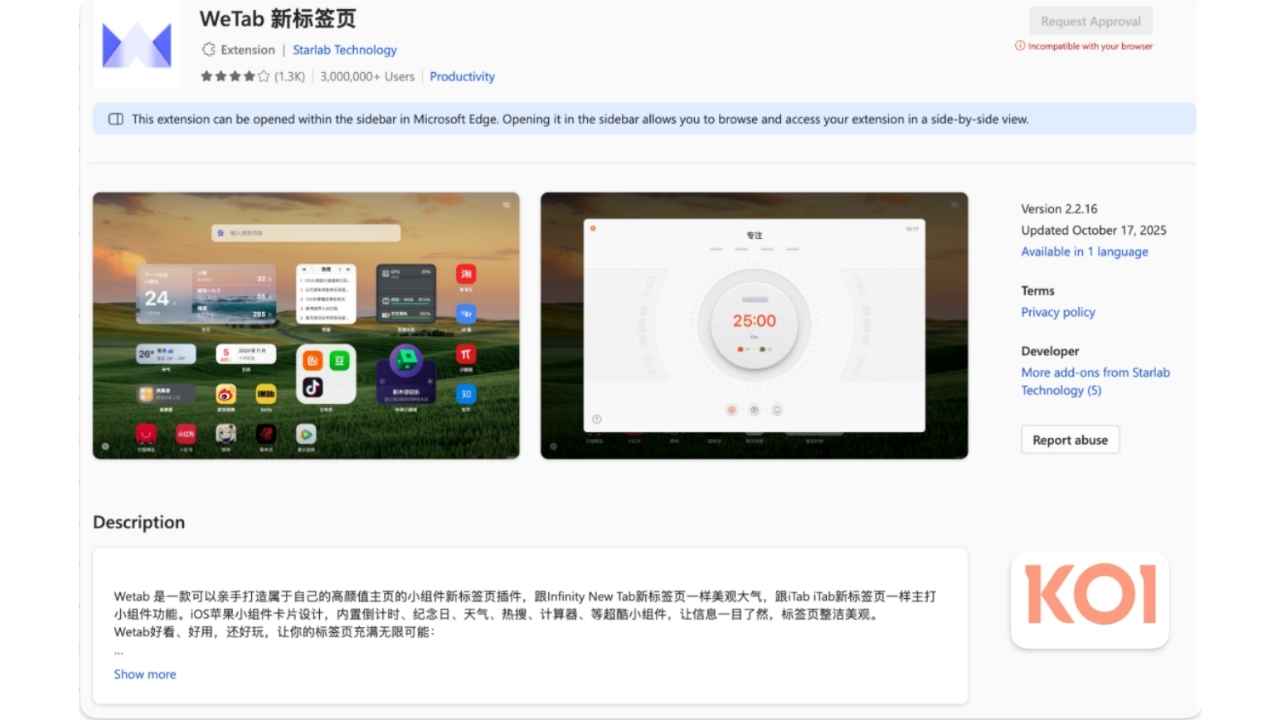
Credit: Koi
What the extensions were doing behind the scenes
Once activated, the extensions injected tracking code into real links to earn revenue from user purchases. They also hijacked searches, redirected queries and logged data for sale and manipulation. ShadyPanda gathered an unusually broad range of personal information, including browsing history, search terms, cookies, keystrokes, fingerprint data, local storage, and even mouse movement coordinates. As the extensions gained credibility in the stores, the attackers pushed a backdoor update that allowed hourly remote code execution. That gave them full browser control, letting them monitor websites visited and exfiltrate persistent identifiers.
Researchers also discovered that the extensions could launch adversary in the middle attacks. This allowed credential theft, session hijacking and code injection on any website. If users opened developer tools, the extensions switched into harmless mode to avoid detection. Google removed the malicious extensions from the Chrome Web Store. We reached out to the company, and a spokesperson confirmed that none of the extensions listed are currently live on the platform.
Meanwhile, a Microsoft spokesperson told CyberGuy, “We have removed all the extensions identified as malicious on the Edge Add-on store. When we become aware of instances that violate our policies, we take appropriate action that includes, but is not limited to, the removal of prohibited content or termination of our publishing agreement.”
You can review the full list of affected Chrome and Edge extensions to see every ID tied to the ShadyPanda campaign by clicking here and scrolling down to the bottom of that page.
Please note:
- Most of the extensions tied to ShadyPanda were removed or never existed in the public stores under real names, which means you won’t find friendly titles or descriptions to look up. The only reliable identifiers are the long alphanumeric extension IDs uncovered by researchers. These IDs acted as the extensions’ true fingerprints, and many belonged to side-loaded, hidden or rapidly replaced malware that never had a visible store page.
- In practical terms, the only way to know if you’re affected is to check the extension IDs installed on your browser. To do this, open Chrome or Edge, go to your extensions page, switch on developer mode and look for the ID listed under each item. Then compare those IDs with the full list at the bottom of this article. It’s a tedious process, especially if you have many extensions installed, but right now it’s the only reliable method to confirm whether one of these malicious extensions made its way onto your device. See more below.

How to check whether your browser contains these extension IDs
Here is an easy, step-by-step way for you to verify if any malicious extension IDs are installed.
For Google Chrome
- Open Chrome.
- Type chrome://extensions into the address bar.
- Press Enter.
- Look for each extension’s ID.
- Click Details under any extension.
- Scroll down to the Extension ID section.
- Compare the ID with the lists above.
- If you find a match, remove the extension immediately.
For Microsoft Edge
- Open Edge.
- Type edge://extensions into the address bar.
- Press Enter.
- Click Details under each extension.
- Scroll to find the Extension ID.
- If an ID appears in the lists, remove the extension and restart the browser.
Again, checking each ID can feel tedious, and for some people this level of inspection may be more technical than they’re comfortable with. That’s understandable. If you don’t feel confident doing this yourself, consider removing any extensions you don’t recognize, or disabling all nonessential extensions temporarily until a trusted tech-savvy friend, family member or professional can help you review them. The important thing is staying aware, since right now this manual comparison method is the only reliable way to confirm whether one of these malicious extensions is on your device.
How to protect your browser from malicious extensions
You can take a few quick actions that help lock down your browser and protect your data.
1) Remove suspicious extensions
Before removing anything, check your installed extensions against the IDs listed in the section above. Most of the malicious extensions were wallpaper or productivity tools. Three of the most mentioned are Clean Master, WeTab and Infinity V Plus. If you installed any of these or anything that looks similar, delete them now.
2) Reset your passwords
These extensions had access to sensitive data. Resetting your passwords protects you from possible misuse. A password manager makes the process easier and creates strong passwords for each account.
Next, see if your email has been exposed in past breaches. Our #1 pick, NordPass, includes a built-in breach scanner that checks whether your email address or passwords have appeared in known leaks. If you discover a match, immediately change any reused passwords and secure those accounts with new, unique credentials.
- Unlimited password storage
- Secure sharing
- Password health reports
- Auto-fill and emergency access
- Data breach monitoring to alert you if your credentials have been exposed
- A Security Dashboard with tools like the Data Breach Scanner and Password Health Checker to identify weak, reused, or compromised passwords
CyberGuy Exclusive Deal: Save 52% now with CyberGuy’s exclusive NordPass offer – Get 1 extra month FREE with a 2-year plan. Try 30 days risk-free for only $1.43 per month!
3) Use a data removal service to reduce tracking
ShadyPanda collected browsing activity, identifiers and behavioral signals that can be matched with data already held by brokers. A data removal service helps you reclaim your privacy by scanning people-search sites and broker databases to locate your exposed information and remove it. This limits how much of your digital footprint can be linked, sold or used for targeted scams.
While no service can guarantee the complete removal of your data from the internet, a data removal service is really a smart choice. They aren’t cheap, and neither is your privacy. These services do all the work for you by actively monitoring and systematically erasing your personal information from hundreds of websites. It’s what gives me peace of mind and has proven to be the most effective way to erase your personal data from the internet. By limiting the information available, you reduce the risk of scammers cross-referencing data from breaches with information they might find on the dark web, making it harder for them to target you.
Incogni, a service I trust 100% and use myself, helps automate the process by submitting removal requests to hundreds of data brokers and people-search sites on your behalf.
Incogni automatically contacts data brokers on your behalf and requests the removal of your personal information. It also continues monitoring those sites and submits new removal requests if your data reappears.
- Incogni currently removes personal data from 420+ data broker and people-search websites, and its Unlimited plan allows you to request removals from as many additional sites as you need.
- Incogni has also received third-party assurance from Deloitte, validating its marketing claims.
- The goal is simple: make it much harder for strangers, scammers, and cybercriminals to find your personal information online.
CyberGuy readers get 60% off Incogni’s annual plans using the links in this article.
The service also includes a 30-day money-back guarantee, so you can try it risk-free and see how much of your information is exposed online.
Is your personal information exposed online?
Run a free scan to see if your personal info is compromised. Results arrive by email in about an hour.
4) Install strong antivirus software
An antivirus may not have caught this specific threat due to the way it operated. Still, it can block other malware, scan for spyware and flag unsafe sites. Many antivirus tools include cloud backup and VPN options to add more protection.
The best way to safeguard yourself from malicious links that install malware, potentially accessing your private information, is to have strong antivirus software installed on all your devices. This protection can also alert you to phishing emails and ransomware scams, keeping your personal information and digital assets safe.
TotalAV is easy to set up and offers real-time protection for paid users, keeping your devices safe around the clock. It includes tools to block phishing scams, remove ransomware and spyware, and clean up adware and junk files. The software also features a browser manager, system tune-up tools, and protects across Windows, Mac, Android, and iOS devices.
GET MY EXCLUSIVE CYBERGUY TOTALAV DEAL:
Please note:
1) If you're having difficulty seeing either of the above deals, do this:
- If you're on a mobile device, hold down the link above, "Copy Link", and then paste it into a private or incognito browser.
- If you're on a laptop or desktop, right click the link, "Copy Link", and then paste it into a private or incognito browser.
2) During registration you may see optional upsells you can decline. Our top pick is the core antivirus product.
3) If you need help after your purchase, you can reach TotalAV directly through their official support page here.
5) Limit your extensions
Each extension adds risk. Stick with known developers and search for recent reviews. If an extension asks for permissions it should not need, walk away.
Related Links:
- Surprising places your personal data is exposed and how to remove it
- Protect your data before holiday shopping scams strike
- Take back your privacy with custom data removals
Kurt’s key takeaways
ShadyPanda ran for years without raising alarms and proved how creative attackers can be. A trusted extension can shift into spyware through a silent update, which makes it even more important to stay alert to changes in browser behavior. You protect yourself by installing fewer extensions, checking them from time to time and watching for anything that feels out of place. Small steps help lower your exposure and reduce the chances that hidden code can track what you do online.
Have you ever found an extension on your browser that you didn’t remember installing or one that started acting in strange ways? How did you handle it? Let us know in the comments below.
FOR MORE OF MY TECH TIPS & SECURITY ALERTS, SUBSCRIBE TO MY FREE CYBERGUY REPORT NEWSLETTER HERE
Copyright 2025 CyberGuy.com. All rights reserved. CyberGuy.com articles and content may contain affiliate links that earn a commission when purchases are made.