How to stop scam texts from targeting aging parents
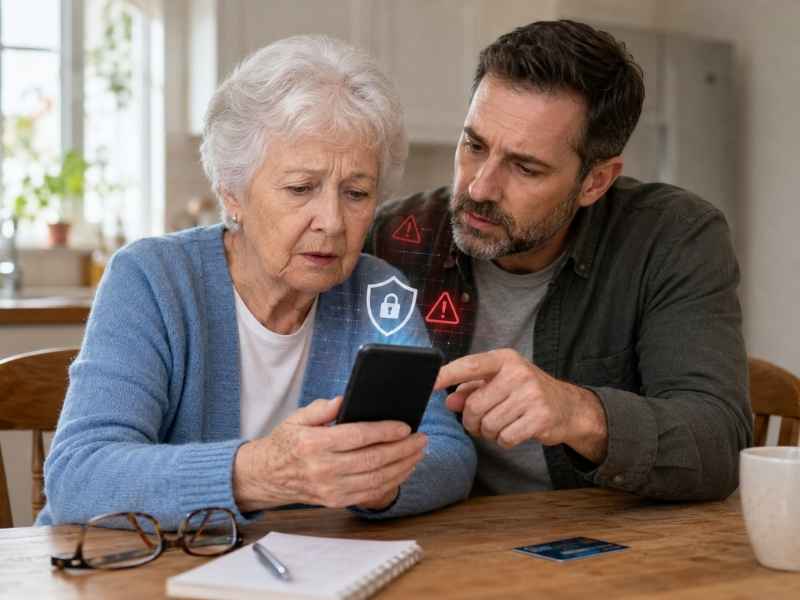
- Scam texts can be especially risky for aging parents with memory issues or mild dementia.
- iPhone and Samsung settings can help limit risky messages, calls, purchases and apps.
- Removing saved cards can stop one bad tap from becoming a surprise charge.
- Carrier blocking, bank alerts and caregiver controls can add stronger protection beyond the phone.
Scam texts are annoying for everyone. For older adults with memory issues, they can become financially disastrous. Rob from Kennesaw, Georgia, is dealing with that exact situation. His mom uses her iPhone for nearly everything, and scam texts keep pulling her into links, purchases and political donation pages. His story shows why this problem needs more than another reminder to “be careful.”
Here’s what Rob asked us:
“My mom is 81 years old with mild dementia. She uses her iPhone for everything and gets bombarded with texts all day from scams and political campaigns. Last year, I found that she had given $25 to a campaign, and over about two months, they charged more than $5,000 across two cards. Fortunately, I disputed the charges and got the money refunded. The problem is, the texts keep coming. Every couple of weeks, she clicks something and buys a service she does not need. She tells me she does not remember doing it, but I can see the texts and browser history. I already have the new iOS text filter on, but she opens the filtered texts and starts looking through them. I am so frustrated. Is there a way to stop all texts except known contacts, or are there any other ideas?”
Rob, I get why you’re frustrated. You are doing the right thing by watching the accounts, disputing charges and trying to keep your mom safe. But with mild dementia involved, reminders only go so far. She may truly have no memory of clicking a link or buying something.
That means the phone needs more guardrails. The goal is to make risky texts harder to see, risky links harder to tap and surprise charges harder to complete. You do that by tightening the phone, the carrier account, the payment setup and the bank alerts.
Let’s walk through the settings and safeguards that can help protect her while still letting her use the phone for the people and services she actually needs.

Why scam texts put aging parents at risk
A scam text may look obvious to you. For someone with mild dementia, it may look urgent, familiar or harmless. That matters because scammers rely on quick reactions. A text may say a package is delayed, a donation needs confirmation, or an account needs attention. One tap can lead to a payment page. One saved card can turn that tap into a charge. So, the goal changes. You are not trying to make your parent perfect at spotting scams. You are trying to reduce the number of risky choices that appear in front of them.
How to limit texts on an iPhone
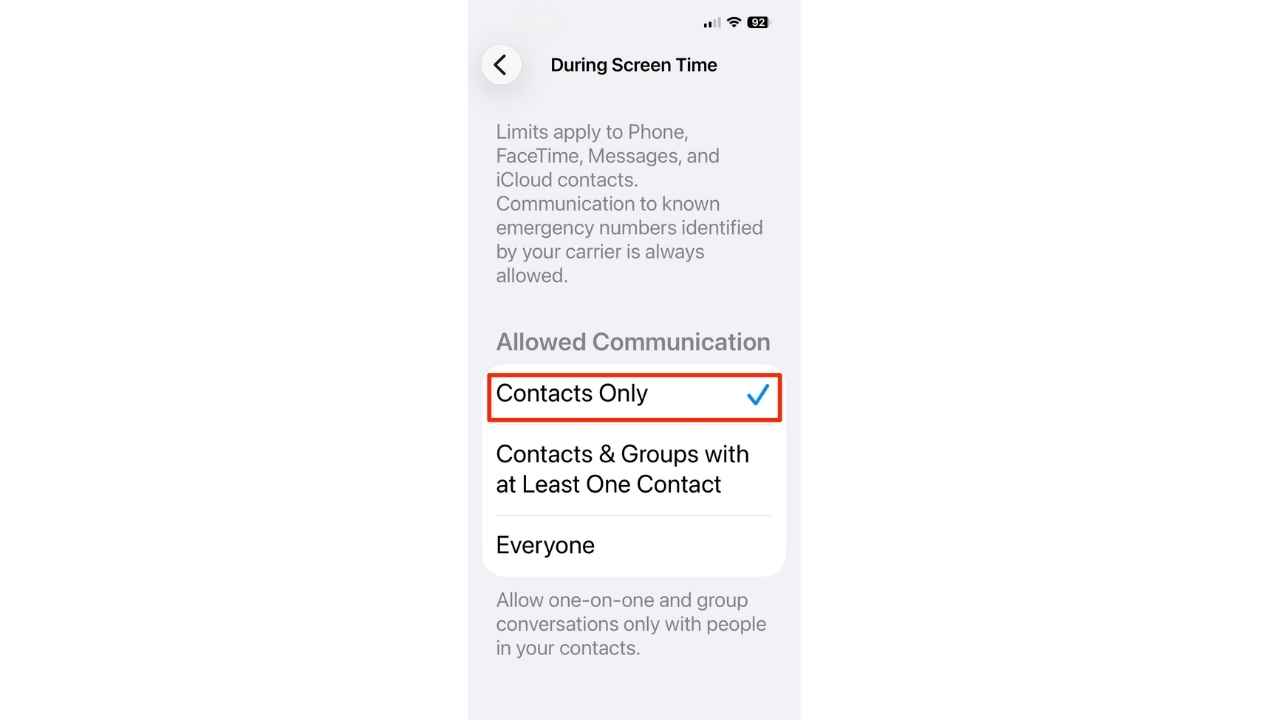
If your parent uses an iPhone, start with Apple’s built-in Screen Time controls. The built-in iPhone option is Communication Limits. This setting can limit who can contact your parent through Phone, FaceTime, Messages and supported Apple communication features.
Before you start, make sure iCloud Contacts are turned on. Go to Settings > [your name] > iCloud and look under Saved to iCloud for Contacts. Make sure Contacts is enabled. You may need to tap See All or Show All to find it.
On her iPhone:
- Go to Settings
- Tap Screen Time
- Tap Turn On Screen Time, if it has not already been enabled
- Tap Lock Screen Time Settings
- Set a Screen Time passcode that only you know
- Tap Communication Limits
- Tap During Screen Time
- Choose Contacts Only
Set the Screen Time passcode yourself. Avoid using a code your parent already knows or might guess. This passcode helps keep those settings from being changed later.
One important note: Contacts Only allows communication with people saved in Contacts. For tighter control, review her Contacts list and remove anyone unfamiliar.
How to use iPhone Downtime to reduce risky clicks
Downtime can make the iPhone quieter during certain hours. That can help if your loved one tends to click around at night or during times when you cannot check in.
To turn on Downtime:
- Go to Settings
- Tap Screen Time
- Tap Downtime
- Turn on Scheduled
- Choose the days and times you want Downtime to run
Then make sure trusted contacts can still get through:
- Go back to Screen Time
- Tap Communication Limits
- Tap During Downtime
- Choose Specific Contacts
- Select Choose From My Contacts
- Select trusted family, caregivers, doctors and close friends
- Click the blue circle with the check mark in the upper-right of the screen
This may feel restrictive at first. However, if cards keep getting canceled and reissued, a safer setup can protect both her money and your peace of mind.
How to turn on iPhone spam text filtering
Apple’s message filtering can help. In newer versions of iOS, unknown senders can be sorted into a separate area. However, those messages may still be viewable, which is exactly the issue Rob described. His mom sees the badge, opens Messages and starts looking through filtered texts.
To check unknown sender filtering on an iPhone:
- Go to Settings
- Tap Apps
- Tap Messages
- Scroll down to Unknown Senders and turn on Screen Unknown Senders
Then check spam filtering:
- Go to Settings
- Tap Apps
- Open Messages
- Scroll down and turn on Filter Spam
Keep this on, but do not rely on it alone. If your parent can still open filtered texts and tap links, you need more protection.
How to remove the iPhone Messages badge
This is a small setting that can make a real difference. If the red Messages badge keeps pulling your parent back into the app, turn off badges for Messages.
To turn off Messages badges:
- Go to Settings
- Tap Notifications
- Scroll down and tap Messages
- Turn off Badges
She can still receive texts. However, the red number will no longer invite her to hunt through filtered messages. For some families, that one change can reduce the urge to check every message.
How to reduce scam texts on a Samsung phone
If your parent uses a Samsung phone with the latest available Android and One UI software, start by checking for updates.
To check for software updates:
Settings may vary depending on your Android phone’s manufacturer
- Go to Settings
- Tap Software update
- Tap Download and install
- Follow any on-screen prompts if an update is available
Then turn on spam protection in Google Messages:
Settings may vary depending on your Android phone’s manufacturer
- Open Google Messages
- Tap the profile icon
- Tap Messages settings
- Tap Protection & Safety
- Tap Spam protection
- Turn on Spam protection
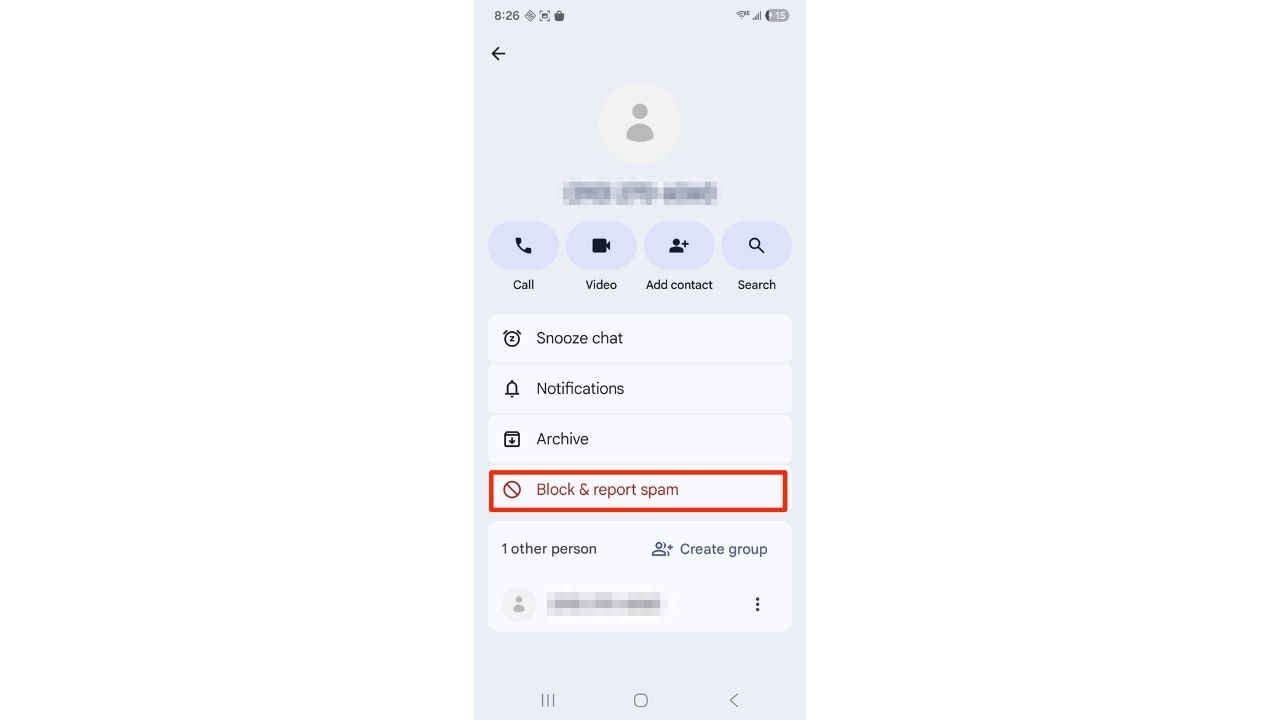
To block and report a scam text in Google Messages:
Settings may vary depending on your Android phone’s manufacturer
- Open Google Messages
- Open the scam conversation
- Tap the three dots
- Tap Details
- Tap Block & report spam
- Tap Yes
How to block scam calls on Samsung phones
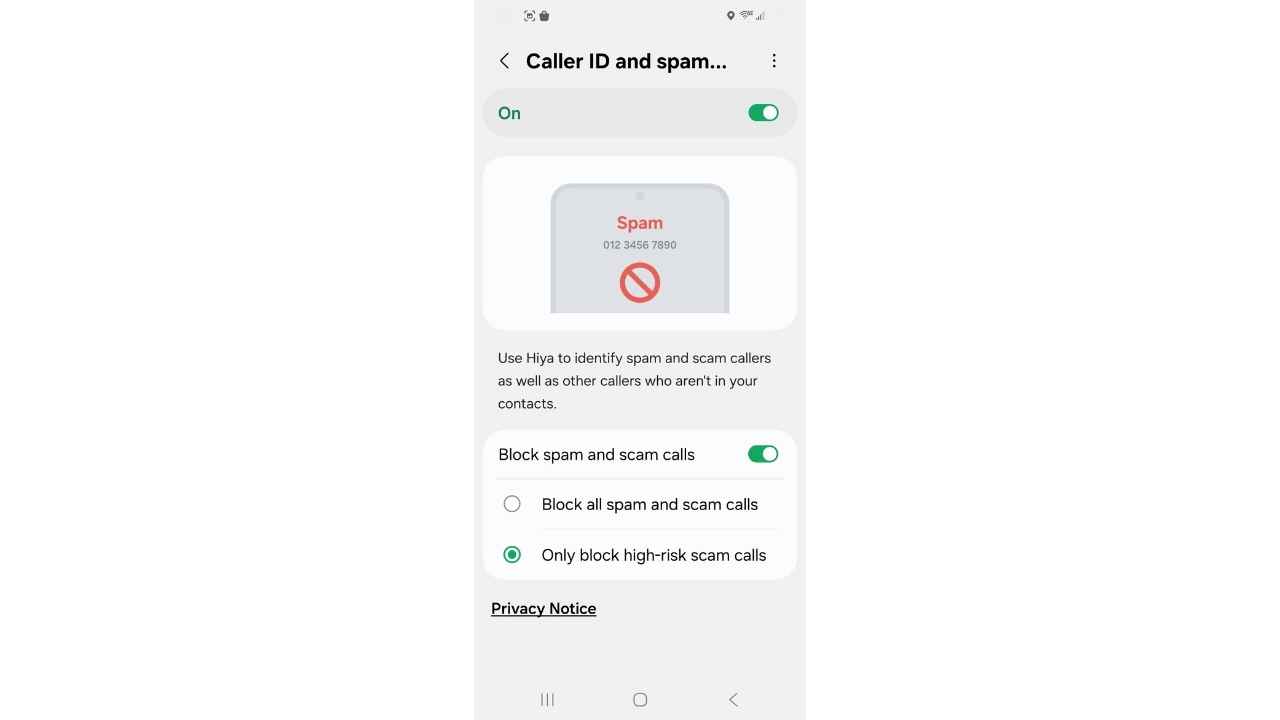
Scam texts are the bigger issue in Rob’s case, but scam calls often come from the same world of bad actors. On a Samsung phone, turn on Samsung’s Caller ID and spam protection.
To turn it on:
Settings may vary depending on your Android phone’s manufacturer
- Open the Phone app
- Tap the three dots
- Tap Settings
- Tap Caller ID and spam protection
- Turn on Caller ID and spam protection
Then turn on stronger spam blocking:
- Tap Block spam and scam calls
- Choose the strongest blocking option available
Samsung says Galaxy phones can use Smart Call to identify suspected spam callers and block spam or scam calls. This will not stop every scam call. Still, it adds another layer.
How to limit risky apps on a Samsung phone
Samsung does not have the same Communication Limits setup as the iPhone. However, you can still reduce risk with Digital Wellbeing and parental controls.
To set an app timer on a Samsung phone:
- Go to Settings
- Tap Digital Wellbeing and parental controls
- Scroll to the App timers section
- Find Messages or another app you want to limit
- Tap Set timer
- Choose the daily time limit
- Tap Save
This can help reduce repeated checking or late-night clicking, especially if scam texts keep pulling your loved one back into the Messages app.
How to find parental controls on a Samsung phone
You can also explore Google Family Link if it fits your family situation. Family Link can help manage app use, screen time and some account controls, depending on the Google account and phone setup.
Settings may vary depending on your Android phone’s manufacturer
- Go to Settings
- Tap Digital Wellbeing and parental controls
- Scroll down and tap Parental controls
- Tap Get started or Let’s do this
- Follow the on-screen steps
This may help a caregiver manage app installs, screen time and some account controls. The exact options depend on the Google account and phone setup.
How carriers can help block scam texts
The next step is her cell carrier. Some blocking happens at the network level before the text reaches the phone. Call the carrier and say something like: “My mom is an older adult with memory issues. She is being financially targeted through scam texts. What is the strongest SMS spam and scam blocking you can add to her line?”
Ask the carrier:
- Can you add enhanced spam SMS filtering?
- Can you block known scam and political text senders?
- Can you restrict premium SMS or third-party billing?
- Can you help change her number if the current one is overrun?
Changing her number is inconvenient. In a severe case, though, it may be worth considering. If her number is already circulating through scam lists and political donation databases, a new number could slow the flood.

How to handle political texts safely
Political texts can be especially tricky. Some are legitimate. Others use urgent language that can pressure people into giving again. For political texts, reply STOP only when you feel confident the sender is a legitimate campaign or organization. Do not tap donation links inside the message.
If the texts continue, block the sender and report the message as junk. You can also report unwanted texts to the FCC through its consumer complaint center.
Remove saved cards from the phone
This is one of the most important steps. If your parent can tap a link and pay instantly, the phone remains too open. Removing saved cards adds friction. That friction can stop a bad click from becoming a charge.
To remove cards from iPhone Wallet:
- Go to Settings
- Tap Wallet & Apple Pay
- Tap any card that your parent does not need
- Scroll down and tap Remove Card
- Confirm the removal by taping Remove
Then turn off saved credit cards in Safari:
- Go to Settings
- Tap Apps
- Tap Safari
- Tap AutoFill
- Turn off Credit Cards
- Tap Saved Credit Cards and remove any stored cards, if listed
On a Samsung phone, check Samsung Wallet first:
Settings may vary depending on your Android phone’s manufacturer
- Open Samsung Wallet
- Tap the All tab
- Tap Payment cards
- Choose the card you want to remove
- Tap More options, the three vertical dots
- Tap Delete card
- Confirm the removal
- Verify with your Samsung Wallet PIN, fingerprint or other security method, if prompted
One important note: deleting a card from Samsung Wallet removes it from the phone, but it does not cancel the physical card. To close the card completely, contact the card issuer.
Then check Google Wallet:
Settings may vary depending on your Android phone’s manufacturer
- Open Google Wallet
- Swipe left until you find the card you want to remove
- Tap the card
- Tap More, the three dots in the upper-right corner
- Tap Remove payment method
- Confirm the removal
Also, remove saved cards from shopping sites, PayPal, campaign donation sites and browsers. Check retail apps, delivery apps, donation platforms and streaming services too. If the card is stored somewhere, a scam page may be only a few taps away.
Use a low-limit card for essential purchases
If your parent still needs to make occasional purchases, consider using one separate low-limit card.
This can contain the damage if she clicks on another bad link. You can also ask the card issuer about online purchase restrictions, merchant blocks and daily spending limits.
Another option is a prepaid card with a small balance. That can give her some independence while protecting her main accounts.
If you are comparing card options for an older parent, our guide to the best credit cards for seniors and retirees breaks down features that may matter, including fees, fraud protections and everyday benefits.
Ask the bank about caregiver controls
Banks and credit unions may offer tools that help families protect older adults from fraud.
Ask the bank about:
- Real-time transaction alerts to your phone
- A trusted contact on the account
- Lower credit limits
- Merchant category blocks
- Online transaction restrictions
- A read-only login for you
- Verbal confirmation for large or unusual charges
Also, ask whether the bank can flag repeated political donations or recurring online charges for review. Do not assume the first customer service rep knows every option. Ask for the fraud department or an elder financial exploitation team if the bank has one.
Add a trusted contact to financial accounts
A trusted contact can give a financial institution someone to reach if it sees warning signs. This does not automatically give that person full access to the account. However, it can help the bank contact someone reliable if something looks wrong.
For Rob, this could be especially useful because he already monitors his mom’s accounts. A trusted contact setup may make it easier for the bank to involve him when unusual activity appears.
Consider a financial power of attorney
This is where the situation gets serious. If your mom cannot remember purchases and keeps getting pulled into payment links, it may be time to talk with an elder-law attorney. Ask about a financial power of attorney or other legal tools that let you protect her money.
This does not mean taking away her dignity. It means creating a plan before scammers and aggressive fundraisers drain more money. The right setup depends on your state, her diagnosis, her finances and her ability to make decisions. An elder-law attorney can help you avoid mistakes that create family or banking problems later.
Lock down email, subscriptions and browser accounts
Texts may be the entry point, but scammers often move people across email, websites and payment pages.
Since Rob already has access to his mom’s email and banking, he should also check:
- Email forwarding rules
- Saved passwords
- Browser autofill
- Recurring subscriptions
- Donation accounts
- App Store subscriptions
- PayPal or payment apps
To check subscriptions on iPhone:
- Go to Settings
- Tap her name at the top
- Tap Subscriptions
- Review active subscriptions
- Cancel anything she does not need
To check Google Play subscriptions on a Samsung phone:
Settings may vary depending on your Android phone’s manufacturer
- Open the Google Play Store
- Tap the profile icon
- Tap Payments & subscriptions
- Tap Subscriptions
- Review active subscriptions
- Cancel anything she does not need
Then check the browser history and saved payment methods.
To clear Safari history on iPhone:
- Go to Settings
- Tap Apps
- Tap Safari
- Scroll down and tap Clear History and Website Data
- Click All history
- Confirm the action by clicking Clear History
To delete browsing data in Samsung Internet:
Settings may vary depending on your Android phone’s manufacturer
- Open Samsung Internet
- Tap Menu, the three horizontal lines
- Tap Settings
- Tap Personal browsing data
- Tap Delete browsing data
- Choose what you want to delete, such as browsing history, cookies, site data, cached images and files
- Tap Delete data
- Tap Delete to confirm
This can remove old scam pages or saved site data that your parent may accidentally revisit, though it will not block new scam texts.
To delete browsing data in Chrome on Android:
Settings may vary depending on your Android phone’s manufacturer
- Open Chrome
- Tap the three dots
- Tap Settings
- Tap Privacy and security
- Tap Delete browsing data
- Choose the time range and data types
- Tap Delete data
This will not stop future scams by itself. However, it can remove old pages that she may revisit.
Turn on purchase restrictions when possible
If your parent uses an iPhone, Screen Time can limit purchases and app installs.
To restrict purchases on iPhone:
- Go to Settings
- Tap Screen Time
- Tap Content & Privacy Restrictions
- Turn on Content & Privacy Restrictions
- Tap iTunes & App Store Purchases
- Tap Installing Apps and choose Don’t Allow
- Tap Deleting Apps and choose Don’t Allow, if needed
- Tap In-app Purchases and choose Don’t Allow
If your parent uses a Samsung phone, you can add purchase controls through Google Play.
To require purchase authentication on a Samsung phone:
Settings may vary depending on your Android phone’s manufacturer
- Open the Google Play Store
- Tap the profile icon
- Tap Settings
- Tap Authentication
- Tap Require authentication for purchases
- Choose the strongest option available
This can help if scam texts lead her to download apps or pay for unnecessary services.
Consider identity theft protection
Since your mom has already been financially targeted, identity theft protection is worth considering.
Our #1 pick for identity theft protection is Aura (Get 58% off through our CyberGuy deal). It can help monitor for signs of identity theft, suspicious activity and fraud alerts.
Identity theft protection will not stop every scam text. However, it can help you spot signs that her personal information is being misused elsewhere.
Reduce scam targeting with data removal
Scammers often get personal information from data broker sites, old records, public listings and marketing databases.
A data removal service such as Incogni can help reduce how much of her information is floating around online. That may help cut down on scam targeting over time.
This is not instant. It also will not stop every message. Still, it can be very useful as part of a broader protection plan.
Add phone protection against risky links
For phone and device protection, our #1 pick for antivirus is Norton Antivirus Plus (Get 58% off through our Cyberguy deal). It helps protect iPhone, Android, Mac and PC devices from malware, phishing links, unsafe downloads and other online threats.
On an iPhone, antivirus software works differently than it does on a PC. The bigger value is usually safer browsing, phishing protection and alerts for risky links. On a Samsung phone, mobile security tools can also help warn about risky websites, phishing attempts and suspicious links.
What caregivers should do first?
Rob, start with the changes that reduce the most risk right away.
If your mom uses an iPhone, set Screen Time Communication Limits to contacts only. Then turn off Messages badges so filtered texts stop grabbing her attention. After that, remove saved cards from Wallet, Safari and shopping accounts.
If your parent uses a Samsung phone, update the phone, turn on Google Messages spam protection, block repeat senders and enable Samsung’s spam call protection. Then remove saved cards from Samsung Wallet, Google Wallet and shopping apps.
Next, call the carrier and ask for the strongest scam-text protection available. Then call the bank and ask about trusted contacts, transaction alerts, merchant blocks and lower limits.
Finally, talk with an elder-law attorney if the problem keeps happening. At this point, you are dealing with a financial safety issue, not a normal spam-text annoyance.
Related Links:
- Cyber safety for older parents: How to protect them online
- 5 Data broker opt-out myths that leave retirees exposed
- The one thing that could protect your parents from scammers
Kurt’s key takeaways
Rob’s situation is heartbreaking because his mom likely has no idea how often this is happening. She may truly believe she did not buy anything. That is what makes dementia-related scam protection so hard. The goal is not to shame her or strip away every bit of independence. The goal is to make the phone safer before the next scam text arrives. A few settings can help. But the real protection comes from layering phone limits, carrier tools, payment restrictions and bank alerts. Scammers are counting on confusion, curiosity and one easy click. Families need to make that click harder to reach and harder to turn into a charge.
What steps have you taken to protect an aging loved one from scam texts, risky links or surprise charges? Let us know in the comments below.
FOR MORE OF MY TECH TIPS & SECURITY ALERTS, SUBSCRIBE TO MY FREE CYBERGUY REPORT NEWSLETTER HERE
Copyright 2026 CyberGuy.com. All rights reserved. CyberGuy.com articles and content may contain affiliate links that earn a commission when purchases are made.