How to free up space on your Android

- Hidden thumbnails, old downloads and duplicate files can quietly eat up space on your Android phone.
- Google Photos can free up storage by removing local copies of photos already backed up to your account.
- Uninstalling apps you no longer use is one of the fastest ways to reclaim storage.
- Always review files before deleting them so you do not accidentally remove important photos, videos or documents.
If you’re wondering how to free up space on your Android phone, you’re not alone. Running out of storage can be frustrating, but there are simple and effective tricks to reclaim valuable space on your device. Whether it’s uninstalling unused apps, clearing cached files, or leveraging cloud storage, these methods can make a big difference.
Important upfront note before you start:
Some Android storage cleanup tools do not permanently delete photos, but they may remove full-resolution copies from your phone once those photos are backed up to the cloud. This can make it appear as if photos or screenshots are “gone” when they are actually still safe in Google Photos or another backup service. Always confirm your photos are fully backed up before freeing up space.
iPhone users, don’t worry, we’ve got tips for you too. Here’s how to free up space on your device.
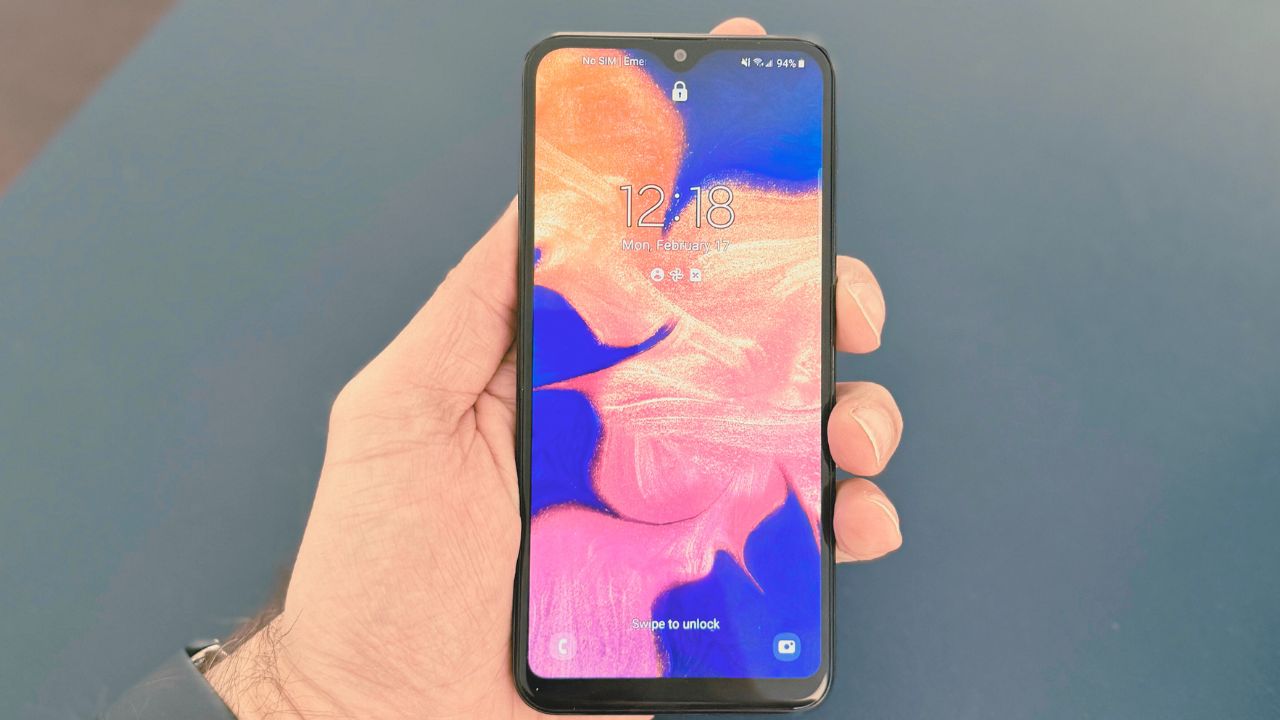
Trick #1: Delete hidden clutter
Hidden files and folders often consume significant storage space. Here’s how to clean them up:
Settings may vary depending on your Android phone’s manufacturer. These have been tested on a Galaxy S24 Ultra.
- Open your File Manager (it might be called “My Files”).
- Tap the three dots in the top-right
- Select Settings, or My File Settings
- Enable “Show Hidden System Files”.
- Tap on the folder that says “My Files”.

- Next, select “Internal Storage”.
- Tap the Pictures folder.
- Then, click .thumbnails.
- Select “All” images. You may need to hold down on a thumbnail to select, then find “All“
- Then tap Delete.

- Confirm by clicking Move to Trash. By deleting the .thumbnail folder, you’ll free up valuable storage space on your Android by removing the small preview images of photos and videos stored on your device. Note, the file or folder will come back automatically as you browse photos again, so if you’re constantly low on storage, clearing the .thumbnails folder every so often can help — but it’s just a temporary fix. The system will rebuild it as needed.
- Now, go back twice by clicking the back arrow.
- Open “Movies” or “Downloads”, and repeat the above steps to clear more space.
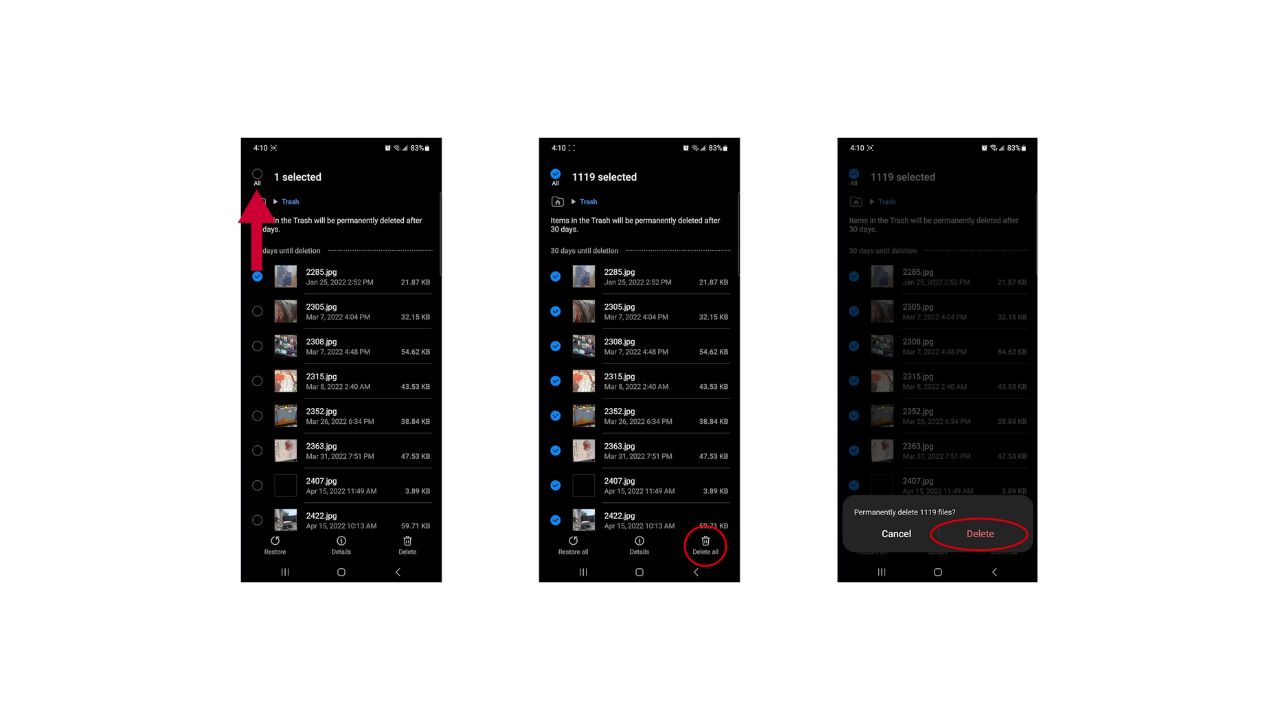
- Finally, find the Trash and click on it.

- Select “All”.
- Tap Delete all.
- Confirm your decision by clicking Delete.
Trick #2: Google Photos magic
Google Photos offers a seamless way to manage photo storage without losing your memories. Here’s how to free up space using Google Photos:
Settings may vary depending on your Android phone’s manufacturer. These have been tested on a Galaxy S24 Ultra.
- Open the Google Photos app.
- Tap your profile picture in the top-right corner.
- Choose Free up space on this device.
- Review the files and tap the blue bar at the bottom of the screen.
- Click Allow to clear local copies of photos already backed up.
Critical clarification:
This feature removes the full-resolution copies of photos and screenshots from your phone once they are backed up to Google Photos. Your photos are not deleted from your Google account, but they will no longer be stored locally on the device. You can still view and download them anytime from Google Photos.
If you rely on viewing photos offline or expect them to remain stored directly on your phone, do not use this feature.
Before deleting files in your Downloads, Movies, or .thumbnails folders, take a moment to review them. These may contain files you’ve saved intentionally, including important documents or personal media. While cleaning up unused files can free up space, be sure not to remove anything you still need.


Trick #3: Clear unused apps
Uninstalling unused apps can significantly free up storage space on your Android device. Here’s how to uninstall unused apps:
Settings may vary depending on your Android phone’s manufacturer. These steps are written for a Galaxy S24 Ultra.
- Open Settings on your Samsung phone.
- Tap Apps.
- Scroll through your apps or use the search icon to find an app you no longer use.
- Tap the app.
- Tap Uninstall.
- Confirm by tapping OK or Uninstall.
You can also uninstall many apps from the Apps screen. Swipe up from the home screen, touch and hold the app, then tap Uninstall if that option appears. Tap Ok.
Trick #4: Get rid of old files
You can also delete unused files, duplicate files and large items on Android.
Settings may vary depending on your Android phone’s manufacturer. These steps are written for a Galaxy S24 Ultra.
- Open Settings on your Samsung phone.
- Tap Battery and device care.
- Tap Storage.
- Review the categories shown, such as Images, Videos, Audio files, Documents, APK installation files, Recycle bin, Large files, Duplicate files or Unused apps.

- Open a category and select only the items you no longer need.
- Tap Delete.
- Confirm by tapping Delete or Move to Trash.
You can also delete old downloads, large files, duplicate files and other items you no longer need.

By incorporating these steps, you can efficiently manage your Android device’s storage and maintain optimal performance.
Related Links:
- Space running low? Securely store your heavy files with these free cloud storage solutions
- Best antivirus for Androids
- What to do when your phone storage is full
Kurt’s key takeaways
Running out of storage on your Android can be frustrating, but these tricks provide quick solutions to reclaim space without compromising essential data. The most important takeaway is understanding the difference between deleting files and offloading them to cloud storage. By implementing simple strategies like deleting hidden clutter, leveraging Google Photos to free up space, and uninstalling unused apps, you can significantly improve your device’s performance. Additionally, regularly reviewing and deleting old files can help maintain a clutter-free phone.
What’s the most surprising thing you’ve found taking up space on your device? Let us know in the comments below.
FOR MORE OF MY SECURITY ALERTS, SUBSCRIBE TO MY FREE CYBERGUY REPORT NEWSLETTER HERE
Copyright 2026 CyberGuy.com. All rights reserved. CyberGuy.com articles and content may contain affiliate links that earn a commission when purchases are made.