How to stop the never-ending stream of spam emails
You’re getting junk mail sent to your email all day. What to do about it?
Junk email consists of spam emails, phishing emails that will try to trick you into clicking on links and revealing personal information. Here are some easy things you can do to dramatically defend yourself against the spam onslaught to your email.
Mark emails as spam to train your inbox
The more you mark these emails as spam, the more your email system learns about this type of email and its sender to it can route future emails like this directly into your spam folder.
How to mark spam in Gmail
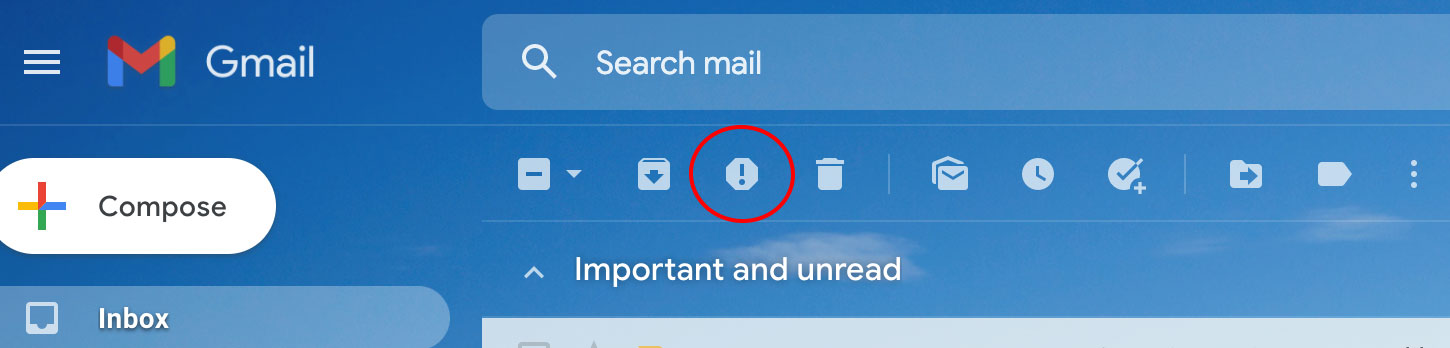
1) In your inbox, select the email check box to the left of the email
2) At the top of your gmail, click the “!” icon to “report spam”
For more tips for Gmail users here
How to mark spam in Apple Mail (Mac)
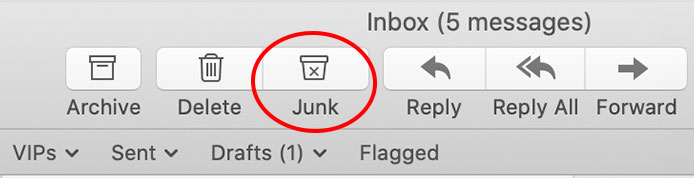
1) Select the questionable email
2) Click the “Junk” icon on the toolbar
How to mark email as spam in Yahoo Mail

1) In your inbox, select the check box to the left of the questionable email
2) On the toolbar above your emails, tap the “Spam” icon
How to mark spam in Outlook
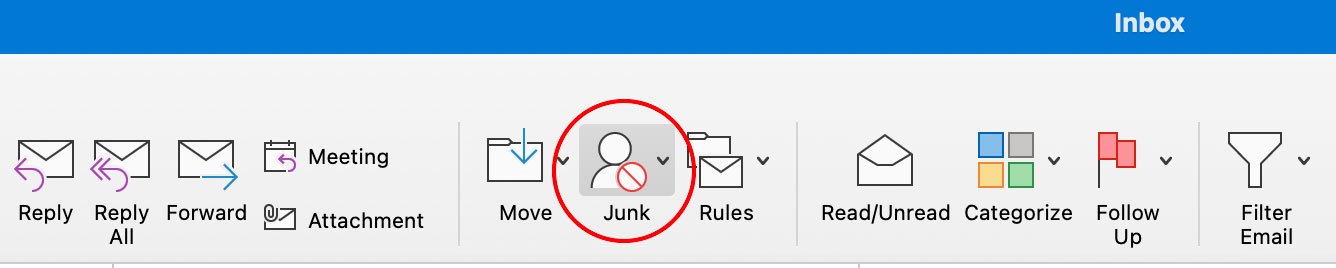
1) Select the questionable email
2) Click the “Junk” icon on the toolbar
How to mark spam in Outlook.com or Outlook 365
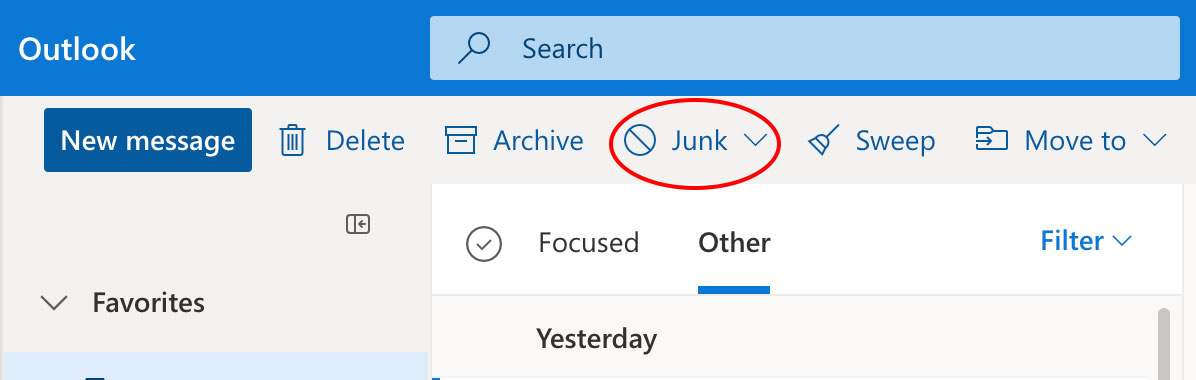
1) Select the questionable email
2) Click the “Junk” icon on the toolbar
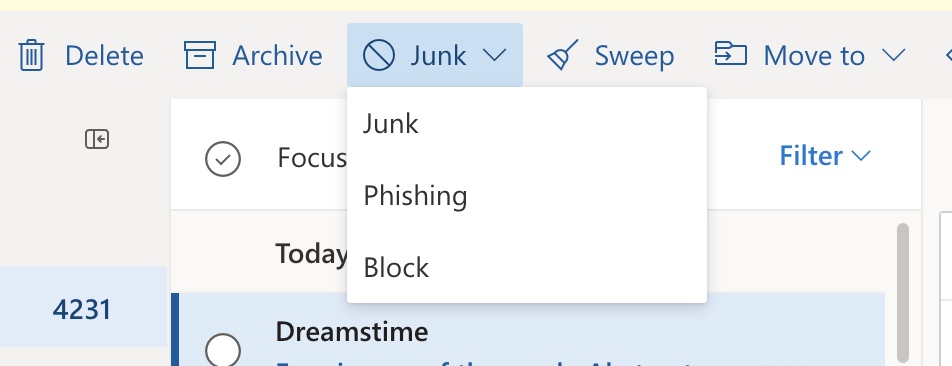
If the email specifically contains a suspicious link, you can select “Phishing” specifically on both the Outlook application and Outlook.com.
1) Tap the down carrot next to Junk and select “Phishing”
How to mark spam in AOL
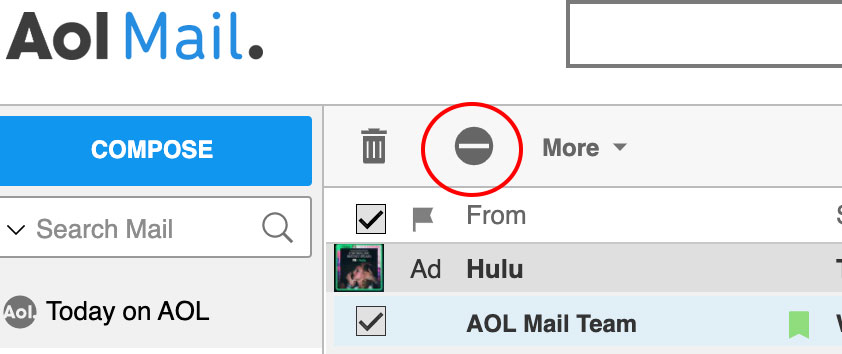
1) In your inbox, select the check box to the left of the questionable email
2) Click the icon in the toolbar that is a circle with a horizontal line through it to “Mark as Spam”
How to mark spam in the iPhone Mail app
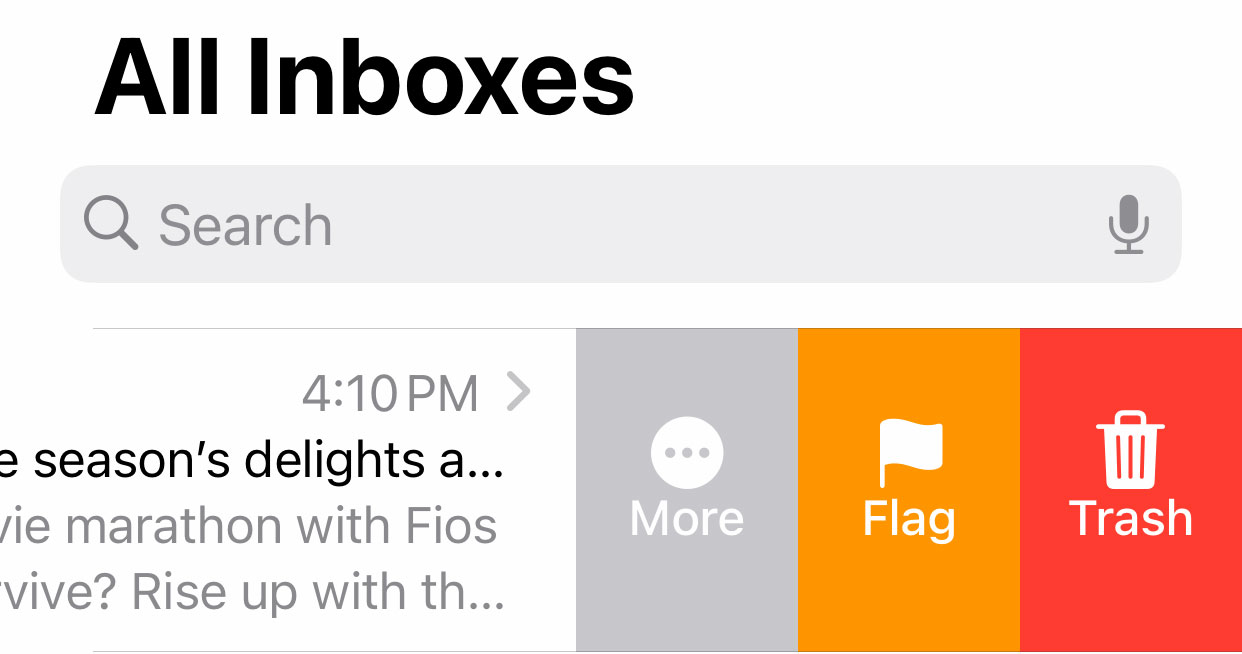
1) Swipe the email to the left to reveal a toolbar.
2) Tap More
3) Tap Move to Junk
Delete suspicious emails immediately
When you get a suspicious email, don’t click anything or reply to any email! It could infect your device with malware. After marking the email as spam, delete it. Some malware can steal your email address and send you more spam.
Use a spam filter
Most email services have built-in spam filters that catch a lot of junk, but they’re not always perfect. If you’re still seeing unwanted emails slip through, it might be time to take more control.
Clean Email is a great option that works with all major email providers. It helps you clean up your inbox by blocking unwanted senders, unsubscribing from emails you don’t want, and automatically organizing messages going forward. It’s especially useful if your inbox has gotten out of hand.
Block spam email senders
While this might not eliminate all spam for good, blocking persistent offenders can help reduce the flood in your inbox. Keep in mind that spammers constantly rotate and spoof email addresses, so this solution isn’t foolproof or long-term. However, it’s a quick way to clean up your inbox and teach your email provider which senders to filter out.
Here’s how to block spam senders in most major email platforms:
- Gmail: Open the email, click the three-dot menu in the top-right corner, and select Block [sender].
- Outlook: Open the message, click the Junk button, and select Block.
- Yahoo Mail: Open the email, click the three-dot menu, and select Block sender.
Blocking spam senders won’t stop all unwanted emails, but it can help slow the tide and make room for more important messages. Combine this step with setting up filters, using spam reporting features, and unsubscribing from legitimate lists you no longer want to hear from to get the best results.
Understand where spam comes from
Did you know that you can create a disposable email address by doing the following?:
Create a new private and secure new email address
The best way to keep your emails private is to use an encrypted email server. We’ve narrowed down our top three choices to protect your privacy here whether you want to keep your existing email address or create a new and completely safe one.
Once you have your new email address, you’ll want to slowly start unsubscribing from your old email address and resubscribing to the new email address.
Use email aliases to stay organized and safe
Yes, we know the thought of creating a whole new email sounds like a lot of work. But we can assure you that it is way simpler than you think, and it will keep your main email address inbox cleaner and more clutter-free than ever before.
What is an alias email address?
An alias email address is a forwarding email address that you can keep separate from your main email inbox, but still have access to all those emails. You can create tons of different alias email addresses depending on what you want that specific alias to be used for. Some examples include:
- Promotional or discount alias for all the stores you shop at
- Work-related alias for all your business emails
- School alias for keeping track of all your assignments
Which alias email service should I use?
You can get an Exclusive deal for CyberGuy readers: 50% off: $23.98 for first year ($2.50 per month, billed annually). Includes a free 7-day trial.
Some of StartMail's best perks include:
- StartMail email address
- 20 GB of email
- Unlimited aliases
- Access email on any device
- Import your contacts easily
- No ads, no tracking
- Send encrypted emails to anyone
Why it matters: You stay anonymous, avoid data leaks, and never have to change your main email address again.
Create a disposable address
How to create a disposable Gmail address
Use a period (“.”):
For example, I can take my current email address of johnsmith@gmail.com and on the spot, create a unique email address when I register on a site by inserting the period in between your first and last name john.smith@gmail.com. Further, I can register on another site with j.o.h.n.s.m.i.t.h@gmail.com. Most email programs will ignore the periods.
Now, I know if I ever get any spam email coming to me where they send it to either of the addresses above, I know not to trust that source and unsubscribe from that vendor altogether.
Use a plus (“+”) in gmail:
In Gmail , you can add a “+” followed by any word (with no spaces) to your Gmail address and register with that email address. You can create as many of these as you want.
For example, if I enter a contest and my current Gmail address is johnsmith@gmail.com, I can create a unique email johnsmith+contest@gmail.com and register with that account.
Now, I know if I ever get any spam email coming to me where they send it to kurt+contest@gmail.com, I know not to trust that source and unsubscribe from that vendor altogether.
Create disposable email addresses on iPhone
When using Mail app from Apple, the new Hide My Email feature lets you create a unique, totally random email address to keep your real email address solidly private.
If you subscribe to Apple’s iCloud+ service, Hide My Email lets you send and receive email messages that forward to your real email account if using iOS 15.2 or later.
How to send an email with Hide My Email
- Tap to create a new mail message
- Then tap the From field
- Add a recipient and subject for your email
- Tap the From field again, and now tap From field one more time
- Scroll to see Hide My Email near bottom and tap
- A unique email address appears in the From field now!
If you want to get more granular, you can create dedicated disposable email addresses for specific sites.
How to create a Disposable Email Address
- Go to Settings
- Tap your name at the top of the page
- Tap iCloud, then Hide my Email (5th row down)
- Click “Create new Address” and Apple will generate a disposable email for you that will then forward to your personal inbox. If you don’t like the email address, you can click “Use Different Address” which will then generate a new email address.
- After selecting an email address, you can then label your address and make a note to remember what you created it for.
Avoid sharing your email on public sites
Don’t post your email address on places like Facebook comments or public message boards or forums where bots and spammers can get it.
Protect your device with strong antivirus software
Be sure to install and run antivirus software that can eliminate viruses from any spammy emails you may accidentally click on.
One of the top antivirus apps for Macs, Windows, Android phones and iPhones is Norton Antivirus Plus Their product is full of features to keep you safe from malware and protect you when browsing the internet including ransomware protection, real-time antivirus protection, elimination of viruses and malware, a tool to free up your computer’s space, plus more.
- Strong real-time protection against viruses, malware, ransomware and hacking attempts
- AI-powered scam protection to help identify suspicious emails, texts and websites
- Built-in password manager to securely store and manage logins
- 2 GB PC cloud backup to help protect important files from ransomware or hardware failure
- Smart firewall and phishing protection
- Protects 1, 3 or 5 devices
- Available for Windows, macOS, Android and iOS
- Includes real-time threat protection, smart firewall and phishing protection to guard against online attacks
Remove your personal data from the internet
Every day, data brokers profit from your sensitive information, collecting hundreds of details like your phone number, date of birth, social security number, address, interests, and even your vehicle VIN. They sell this information to the highest bidder. Best case scenario: companies target you with ads. Worst case: scammers and identity thieves exploit it. Incogni scrubs your personal data from the web, confronting data brokers on your behalf. Personal data including: name, age, home address, phone number, email addresses, your family members, other people associated with you, your income range, credit score range, political preferences, criminal record and more.
Unlike other services, Incogni removes your sensitive information from all types of brokers, including tricky People Search Sites – preventing stalkers and fraudsters from getting your information.
- Incogni removes your data from 175+ people search sites and hundreds of data brokers.
- Makes your details harder to find online and keeps your private data off the dark web.
- Helps stop frauds, scams, stalkers, robocalls, and spammers.
- Add up to 3 emails, 3 home addresses and 3 phone numbers (U.S. citizens only) and have them removed from data-broker databases
- You’ll receive regular progress reports.
Exclusive Deal for CyberGuy Readers (60% off): Incogni offers a 30-day, money-back guarantee and applies a special CyberGuy discount to all annual plans, for as low as $6.39/month for one person (billed annually) or $13.19/month for your family (up to 5 people) on their annual plan.
I strongly recommend the family plan. Here's why: the scam that starts with a Google search of your name almost always ends with a call to you, your elderly parent or a text to your adult child. Protecting yourself without protecting the people around you is half a solution. At $2.64 per person per month, the family plan covers up to five people, and the people most likely to be the final target are often the ones who'd never think to protect themselves.
Get Incogni and remove your info
Is your personal information exposed online: run a privacy scan?
Run a free scan to see if your personal info is compromised. Results arrive by email in about an hour.
Kurt’s takeaways
If your inbox feels like it’s under attack, you’re not imagining it, and there’s a lot you can do about it. Start by training your email to recognize junk by marking spam when it shows up. Then take it a step further with tools like Clean Email, which can organize your inbox, block senders, and unsubscribe from the clutter. Don’t stop there—set up alias or disposable email addresses to keep your real one protected, especially when signing up for new services. Be sure to run strong antivirus software like Norton Antivirus Plus to guard against malware hiding in suspicious messages, and consider using a service like Incogni to remove your personal data from sites that sell your info. Avoid posting your email publicly, block repeat offenders, and stay sharp—because staying private and protected online is all about being proactive.
Copyright 2026 CyberGuy.com. All rights reserved. CyberGuy.com articles and content may contain affiliate links that earn a commission when purchases are made.