How to update all of your devices and keep them safe
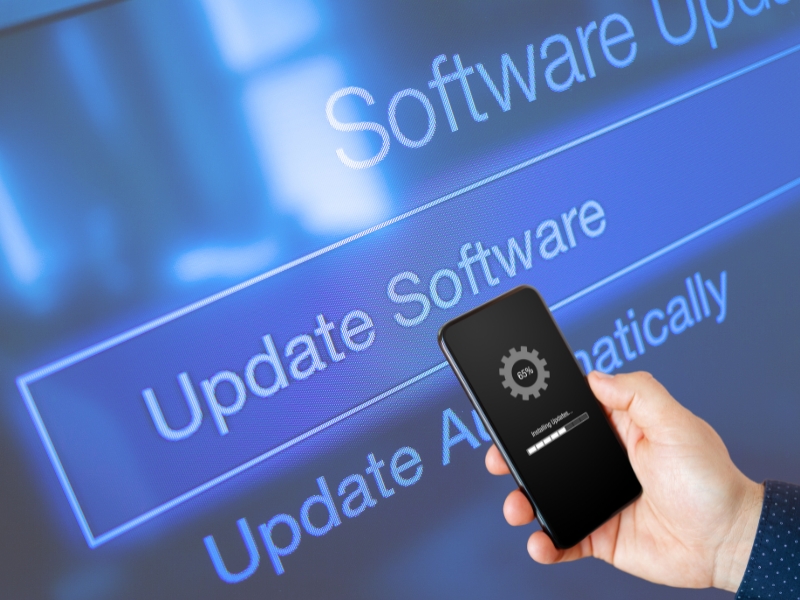
- Keeping your devices updated helps patch security vulnerabilities that hackers actively try to exploit.
- Windows, Mac, Android and Apple devices all include built-in tools that make checking for updates simple.
- Many devices allow automatic updates, so security fixes install without requiring manual checks.
- Updating your web browser and apps is just as important as updating your device’s operating system.
Anytime is a great time to ensure that all your devices are updated and operating on the most recent software, so that your privacy is being protected.
With all this in mind, here’s a step-by-step guide to help you with these top priorities.
WINDOWS
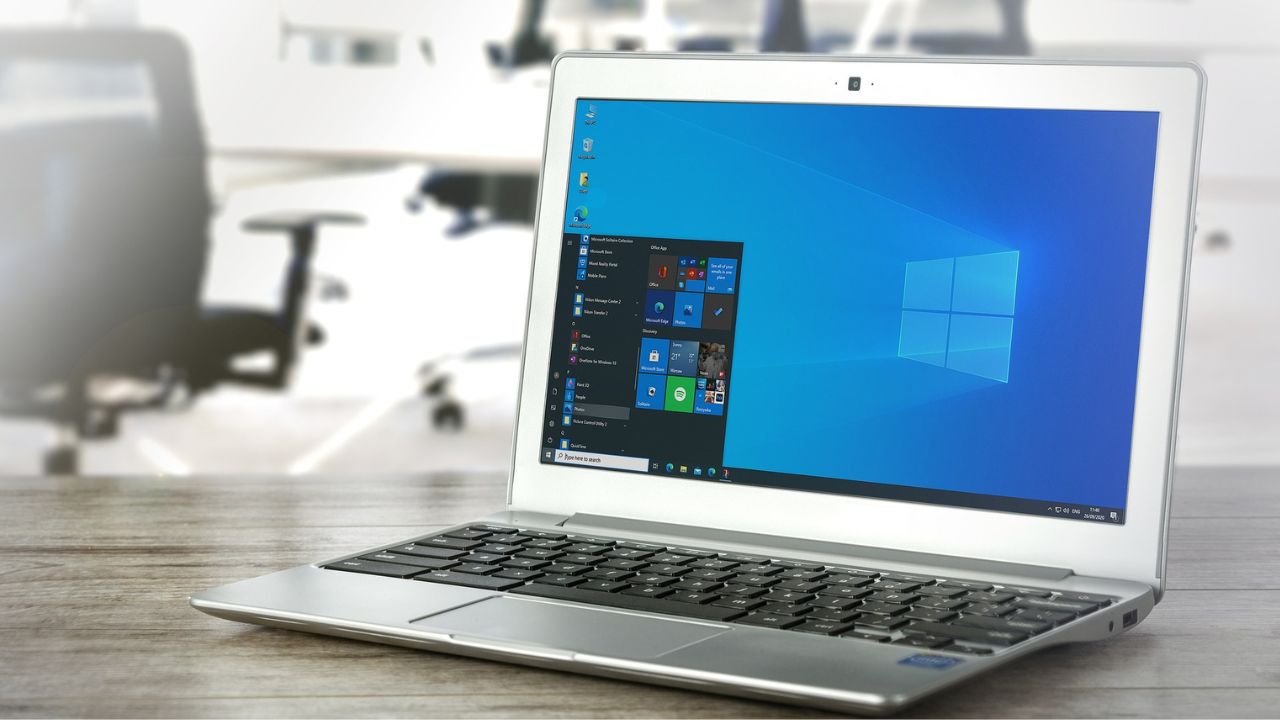
How to keep your Windows devices up to date
- Select Start
- Click Settings
- Click Windows Update
- Click Check for updates
If an update is available, Windows will begin downloading it automatically. Some updates may require you to click Download and install.
You may also see feature updates listed separately. These are larger updates that add new tools, design changes or system improvements.
Windows also includes a setting called “Get the latest updates as soon as they’re available.” Turning this on allows your device to receive new updates earlier instead of waiting for the standard rollout.
Should you enable automatic updates?
Most Windows devices install important security updates automatically, which helps protect your computer from newly discovered vulnerabilities. However, some users prefer to review updates before installing them because major feature updates can occasionally cause compatibility issues with older programs or hardware. If you choose to allow automatic updates, it is still a good idea to regularly back up your computer so you can restore your system if an update causes unexpected problems.
MAC

How to keep your Mac devices up-to-date
- Click the Apple menu
- Click System Settings
- Click Software Update
- If a Software update is available, it will give you the option to update. You can do this by clicking the Upgrade Now button.
A word of caution: Often, new operating systems offer new, slicker interfaces and functionality. If you have older programs on your computer, sometimes newer operating systems don’t always play nicely with older programs. That said, when it comes to installing new operating systems, as you see below, be sure to always back up your computer just in case. More about backing up your computer here.
You can also set your Mac to automatically download any relevant updates by… But should you?
If you’re an individual who never remembers to update your computer, you may choose to set this option. But as mentioned above, sometimes automatic updates don’t play nicely with old programs. So if you do decide to set this feature, be sure to always have your computer backed up as described here so you can restore it if need be.
How to keep your Mac automatically updated
- Click the Apple menu
- Click System Settings
- Click Software Update
- Check-off Automatically keep my Mac up to date
- Click Advanced
- Check off all relevant services you wish to enable
ANDROID
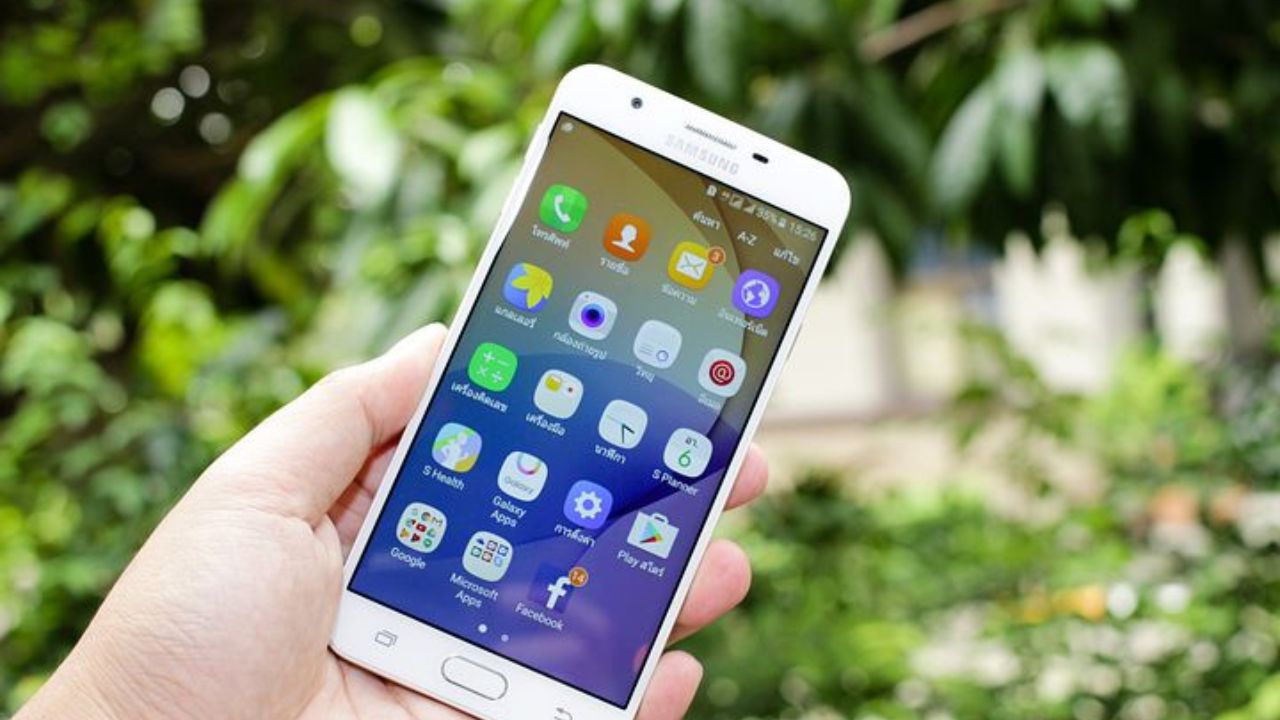
How to make sure your Samsung and Android phone and tablets are up-to-date
Samsung
Please note that settings may vary depending on your Android phone’s manufacturer.
- Tap Settings
- Near the bottom, tap Software Update
- Then, tap Download and install
- You’ll be shown if there are any updates available, and you will be given the option of whether or not to update
Other Androids
Please note that settings may vary depending on your Android phone’s manufacturer.
- Tap Settings
- Near the bottom, tap System
- Then, tap System Update
- You’ll be shown if there are any updates available, and you will be given the option of whether or not to update
iOS DEVICES
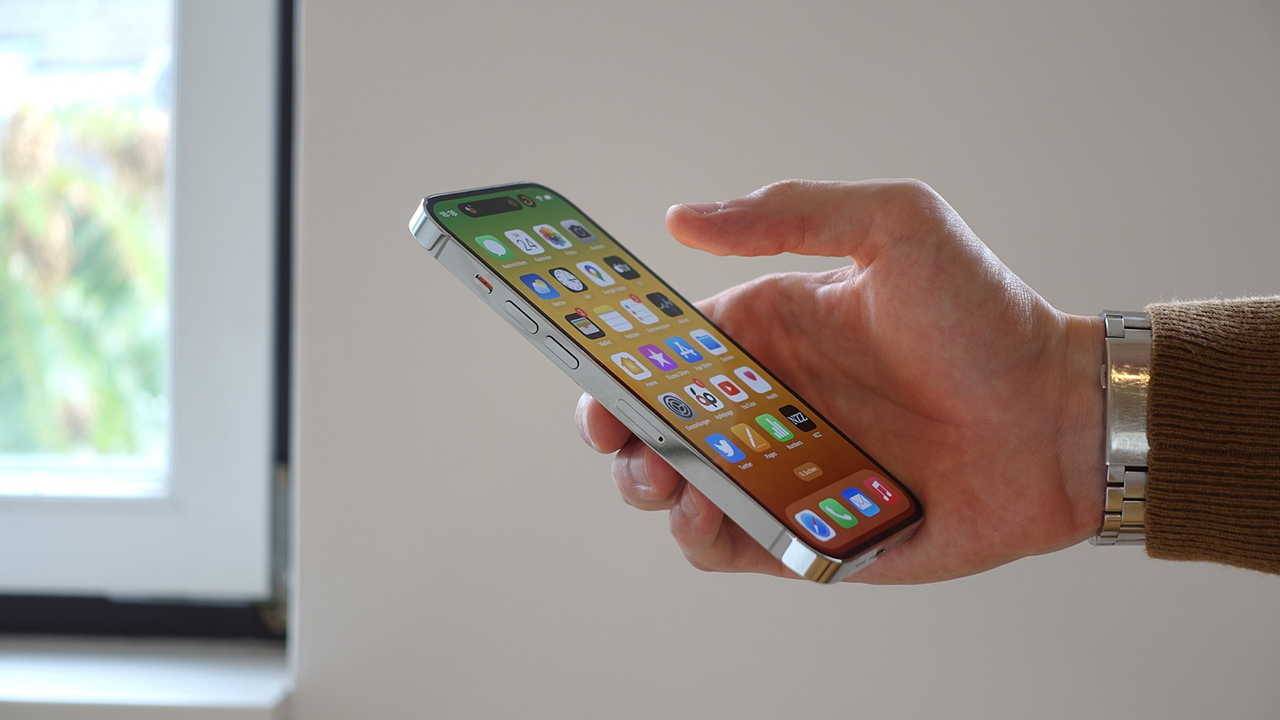
How to make sure your iPhone and iPad are up to date
- Tap on Settings
- Tap on General
- Tap on Software Update
- If an update is available, it will give you the option to download and install it
To keep your phone always up to date, you can turn on automatic updates by:
- On the Software Update screen mentioned above, click the Automatic Updates row
- Switching on all relevant services you wish to keep updated automatically
A word of caution: Always back up your phone just in case. More about backing up and restoring your phone here.
How to make sure your Apple Watch is up to date
- Update Your iPhone:
- Before updating your Apple Watch, update your iPhone to the latest version of iOS. Go to Settings > General > Software Update on your iPhone.
- Prepare Your Apple Watch:
- Place your Apple Watch on its charger and ensure it has at least 50% battery.
- Keep the Apple Watch in range of your iPhone.
- Start the Update from Your iPhone:
- Open the Watch app on your iPhone.
- Tap My Watch tab.
- Go to General > Software Update.
- If an update is available, tap Download and Install.
- Enter your iPhone or Apple Watch passcode if prompted.
- Download and Install:
- The download will start. It can take from a few minutes to an hour, depending on your internet speed.
- After the download, the installation process will begin on your Apple Watch. This can also take some time. You’ll see a progress wheel on your Apple Watch.
- Wait for the Update to Complete:
- Do not restart your Apple Watch or iPhone during the update.
- Keep the Apple Watch on its charger until the update is complete.
- Completion:
- Once the update is finished, your Apple Watch will restart.
BROWSER UPDATES
After you update your software, it’s also a good idea to ensure your web browser is up-to-date to fix any security issues, which would help prevent hackers from getting into your computer, crashing programs and getting around your computer’s security systems. While there are many browsers out there, below are a few of the more popular ones.
How to update your Chrome browser
Mac
- Open the Google Chrome browser
- Select About Chrome from the Chrome menu
- Allow it to scan from the most recent update
- Click Relaunch to complete the update
Windows
- Open Chrome browser
- At the top right, click More
- Click Help, then About Google Chrome
- Select Update Google Chrome
Note: If you do not see the “Update Google Chrome” button, then your browser is already updated - Click Relaunch to complete

Android
- From your phone or tablet, open the Google Play Store app
- Tap the profile icon from the top right
- Select Manage apps & device
- Find Chrome located under “Updates available”
- Tap Update
iPhone & iPad
- Launch the Apple App Store
- Tap Profile from the top right (it looks like you or a shape of a person)
- Scroll down to “Available Updates” and search for Chrome
- If you see Chrome on the list, tap Update
- Enter your passcode or Apple ID password if prompted
- Chrome will automatically update when finished downloading
How to update your Safari browser on a Mac
Safari is a built-in App on all Apple products and updates through macOS system updates.
How to update your Microsoft Edge browser
On Windows
Microsoft Edge is programmed to update automatically every time you restart your browser. You can, however, update Microsoft Edge manually:
- Open the Microsoft Edge browser
- Click Settings and More
- Click Help and Feedback
- Click About Microsoft Edge
Here, it will tell you whether or not Microsoft Edge is up-to-date or if an update is available. If an update is available:
- Click Download and Install
- Click Restart
On a Mac
- At the menu at the top, click Microsoft Edge
- Then click About Microsoft Edge
- Any available updates will be displayed
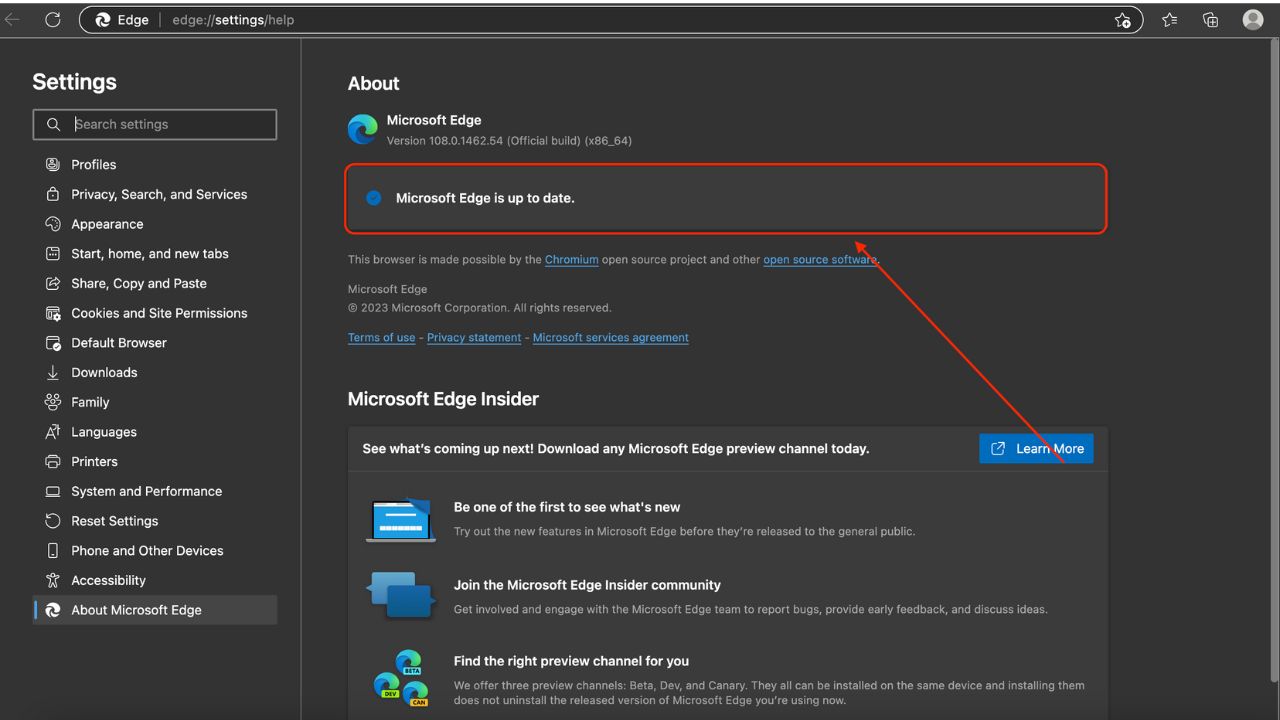
Microsoft Edge is also available to download on iPhones, iPads, and Android devices. To make sure it is up-to-date, follow the same steps above to update Microsoft Edge as you would to update Chrome on those devices
MICROSOFT PRODUCTS
On a PC
- Open an Office App: Start by opening any Microsoft Office app, such as Word or Excel.
- Go to File: Click on the “File” tab in the top-left corner.
- Account: Select “Account” from the menu on the left.
- Update Options: Click on “Update Options” and then select “Update Now”
- Windows Update: Alternatively, you can update Office through Windows Update. Go to Settings > Update & Security > Windows Update and make sure the option “Receive updates for other Microsoft products when you update Windows” is turned on
On a Mac
- Open an Office App: Start by opening any Microsoft Office app, such as Word or Excel.
- Help Menu: Click on the “Help” menu at the top of the screen.
- Check for Updates: Select “Check for Updates” to launch the Microsoft AutoUpdate tool
- Update: Click “Update” to install any available updates. You can also check the box to “Automatically keep Microsoft Apps up to date”.
- Mac App Store: If you downloaded Office from the Mac App Store, you can also update it by opening the App Store, clicking on “Updates” in the left sidebar, and then clicking “Update All” or the “Update” button next to individual apps
Be sure you’ve installed reliable antivirus software
While built-in protections like Microsoft Defender, Apple’s XProtect and Google Play Protect provide a solid baseline security, many people choose additional security tools for features like phishing protection and dark-web alerts.
- Strong real-time protection against viruses, malware, ransomware and hacking attempts
- AI-powered scam protection to help identify suspicious emails, texts and websites
- Built-in password manager to securely store and manage logins
- 2 GB PC cloud backup to help protect important files from ransomware or hardware failure
- Smart firewall and phishing protection
- Protects 1, 3 or 5 devices
- Available for Windows, macOS, Android and iOS
- Includes real-time threat protection, smart firewall and phishing protection to guard against online attacks
Kurt’s key takeaways
Keeping your devices updated is one of the simplest and most effective ways to protect your privacy and security. Software updates often fix newly discovered vulnerabilities that hackers actively try to exploit. When devices fall behind on updates, they can become easy targets for malware, identity theft and other cyber threats. The good news is that checking for updates only takes a few minutes, and many devices can install them automatically in the background. Whether you prefer to update manually or enable automatic updates, staying current with the latest software helps keep your data, accounts and personal information safer.
Do you prefer to turn on automatic updates, or do you like to review updates before installing them on your devices? Let us know by writing to us in the comments below.
FOR MORE OF MY TECH TIPS & SECURITY ALERTS, SUBSCRIBE TO MY FREE CYBERGUY REPORT NEWSLETTER HERE
Copyright 2026 CyberGuy.com. All rights reserved. CyberGuy.com articles and content may contain affiliate links that earn a commission when purchases are made.