Never lose your car with Maps parking tools
Forgetting where you parked happens to everyone. Busy schedules, crowded lots and mental autopilot make it easy to walk away without a second thought. Thankfully, your iPhone can remember for you. Both Google Maps and Apple Maps now make it easy to find your car again with little or no effort. Google recently added smarter automatic parking detection on iPhone. Apple Maps has offered a similar feature for years. Together, they give you a reliable backup when your memory fails. Below is how each one works and how to make sure it is ready when you need it.
If you use an Android phone, we have steps below that show you how to save and find your parked car using Google Maps on Android.
How Google Maps saves your parking spot on iPhone
Google Maps can automatically detect when you park and drop a pin that stays for up to 48 hours or until you drive again. It currently works on iPhone only.
Connect your iPhone to your car
Google Maps needs a signal that you stopped driving.
- Connect your iPhone to your car using Bluetooth: On your iPhone, open Settings, tap Bluetooth and pair it with your vehicle before you drive.
- Connect your iPhone using USB: Plug your iPhone into the car’s USB port with a cable before you start your journey.
- Use CarPlay with your iPhone: Go to Settings on your iPhone, tap General, tap CarPlay, then select your car to link your iPhone to the vehicle.
Any of these connections can trigger parking detection.
Allow Google Maps to save parking automatically
If you want this to work every time, adjust one key setting.
- Open the Settings app on your iPhone
- Tap Apps
- Then, click Google Maps
- Tap Location
- Select Always
This allows Google Maps to track parking even when the app is not open.
Turn on motion-based parking detection
This helps Google Maps save your parking spot even when Bluetooth or CarPlay is not in use.
- Open Google Maps on your iPhone
- Tap your profile photo in the upper right corner
- Tap Settings
- Then click Navigation
- Turn on Automatically save parking
To make sure motion detection works:
- Open the iPhone Settings app
- Tap Privacy and Security
- Tap Motion & Fitness
- Make sure Fitness Tracking is on
- Make sure Google Maps is enabled
This allows Google Maps to use movement data to detect when you stop driving.
Find your parked car
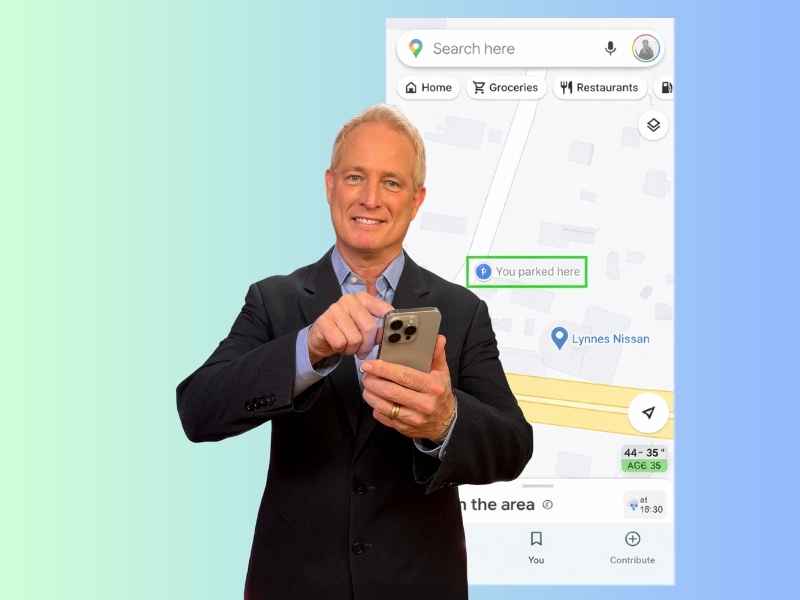
Once you park, Google Maps drops a pin labeled You parked here.
- Open Google Maps to see the pin
- Tap the search bar
- Choose Saved parking
The pin stays visible for up to 48 hours.
Adjust the location if needed
If the pin is slightly off:
- Tap the parked location
- Select Change location
- Drag the marker to the correct spot
How Apple Maps saves your parking spot
Apple Maps uses your iPhone location and car connection to remember where you parked. In many cases, it works automatically without setup.
Make sure Location Services is enabled
Apple Maps relies on system settings.
- Open Settings
- Tap Privacy and Security
- Tap Location Services
- Make sure Location Services is on
- Tap Maps
- Select While Using the App
Use Bluetooth or CarPlay
Apple Maps detects parking when your iPhone disconnects from:
- Your car’s Bluetooth system
- Wired or wireless CarPlay
This disconnection signals that you parked.
Find your parked car in Apple Maps
After parking:
- Open Apple Maps on your iPhone
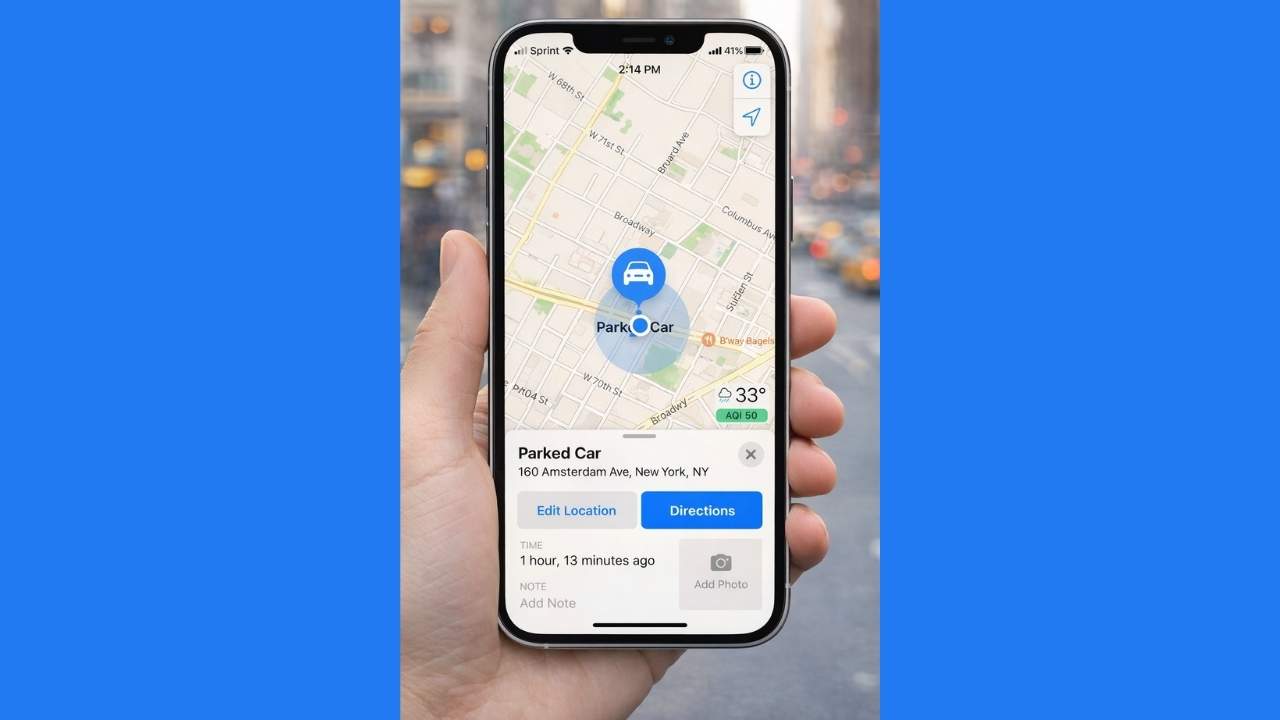
- Look for Parked Car under the Search box or a parked car icon on the map
- Tap the parked car entry or icon
- Tap Directions to navigate back to your vehicle
Apple Maps drops a parked car marker when your iPhone disconnects from Bluetooth or CarPlay as you exit your car. You can also see parking details, like how long ago you parked, if you enabled the proper settings in iPhone Settings.
Google Maps vs Apple Maps for parking reminders
Both apps work well, but they shine in different ways.
- Google Maps: Parking pins last up to 48 hours and are easy to edit
- Apple Maps: Deep iOS integration and simple automatic detection
Many iPhone owners keep both enabled for backup.
How to find your parked car on Android phones
If you use an Android phone, you can still save and find your parked car using Google Maps, but the process is manual.
Save your parking location on Android
Settings may vary depending on your Android phone’s manufacturer
- Open Google Maps on your Android phone
- Tap the blue dot showing your current location
- Tap Save your parking
- Add notes or photos if you want help remembering landmarks
Google Maps drops a parking pin that stays visible until you remove it or save a new one.
Find your parked car later on Android
Settings may vary depending on your Android phone’s manufacturer
- Open Google Maps
- Tap the saved parking pin on the map
- Tap Directions to navigate back to your car
Unlike the iPhone, Android does not currently support automatic parking detection in Google Maps.
Related Links:
- How to lower your Car Insurance costs in 2025
- Best car accessories 2025
- Why you should never carry these things in your wallet
Kurt’s key takeaways
Forgetting where you parked happens fast, but finding your car does not have to be stressful. Google Maps and Apple Maps can save your parking location and guide you back when you need it most. On iPhone, much of this works automatically once settings are enabled. Android users can still manually save their spot in Google Maps. Either way, taking a few minutes to set this up now can save time, steps and frustration later.
How much time have you already wasted searching for your car that your phone could have saved? Let us know in the comments below.
FOR MORE OF MY TECH TIPS & SECURITY ALERTS, SUBSCRIBE TO MY FREE CYBERGUY REPORT NEWSLETTER HERE
Copyright 2025 CyberGuy.com. All rights reserved. CyberGuy.com articles and content may contain affiliate links that earn a commission when purchases are made.