How to share vacation photos on any screen
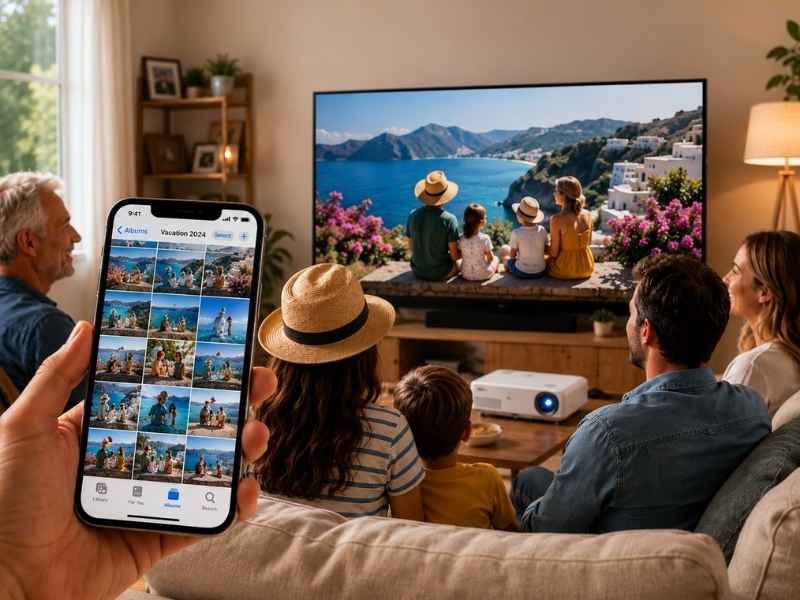
- You can share vacation photos on a TV, projector, laptop or tablet without passing your phone around.
- iPhone owners can use AirPlay or HDMI, while Android owners can use Chromecast, Smart View or a cable.
- Outdoor photo sharing works best with a projector, strong power setup and a reliable wired connection.
- A clean album and silenced alerts help keep private photos, messages and location details off the big screen.
We have all been there. You come home from a trip, someone asks to see the photos, and suddenly your phone is making its way around the room, one person at a time. That works for a few snapshots. It gets old fast when you have beach videos, family group shots, mountain views or that one ridiculous restaurant photo everyone needs to see.
The better move is to put your vacation photos on a bigger screen. You can use a TV, projector, laptop, tablet or even an outdoor screen. The right method depends on what phone you have, what screen is nearby and whether you are at your house or someone else’s. Here are the easiest ways to share vacation photos without turning your phone into a handoff relay.

Start with the screen you already have
Before you mess with settings, look around the room. The best option may already be sitting in front of you. A smart TV works well for most people because it may support AirPlay, Chromecast, Smart View, Roku, Fire TV or screen mirroring. A laptop can also work if the TV connection gets messy. A tablet is great for a smaller group at the kitchen table. A projector gives you the biggest wow factor, especially outside.
If your TV is due for an upgrade, CyberGuy’s Top TVs of 2026 can help you find one with the features that make photo sharing easier.
Also, think about privacy before you start. Open only the album you want people to see. No one needs your screenshots, receipts or random camera roll surprises popping up on a 65-inch TV.

How to share iPhone photos on a TV with AirPlay
AirPlay is usually the cleanest option for iPhone owners. It works with Apple TV, many smart TVs, some Roku devices, and select Fire TV smart TVs that support AirPlay.
Here’s how to do it:
- Open the Photos app on your iPhone.
- Tap the photo or video you want to show.
- Tap the Share button.
- Swipe up if needed.
- Tap AirPlay.
- Then choose your Apple TV or AirPlay-compatible TV.
- If a passcode appears on the TV, enter it on your iPhone.
This is great when you are at home, and your TV already supports AirPlay. It can also work at someone else’s house, but both devices usually need to be on the same Wi-Fi network. If you use AirPlay often, it is also worth reading CyberGuy’s report on how hackers are breaking into Apple devices through AirPlay so you know how to use it more safely.
How to mirror your iPhone screen
Sometimes the AirPlay button does not appear where you expect it. In that case, mirror your whole iPhone screen.
- Swipe down from the top-right corner to open Control Center.
- Tap the Screen Mirroring button, which looks like two overlapping rectangles.
- Select the Apple TV or a compatible smart TV.
- Then open Photos and start swiping.
- The catch is that everyone can see what is on your screen.
Turn on Do Not Disturb or Focus first so private texts and alerts do not show up during the slideshow.

How to share Android photos on a TV with Chromecast
For Android owners, Google Photos and Chromecast are a strong combo. This works with Chromecast devices, Google TV Streamer and many TVs with Google Cast built in.
Settings may vary depending on your Android’s manufacturer
- Open Google Photos.
- Select the photo or album you want to show.
- Tap More, then tap Cast.
- Choose your Chromecast or compatible TV.
- Once it connects, open a photo or video and swipe through your vacation shots.
This method also works from Google Photos on iPhone or iPad if you are signed into your Google Account.
How to share Samsung Galaxy photos with Smart View
Samsung Galaxy phones have a built-in screen mirroring feature called Smart View. It is one of the easiest ways to show photos on a Samsung TV and some other compatible displays.
Settings may vary depending on your Android’s manufacturer
- Swipe down from the top of the screen to open Quick Settings.
- Tap Smart View. The icon usually looks like a play button or phone-style shape sending to a screen.
- Choose your TV.
- Tap Start now if prompted.
- Then open your Gallery or Google Photos app.
Smart View mirrors your whole phone screen, so the same privacy rule applies. Open the album first and silence notifications before you start.
How to use Samsung DeX for a cleaner big-screen setup
Some Samsung Galaxy phones and tablets support Samsung DeX. This can make your phone feel more like a desktop on a TV or monitor.
You can connect with a USB-C to HDMI cable or adapter. Some TVs also support wireless DeX through compatible screen mirroring. Once connected, open your photo app and display your album from the big screen.
DeX can be especially useful when you want a cleaner setup for a family gathering, reunion or backyard slideshow because you are not simply throwing your entire phone screen onto the TV.
How to connect your phone with an HDMI cable
A cable may feel old school, but it is often the most reliable method. It also avoids Wi-Fi problems at someone else’s house.
For iPhone 15 and newer USB-C models, use a USB-C to HDMI adapter or cable. Plug it into your iPhone, connect the HDMI cable to the TV or projector and switch the TV to the correct HDMI input.
For older iPhones with Lightning, use a Lightning Digital AV Adapter and an HDMI cable.
For Android phones, USB-C to HDMI support depends on the model. Many Samsung Galaxy phones support video output, while some other Android phones may not. If your phone supports it, plug the USB-C to HDMI adapter into your phone, connect the HDMI cable to the screen and choose the correct input.
This is one of the best options for outdoor projectors because it avoids weak backyard Wi-Fi.
ViewSonic LS740HD 1080p Laser Projector
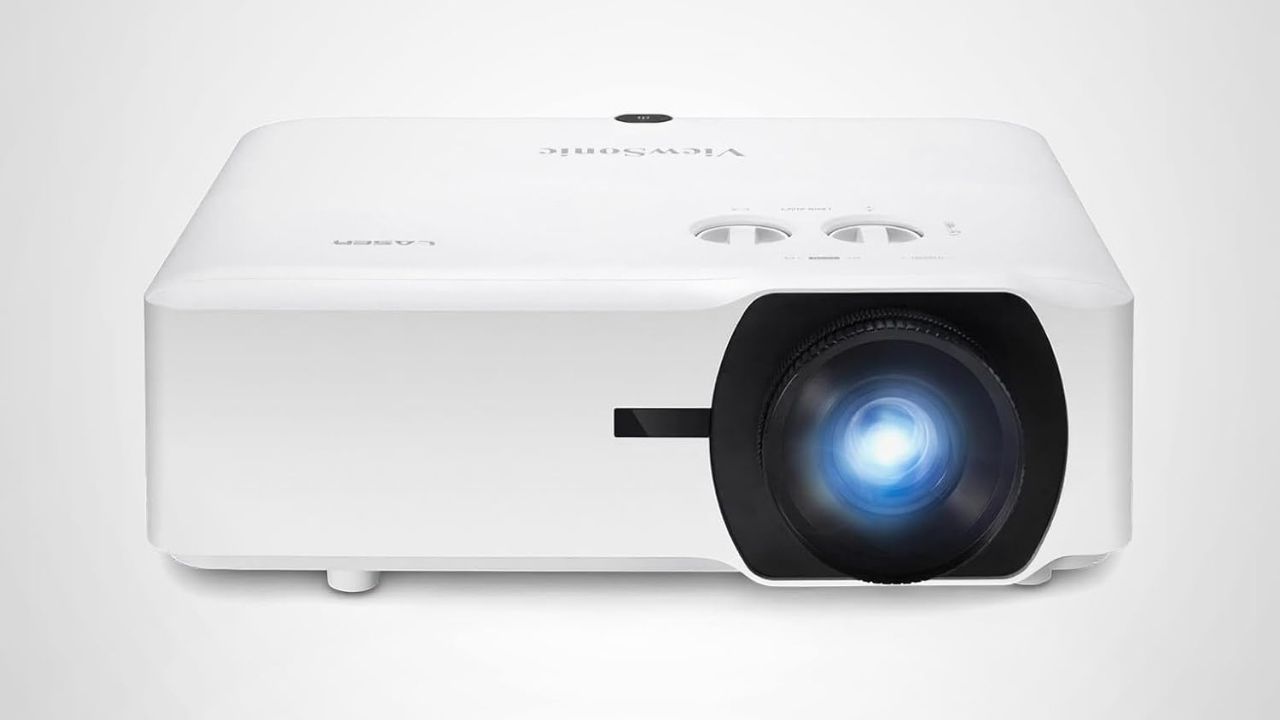
The ViewSonic LS740HD is built for big, bright viewing in larger spaces like auditoriums, classrooms, conference rooms, golf simulator setups and home theaters. It delivers Full HD 1080p resolution with 5,500 ANSI lumens, so the picture can stay clear even when the room is not completely dark. The projector can create an 80-inch to 150-inch image and includes 1.3x optical zoom, horizontal and vertical keystone correction, 4-corner adjustment, portrait mode and 360-degree projection for flexible installation. It also supports HDR, HDMI inputs and instant power on/off, making it a strong pick for anyone who needs a high-brightness laser projector with easier setup options.
How it can show photos: Connect a laptop, streaming stick or phone through HDMI so your vacation album can fill a wall, screen or larger room.
soundcore Nebula P1 Portable Projector
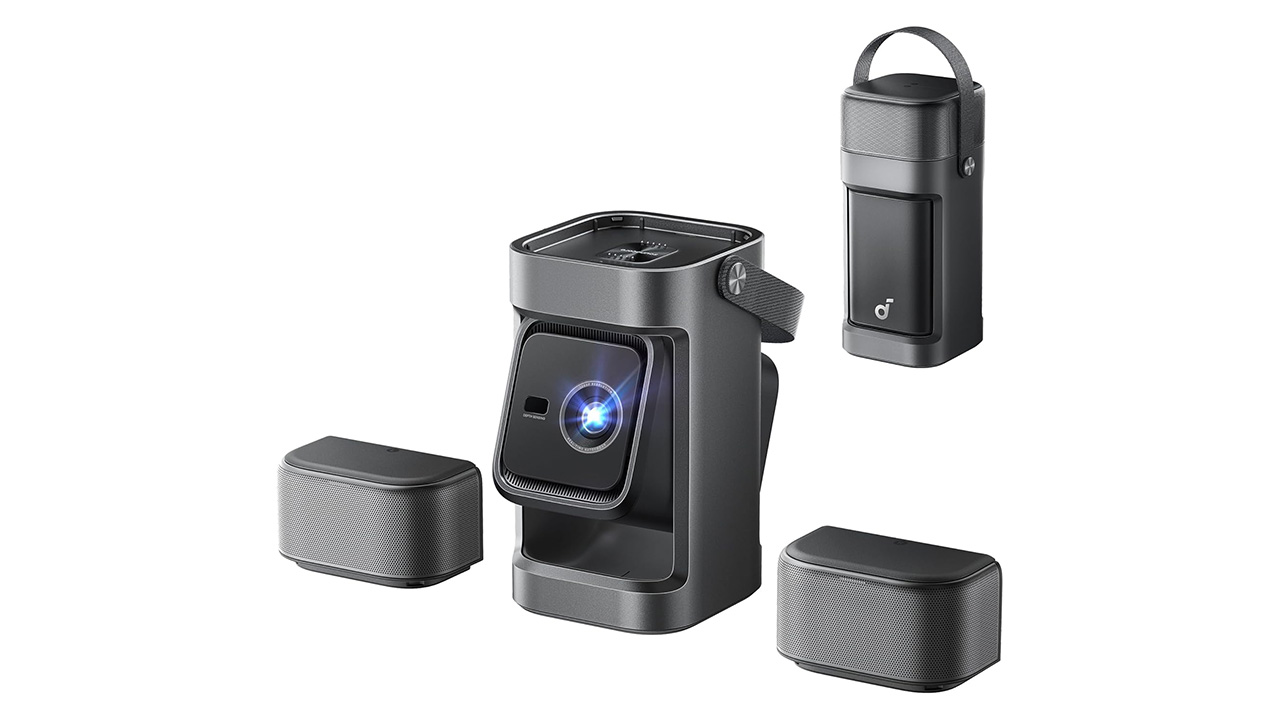
The soundcore Nebula P1 Portable Projector is a fun pick for family night because it lets you turn a backyard, basement or blank wall into a movie screen. It delivers a 1080p Full HD picture, has Google TV built in and gives you access to streaming apps like Netflix, YouTube and Prime Video.
The detachable flip-out speakers help make movie night feel more immersive without needing a separate sound system. It also has autofocus, auto keystone correction, obstacle avoidance and screen fit, which can make setup easier when everyone is ready for the movie to start.
How it can show photos: Use Google TV, HDMI or a connected device to pull up a photo album and turn a backyard, basement or blank wall into a slideshow screen.
How to show photos from a laptop
A laptop gives you more control when you want a polished slideshow. You can open iCloud Photos, Google Photos, OneDrive or a folder of downloaded photos. Then connect the laptop to a TV or projector with HDMI.
On Windows, press Windows key + P to choose how the screen appears.
On a Mac, connect the display and use System Settings if you need to adjust the screen arrangement.
You can also cast from some laptops to wireless displays. On Windows, press Windows key + K and select a compatible wireless display. This can work well with Miracast-enabled TVs and adapters.
The laptop method is helpful when multiple people have sent you photos after the trip, and you want everything in one place before guests arrive.
How to use a tablet as the shared screen
A tablet works well for smaller groups. It is bigger than a phone, easier to pass around and less awkward at a dinner table.
On iPad, open Photos, Google Photos or iCloud Photos. You can also AirPlay to a bigger screen if one is nearby.
On an Android tablet, open Google Photos or your gallery app and cast to a Chromecast-enabled TV when available.
This is a good fallback when you are at someone else’s house, and you do not want to mess with their TV settings.
How to share photos on Roku
Roku gives you several options depending on your phone.
If you have an iPhone and the Roku device supports AirPlay, use AirPlay or Screen Mirroring from Control Center.
If you have Android or Windows, Roku supports screen mirroring from compatible devices. Roku also has Photo Streams in the Roku mobile app, which lets you upload photos and share a stream.
Photo Streams can be a nice option for parties because you can prepare the photos before people arrive instead of connecting your phone in the moment.
How to share photos on Fire TV
Some Fire TV smart TVs support AirPlay. If yours does, you can enable AirPlay in the Fire TV settings and share from an iPhone.
Fire TV also supports display mirroring on certain models. Go to Settings, then Display & Sounds, then Enable Display Mirroring. After that, connect from your compatible phone, tablet or computer.
Not every Fire TV device supports every mirroring option, so this is one place where the exact model can make a difference.
How a streaming device can help
A streaming device can make photo sharing easier if your older TV lacks AirPlay, Chromecast or screen mirroring. Roku, Fire TV, Apple TV and Chromecast-style devices can give an older screen newer sharing features.
If you are thinking about adding one, CyberGuy’s guide to the 5 best streaming devices in 2026 breaks down strong options for different homes and budgets.
This can also help if you visit relatives who have a perfectly good TV that feels stuck in another decade. Plug in the streaming device, connect it to Wi-Fi and you may have a much easier way to show photos.
How to make a shared album before guests arrive
A shared album can save you from digging through your camera roll while everyone waits.
On iPhone, use iCloud Shared Albums if your guests are also in the Apple world. Select the photos, tap Share, choose Add to Shared Album and post them to the album.
Google Photos is more flexible for mixed groups. You can create a shared album, add photos and send a link. That works well when some people have iPhones and others have Android phones.
This is also the easiest way to let other people add their own vacation shots. After a group trip, ask everyone to upload their best photos to one shared album before the slideshow.
For more family-friendly options, CyberGuy has also rounded up the best free sites for sharing photos and videos with your extended family.
Best free sites for sharing photos and videos with your extended family
How to show vacation photos outdoors
Outdoor photo sharing needs a little more planning. Sunlight, Wi-Fi and power can all get in the way.
A portable projector is the most fun option for backyard photo nights. Use a white wall, projector screen or even a clean white sheet pulled tight. For the best picture, wait until dusk or evening.
You can connect your phone with HDMI, cast wirelessly if the projector supports it or plug in a streaming stick such as Roku, Fire TV, Chromecast or Google TV Streamer. If your projector has Google TV built in, you may be able to open Google Photos or cast directly.
For outdoor setups, bring a long extension cord, portable speaker, HDMI cable, phone adapter and backup charger. Wireless casting can work, but a cable is less likely to fail when the Wi-Fi signal is weak.

Best methods by situation
If you are at your own house, use AirPlay, Chromecast, Smart View or a shared album on your smart TV.
If you are at someone else’s house, use an HDMI cable or shared album link. That avoids asking for Wi-Fi passwords and digging through their TV menus.
If you are outside, use a projector with HDMI or a streaming stick. Keep a charger nearby because photo and video sharing can drain your phone quickly.
If you have a mixed iPhone and Android crowd, use Google Photos or a shared album link. It is usually easier than trying to make every device talk to the same TV.
If you want the least awkward option, prepare an album before people arrive. Your future self will thank you.
Privacy tips before you start sharing
Before you turn your vacation memories into a living room or backyard slideshow, take a minute to make sure you are only sharing what you actually want everyone to see.
1) Make a clean album first
Create a dedicated album with only the photos you want people to see. Hide or remove anything personal before you cast or mirror. Before you put anything on a big screen, you may also want to hide private photos on your iPhone or Android from snoops.
2) Silence alerts before you cast
Turn on Do Not Disturb or Focus so messages and notifications stay off the big screen. Avoid opening your full camera roll in front of guests. Start from the album instead. If your camera roll is overflowing with screenshots, duplicates and random saves, CyberGuy’s 5 digital clean-up tips you didn’t know you needed can help you tidy things up before slideshow night.
3) Watch what your photos reveal
Be careful with location data if you share an album link. Some photo services may include or display location details depending on your settings. Also, remember to stop casting or mirroring when you are done. It sounds obvious until your phone reconnects to the TV while you are checking something private. And while you are using a smart TV, take a minute to review the privacy clauses hidden in smart home devices that may affect what your TV, speaker or connected gadgets collect.
Related Links:
- Disney settlement could pay YouTube TV and DirecTV users
- Stop your smart TV from listening to you
- Say it with photos: The best digital photo frames
Kurt’s key takeaways
Vacation photos are more fun when everyone can actually see them. Passing one phone around the room kills the moment, especially when you have videos, Live Photos and group shots worth showing. The best method depends on where you are. At home, AirPlay, Chromecast or Smart View may be easiest. At someone else’s house, an HDMI adapter can save you from Wi-Fi headaches. Outdoors, a projector can turn a backyard into a photo night people actually remember. But let’s be real here. The smartest move is making a clean album before anyone arrives. That way, you control what shows up, you avoid awkward screen surprises and you spend less time fumbling with settings.
What is your favorite way to show vacation photos when family or friends come over: phone, TV, projector or something else? Let us know in the comments below.
FOR MORE OF MY TECH TIPS & SECURITY ALERTS, SUBSCRIBE TO MY FREE CYBERGUY REPORT NEWSLETTER HERE
Copyright 2026 CyberGuy.com. All rights reserved. CyberGuy.com articles and content may contain affiliate links that earn a commission when purchases are made.