What is two-factor authentication and why should I enable it?
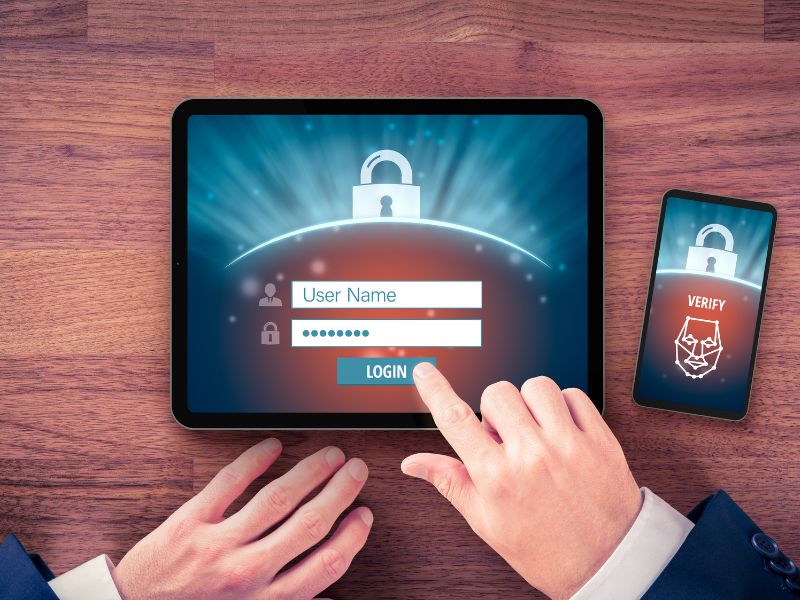
Have you ever found yourself logged out of your Facebook or other social media account? Are you worried someone will hack into any of your most-used websites, especially if you store payment information there?
Two-factor authentication is the best protection against any of those, plus so much more. We’ll explain what it is and why you should enable it whenever possible.
What is two-factor authentication?
Sometimes called 2-factor authentication or 2FA, two-factor authentication uses at least one backup method as protection when you’re logging in somewhere. You often just need a username or email address and a password to sign into the websites and apps where you store all sorts of personal information. 2FA adds a step that hopefully makes it harder for hackers to get that info.
Your Amazon account may have multiple credit cards on file, as well as all of your family members’ addresses. If someone is able to access that account with just your email and a common password, they will have access to not only your personal information but also your money.
Two-factor authentication has become a standard security setting in the workplace, as offices want to provide extra protection on company-owned devices, especially outside of the workplace, as remote jobs continue to grow in popularity. Now you can also set up two-factor authentication on all of your popular social media websites, and other commonly used sites like major banks.
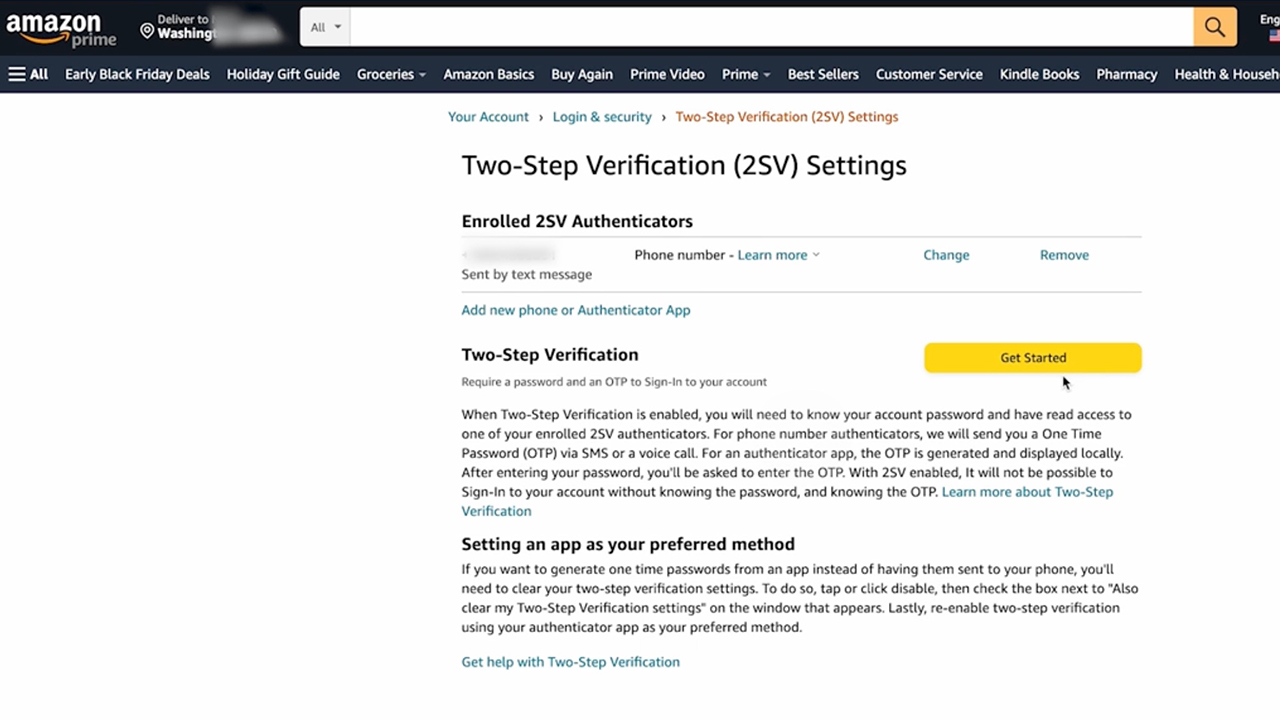
How does two-factor authentication work
Once you’ve logged into the website you’d like to set up 2FA on, you can choose a backup method where you’ll have to approve any login.
For example, picture your Amazon account. If you don’t want anyone on a new device to be able to log in to your Amazon account using just your email and password, you’ll want to set up two-factor authentication. Then you’ll pick a backup method, like receiving a text with a code anytime someone tries to login from a new device.
Why should I enable two-factor authentication?
While it might seem annoying to follow a few extra steps to log in to any of your major accounts, it’s worth it to protect your information from anyone else. Two-factor authentication means you have to approve a login on one of your approved devices or via a method like texting, which makes it much harder for hackers to log in to any of your accounts.
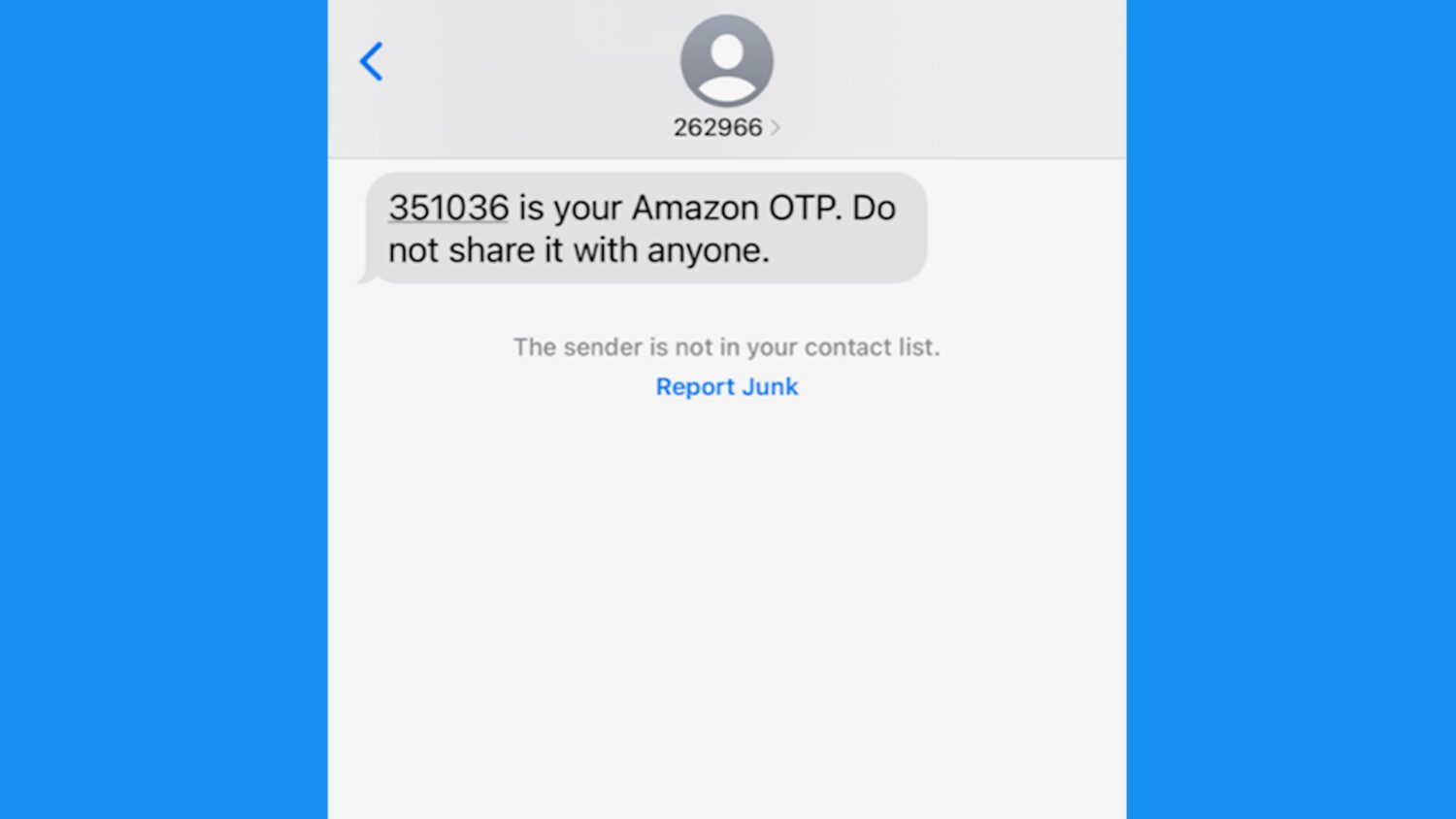
It can take less than a few minutes to set up two-factor authentication on each of these accounts, like your Facebook account.
You should set up 2FA on any account where you have financial information saved (like your bank or a shopping app) as well as any social media app that you log in to. You should also set it up for your email, as email messages contain tons of personal information you don’t even realize would be compromised.
What are the risks of 2-factor authentication?
Some common scams take advantage of how used to 2FA we are getting. Scammers have been known to trick you into giving codes you receive via text or app over the phone. Be sure to only use codes you receive for websites YOU’RE logging into, and never share a code you receive with anyone else – especially someone over the phone.
How to turn on 2-factor authentication on my iPhone
For security, when you sign in to your account on a new device or on the web, you’ll need both your password and a second factor, such as a 6-digit code sent to your device or your phone numbers, or a security key.
- Open the Settings app.
- Tap on your Apple ID at the top of the screen (this should be your name).
- Tap on Sign-in & Security.
- Tap on Turn On Two-Factor Authentication.
- Then tap Continue.
- You’ll be asked to enter a trusted phone number (this is the number where you’ll receive verification codes). Enter your phone number and tap Next.
- A verification code will be sent to your trusted phone number. Enter this code on your iPhone.
How to turn on 2-factor authentication on my Android
With 2-Step Verification, also called two-factor authentication, you can add an extra layer of security to your account in case your password is stolen. After you set up 2-Step Verification, you can sign in to your account with your password and your phone.
- Open your Google Account. You can do this by going to Settings > Google > Manage your Google Account.
- In the navigation panel, select Security.
- Under “Signing in to Google,” select 2-Step Verification.
- Tap Get started.
- Follow the on-screen steps.
What are some good authenticator apps I can use?
The most important thing is to use multi-factor authentication whenever possible, as it adds that extra layer of protection to your online identity. Here are some highly-rated authenticator apps you can use for multi-factor authentication, and they each can be downloaded on iPhone and Android phones.
How to outsmart criminal hackers by locking them out of your digital accounts
Can I set up 2FA on a PC or Mac?
You can turn on two-factor authentication on both a PC and a Mac. 2FA works the same on each device because it’s enabled inside your account, not on the computer itself. You choose the account you want to protect, open its security settings, and then add a second layer of protection. The steps below work for almost every website or app that supports 2FA.
How to set up 2FA on a PC
- Pick your 2FA method
An authenticator app is the best choice. Popular options include Microsoft Authenticator, Google Authenticator, Authy and 1Password. Text-message codes are fine but less secure. - Open the account you want to protect
Sign in on your PC. This could be Google, Microsoft, Amazon, Facebook, your bank or another service. - Go to the Security section
Look for Security, Login & Security, Account Protection or Password & Security. - Find Two-Factor Authentication or Multi-Factor Authentication
Click Set up or Turn on. - Choose your method
Select the authenticator app option when possible. A QR code will appear. - Scan the QR code with your phone
Open your authenticator app. Tap Add Account. Scan the QR code on your PC screen. - Enter the 6-digit code
This confirms that everything is linked and active. - Save your backup codes
Most sites give you one-time emergency codes. Store them somewhere safe.
How to set up 2FA on a Mac
The process on a Mac follows the same steps:
- Open the account on your Mac and sign in.
- Go to Security or Login & Security.
- Look for Two-Factor Authentication or Multi-Factor Authentication.
- Choose your 2FA method.
- Scan the QR code with your authenticator app on your phone.
- Enter the 6-digit code.
- Save your backup codes.
You don’t need a Mac-specific app. Your phone handles all authenticator codes.
Related Links:
- Chrome now autofills passports and driver’s licenses
- Don’t click that link! How to spot and prevent phishing attacks in your inbox
- The #1 Google search scam everyone falls for
Kurt’s key takeaways
Hackers are getting smarter, but so can we. Turning on two-factor authentication is one of the simplest, strongest ways to protect your most valuable online accounts. It only takes a few minutes—and could save you from a massive headache later.
Have you ever had an account hacked, or do you use 2FA already? Share your story in the comments below—your experience might help someone else stay safe.
Copyright 2026 CyberGuy.com. All rights reserved. CyberGuy.com articles and content may contain affiliate links that earn a commission when purchases are made.