



- Phishing emails trick victims into clicking on malicious links or sharing sensitive personal information.
- Hovering over links, checking email headers and verifying senders can reveal many phishing attempts.
- Strong antivirus software, two-factor authentication and software updates help prevent phishing attacks.
- If you click a malicious link, scan your device, change passwords and monitor accounts immediately.
Imagine this nightmare scenario. You receive an email from your health insurance provider, let’s say it’s Blue Shield, asking you to update your personal information by clicking on a link. You think it’s a routine request, so you click the link and enter your name, date of birth and Social Security number. The next thing you know, your identity is stolen, and your credit score is ruined.
This is a common occurrence of a phishing attack, a type of online scam that targets your email account. Phishing attacks are designed to trick you into clicking on malicious links, opening infected attachments, or providing personal information to hackers who want to steal your money, identity, or data. It’s definitely a concern for Don, from Michigan, who wrote to us asking,
You mention not to tap/select links in emails, how do I know if email links are OK to select? (like Blue Cross Blue Shield??) – Don, MI
Well, Don, that is a great question, and we will answer it and share some tips on how to prevent phishing attacks like this, which is essential for protecting your email and personal information.
How do I know if an email link is safe to select?
Here are three simple and effective ways to check if an email link is safe to select. These tips will help you avoid clicking on links that could lead you to phishing websites or malware downloads.
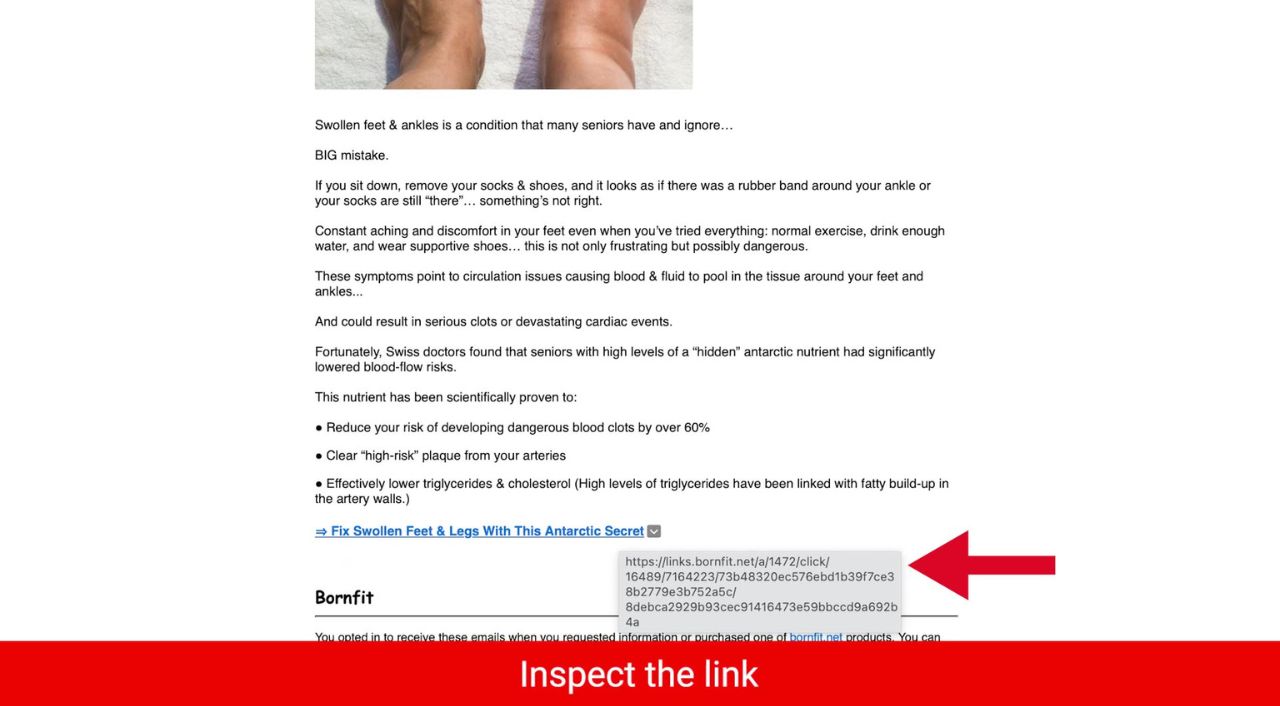
1) Inspect the link (on desktop or laptop)
One of the best ways to check if a link is safe to select is to inspect the link before clicking on it. It’s always a good idea to have your antivirus software actively running in the background before inspecting and/or clicking on any link.
Desktop/Laptop:
To do this, you can carefully hover your mouse over the link and look at the web address that appears. If the web address looks suspicious, misspelled, or unfamiliar, don’t click on it.
Tablet:
Tap and hold on the email address or the sender’s name. This action should reveal more details about the sender, including the full email address.
Check Email Headers – Open the email and look for an option to view the email headers. This might be under “More” or “Details” depending on your email app. The headers can provide information about the email’s origin.
A Texas mom says she spent the night in jail after speaking up online about dirty water in her town. The case was later dropped, but her story raises a troubling question: could something you post online ever put you at risk?

Missed this event? Sign up via the registration form and see our live recording.
See Kurt’s 2026 picks for practical tech and everyday upgrades.
Look for Red Flags – Be cautious of emails with urgent requests, spelling errors, or unfamiliar links. These are common signs of phishing attempts.
When in doubt, go directly to the company’s website by manually typing in the web address, or searching for the site in a search engine. Most often, the first or second result that comes up is legitimate. If you see the word “Sponsored “above the search result, take a beat before clicking it and consider clicking on the result below it.
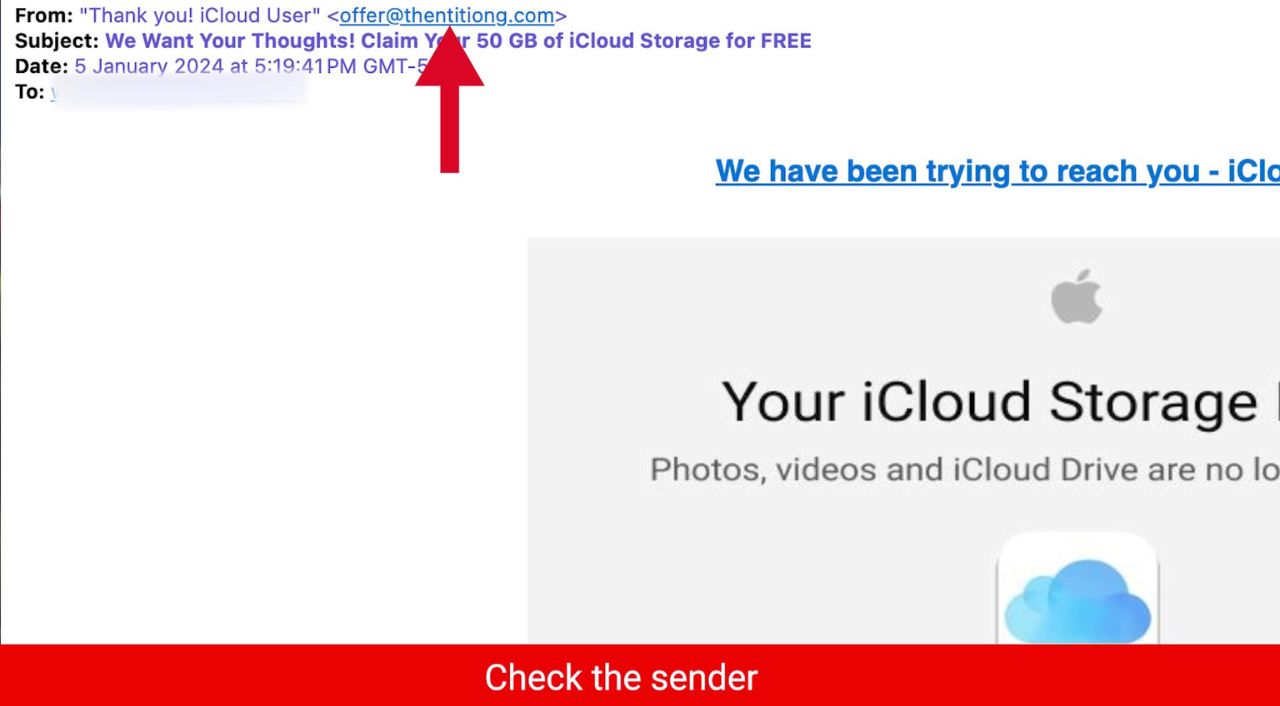
2) Verify the sender of the email
Another way to check if an email link is safe to select is to verify the sender of the email. Make sure that the email is from a legitimate source and not a spoofed or fake one. Scammers often use slight variations or impersonate legitimate sources. You can do this by looking at the sender’s email address and name. If the email address or name doesn’t match the sender’s identity, don’t trust the email.
If you’re still unsure about the authenticity of an email or a link, you can contact the sender directly and ask them to confirm. Don’t use the contact information provided in the email, but look for it on their official website or other trusted sources. Whatever you do, do not click on any links or provide personal information.
3) Before you click on any links or email attachments, ask yourself 3 questions
Pause before clicking. Before you click on any link or open any attachment, take a moment to evaluate it and ask yourself these 3 questions:
- Do I know the sender?
- Do I trust them?
- Did I expect them to send me a link or an attachment?
If the answer is no to any of these questions, then you should absolutely not click on any link or open the attachment. These links or attachments may look harmless, but they can actually contain harmful malware that can damage your device or steal your data. It’s better to be safe than sorry when it comes to email attachments.

How to secure your email account from phishing attacks
Here are 6 tips to protect your email account from phishing attacks.
#1 CyberGuy tip: Use antivirus software: This is perhaps one of the best investments you can make for yourself to protect yourself from phishing scams. Having strong antivirus software actively running on your devices will make sure you are stopped from clicking on any malicious links or from downloading any files that will release malware into your device and potentially have your private information stolen.
- Strong real-time protection against viruses, malware, ransomware and hacking attempts
- AI-powered scam protection to help identify suspicious emails, texts and websites
- Built-in password manager to securely store and manage logins
- 2 GB PC cloud backup to help protect important files from ransomware or hardware failure
- Smart firewall and phishing protection
- Protects 1, 3 or 5 devices
- Available for Windows, macOS, Android and iOS
- Includes real-time threat protection, smart firewall and phishing protection to guard against online attacks
2) Enable two-factor authentication (2FA): Whenever possible, enable 2FA for your online accounts. This adds an extra layer of security by requiring a second form of verification, such as a unique code sent to your phone, in addition to your password.
3) Keep software up to date: Regularly update your operating system, web browsers, and antivirus software to ensure they are equipped to detect and prevent the latest threats. You can regularly check for these updates on your device’s settings app for software updates, and you can go to your App Store or Google Play Store (depending on the device you have) to check for updates on individual apps. Follow these steps here.
4) Be cautious with personal information: Be wary of sharing sensitive information online, especially if it’s unsolicited or seems suspicious. Legitimate organizations rarely ask for personal details via email.
5) Keep spammers from getting any of your personal information to begin with
Regrettably, there is a high probability that your phone number and email address are readily available on many lists sold by data brokers to hundreds of people search websites. However, if you remove it from the web it can reduce the likelihood of spammers and telemarketers obtaining your number and contacting you.
Exclusive Deal for CyberGuy Readers (60% off): Incogni offers a 30-day, money-back guarantee and applies a special CyberGuy discount to all annual plans, for as low as $6.39/month for one person (billed annually) or $13.19/month for your family (up to 5 people) on their annual plan.
I strongly recommend the family plan. Here's why: the scam that starts with a Google search of your name almost always ends with a call to you, your elderly parent or a text to your adult child. Protecting yourself without protecting the people around you is half a solution. At $2.64 per person per month, the family plan covers up to five people, and the people most likely to be the final target are often the ones who'd never think to protect themselves.
Get Incogni and remove your info
6) Report suspicious emails: If you receive a suspicious email claiming to be from a specific organization, report it to that organization’s official support or security team so they can take appropriate action.
7) Educate yourself and others: Stay informed about the latest phishing tactics and share this knowledge with friends, family, and colleagues. Awareness is a powerful tool in preventing scams.
What should you do if you’ve clicked a link and installed malware on your device?
If you’ve been hacked, it’s not too late. There are several ways you can protect yourself from hackers, even when they have access to your information.
1) Scan your device for malware
First, you’ll want to scan your computer with a reputable and legitimate antivirus program. See my expert review of the best antivirus protection for your Windows, Mac, Android & iOS devices.
2) Change your passwords immediately
If you’ve inadvertently given your information to hackers or malicious actors, they could have access to your social media or banking accounts. To prevent this, you should change your passwords for all your important accounts as soon as possible. However, you should not do this on your infected device, because the hacker might see your new passwords. Instead, you should use ANOTHER DEVICE, such as your laptop or desktop, to change your passwords. Make sure you use strong and unique passwords that are difficult to guess or break. You can also use a password manager to generate and store your passwords securely.
3) Monitor your accounts and transactions
You should check your online accounts and transactions regularly for suspicious or unauthorized activity. If you notice anything unusual, report it to the service provider or the authorities as soon as possible. You should also review your credit reports and scores to see signs of identity theft or fraud.
4) Use identity theft protection
Phishing emails target your personal information. Hackers can use this information to create fake accounts in your name, access your existing accounts, and pretend to be you online. This can cause serious damage to your identity and credit score.
To avoid this, you should use identity theft protection services. These services can track your personal information, such as your home title, Social Security Number (SSN), phone number, and email address, and notify you if they detect any suspicious activity. They can also help you freeze your bank and credit card accounts to stop hackers from using them.
Exclusive CyberGuy deal: Save up to 68% today: Get Aura’s award-winning identity theft protection and credit monitoring for as low as $9/month when billed annually.
5) Contact your bank and credit card companies
If hackers have obtained your bank or credit card information, they could use it to make purchases or withdrawals without your consent. You should contact your bank and credit card companies and inform them of the situation. They can help you freeze or cancel your cards, dispute any fraudulent charges, and issue new cards for you.
6) Alert your contacts
If hackers have accessed your email or social media accounts, they could use them to send spam or phishing messages to your contacts. They could also impersonate you and ask for money or personal information. You should alert your contacts and warn them not to open or respond to any messages from you that seem suspicious or unusual.
7) Restore your device to factory settings
If you want to make sure that your device is completely free of any malware or spyware, you can restore it to factory settings. This will erase all your data and settings and reinstall the original version. You should back up your important data before doing this, and only restore it from a trusted source.
Related Links:
- How to protect your iphone from cyberattacks with lockdown mode
- How hackers are targeting x verification accounts to trick you
- Facebook accounts hit with malicious ad attack with dangerous malware
- Another home thermostat found vulnerable to attack
Kurt’s key takeaways
Making you and your family resilient to these growing dangers needs to be your number one priority. Protecting yourself from phishing attacks is crucial. Falling victim to such scams can result in identity theft, financial losses, and data breaches. Don’t let yourself become a target. By following the steps we’ve outlined above and staying vigilant, you can significantly reduce the risk of falling prey to phishing attacks. Your online security is in your hands, so make informed choices to protect your personal information and data.
Have you ever encountered a suspicious email or phishing attempt? How did you handle it, and what did you learn from the experience? Let us know in the comments below.
FOR MORE OF MY SECURITY ALERTS, SUBSCRIBE TO MY FREE CYBERGUY REPORT NEWSLETTER HERE
Copyright 2026 CyberGuy.com. All rights reserved. CyberGuy.com articles and content may contain affiliate links that earn a commission when purchases are made.
🎙 Now Streaming: My New Podcast: The CyberGuy Report
Kurt’s Top Deals
Deals move fast and inventory can be limited, so don’t wait too long.
| 🔥 Editor’s pick  Summer entertaining Ninja SLUSHi Machine (26% off) Frozen drinks and slushies at home in minutes. | |
| 💰 Top deal  Outdoor essential TYPEC Solar Bug Zapper (36% off) Solar-powered bug zappers for patios and camping. |


9 comments
I had numerous emails that I didn’t recognize which I always deleted. Since I have VPN installed on my iphone the incidence of suspicious emails has greatly decreased. I also have Outlook where I can have the internet scanned to see if my address was exposed in any reported data breach.
Thank you Kurt. You are extremely helpful.
I have a question. I received an email that was allegedly from Social Security. I was immediately suspicious. I was on my iPhone and moved my cursor over the sender’s address. But you can’t see the full address on the iPhone unless you click on it. So I did that, and of course it was bogus. I immediately blocked and deleted the email. Was it a mistake to click on the sender’s address? I didn’t click on any internet links. This happened to me before, and Identity Guard told me it was ok but I still wanted to check with you for your opinion. Thank you. Rhonda
Rhonda, from what you described, clicking on the sender’s email address in the Mail app on your iPhone just to view it is safe. That action only opens the contact details; it doesn’t visit any websites, download files, or trigger malware. The danger comes from clicking on links in the email body or opening attachments. In your case, blocking and deleting the message was the right move. If you didn’t click any web links or download anything, there’s no real risk.
When hovering over a link, does “https” at the beginning of the address indicate any safety?
Seeing https at the beginning of a link means the connection between your browser and the website is encrypted, which helps protect data you send, like passwords or payment details, from being intercepted. However, it does not guarantee the site itself is safe or legitimate. Scammers often use https on fake websites to appear trustworthy, so you should still verify the domain name, look for spelling errors or unusual URLs, and confirm the source before clicking or entering any information.
Hi Kurt. I’m not sure how I originally came across your website, however, I would like to say that most of the topics are timely and I thank you very much for that.
Thanks for all the great info Kurt
Is it still recommended reporting these phising scams to other organizations for official action againist the scammers?
Hi Paula, Yes, it’s still recommended to report phishing scams, as your report can help authorities track scammers, shut down fraudulent websites, and warn others. In the U.S., you can forward suspicious emails to the Federal Trade Commission at spam@uce.gov and to the Anti-Phishing Working Group at reportphishing@apwg.org, file a complaint with the FBI’s Internet Crime Complaint Center at ic3.gov, and report directly to the company being impersonated (for example, stop-spoofing@amazon.com for Amazon-related scams). You should also use your email provider’s built-in “Report phishing” tool and notify your bank or credit card company if the scam involved financial information.