Problems hearing or seeing? How this iPhone shortcut can come to the rescue
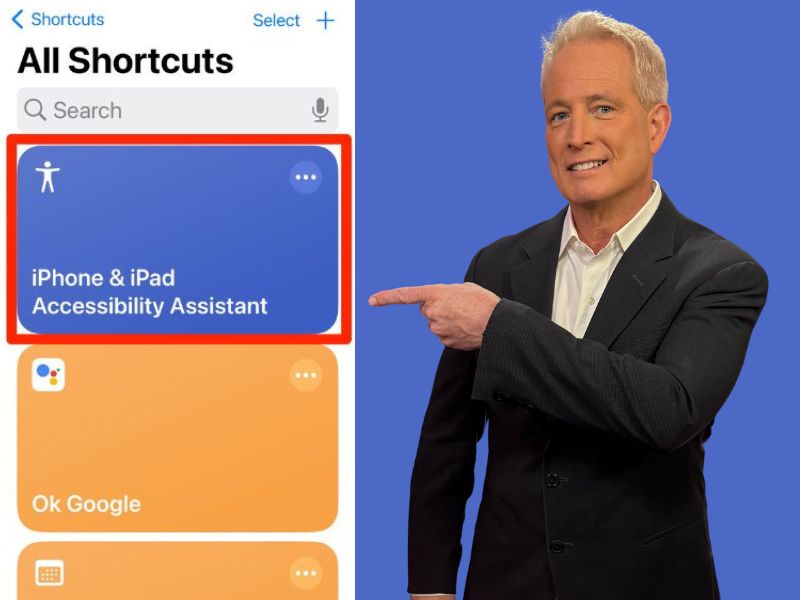
If you have difficulty seeing or hearing what’s on your iPhone, you might think that you need to buy a special device or download a complicated app to make it easier for you. But guess what? You don’t have to do any of that. Your iPhone already has a built-in feature that can help you adjust your settings according to your needs. It’s called the iPhone Accessibility Assistant, and it’s super easy to use.
However, before you start, make sure your iPhone is updated to iOS 26.1 or later so the steps match what you see. To check, go to Settings > General > Software Update.
What is the iPhone Accessibility Assistant?
The iPhone Accessibility Assistant is a shortcut that you can add to your Shortcuts app. It asks you a series of questions about your preferences and challenges and then suggests customized settings based on your answers. For example, it can help you:
- Increase the font size or contrast of your text
- Turn on captions or subtitles for videos
- Use voice control or dictation instead of typing
- Adjust the volume or balance of your audio
- Enable flash alerts or vibration for notifications
- And much more
The best part is that you can change your settings anytime you want, and you can also create different profiles for different situations. For example, you can have one profile for when you’re at home and another one for when you’re outside.
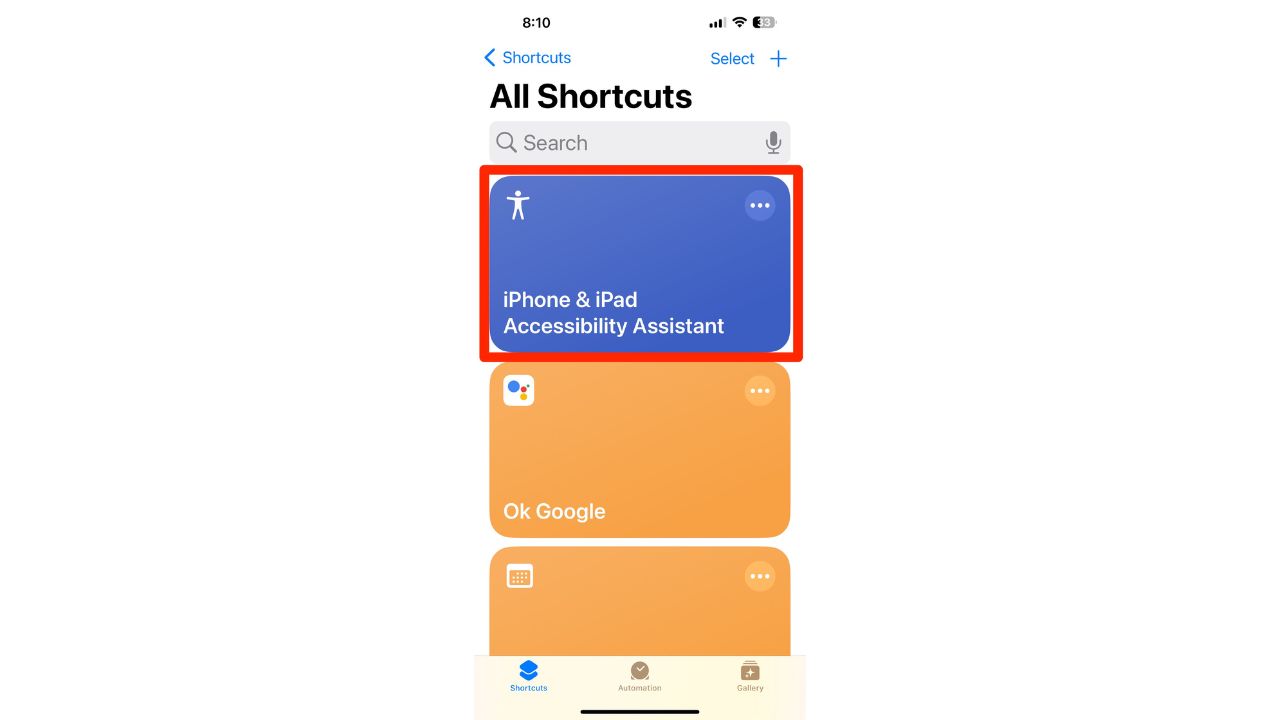
How to Use the iPhone Accessibility Assistant
Using the iPhone Accessibility Assistant is very simple. Just follow these steps:
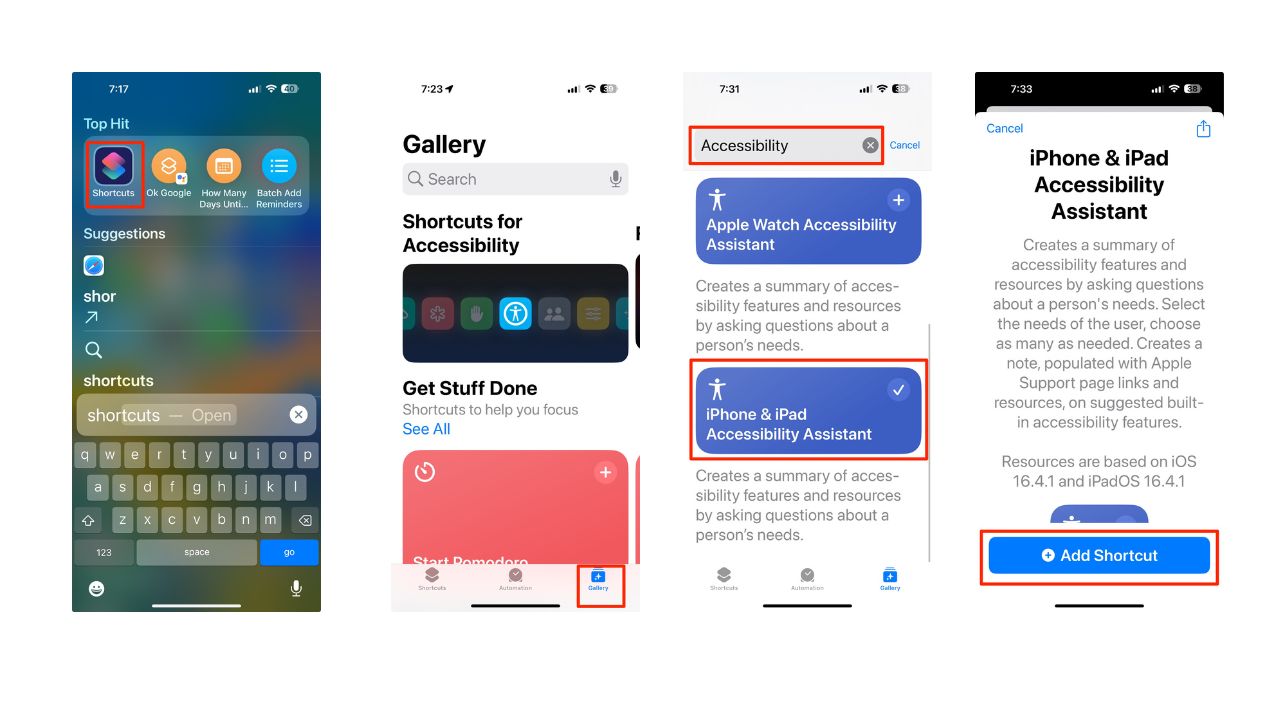
- Swipe down on the top of your phone screen and search Shortcuts
- Open the Shortcuts app, and navigate to your Gallery in the bottom right of your screen
- Search “Accessibility” and tap “iPhone and iPad Accessibility” to add it to your Shortcuts
- Then tap Add Shortcut
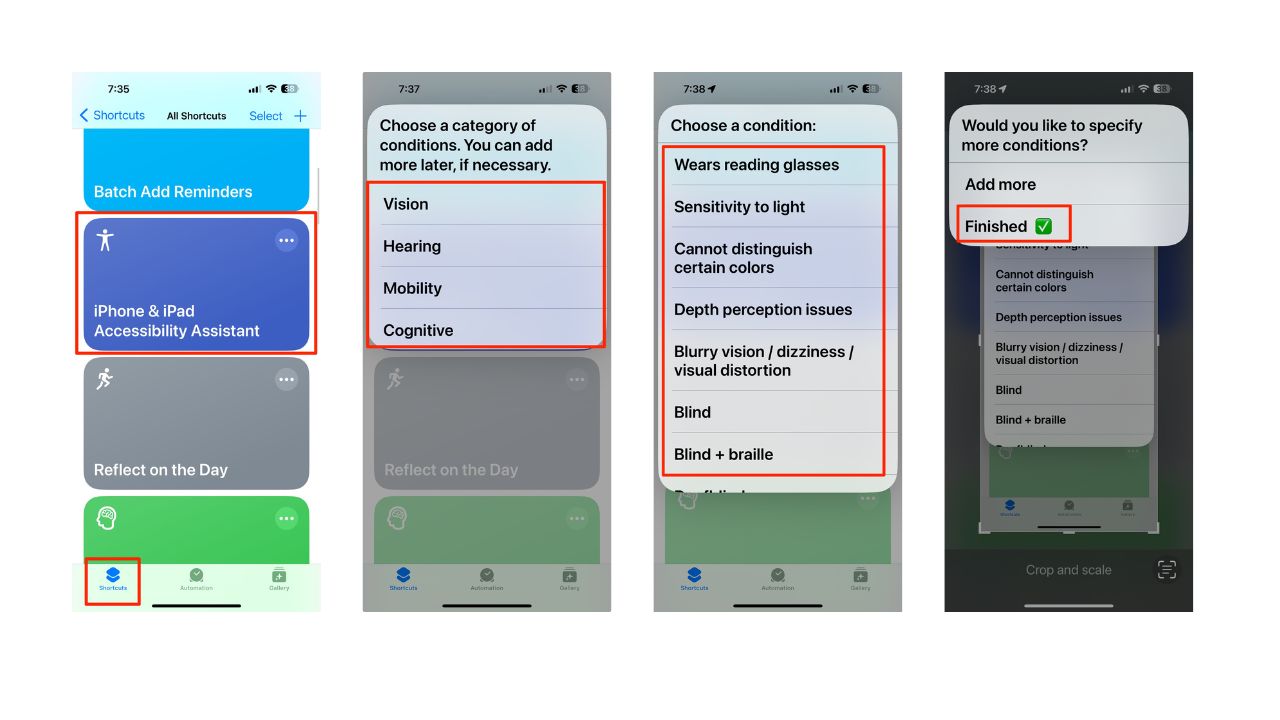
- Navigate to your Shortcuts by tapping the Shortcuts icon in the bottom left of your screen, and select “iPhone and iPad Accessibility”
- Answer the prompts, and choose a condition that applies to you. For example, you can choose “Vision,” “Hearing,” “Mobility,” or “Cognitive”
- Then choose Finished
Your iPhone will then create a note in the Notes app with recommendations for how to customize your iPhone and make it more user-friendly to your specifications. You can follow the instructions in the note.
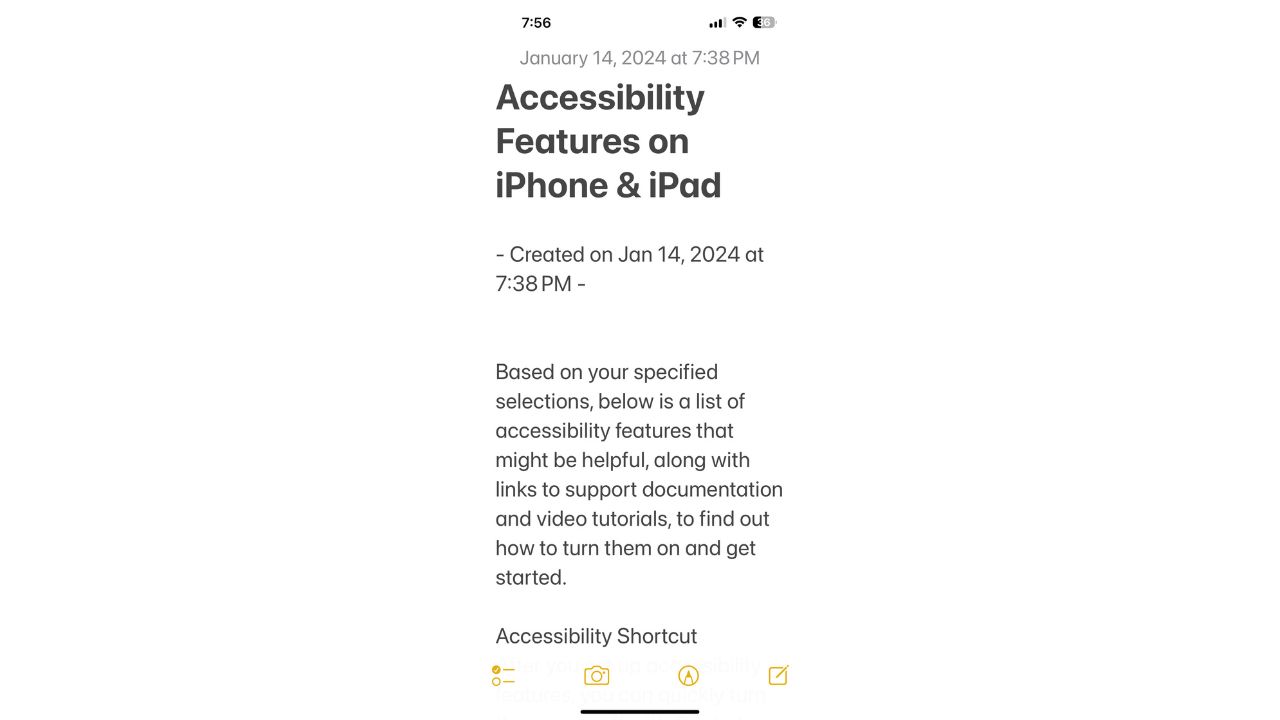
Note: The Accessibility Assistant creates a list of recommended settings based on your answers. It does not turn them on automatically. You can tap each recommendation in the note to open the matching setting and adjust it yourself.
Related Links:
- Adaptive Power in iOS 26 boosts iPhone battery life
- How to easily activate auto reply for text messages on iPhone or Android
- Does my iPhone need antivirus protection?
Kurt’s key takeaways
If you’re curious about how the iPhone Accessibility Assistant can help you, why not give it a try yourself? It only takes a few minutes, and you might be surprised by how much it can improve your iPhone experience. Just remember to swipe down, search “Shortcuts,” add the shortcut, and answer the prompts. It’s that easy.
What are some of the features or improvements that you would like to see in the iPhone Accessibility Assistant? How would they benefit you or others? Let us know in the comments below.
FOR MORE OF MY SECURITY ALERTS, SUBSCRIBE TO MY FREE CYBERGUY REPORT NEWSLETTER HERE
Copyright 2025 CyberGuy.com. All rights reserved. CyberGuy.com articles and content may contain affiliate links that earn a commission when purchases are made.