



Are you tired of manually replying to the same text messages over and over again? Do you wish there was a way to automatically respond to certain messages without lifting a finger? Well, you’re not alone. We recently received a question about this very topic from Jamie in San Dimas, California, who asked:
Is there a way to have an auto-reply to text messages?
– Jamie, San Dimas, CA
The answer is yes. And not just for iPhone users but for Android users as well. Let’s go over the steps for setting up an auto-reply for both iPhones and Androids.
How to let others know you’re busy without interrupting your flow
The auto-reply feature on smartphones is mostly to be used when you’re in the middle of something important, and you don’t want to stop to have a texting conversation with someone.
Rather than ignoring the person who texted you, your smartphone can quickly send an auto-reply message to let them know that you’re busy and will respond to them when you’re available.
These auto-reply messages can especially come in handy when you’re driving, at work, exercising, or any other activity that would preoccupy your time.
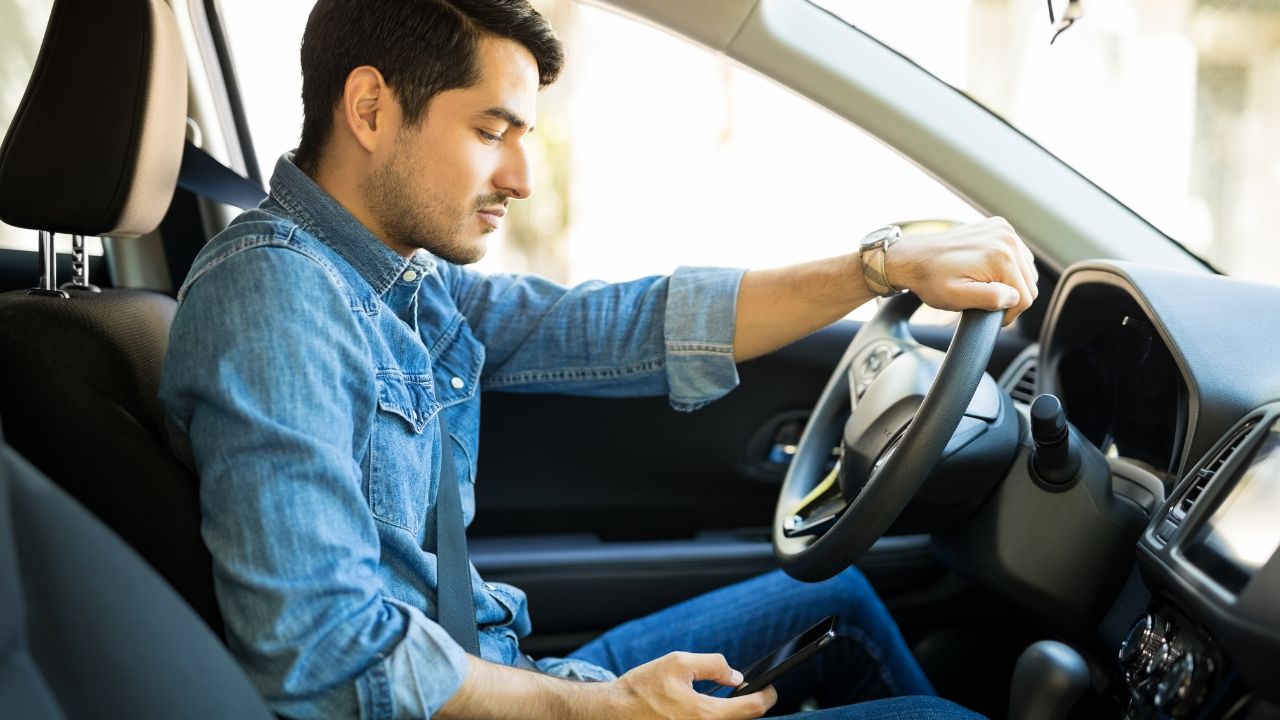
Setting up an auto-reply for an iPhone
If you have an iPhone that operates with the iOS 15 software update or later, then the best way for you to set up auto-reply is through the Focus feature.
Focus allows you to customize your iPhone and silence calls and notifications when needed while also sending out auto-reply messages should you desire to. Let me show you an auto-reply setting that can make your life safer when you drive by allowing your focus to stay on the road instead of your phone screen.
How to set up auto-reply with Focus
- Open your Settings app
- Scroll down and select Focus
- Tap the “+” on the top right
- Select Driving from the list of focus options
- Then click Customize Focus
- Tap Auto-Reply
- Select who you want your Auto-Reply message to be sent to. You can choose between No One, Recents, Favorites, or All Contacts.
- Your iPhone should have generated a message for you underneath Auto-Reply Message. If you wish to customize it, tap inside the box and type out a message
- Your auto-reply message will now be sent to whoever tries to contact you while you’re driving.
Now, whenever you enable the Driving focus filter, the group of your contacts you selected will receive your personalized auto-reply message when they try to contact you.
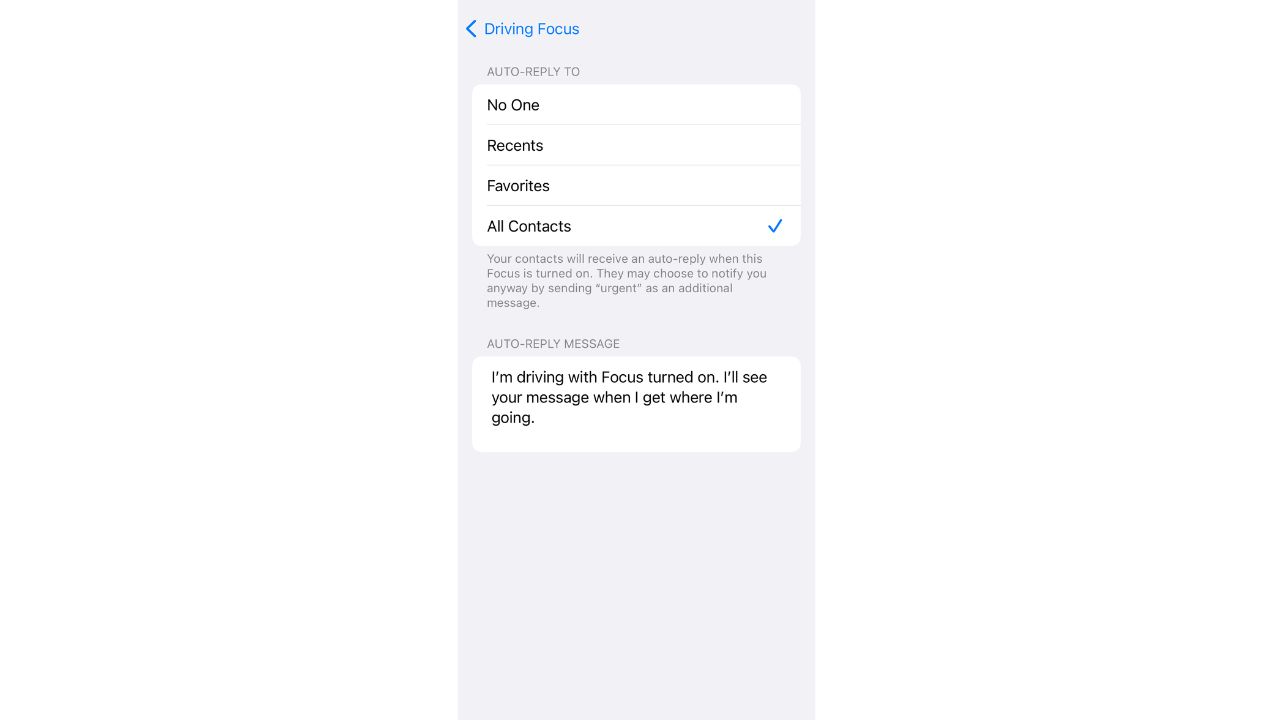
It’s important to note that, as of now, the Driving Focus is the only Focus mode that supports auto-reply messages. Other Focus modes do not have this capability yet, but it might be added in future updates.
For anyone with iOS 26 or later, try these instructions:
- Open Settings
- Tap Focus
- Choose a preset Focus (Do Not Disturb, Work, Sleep, Driving, Personal) or tap the plus sign to create your own
- Tap Customize to adjust how the Focus behaves
- Choose which people and apps are allowed to notify you while the Focus is on
- Set your Focus filters. These let you control things like which email accounts you see, which calendars appear, or which app pages show on your Home Screen
- Turn on Apple Intelligence suggestions if you want your iPhone to automatically recommend Focus modes based on your routine
- Set a schedule if you want the Focus to turn on at a certain time, location, or when you open specific apps
- When you’re done, swipe down from the top right of your screen to open Control Center. Tap the Focus icon to turn your Focus on or off anytime
Setting up an auto-reply for an Android
Android, by default, doesn’t have any built-in auto-reply feature for messages. However, you can use third-party apps to automatically notify the sender that you’re not available for whatever reason. One such app is SMS Auto Reply, which offers most of its features for free. First, you’ll want to download the SMS Auto Reply app from the Google Play Store.
Watch the latest episode of The CyberGuy Report.

Missed this event? Sign up via the registration form and see our live recording.
See Kurt’s latest Amazon picks for useful gadgets, smart home upgrades and everyday tech worth grabbing while the deals last.
How to get started with SMS Auto Reply
After installing the app, you can walk through the basic overview and then start making your own auto-response rules.
- Tap Add/Edit on the home screen to start one
- At the top, you’ll see the Busy template is selected by default
- You can tap the dropdown arrow to change it to other included options like Driving, Meeting, or Movie. (Each one has its own preset message, which you can edit in the Message field)
To create your own response template
- Tap the Plus icon at the top right and give it a name, and hit save
- Then type a message below where it says “message”
- Before moving on, make sure you have SMS selected under Select Channel to reply to so the responder works on text messages
- click the checkmark in the upper right corner of the screen
Set exceptions for text auto-responses
The next step is tweaking a template or making your own in the Personalized List section. Here you can optionally choose to send a personalized message to particular contacts. This allows you to leave a more personal note for people you know well or those you’re expecting a message from. Everyone else will get the general message you entered above.
- Tap the Pencil icon next to Personalized List to select a contact or contact groups that the personalized message should go to.
- Tap + ADD, then choose Add Contacts
- Then click OK
- Once you choose the contacts, then tap Add
- Now, type out the message for them, then click Apply
You can also specify numbers you don’t want to auto-respond to. For instance, you can exclude people with whom you expect to remain in contact, even while you’re out of the office.
- Tap the Pencil icon next to the Don’t Reply List field to select a contact or contact groups that you don’t want a message to go to.
- Tap + ADD, then choose from one of these options, Single Number, Range of Numbers, Contact Numbers or Group of Contacts
- Then type in the number and then tap Add
Setting a schedule for auto-responses
Next, you’ll want to set up a schedule for the auto-responder to run on.
- Choose Set Time on the home page, or the Set Time button at the bottom of the previous editing screen, to configure this.
- Make sure you have the right reply template selected from the dropdown bar at the top. Then you have four options for the SMS auto-reply schedule:
Run By Time: lets you pick a time period when the auto-responder should be active. Simply set a start time with From and an ending time with To.
Run By Date: will respond to messages during a period of dates (plus start and end times on those dates) that you choose. This is useful for setting “out of office” text replies when you know you’ll be away for a set number of days.
Run by Week Days: will activate the auto-responder for the time period you choose on the specified days of the week. Check the Repeat Weekly box if you want to run the same way in the coming weeks.
Run when your car Bluetooth connects: lets you activate the profile when your phone connects to one or more Bluetooth devices of your choosing. Make sure that you have Bluetooth enabled and the device(s) paired before selecting this. *This option requires you to update via in-app purchase for $2.89 (at the time of publishing)

Related Links:
- Best dash cams for your car
- How to hide apps on your Android to keep them secret
- How to send high quality photos from any iPhone
Kurt’s key takeaways
If you’re in the middle of a task that requires your full attention, such as driving, then you must stay focused on that task. However, that doesn’t mean that you have to keep your loved ones worrying about when they’ll hear from you again. Using the auto-reply feature can put them at ease and allow you to continue to stay focused on one thing at a time.
Are you guilty of feeling like you have to respond to every email and text that comes your way? Do you think setting up auto-reply could give you some of your own focus back? Let us know by commenting below.
FOR MORE OF MY TECH TIPS & SECURITY ALERTS, SUBSCRIBE TO MY FREE CYBERGUY REPORT NEWSLETTER HERE
Copyright 2025 CyberGuy.com. All rights reserved. CyberGuy.com articles and content may contain affiliate links that earn a commission when purchases are made.
🎙 Now Streaming: My New Podcast: The CyberGuy Report
Kurt’s Top Deals
Deals move fast and inventory can be limited, so don’t wait too long.
| 🔥 Editor’s pick  Summer entertaining Ninja SLUSHi Machine (26% off) Frozen drinks and slushies at home in minutes. | |
| 💰 Top deal  Outdoor essential TYPEC Solar Bug Zapper (36% off) Solar-powered bug zappers for patios and camping. |


