How to create your own text shortcuts on your phone

- Text shortcuts can turn a few typed letters into a longer saved phrase.
- iPhone can replace shortcuts automatically once you set them up.
- Samsung Keyboard shows saved shortcuts in the predictive text bar for quick insertion.
- You can create or delete shortcuts anytime from your keyboard settings.
Do you ever type the same text or email reply over and over again? Maybe it is your name, your address, a signoff or the quick “on my way” message you send when you are already headed out the door.
Your iPhone or Samsung Galaxy can handle that for you with text shortcuts. You type a short shortcut, then your phone turns it into the full phrase you saved. For example, I can type “cg” and have it expand to “CyberGuy.” When I type “kk,” it can fill in “Kurt Knutsson.”
That may sound like a tiny phone trick. However, once you set up a few shortcuts, it can speed up texting and emailing more than you might expect. Ready to let your phone do a little of the typing for you?
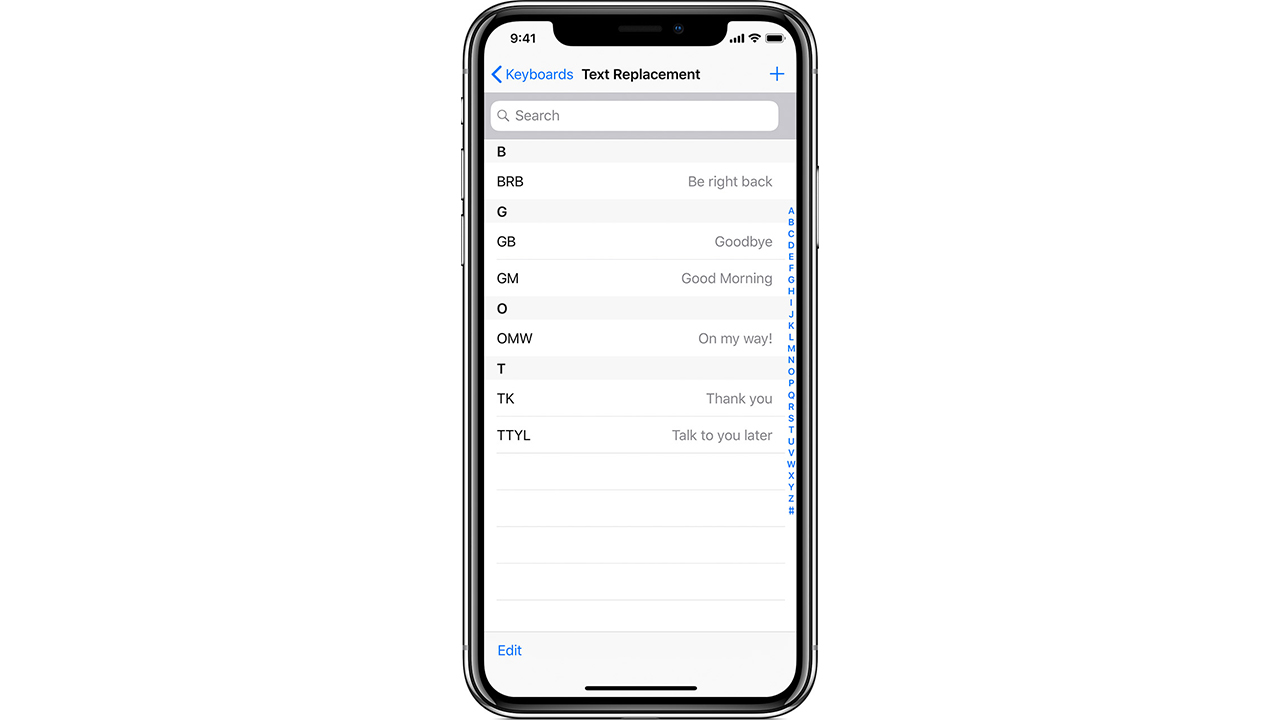
How to create your own text shortcuts on your iOS device
All you have to do is just follow these steps below to unlock the power of phrase-replacing with the Text Replacement feature.
- Click Settings
- Click General
- Click Keyboard
- Click Text Replacement (2nd row)
- Click the “+” button at the top
- Enter a phrase and the associated shortcut
- Click Save in the upper right-hand corner
Text shortcuts that can save you time
You can create shortcuts for phrases you type all the time. Here are a few common examples:
| Phrase | Shortcut |
|---|---|
| Be right back | BRB |
| Goodbye | GB |
| Good morning | GM |
| On my way! | OMW |
| Thank you | TK |
| Talk to you later | TTYL |
After you create your shortcuts, open an email or text message and type your shortcut. On iPhone, the longer phrase should replace it automatically.
How to delete a text shortcut on your iOS device using text replacement
Let’s say you now want to delete a text shortcut that you’ve created using text replacement. Here’s how to get rid of it on your iOS device.
- Open the Settings app
- Tap General
- Tap Keyboard
- Tap Text Replacement
- Find the shortcut you want to remove
- Swipe left on it and tap Delete

How to create your own text shortcuts on your Samsung device
Settings may work on other Android devices, although it may vary depending on your Android phone’s manufacturer
On Samsung Galaxy:
- Open Settings
- Tap General management
- Tap Samsung Keyboard settings
- Tap Text shortcuts
- Tap +
- Enter the shortcut phrase and the expanded phrase
- Tap Add.
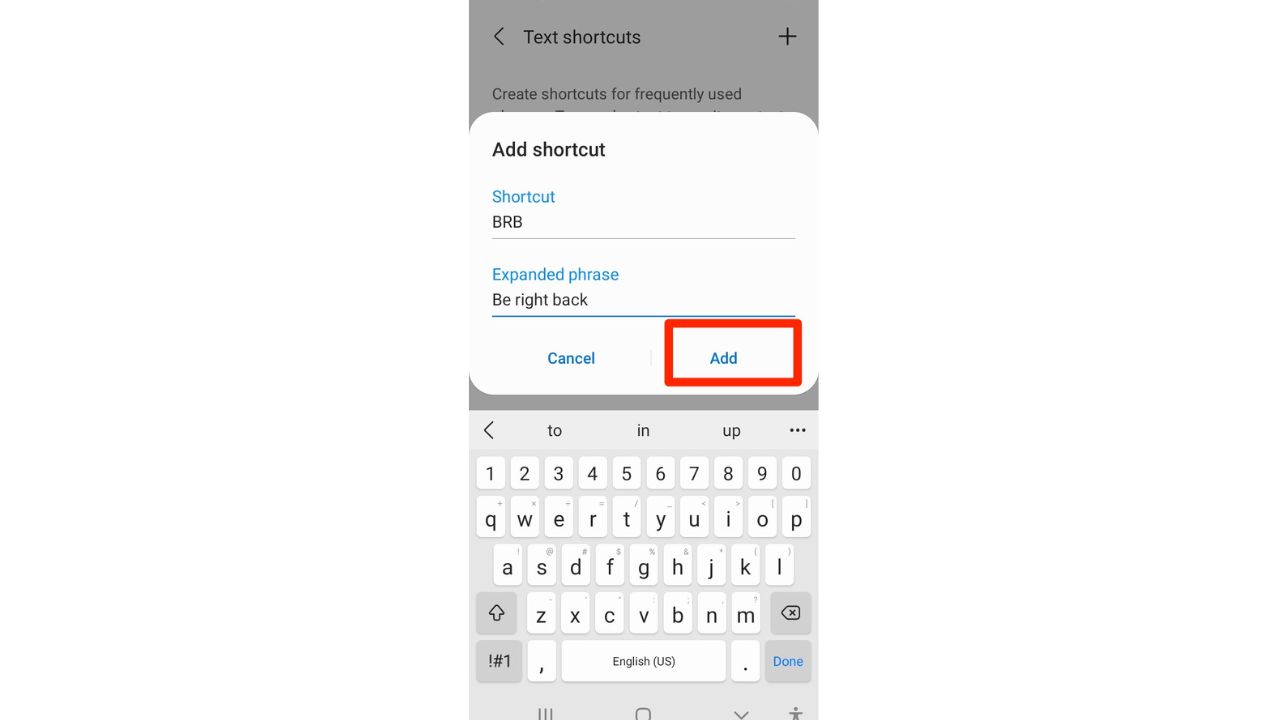
After you create your shortcuts, open an email or text message and type your shortcut. On Samsung Keyboard, the expanded phrase should appear in the predictive text bar, where you can tap it to insert it.
How to delete a text shortcut on your Samsung device
To delete a text shortcut you created on your Samsung device, access the keyboard settings and remove the desired shortcut entry from the list. Here’s how to do it.
Settings may vary depending on your Android phone’s manufacturer
- Open Settings
- Tap General management
- Tap Samsung Keyboard settings
- Tap Text shortcuts
- Select the shortcut you want to remove
- Tap the trash can or bin icon in the upper right corner
- Tap Delete to confirm
Related Links:
- How your old iPhone can do new amazing things with iOS 16
- 6 cool iPhone hacks to get the most out of life
- 3 Android copy and paste tips and tricks
Kurt’s key takeaways
Text shortcuts are one of those phone features many people overlook. Yet they can save you time every day, especially if you repeat the same names, phrases, addresses or replies. On iPhone, the longer phrase can appear automatically after you type the shortcut. On Samsung Keyboard, the expanded phrase shows up in the predictive text bar so you can tap it when you need it. The best part is that you control the shortcuts. You can create them for quick replies like “BRB,” personal details like your name or anything else you type often. And if a shortcut gets annoying or you stop using it, you can delete it in just a few taps. So go ahead and give your phone a little typing job. It might save you more time than you think.
What are some other time-saving smartphone tricks or features you wish more people knew about? Let us know by commenting below.
FOR MORE OF MY SECURITY ALERTS, SUBSCRIBE TO MY FREE CYBERGUY REPORT NEWSLETTER HERE
Copyright 2026 CyberGuy.com. All rights reserved. CyberGuy.com articles and content may contain affiliate links that earn a commission when purchases are made.