How to transfer data to a new iPhone or Android
- You do not need a third-party app to transfer data to a new phone.
- Apple and Android include built-in encrypted tools that guide you step by step.
- You can move photos, contacts, messages, apps, and settings without a computer.
- After the transfer, review security settings to protect your new device.
Getting a new phone should feel exciting. However, many people feel anxious about transferring their data. They worry about losing photos, contacts or important messages. If that sounds familiar, you are not alone. That concern landed in our inbox from Sue:
“Hi Kurt. I want to buy a new iPhone & will need to transfer data. I am not tech savvy, and Spectrum recommended downloading TRANSFER MY DATA from the App Store. Is this safe and easy? I used to live near an Apple Store & used Verizon. They did it for me, and it took a little time. With Spectrum, you can’t buy a phone with that service provider. Can you recommend a safe and easy way to transfer data from one iPhone to another? I only have an iPad and an iPhone, no computer.”
Sue, this is a very common question. The good news is simple. You do not need a third-party app to transfer data to a new phone. Both Apple and Android include secure built-in tools that make the process straightforward.
Let’s walk through the safest options step by step.

Should you use third-party transfer apps?
When upgrading your device, you may see apps like “Transfer My Data” suggested by a carrier or inside an app store. Even if some apps are legitimate, you do not need them.
Third-party transfer apps can:
- Request broad access to contacts’ photos and messages
- Introduce unnecessary privacy risks
- Create issues that Apple or Google will not support
- Complicate a process that is already built in
Instead, use the official transfer tools from Apple or Google. They are designed specifically for your device and use encrypted connections.
How to transfer data to a new iPhone
If you are moving from one iPhone to another, Apple provides two secure methods. Both work without a computer.
Use iPhone Quick Start for direct transfer
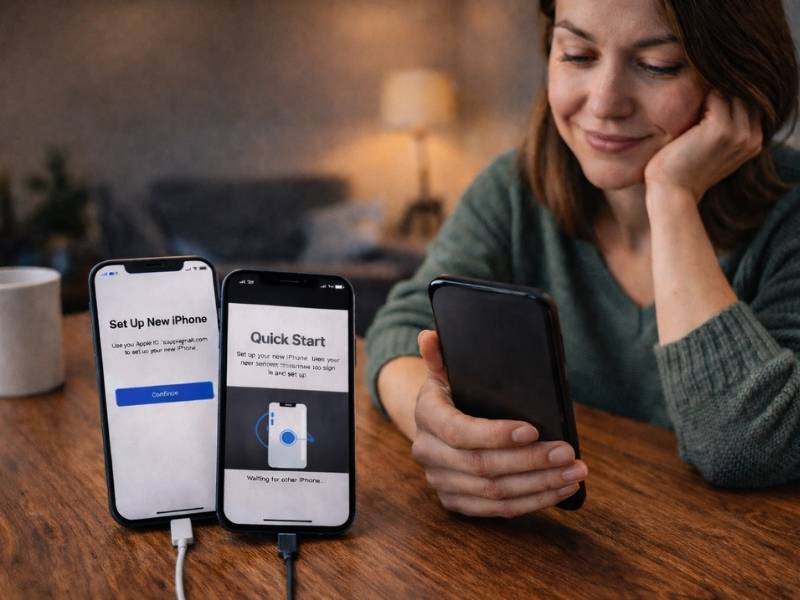
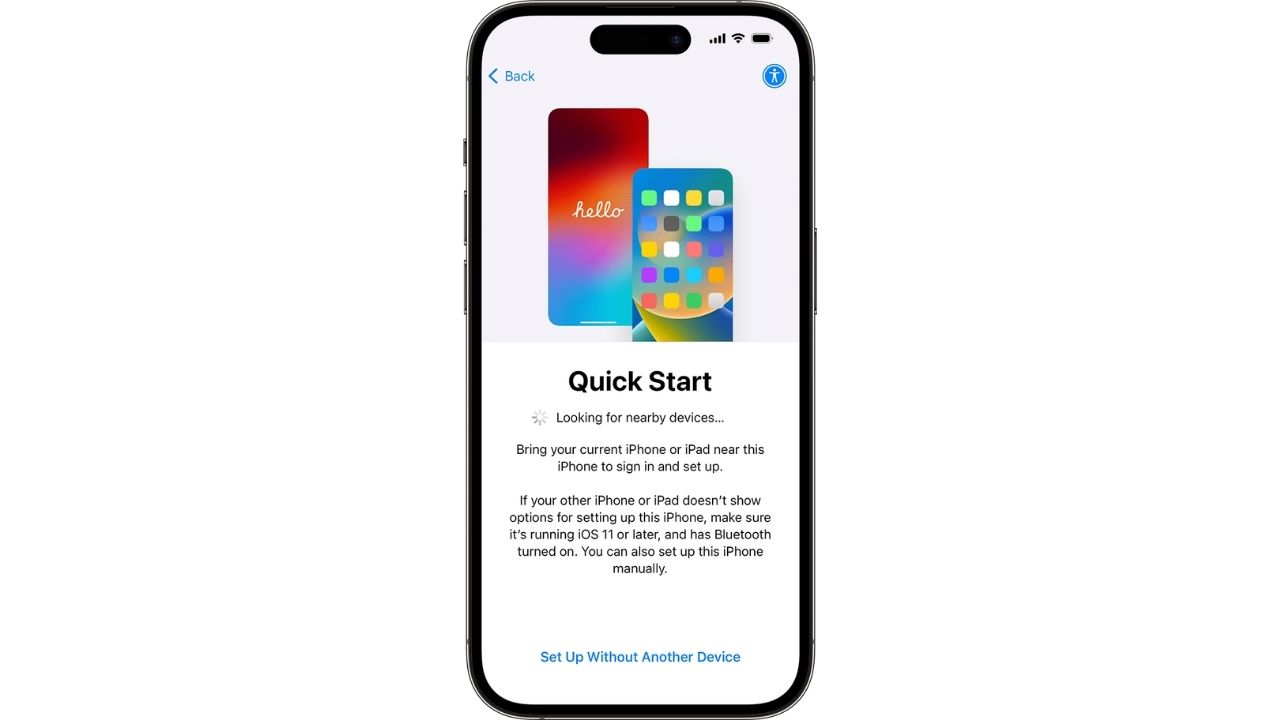
Quick Start is the easiest way to transfer data to a new phone. It is the same method Apple uses in stores.
What you need
- Your old iPhone
- Your new iPhone
- Wi-Fi connection
- Your Apple ID password
- Both devices are charged or plugged in
How to use Quick Start
- Turn on your new iPhone.
- Place it next to your old iPhone.
- A setup screen appears on your old device.
- Tap Continue and follow the instructions.
- Choose Transfer Directly from iPhone.
- Keep both phones near each other and connected to power.
What transfers automatically
- Photos and videos
- Contacts
- Messages
- Apps
- Settings
- Call history
The transfer time depends on how much data you have. Large photo libraries take longer. Keep both phones plugged in and connected to Wi-Fi until the process finishes.
Quick Start uses encrypted communication between devices, which protects your data during transfer.
Use iCloud backup and restore
If you already back up your iPhone to iCloud, this method is also safe and easy.
Step 1: Back up your old iPhone
On your old device:
- Go to Settings
- Tap your name
- Click iCloud
- Tap iCloud Backup
- Click Back Up Now
Wait for the backup to complete before moving forward.
Step 2: Restore on your new iPhone
During setup on the new device:
- Choose Restore from iCloud Backup
- Sign in with your Apple ID
- Select your most recent backup
Apple often provides temporary extra iCloud storage during upgrades. That helps if you are low on space.
Sue, since you only have an iPhone and an iPad, both of these options work perfectly without a computer.
How to transfer data to a new Android phone
If you are upgrading from one Android phone to another, Google includes a built-in transfer system.
Use Android setup transfer
What you need
- Your old Android phone
- Your new Android phone
- Wi-Fi connection
- Your Google account password
- A charging cable or wireless connection
How to transfer during setup
Settings may vary depending on your Android phone’s manufacturer
- Turn on your new Android phone.
- Tap Set up new device.
- Select Copy apps and data.
- Connect your old phone using a cable or choose wireless transfer.
- Sign in with your Google account.
- Choose the data you want to copy.
What transfers
- Contacts
- Text messages
- Photos
- Apps
- Device settings
- Call history
Android encrypts the transfer process to protect your information.
Use Google backup restore
If your old Android device backs up automatically, restoring is simple.
On your old phone:
Settings may vary depending on your Android phone’s manufacturer
- Click Settings
- Tap System
- Click Backup
- Turn on Backup by Google One, or it might say Back up now
On your new phone, during setup:
- Sign in with your Google account and choose Restore from backup.
This method downloads your apps, data and settings from Google’s secure cloud.
How to switch from Android to iPhone
If you are moving from Android to iPhone, Apple’s official tool is called Move to iOS. Use only this app from the Google Play Store.
What you need
- Your Android phone
- Your new iPhone
- Wi Fi connection
- Both devices charged
- Your Google account login
Step-by-step instructions
- Turn on your new iPhone.
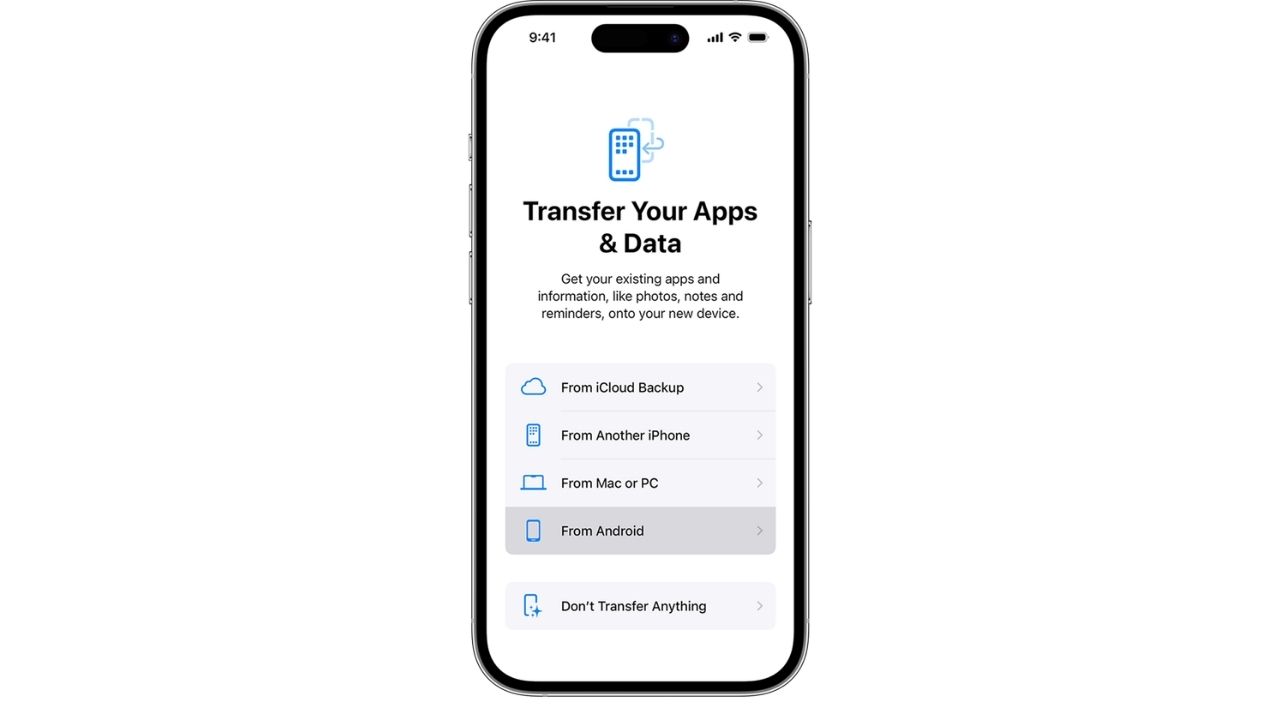
- During setup, stop at the Apps and Data screen.
- Tap Move Data from Android.
- On your Android phone, download and open Move to iOS from Google Play.
- Tap Continue on both devices.
- Enter the code shown on your iPhone into your Android phone.
- Choose the data you want to transfer.
- Keep both phones nearby until the transfer finishes.
What transfers
- Contacts
- Message history
- Photos and videos
- Mail accounts
- Calendars
- Some apps
After setup finishes, download any remaining apps from the App Store.
How to switch from iPhone to Android
If you are moving from an iPhone to an Android, most Android devices guide you through the process during setup.
What you need
- Your old iPhone
- Your new Android phone
- A USB-C cable or wireless connection
- Your Apple ID password
Step-by-step instructions
Settings may vary depending on your Android phone’s manufacturer
- Turn on your new Android phone.
- Tap Start and connect to Wi Fi.
- Choose Copy apps and data.
- Connect your iPhone using a cable when prompted or choose wireless transfer if supported.
- Sign in with your Google account.
- Follow prompts to allow data access on your iPhone.
- Select what you want to transfer.
What transfers
- Contacts
- Photos and videos
- Text messages
- Calendars
- Some apps
You may need to turn off iMessage on your iPhone before switching. Go to Settings → Messages → Turn off iMessage. This prevents missing texts later.
Why are built-in transfer tools safer?
When you transfer data to a new phone using official tools, you benefit from:
- Encrypted connections
- Limited data permissions
- Direct device-to-device communication
- Full manufacturer support
If something goes wrong, Apple or your Android manufacturer can help. That support is not guaranteed with third-party apps.
Common concerns when transferring data
Will I lose anything?
Back up your old phone before starting. That creates a safety net.
How long does it take?
Transfers can take 20 minutes or more, depending on storage size. Stay connected to power and Wi Fi.
What if I make a mistake?
If you have not fully activated the new phone, you can erase it and restart the setup process.
What to do after you transfer data
Once your data moves successfully, review your security settings. If you are setting up a new iPhone, see this helpful guide. It walks you through key privacy and security features you can enable right away.
Pro tip: Add security before you start using your new phone
A new phone is the perfect time to strengthen your digital defenses. Before installing every app and logging into every account, take a few minutes to lock things down.
Start with these steps:
- Install strong antivirus software on your iPhone and Android
- Turn on automatic system updates
- Enable two-factor authentication (2FA) on important accounts
- Review app permissions and remove anything you do not use
- Set up a strong device passcode and biometric login
Android devices benefit most from strong antivirus software because the platform allows broader app access. On iPhone, built-in protections are strong, but you should still review privacy settings and enable security features.
Think of a new phone as a clean slate. The transfer protects your old data. These steps protect your future data.
Related Links:
- Beware of the say yes phone scam
- Thousands of iPhone apps expose data inside Apple’s App Store
- Your phone shares data at night: Here’s how to stop it
Kurt’s key takeaways
Upgrading your device should feel exciting, not overwhelming. When you transfer data to a new phone using built-in tools from Apple or Google, you lower your risk and simplify the entire process. Most importantly, third-party transfer apps are unnecessary. In addition, you do not need a computer to get the job done. Instead, you can complete the transfer with Wi-Fi, your login credentials and a little patience. So before downloading anything extra, start with the secure tools already built into your phone. Now I want to hear from you.
Should carriers stop recommending third-party apps for sensitive tasks like phone data transfers, or should customers be expected to know the safer option? Let us know in the comments below.
FOR MORE OF MY TECH TIPS & SECURITY ALERTS, SUBSCRIBE TO MY FREE CYBERGUY REPORT NEWSLETTER HERE
Copyright 2026 CyberGuy.com. All rights reserved. CyberGuy.com articles and content may contain affiliate links that earn a commission when purchases are made.