Top browser extensions to make your life easier
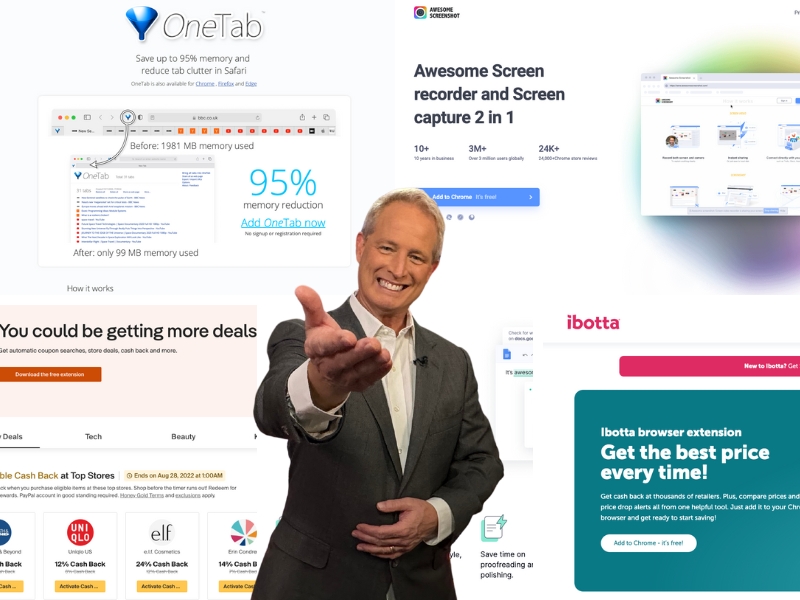
If you’ve been on the internet and browsed different websites, you’ve likely used or been asked to download something called a browser extension at one point or another.
Browser extensions are small software programs that run in tandem with your browser to perform certain functions or behaviors to expand browser functionality, automate tasks, and improve security, privacy, and productivity.
It can enhance your experience, from checking your spelling and grammar to even saving you some money.
Why should I install a Browser Extension?
Not only can browser extensions make your online experience safer, but they can also make it more convenient. Because they are smaller programs that exist within the confines of your browser, you can have multiple extensions within the same browser, so you can customize your experience. Most of the time, the browser extensions are free too.
Many of the browser extensions automate your preferences. For instance, if you want your spelling and grammar to be checked as you browse and comment on Facebook, you can download an extension like Grammarly, which will check almost anything you type while on the browser it is installed on. No more cutting and pasting posts in a Word document to check for grammar and spelling corrections. And no more posts full of embarrassing typos!
With thousands of free extensions, you can find something to meet most of your needs. Because most extensions are created by third-party developers, it is important to be discerning about which extensions you choose.
Because sorting through the thousands of browser extensions can feel incredibly overwhelming, below are our top picks for browser extensions with a variety of different features for your convenience. Additionally, you can also learn how to install and uninstall browser extensions.
Top Browser Extension Picks
Below is a variety of browser extension that covers the gamut of common functions and features that can make your life easier. This list of browser extensions focuses on browsers used on desktops and laptops.
OneTab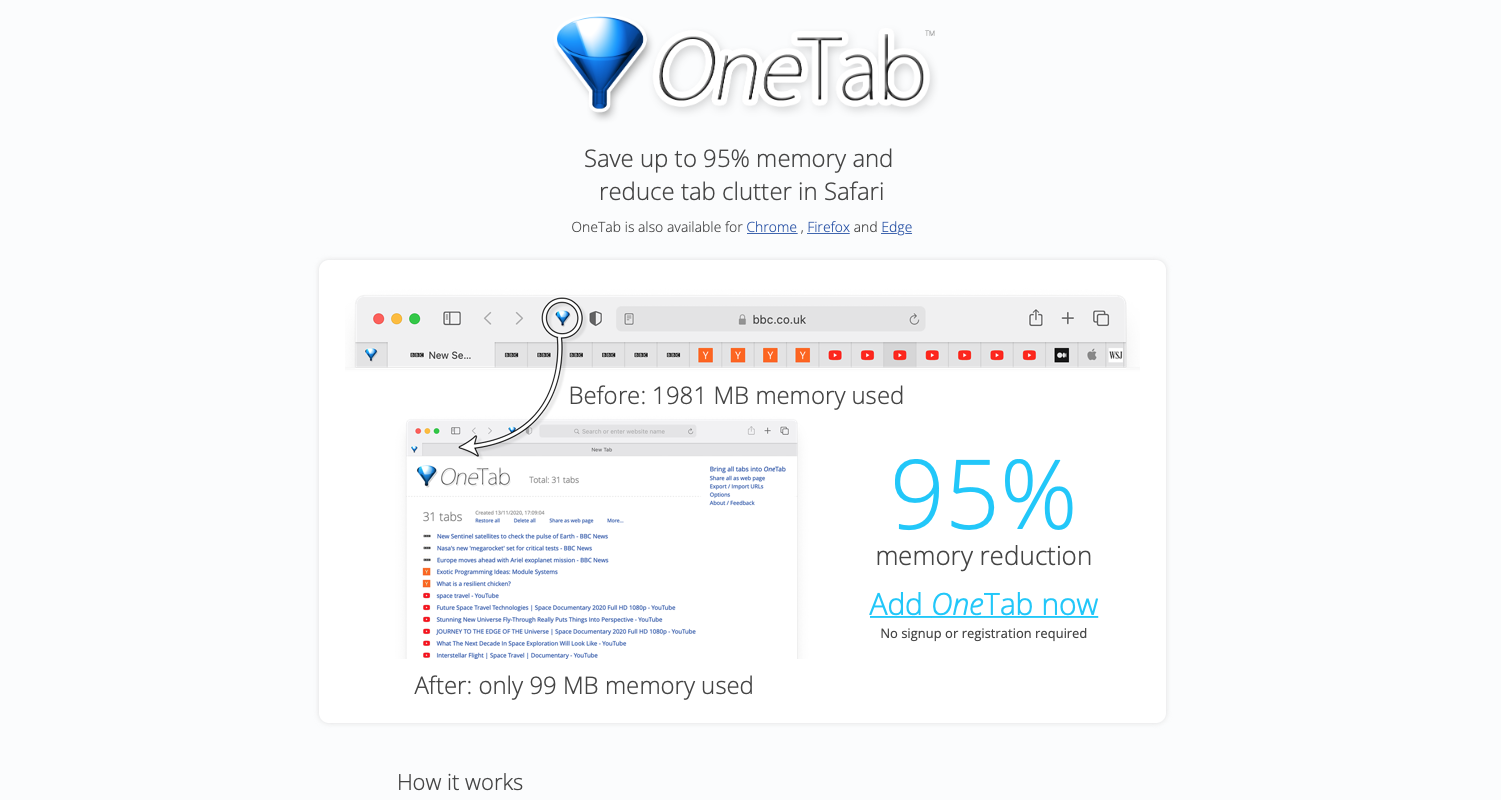
If you chronically open tons of tabs on your web browser but get overwhelmed trying to parse out which sites to close, bookmark or keep open, Onetab is a great option.
Onetab lets you:
- Save all the tabs you had open as a list so you don’t have to take any additional action until you want to access the tabs again
- Restore each tab or all the tabs later
- Get a reduction of memory use by 95%
- Export your list of tabs as URLs (website addresses) so you can take your list with you or share it with others
Available on: Chrome, Firefox, Edge, Safari
Awesome Screenshot
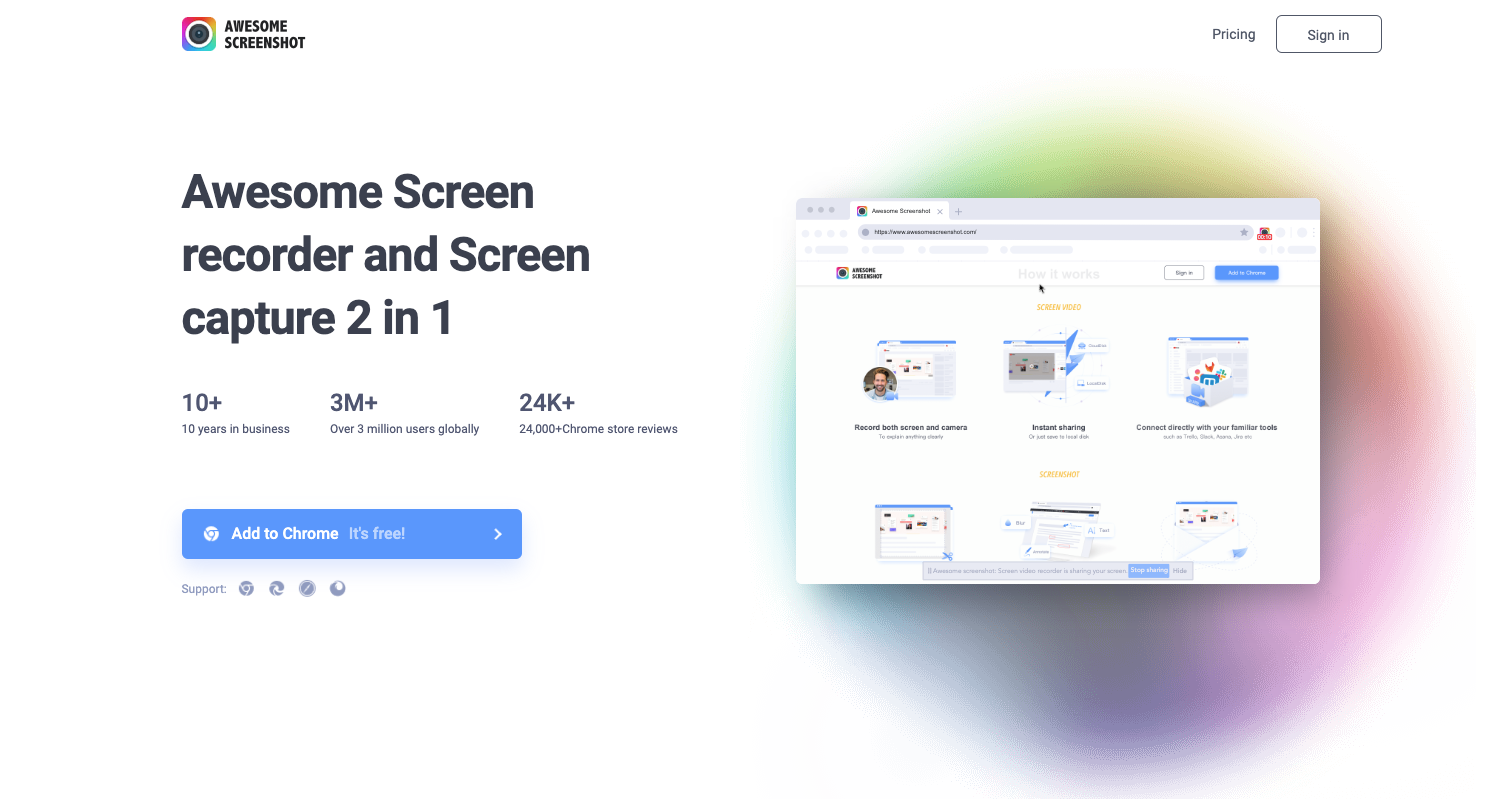
Though already mentioned in the 7 Best Ways to Take Screenshots article, Awesome Screenshot is worth mentioning again as an excellent browser extension. You can use their screen capture and recording functions.
Awesome Screenshot lets you:
- For recording:
- It enables you to record both the screen on your device and the camera (up to 20 recordings for free) at 1-minute recordings for the free plan.
- Record in resolutions up to 720p
- Use of annotation tools while recording
- Instantly share or save to your local device
- Connect with other familiar programs such as Slack and Trello, etc.
- For capturing:
- 1-Click screenshots
- Annotate or edit screenshots with various editing options (availalbe on paid plan)
- Share screenshots to multiple destinations
- Take up to 100 screenshots
Please note: Additional and advanced features are available for paid users.
Available on: Chrome, Edge, Safari, and Firefox
NordPass

NordPass” is a powerful password management tool that seamlessly integrates with all major web browsers, including Google Chrome, Mozilla Firefox, Microsoft Edge, Safari, Opera, and Brave, enhancing both security and convenience. It simplifies logging into websites, generating strong passwords for new accounts, and securely accessing stored information in vaults without leaving the browser. The extension provides a comprehensive suite of security tools for managing passwords, credit and debit card details, banking information, and other sensitive data. Its autofill feature ensures quick and secure access to logins and personal information while browsing. Additionally, NordPass is designed for multi-device compatibility, functioning smoothly across Mac, Windows, Linux, iOS, Android, and ChromeOS, ensuring seamless access to essential data regardless of the device or browser used.
Setting up NordPass is straightforward: sign up for NordPass, add the extension to your preferred browser from the official extension store, and log in using your NordPass credentials. Once installed, the NordPass icon appears next to the address bar for quick access. This tool not only generates and stores strong passwords but also updates existing ones, autofills passwords, credit card numbers, addresses, and retrieves 2FA codes. Users can organize their digital credentials into customized vaults and sync data across multiple devices and operating systems.
Beyond passwords, NordPass securely stores a wide range of personal information, such as payment details, bank information, passport details, medical records, and more. While powerful on its own, NordPass also integrates seamlessly across all its applications, delivering a unified and secure experience across multiple browsers, devices, and platforms.
CyberGuy Exclusive Deal: Save 56% now with CyberGuy’s exclusive NordPass offer – Get 4 extra months FREE with a 2-year plan. Try 30 days risk-free for only $1.29 per month!
Download NordPass for Your Browser
Grammarly
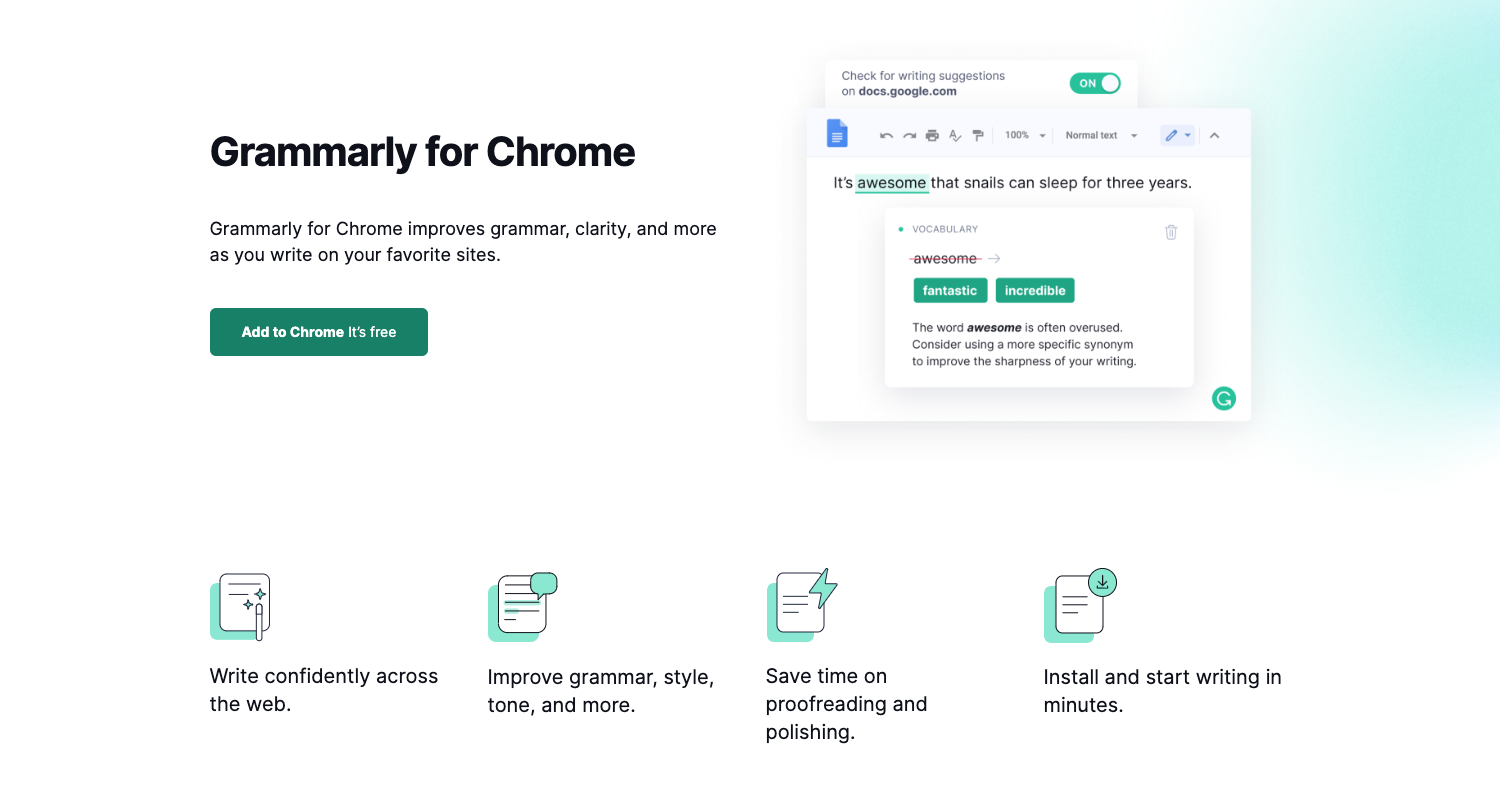
Grammarly is a program that helps you correct spelling, write clearly and concisely, and improve tone and word choice. (in fact, we’re using it right now to check this article!)
The Grammarly browser extension lets you:
- Proofread your writing across the web – be it email, the comments section of a website, or a post on your Facebook page
- Detects tone and helps you adjust it
- Underlines spelling or grammar errors as you type on whatever website you are on
- Turn the extension on as you wish
Step 1:
Step 2:
Once signed up, download the extension from the dashboard.
Available on: Chrome, Safari, Firefox, and Edge
ibotta
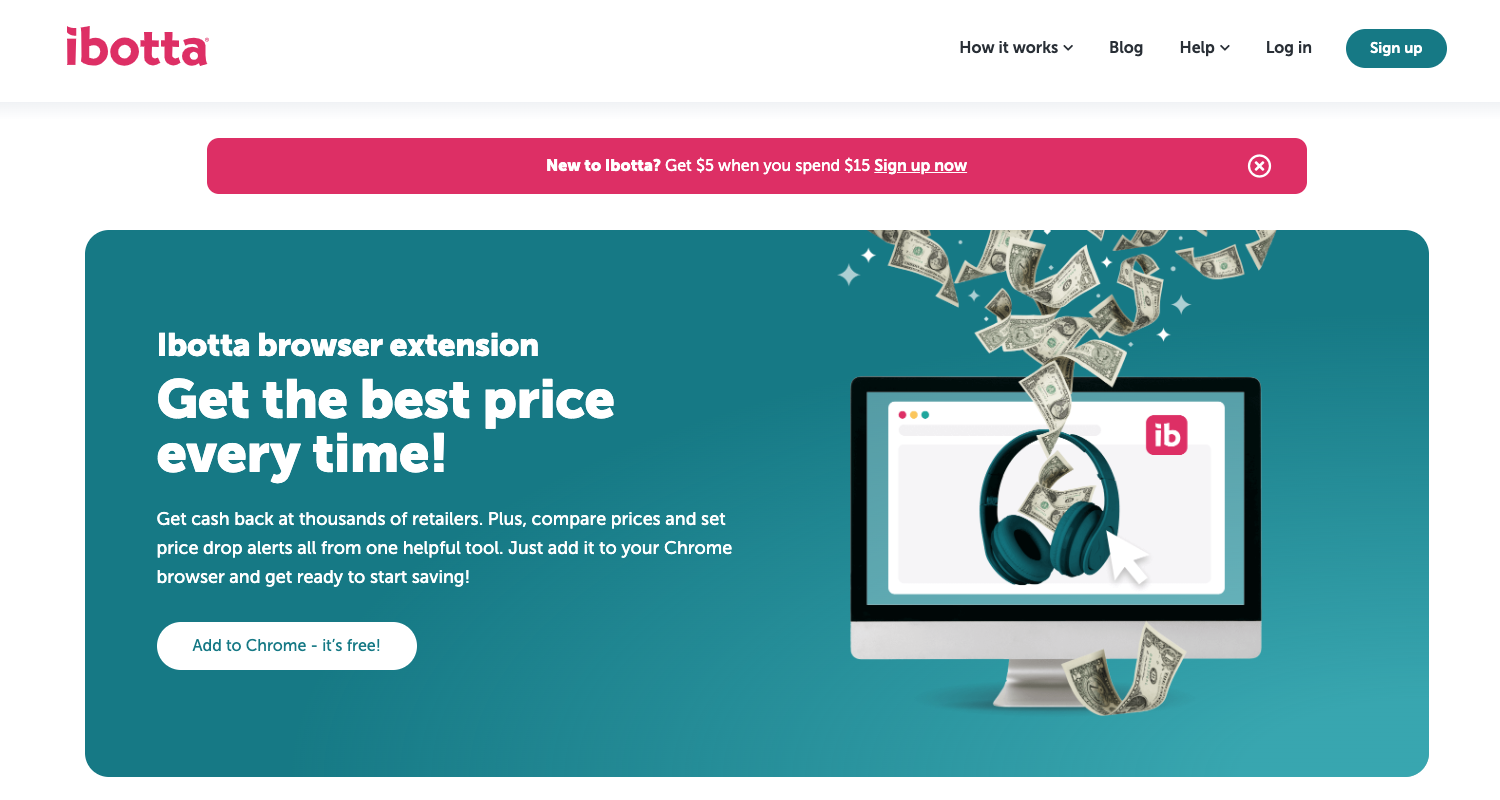
A cashback app covered in How to use the Ibotta app to score some great freebies also comes as a browser extension so you don’t have to use a separate app as you surf the web.
ibotta browser extension lets you:
- Get cash back at 2,000+ retailers
- Track prices and restocks
- Open the extension to compare prices and set price alerts on the spot!
Step 1:
Click this link and use referral code mpiaurm to earn $5 when you submit your first receipt
Copy code to insert into the Referral code box on Ibotta “Create account” page: mpiaurm
Step 2:
Download Chrome extension here
Available on: Chrome
PayPal Honey
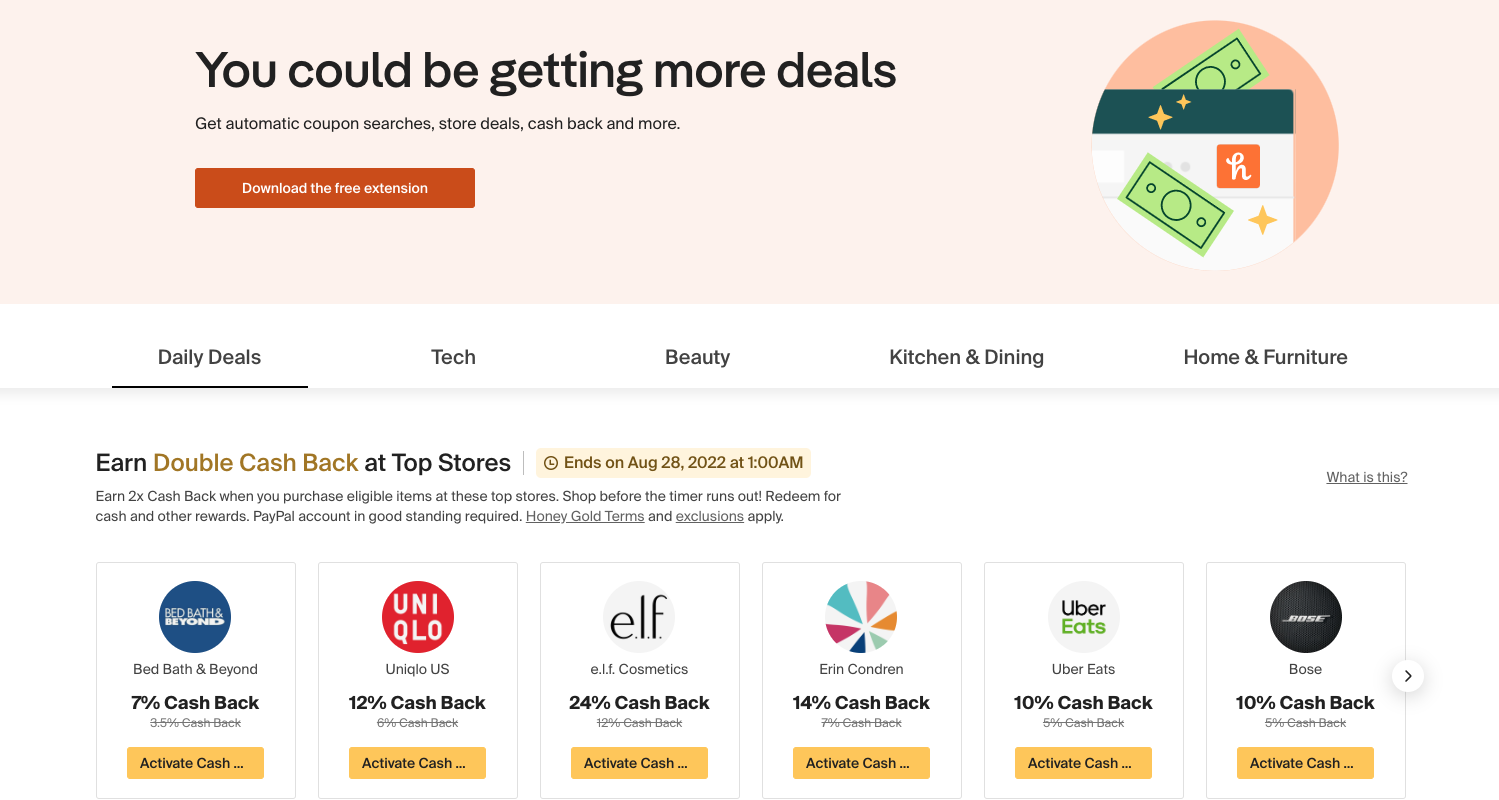
Honey, which is now owned by Paypal, is a program that helps you save money while shopping online.
Honey Browser Extension lets you:
- Know if there is a coupon for the site you are visiting, a green icon will show up on the Honey icon
- Click to apply the coupon to get the savings
- Save with over 40,000+ stores
- Get rewards for certain eligible purchases
- Get exclusive offers
Available on: Chrome, Safari, Firefox, Opera, and Edge
How to Install & Uninstall A Browser Extension:
Now that you’ve got a good lay of the land and know which browser extensions you’d like to add to your browser of choice, below is a step-by-step guide for how to install one.
Please note that some browser extensions are only available on specific browsers. For example, you can’t install iBotta on any other browsers except Chrome.
How to Install Browser Extensions on Chrome:
Step 1:
- Either click the link to the extension installation page, OR
- Go to https://chrome.google.com/webstore/category/extensions?hl=en-US
Step 2: Once on the main page for Chrome add-ons, click ‘Extensions’
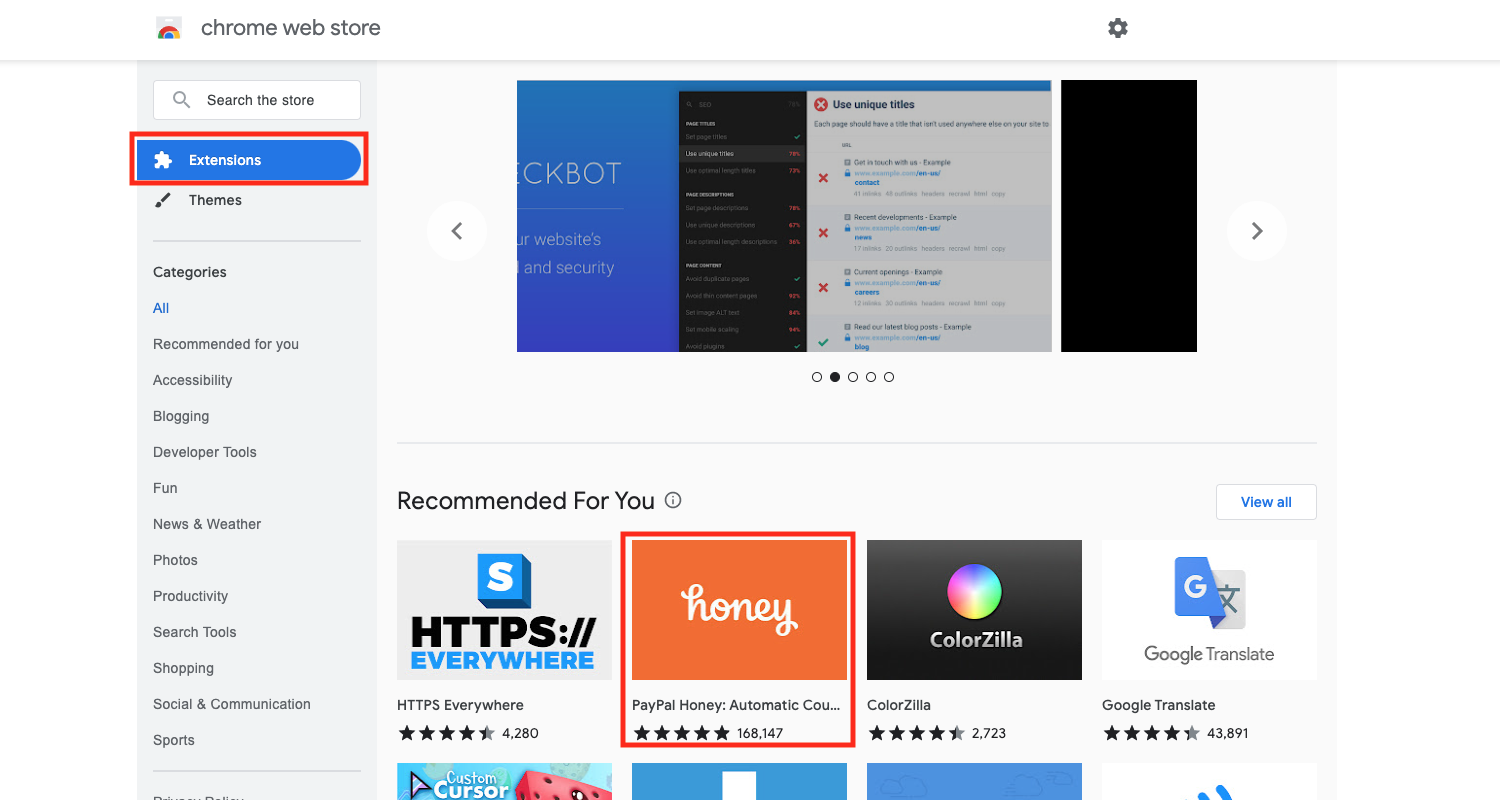
- If the extension you want is available on the main page, great! Click that icon, OR
- Search for the extension by typing the name of the extension in the search bar above the ‘Extension’ icon
Step 3: Once on the browser extension installation page, click ‘Add to Chrome’
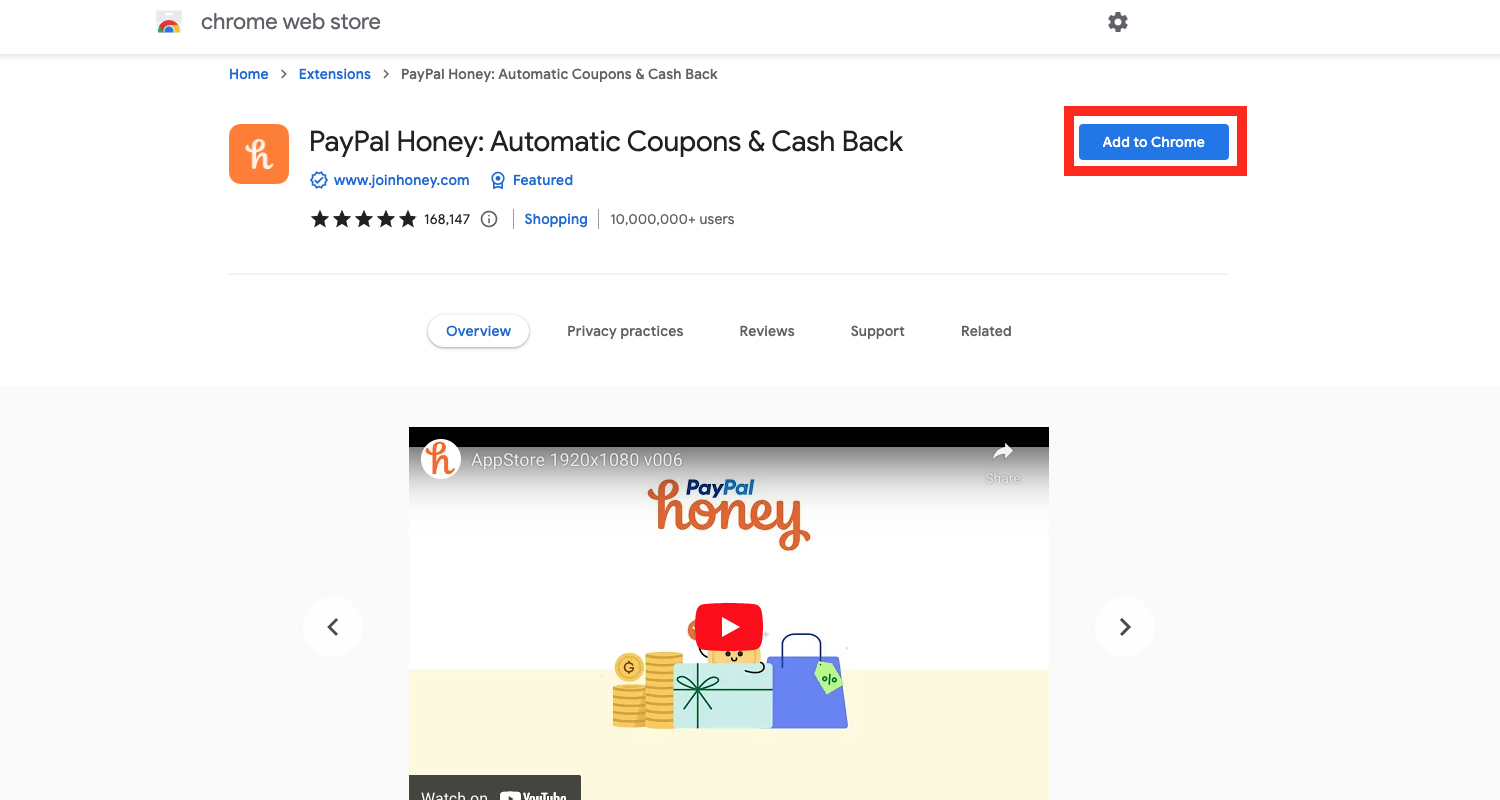
Step 4: Click ‘Add extension’ in the pop-up window
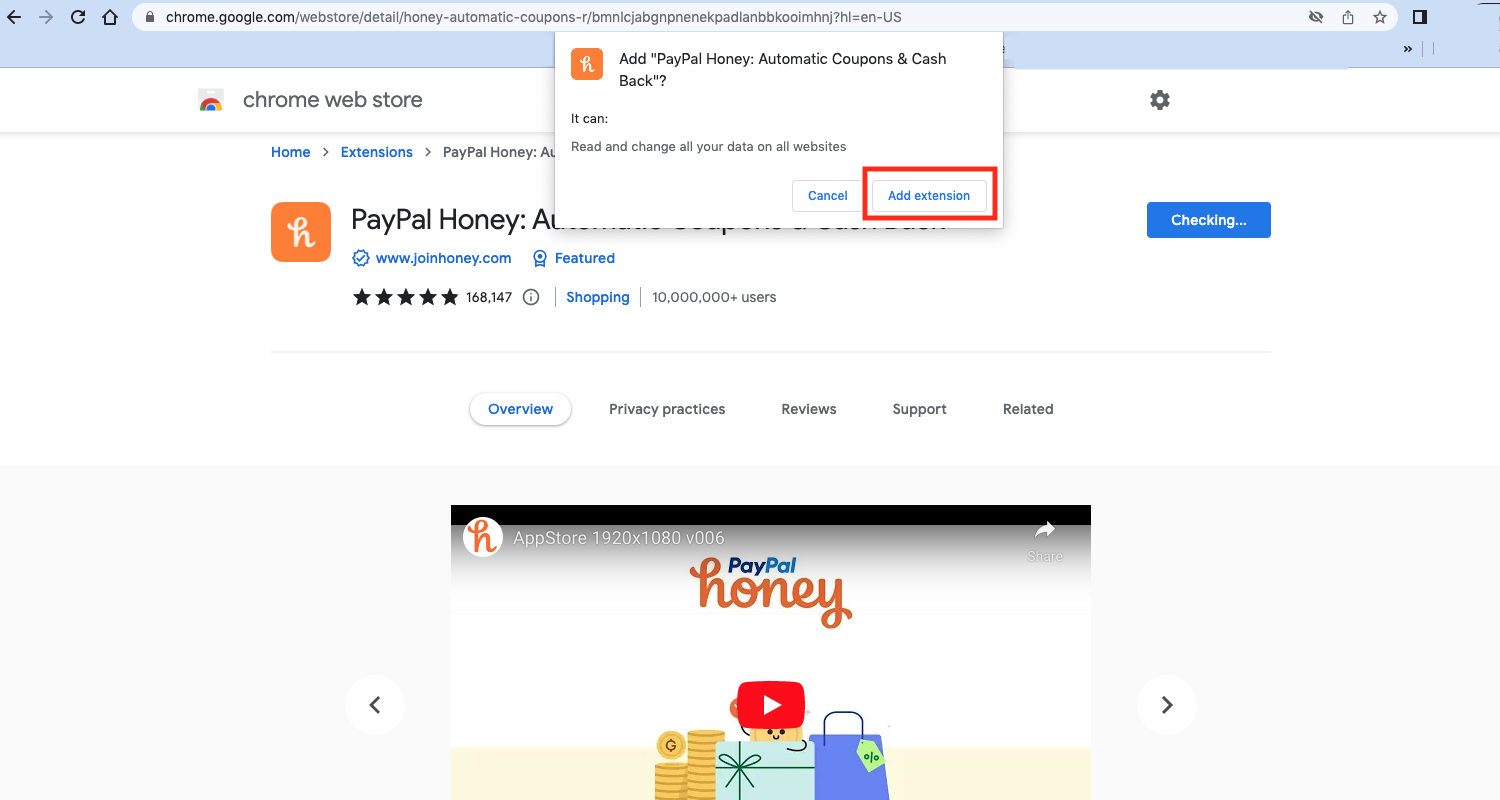
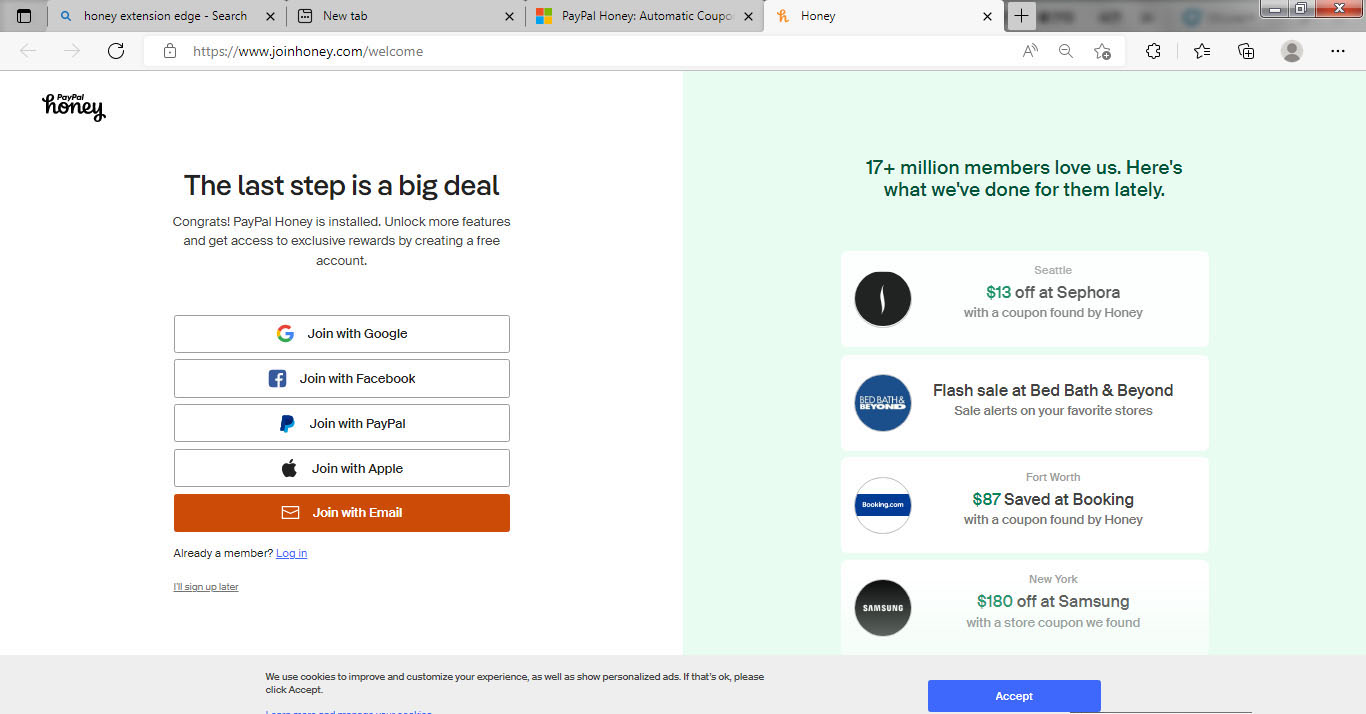
For Windows: The installer will download and usually show up in the bottom left corner of your browser. If you aren’t already redirected to the honey sign-in or sign-up page, double-click the installer.
Step 5: You’ll be redirected to another page that will ask you to sign in, sign up for the service, or sign up later. That’s it! The extension should show up on your browser or under the extension icon on the right side of your web address bar.
How to Pin Your Extension on Your Browser:
The whole idea is to have easier access to these helpful tools as you browse the internet. Below is a step-by-step way to pin your extension onto your browser for easier access:
Step 1: Click the puzzle icon, aka the extension icon to the right side of the URL/website address bar
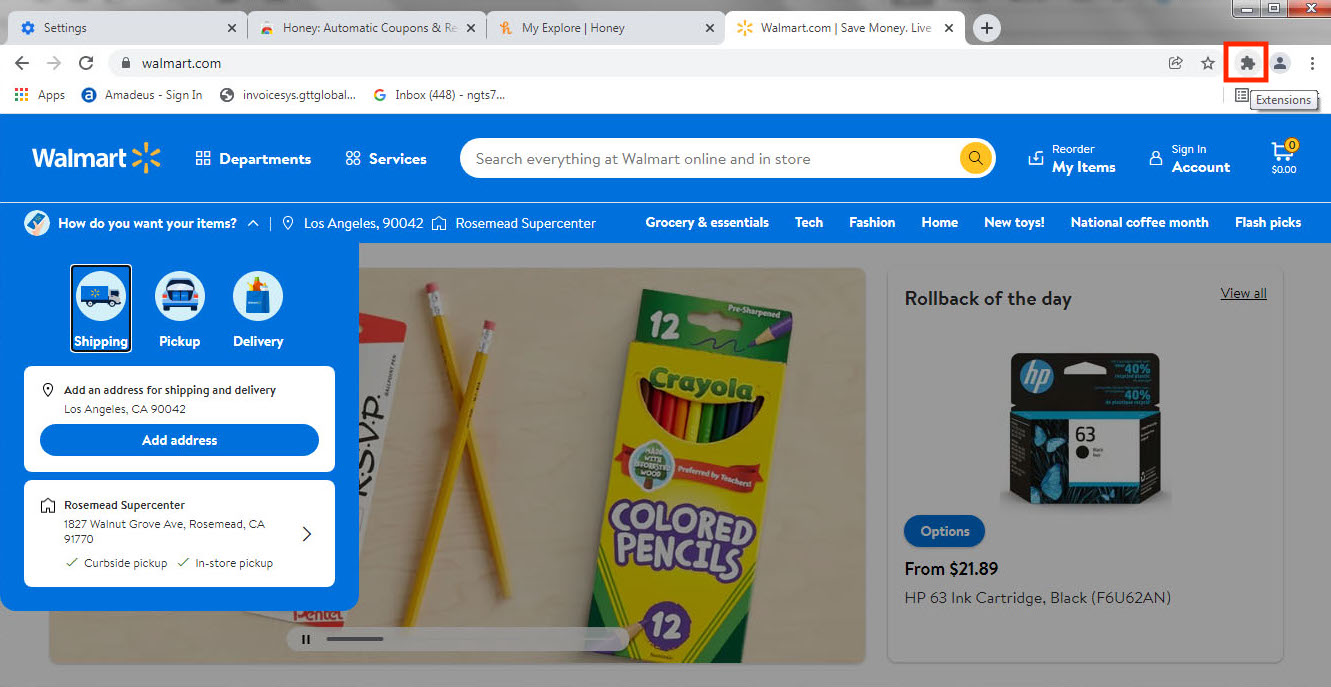
Step 2: Click the push pin icon next to the name of the extension you want to show up on your browser every time you open it
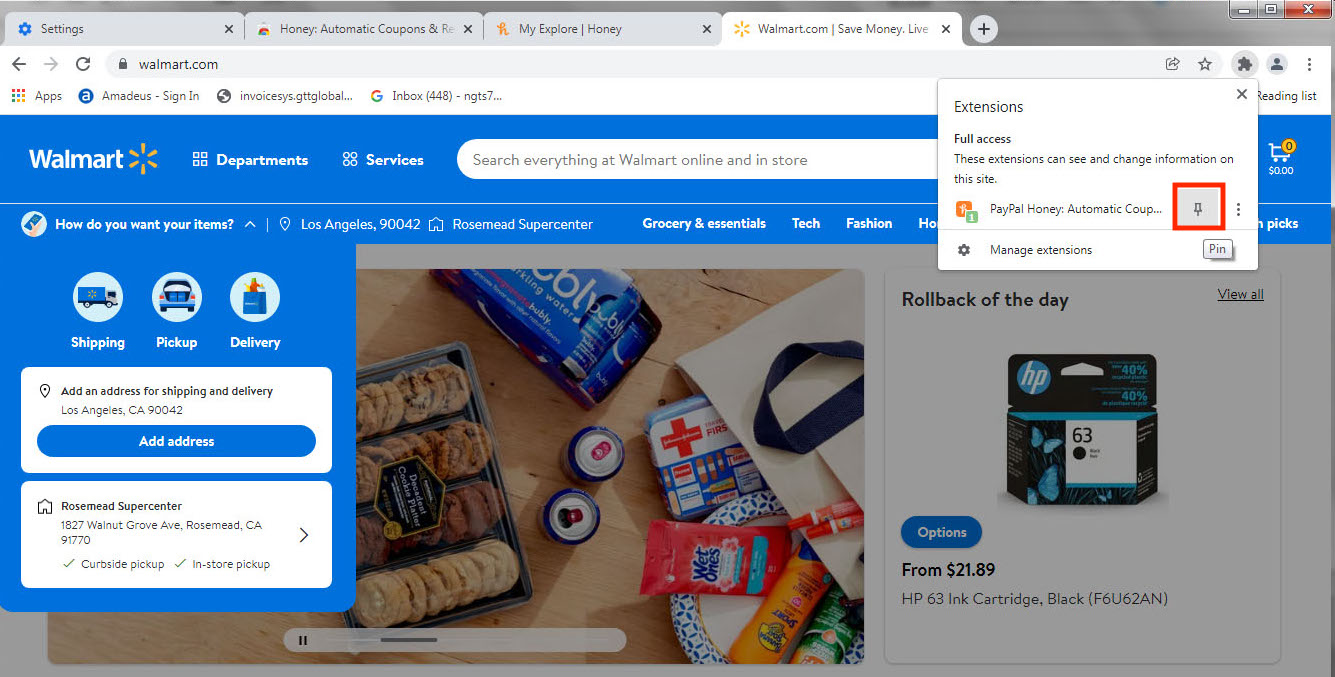
Step 3: You will see the extension’s icon on the right side of the web address bar
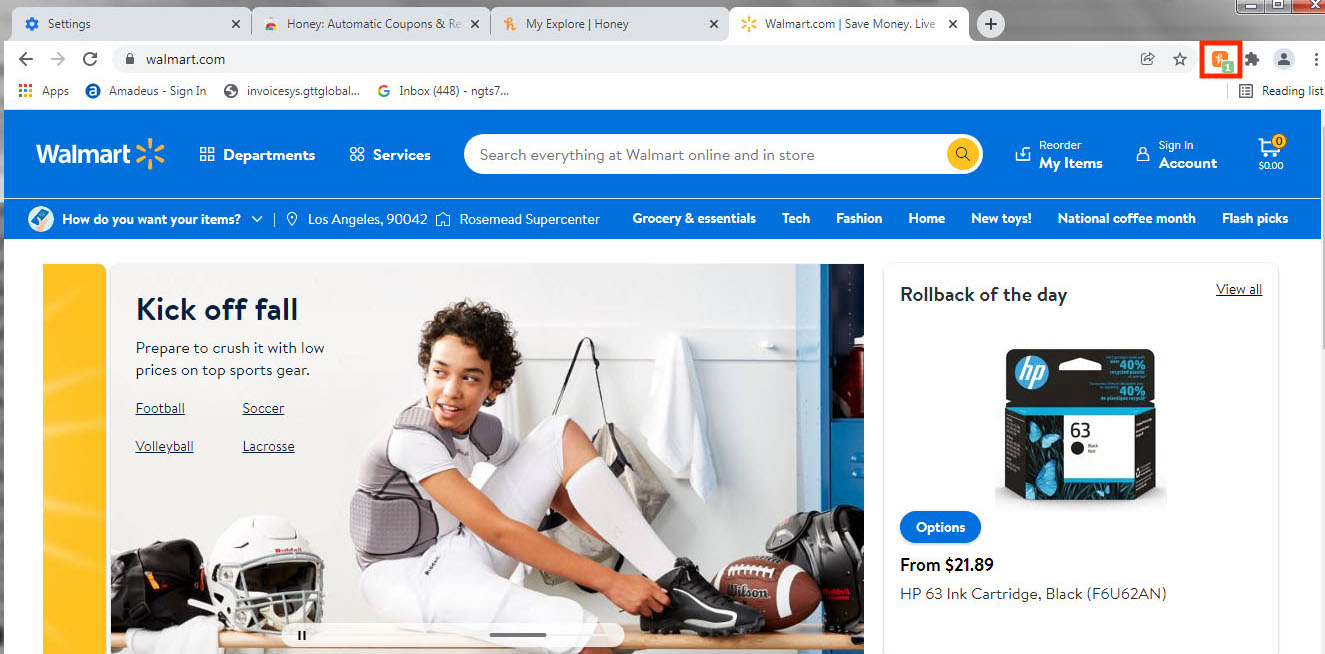
How to Uninstall Browser Extensions on Chrome
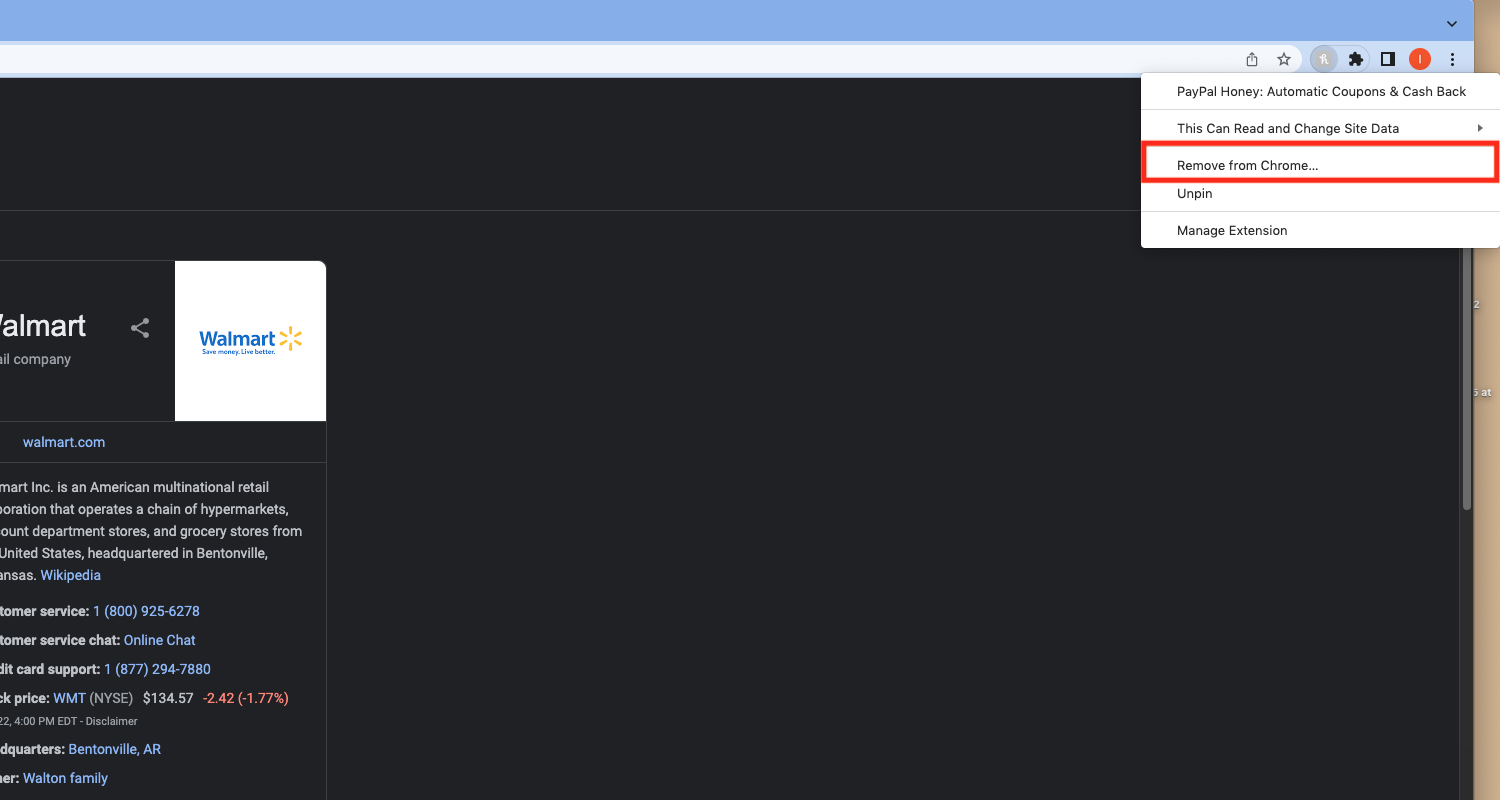
Step 1: Right-click the extension icon, and click ‘Remove extension’
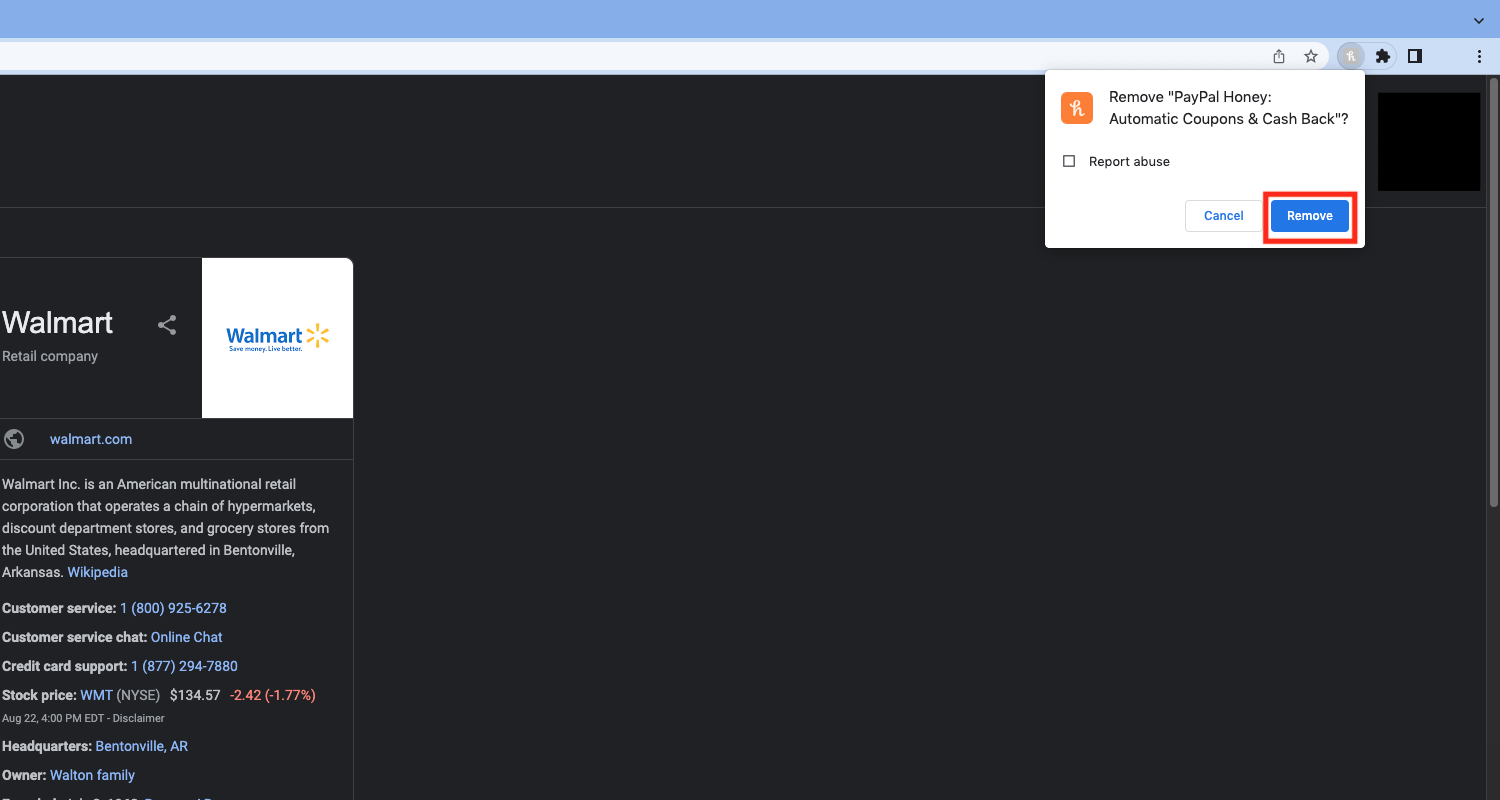
Step 2: A pop-up window will show up, click ‘Remove’
How to Install Browser Extensions on Safari:
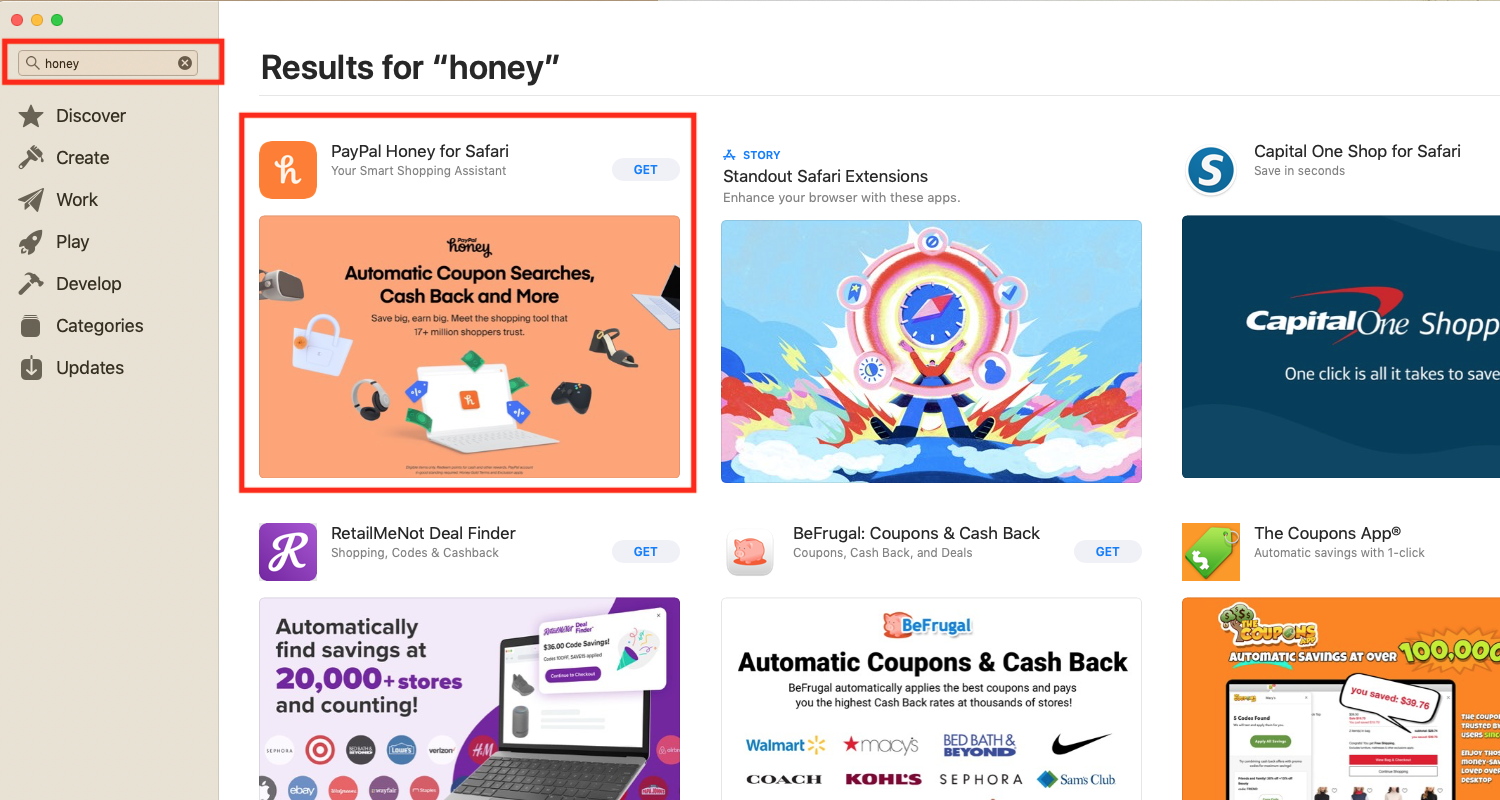
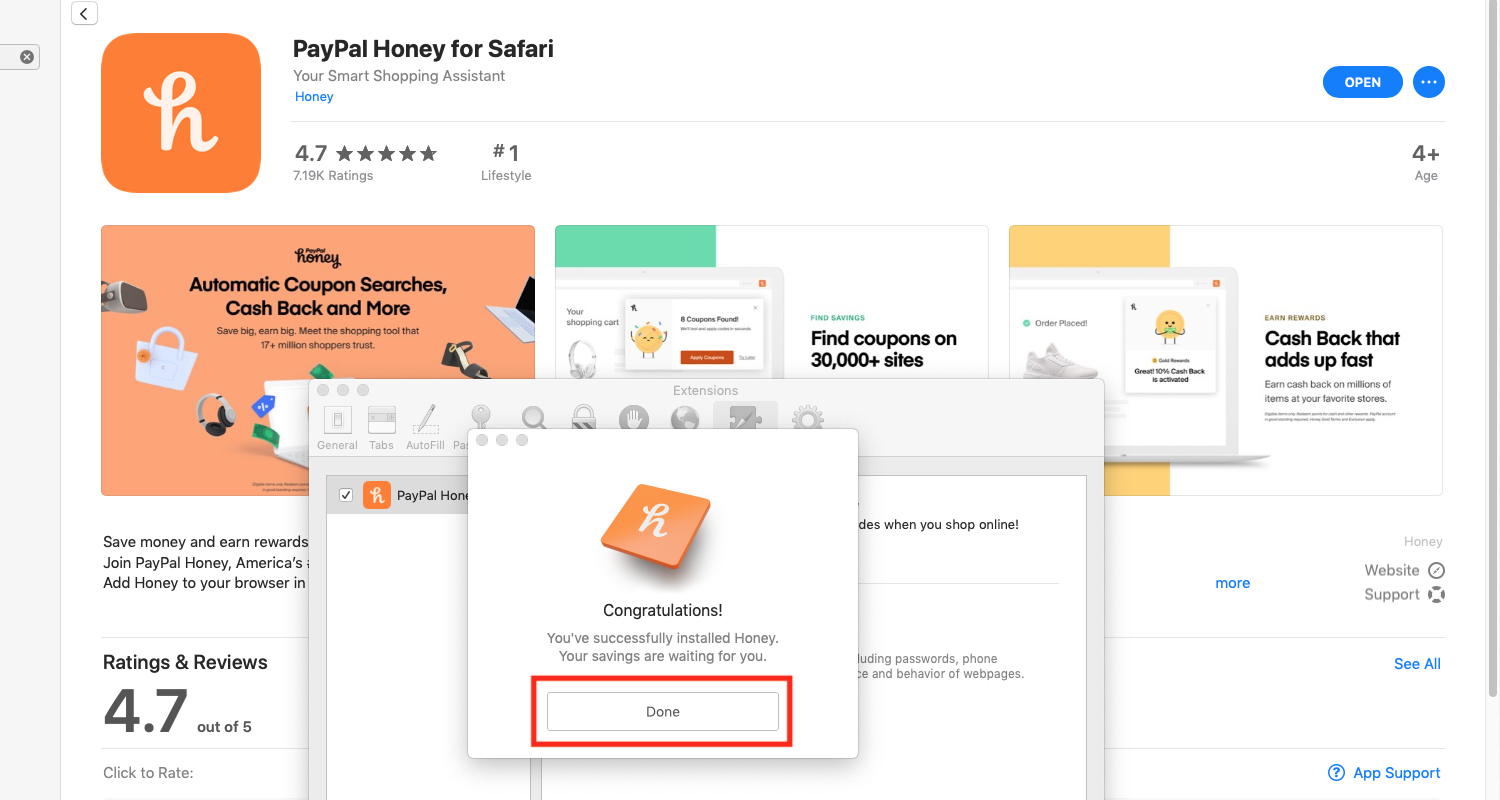
Step 1: Go to App Store, search for the extension
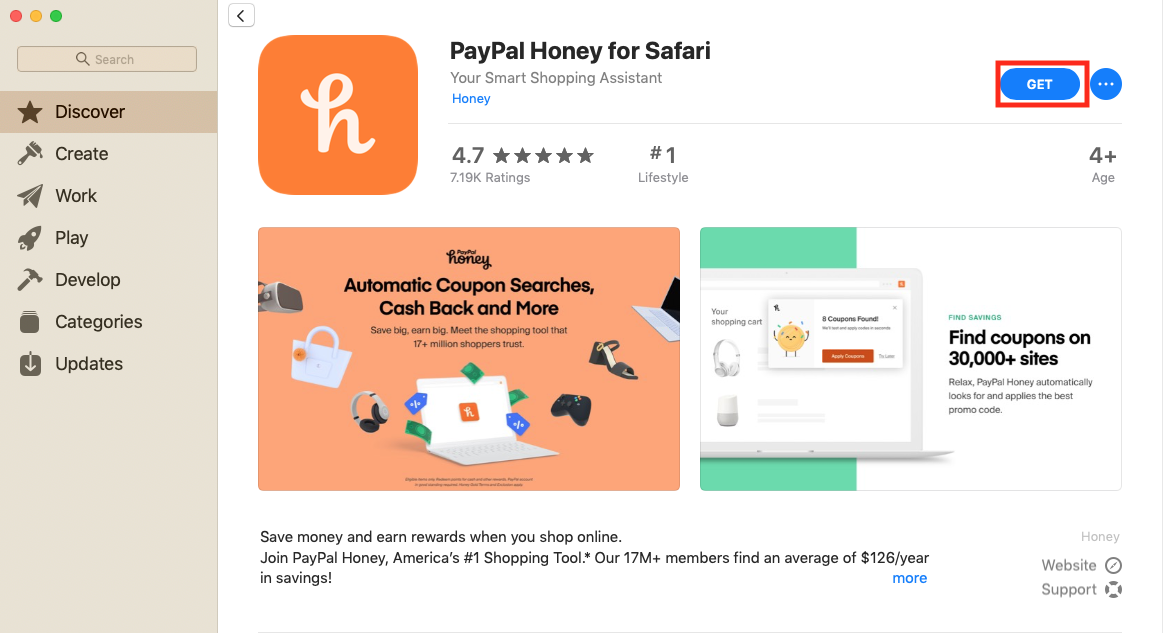
Step 2: Click on the ‘Get’ Icon
Step 3: It’ll turn the ‘Get’ icon into a green ‘Install’ icon, and click the ‘Install’ icon
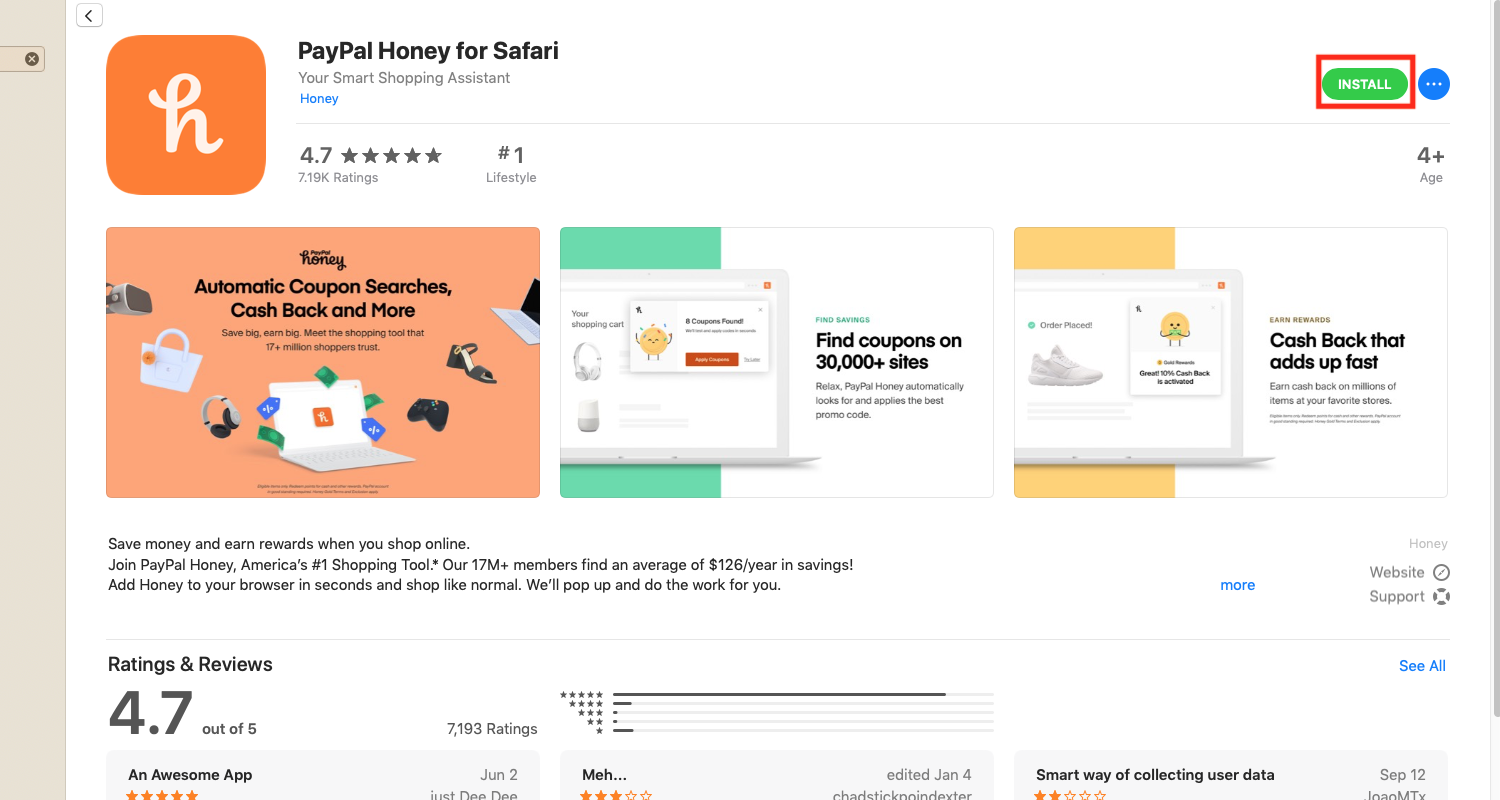
Step 4: You’ll likely be prompted for your apple credentials. Enter your Apple ID and password and click ‘Get’
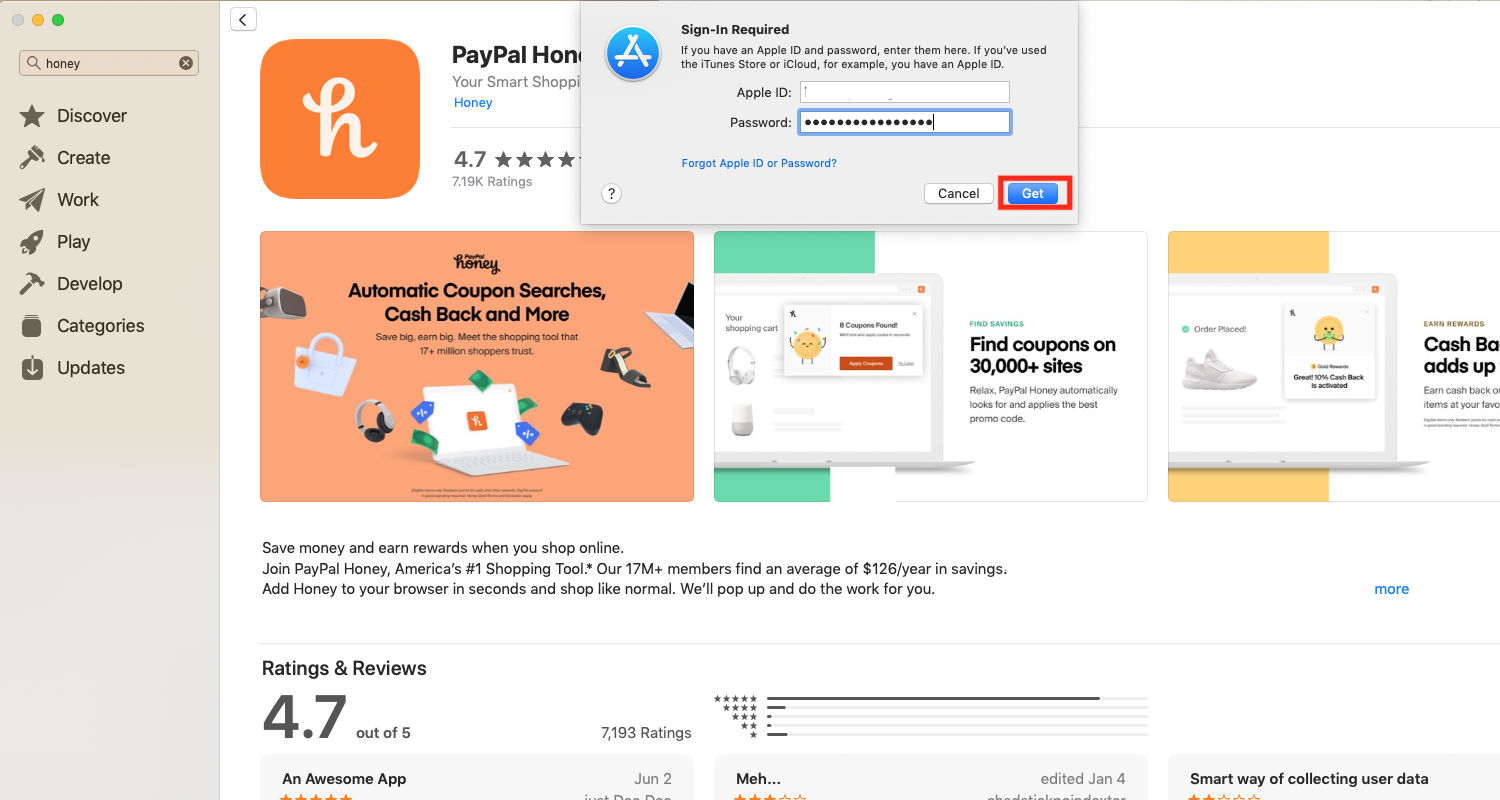
Step 5: Once it downloads, click the ‘open’ icon
Step 6: Click ‘Open Safari Preferences’ in the next pop-up window
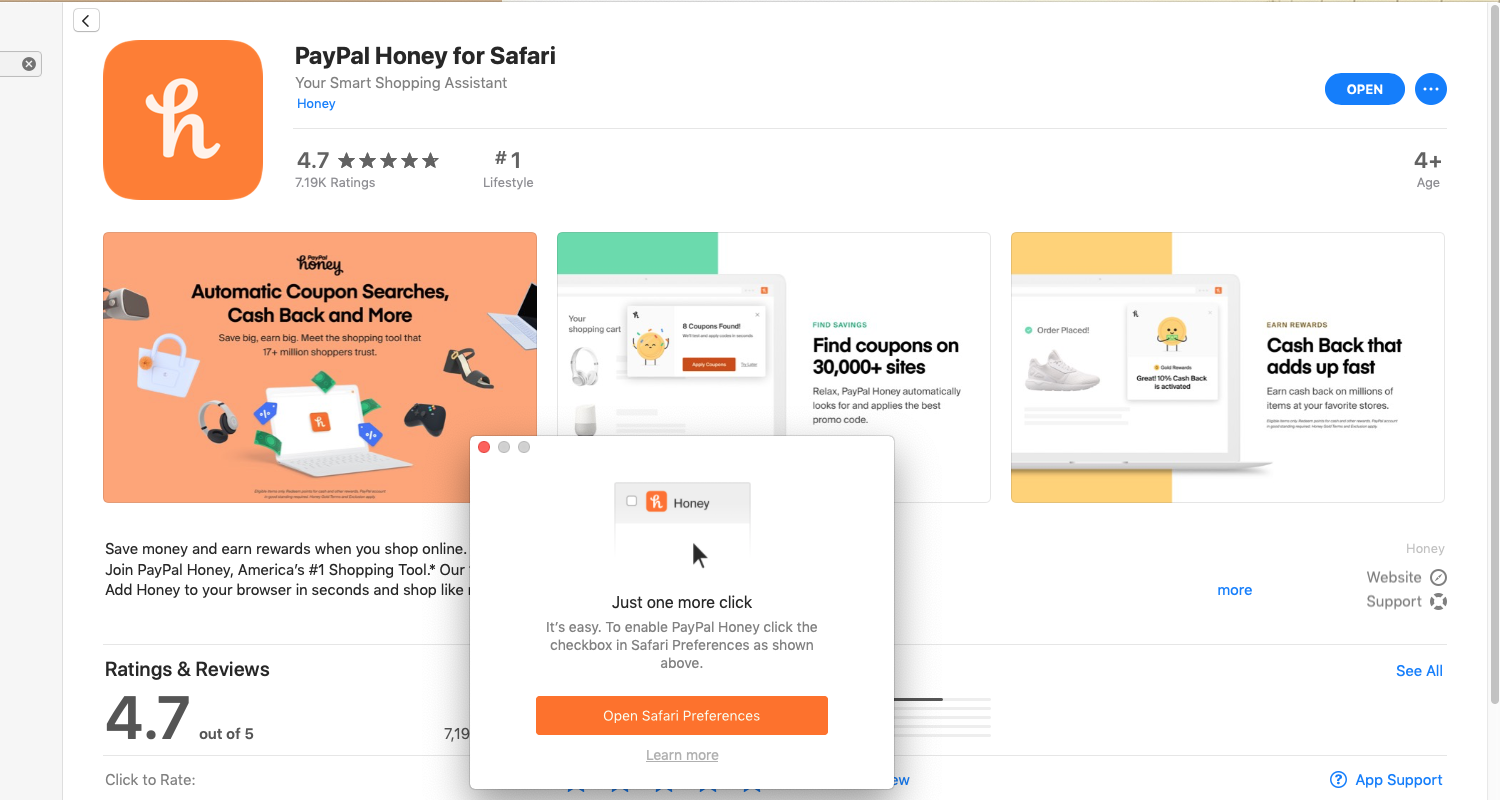
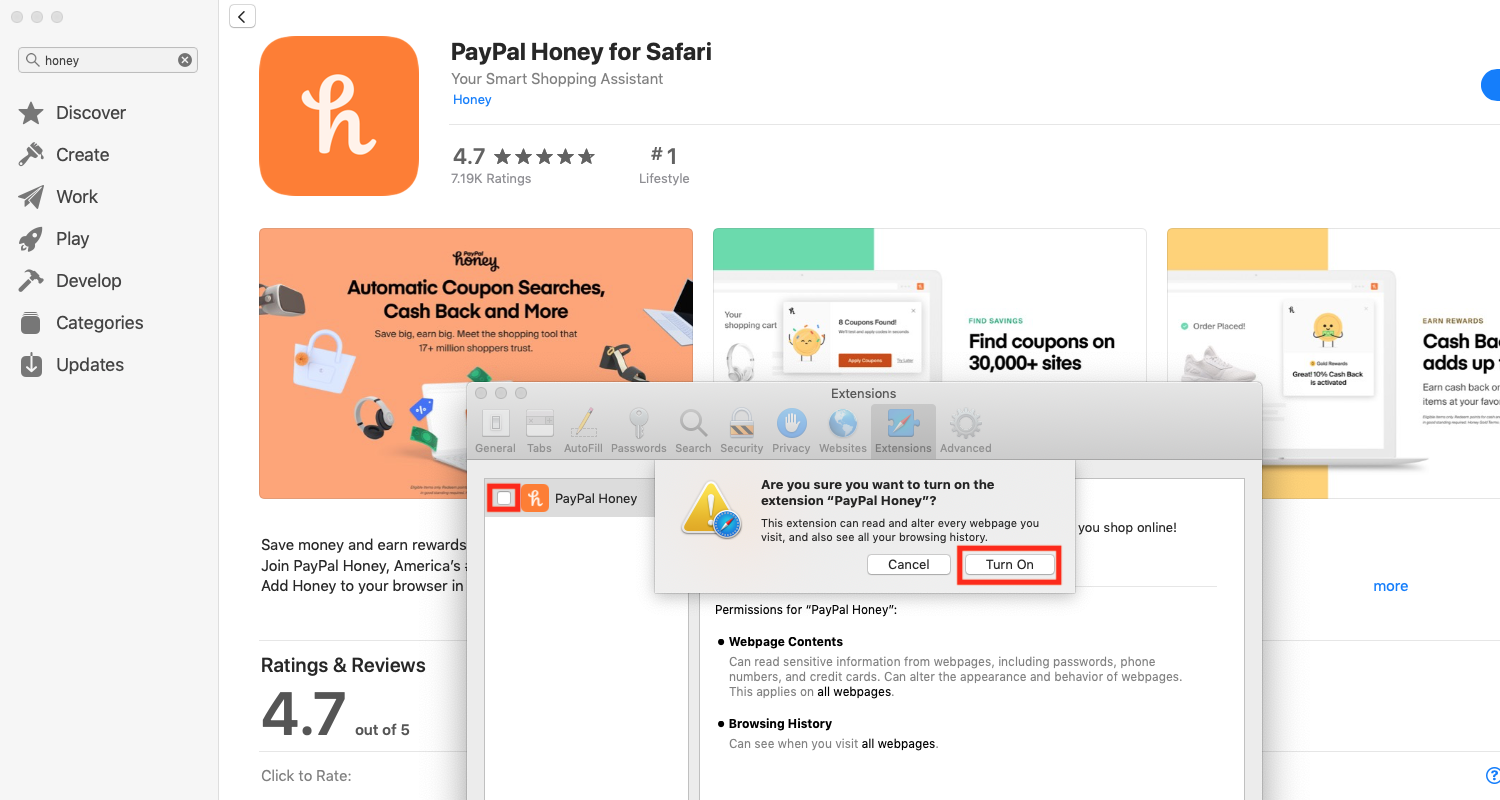
Step 7: Check the box next to the browser extension
Step 8: It’ll ask you to confirm that you want to turn on that extension. Click ‘Turn on’
Step 9: You’ll get a pop-up confirming the addition of the extension. Click ‘Done’
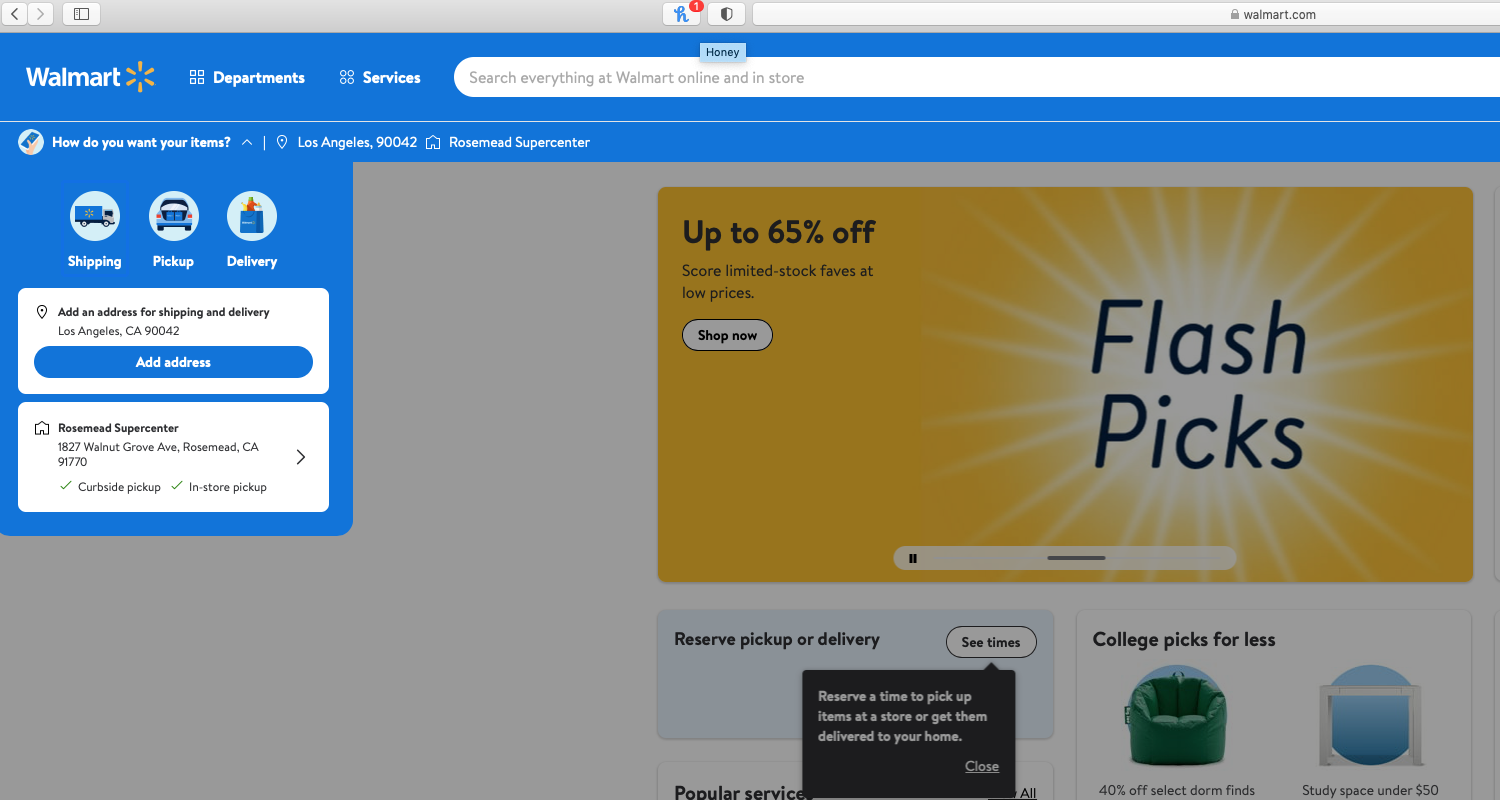
Step 10: Your extension will show up to the left of your URL or web address bar
How to Uninstall Browser Extensions on Safari:
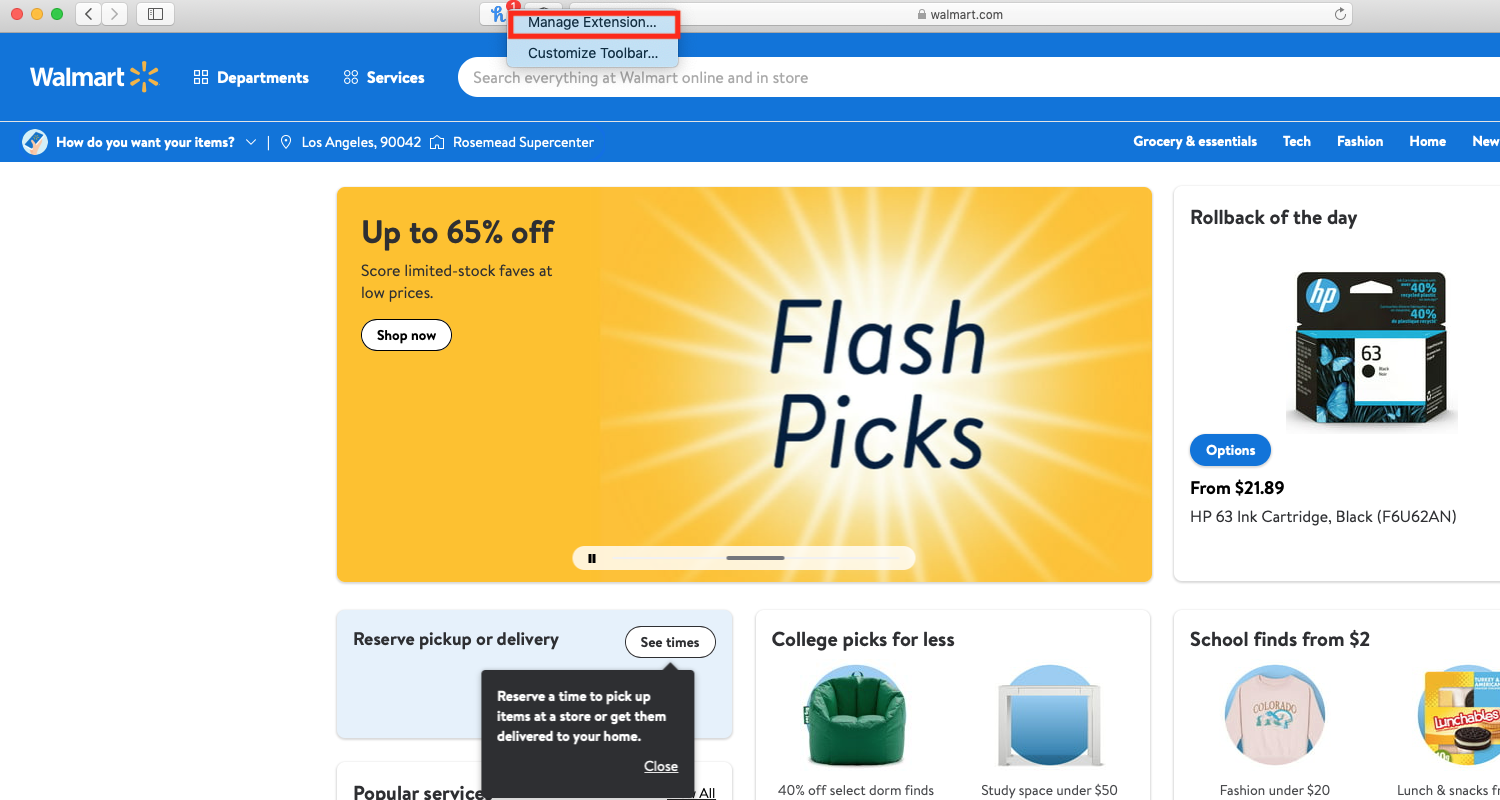
Step 1: Right-click the extension icon in the browser, click ‘manage extensions’ in the drop-down menu
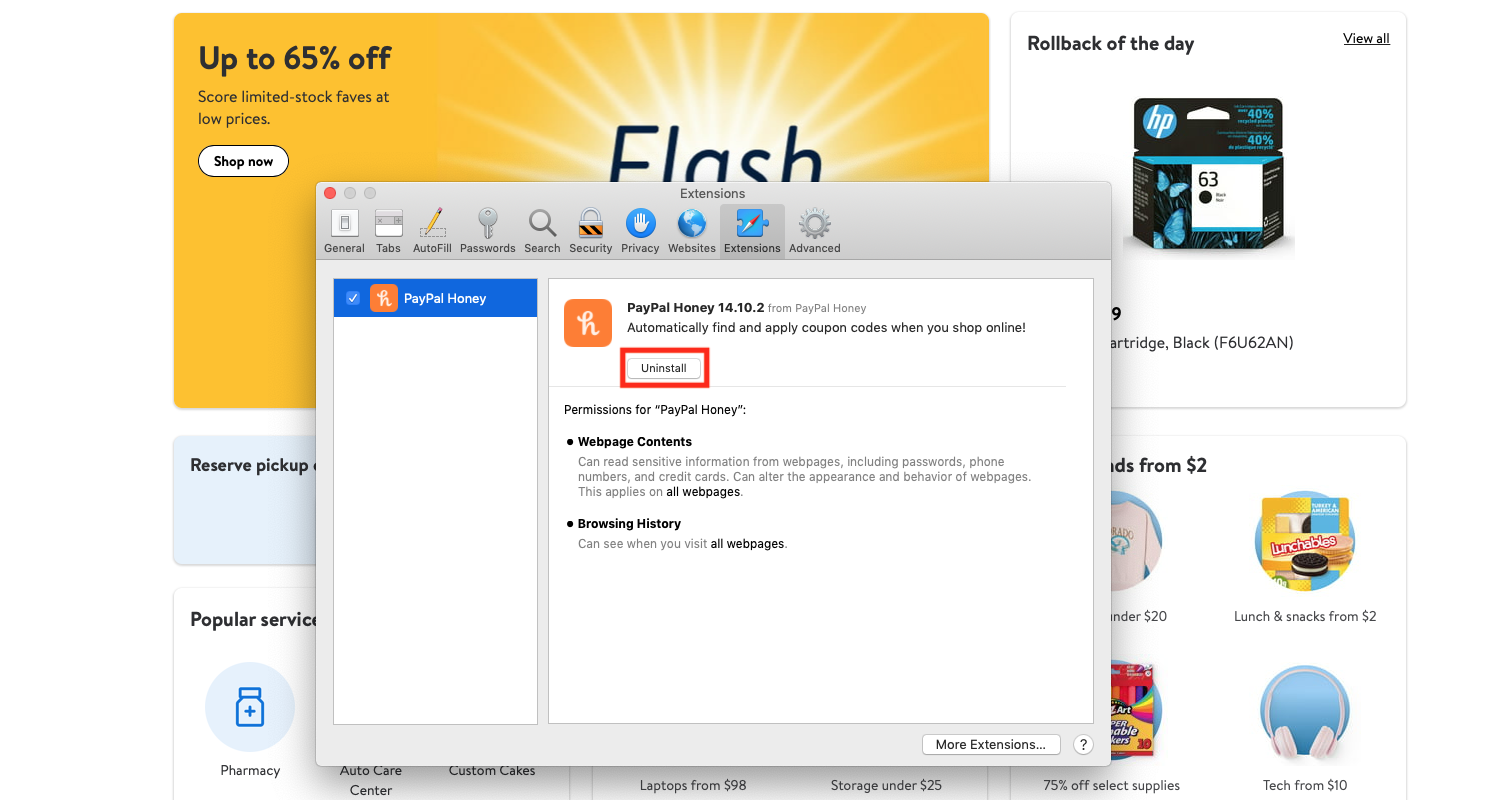
Step 2: In the next window, click ‘Uninstall’
Step 3: You will get a prompt letting you know that the extension is part of an application
Step 4: Click ‘Show in Finder’
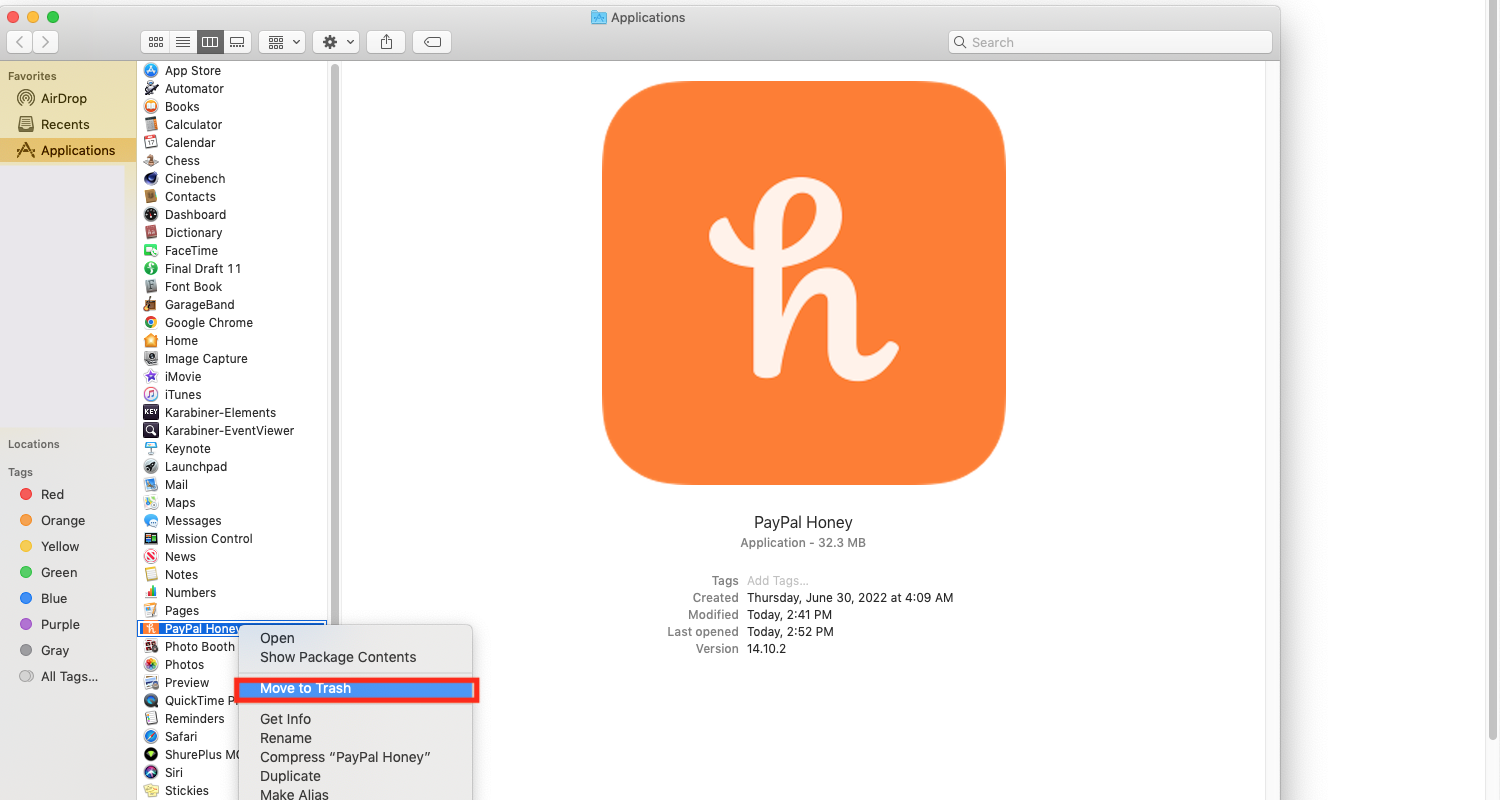
Step 5: Drag and drop the software icon into the trash or right-click and click ‘Move to Trash’
How to Install Browser Extensions on Edge:
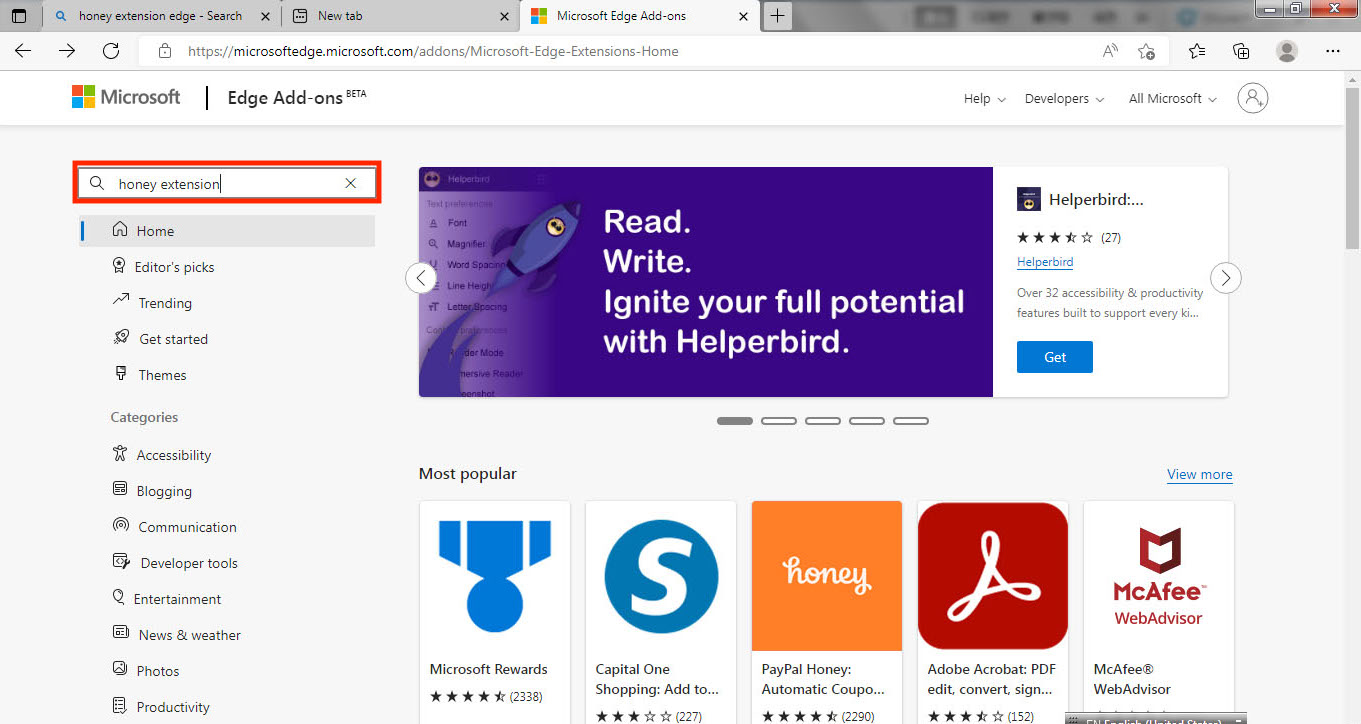
Step 1: Go to the Microsoft Edge Add-ons page
Step 2: Search for the Extension you want
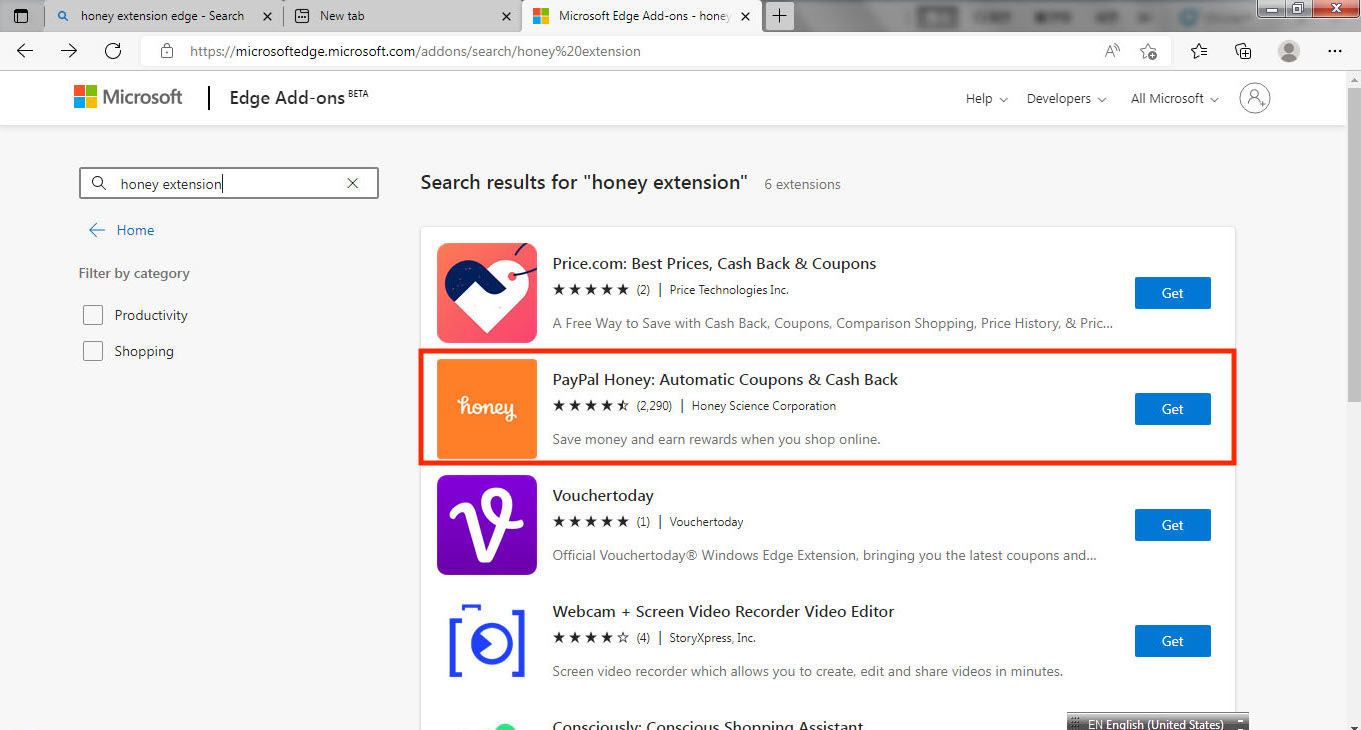
Step 3: Click the logo or title of the extension
Step 4: Click ‘Get’
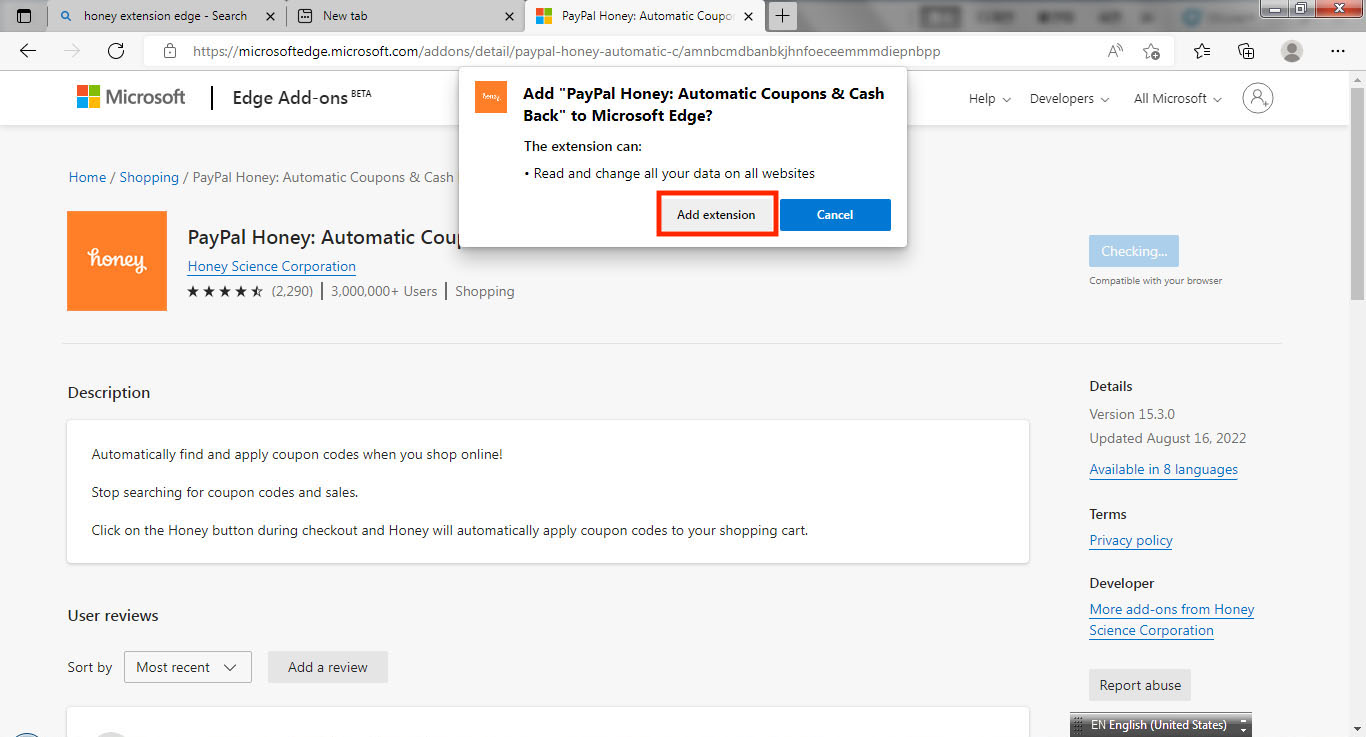
Step 5: Click ‘Add Extension’ in the pop-up window
 Step 6: Either sign up or choose to sign up later, but it should be ready for you to use!
How to Pin Your Extension on Edge:
The whole idea is to have easier access to these helpful tools as you browse the internet. Below is a step-by-step way to pin your extension onto your browser for easier access:
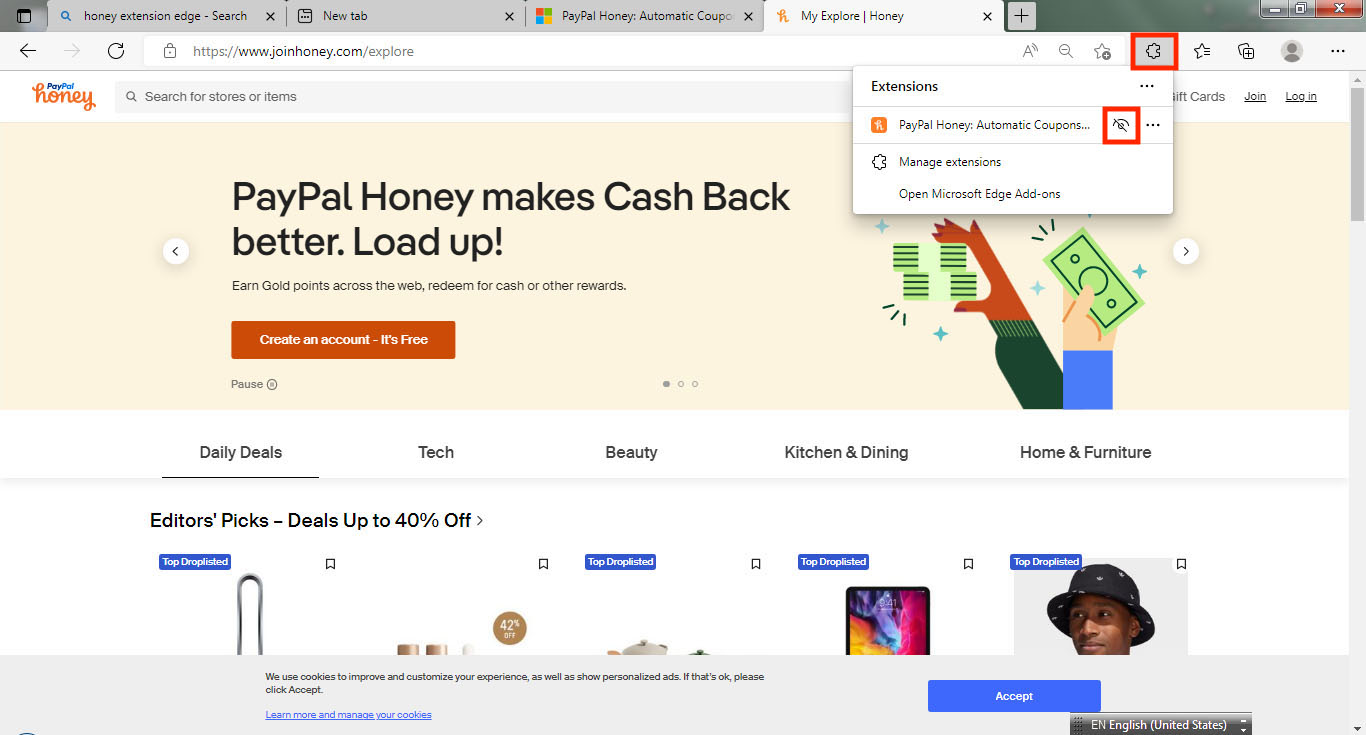
Step 1: Click the extension icon
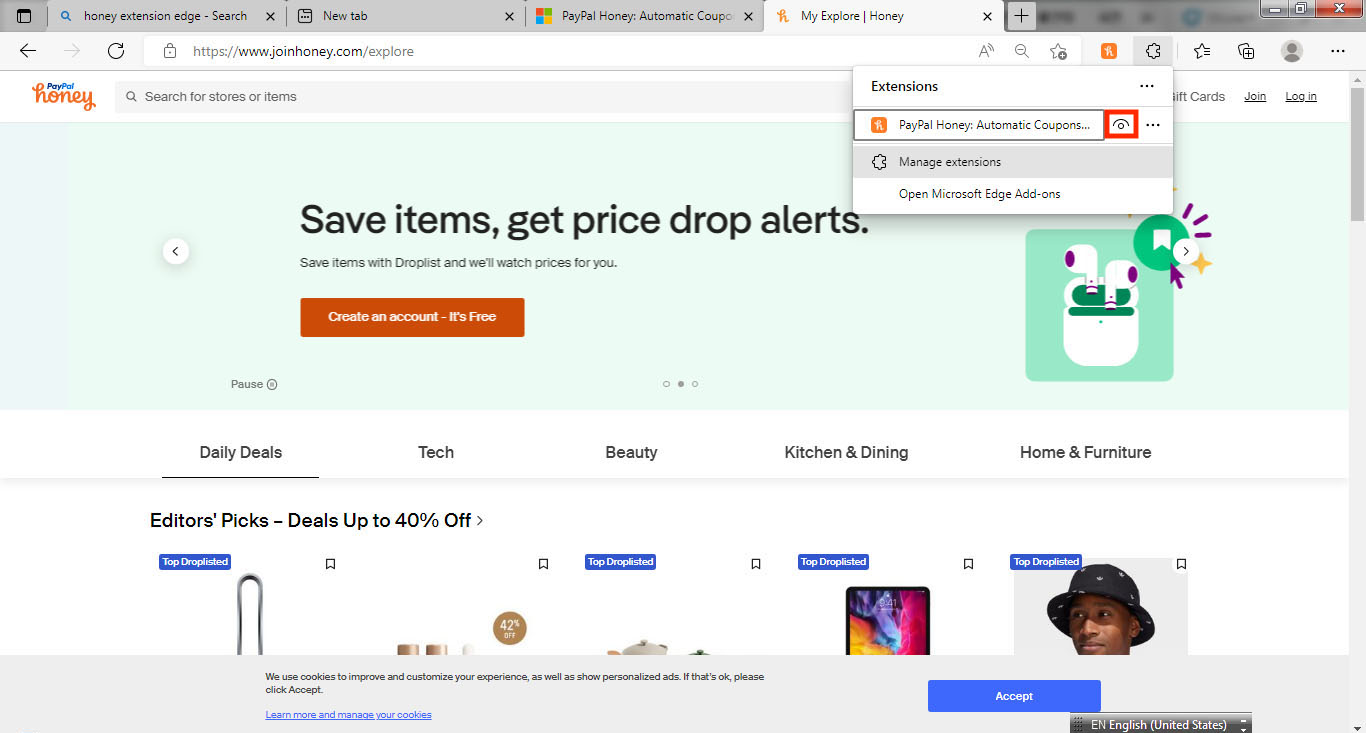
Step 2: Next to the Extension you want visible there should be an ‘eye’ icon, if it has a strike across it, it is not visible
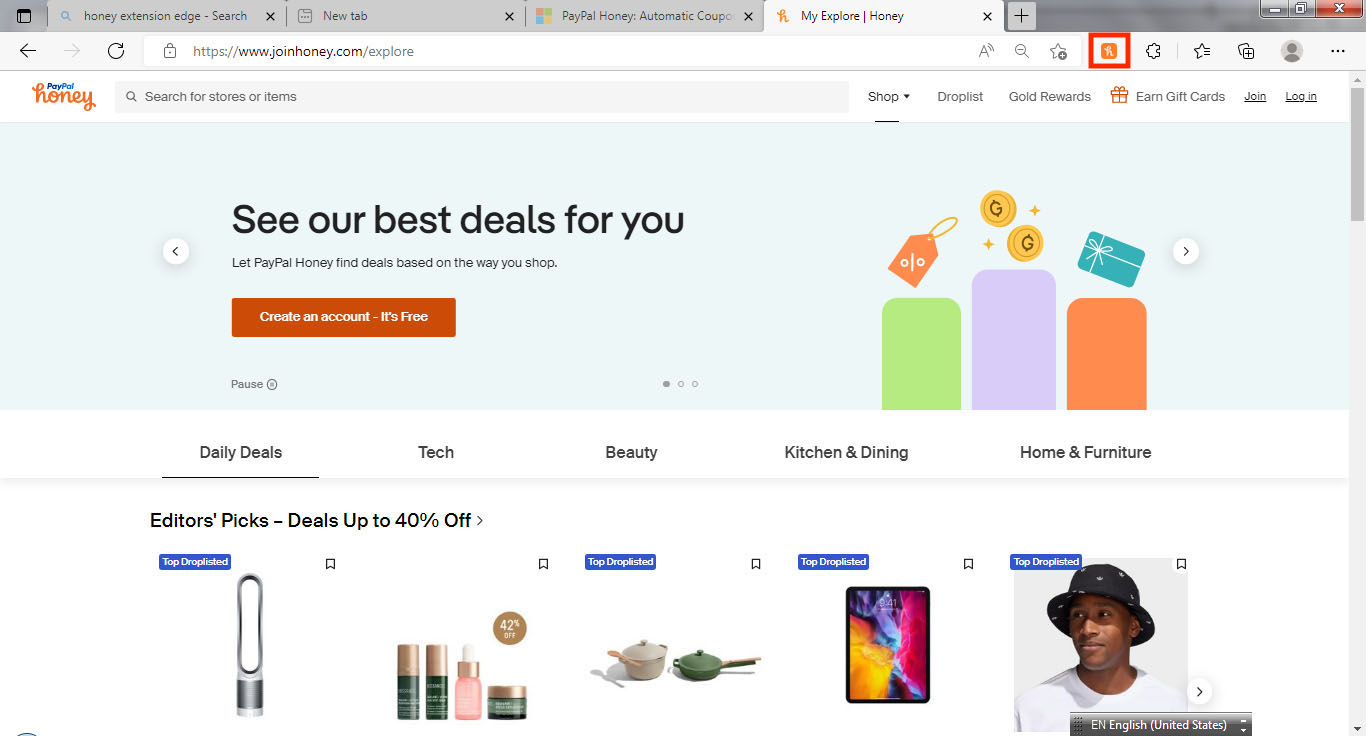
Step 3: Click this icon and the strike across the icon should disappear and the logo of the extension icon will appear on your browser.
How to Uninstall Browser Extensions on Edge:
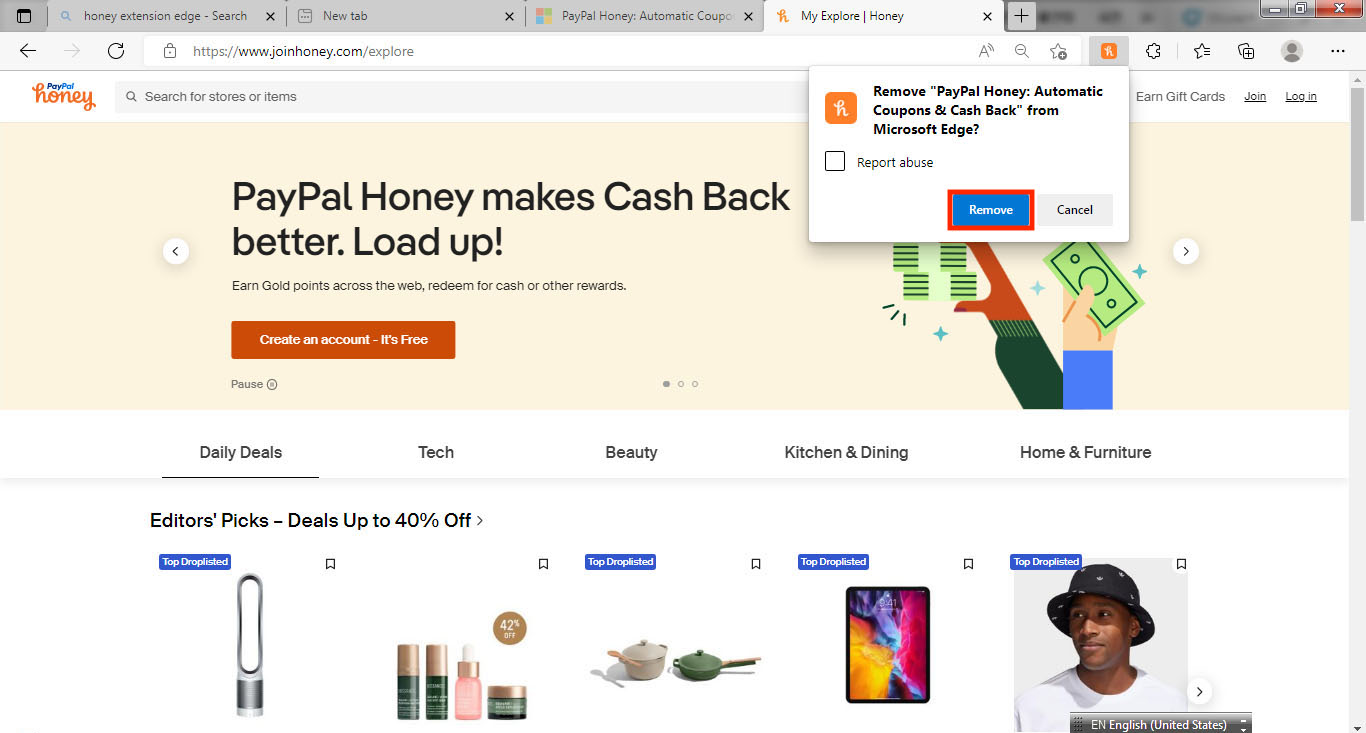
Step 1: Right-click the icon of the browser extension you want to remove, and click ‘Remove from Microsoft Edge’
Step 2: In the window that pops up, click ‘Remove’
Red Flags to look out for
Of course, with every great innovation, there are inherent risks. In fact, a recent scam ran rampant online, with millions of users paying for browser extensions on Chrome that ended up giving these users malware instead of convenience. Below are the red flags to look out for when you hit ‘install’:
- Duration: Do pay attention to how long the browser extension has been available. Usually, the longer the browser extension has been available for download, the more likely issues or benefits will rise to the surface.
- Vetted: Most of the browser extensions we recommended are on multiple top browser extension lists across various reputable sites. Not only does it help users narrow down which browser extensions to download, but third-party reviews help you discern between similar ones.
- Rating: Double-check to make sure that the browser extensions you are downloading are highly rated. Usually, low to no-rating browser extensions should be regarded with suspicion.
- Number of Downloads: Clearly millions of downloads don’t mean a browser extension is safe all the time. However, when it has been downloaded a lot and rated highl,y the likelihood that the browser extension is reputable is higher.
- Reviews: Do read the reviews. You will get a sense of the issues other users have before downloading and installing it yourself. Also, a lot of responsible developers do respond to user reviews, especially criticism. You want to focus on browser extensions that the developer is constantly making improvements on.
- Get the App: Many reputable brands offer Android- and iOS-specific apps that work with any browser on your phone. These companies are fully aware of Android and iOS limitations and have created platforms where you can fully and safely reap the benefits of their offerings.
Related Links:
- Alexa.com brings Alexa+ to your browser
- Browser extension malware infected 8.8M users in DarkSpectre attack
- How to set your preferred web browser on your desktop and mobile devices
Kurt’s key takeaways
Browser extensions can be powerful tools when you choose them carefully. The right extensions can save you time, protect your personal information, improve your writing, and even help you spend less money online. At the same time, it is important to stay selective, install extensions only from trusted sources, and regularly review what you have enabled in your browser. A good rule of thumb is to install only the extensions you actively use and remove anything that no longer serves a purpose. Keeping your browser lean not only improves performance but also reduces security and privacy risks. When used wisely, browser extensions can turn an everyday browsing session into a safer, smoother, and more efficient experience.
Do you have any browser extensions you love? Let us know by commenting below.
FOR MORE OF MY TECH TIPS & SECURITY ALERTS, SUBSCRIBE TO MY FREE CYBERGUY REPORT NEWSLETTER HERE
Copyright 2026 CyberGuy.com. All rights reserved. CyberGuy.com articles and content may contain affiliate links that earn a commission when purchases are made.