3 Amazon Must-Do Privacy Settings
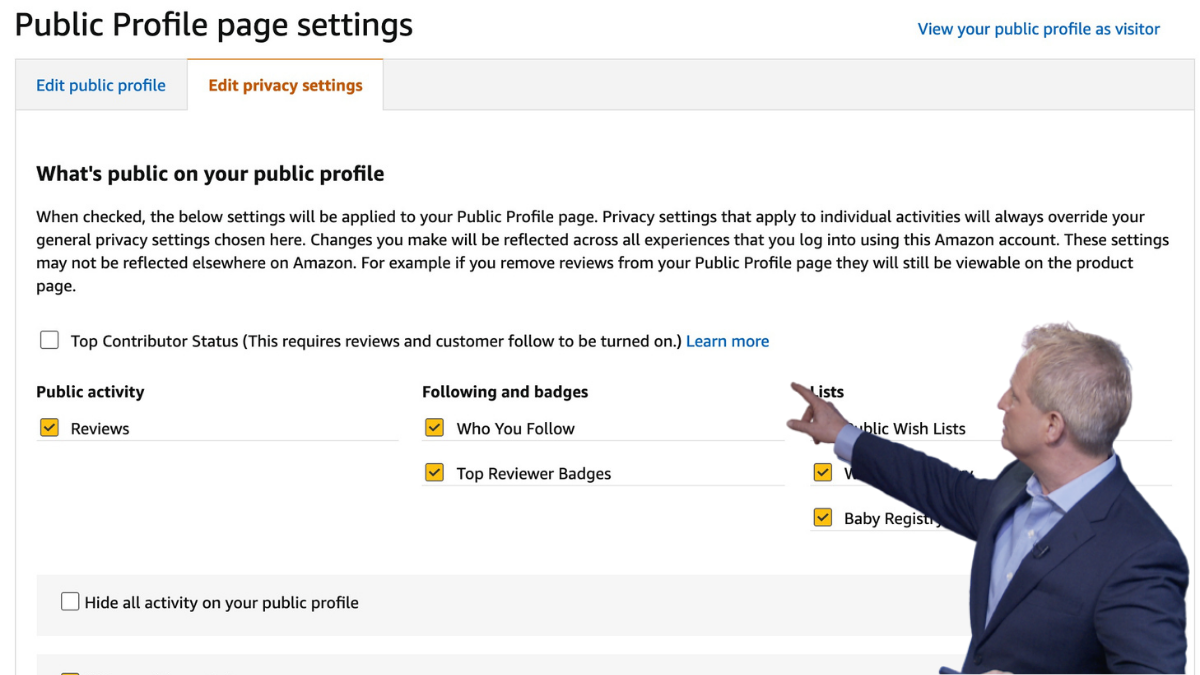
Did you know Amazon automatically creates a public profile for every account? It’s not your shopping account or purchase history, but a separate page that displays your activity and contributions to the Amazon community, like product reviews, ratings, wish lists, and followers.
By default, your profile is public, meaning anyone can view certain details unless you adjust your privacy settings. Here’s what you need to know – and how to take control of what’s visible.
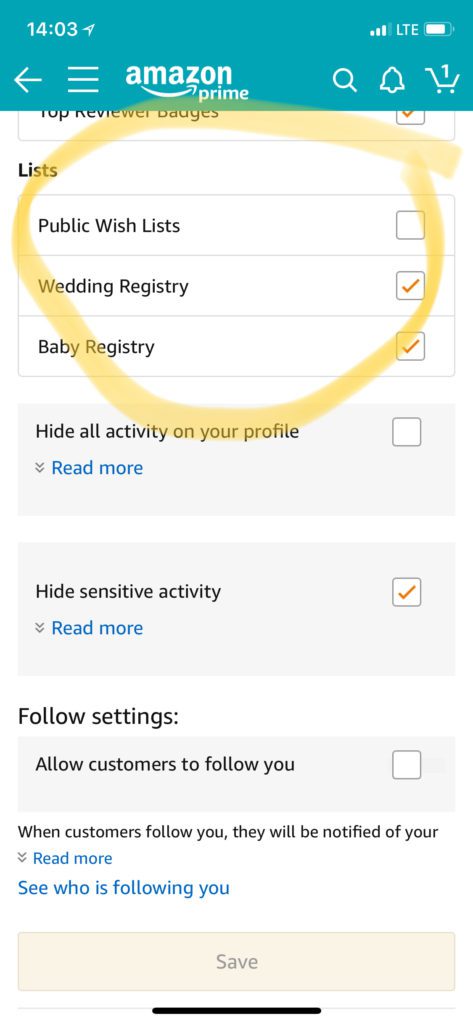
What Your Amazon Public Profile Includes
Your Amazon public profile may display:
- Your public name and profile image
- Product reviews and star ratings
- Public lists (like Wish Lists)
- Followers and following activity
- Other community posts (like comments or questions on product pages)
Amazon automatically hides activity related to sensitive items, such as certain personal care or intimate products.
How to Edit or Remove Your Public Profile on Amazon
You profile is set to Public by default which seldom people know. This shows your name, location and shopping feedback/reviews.
On Mobile:
- Go to your Account section (button in center at top)
- Go to Profile under Personalized content section
- Edit your profile button
- Change your name, location and any other details you don’t want to share publicly
- Tap Save when done.
On Desktop
- Go to your Account section
- Click the “Your Profiles” box
- Click “Looking for your Amazon Public Profile” link at bottom
- Edit your profile button
- Change your name, location and any other details you don’t want to share publicly
- Tap Save when done.
How to Adjust Amazon Privacy Settings
Amazon offers an easy way to create shopping lists and wish lists that can be shared with friends and family. Items on your dream list for a special day. When I created my Wish List, at the time I thought I was creating a wish list to Amazon. Something that tells them I am interested in this one day as well as a reminder to myself. What I did not know then, is that list can be seen by anyone if set to public. I would encourage you to look at all of your shopping and wish lists to see what your level of privacy is.
On Mobile:
- Go to your Account section (button in center at top)
- Go to Profile under Personalized content section
- Edit your profile button
- Click the Privacy settings button
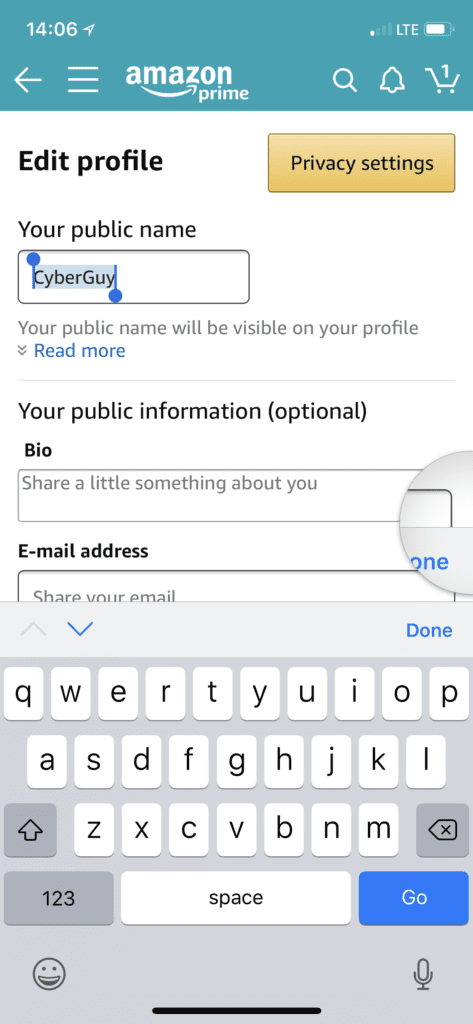
- On the Privacy page, you can now make the following items private by unchecking the boxes if you’d like:
- Wish Lists
- Who you Follow
- Top Reviewer Badges
- Wedding Registry
- Baby Registry
- Reviews
On Desktop
- Go to your Account section
- Click the “Your Profiles” box
- Click “Looking for your Amazon Public Profile” link at bottom
- Edit your profile button
- Click the Privacy settings button
- On the Privacy page, you can now make the following items private by unchecking the boxes if you’d like:
- Wish Lists
- Who you Follow
- Top Reviewer Badges
- Wedding Registry
- Baby Registry
- Reviews
How to Clear your Amazon Browsing History
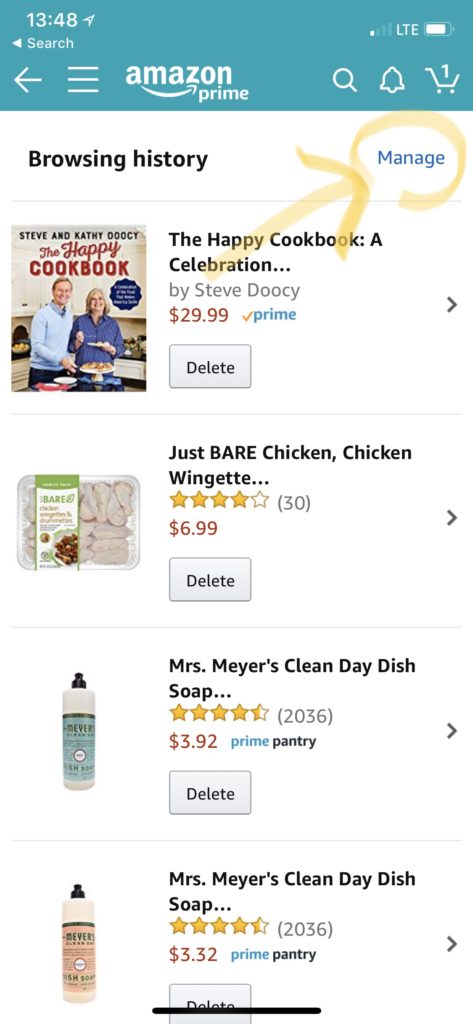
This shows what you have been shopping for with a complete history of every item you’ve clicked. You can opt to turn off browsing history and also delete history.
On Mobile:
- Go to your Account section (button in center at top)
- Go to Profile under Personalized content section
- Click the Browsing History under “Personalized content” section (2nd row from the bottom of this section)
- Click the Manage link in upper right hand corner
- On next page, Turn history on/off and then Delete History button
On Desktop
- Go to your Account section
- Click the “Your Profiles” box
- Click “Looking for your Amazon Public Profile” link at bottom
- In the row above your profile, click “Your Browsing History”
- Click “Manage history” in upper right hand corner
- In row that expands, click the “Remove all items from view” and “Turn Browsing History” Off
More ways to take back your privacy:
- How Your Security Camera Can Be Hacked
- How to Stop Amazon from Sharing Your Internet with Neighbors
- Best Alternatives to Big Tech Beast Google
- Map buried inside your phone reveals where you have been and photos you snapped there
- How to Give Ring a Quick Privacy Checkup
- Don’t make this one mistake when getting rid of your old phone
- Working from Home? How Your Boss May Be Watching You
- Real-life Spy Catcher Sweeps My House and Finds Everything