



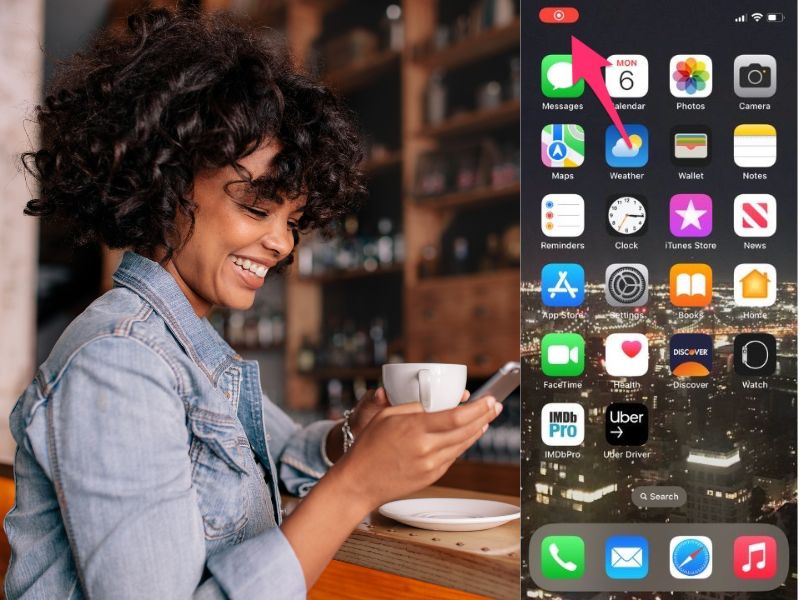
Stop what you are doing to do this quick read. It is a shortcut trick I promise will pay off in spades. Learning how to screen record on your device has tons of benefits.
Whether you’re trying to send a family member instructions for how to do something on their smartphone or you just want to have a copy of a video you saw online without having to download it, screen recording can certainly come in handy for you.
That’s why I’m going to tell you how to screen record on 6 popular devices.
Table of Contents:
How to screen record on an iPhone
We screen-grabbed the following steps using iOS 18.3.1 on an iPhone 15 pro.
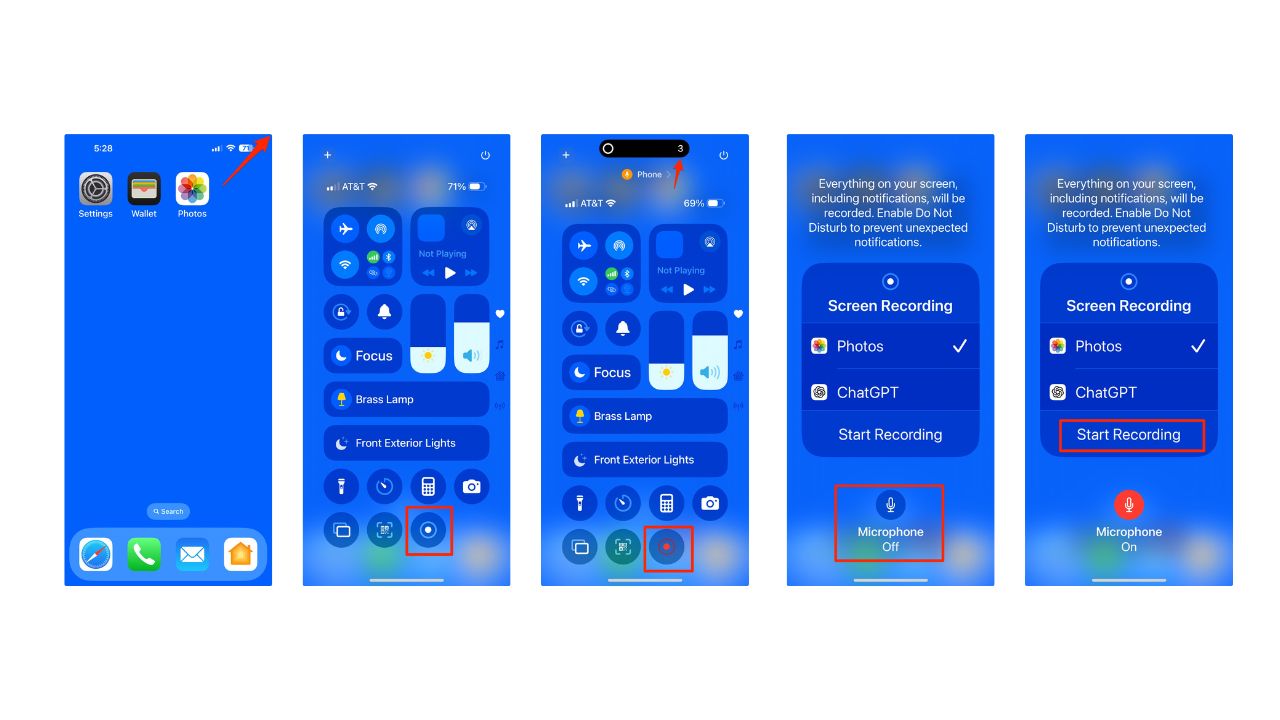
Step 1: Add screen recording to the Control Center
- Swipe down from the top-right corner of your screen to open the Control Center.
- Tap the small + icon in the top-left corner of the screen.
- Tap Add a Control at the bottom.
- Find and tap Screen Recording to add it to your Control Center.
- Tap outside the menu to save changes.

Step 2: Start a screen recording
- Open the Control Center by swiping down from the top-right corner.
- Tap the Screen Recording button (a circle icon). Wait for the 3-second countdown to start recording.
- To record with sound, press and hold the Screen Recording button
- Then tap the microphone icon to enable audio.
- Then, tap where it says “Start Recording”. Wait for the 3-second countdown to start recording.
Step 3: Stop a screen recording
- Tap the red status bar or red circle at the bottom of your screen, then confirm by tapping Stop.
- Alternatively, open Control Center again and tap the red Screen Recording button.

Step 4: Access your recording
- Open the Photos app.
- Navigate to your Library or scroll down to Media Types\
- Tap Screen Recordings to find your saved video. (You may need to swipe left here to see more media types)

How to screen record on an iPad
- Go to your Settings app
- Select Control Center
- Tap the green plus icon next to where it says Screen Recording
- Go to where you wish to record from (i.e. Facebook, Instagram, etc.)
- Open your Control Center by swiping down from the right-hand corner of the screen
- Tap the circle record icon and wait 3 seconds to start recording – that’s when you can hit play on your video
- To stop recording, tap the red circle in the top right-hand corner and select Stop
- Your screen-recorded video will be in your Photos app
How to screen record on a macOS
- Go to where you wish to record from (i.e. Facebook, Instagram, etc.)
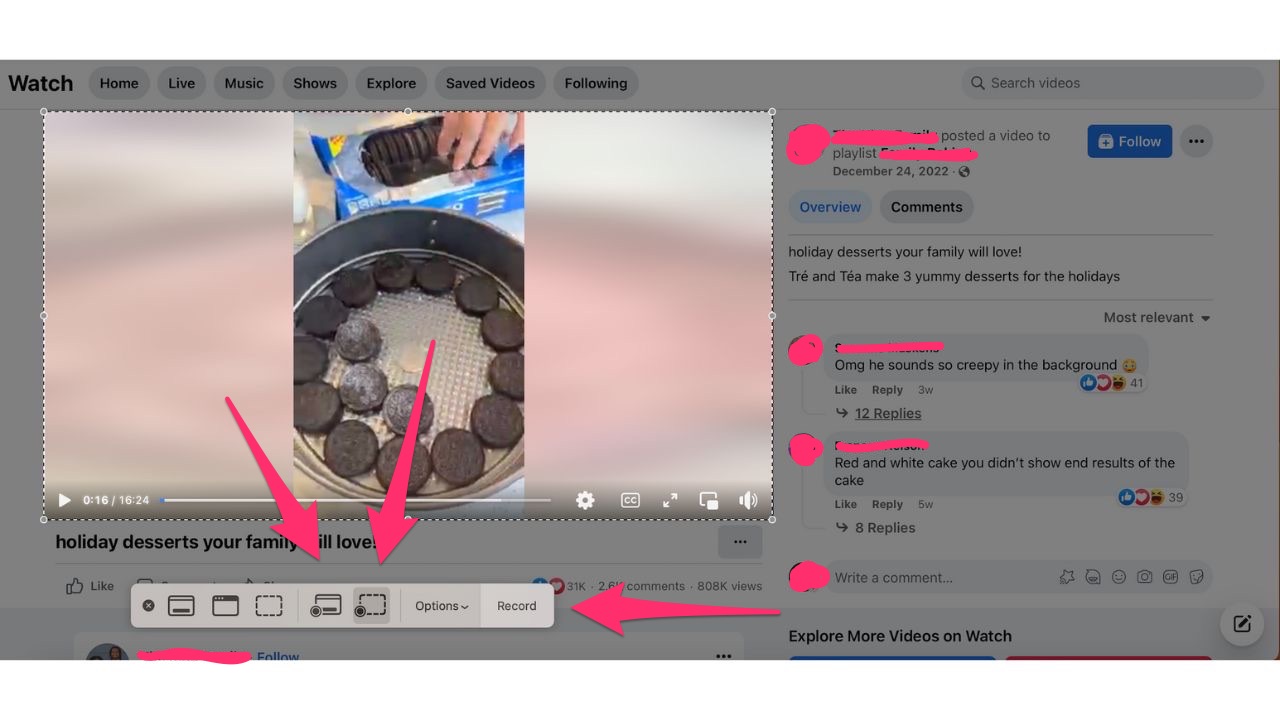
- On your keyboard, tap Command+Shift+5 at the same time
- You can choose whether you want to record the entire screen (left option) or record a selected portion of the screen (right option). If you are only recording a selected portion of the screen, use your mouse to drag the parameter box to the section of the screen you wish to record.
- If you wish to record with sound, select Options and choose your computer’s microphone
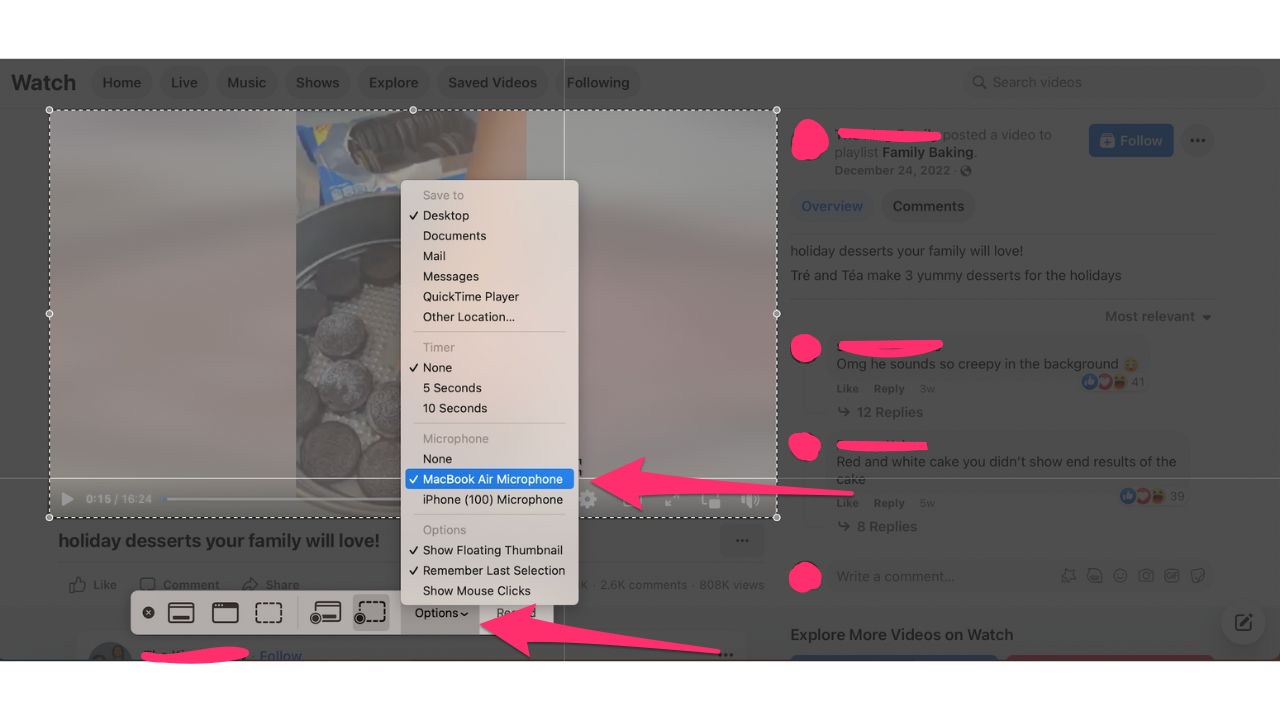
- Press Record
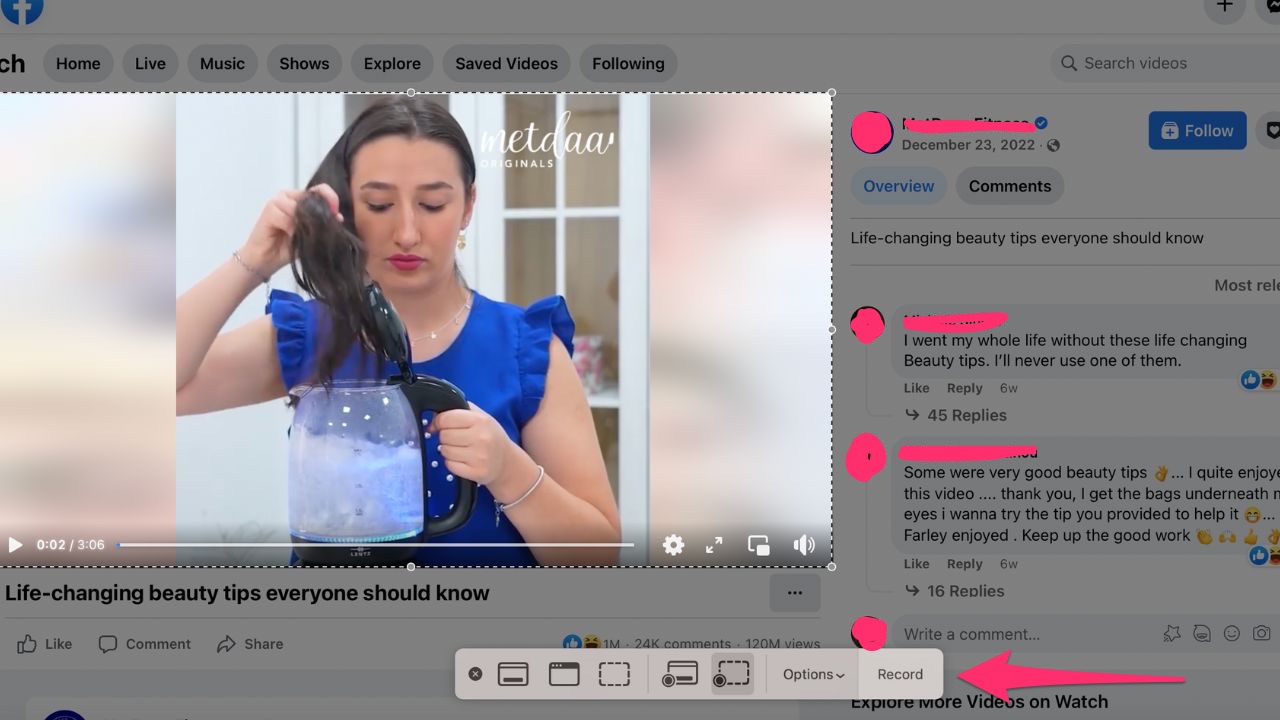
- Then hit play on the video you want to record
- To stop recording, click the record icon in the top bar of your screen
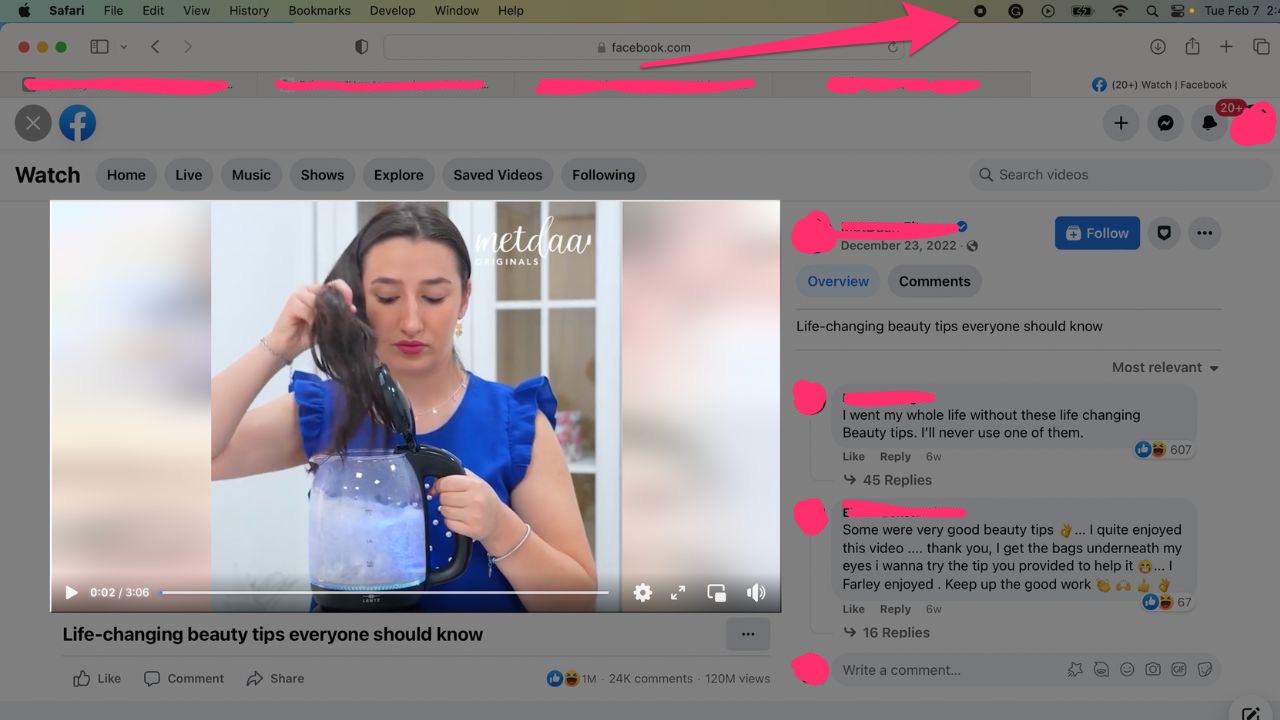
- The screen recording should automatically save to your Desktop. If you do not see it there, check your Downloads and your Recents folders as well.
- In our example above, it is important to keep in mind that when recording pages with videos, some videos might be protected by copyright laws, and it may not be legal to record and distribute them without permission from the content owner.
How to screen record on an Android
It’s important to note that not all screens or apps allow recordings or screenshots. Screen recorder is available on the Tab S6, Tab S7, Tab S8, Tab A8, Galaxy S10, S20, S21, S22, Note 10, Note 20, Z Fold, and Z Flip models. The Galaxy A53 5G, A52 5G, and A32 5G also support Screen recorder.
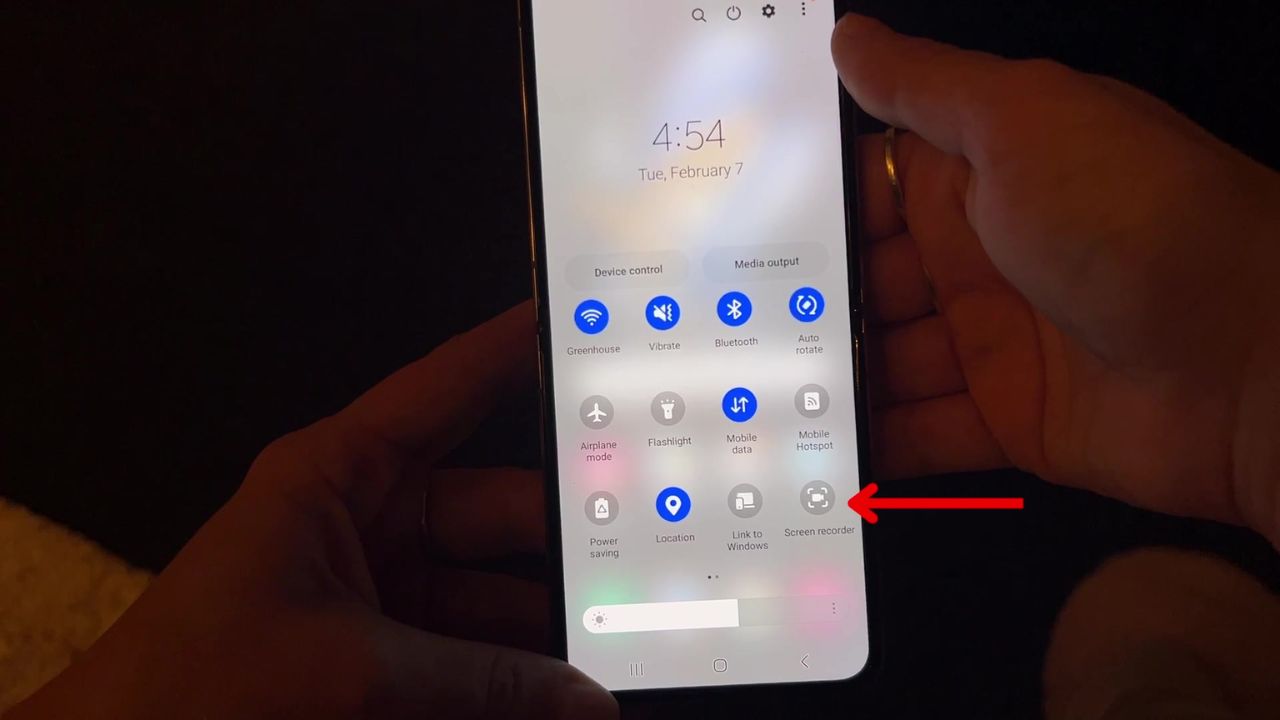
- Swipe down twice from the top of your screen
- Tap Screen recorder circle icon (you might need to swipe right to find it)
- If it’s not there, tap Edit and drag the Screen Record circle icon to your Quick Settings
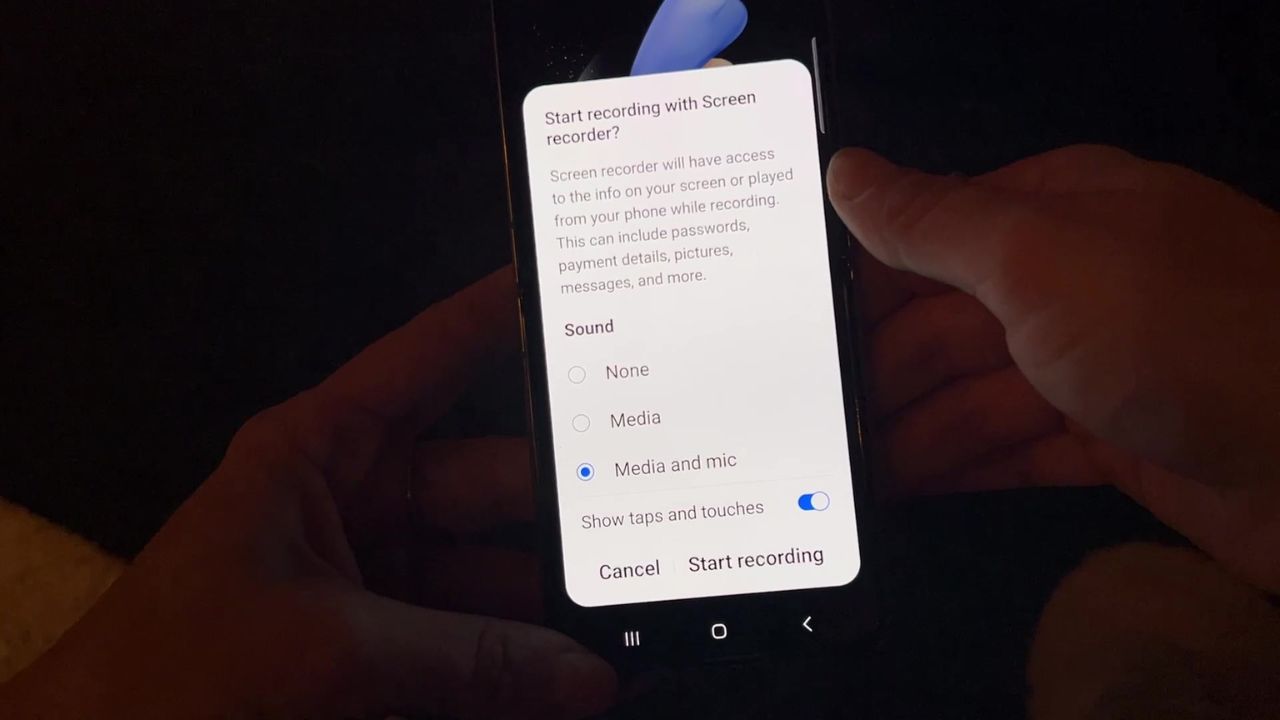
- Choose what you want to record and tap Start recording. The recording begins after the countdown
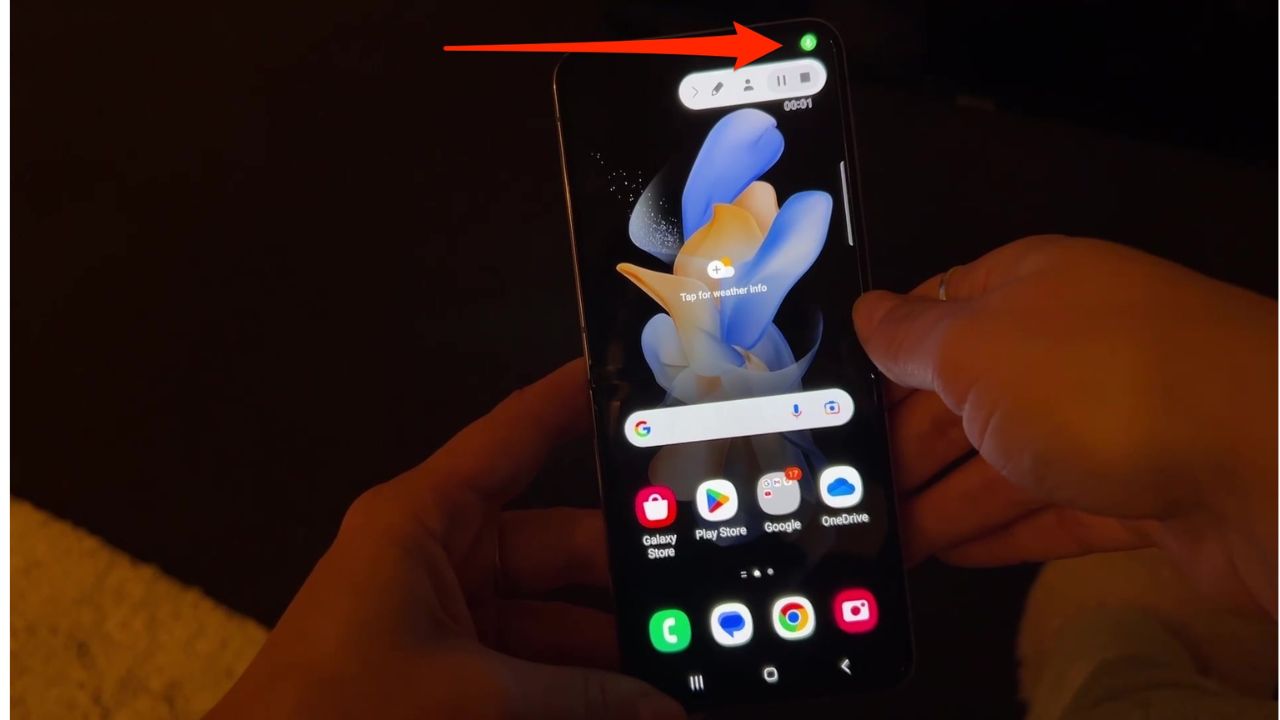
- To stop recording, swipe down from the top of the screen and tap the Screen recorder notification, which is the green button on the top right of the screen
How to screen record on a Chromebook
- Press Shift + Ctrl + Show windows
- In the menu at the bottom, select the Screen record icon (looks like a camera)
- Select an option: record full screen, record partial screen, or record a window
- To stop recording, at the bottom right, select Stop recording
How to screen record on a PC
- Open the app you want to record
- Press the Windows key + G at the same time to open the Game Bar dialog
- Check off “Yes, this is a game” to load the Game Bar (it doesn’t matter if you are recording a game or not)
- Click Start Recording
- Stop recording by clicking the red recording bar on the top right of the program window
Start recording your device screen, and let us know how it goes for you. We’d love to hear from you.
Related Links:
Copyright 2025 CyberGuy.com. All rights reserved. CyberGuy.com articles and content may contain affiliate links that earn a commission when purchases are made.