



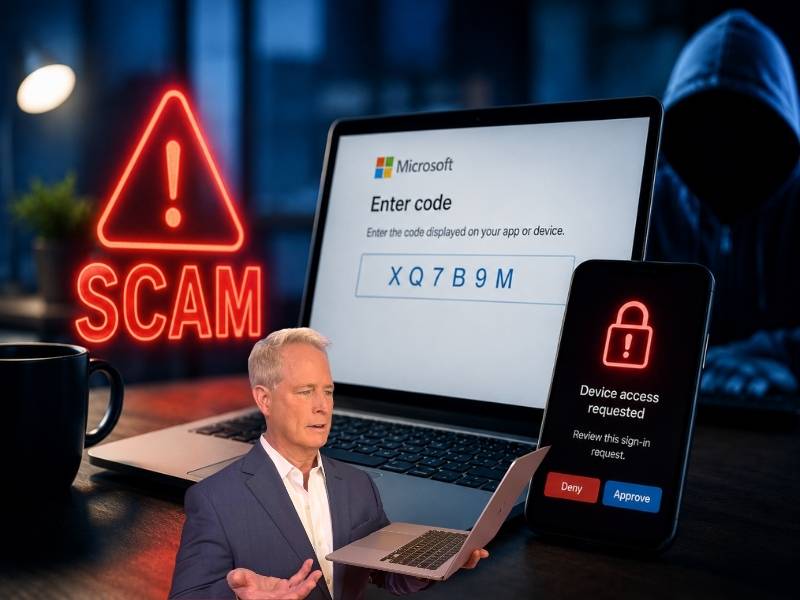
- The FBI warns Kali365 can hijack Microsoft 365 access tokens and bypass MFA without stealing a password.
- The scam tricks people into entering a device code on a real Microsoft verification page.
- Once approved, attackers may access Outlook, Teams and OneDrive without another MFA challenge.
- Never enter a Microsoft device code unless you started the sign-in yourself.
The security step many of us trust most may not protect us the way we think. The FBI is warning about an emerging phishing-as-a-service platform called Kali365. It targets Microsoft 365 accounts, including Outlook, Teams and OneDrive.
That alone sounds bad. The scarier part is how it works. This scam can get into your account without stealing your password. Even with multifactor authentication turned on, one wrong device-code approval could give a criminal access.
Here’s how the scam works, why it can slip past MFA and what you can do to protect your Microsoft account.

How Kali365 tricks Microsoft users
Kali365 is a phishing-as-a-service platform. In other words, crooks can subscribe to it and use ready-made tools to attack Microsoft 365 accounts. The FBI says Kali365 was first seen in April 2026 and has mainly spread through Telegram. The platform gives attackers access to AI-generated phishing messages, automated campaign templates, tracking dashboards and tools that capture OAuth tokens. That last part is the key.
OAuth tokens are digital access keys. They can let an app stay connected to your Microsoft account without asking for your password every time. They are useful when the right app uses them. They are dangerous when a scammer steals them.
Why this scam can beat MFA
Most phishing scams try to steal your password. Kali365 takes a different route. The attack abuses Microsoft’s device code login process. You may have seen something similar when signing into a streaming app on a smart TV. A screen shows a short code. Then you enter that code on another device to approve the sign-in.
That process is legitimate. The scam begins when a criminal starts the sign-in from their own device and tricks you into approving it. You may see a phishing email that looks like it came from a trusted cloud service or document-sharing tool. The message includes a code and tells you to visit a real Microsoft verification page.
That real Microsoft page is what makes this so sneaky. The web address can look right. Your password manager may not object. The page may feel safe. But once the code gets entered, you may unknowingly authorize the attacker’s device. From there, the attacker can capture access and refresh tokens. That can open the door to Outlook, Teams and OneDrive without your password or another MFA prompt.

Why this should worry small businesses too
A scam like this can hit anyone with Microsoft 365 access. Still, small businesses should pay close attention. Think about what sits inside a typical work account. Email threads. Invoices. Shared files. Employee chats. Vendor contacts. Customer details. Calendar invites. One compromised account can give a criminal a very believable voice.
A scammer who gets into Outlook can study how you write. They can send messages from your real account. They can ask coworkers to pay fake invoices, share files or reset passwords. That to me is scary because the scam may not look like a scam anymore. It may come from someone you know.
How the attack unfolds
The FBI describes the scheme in a clear sequence. First, the victim gets a phishing email that pretends to come from a trusted productivity or file-sharing service. Next, the email provides a device code and tells the victim to enter it on a legitimate Microsoft verification page.
Then, the victim enters the code and unknowingly approves the attacker’s device. After that, the attacker captures OAuth access and refresh tokens. Finally, the attacker can access Microsoft 365 services such as Outlook, Teams and OneDrive without needing the victim’s password.
Red flags to watch for
The biggest warning sign is an unexpected request to enter a Microsoft device code. Be suspicious if an email tells you to enter a code for a file, voicemail, invoice or shared document you did not request.
Also, watch for urgency. Scammers love messages that push you to act fast. They may claim a document will expire, a voicemail is waiting, or an account needs verification.
Another clue is context. If you were not trying to sign in to a device, do not enter a device code. That one habit can stop this scam before it starts.

What Microsoft says about the Kali365 phishing warning
In response to CyberGuy, Microsoft said customers should follow the FBI’s recommendations as well as Microsoft’s published best practices to protect against Kali365 and similar scams.
The company also said it works to disrupt cybercriminal ecosystems tied to phishing-as-a-service and account takeover activity. Microsoft pointed to recent Digital Crimes Unit actions involving Fake ONNX, RaccoonO365 and Tycoon 2FA as examples of those broader efforts.
How to protect your Microsoft 365 account from Kali365
A few smart habits can help you spot fake device-code requests, reduce your exposure and follow the FBI’s guidance for limiting this type of attack.
1) Never enter a device code you did not request
Only enter a Microsoft device code when you personally started the sign-in. If the code arrives through an email, Teams message or random document link, stop.
2) Go directly to Microsoft
Do not use links inside surprise messages. Open your browser and go directly to Microsoft or your company’s Microsoft 365 portal.
3) Check your account activity
Review recent sign-ins, connected devices and active sessions. If you see a location, device or app you do not recognize, take action right away.
4) Revoke suspicious sessions
If you think you entered a code by mistake, sign out of all sessions and revoke suspicious app access. Then change your password and contact your IT team.
5) Keep MFA turned on
Do not turn off multifactor authentication because of this scam. MFA still blocks many account attacks. This threat shows why you also need to be careful with approval prompts and device codes.
6) Use strong security software
Using strong antivirus software, such as Norton Antivirus Plus (CyberGuy deal: Get 58% off) , can help detect phishing pages, malicious links and suspicious downloads before they cause damage.
7) Use a data removal service
Scammers often build convincing phishing messages with personal details found online. A data removal service, such as Incogni, can help reduce the amount of your information available on people-search sites and data broker databases.
8) Train your team on device-code scams
Employees may know not to type passwords into strange pages. Many have never been warned about device codes. Make this specific scam part of your security training.
9) Restrict device code flow if your business does not need it
The FBI says restricting device code flow can help prevent or limit this style of attack. IT teams should create a conditional access policy to block device code flow for all users, with limited exceptions for required business processes.
10) Audit device code usage first
Before blocking device code flow, the FBI recommends auditing current usage to identify legitimate business needs. That can help prevent disruptions for employees or systems that rely on this sign-in method.
11) Block authentication transfer policies
The FBI also recommends blocking authentication transfer policies. This can help prevent users from transferring authentication from computers to mobile devices.
12) Protect emergency access accounts
If your organization cannot fully restrict device code flow, the FBI recommends excluding emergency access accounts to prevent lockouts. That step should be handled carefully by your IT or security team.
13) Report the attack
If you were targeted or compromised, report it to the FBI’s Internet Crime Complaint Center at IC3.gov. Include phishing emails, email headers, suspicious login times, IP addresses, locations, unauthorized devices and active sessions.
What to do if you have already entered a code
Move quickly.
- Sign out of Microsoft 365 on all devices.
- Change your password.
- Check your recovery email and phone number.
- Review forwarding rules in Outlook.
- Look for strange inbox rules that hide, delete or redirect emails.
- Then review OneDrive files, Teams messages and recent account activity.
- If this is a work account, tell your IT team immediately. Do not wait to see what happens. Stolen tokens can give attackers continued access until they are revoked.
Related Links:
- Why scammers are targeting grandparents harder than ever
- AI voice scams can clone your family’s voice
- 9 ways scammers can use your phone number to try to trick you
Kurt’s key takeaways
This is the kind of scam that can fool smart people because it uses a real Microsoft sign-in page to pull off something criminal. That is what makes Kali365 so dangerous. It can turn a trusted security step into a trap, especially when the code did not come from a signed-in user. The big takeaway here is to slow down before entering any Microsoft device code. If a code shows up through an unexpected email, text or Teams message, stop and go directly to the account instead. Do not approve a sign-in unless it was started on purpose. A few extra seconds of caution can help keep criminals out of Outlook, Teams, OneDrive and everything connected to them.
Have you ever received a Microsoft code or login prompt you did not request, and did it look convincing enough to make you pause? Let us know in the comments below.
FOR MORE OF MY TECH TIPS & SECURITY ALERTS, SUBSCRIBE TO MY FREE CYBERGUY REPORT NEWSLETTER HERE
Copyright 2026 CyberGuy.com. All rights reserved. CyberGuy.com articles and content may contain affiliate links that earn a commission when purchases are made.