You see it one second and then one, two, or sometimes more emails seem to vanish. Emails are hard to keep track of, especially since we all get flooded with lots of them on a daily basis.
Things can get even more frustrating when they are automatically grouped together without your knowledge. You may not know that most email services do this by default.
The good news is that there’s a way for you to shut this feature off.
What does it mean to have an email grouped?
Email messages are grouped automatically when each message has the same recipients, senders, or subject of a previous message. It will stack all messages that fall into this category, with the oldest ones at the top and the newest at the bottom.
The conversation may break into a new chain if the subject changes or if the chain gets to more than 100 emails. This is typically the default within every email service. Still, you can turn it off by going into your Settings and doing the following steps.
How to turn the conversations feature off in Gmail
- Log in to your Gmail account
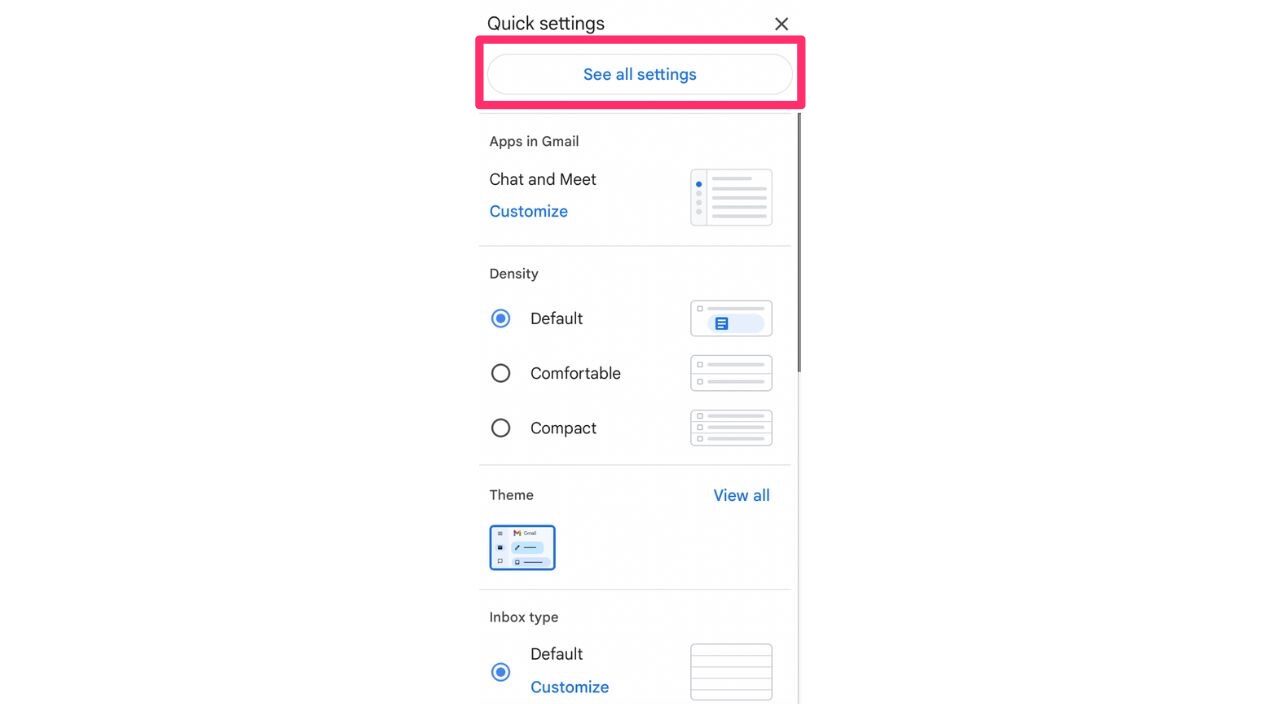
- In the top right corner, click the Settings icon (gear icon)

- Select See all settings
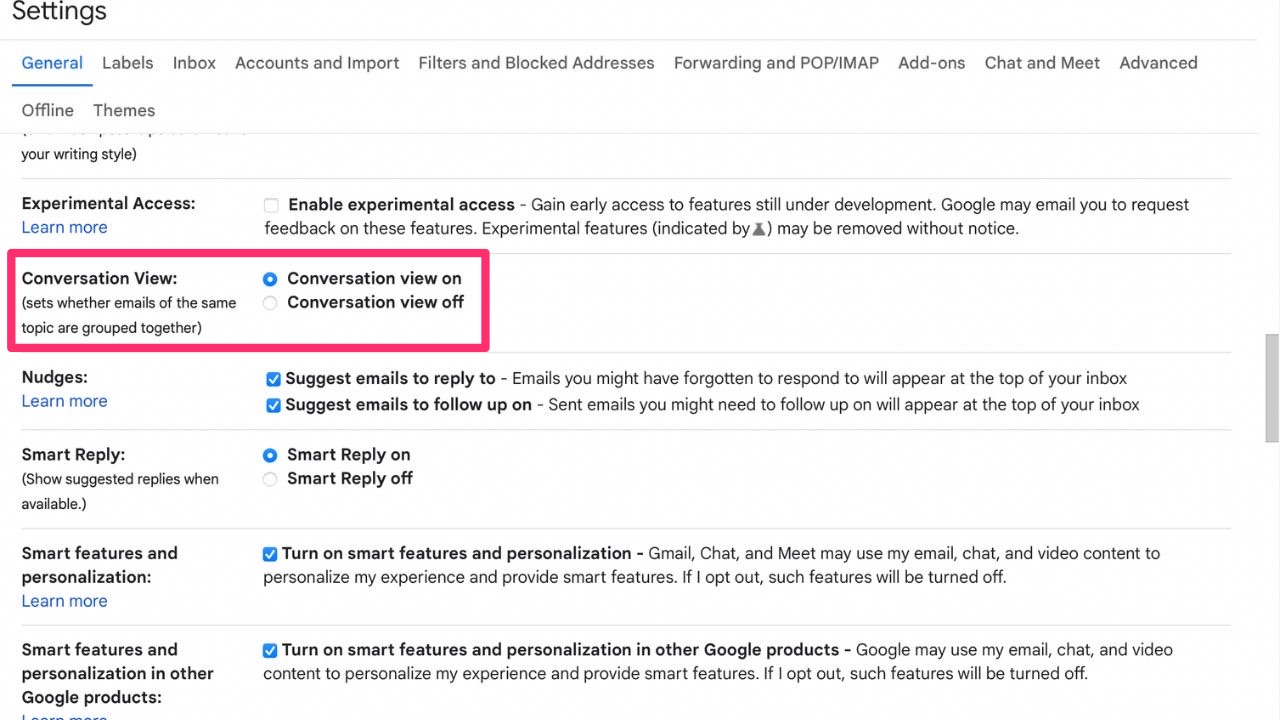
- Scroll down to Conversation View and select Conversation view off
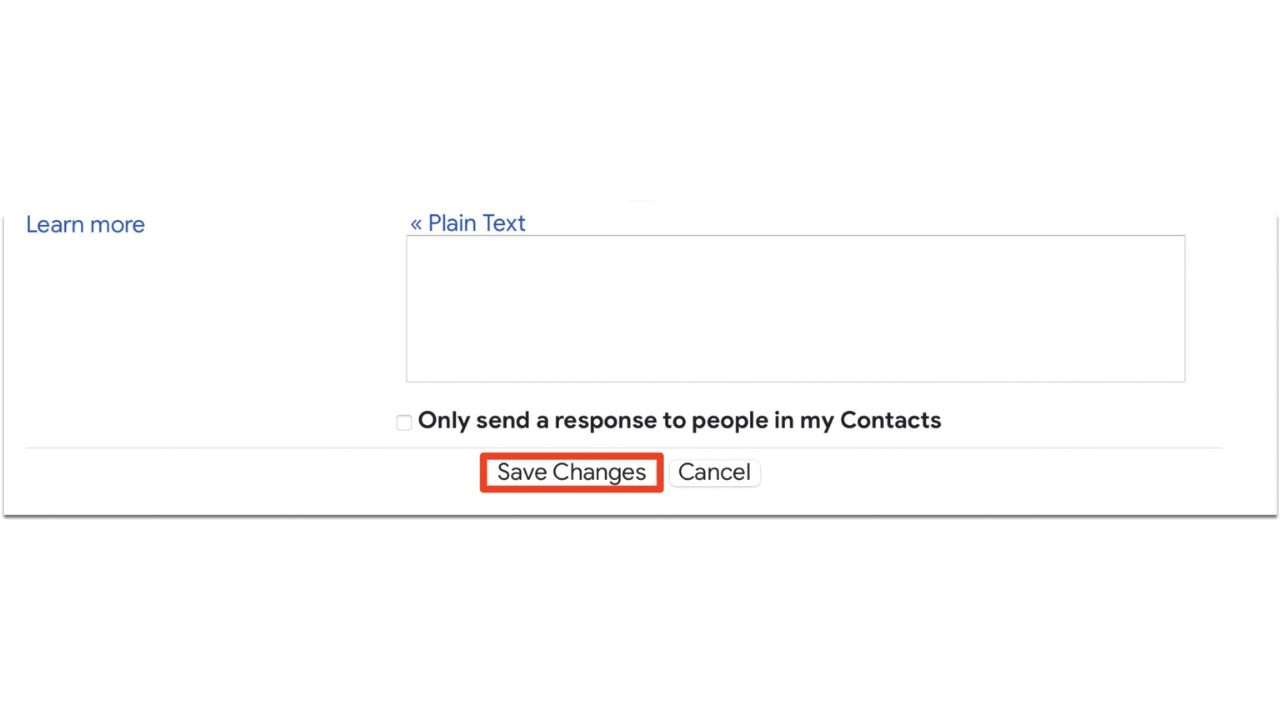
- Then click save changes at the bottom of the screen. It’s important that you perform this last step so that your changes are saved
How to turn the conversations feature off in Yahoo Mail
- Log in to your Yahoo account
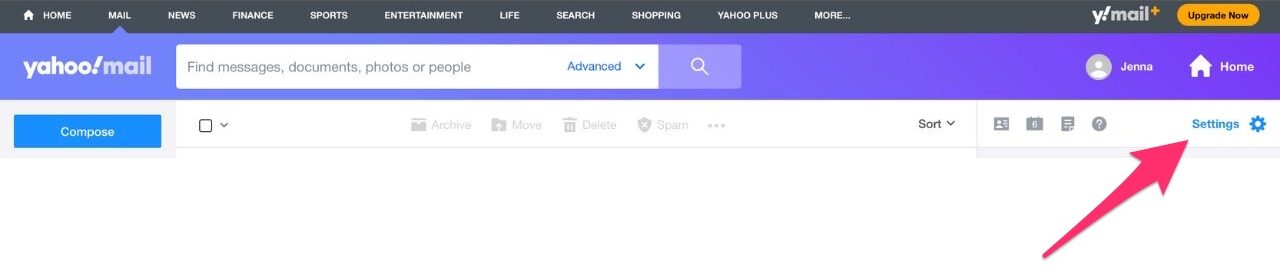
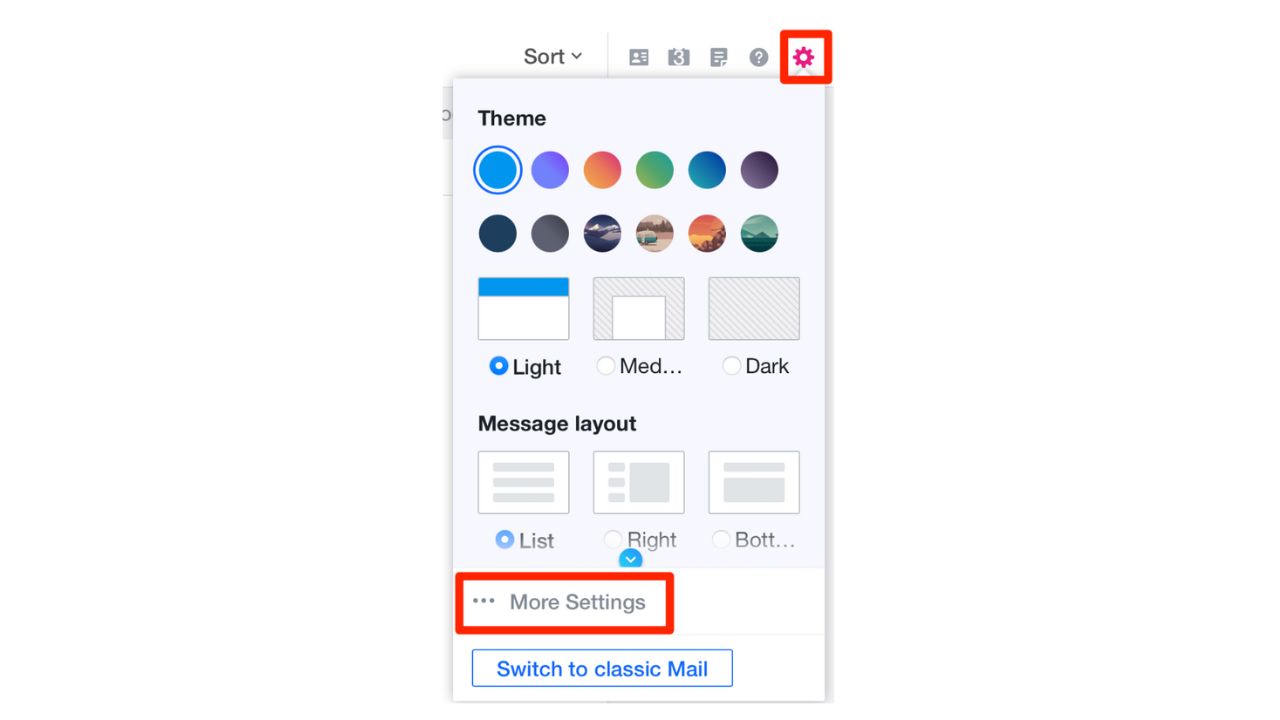
- In the top right corner, click the Settings icon (it looks like a cogwheel)
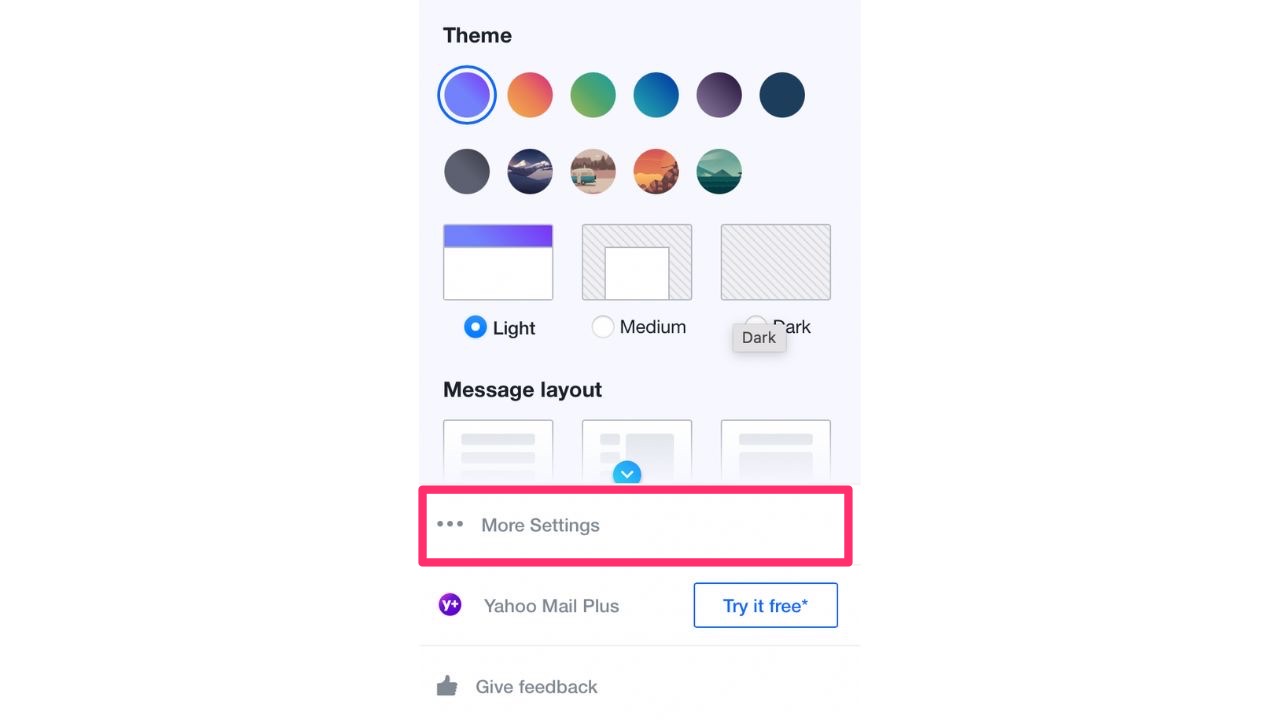
- Click More Settings
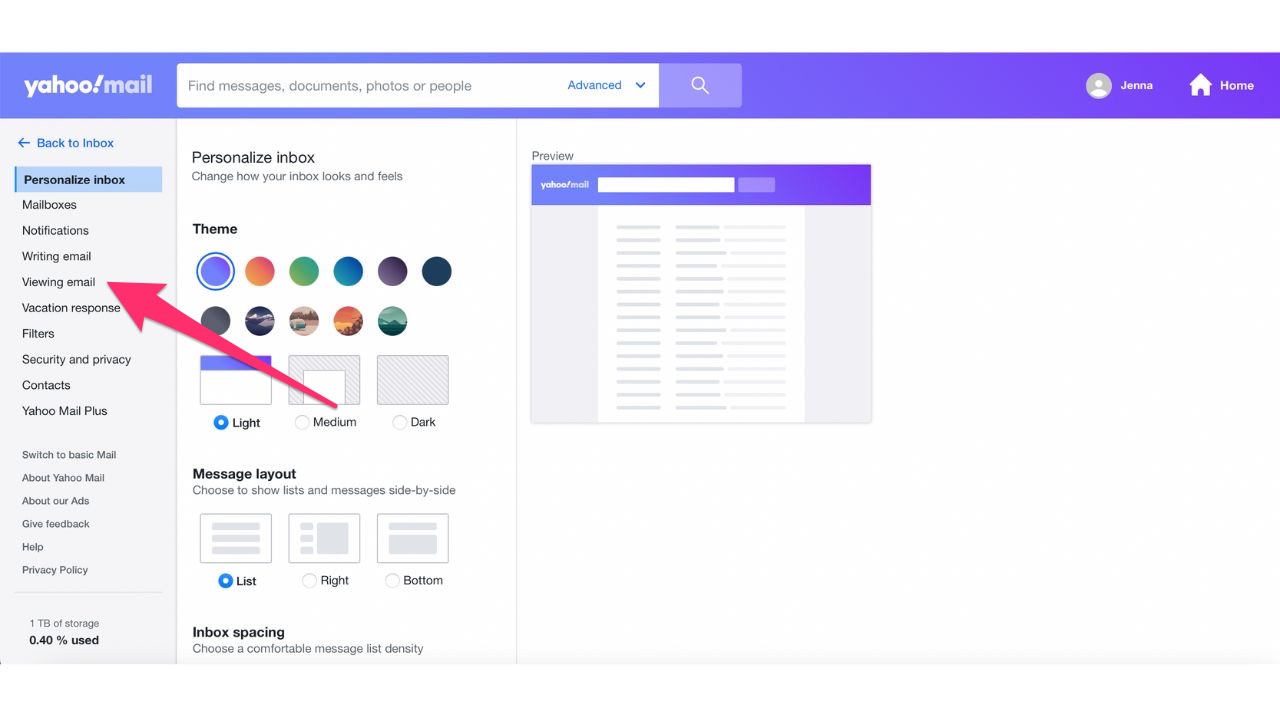
- In the list of options on the left-hand side, click Viewing email
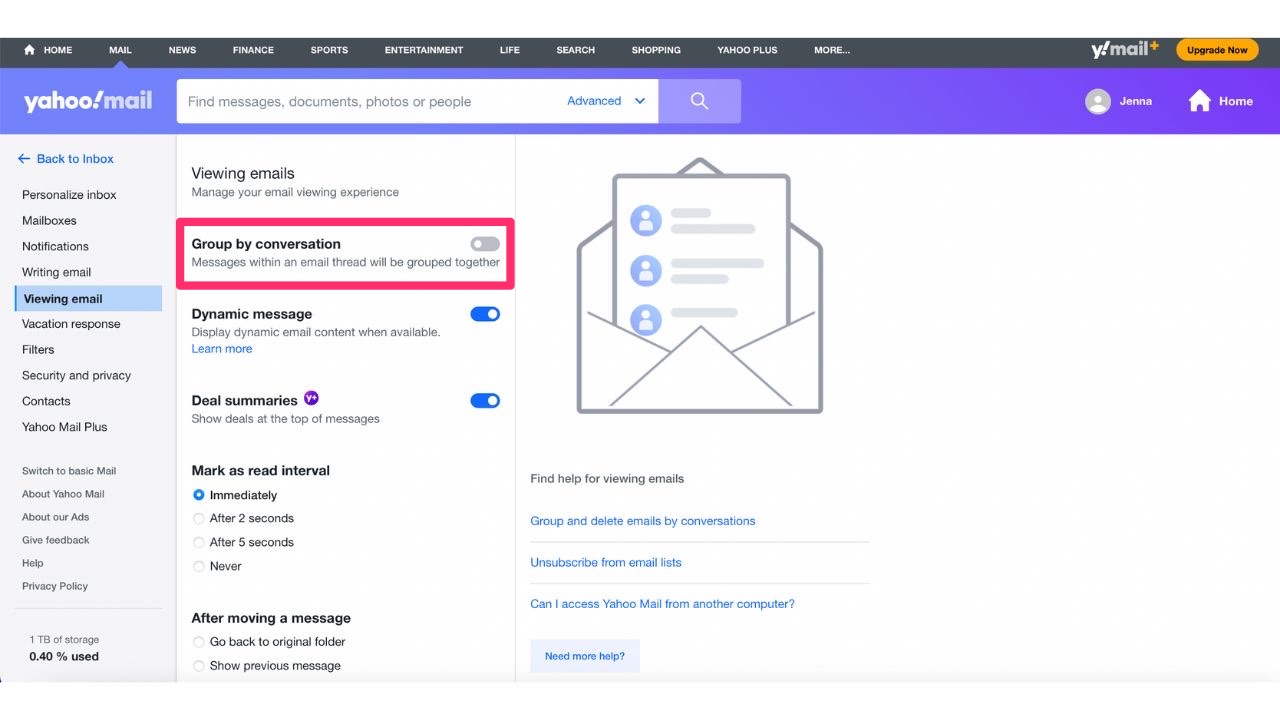
- Go to Group by conversation and toggle off
To turn off the conversation view in Microsoft Outlook, follow these steps:
- Open Microsoft Outlook
- Go to the View tab at the top of the screen
- Scroll down and uncheck Organize by Conversation option
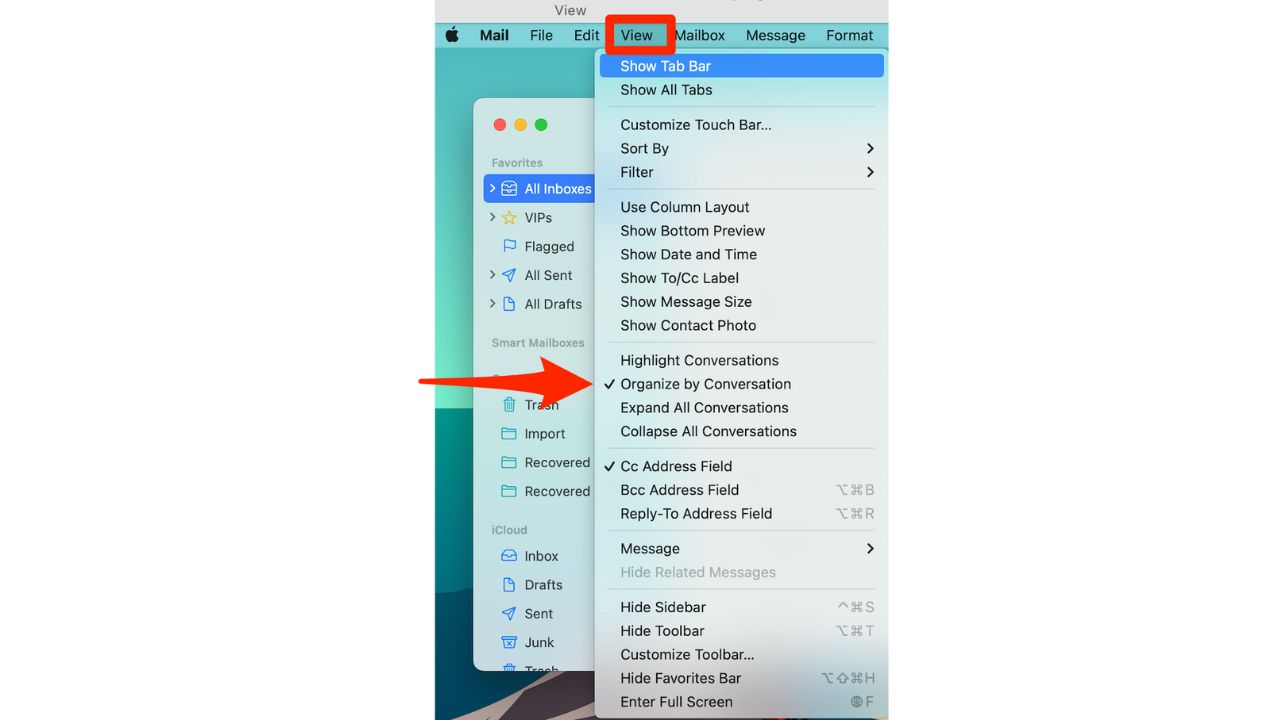
- Conversations will now be displayed in a standard email view, with individual messages listed one after the other
Note: These steps may vary slightly based on the version of Microsoft Outlook you are using
How to turn the conversations feature off in AOL
- Log in to your AOL account
- Click on the Settings icon (gear icon) located in the top-right corner of the screen
- Then, click on 3 dots with More Settings next to it
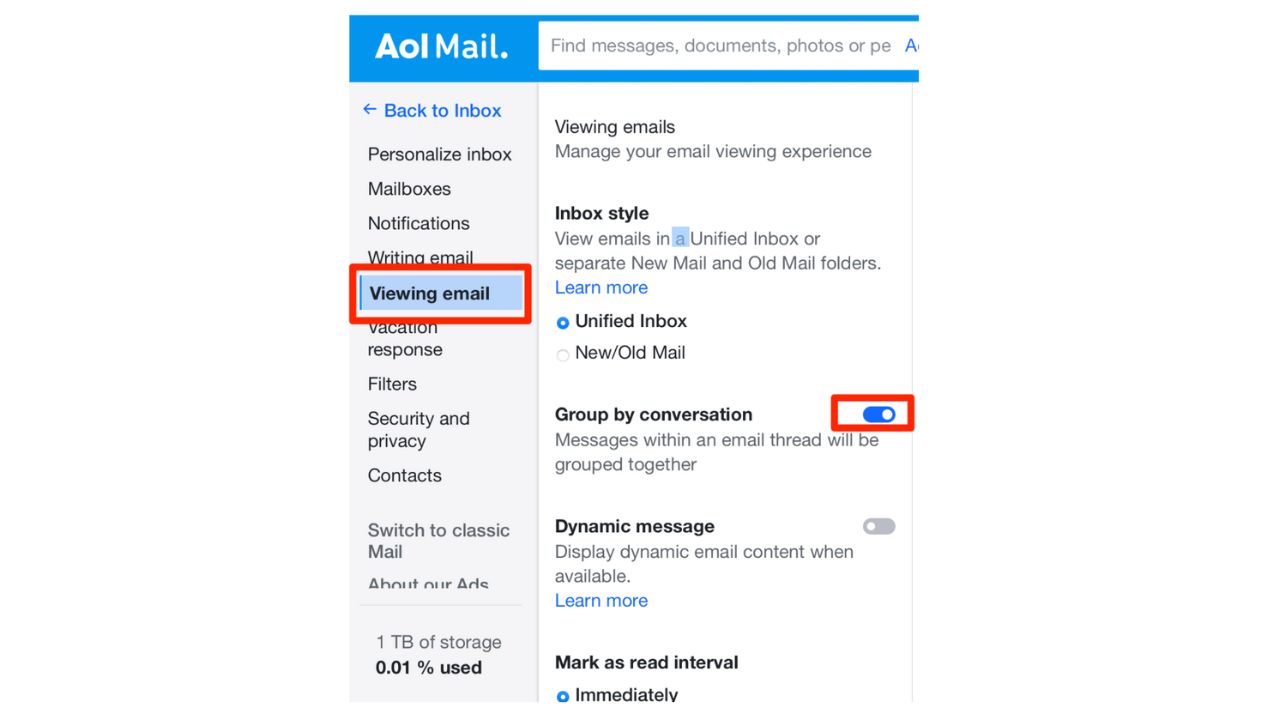
- Click Viewing email on the left
- Scroll down until you see Group by conversation
- Toggle that option off
Watch the latest episode of The CyberGuy Report.

Missed this event? Sign up via the registration form and see our live recording.
See Kurt’s latest Amazon picks for useful gadgets, smart home upgrades and everyday tech worth grabbing while the deals last.
Note: These steps may vary slightly depending on the version of AOL you are using.
Have you tried these steps yet with your email? Let us know how they work for you.
Related:
- How to migrate your email to private email
- How to schedule emails and set reminders on iOS16
- Watch out for malware in images in email attachments
🎙 Now Streaming: My New Podcast: The CyberGuy Report
Kurt’s Top Deals
Deals move fast and inventory can be limited, so don’t wait too long.
| 🔥 Editor’s pick  Summer entertaining Ninja SLUSHi Machine (26% off) Frozen drinks and slushies at home in minutes. | |
| 💰 Top deal  Outdoor essential TYPEC Solar Bug Zapper (36% off) Solar-powered bug zappers for patios and camping. |