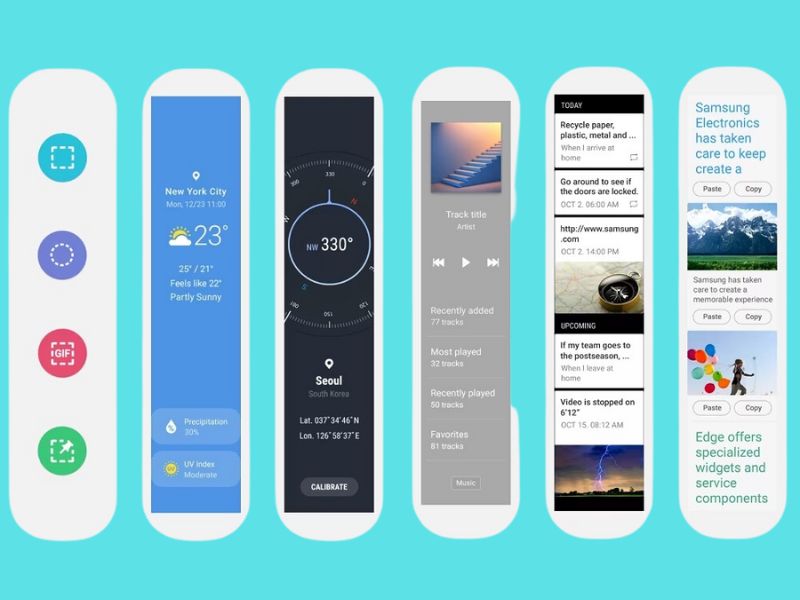
Our smartphones are meant to make our lives much easier by helping to cut the amount of time it takes us to find what we need. However, there are millions of apps out there for us to use, and spending time trying to find the right one can be a waste. That’s why Samsung Galaxy phones have Edge Panels, and we’re going to show you how to use them.
What is an Edge Panel?
An Edge Panel is a feature specifically found on Samsung Galaxy devices that gives quick access to the apps you use most often. These panels can also provide quick information about the weather, give you access to your compass, take notes and screenshots, and more. They appear as small windows that you can drag around on your screen and customize to your liking.
HOW TO INCREASE THE FONT SIZE ON ANDROID
How do I activate Edge Panels?
Launching Edge Panels is quite simple if you use the following steps:
- Open your Settings app
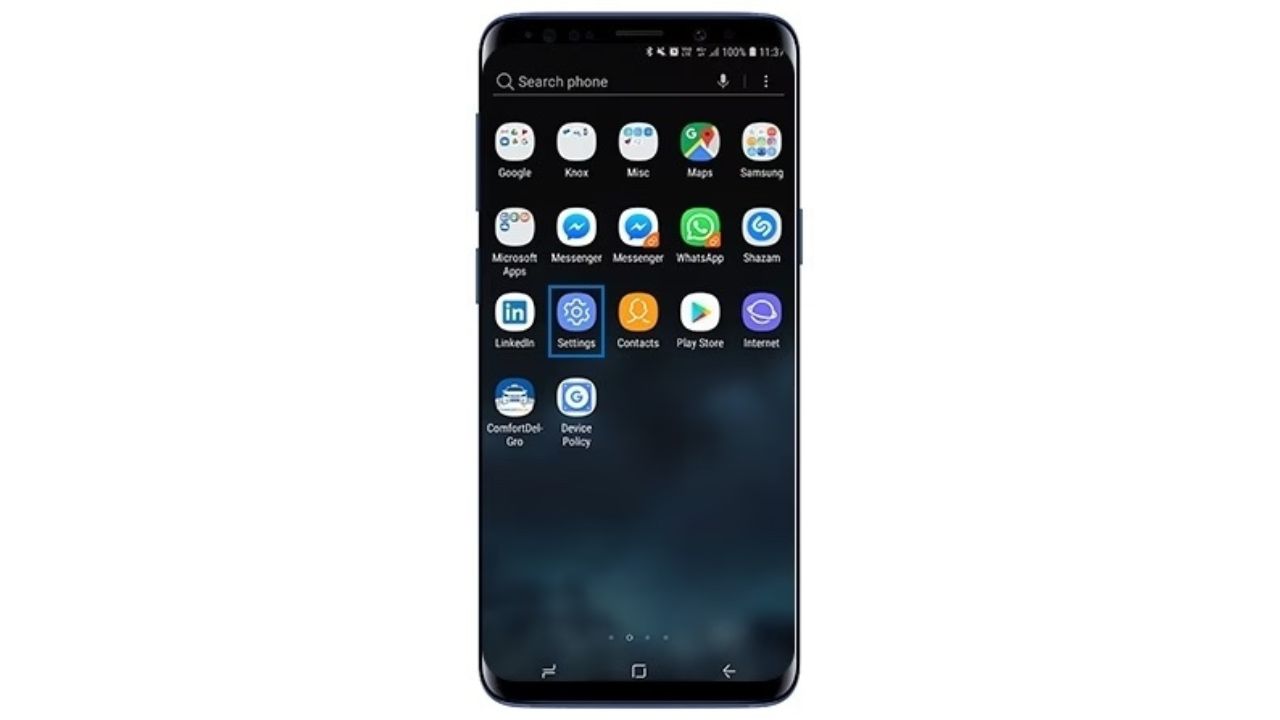
- Select Display
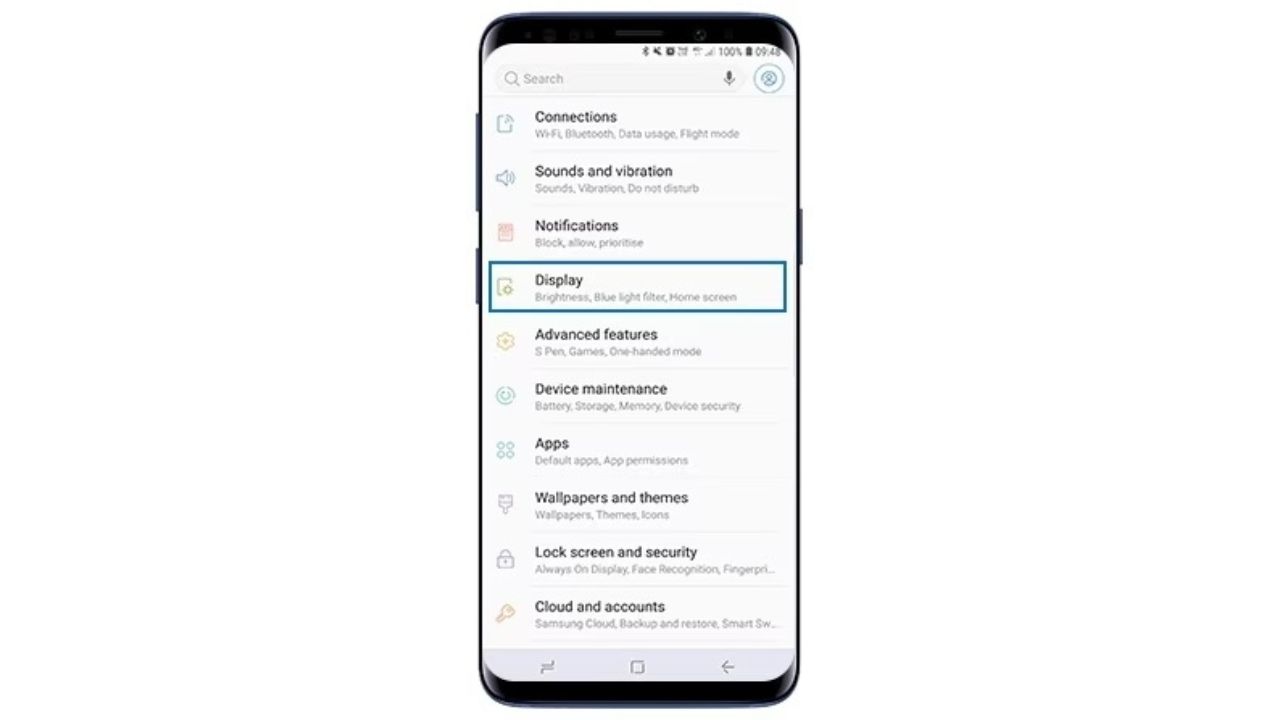
- Select Edge Screen
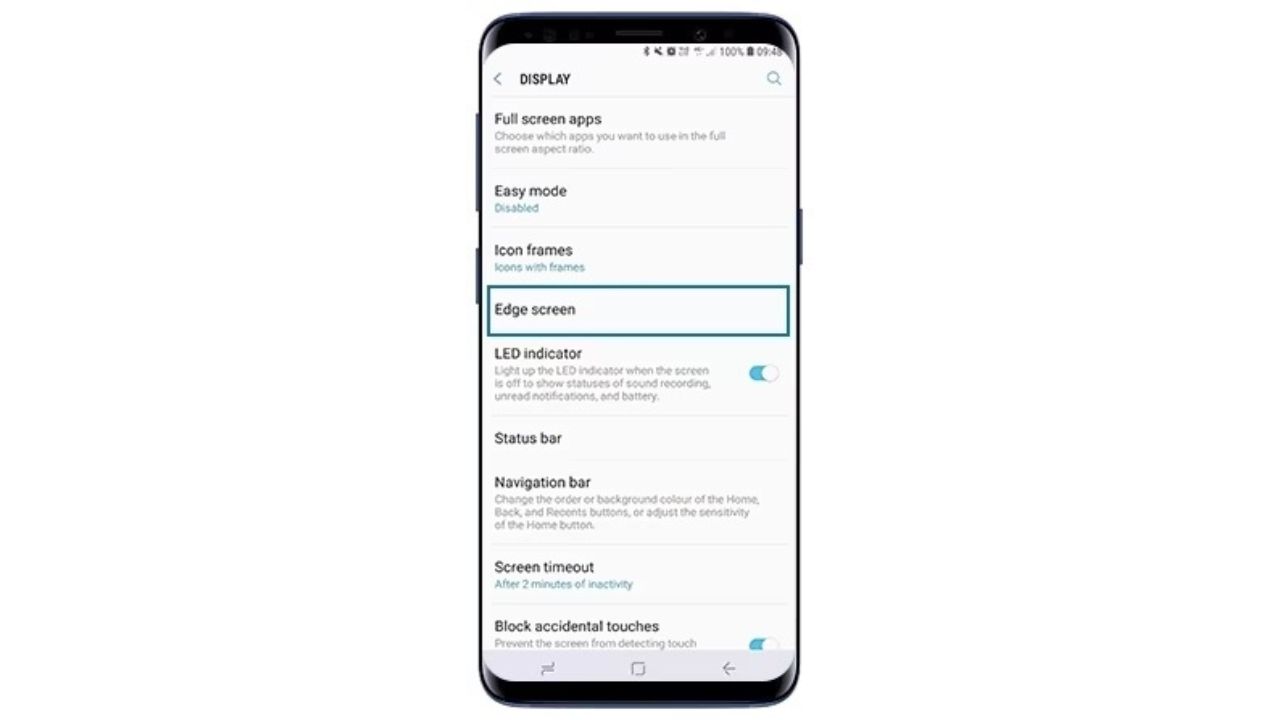
- Toggle on Edge Panels
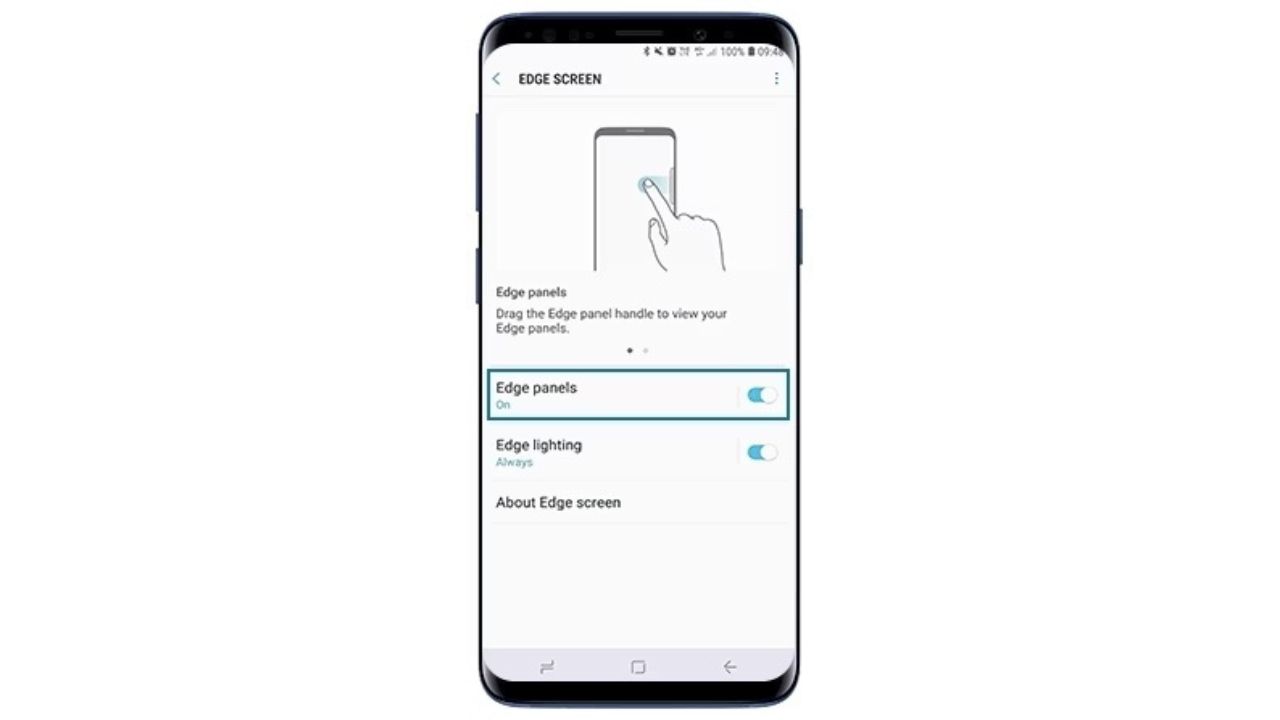
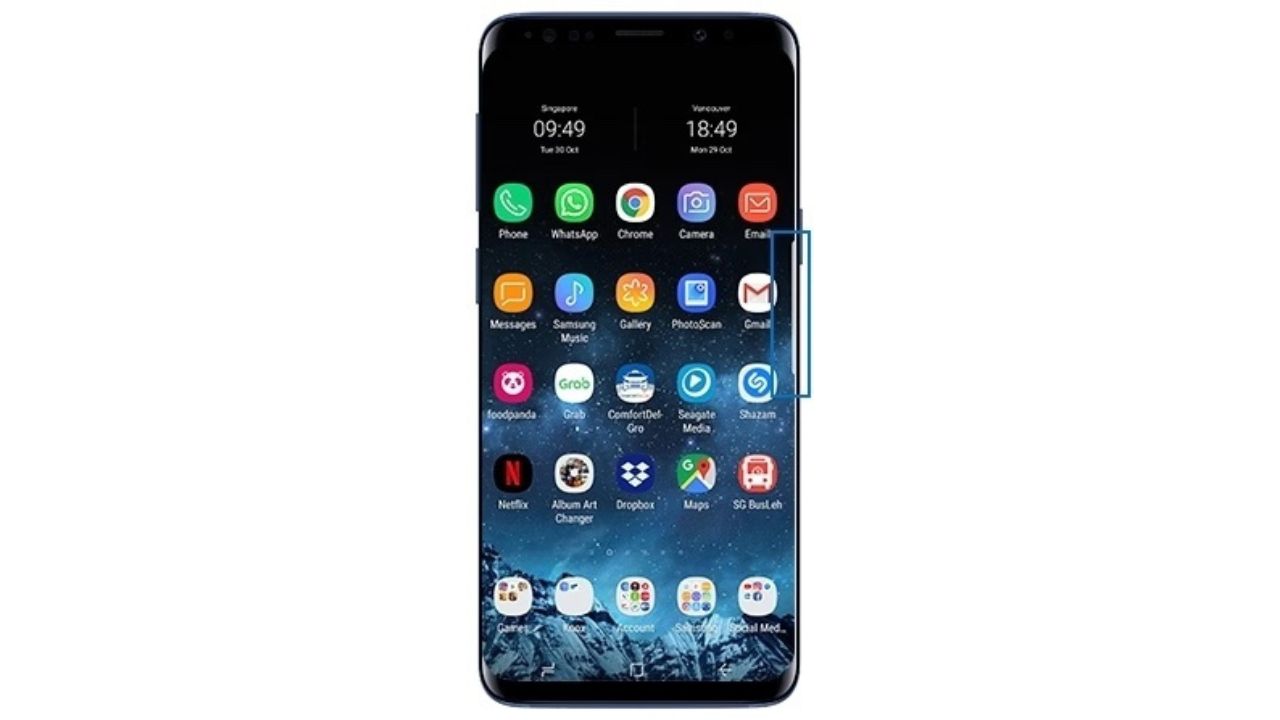
- Edge Panel is now appearing on the screen. Once Edge Panels are turned on, you should see a thin line on the right (or left) side of the screen, towards the top. Swipe from the thin line to the center of your screen to open Edge Panels
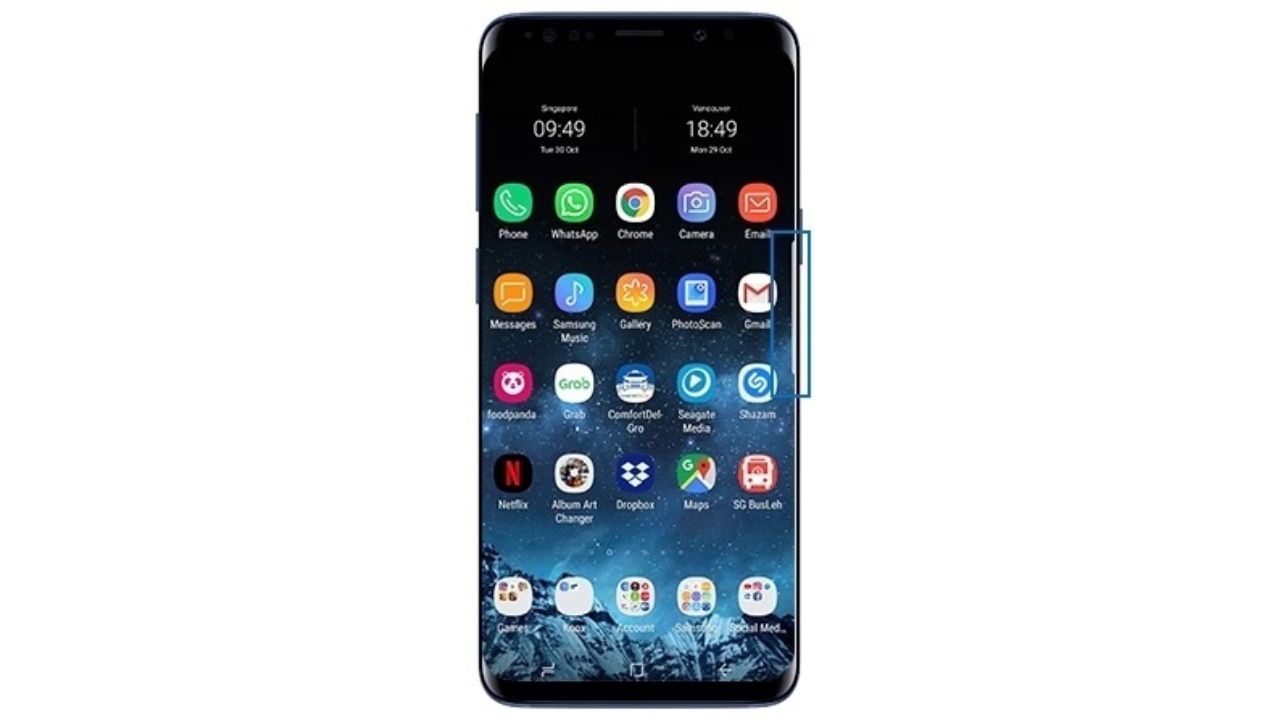
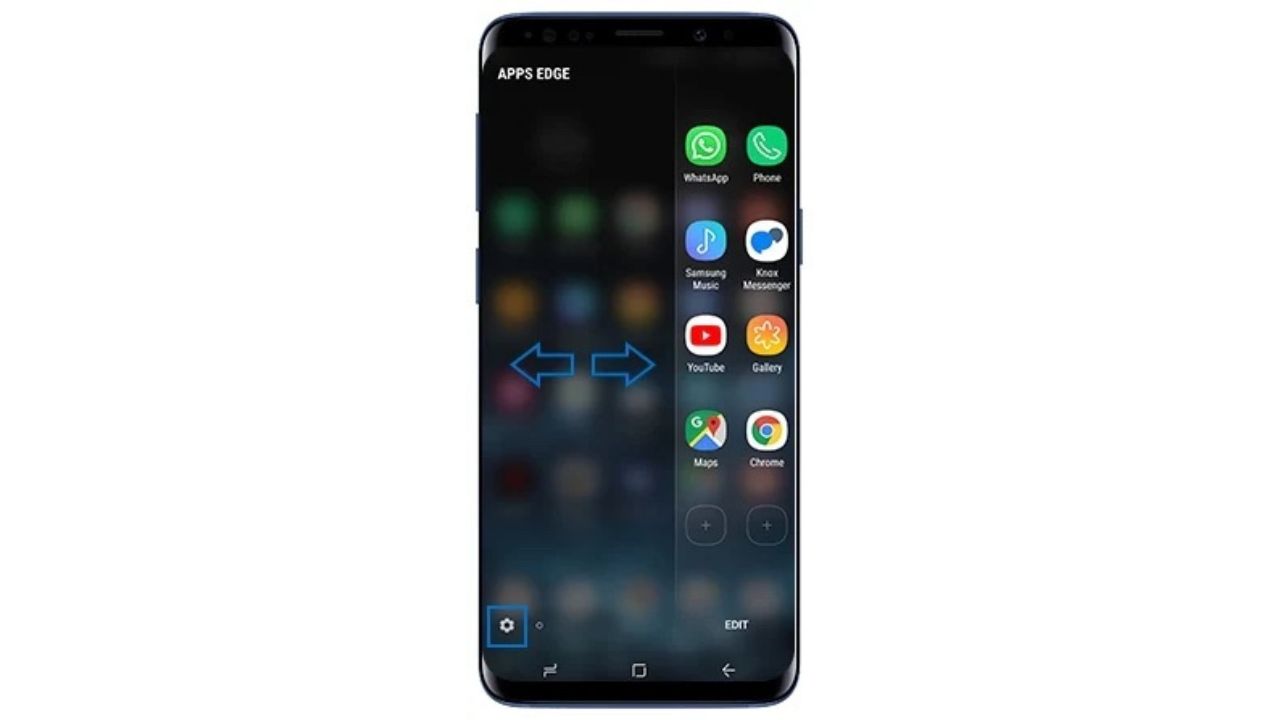
- Swipe left or right to select edge panels. Tap the Settings icon to edit or view more Edge Panels
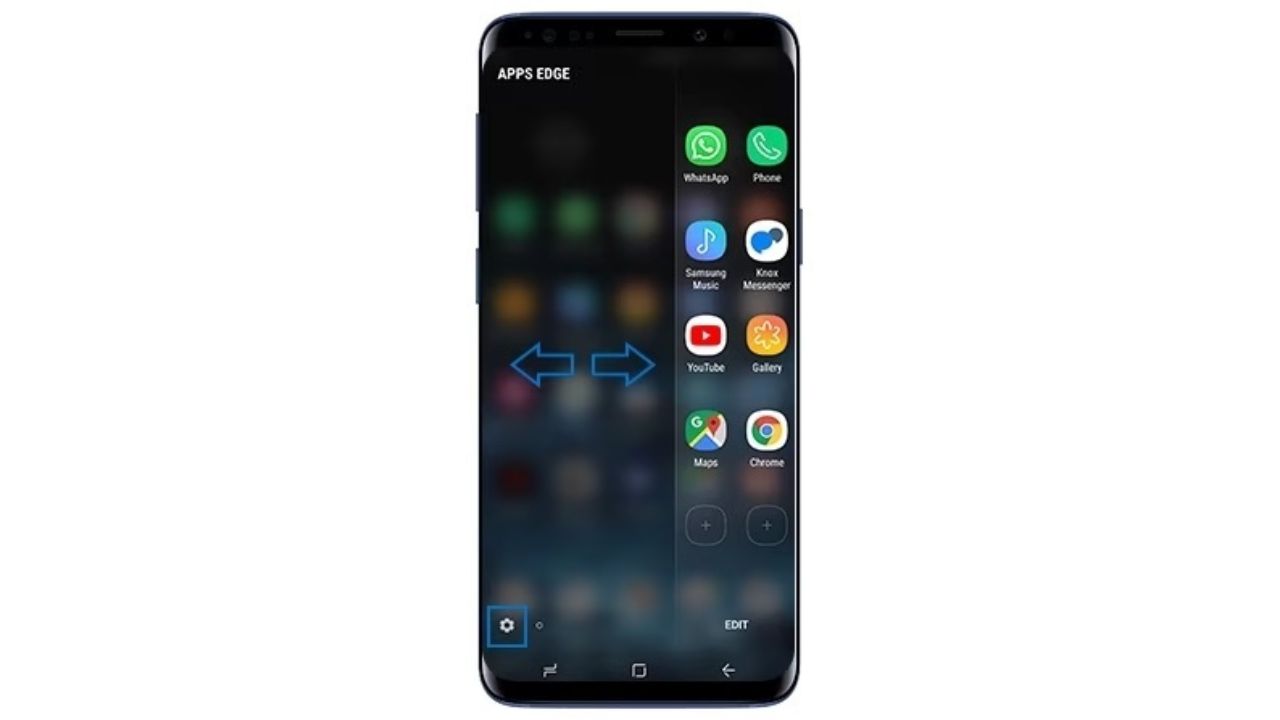
- Swipe left or right to choose the desired panels (a maximum of 9 panels can be selected at one time)
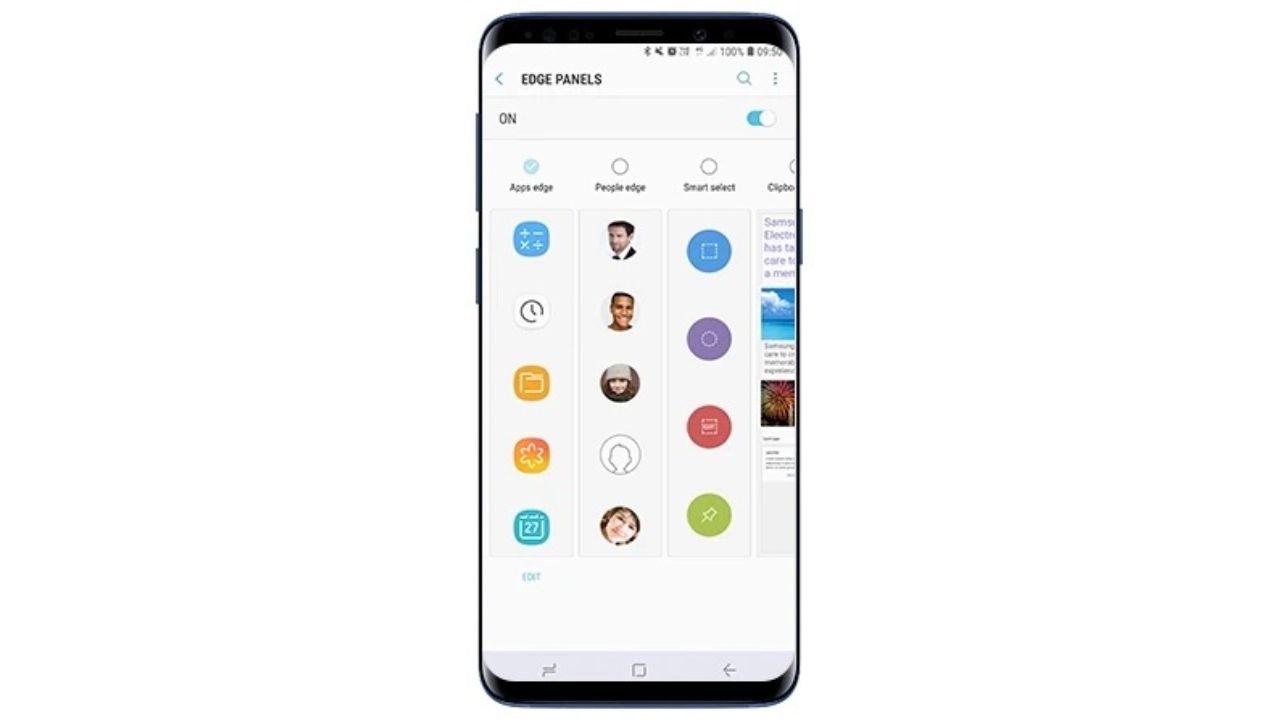
HOW TO CLEAR CACHE ON AN ANDROID FOR IMPROVED PERFORMANCE
What if I want to adjust my Edge Panels?
Edge Panels do not have to remain the default way they appear on your Samsung Galaxy device. You can adjust the various settings of each handle by following these steps:
- Drag the Edge panel handle toward the center of the screen
- Select Settings
Watch the latest episode of The CyberGuy Report.

Missed this event? Sign up via the registration form and see our live recording.
See Kurt’s latest Amazon picks for useful gadgets, smart home upgrades and everyday tech worth grabbing while the deals last.
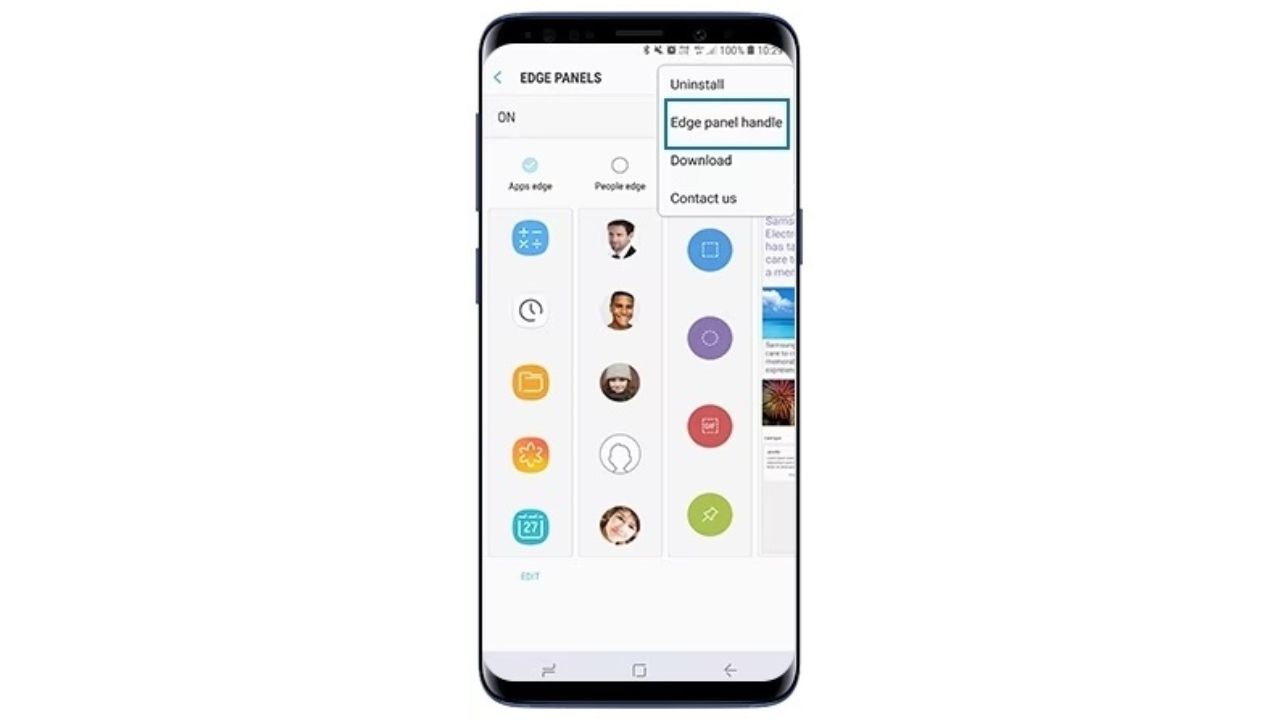
- Tap the 3 vertical dots at the top of your screen and select Edge panel handle
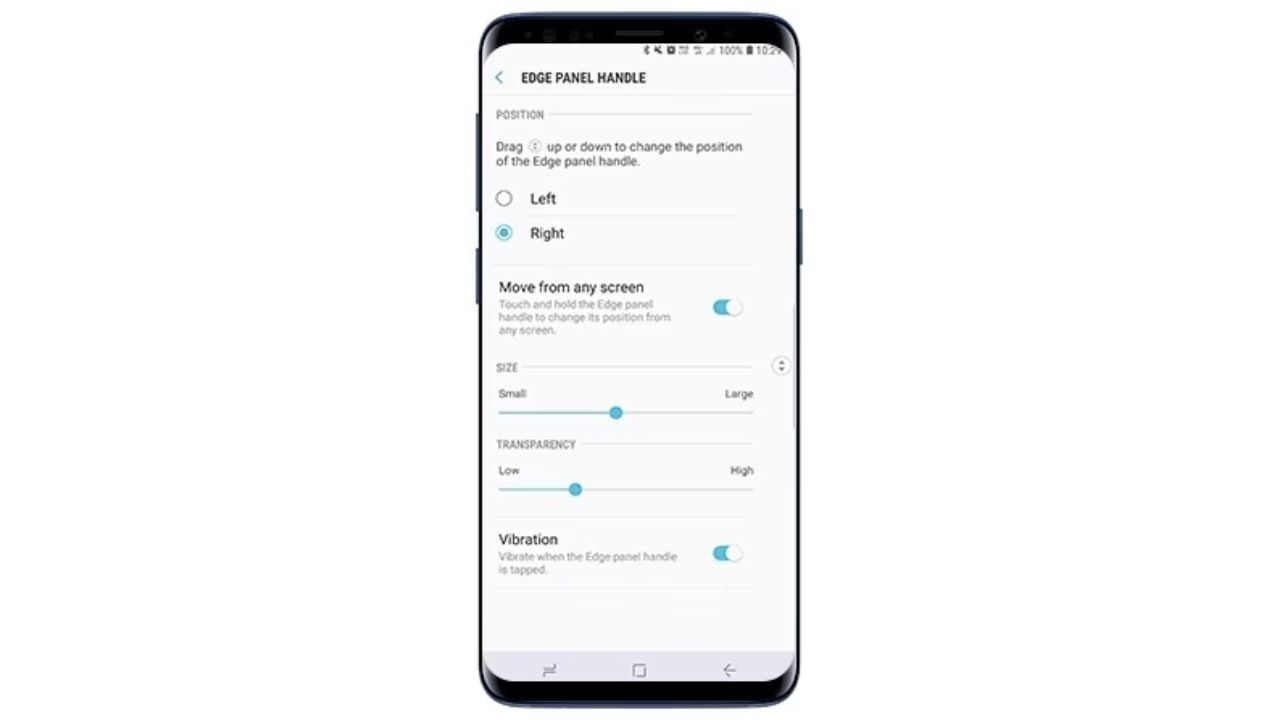
- Adjust the options you want to customize
Kurt’s key takeaways
Android Edge Panels are a great and convenient feature that can simplify your smartphone experience by providing quick access to frequently used apps and tools. They can be easily customized to suit your specific preferences. So give it a try.
Have you used Edge Panels on your Samsung Galaxy phone yet? Let us know by commenting below.
FOR MORE OF MY ANDROID TIPS, SUBSCRIBE TO MY FREE CYBERGUY REPORT NEWSLETTER HERE
Related:
🎙 Now Streaming: My New Podcast: The CyberGuy Report
Kurt’s Top Deals
Deals move fast and inventory can be limited, so don’t wait too long.
| 🔥 Editor’s pick  Summer entertaining Ninja SLUSHi Machine (26% off) Frozen drinks and slushies at home in minutes. | |
| 💰 Top deal  Outdoor essential TYPEC Solar Bug Zapper (36% off) Solar-powered bug zappers for patios and camping. |