There’s nothing more anxiety-inducing than losing your phone, especially if you’re in an emergency and need to contact someone.
I want to help prevent that from happening. Luckily there’s an easy way to find your smartphone should it ever get lost. For us Android owners, pay close attention to the steps below so that you always rest easy knowing where your Android is.
What steps to take before your Android goes missing?
The first thing that any Android owner should do once they purchase a new device is install the Find My Device app. This app is designed to help you locate your lost Android and put a lock on it until you get it back so that no one can access your private information. Some of the features of this app include:
- See your phone on a map, or see its last known location if the current location is unavailable
- Use indoor maps to help you find your device inside airports, malls, or other large buildings
- Navigate to your device with Google Maps by tapping the device location and then the Maps icon
- Play a sound at full volume, even if your device is on silent
- Erase the device or lock it with a custom message and contact number on the lock screen
- See network and battery status
- See hardware details
If you download this app on your Android as soon as you get it, you’ll then be able to track your device via another Android or tablet should it ever go missing.
What do I do if my Android goes missing?
If your Android gets lost, you can take a few steps to find, lock, or erase your device before it gets into the wrong hands. In order to do any of those things, that Android phone must:
- Be turned on
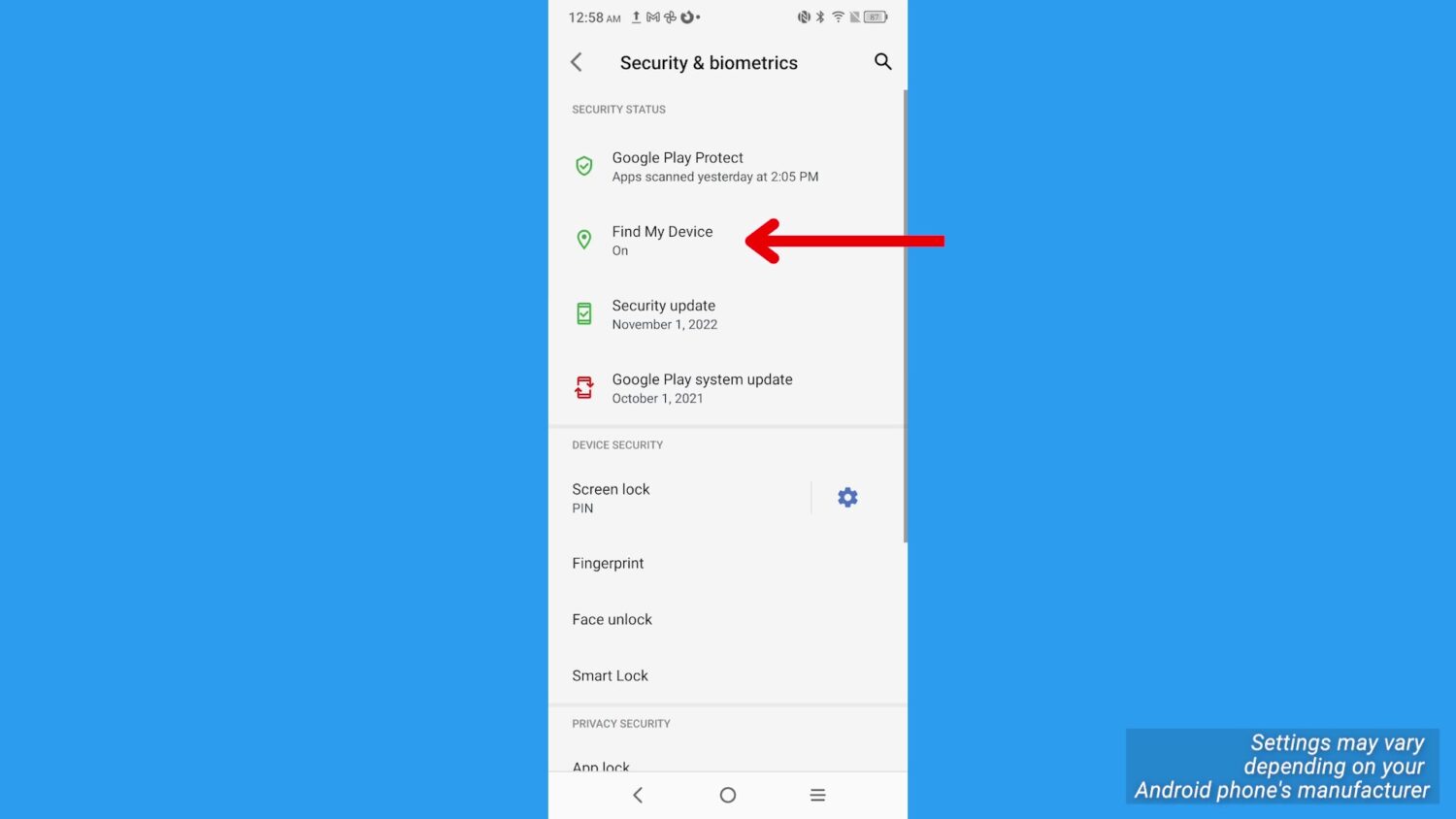
- Open your device’s Settings app
- Tap Security, Find My Device
- If you don’t see Security, tap Security & location or Google Security
- Check that Location is on
- Open your device’s Settings app.
- Tap Location. If you don’t see “Location,” go to your phone manufacturer’s support site for help.
- Turn on Location.
- Check that Google Play visibility is on
- Open play.google.com/settings
- Under “Visibility,” select the device
- Turn on 2-Step Verification backups
- Go to your Google Account
- Tap Security
- On the “Signing in to Google” panel, tap 2-Step Verification
- Add at least 1 additional second step, either:
- Backups help you get back into your account if you forget your password, lose your phone, or can’t sign in for another reason. Learn more about setting up 2-Step Verification and backups
- Check that you can find your device
- Open android.com/find and sign in to your Google Account
- If you have more than one device, click this device at the top of the screen
MORE: 5 THINGS YOU DIDN’T KNOW YOU COULD DO ON AN ANDROID
How to remotely find, lock, or erase your Android phone
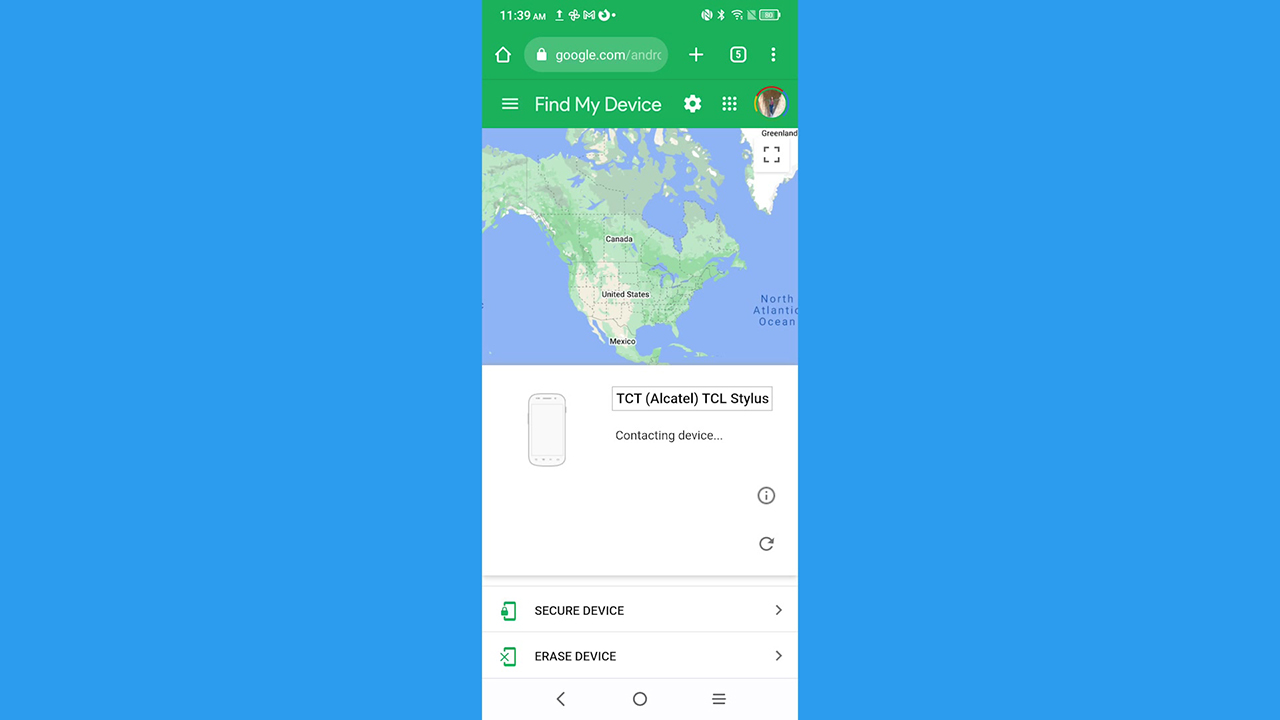
1. Go to android.com/find and sign in to your Google Account
2. The lost phone gets a notification. On the map, you’ll get info about where the phone is
3. Next, you can enable lock and erase:
- Play sound: Rings your phone at full volume for 5 minutes, even if it’s set to silent or vibrate
- Secure device: Locks your phone with your PIN, pattern, or password. If you don’t have a lock, you can set one. To help someone return your phone to you, you can add a message or phone number to the lock screen
- Erase device: Permanently deletes all data on your phone (but might not delete SD cards). After you erase it, Find My Device won’t work on the phone
Let us know if you ever lost your Android and if you used any of the steps above to help locate it. We’d love to hear from you.
Find all of your lost items:
- How to find your lost MacBook
- How to find your lost Windows laptop
- How to find your lost iPhone
- How to find your lost AirPods
A Texas mom says she spent the night in jail after speaking up online about dirty water in her town. The case was later dropped, but her story raises a troubling question: could something you post online ever put you at risk?

Missed this event? Sign up via the registration form and see our live recording.
See Kurt’s Prime Day picks for useful gadgets, practical upgrades and everyday tech while the deals last.
🎙 Now Streaming: My New Podcast: The CyberGuy Report
Kurt’s Top Deals
Deals move fast and inventory can be limited, so don’t wait too long.
| 🔥 Editor’s pick  Summer entertaining Ninja SLUSHi Machine (26% off) Frozen drinks and slushies at home in minutes. | |
| 💰 Top deal  Outdoor essential TYPEC Solar Bug Zapper (36% off) Solar-powered bug zappers for patios and camping. |