If your iPhone keeps warning you about low storage, your Messages app may be part of the problem. Photos, videos and documents saved inside your text threads can stack up fast. The good news is that you can clear those big files without erasing entire conversations.
Below, you will find simple steps that work on the latest iOS 26.1. These steps help you clean up storage while keeping your messages right where you want them.
If you haven’t updated to iOS 26.1, go to Settings > General > Software Update to install the latest version.\
Why clearing attachments helps your iPhone run better
Removing large attachments gives you quick breathing room on your iPhone. It can free up gigabytes in seconds, especially if you text lots of photos or videos. Clearing old files also keeps your message threads tidy and helps your device run more smoothly by reducing the amount of storage your system needs to manage. The best part is that you can clean up everything without losing a single conversation.
How to delete attachments but keep your conversations on iPhone
These quick steps help you clear large files from Messages while keeping every conversation intact.
- Launch the Messages app on your iPhone
- Open the conversation thread that holds the attachments you want to delete.
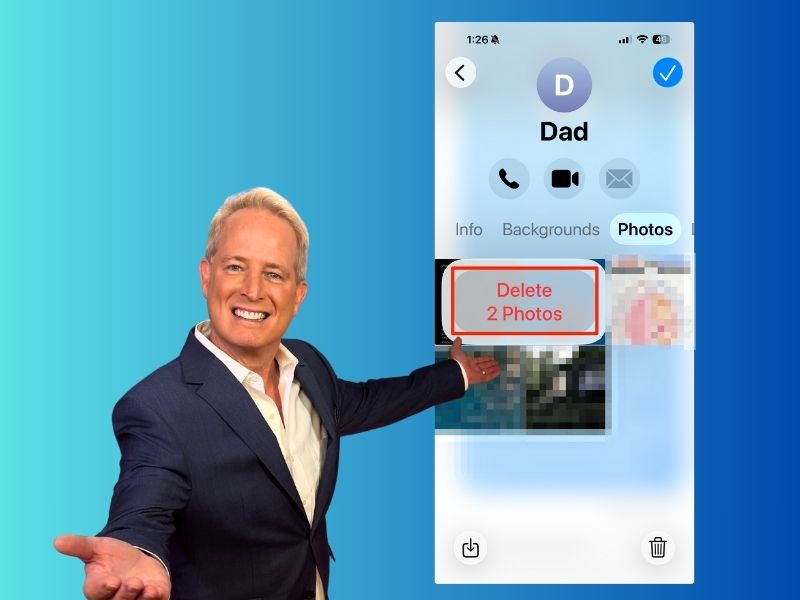
- Tap on the name of the contact(s) in the text thread.
- To the right of Info, click on Photos or Documents; you may need to swipe over other tabs to see these. Photos will also contain videos and GIFs, while documents will contain Word documents, PDFs, and other types of files.

- Hold your finger and long-press on a photo, video or document until a menu appears.
- Tap Delete to remove that single file.
- Then confirm Delete when asked.

How to delete multiple files on your iPhone
To clear out several attachments at once, follow these quick steps on your iPhone.
- Go back to the Photos or Documents tab.
- Tap Edit.
- Click Select documents or Select Photos
- Tap on the photos or documents that you want to remove. You will see a blue checkmark appear in the bottom-right corner.
- Tap the trash icon in the bottom right corner.
- Confirm you want to delete the selected attachments by clicking the Delete () Photos.

These steps work almost the same way on an iPad. After you finish, you will often see an instant boost in available storage.
How to review large attachments in settings and delete them
If you want to clear the biggest files on your device, you can check them from your iPhone’s storage screen and delete them:
- Open Settings
- Tap General
- Choose iPhone Storage
- Tap Messages

- Click Review Large Attachments to see photos, videos, and attachments taking up storage in Messages.
- Click Edit.
- Select items to delete by clicking the circle next to the attachment you want to delete. A blue checkmark will appear.
- Then, tap the trash can icon in the upper-right to delete it.
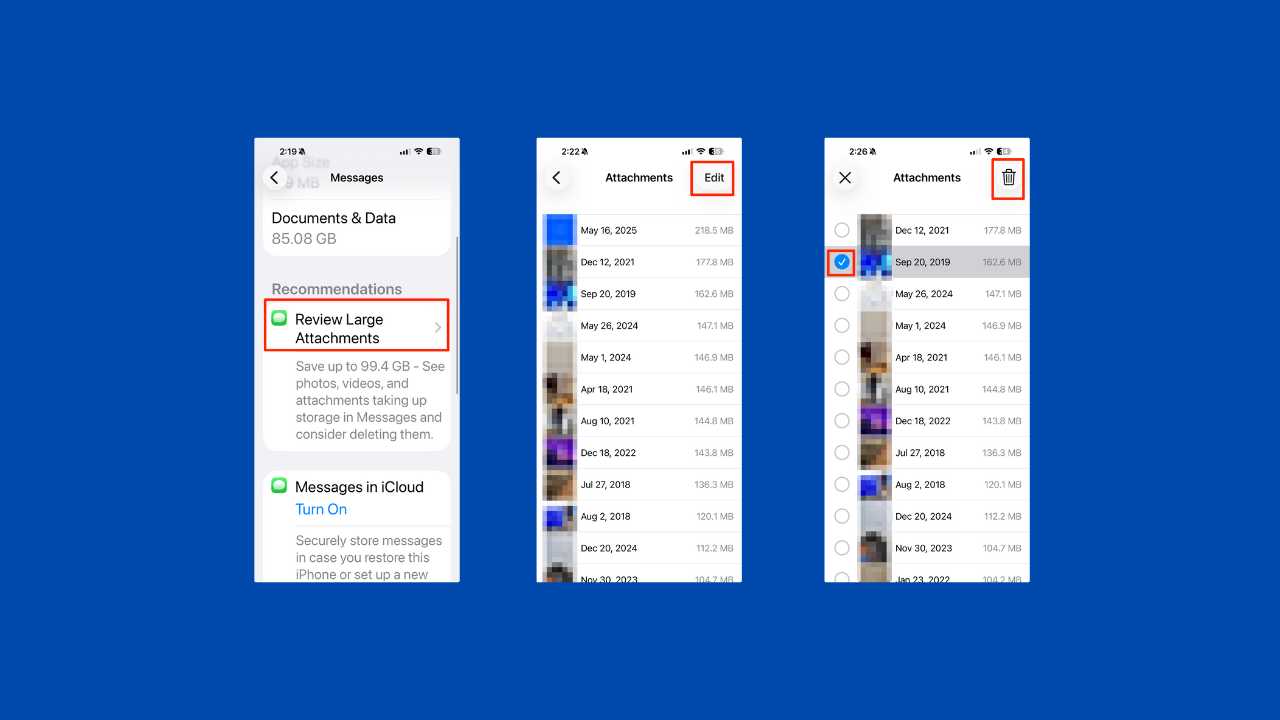
This method gives you a quick overview of what takes up the most space and lets you delete it quickly.
Watch the latest episode of The CyberGuy Report.

Missed this event? Sign up via the registration form and see our live recording.
See Kurt’s latest Amazon picks for useful gadgets, smart home upgrades and everyday tech worth grabbing while the deals last.
Related Links:
- Adaptive Power in iOS 26 boosts iPhone battery life
- Top 10 reasons to update to iOS 26.1 now
- iOS 26 Hold Assist lets your iPhone wait for you
Kurt’s key takeaways
Freeing up storage doesn’t have to be confusing. A few quick taps can remove bulky files and keep your conversations intact. With these simple steps, your iPhone stays organized, runs smoothly and is ready for more photos, videos and apps.
What is the one type of attachment that takes up the most space on your iPhone? Let us know in the comments below.
FOR MORE OF MY TECH TIPS & SECURITY ALERTS, SUBSCRIBE TO MY FREE CYBERGUY REPORT NEWSLETTER HERE
Copyright 2025 CyberGuy.com. All rights reserved. CyberGuy.com articles and content may contain affiliate links that earn a commission when purchases are made.
🎙 Now Streaming: My New Podcast: The CyberGuy Report
Kurt’s Top Deals
Deals move fast and inventory can be limited, so don’t wait too long.
| 🔥 Editor’s pick  Summer entertaining Ninja SLUSHi Machine (26% off) Frozen drinks and slushies at home in minutes. | |
| 💰 Top deal  Outdoor essential TYPEC Solar Bug Zapper (36% off) Solar-powered bug zappers for patios and camping. |