



- Your phone is not always listening, but voice assistants activate when they hear wake words like “Hey Siri” or “Hey Google.”
- Targeted ads usually come from your searches, browsing habits and app activity rather than microphone recordings.
- You can limit how much your phone listens by turning off voice assistants and restricting microphone access for apps.
- Malware can misuse your phone’s microphone and data, which is why strong security software is an important defense.
Imagine you’re having a simple conversation with a friend or family member. You’re talking about summer vacations, you’re thinking about trying a different hair product, and you need a new pair of sunglasses.
Naturally, the first place you might search for these products is sites like Google or Amazon. But before you can even get to the search bar, ads are popping up on your phone screen for the exact products you were just speaking about moments before.
It could be a coincidence, but it’s important to know for sure that nothing suspicious is going on.
Are our smartphones always listening to us?
The answer really is yes and no.
What are voice-recognition assistants and should I be concerned?
Smartphones often have built-in voice-recognition assistants that can help us find answers to questions, such as the Apple iPhone feature known as Siri. But these assistants are designed to listen to us only when commanded to (i.e. “Hey Siri, what song is currently playing?).
How can I tell if my device is listening to me?
There are built-in microphones in every smartphone as well, and your device should warn you when its microphone is being used to record you. When your microphone is being used, an orange dot should appear in the top right-hand corner of your screen, just above your WiFi and battery icons. You can also swipe down from the top of your screen to see which apps on your phone are using the microphone. You can find out how to tell when your microphone is on here.
Your smartphone is also designed to track your data and search histories.
This allows companies to send you personalized advertisements based on items you’ve clicked on or researched previously, baiting you to consume more of their products. It’s more of a tool they use to get you to reach into your wallet than to obtain your personal information.
Watch the latest episode of The CyberGuy Report.

Missed this event? Sign up via the registration form and see our live recording.
See Kurt’s latest Amazon picks for useful gadgets, smart home upgrades and everyday tech worth grabbing while the deals last.
How can I limit my phone from listening to me?
Just because our smartphones can listen to us doesn’t mean we have to let them. These are a few easy steps you can take to limit your phone’s listening access:
1) Turn off your voice-recognition assistant
How to turn off Siri
- Go to Settings
- Click ‘Siri & Search’ or Apple Intelligence & Siri
- Click “Talk & Type to Siri”
- Turn off the following options:
- Listen for ‘Siri’ or ‘Hey Siri,’
- Press Side Button for Siri, and Allow Siri When Locked
- A pop-up window will ask if you want to turn off Siri. Click ‘Turn off Allow Siri When Locked’ to confirm your decision.
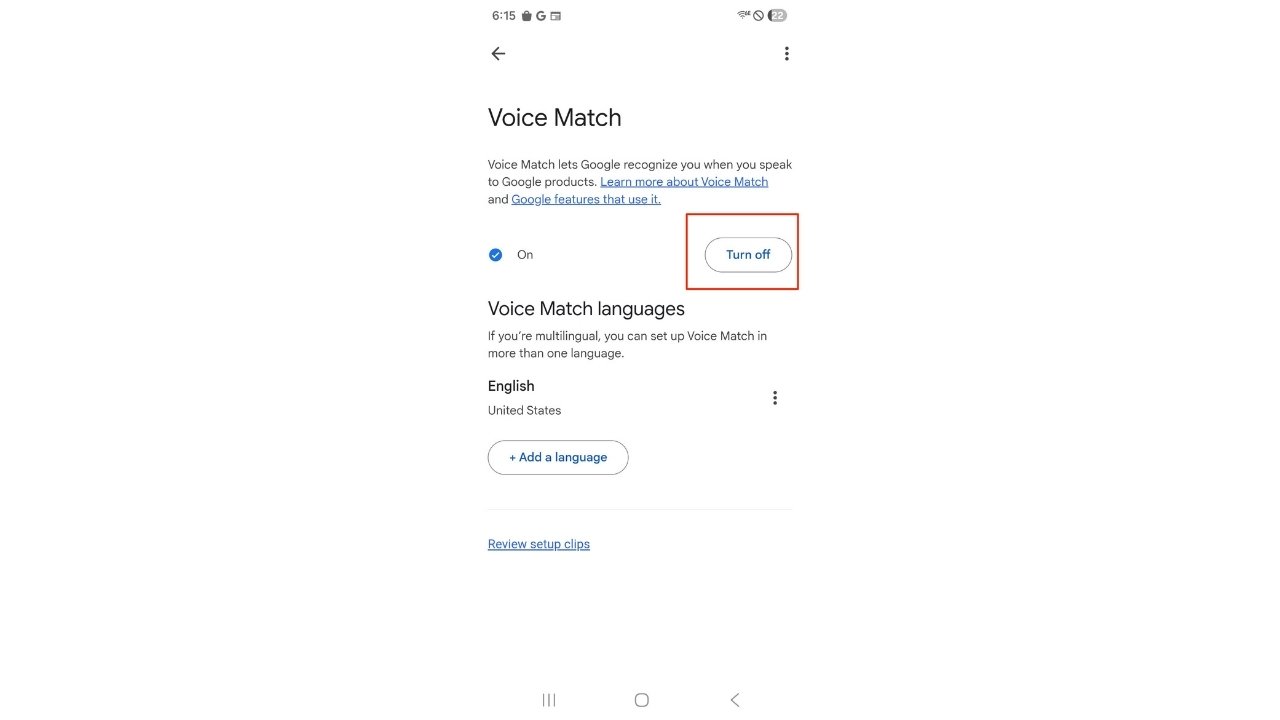
How to turn off “Hey Google” on Android
Settings may vary depending on your Android phone’s manufacturer
- Open Settings
- Tap Google
- Tap All services
- Tap Search, Assistant & Voice
- Tap Google Assistant
- Tap Hey Google & Voice Match or Voice Match
- Turn Hey Google off
Turning this off stops your phone from listening for the “Hey Google” wake phrase.
Note: If you do not see Voice Match, the feature may already be turned off on your device.
2) Turn off your microphone on all your applications
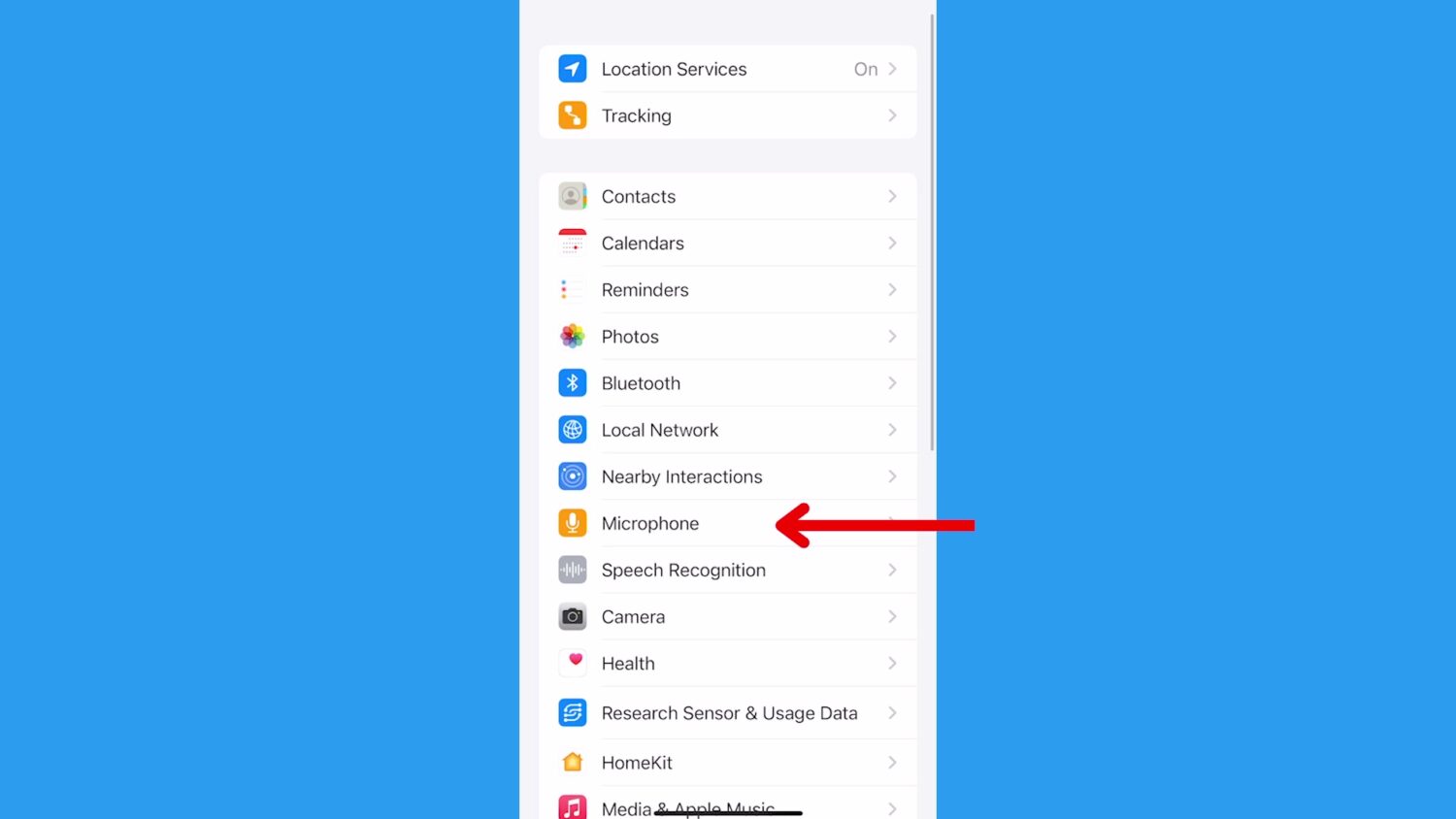
How to stop your iOS device from listening to you
- Click Settings
- Scroll down and click Privacy & Security
- Select Microphone
- Turn off any apps showing the green on position and toggle off to block access to the microphone. When it’s grey, it’s blocked.
How to stop your Samsung/Android devices from listening to you
Settings may vary depending on your Android phone’s manufacturer
- Go to Settings
- Click Apps
- Scroll down to any application (Facebook, Snapchat, etc.)
- Click Permissions
- Click Microphone
- Tap Don’t allow
If your phone has malware, scammers could be listening
There is another possibility to consider. If your phone suddenly slows down or starts showing strange pop-ups, it may be infected with malware. Sometimes this happens after tapping a link that looked legitimate but actually installed malicious software. Once malware is on your device, scammers may be able to monitor activity, track what you type or install programs that secretly generate money for them. The threat to our connected devices continues to grow. That is why it is important to stay alert and take basic security steps.
One of the best protections is installing strong antivirus software on your devices. Good security software can detect malware, block suspicious downloads and help stop attackers before they gain control of your phone.
- Strong real-time protection against viruses, malware, ransomware and hacking attempts
- AI-powered scam protection to help identify suspicious emails, texts and websites
- Built-in password manager to securely store and manage logins
- 2 GB PC cloud backup to help protect important files from ransomware or hardware failure
- Smart firewall and phishing protection
- Protects 1, 3 or 5 devices
- Available for Windows, macOS, Android and iOS
- Includes real-time threat protection, smart firewall and phishing protection to guard against online attacks
Related Links:
- How to stop Alexa from listening to you
- Stop your smart TV from listening to you
- How your passwords can be stolen by AI listening to your keystrokes
Kurt’s key takeaways
It can feel unsettling when ads appear for something you just talked about with a friend. In most cases, your phone is not secretly listening to every conversation. What is really happening is often much simpler. Your device collects data from searches, websites you visit and apps you use. Companies then use that information to target ads they think will catch your attention. That said, your phone still has microphones, sensors and powerful software. Voice assistants can listen for wake words, and apps can request access to your microphone. Malware can also abuse these permissions if your device becomes infected. That is why it is important to stay aware of how your phone works and review your privacy settings from time to time. Taking a few simple steps, such as limiting microphone access, turning off voice assistants you do not use and installing strong antivirus software, can go a long way toward protecting your privacy.
Have you ever had an experience where ads or content appeared on your phone right after you talked about something out loud? Let us know what happened in the comments below.
FOR MORE OF MY TECH TIPS & SECURITY ALERTS, SUBSCRIBE TO MY FREE CYBERGUY REPORT NEWSLETTER HERE
Copyright 2026 CyberGuy.com. All rights reserved. CyberGuy.com articles and content may contain affiliate links that earn a commission when purchases are made.
🎙 Now Streaming: My New Podcast: The CyberGuy Report
Kurt’s Top Deals
Deals move fast and inventory can be limited, so don’t wait too long.
| 🔥 Editor’s pick  Summer entertaining Ninja SLUSHi Machine (26% off) Frozen drinks and slushies at home in minutes. | |
| 💰 Top deal  Outdoor essential TYPEC Solar Bug Zapper (36% off) Solar-powered bug zappers for patios and camping. |



2 comments
Does this pertain to my Apple Watch as well?
Hi Sandy, great question. Yes, the concerns about your smartphone listening to you also apply to your Apple Watch in some cases. The Apple Watch has a built-in microphone that can be accessed by features like Siri, voice memos, and the Noise app, which monitors ambient sound levels. If “Hey Siri” or “Raise to Speak” is enabled, your watch is passively listening for commands, though it’s not actively recording unless prompted. Apps that use the microphone must still request permission through your iPhone settings, so it’s wise to review and adjust microphone access by going to the Watch app on your iPhone under Privacy, and disabling features like “Listen for Hey Siri” or Environmental Sound Measurements in the Noise app if privacy is a concern.