



At a glance
- Both iPhone and Android phones let you quickly block unwanted calls and texts in just a few taps.
- You can block saved contacts, unknown numbers, and private callers directly from your phone settings.
- Built-in spam filters on Messages apps help catch junk texts before they reach you.
- Removing your phone number from data broker sites can help reduce future spam.
There are tons of reasons why you’d want to block a phone number. Maybe you got a spam call and want to make sure you don’t get another call from that same number. Or maybe you no longer want to hear from someone.
Whatever the reason, you should know how to stop unwanted calls or texts. The steps below work with the latest iOS 26.4.1 on iPhone and Android 16 on Samsung Galaxy and Google Pixel devices, so you’ll be covered no matter which phone you use.
Be sure to update your software first so these steps match what you see on your screen.
Table of Contents:
How to block a phone number on an iPhone
There are two ways that you can block a number on your iPhone in iOS 26.4.1. Apple’s support still centers blocking through the number/contact details and also shows Settings > Privacy & Security > Blocked Contacts for managing blocked entries. If you want to block a random number that has called you, follow these steps.
- Open your Phone app (the green one with the telephone icon)
- Tap Recents at the bottom of the screen
- When you see the phone number you want to block, In iOS 26, swipe left on a number you want to block, and an orange hand icon appears – this is the fastest way to block
- On previous iOS versions, you need to tap the lowercase “i” to the right of the date to achieve the same steps
- Scroll to the bottom and select Block Contact
- Tap Block or Block and Report Junk to confirm.
If you want to block a number on your iPhone in iOS 26.4.1 that you have saved as a contact, follow these steps:
- Open your Phone app (the green one with the telephone icon)
- Tap Contacts at the bottom of the screen
- Select the name of the Contact you wish to block
- Scroll to the bottom and select Block Contact
- Tap Block Contact to confirm

How to block a phone number on an Android
You can block numbers using the Phone app, Contacts, or call log.
Settings may vary depending on your Android phone’s manufacturer
To block a contact on a Samsung Galaxy phone
- Open the Contacts app.
- Tap the contact you want to block.
- Tap More (⋮)
- Tap Block contact.
- Confirm by tapping Block.
The contact stays in your address book, but calls/texts from them will be blocked.
To block a number (even if not saved as a contact) on a Samsung Galaxy phone
Settings may vary depending on your Android phone’s manufacturer
- Open the Phone app.
- Tap the three-dot menu (⋮) or “More options.”
- Go to Settings → Block numbers (or “Blocked numbers”).
- You can either:
- Tap Add phone number and enter the number to block.
- Or, go to your Recents tab, tap the number → tap Info (i) → then tap Block.
To block unknown/private numbers on a Samsung Galaxy phone
- In the same “Block numbers” settings, there should be a toggle “Block calls from unknown numbers.” Turn that on to block calls from caller IDs that are private or not identified.
To block numbers or block unidentified numbers on Google Pixel (or other “stock Android” devices)
You can block numbers or block unidentified/unknown callers directly through the built-in Phone app.
To block a specific number
Settings may vary depending on your Android phone’s manufacturer
- Open the Phone app.
- Go to the Recents or call history.
- Tap the call from the number you want to block.
- Tap Block.
To block a number manually (not from recent calls)
- Open the Phone app
- Tap the three-dot menu
- Tap Settings.
- Go to Blocked numbers.
- Tap Add a number, enter the number you want to block
- Then tap Block.
To block unknown/unidentified callers
- In Settings → Blocked numbers, toggle on Block calls from unidentified (private/hidden) callers. This prevents calls from numbers flagged as private or unknown.
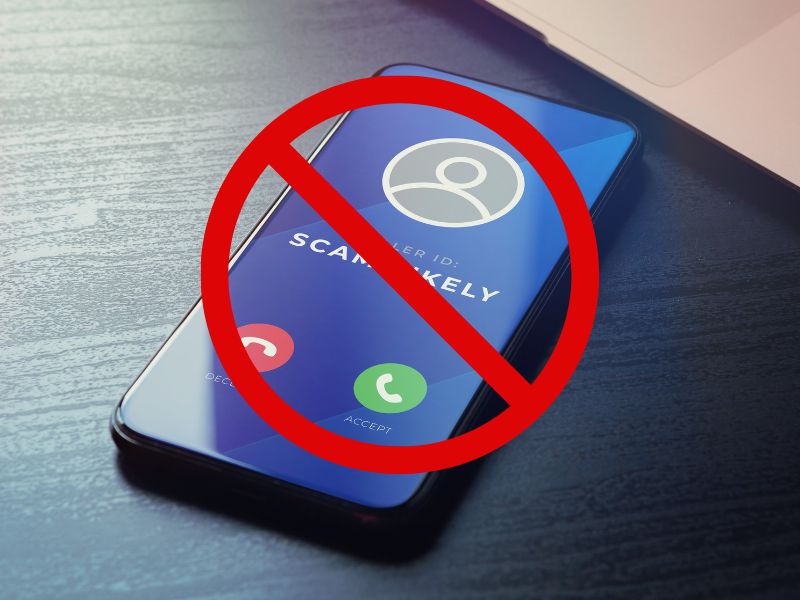
How to block spam texts on an iPhone
With an iPhone running iOS 26.4.1, you can block spam texts in a few quick steps.
- Open the Messages app on your iPhone
- Tap the message from the number you want to block
- Tap the number or contact name at the top of the conversation
- Scroll down and tap Block Contact
- In iOS 26, the Messages app now shows a “Report and Block” option for unknown senders, which reports the number as spam to Apple and the carrier simultaneously.

How to block spam texts on an Android
Here are the updated steps for Google Messages, Pixel devices and Samsung Galaxy phones.
Settings may vary depending on your Android phone’s manufacturer.
Block spam texts on Google Messages or Google Pixel
If your phone uses the Google Messages app, you can turn on spam protection and block numbers manually.
Turn on spam protection
- Open Google Messages.
- Tap your profile photo in the top right.
- Select Messages settings.
- Tap Spam protection.
- Toggle Enable spam protection ON.
Block a specific spam sender
- Open Google Messages.
- Press and hold the spam conversation.
- Tap Block.
- Choose Block & report spam if you want to help filter future spam.
When you block someone, their texts go to your spam folder, and you won’t see alerts.
Block spam texts on Samsung Galaxy phones
Samsung Messages has its own blocking tools and filters.
Settings may vary depending on your Android phone’s manufacturer.
Block a spam text
- Open the Messages app.
- Open the unwanted message.
- Tap the three-dot menu.
- Select Block number or Block & report spam.
Turn on Samsung’s spam filter
- Open Messages.
- Tap the three-dot menu.
- Go to Settings.
- Tap Block numbers & spam.
- Turn on Spam protection.
Block unknown senders
- Open the Phone app.
- Tap the three-dot menu.
- Go to Settings.
- Select Blocked numbers.
- Toggle Block unknown/private numbers ON.
This filters messages and calls from unidentified senders.
How to block texts using your carrier
Most carriers also offer options to block spam calls and texts, such as Verizon’s Block Calls & Messages, AT&T’s Secure Family, and T-Mobile’s Message blocking. The exact steps to use these features will vary depending on your carrier.
How to keep spammers from getting your phone number
Regrettably, there is a high probability that your phone number is readily available on many lists sold by data brokers to hundreds of people search websites. However, if you remove it from the web, it can reduce the likelihood of spammers and telemarketers obtaining your number and contacting you.
Incogni, a service I trust 100% and use myself, helps automate the process by submitting removal requests to hundreds of data brokers and people-search sites on your behalf.
Incogni automatically contacts data brokers on your behalf and requests the removal of your personal information. It also continues monitoring those sites and submits new removal requests if your data reappears.
- Incogni currently removes personal data from 420+ data broker and people-search websites, and its Unlimited plan allows you to request removals from as many additional sites as you need.
- Incogni has also received third-party assurance from Deloitte, validating its marketing claims.
- The goal is simple: make it much harder for strangers, scammers, and cybercriminals to find your personal information online.
CyberGuy readers get 60% off Incogni’s annual plans using the links in this article.
The service also includes a 30-day money-back guarantee, so you can try it risk-free and see how much of your information is exposed online.
Is your personal information exposed online?
Run a free scan to see if your personal info is compromised. Results arrive by email in about an hour.
If you are a victim of identity theft, the most important thing to do is to take immediate action to mitigate the damage and prevent further harm.
Related Links:
- Why parents may want to delay smartphones for kids
- 5 tech terms every smartphone user should know
- Scammers target wireless customers in new phone scheme
Kurt’s key takeaways
Blocking unwanted calls or texts is one of the easiest ways to keep your phone quieter and your day stress-free. With the tools built into the latest iOS 26.1 and Android 16 software, you can quickly stop numbers you no longer want to hear from and filter out spam before it distracts you. Keep your device updated so these steps stay accurate and you always have the strongest protection available.
Have you ever had to block a number or deal with persistent spam messages? What worked for you? Share your experiences in the comments below, as we’d love to hear from you.
FOR MORE OF MY TIPS, SUBSCRIBE TO MY FREE CYBERGUY REPORT NEWSLETTER HERE
Copyright 2026 CyberGuy.com. All rights reserved. CyberGuy.com articles and content may contain affiliate links that earn a commission when purchases are made.
9 comments
I get a voice mail in Spanish every time my phone restarts. I’m an English only speaker. I want to know how to block this voice mail, but can’t seem to do it. I don’t see any option.
Hi John, please take a look at our article here that dives deeper into how to block more of these calls.
I liked your article about blocking phone call but here is my problem: I have a VA 540 area code, I have gotten more robo calls from, just about every little community in VA. I block one number then I get another call from another small town in VA. I have asked that my name be taken off of their list, I have submitted a list of these phone number to be shut down. The calls stop for a period of time and then they start all over again. Is there a way to stop these calls once forever?
Hi Peggy, These scammers who are creating the Robocalls are always updating their numbers and tactics. Please refer to this article for additional steps you can take to block them.
I get texts from a 5 digit number with a blue url attached. How do I block this?
Hi Dave, follow our tips here for blocking spam text.
Within a few weeks, we had 3 different sets of credit cards compromised. It had to be from some online charge. One of our charge cards offers virtual charge cards. We pay a fair number of monthly charges via repetitive auto ACH to pay the monthly bill. I set up a couple of dozen virtual credit cards, and using a graphic program, we gave out a distinct virtual card to each vendor and put their name on the graphic, where I have 10-12 different virtual cards per page, and we put the name of the vendor we gave it to. This year, we set their expiration date to 12/31/2025. But the expiration date can be up to two years. If one of the virtual cards gets compromised, it doesn’t affect our primary card or any other virtual card. I have also started using my iPhone wallet to finish a touchless transaction when I am purchasing in person. It has been about 4 months, and no more credit cards have been compromised! When we start renewing these cards in 2026, we will probably put a 2 yr expiration date on these virtual cards
It would be useful to report on how to block calls on LANDLINES too.
Hi Alan, please see our article about blocking calls on landlines here
Many of our readers have told us how effective this phone is..