



You might know how to copy and paste while on your desktop computer, and you may even know a shortcut to make it quicker using a keyboard.
But do you know how to copy text and photos and paste them on your Android phone? Follow these tips and tricks to get the most when copying and pasting.
How to copy and paste on Android
Copy and paste with 1 finger and a few taps
It’s very simple to use your fingers to copy and paste right on your smartphone.
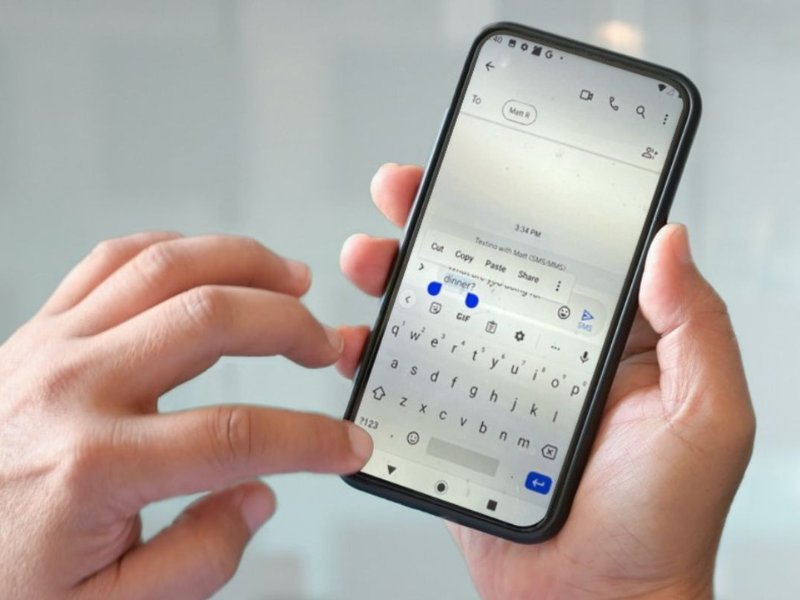
- Simply use one finger to select a word in the text you want to copy.
- Hold down on it and you’ll see the word will become highlighted. Use your finger to drag the bars on either side of the highlighted word to wherever you’d like the selected text to begin and end. You’ll see a menu appear when you have text highlighted: tap Copy.
- Open the app or message you’d like to paste your text in.
- Hold down on the space where you’d like to insert the text, and the menu will appear once again. Just tap paste.
How to copy and paste more than one item at once
If you try and copy more than one section of text on Android, you’ll notice that the first thing you copied has disappeared. The clipboard on Android phones only holds one item at a time, so there’s a hack to get around it.
Download the Gboard app from the Google Play Store and you’ll have loads more typing capabilities (including the swipe text feature which is one of our 5 favorite Android tricks).
In Gboard’s clipboard, you can:
- Pin copied text so you can save it as long as you’d like
- Copy multiple selections of text at once
- Copy images
Make Gboard your primary keyboard
Some Google phones automatically come with Gboard, but if your Android doesn’t, download and install the app. Then follow these steps:
- Go to Settings
- Go to System
- Tap Language and Input
- Tap Manage Keyboards
- Toggle on the slider next to Gboard to turn it on
Pin copied text
Once you have the Gboard installed, you’ll be able to save text you want for later. To do this:
- Open an app where you would type
- At the top of your keyboard, click the Clipboard icon
- Then touch and hold the information you want to save
- Tap Pin
You can find all of this text whenever you want by going to the Pinned section of your Clipboard. You can find the clipboard on some Androids by clicking the ellipsis (…) above the letters.
Copy multiple selections of text
Unlike normal copy and paste on your phone or computer, the Gboard clipboard will remember everything you copy and paste (for 2 hours unless pinned), even if you try and do multiple selections of text.
Simply select what you’d like to copy, tap the Clipboard icon on your keyboard, and hit Copy. If you go to your clipboard, you’ll see all your copied selections. You can pin any of them to keep in your clipboard longer than a few hours.
Copy images
The easiest way to copy photos on Android phones is to hold down on the photo until options appear. Press and hold down on the photo until you can tap Copy. Then your photo will be in your Gboard clipboard, which you can access by going to your clipboard.
If you want to paste an image to a text or email, just head to your clipboard while typing, and select your photo to paste it.
Watch the latest episode of The CyberGuy Report.

Missed this event? Sign up via the registration form and see our live recording.
See Kurt’s latest Amazon picks for useful gadgets, smart home upgrades and everyday tech worth grabbing while the deals last.
How to copy photos from the browser
Just like text, you can copy photos in some apps on your Android phone. It’s easy to copy a photo from the browser, like Google. If you see a photo while on Google images, you can hold down the photo and your clipboard menu options will once again appear. You can select copy.
You may not be able to paste photos into every app, but you can copy photos from Google and paste into an app like Microsoft Word.
What’s your favorite Android hack?
🎙 Now Streaming: My New Podcast: The CyberGuy Report
Kurt’s Top Deals
Deals move fast and inventory can be limited, so don’t wait too long.
| 🔥 Editor’s pick  Summer entertaining Ninja SLUSHi Machine (26% off) Frozen drinks and slushies at home in minutes. | |
| 💰 Top deal  Outdoor essential TYPEC Solar Bug Zapper (36% off) Solar-powered bug zappers for patios and camping. |


2 comments
How to access the keypad instead of the keyboard numbered keys? Some apps will default to the keypad when entering your credit card where others only give you the keyboard numbered keys
On Android devices, the type of numeric input you see—whether it’s a full keypad resembling a phone dialer or a QWERTY keyboard with numbers across the top—largely depends on how the app’s developer configured the input field. Some apps automatically trigger the numeric keypad for ease of entering credit card or PIN information, while others only bring up the standard keyboard. If your keyboard defaults to the QWERTY layout, you can often switch to the number pad by tapping the “?123” key or changing the keyboard settings. Using Google’s Gboard keyboard gives you more flexibility, including options to enable a number row or switch to a dedicated number pad layout. However, if the app is coded to limit input types, there may be no way to force the keypad unless the app is updated to support it.