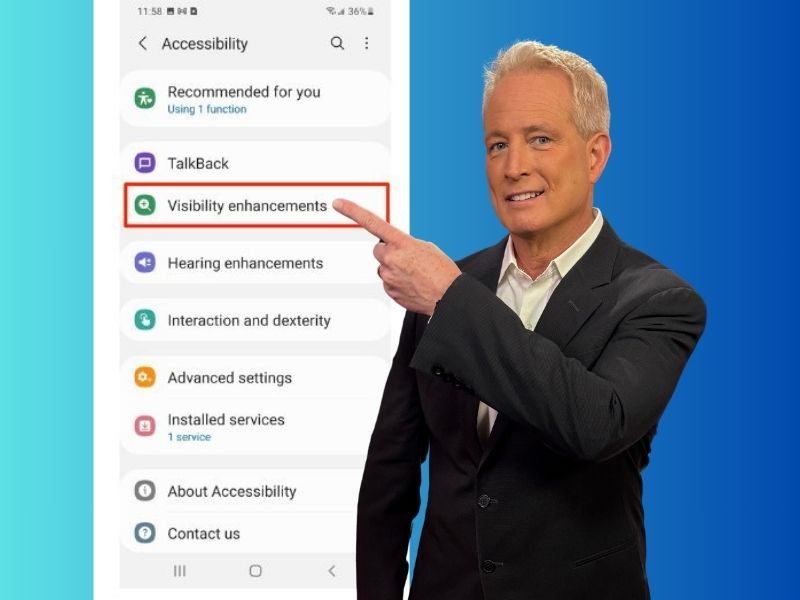
Whether you already have a hard time seeing or not, staring at a phone screen can put additional strain on your eyes. If you wear glasses and need them to look at your phone, you should certainly wear them when you’re doing that.
But if that’s still not helping, there are other things that you can do to make it easier to look at your phone. Not only this, but if you’re hard of hearing, Android has some cool features to help you there, too. It just requires you to adjust the settings.
Before we begin, make sure your Android phone is updated to the latest software so the steps match what you see. To check, go to Settings > Software update (or System > System update on some devices). Settings may vary depending on your Android phone’s manufacturer.
How to adjust the settings on your phone to see and hear better on Android
There are several settings you can adjust on your Android in order to make it easier to see and prevent eye strain. For some people, it will be changing the font size. For others, it will be making the screen brighter, or zooming in on pages. And, others may need to adjust their settings so they can have the text read out loud to them.
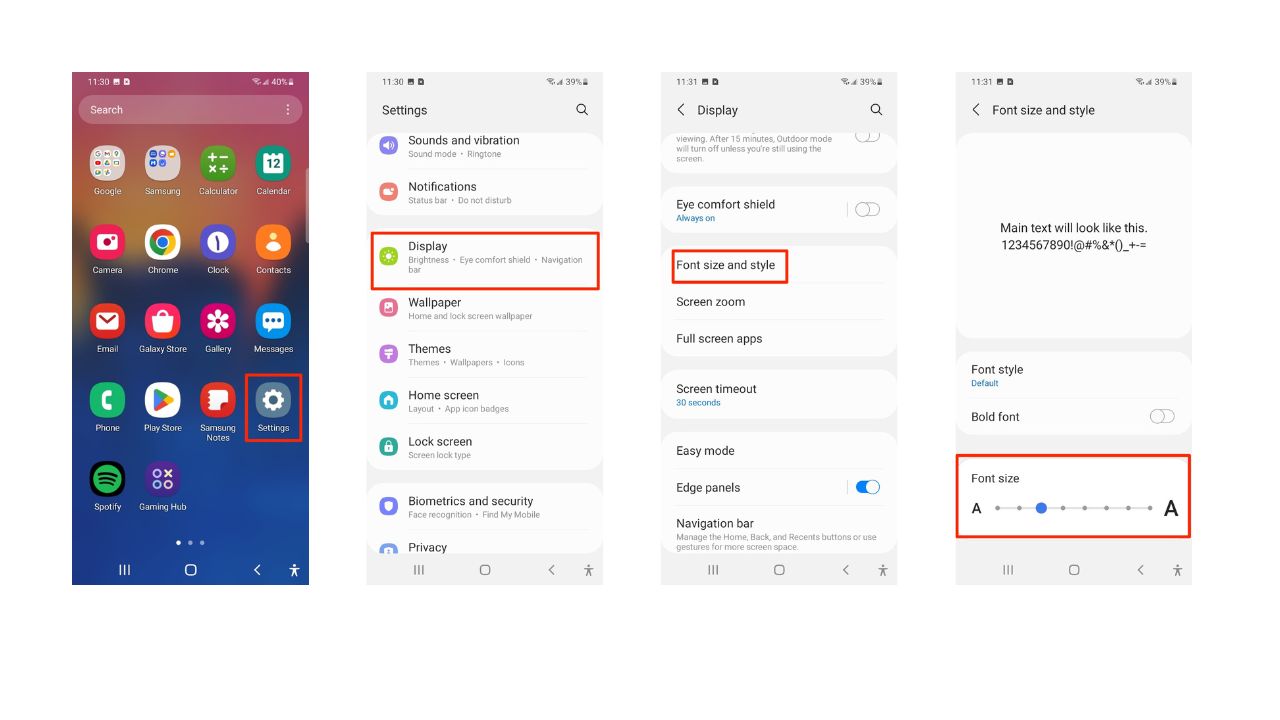
How to change the font size and style on Android
Settings may vary depending on your Android phone’s manufacturer
- First, navigate to Settings
- Tap Display
- Next, click Font size and style
- Now, adjust the slider from right to left to change the Font size to a comfortable level
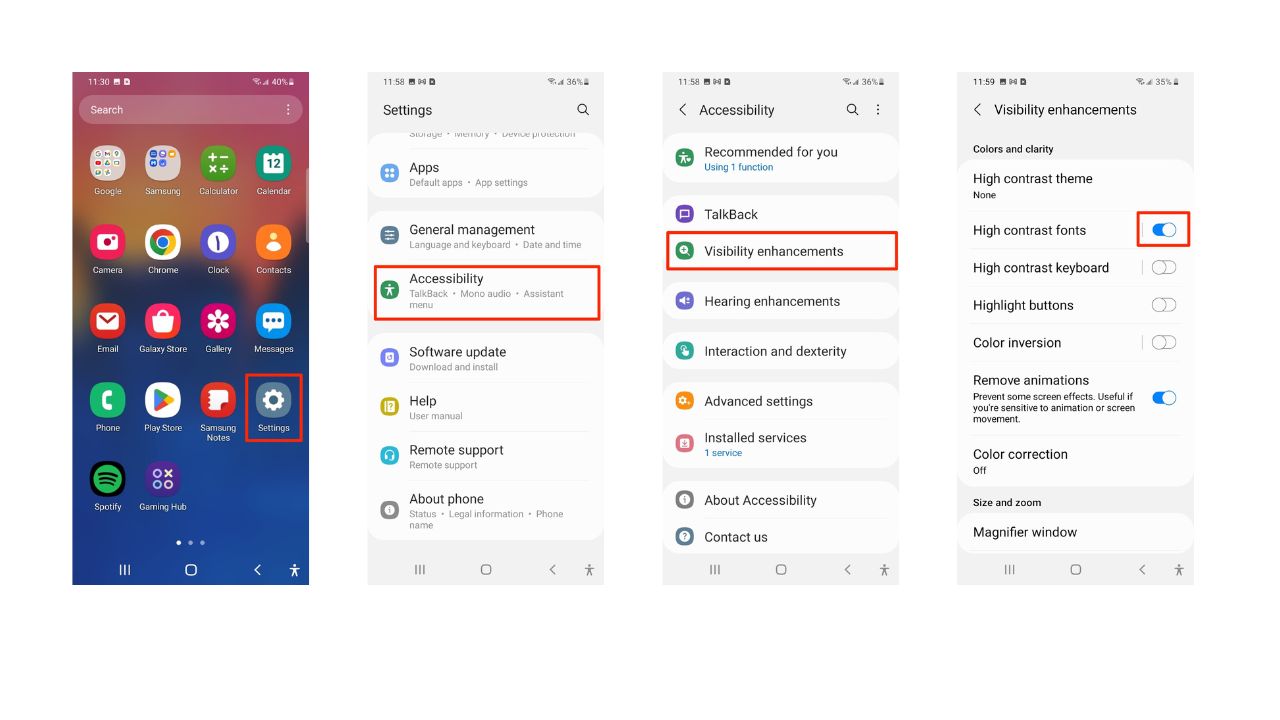
How to make the text more visible on Android
Settings may vary depending on your Android phone’s manufacturer
- Go to Settings
- Tap Accessibility
- Click Visibility enhancements or Vision enhancements
- Then, enable options like High contrast fonts, Bold text, or Increase contrast to make text more readable.
How to magnify the screen on Android
Settings may vary depending on your phone’s manufacturer.
- Go to Settings
- Tap Accessibility
- Tap Magnification (some phones show this under Vision enhancements)
- Turn on the Magnification shortcut
- Choose how you want to activate it. Options include:
- Accessibility button
- Press and hold both volume keys
- Triple-tap the screen (not available on all devices)
- Once magnification is on, you can:
- Pinch with two fingers to zoom
- Drag with two fingers to move around
- Tap the shortcut again to zoom out
If available on your device, enable Magnify Keyboard or Magnify keyboard while typing to enlarge the on-screen keyboard when zoomed.
How to have the text on your Android read out loud on TalkBack (screen reader)
Settings may vary depending on your Android phone’s manufacturer
- Go to Settings
- Tap Accessibility
- Click TalkBack and toggle it On
- Tap Finish
- Follow any additional on-screen instructions to complete the setup. This might include a tutorial on how to use TalkBack.
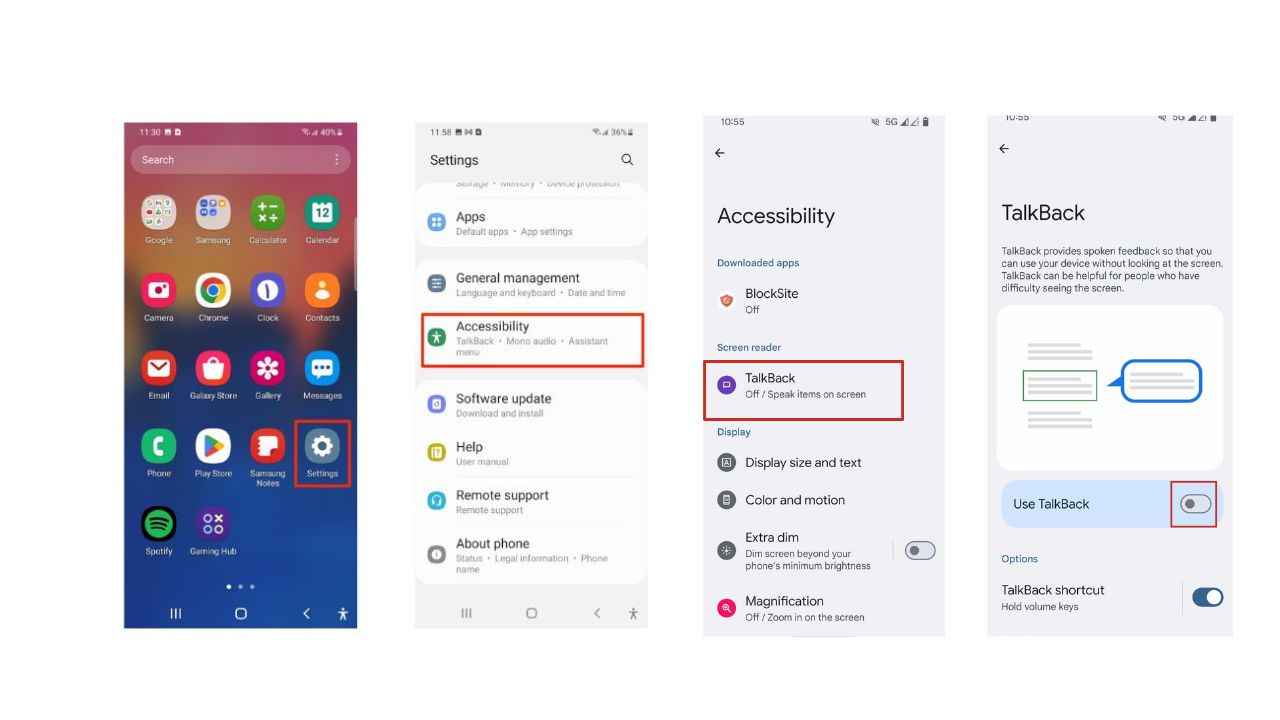
Once TalkBack is enabled, your device will provide spoken feedback to help you navigate your phone without needing to see the screen. Remember, these steps can vary, so it’s always a good idea to check the specific instructions for your Android version or consult the official Android Accessibility Help page for the most accurate information. If you’re setting up a new phone, you can also enable TalkBack during the initial setup by holding down both volume buttons for a few seconds.
For those who are hard of hearing
For those who are hard of hearing, Android offers various features to enhance your device’s audio and visual capabilities. Here’s how you can make the most of them:
How to increase the volume on Android
To ensure you don’t miss important calls or notifications, you can easily amplify the volume on your Android device.
A Texas mom says she spent the night in jail after speaking up online about dirty water in her town. The case was later dropped, but her story raises a troubling question: could something you post online ever put you at risk?

Missed this event? Sign up via the registration form and see our live recording.
See Kurt’s 2026 picks for practical tech and everyday upgrades.
Settings may vary depending on your Android phone’s manufacturer
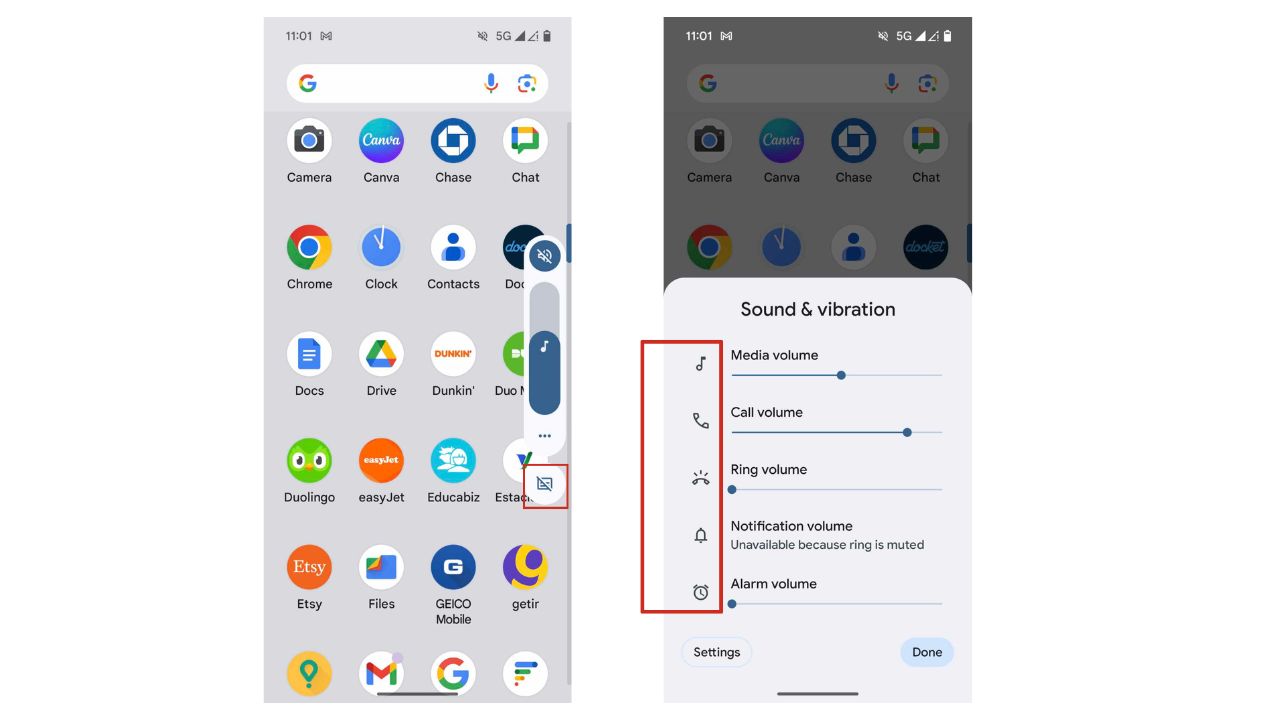
- Simply press the volume button on the side of your phone
- Tap the three dots to access additional options
- Navigate to Sound & vibration settings
- Here, you’ll find individual controls to boost the volume for calls, ringtones, notifications, and alarms, making each sound clearer and more noticeable.
How to add captions to Android
Android’s built-in captioning feature provides a visual aid for those who prefer reading over listening.
Settings may vary depending on your Android phone’s manufacturer
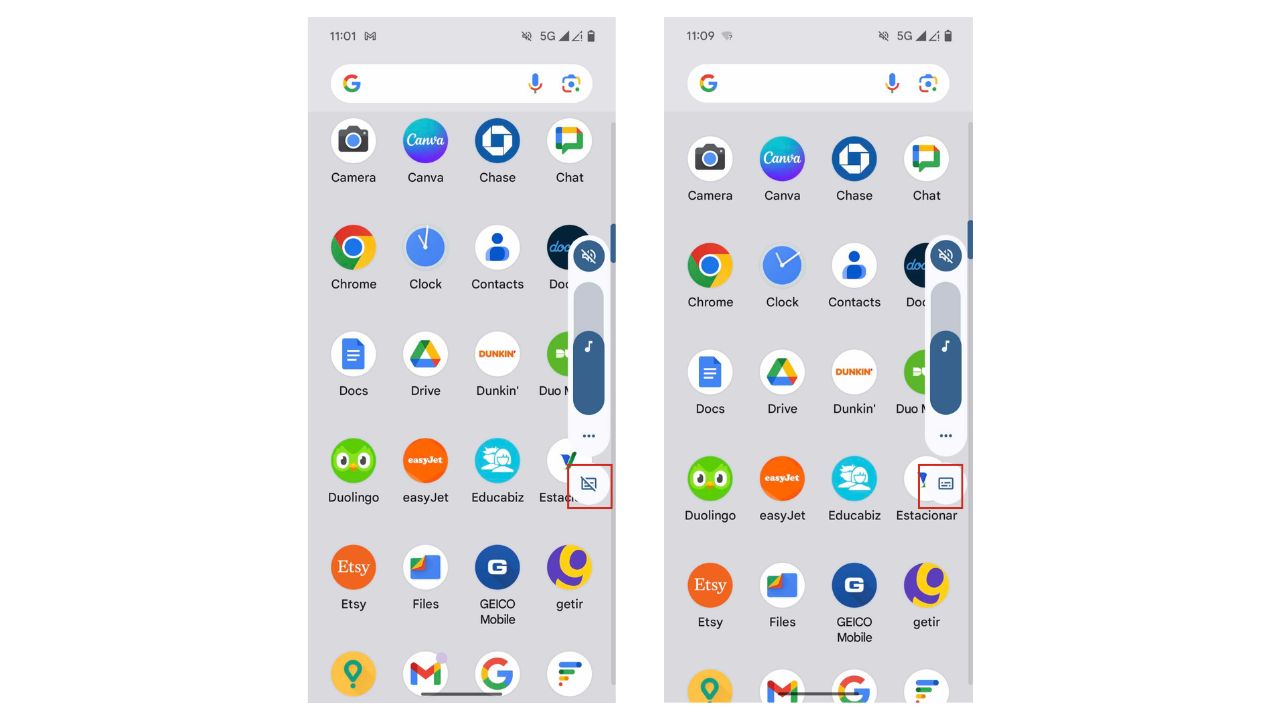
- To activate captions, press the volume button
- Look for the caption symbol below the three dots
- With a simple tap, you can toggle captions on or off, allowing you to follow along with video content, phone conversations, and more, with text displayed directly on your screen.
How to make your Android Hearing Aid Compatibility (HAC)
Android’s Hearing Aid Compatibility (HAC) can be a game-changer for individuals using hearing aids. To utilize this feature, verify that your Android phone is HAC-supported by checking the phone’s specifications. You can also just check by following the steps below.
Settings may vary depending on your Android phone’s manufacturer
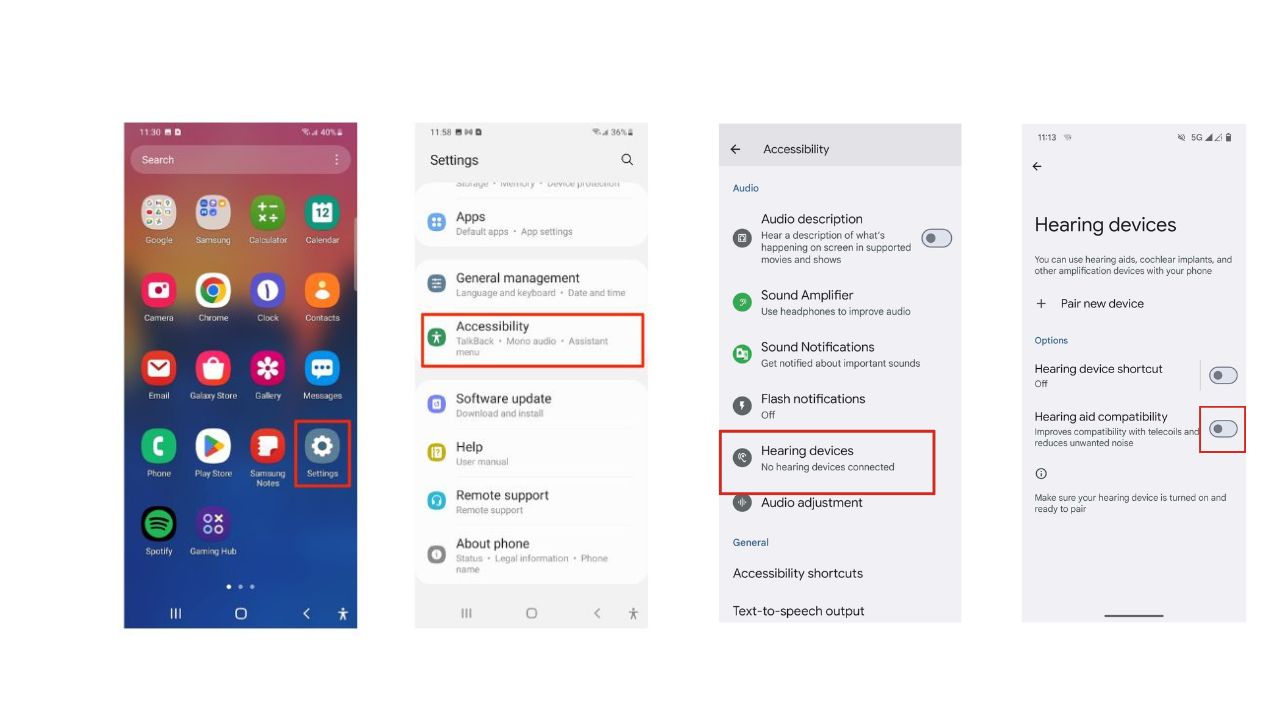
- Go to Settings
- Tap Accessibility
- Click Hearing devices or it might be labeled Hearing enhancements
- You might have to click Hearing Aid Support
- Toggle on Hearing aid compatibility
For those with trouble seeing and hearing
For those with trouble seeing and hearing, Android devices offer customizable vibration patterns to alert you of various notifications:
To customize your notifications so your Android will vibrate
Stay connected without the need to constantly monitor your device.
Settings may vary depending on your Android phone’s manufacturer – we tested this on Samsung S24 Ultra)
- Go to Settings
- Tap Sounds and vibration
- Tap Vibration intensity to adjust how strong vibration feels for:
- Incoming calls
- Notifications
- Touch interactions
- Tap Call vibration pattern or Notification vibration pattern to choose a vibration style
- Tap System sound/vibration control if you want to toggle vibration for specific actions (keyboard, navigation, charging, etc.)
This applies to Pixel 7, 8, 9, Fold and newer.
- Go to Settings
- Tap Sound & vibration
- Tap Vibration & haptics
- Adjust vibration levels for: Calls, Notifications and Touch feedback
- Tap Vibration type (if available) to change vibration patterns
Don’t be afraid to ask for help
Androids have all sorts of display settings that can make it easier (or harder!) to see, and what will work for you will be based on your individual preferences. If you’re not too familiar or you want to try out different settings to see what’s easiest for your eyes, you might want to ask a friend or family member who is experienced with Android to help you play around with those settings. And this goes for all things on your Android. Don’t spend hours trying to figure something out when you could ask a loved one to walk you through it in a way you’ll understand.
Additionally, there are apps that can take it a step further. One is “Be My Eyes,” which helps you connect with someone immediately to help with a task, whether that be adjusting settings on your Android or something else. It’s primarily used by blind individuals, but anyone with trouble seeing can utilize the platform.
The other is “Seeing AI,” a free app that utilizes your Android camera. Just point it at what’s in front of you, and it will narrate what you’re looking at in real-time. Or, you can take a picture, and it will tell you what you’re looking at. It can even help you count bills, essentially turning visuals into audio.

Related Links:
- New Android malware can empty your bank account in seconds
- Manage Android apps with the new ‘Uninstall’ button
- Delete this fake VPN app stealing Android users’ money
Kurt’s key takeaways
At the end of the day, your smartphone should make your life easier, not harder. If you’re struggling to see or hear your Android device clearly, don’t just put up with it. Take advantage of the many accessibility features built right into your phone. These tools can provide real-time assistance or even narrate what’s in front of your camera. At the end of the day, your Android device should work for you, not the other way around. With a little tweaking and the right support, you can make your smartphone experience truly accessible and enjoyable.
As technology continues to evolve, what future advancements or features do you hope to see in mobile devices to further support individuals with visual or auditory impairments? Let us know in the comments below.
FOR MORE OF MY TECH TIPS & SECURITY ALERTS, SUBSCRIBE TO MY FREE CYBERGUY REPORT NEWSLETTER HERE
Copyright 2026 CyberGuy.com. All rights reserved. CyberGuy.com articles and content may contain affiliate links that earn a commission when purchases are made.
🎙 Now Streaming: My New Podcast: The CyberGuy Report
Kurt’s Top Deals
Deals move fast and inventory can be limited, so don’t wait too long.
| 🔥 Editor’s pick  Summer entertaining Ninja SLUSHi Machine (26% off) Frozen drinks and slushies at home in minutes. | |
| 💰 Top deal  Outdoor essential TYPEC Solar Bug Zapper (36% off) Solar-powered bug zappers for patios and camping. |