



Unboxing a new Mac never gets old. The design feels polished, the screen looks stunning, and those clean keys practically beg you to start typing. Before you dive into work, streaming, or creative projects, there are a few important setup steps you should handle first. These will help protect your data, keep your Mac running smoothly, and make it truly yours.
If you picked up a new Windows computer instead, be sure to check out our guide on the first things to do when you get a new PC.
Got a new iPad as well? We walk through exactly what to do if you got a new iPad to secure it from day one.
1. Get familiar with your Mac’s ports
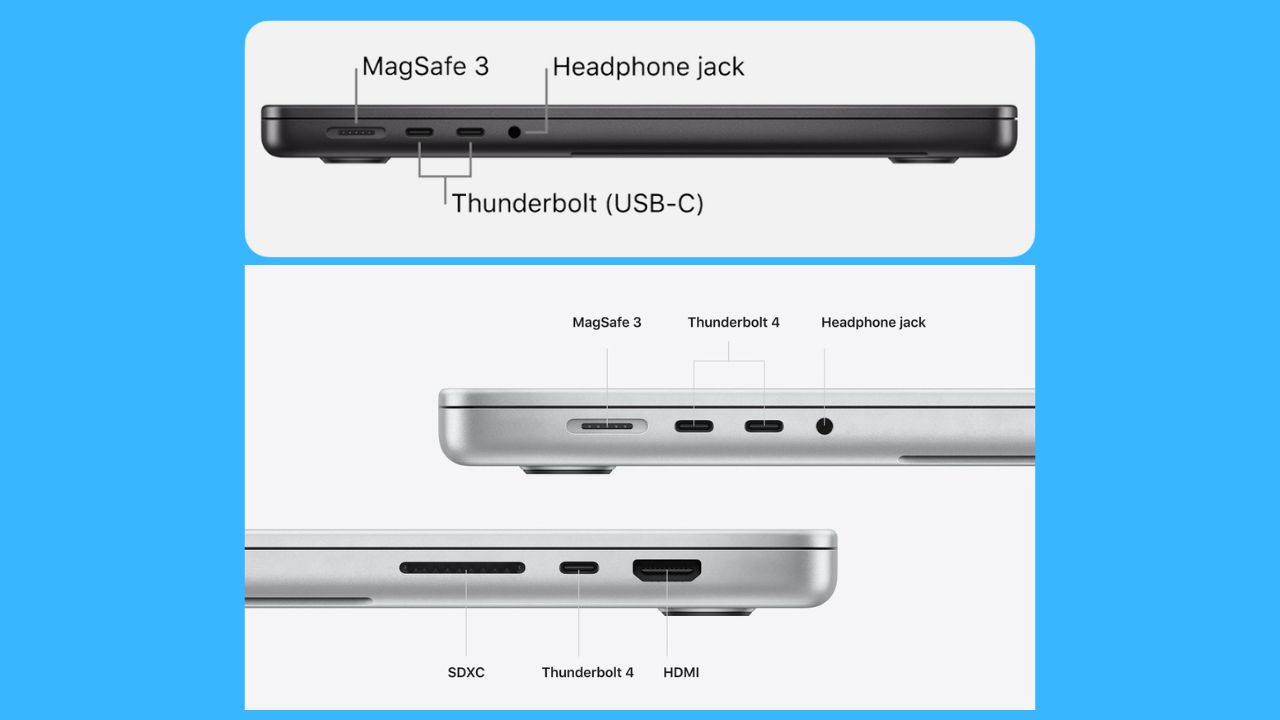
If you just bought a new Mac or unwrapped one over the holidays, take a moment to look along the sides of your computer. Those ports determine how you charge your Mac, connect accessories, and plug in external displays.
Here’s what you’ll see on most Macs:
USB-C / Thunderbolt
These ports look the same, but Thunderbolt supports faster data speeds and better external display performance. All Thunderbolt ports now use the USB-C shape, and many Macs charge through these ports.
HDMI
Found on newer MacBook Pro models and Mac mini systems, the HDMI port lets you connect directly to a TV or monitor without an adapter.
USB-A
The classic rectangular USB port still appears on some older Macs and accessories, though many newer Macs require an adapter to use it.
Taking a few minutes to understand your Mac’s ports now can save a lot of frustration later when it’s time to charge up or connect your gear.
2. Power on and complete initial setup
Turn on your Mac and follow the on-screen setup assistant. Apple makes this part simple, but each step matters.
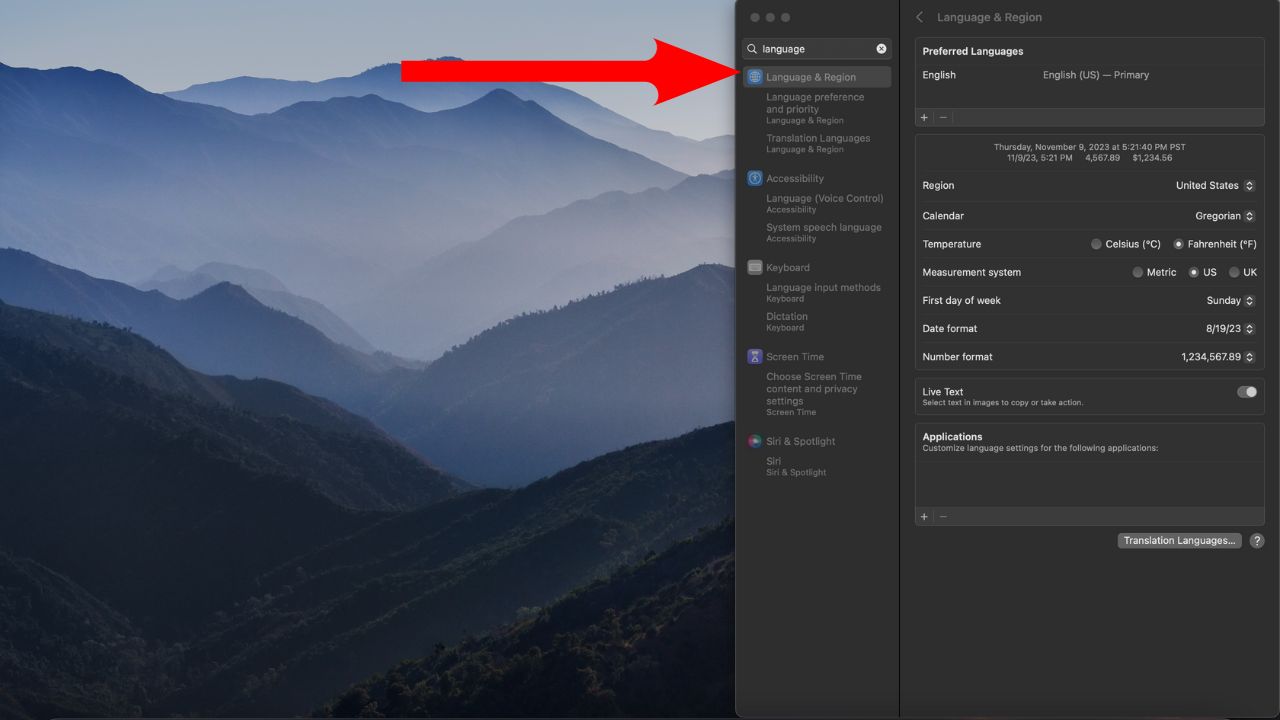
- Choose your language
- Select your region to set time, date, and currency formats correctly
- Connect to Wi-Fi, so your Mac can activate and download updates
This process also prepares your Mac for security features and cloud syncing later.
3. Sign in with your Apple ID
Your Apple ID ties everything together across Apple devices. With an Apple ID, you can:
- Sync files and photos using iCloud
- Download apps from the Mac App Store
- Send texts and FaceTime calls from your Mac
- Share purchases with family using Family Sharing
If you don’t have an Apple ID yet, you can create one during setup in just a few minutes. Apple also protects your account with two-factor authentication and security alerts, which are strongly recommended.
4. Turn on Find My Mac and FileVault (don’t skip this)
These two settings are essential and often overlooked.
Enable Find My Mac
If your Mac is lost or stolen, Find My can help locate it or lock it remotely.
- Click the Apple icon in the upper left
- Go to System Settings
- Then click your Apple ID at the top of the sidebar.
- Click iCloud
- Then, click where it says Show All (or See All)
- Scroll down to Find My Mac, then turn it on and allow location access.
Note: First, enable Location Services in Privacy & Security if prompted.
Enable FileVault
FileVault encrypts your entire drive so that no one can access your data without your password.
- Click the Apple icon in the upper left of the screen
- Go to System Settings
- Click Privacy & Security
- Scroll down and click on FileVault and toggle it on
This is especially important for laptops.
5. Set up Touch ID or Apple Watch unlock
Most newer Macs support fast, secure sign-in options.
- Touch ID lets you unlock your Mac, approve purchases, and autofill passwords.
- Apple Watch unlock allows your Mac to unlock automatically when your watch is nearby.
You can enable these in:
- Click the Apple icon in the upper left of the screen
- Click System Settings
- Enable Use Touch ID to unlock your Mac, Use Touch ID for Apple Pay, and Use Touch ID for purchases in iTunes Store, App Store and Apple Books.
6. Back up your Mac with Time Machine
Backing up your data should happen on day one.
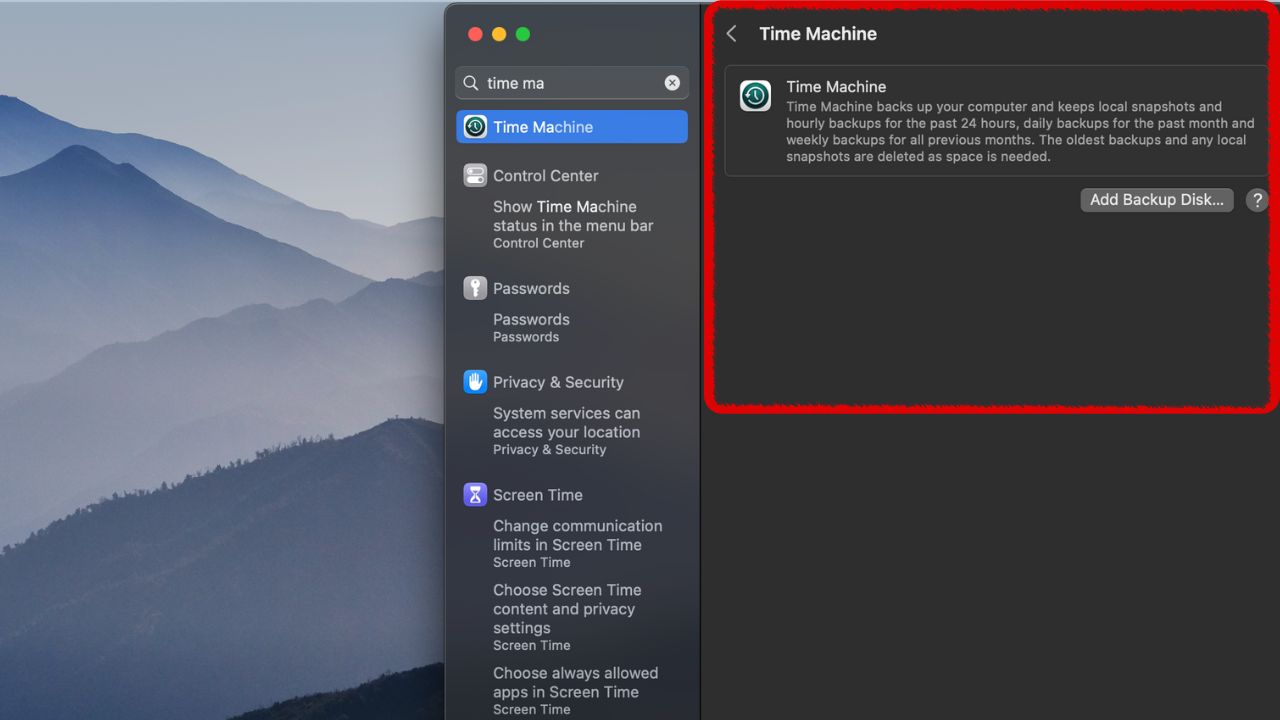
Time Machine automatically saves versions of your files so you can recover them later.
How to set it up:
- Plug in an external drive
- When prompted, choose it for Time Machine
- Or go to System Settings → General → Time Machine
Once enabled, backups run automatically in the background. You can restore deleted files or entire folders with just a few clicks.
7. Turn on automatic updates
Keeping your Mac updated is one of the best ways to stay secure.
- Click the Apple icon in the upper left of the screen
- Go to System Settings
- Click General
- Click Software Update
Make sure these are enabled:
- Automatic macOS updates
- Security response updates
- System data files and security updates
This ensures critical fixes install without you having to think about it.
8. Customize your Mac to fit your style
Now for the fun part.
- Change your wallpaper
- Resize and organize the Dock
- Choose which apps launch at startup
- Try features like Stage Manager if you juggle multiple apps
Apple’s built-in apps like Safari, Messages, Photos, Notes, Reminders, Calendar, Maps, and Spotlight are already powerful enough for most users. You can find everything in the Dock, Launchpad, or Applications folder.
When you’re ready, browse the Mac App Store for productivity tools, creative software, and utilities.
Quick tips to get more out of your Mac
- Use Spotlight (Command + Space) to find apps, files, and settings instantly.
- Force quit frozen apps using Apple menu → Force Quit.
- Declutter your desktop to keep performance smooth. Visit our page to learn how to tidy up your desktop on a PC or Mac.
- Cover your webcam when not in use to protect your privacy. Check our recommendations for webcam covers here.
9) Protect your Mac from malware and phishing
macOS includes built-in security tools, but additional strong antivirus software protection can add peace of mind.
A strong antivirus solution can:
- Block malicious downloads
- Detect phishing emails
- Warn you about unsafe websites
- Help stop ransomware attacks
TotalAV is easy to set up and offers real-time protection for paid users, keeping your devices safe around the clock. It includes tools to block phishing scams, remove ransomware and spyware, and clean up adware and junk files. The software also features a browser manager, system tune-up tools, and protects across Windows, Mac, Android, and iOS devices.
GET MY EXCLUSIVE CYBERGUY TOTALAV DEAL:
Please note:
1) If you're having difficulty seeing either of the above deals, do this:
- If you're on a mobile device, hold down the link above, "Copy Link", and then paste it into a private or incognito browser.
- If you're on a laptop or desktop, right click the link, "Copy Link", and then paste it into a private or incognito browser.
2) During registration you may see optional upsells you can decline. Our top pick is the core antivirus product.
3) If you need help after your purchase, you can reach TotalAV directly through their official support page here.
If malware ever slips through, be sure to check our guide on how to remove it safely.
10) Review privacy and app permissions
Before you start installing lots of apps, take a few minutes to lock down who can access what.
macOS asks for permission when apps want access to things like your camera, microphone, location, contacts, or files. Many people click “Allow” without thinking, then forget about it.
To review and tighten things up:
- Click the Apple icon
- Go to System Settings
- Click Privacy & Security
- From here, you can check:
- Camera and microphone access
- Location services
- Full disk access
- Files and folders access
- Screen recording permissions
- Remove access for any app you don’t recognize or no longer use. You can always turn permissions back on later if something stops working.
This quick check helps protect your privacy and reduces the risk of apps collecting more data than they need.
Related Links:
- How to know when it’s time to replace your Mac
- How to use passkeys to keep your Mac safe
- How to free up space on your Mac
- Best Laptops for 2026
- Best desktop computers for 2026
Kurt’s key takeaways
A new Mac is more than just new hardware. It’s a fresh start. Taking a few minutes to set up security features, backups, and updates now can save you serious headaches later. Once the essentials are in place, customizing your Mac helps turn it into a tool that works the way you do. Whether you’re focused on productivity, creativity, or staying connected, a properly set up Mac feels faster, safer, and more personal from day one.
How do you customize your Mac when you first get it? Share your tips in the comments.
FOR MORE OF MY TECH TIPS & SECURITY ALERTS, SUBSCRIBE TO MY FREE CYBERGUY REPORT NEWSLETTER HERE
Copyright 2026 CyberGuy.com. All rights reserved. CyberGuy.com articles and content may contain affiliate links that earn a commission when purchases are made.
🎙 Now Streaming: My New Podcast: The CyberGuy Report
Kurt’s Top Deals
Deals move fast and inventory can be limited, so don’t wait too long.
| 🔥 Editor’s pick  Summer entertaining Ninja SLUSHi Machine (26% off) Frozen drinks and slushies at home in minutes. | |
| 💰 Top deal  Outdoor essential TYPEC Solar Bug Zapper (36% off) Solar-powered bug zappers for patios and camping. |


