



If you have bought or received a new iPad recently, you might be wondering how you can enjoy the same photos, contacts, and other important information from your old iPad to your new one without having to move each item individually. Fortunately, there are multiple ways to transfer your information from your old iPad to your new one. There are three straightforward ways to transfer your information so you can seamlessly start using your new iPad: iCloud, Quick Start, and Computer. As with any time you transfer data, it is recommended that you back up your old device so you can recover any information should something go wrong during the transfer.

How to transfer using iCloud
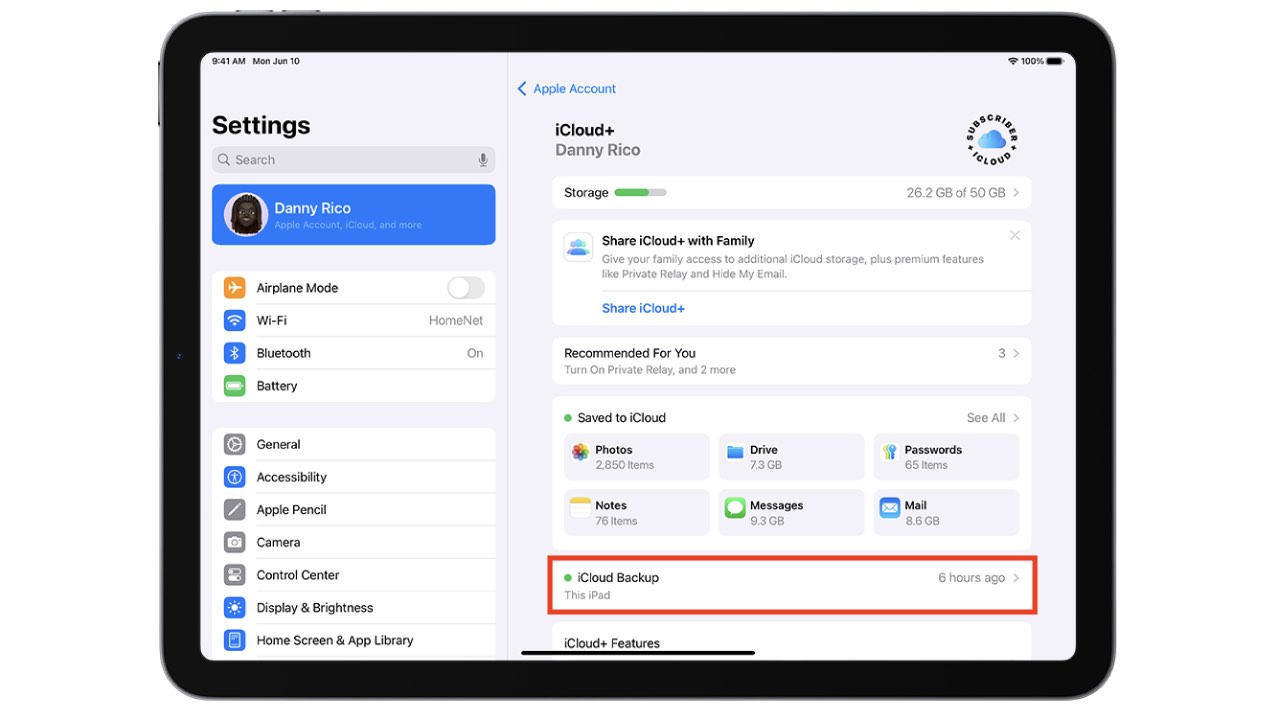
Before you transfer information to your new iPad, back up your old iPad information to iCloud by following the steps below:
- Turn on your old iPad
- Make sure it is connected to the internet
- On your home screen, tap ‘Setting’
- Select your ‘Device Name’
- Select ‘iCloud’
- Select ‘iCloud Backup’
- Turn on ‘Backup This iPad’
- Tap ‘Back Up Now’ if you want to manually start back up now
Once you’ve backed up all the information from your old iPad, you are ready to set up your new iPad.
Credit: Apple
- Turn on your new iPad
- Follow the prompts on your screen, which will provide instructions
- Under ‘Apps & Data,’ select ‘Restore from iCloud Backup.’
- Use your Apple ID and password to sign into your iCloud account
- Choose the backup you just created or the most recent backup
ASK KURT: MAXED-OUT YOUR ICLOUD?
How to transfer using Quick Start
With Quick Start, you can directly transfer information from your old iPad to your new iPad. Both devices will be in use during this transfer process, so you will need to choose a time when you don’t need either device.

Credit: Apple
- Place your old iPad and new iPad next to each other
- Make sure your old iPad is connected online via Wi-Fi, and Bluetooth is turned on
- Turn on your new iPad
- On your new iPad, follow the prompts on your screen to set it up
- On your old iPad, the ‘Set Up New iPad’ message will appear
- On your new iPad, an animation will display; scan it using your old iPad
- Complete the setup process and choose ‘Transfer from iPad.’
Watch the latest episode of The CyberGuy Report.


Missed this event? Sign up via the registration form and see our live recording.
See Kurt’s latest Amazon picks for useful gadgets, smart home upgrades and everyday tech worth grabbing while the deals last.
How to transfer using your computer
Before you transfer info to your new iPad, back up your old iPad information to your computer by following the steps below:
- Connect your old iPad to your computer using a USB cable
- Open ‘Finder’ (on macOS Catalina or later) or ‘iTunes’ (on earlier macOS or Windows)
- In ‘Finder’ or ‘iTunes,’ select your iPad and click ‘Back Up Now.’
Once you’ve backed up all the information from your old iPad, you are ready to set up your new iPad.

- Connect your new iPad to the same computer you used to backup your old iPad
- Open ‘Finder’ (on macOS Catalina or later) or ‘iTunes’ (on earlier macOS or Windows)
- Select ‘Restore Backup’ and choose the most recent backup
HOW TO SECURELY LOCK YOUR IPHONE AND IPAD FROM PRYING EYES
Kurt’s key takeaways
Technology evolves rapidly, and Apple releases new devices every year. If you are fortunate enough to buy or receive a new iPad as a gift, you do not need to worry about losing any of the photos or other information you’ve accumulated on your old iPad. Not only is it easy to backup your old iPad’s information, but you can also use those backups to transfer the information from your old iPad to your new one. Newer iPadOS also have a newer feature called ‘Quick Start’ which allows you to transfer information directly from your old iPad to your new iPad.
Have you encountered any challenges while setting up or transferring data to your new iPad? How did you overcome them? Let us know in the comments below.
TO GET MORE OF MY SECURITY ALERTS, SUBSCRIBE TO MY FREE CYBERGUY REPORT NEWSLETTER
Copyright 2025 CyberGuy.com. All rights reserved. CyberGuy.com articles and content may contain affiliate links that earn a commission when purchases are made.