



It certainly can be very convenient to log into the Wi-Fi network easily via password sharing when visiting a new location or a family or friend’s house. Instead of having to dig around for the password or struggling to share long, alphanumeric passwords with symbols, you can simply use password sharing to ‘drop’ a password to your intended friend or family member.
But what if those notifications asking if you want to share your Wi-Fi password with devices nearby are persistent and annoying? The good news is that it’s just as easy to stop sharing Wi-Fi password notifications as it was to share them. We’ll show you how to quickly stop Wi-Fi password-sharing popups on your Apple and Android phones.
GET SECURITY ALERTS, EXPERT TIPS – SIGN UP FOR KURT’S NEWSLETTER – THE CYBERGUY REPORT HERE
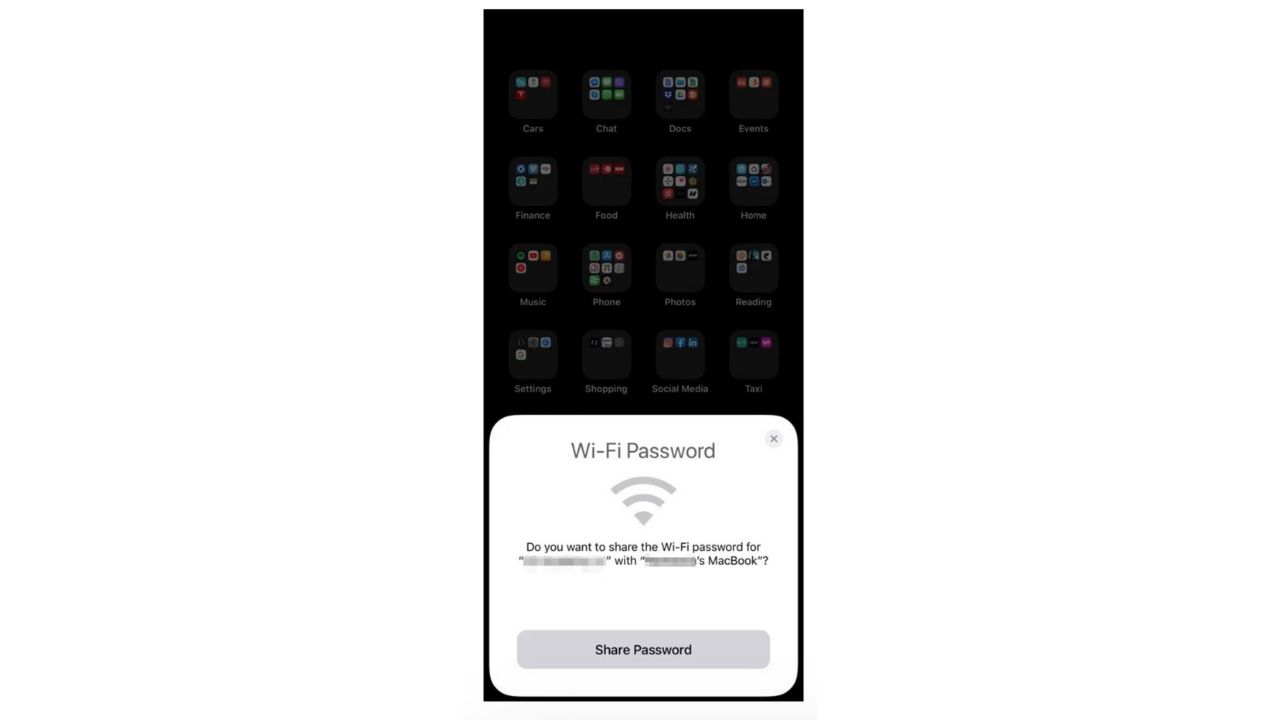
How to stop Wi-Fi password sharing popups on iPhone
When the Wi-Fi password-sharing pop-ups become too persistent, here are several options to address this issue:
Option 1: Disabling Wi-Fi Network Suggestions
- On your iPhone’s main page, go to ‘Settings’
- Tap Wi-Fi
- Tap ‘Ask to Join Networks’
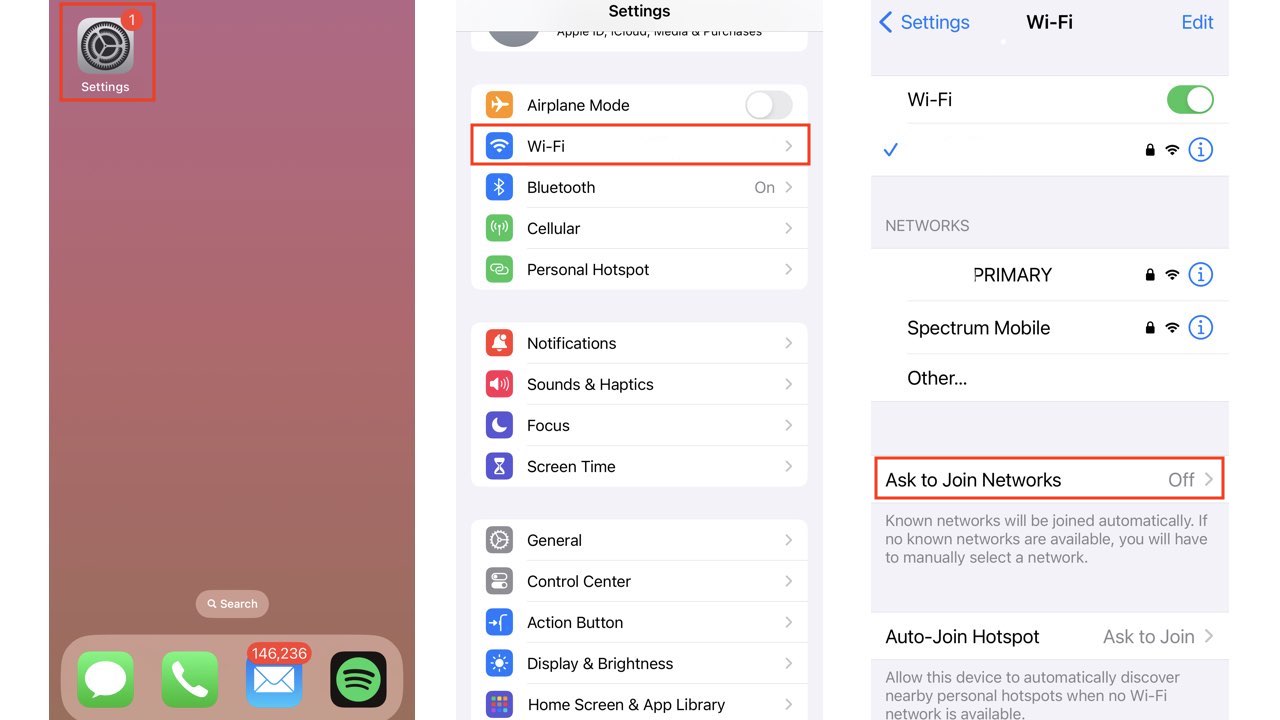
- Tap Off
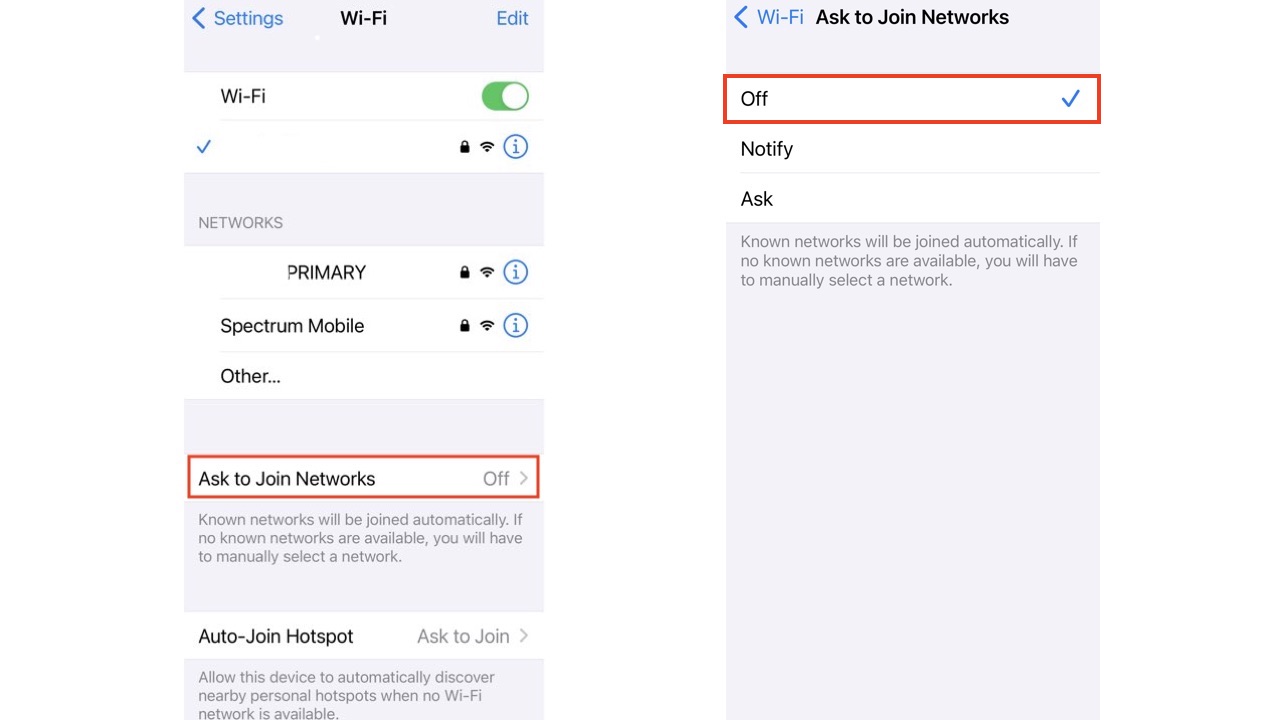
Now your iPhone will only automatically join networks it knows. You should stop receiving prompts to share your Wi-Fi password with others.
Option 2: Forgetting and rejoining the Wi-Fi network
Occasionally, it can help to reconfigure the network.
- On your iPhone’s main page, go to ‘Settings’
- Tap ‘Wi-Fi’
- Find your Wi-Fi network and tap the ‘i’ icon next to it
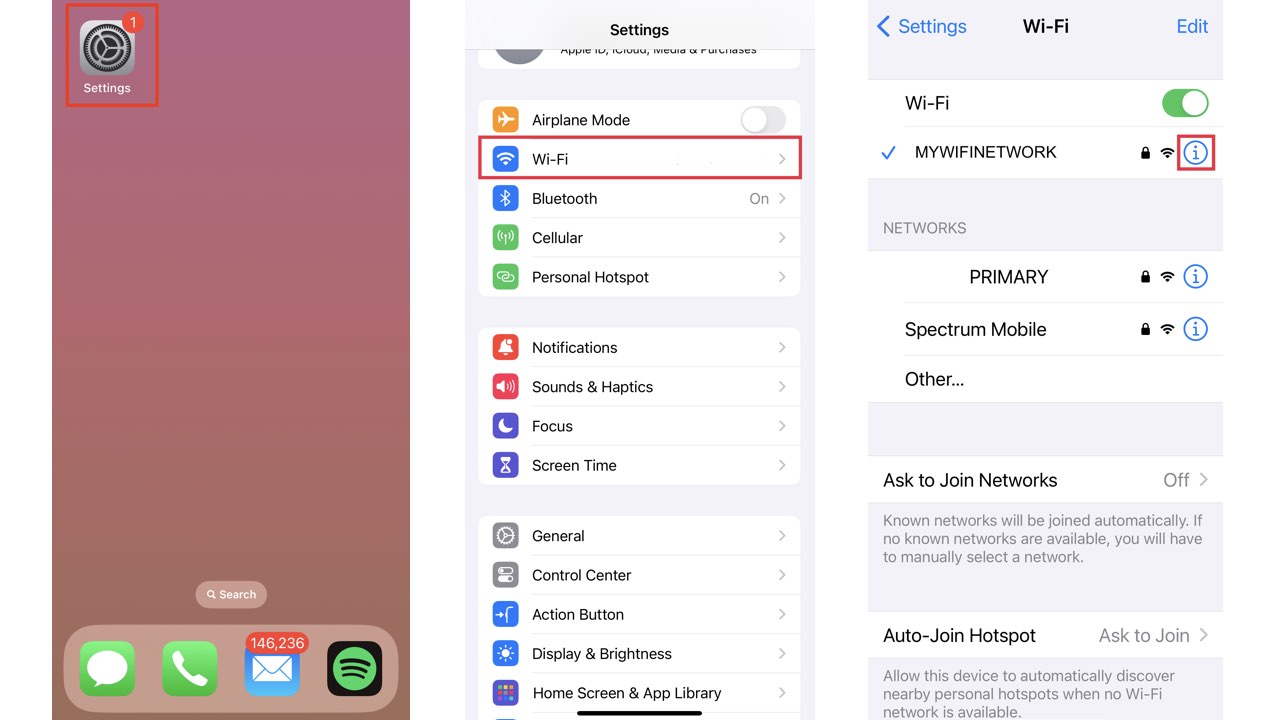
- Tap ‘Forget This Network’
- Tap ‘Forget’ in the pop-up box to confirm that you want to forget this network
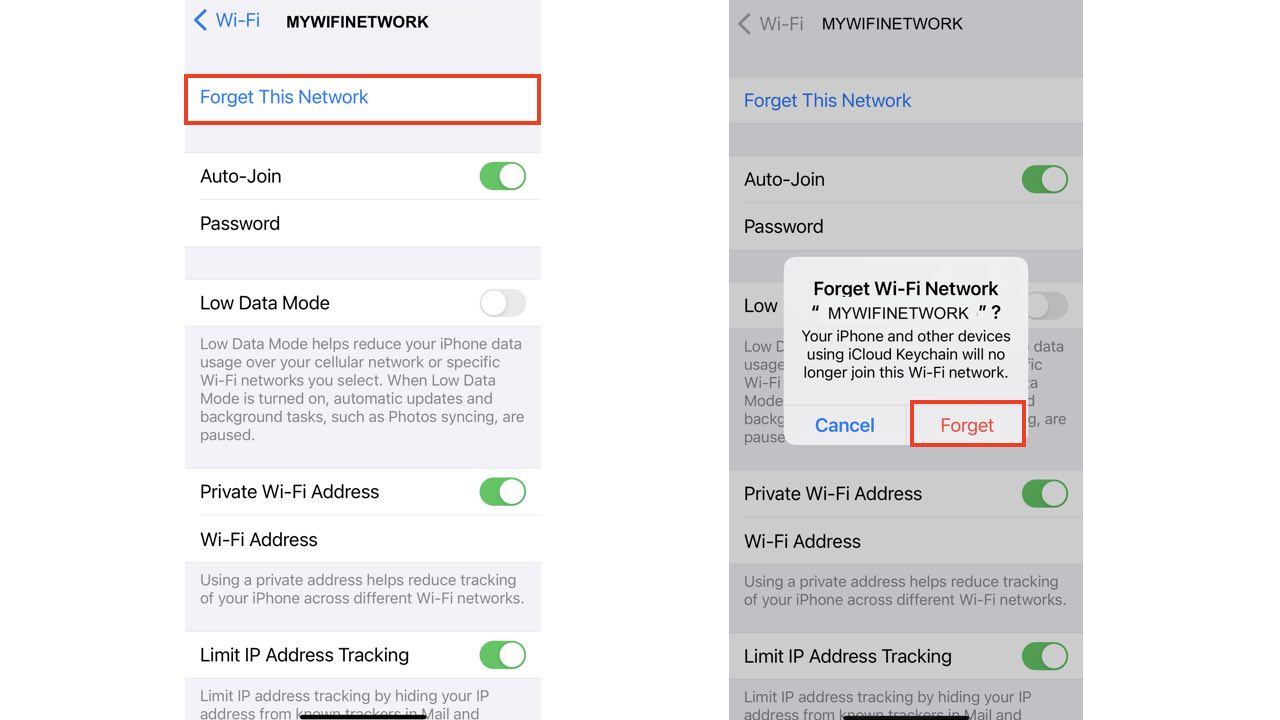
-
-
- To rejoin, tap the network you want to join
- Enter your Wi-Fi password and tap ‘Join’
-
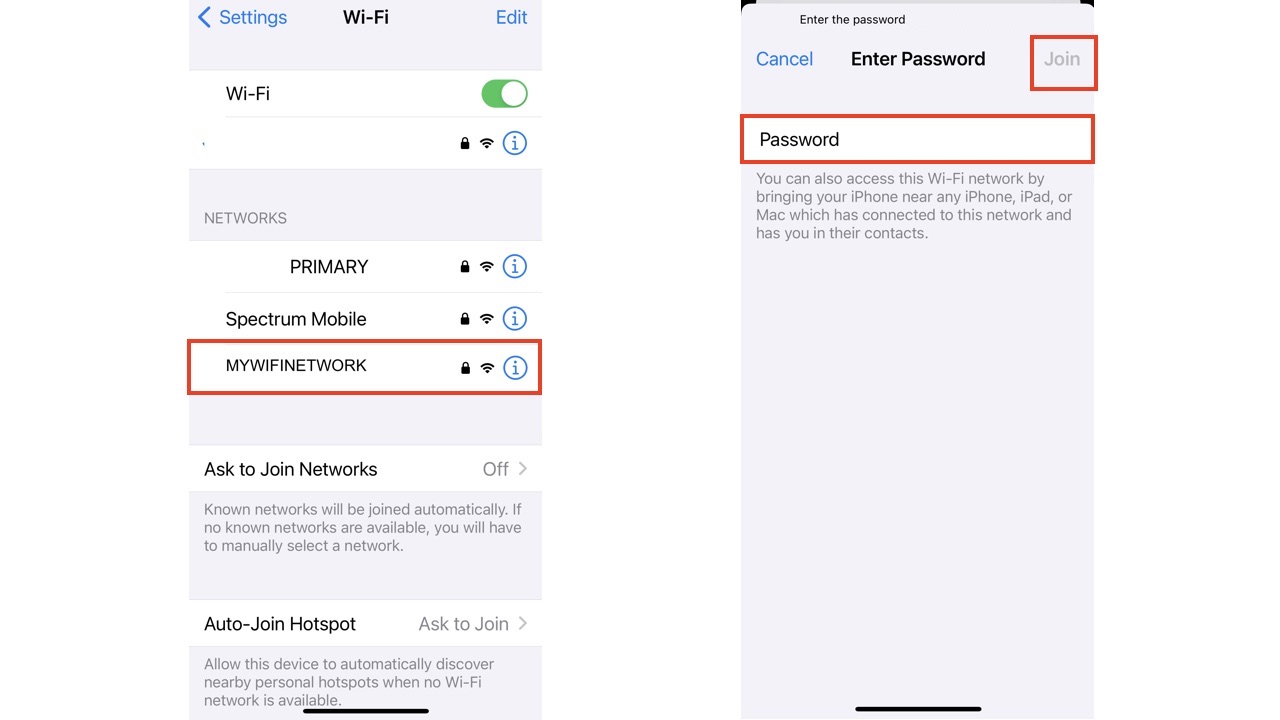
Watch the latest episode of The CyberGuy Report.

Missed this event? Sign up via the registration form and see our live recording.
See Kurt’s latest Amazon picks for useful gadgets, smart home upgrades and everyday tech worth grabbing while the deals last.
HOW TO SHARE YOUR WIFI PASSWORD WITH GUESTS
Option 3: Removing contacts from Wi-Fi password sharing
Under your contact information, you can remove the iCloud email addresses of the people you shared your Wi-Fi password with.
- On your iPhone’s main page, go to ‘Contacts’
- Scroll to the contact you want to edit
- Select the contact
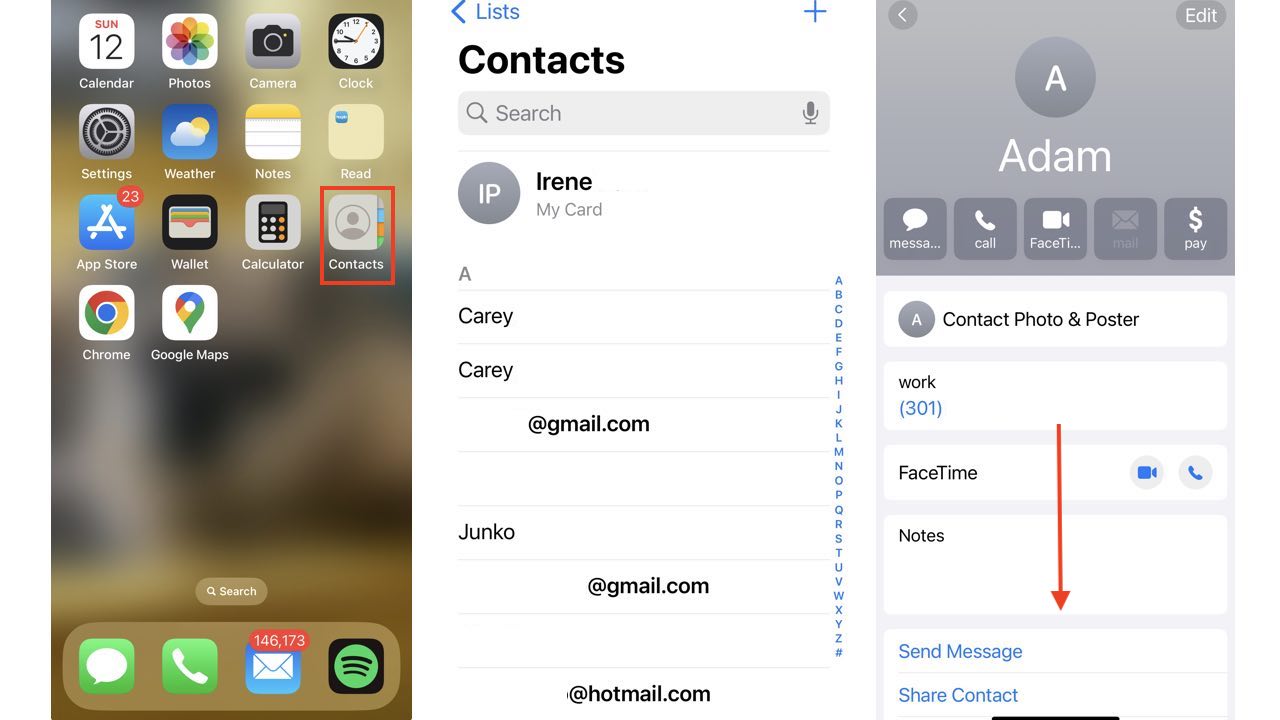
- Scroll down to where it says ‘LINKED CONTACTS,’ and if there is an iCloud email address associated with this contact, you will see it here
- Tap on the ‘iCloud’ option
- Tap ‘Edit’ on the top right corner
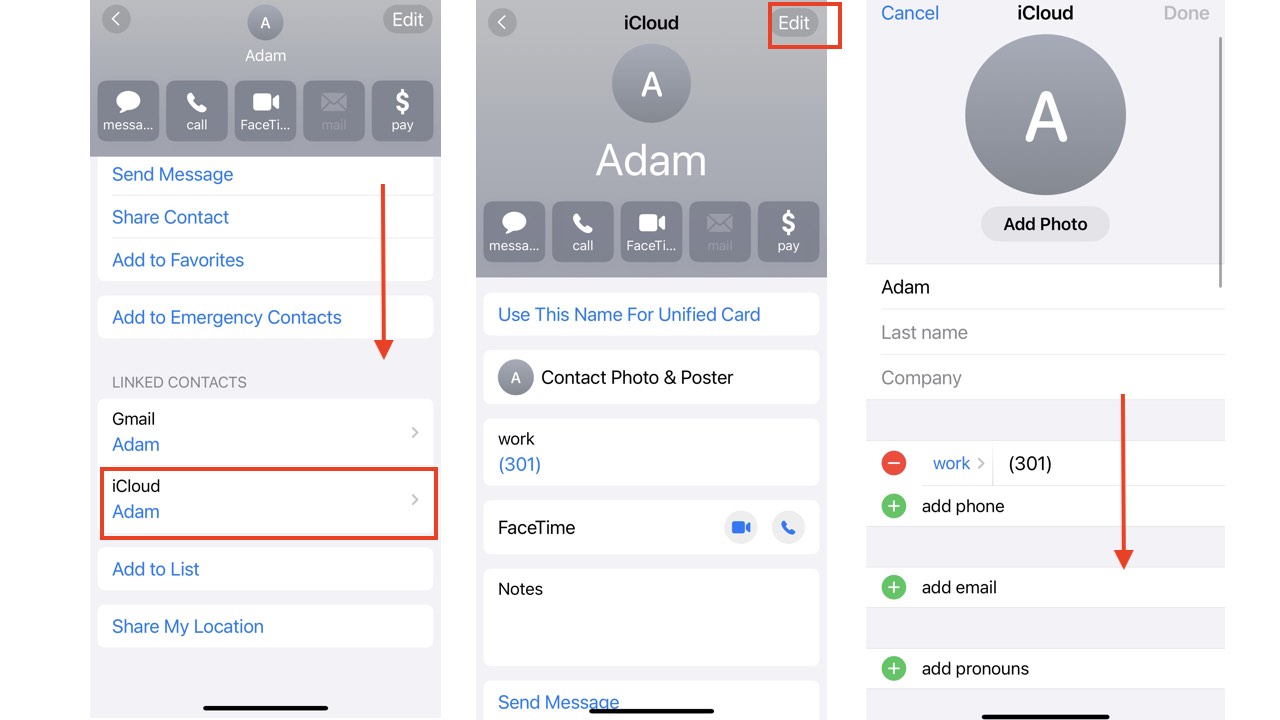
- Scroll down and tap ‘Delete Contact’
- Tap ‘Delete Contact’
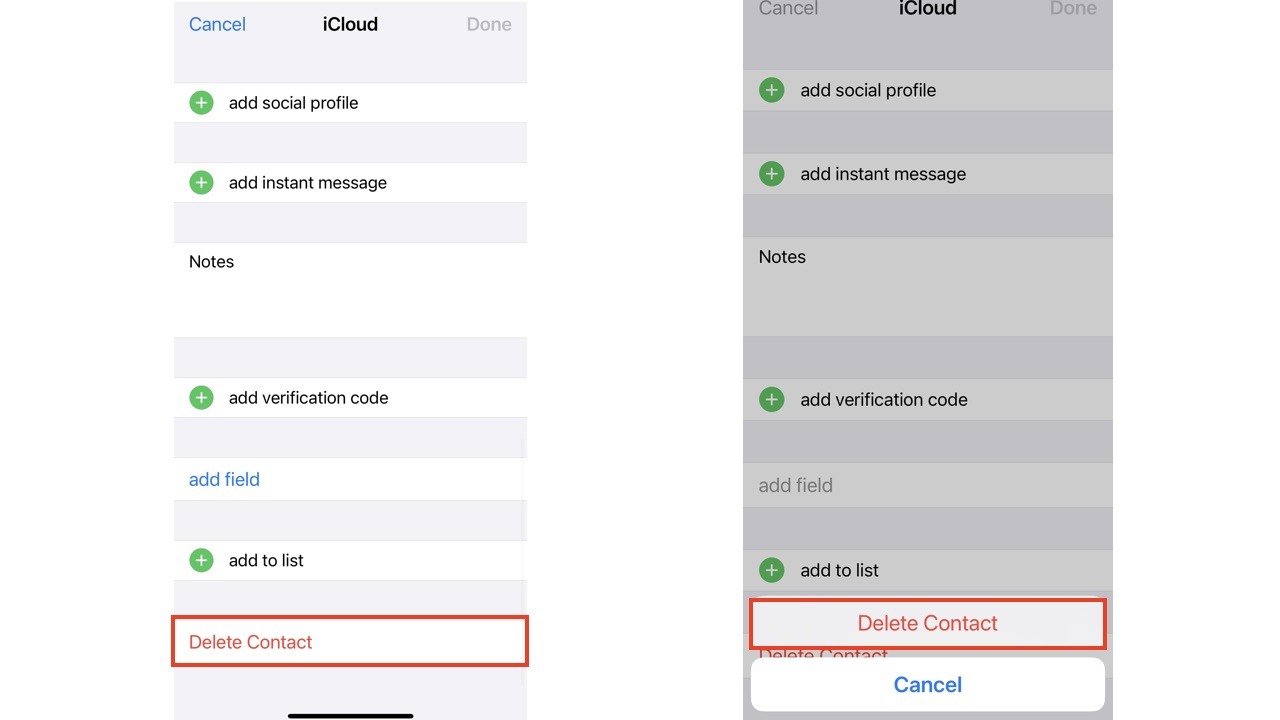
These options should minimize the persistent Wi-Fi password-sharing pop-ups. It, however, is part of the iOS feature to help make sharing networks with contacts you know easier. You can also provide Apple with feedback to impact future changes, here.
DON’T FALL FOR THIS NEW ROUND OF ICLOUD SUPPORT SCAM EMAILS
How to stop Wi-Fi password sharing popups on Android
When the Wi-Fi password-sharing pop-ups become too persistent, here are steps to address this issue on your Android. Please note that exact steps may vary for specific device models.
- On your phone, open ‘Settings’
- Select ‘Network & Internet’ or ‘Connections’
- Select a listed network, then tap ‘Wi-Fi options’ or ‘Advanced settings’
- Toggle off ‘Wi-Fi sharing’ or ‘QR code’
5 THINGS YOU DIDN’T KNOW YOU CAN DO ON AN ANDROID
Kurt’s key takeaways
While the Wi-Fi password-sharing feature has been created to be more convenient for their users, the persistent notifications to share your password can be annoying and distracting. Luckily, there are multiple options for turning off this feature on both Apple and Android devices.
Have you used the Wi-Fi password-sharing option between nearby friends or family? Are the pop-ups persistent or measured? Let us know in the comments below.
FOR MORE OF MY TIPS, SUBSCRIBE TO MY FREE CYBERGUY REPORT NEWSLETTER HERE
Follow me on
🎙 Now Streaming: My New Podcast: The CyberGuy Report
Kurt’s Top Deals
Deals move fast and inventory can be limited, so don’t wait too long.
| 🔥 Editor’s pick  Summer entertaining Ninja SLUSHi Machine (26% off) Frozen drinks and slushies at home in minutes. | |
| 💰 Top deal  Outdoor essential TYPEC Solar Bug Zapper (36% off) Solar-powered bug zappers for patios and camping. |


