



Have you ever wondered how some people take videos on social media that look professional quality? While some of them may be taking photos on an actual camera, others likely already know this incredible tip to adjust their phone’s camera settings to get higher-quality photos and video. But before we get there, it is important to know that while you will be taking higher-quality videos if you adjust your smartphone’s camera settings, you will also be sacrificing storage space on your phone for the crispness. Keeping that in mind, let me show you the steps to optimize your phone’s resolution and capture stunning, film-worthy videos pretty easily.
Steps to adjust your phone’s resolution
- Open your iPhone’s Settings
- Scroll down and tap Camera
- Tap Formats
- Tap High efficiency
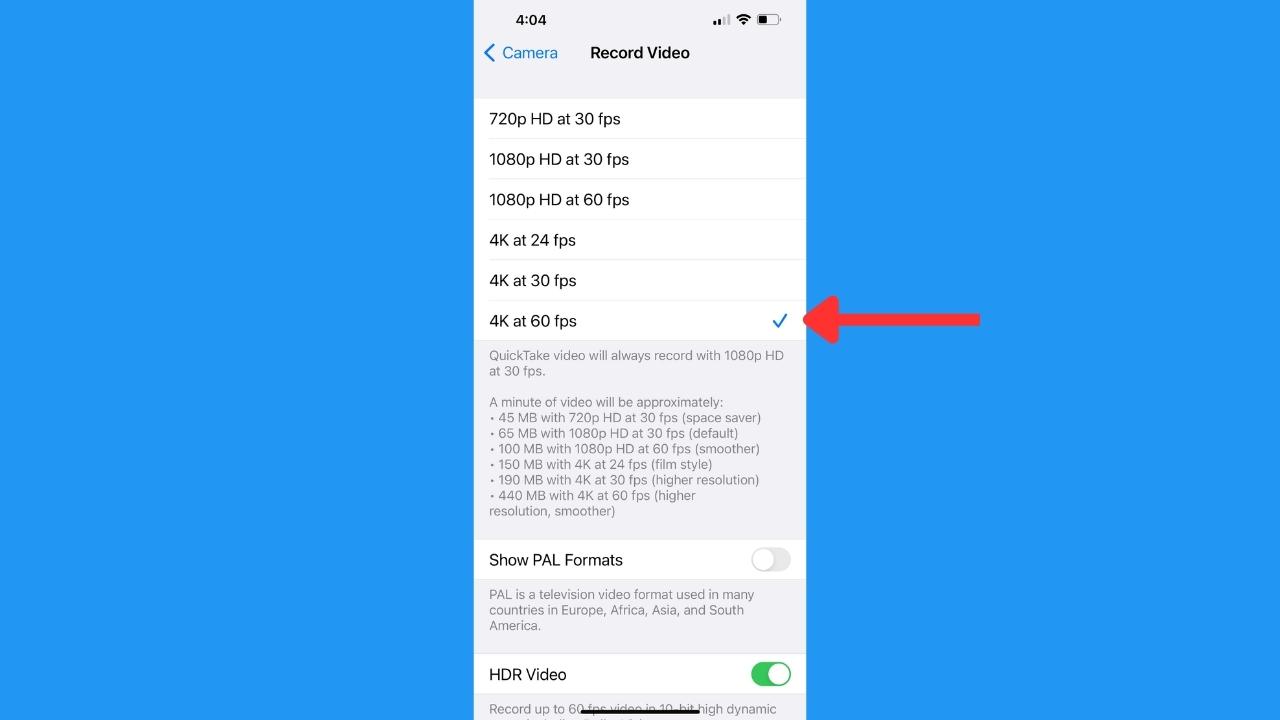
- Go back and tap Record Video
- Then, select the highest option – in the case of this iPhone 14 Pro Max you can select 4K at 60 fps
- If you have the option, toggle on HDR Video (High efficiency)
How to enable HDR10+ videos and adjust the resolution and frame rate on your Android
Settings may vary depending on your Android phone’s manufacturer. We tested and verified the steps on the Samsung Galaxy S24 Ultra
- Open the Camera app.
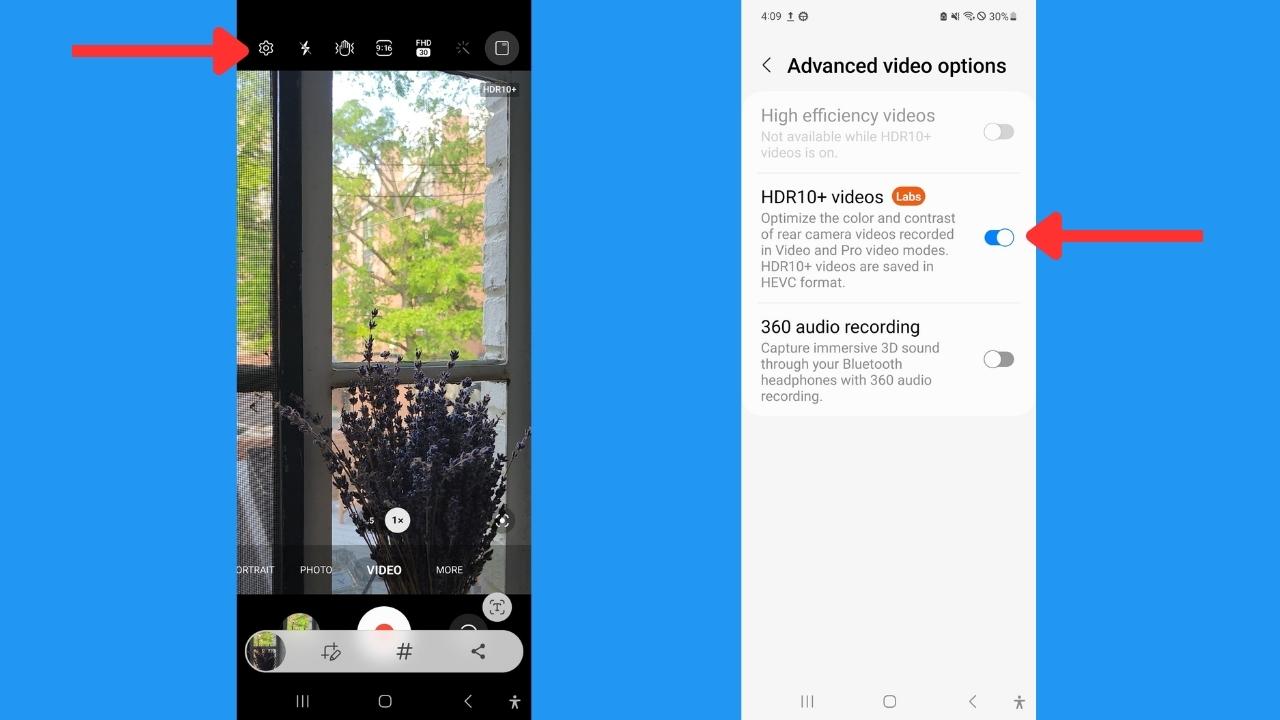
- Tap the Settings gear icon at the top, or on some devices, tap the four dots in a square, then the Settings gear icon.
- Scroll to the Videos section of the Settings and tap Advanced video options.
- Toggle on HDR10+ videos.
- Now return to your Camera app.
- Tap video – at the top where you see the Settings icon, you’ll see a new one that likely says FHD over a number (likely 30). If you tap this, you can select other options:
- FHD means Full High Definition.
- UHD means Ultra High Definition, meaning UHD is of higher quality.
- Now, selecting the number underneath UHD is adjusting the FPS, or the frames per second, meaning how many frames are captured in one single second of video.
- NOTE: HDR10+ video can only be enabled at 30 FPS. If you select 60 FPS, HDR10+ will automatically be disabled.
- The highest quality option here for HDR10+ video is UHD at 30 FPS.
Important factors when adjusting the resolution and FPS
As a reminder, while you will be taking higher-quality videos if you adjust your smartphone’s camera settings, you will also be using a lot more storage on your phone. Higher-quality videos and photos take up more space and are larger files overall, meaning they may not be able to be sent to others in the same way as your typical photos and videos.
You can send high-quality videos via Bluetooth or AirDrop, specifically if you are using an iPhone. To email larger quality videos, follow our steps on “How to send large videos on your phone” by clicking here.
Related:
- How to send large videos over email on your phone
- Say goodbye to your blurry videos on your phone with these tips and tricks
- Say goodbye to blurry videos
- How to determine how much storage is needed to back up your computer
Kurt’s key takeaways
So, if you want to level up your video game on social media, remember that adjusting your phone’s camera settings can give you that professional touch, although be prepared to sacrifice some storage space for the sake of crispness. It’s a trade-off, yet definitely worth it for those stunning, film-worthy shots.
Have you tried adjusting your phone’s camera settings to capture higher-quality videos? What challenges or limitations have you faced when dealing with larger file sizes and sharing high-quality videos with others?
FOR MORE OF MY SECURITY ALERTS, SUBSCRIBE TO MY FREE CYBERGUY REPORT NEWSLETTER HERE
A Texas mom says she spent the night in jail after speaking up online about dirty water in her town. The case was later dropped, but her story raises a troubling question: could something you post online ever put you at risk?

Missed this event? Sign up via the registration form and see our live recording.
See Kurt’s 2026 picks for practical tech and everyday upgrades.
Copyright 2025 CyberGuy.com. All rights reserved. CyberGuy.com articles and content may contain affiliate links that earn a commission when purchases are made.
🎙 Now Streaming: My New Podcast: The CyberGuy Report
Kurt’s Top Deals
Deals move fast and inventory can be limited, so don’t wait too long.
| 🔥 Editor’s pick  Summer entertaining Ninja SLUSHi Machine (26% off) Frozen drinks and slushies at home in minutes. | |
| 💰 Top deal  Outdoor essential TYPEC Solar Bug Zapper (36% off) Solar-powered bug zappers for patios and camping. |


