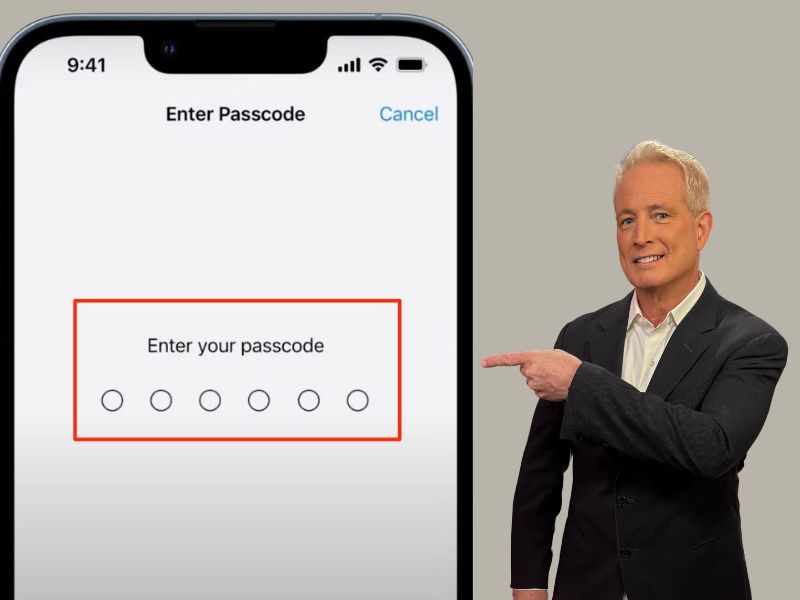
Have you ever stopped and thought, “Is my iPhone as secure as it could be?” Maybe your current passcode is a bit too easy to guess. The good news is that changing your iPhone’s passcode to something more robust is not only possible but pretty straightforward. Here are some easy steps to give your iPhone an extra layer of security.
How to change the passcode on your iPhone
- Open the Settings app
- Then scroll down until you find Face ID & Passcode and tap it
- When prompted, type in your current passcode
- Then scroll down to Change Passcode and click on it
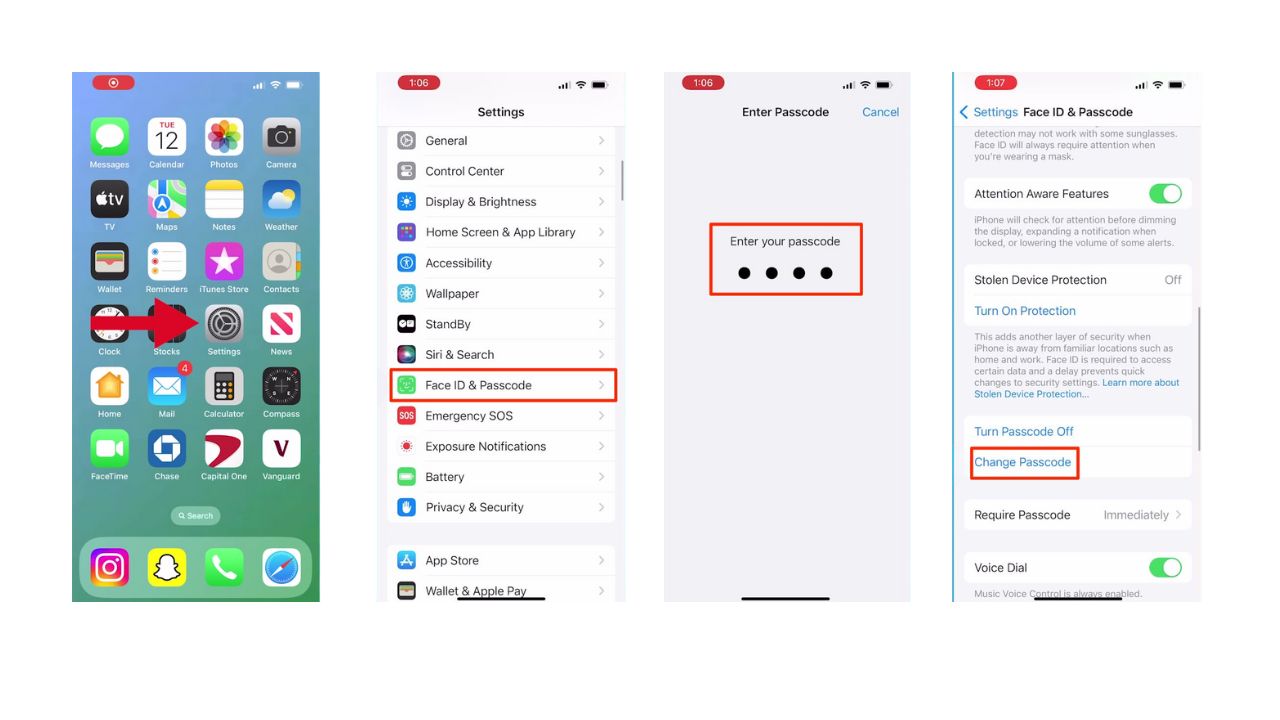
- Type in your current passcode
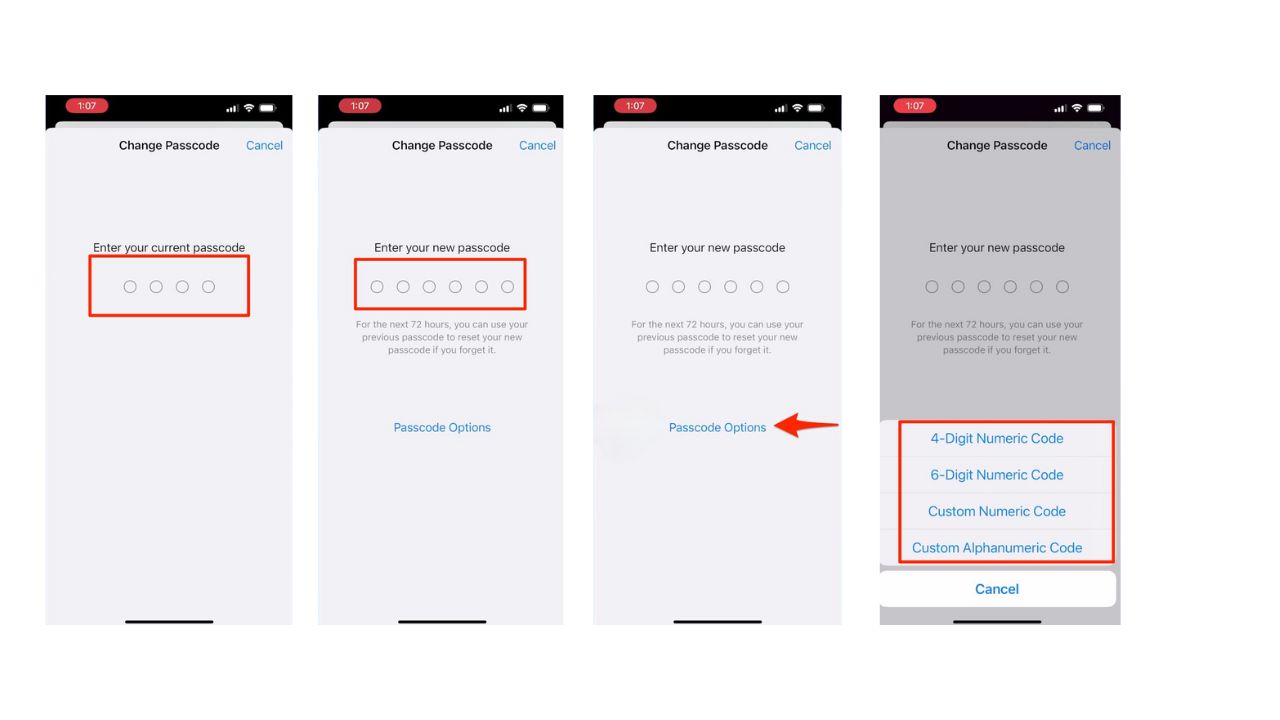
- Then, you’ll be prompted to type in a new passcode
- Before you do this step, there’s an advanced option at the bottom of the screen called “passcode options” that will allow you to choose from:
- 4-digit numeric Code
- 6-digit numeric Code
- Custom numeric Code
- Custom Alphanumeric Code
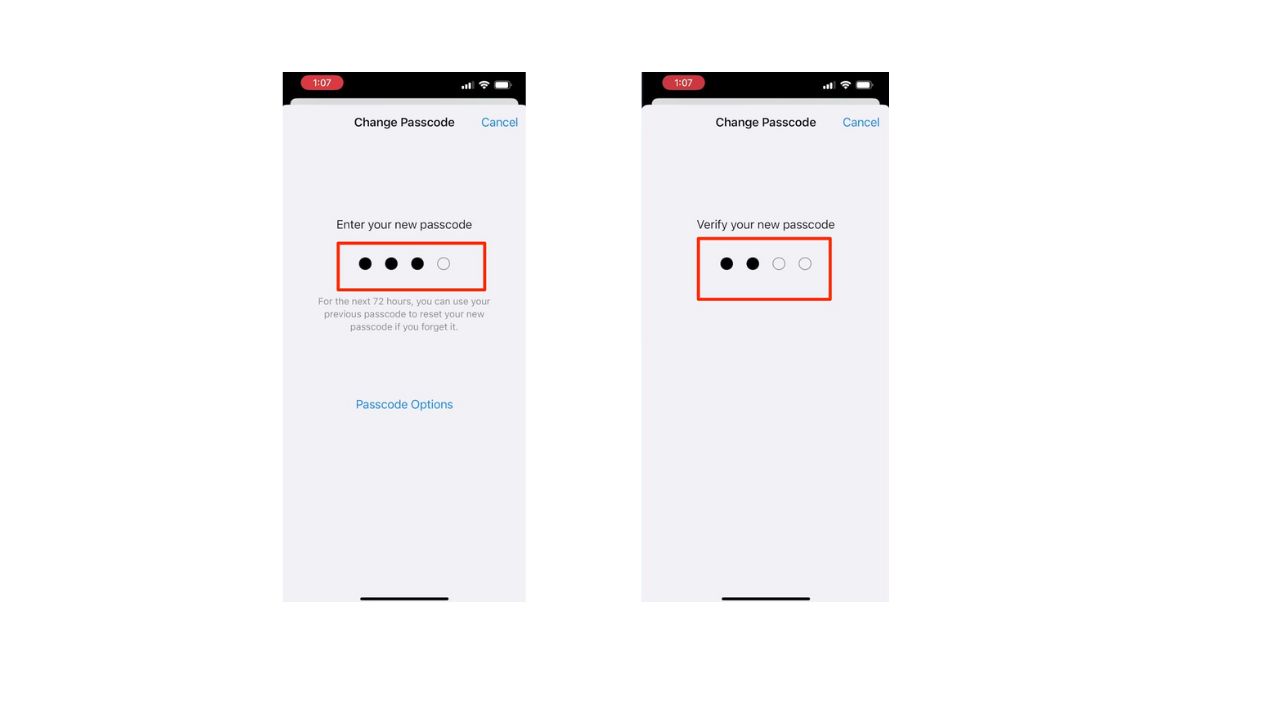
- Once you choose what you want your passcode to be, type in your new passcode
- To verify, type in your new passcode again
Remember, the longer and more complex your passcode, the tougher it is for prying eyes to sneak a peek as you type it in. Also, consider investing in a privacy screen. These screen protectors limit the viewing angle of your display, making it difficult for anyone besides you to see what’s on your screen. This adds an extra layer of security, especially when you’re in public.
Use strong and unique passwords
While a strong passcode and privacy screen are great first steps, there’s more you can do to secure your iPhone. What about those complex passwords you created? Remembering them all can be a nightmare. This is where password managers come in. Password managers take the burden off you. These apps generate strong, unique passwords for all your accounts and store them securely. It will help you to create unique and difficult-to-crack passwords that a hacker could never guess. Second, it also keeps track of all your passwords in one place and fills passwords in for you when you’re logging into an account so that you never have to remember them yourself. The fewer passwords you remember, the less likely you will be to reuse them for your accounts.
Use NordPass to check if your email or passwords have shown up in known data breaches, and take immediate action if they have.
CyberGuy Exclusive Deal: Save 52% now with CyberGuy’s exclusive NordPass offer – Get 1 extra month FREE with a 2-year plan. Try 30 days risk-free for only $1.43 per month!
Related Links:
- Best accessories for your phone
- 8 ways to lock up your private stuff on your iphone
- Top affordable cell phone plans
Kurt’s key takeaways
With a stronger passcode and some extra tricks like a privacy screen, your iPhone can be a fortress of security. Don’t forget to check out the password manager recommendations too – remembering strong, unique passwords for everything is a pain, but these apps can do the heavy lifting for you.
Beyond passcodes and passwords, what do you consider the biggest security risks for your iPhone? Let us know in the comments below.
FOR MORE OF MY TIPS, SUBSCRIBE TO MY FREE CYBERGUY REPORT NEWSLETTER HERE
A Texas mom says she spent the night in jail after speaking up online about dirty water in her town. The case was later dropped, but her story raises a troubling question: could something you post online ever put you at risk?

Missed this event? Sign up via the registration form and see our live recording.
See Kurt’s 2026 picks for practical tech and everyday upgrades.
Copyright 2026 CyberGuy.com. All rights reserved. CyberGuy.com articles and content may contain affiliate links that earn a commission when purchases are made.
🎙 Now Streaming: My New Podcast: The CyberGuy Report
Kurt’s Top Deals
Deals move fast and inventory can be limited, so don’t wait too long.
| 🔥 Editor’s pick  Summer entertaining Ninja SLUSHi Machine (26% off) Frozen drinks and slushies at home in minutes. | |
| 💰 Top deal  Outdoor essential TYPEC Solar Bug Zapper (36% off) Solar-powered bug zappers for patios and camping. |