



Ever watched a YouTube video and thought, “I need to share this exact moment with my friends”? Well, you’re in luck. Sharing specific moments from YouTube videos is actually pretty easy. Whether you’re on a computer, iPhone, or Android device, I’m here to show you how easy it is to do just that.
On your computer: Two simple options
The right-click method
- Head to Youtube.com and locate and click on the video you want to send to someone.
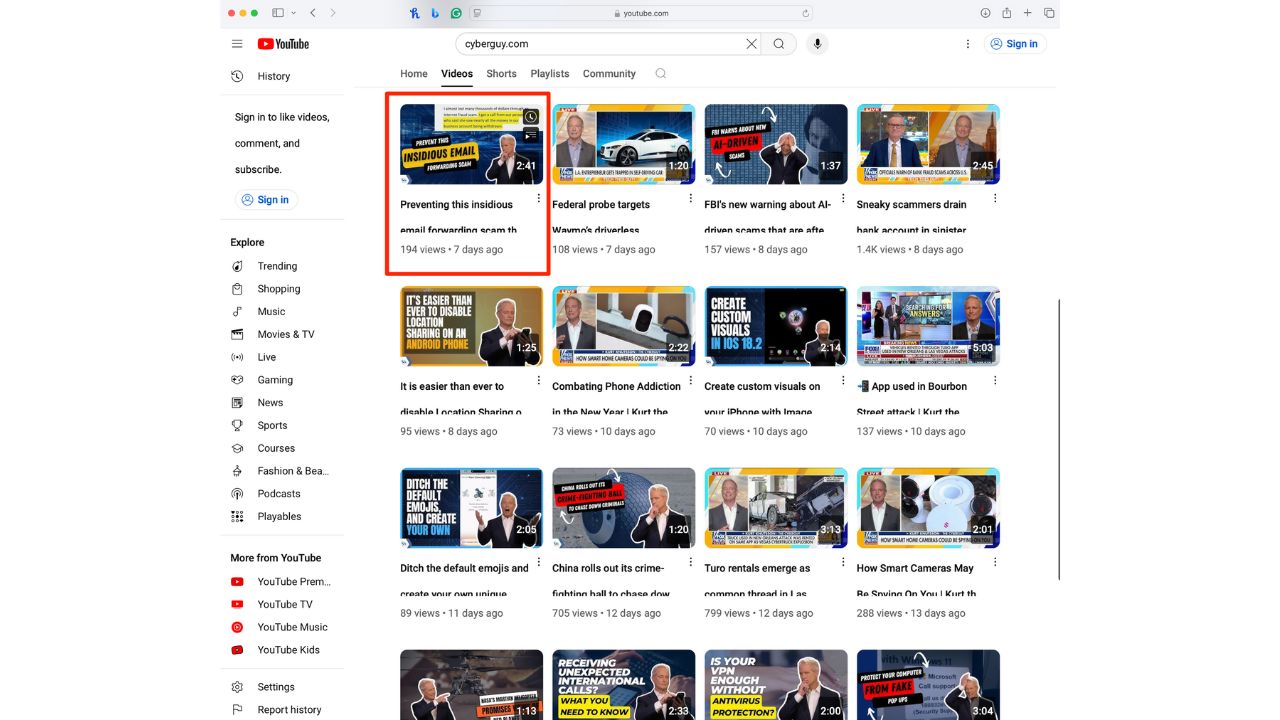
- Pause the video at the exact moment you want to share.
- Right-click inside the video frame and select “Copy video URL at current time.”
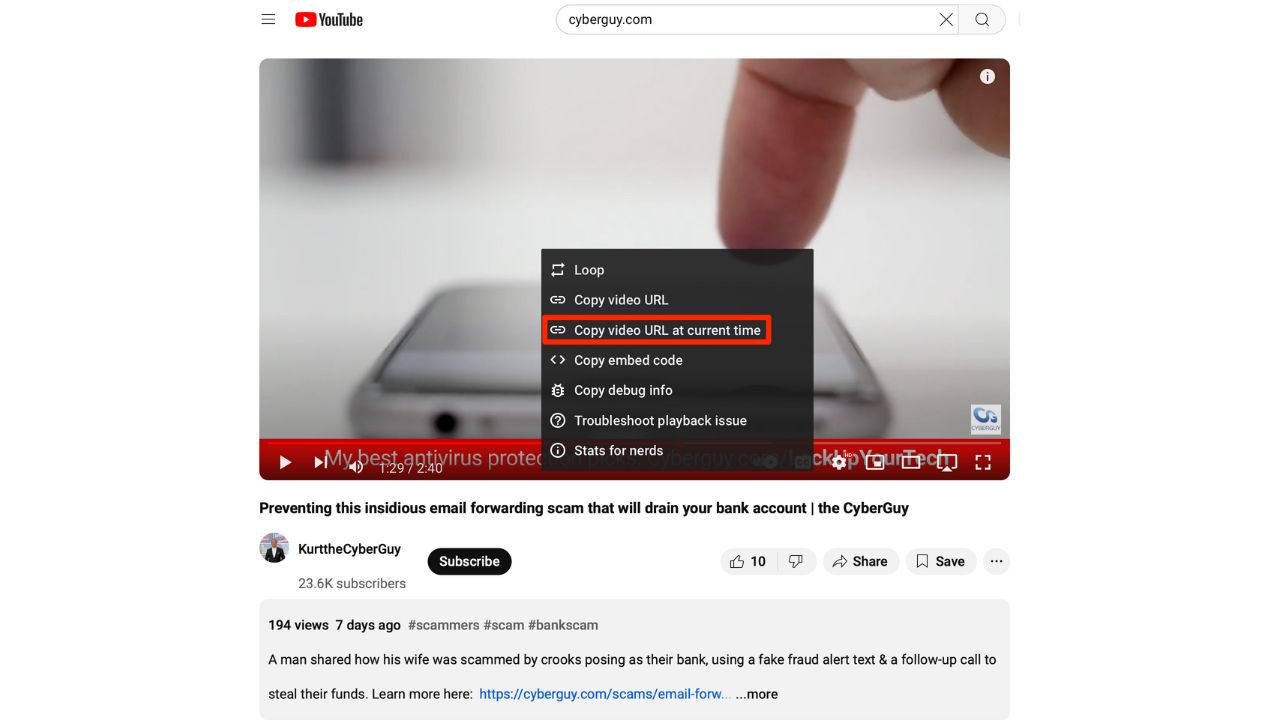
- That’s it. You’ve got your timestamp link. Paste it wherever you’d like—in an email, message, or on social media.
The share button method
- Head to Youtube.com and locate and click on the video you want to send to someone.
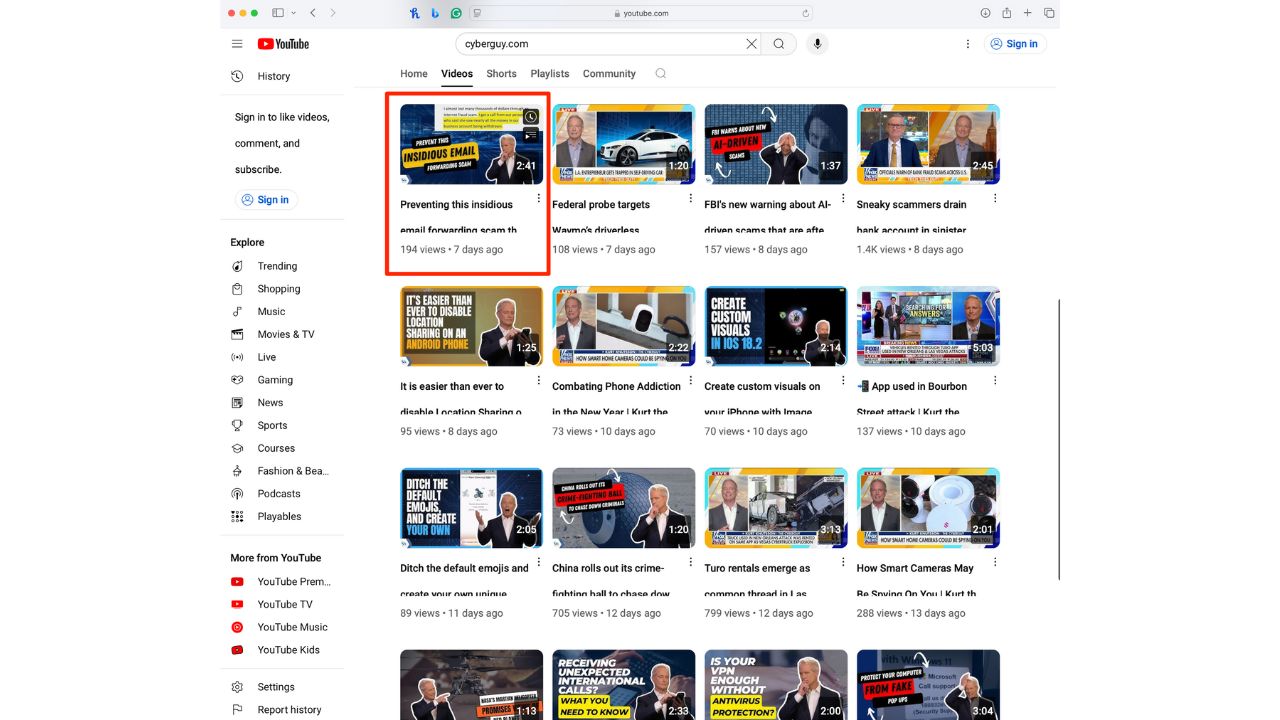
- Pause the video at the desired moment.
- Click the “Share” button under the video.
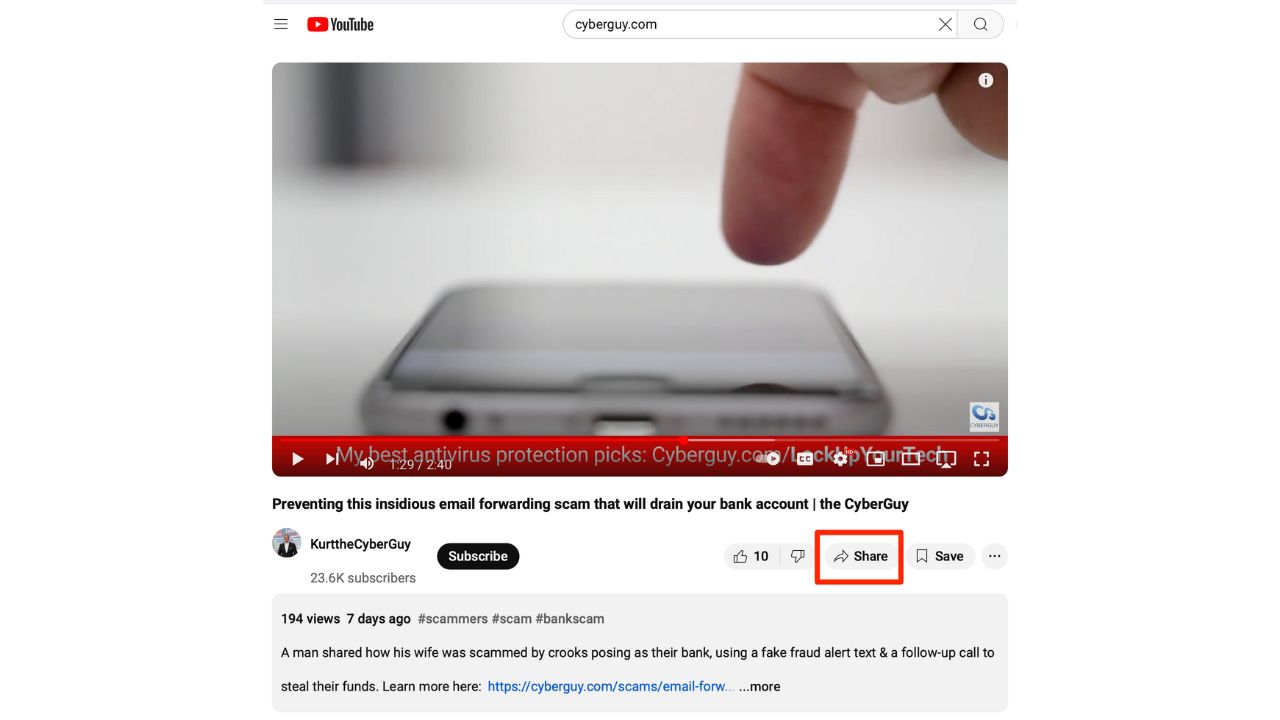
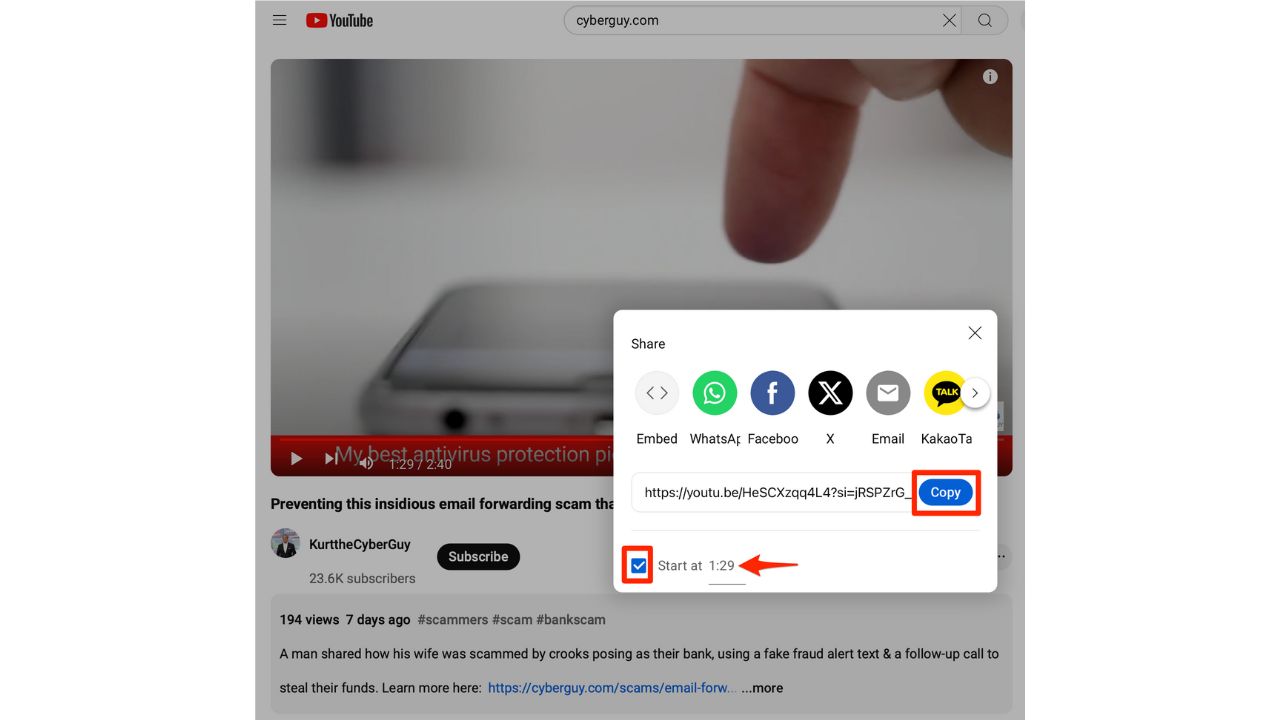
- Check the box next to “Start at” to adjust your desired start time if necessary.
- Copy the link.
- Your timestamped link is ready to share. Paste it wherever you’d like—in an email, message, or on social media.
On your iPhone (using the Safari browser)
- Open Safari on your iPhone.
- Tap the address bar at the bottom of the screen.
- Look for an icon that resembles a box with two lines and tap it.
- Then tap the three horizontal dots on the bottom right of the screen.
- In the menu that appears, select “Request Desktop Website”.
- Navigate to YouTube.com, and find the video you want to send.
- Play the video and pause at the desired time.
- Tap the “Share” button below the video.
- Then click the “Start at” option, and it will display the current timestamp where you paused the video earlier.
- Adjust if needed, then share or copy the link.
On your Android
YouTube has recently introduced a new, simplified method for sharing video timestamps on Android.
Settings may vary depending on your Android phone’s manufacturer
- Open the YouTube app on your Android device.
- Find and play the video you want to share.
- Pause the video at the desired timestamp.
- Tap the “Share” button below the video.
- In the share menu, you’ll see a new toggle labeled “Start at [current timestamp].”
- Enable this toggle to include the timestamp in your shared link.
- Choose your preferred sharing method or tap “Copy link” to copy the timestamped URL to your clipboard.
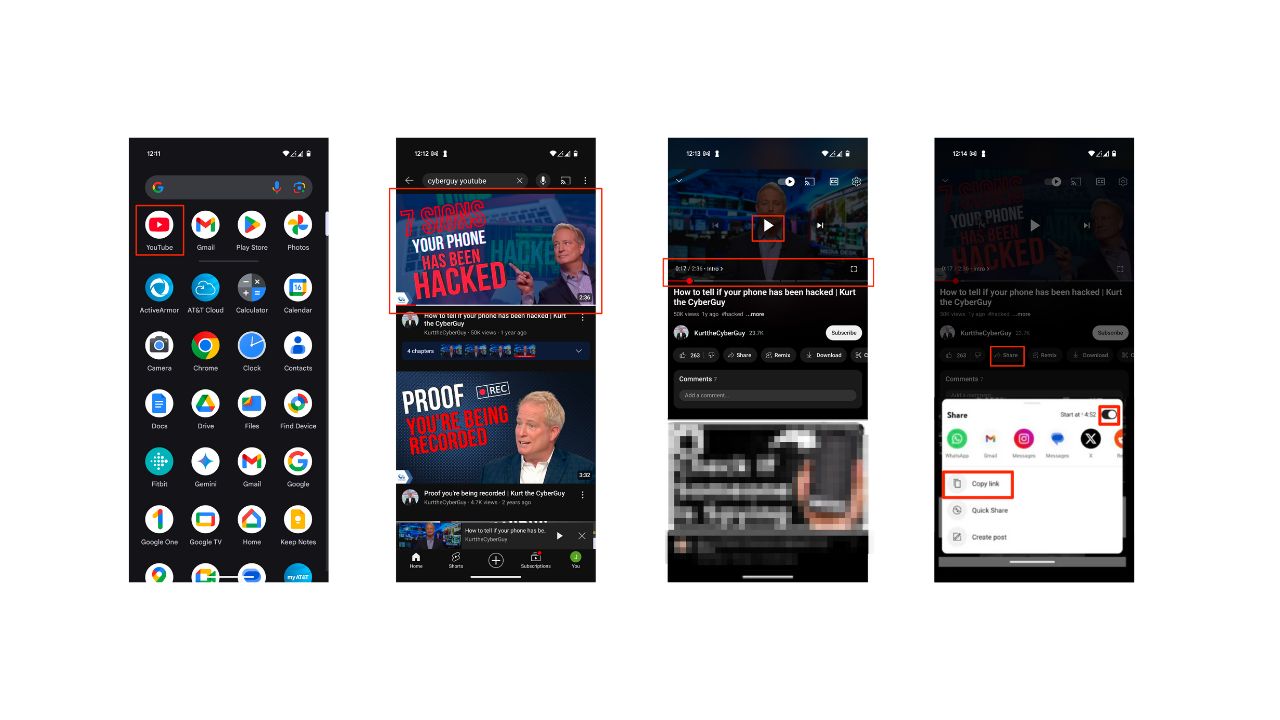
These updated steps make sharing timestamps much simpler, as you no longer need to use Chrome or request the desktop site. For those using older versions of the YouTube app or Android OS or if the update isn’t yet available on your device, here are the previous steps:
Settings may vary depending on your Android phone’s manufacturer
Watch the latest episode of The CyberGuy Report.


Missed this event? Sign up via the registration form and see our live recording.
See Kurt’s latest Amazon picks for useful gadgets, smart home upgrades and everyday tech worth grabbing while the deals last.
- Open the YouTube app.
- Find and play the video you want to share.
- Pause the video at the desired timestamp.
- Tap the “Share” button and then “Copy link”.
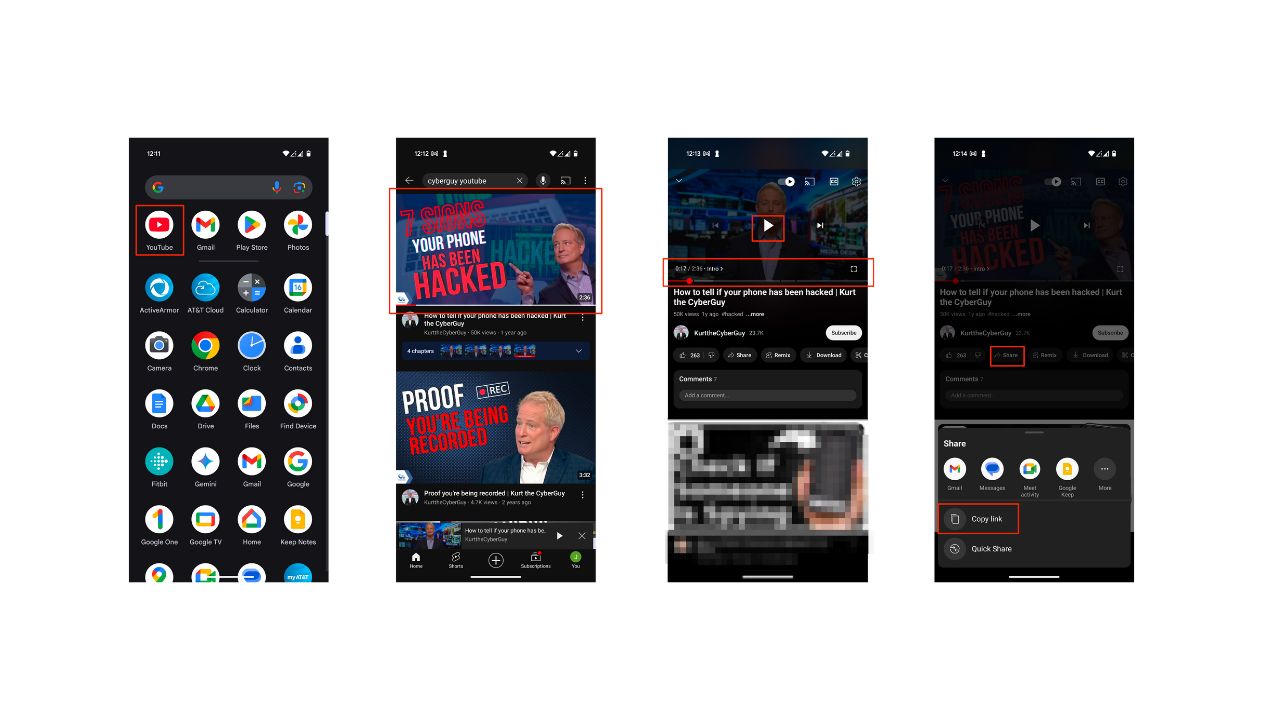
- Open Google Chrome, paste the link in the address bar or click where it says, “Link you copied” and load the video.
- Tap the three-dot menu icon
- Click “Desktop site.”
- Play the video and pause at the desired start time.
- Tap the “Share” button again, check the box next to “Start at,” and the current timestamp will be automatically filled in.
- Tap “Copy” to get the timestamped URL.
- Now, you can easily share the timestamped URL via your preferred messaging app or social media platform.
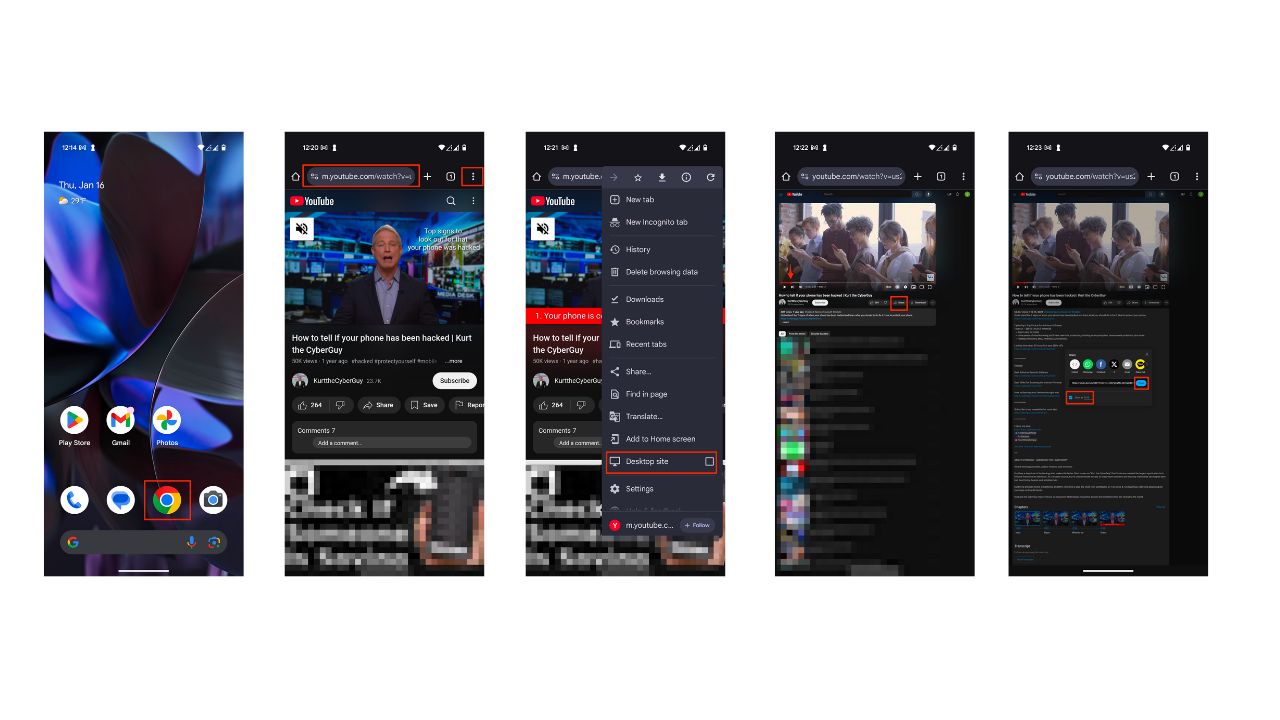
Both methods allow you to share specific moments in YouTube videos on your Android, but the new process is more streamlined and user-friendly.
- 5 Tips for Starting a YouTube Channel
- How to send large videos over email on your phone
- How to transfer photos and videos off your phone
Kurt’s key takeaways
Sharing specific parts of a YouTube video has never been easier. Whether you’re on a computer, iPhone, or Android device, these steps ensure that your friends and family get to the exact moment you want them to see. Try it out and streamline your sharing experience.
Now that you know the steps to share an exact moment, follow our guide and share a specific part of our video with your friends right away. Don’t forget to let us know their reactions in the comments below
TO GET MORE OF MY SECURITY ALERTS, SUBSCRIBE TO MY FREE CYBERGUY REPORT NEWSLETTER