



Exploring the world is an incredible experience, but let’s be honest – international travel can sometimes be a bit of a headache. From navigating new cities to communicating in different languages, there are plenty of potential hiccups along the way.
But don’t worry, your iPhone has got your back. Whether you’re getting lost in the winding streets of Rome or trying to order food in Tokyo, your iPhone is a trusty travel companion that can help you navigate unfamiliar territories, bridge language barriers, and make the most of your global adventures. Here are 5 ways your iPhone can make travel better and turn those potential frustrations into a breeze.
1) Notes App
The Notes app is a native app that comes with most iPhones. It can be helpful for everything from making grocery lists to a travel packing list. The best part of this app is that it is already on your iPhone; you can make these lists ‘checkable,’ and you can share them with others. Follow these steps:
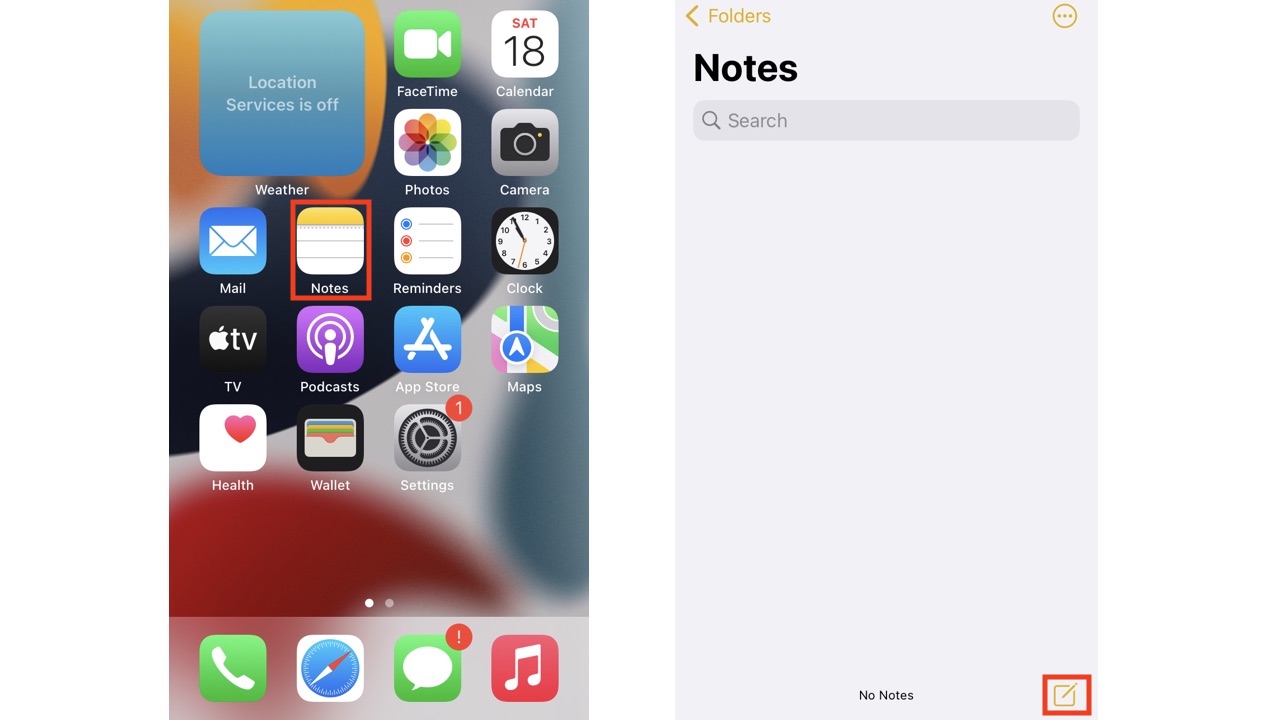
- Unlock your iPhone, and tap on the ‘Notes’ App
- On the lower right corner, tap the note and pen icon
-
- Tap the capital and lowercase ‘A’ icons to choose the font or style of your text, then tap the X in the right-hand corner
- Next, tap the checklist icon to create the bubble
- Type each item on your list and hit return after each to create a new bubble
- Tap ‘Done’ in the top right corner if you are done writing your list
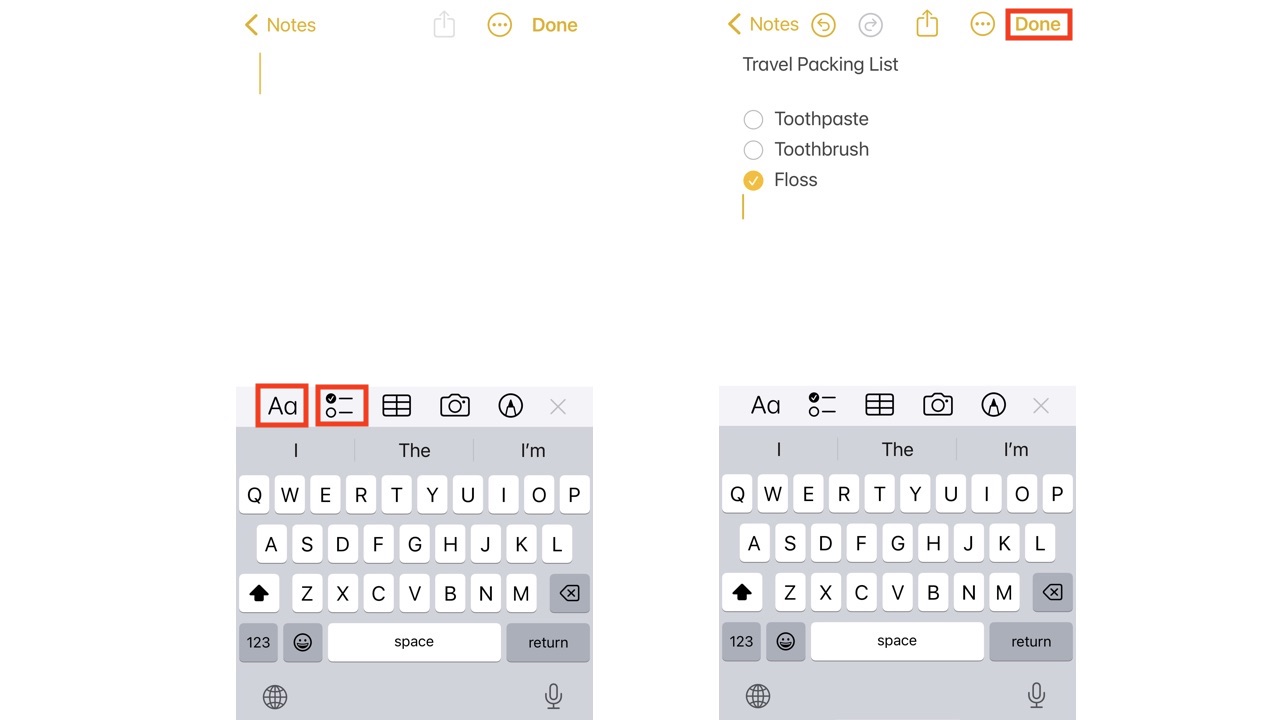
- Then, while you are packing, tap the bubble to check it off
- A window may pop up asking, “Enable Automatic Sorting? ‘Would you like checked items to automatically move to the bottom of your lists? You can change this later in Notes Settings.’ Click either Enable Sorting or Not Now

Here’s how to protect your Apple iPhone notes while on the road.
2) Translate App
Another native app on an iPhone is the Translate app. This app not only will help you communicate with others in languages other than your native tongue. Follow these steps:
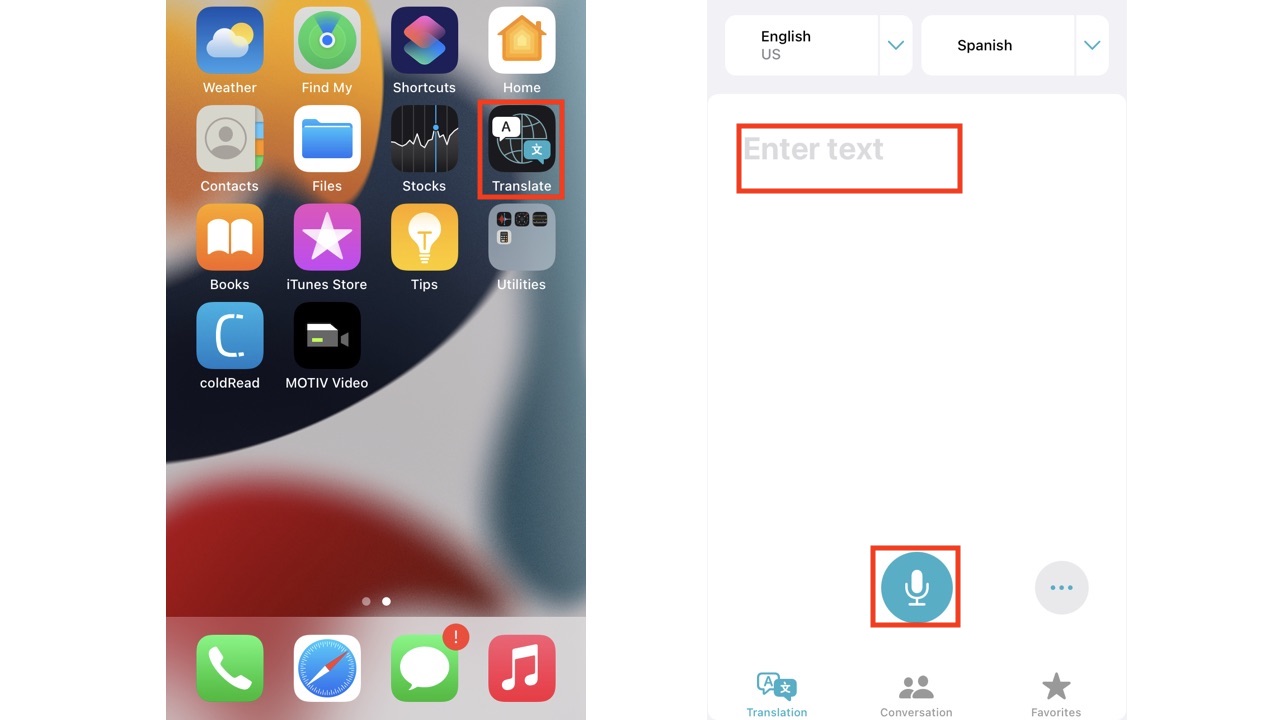
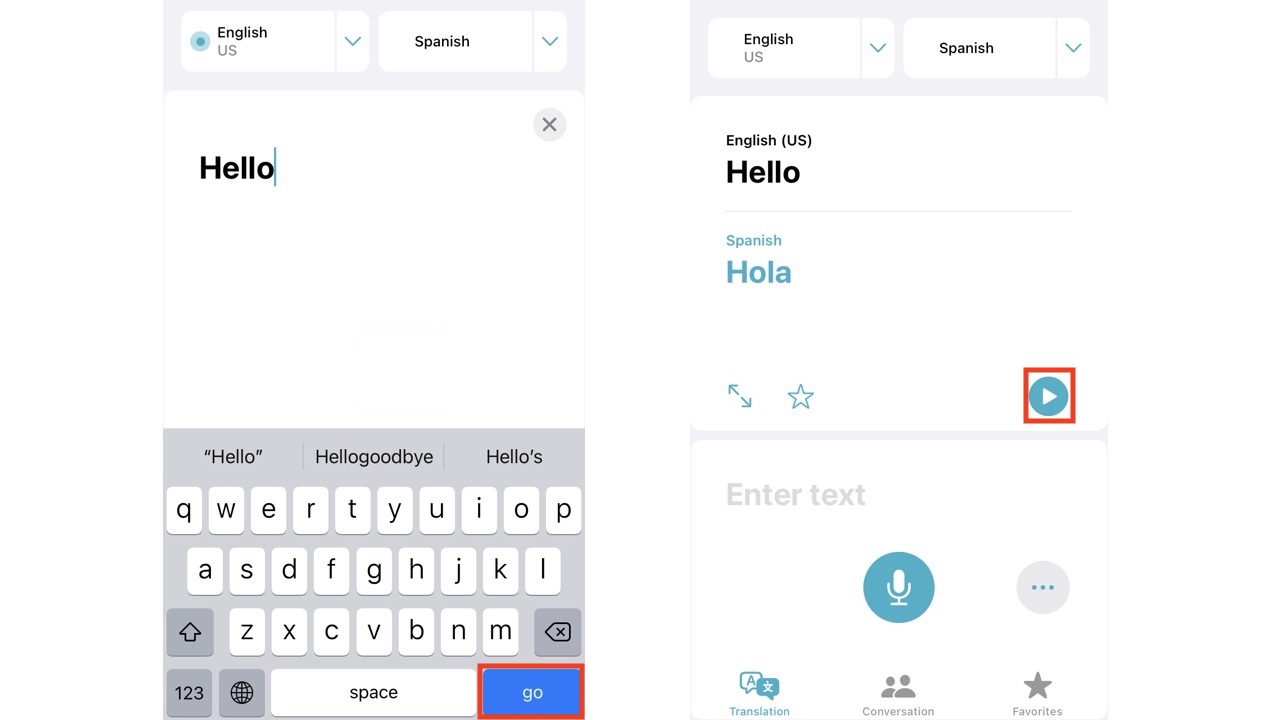
- Unlock your iPhone, and tap on the ‘Translate’ App
- You can select the languages you desire at the top if they aren’t already set to the languages you desire. Your language should come first and the desired translated language second. Use the drop-down menu to select language otherwise
- Tap directly where it says ‘Enter text,’ then hit ‘Go’ or Tap the microphone icon to speak the words you want to be translated and it will populate automatically
- You can see the result in the written word and hit the ‘play’ icon if you want to hear the translated word
In a recent iOS update, Apple introduced a nifty feature that allows you to translate languages instantly: without even opening the Translate app. This feature utilizes the ‘Dynamic Island,’ a pill-shaped area at the top of the iPhone screen that can change size and shape to accommodate various types of alerts, notifications, and interactions, turning it into a kind of front-and-center information hub. The Dynamic Island feature is available on the iPhone 15 models, which includes the iPhone 15, iPhone 15 Plus, iPhone 15 Pro, and iPhone 15 Pro Max. To learn more, check out our article on How to turn your iPhone into an instant foreign language translator.
Watch the latest episode of The CyberGuy Report.

Missed this event? Sign up via the registration form and see our live recording.
See Kurt’s latest Amazon picks for useful gadgets, smart home upgrades and everyday tech worth grabbing while the deals last.
3) Text scanner
With iOS 15 or later, you can use your iPhone’s built-in camera to scan any text. This is especially great for translating text written in a foreign language. You can choose to copy, select, look up, translate, or share any text you scan. Follow these steps:
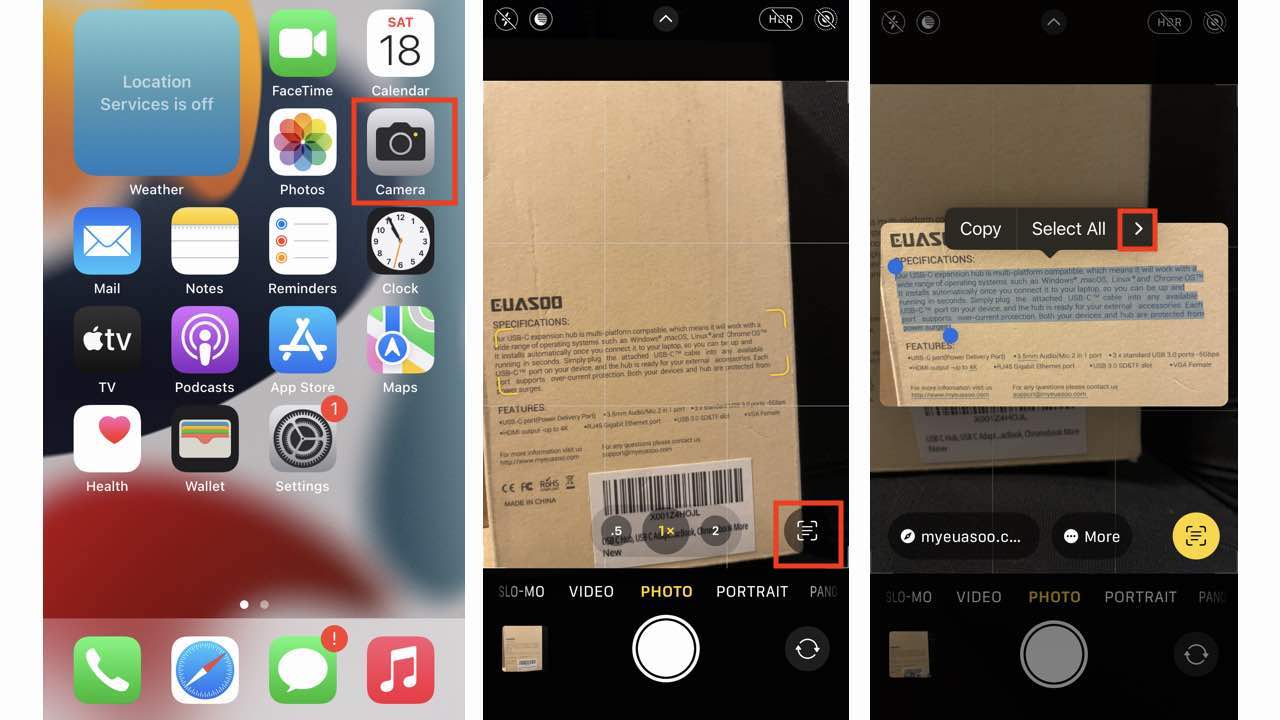
- Unlock your iPhone, and tap on the ‘Camera’ App
- Put the object or text within view
- Give it a moment, but a yellow frame should appear, allowing you to detect the text
- Options should populate above the yellow frame, tap the arrow to get to more options
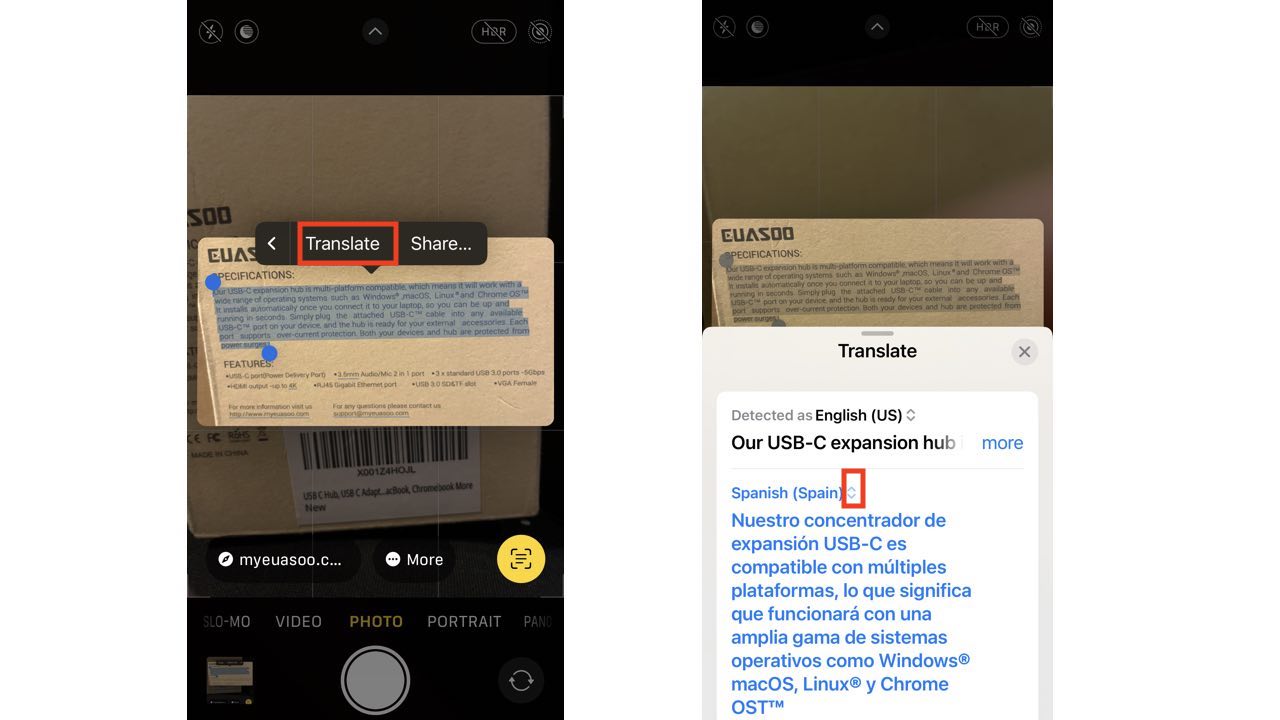
- Tap ‘Translate,’ and it will open the translate function in another window
- It automatically detects the language it is originally in and offers a translation into another language, which you can change using the drop-down menu
4) Sharing your location for international travel with iPhone
When traveling abroad, being able to share your location with friends and family back home can provide peace of mind and make it easier to coordinate meetups or share your whereabouts. The iPhone offers a convenient way to do this through the built-in Location Sharing feature. Follow these steps:
Using Apple ID for Location Sharing
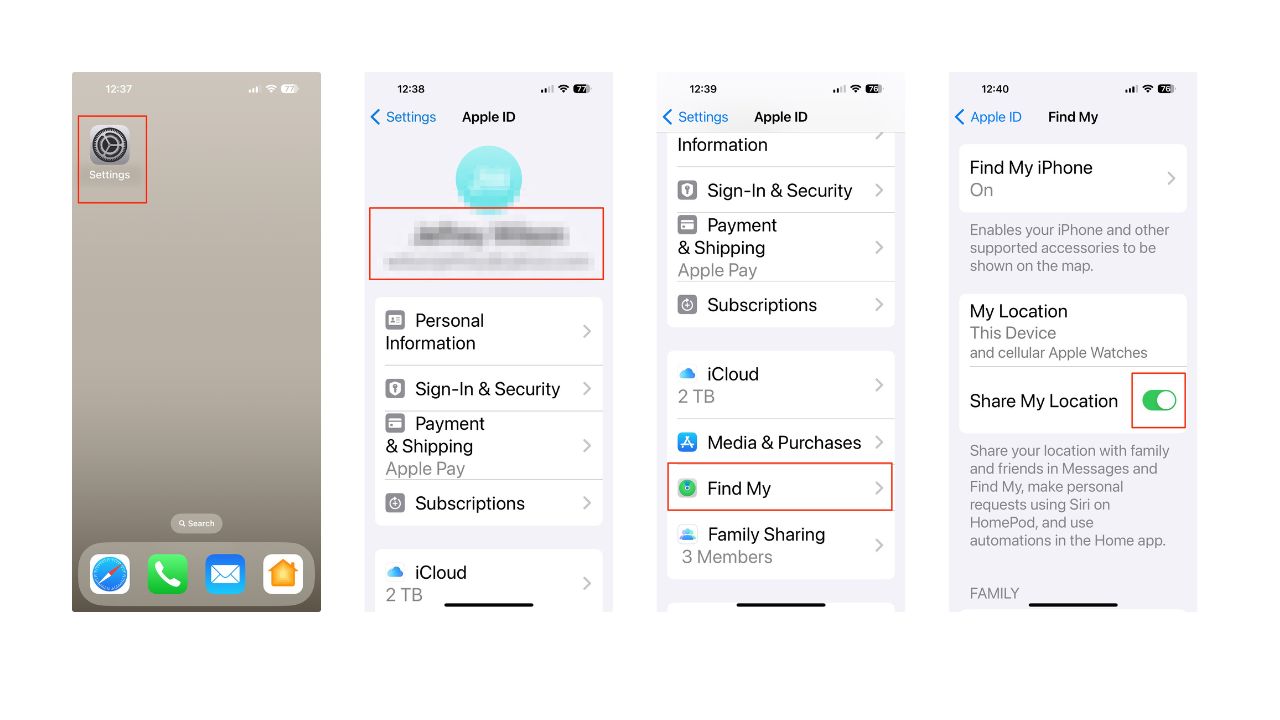
- Open the Settings app on your iPhone
- Tap on your name at the top of the Settings menu
- Tape Find My
- Tap on the “Share My Location” toggle to turn it on
- After enabling location sharing, you can select contacts with whom you want to share your location. You can do this by going into the ‘Find My’ app
- Selecting ‘People’
- Next, tap on the + sign.
- Then select ‘Share My Location’
- Select the contact or contacts with whom you want to share your location
- Then tap Send
- You can also set a duration for how long you want to share your location with each contact.
- Then tap OK
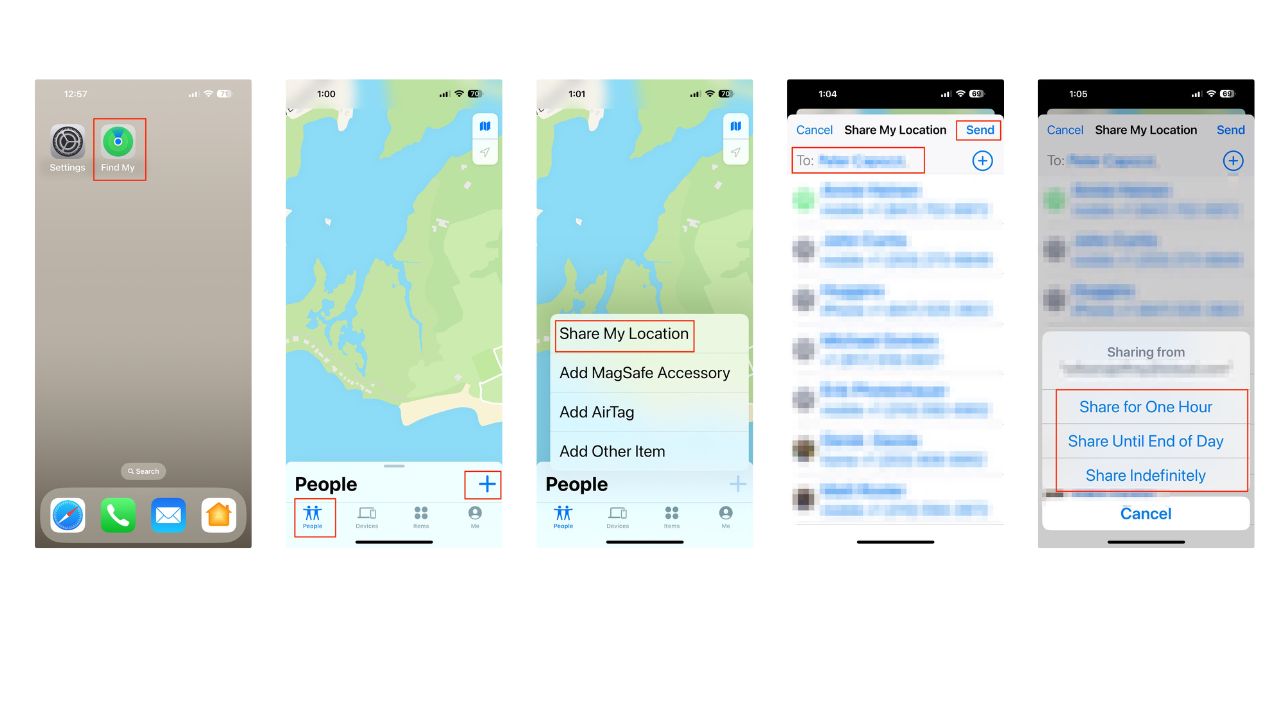
By sharing your location while traveling internationally, your loved ones can easily keep track of your whereabouts, ensuring your safety and making it easier to coordinate meetups or activities during your trip. This feature can be particularly useful when exploring unfamiliar areas or if you get separated from your travel companions.
5) Emergency services
It is a worst-case scenario to find yourself in a dangerous or life-threatening situation while traveling internationally. Time is of the absolute essence, so if you don’t have time to call or explain your condition, have a quick and easy way to alert your trusted contacts and let them know where you are and how they can help you.
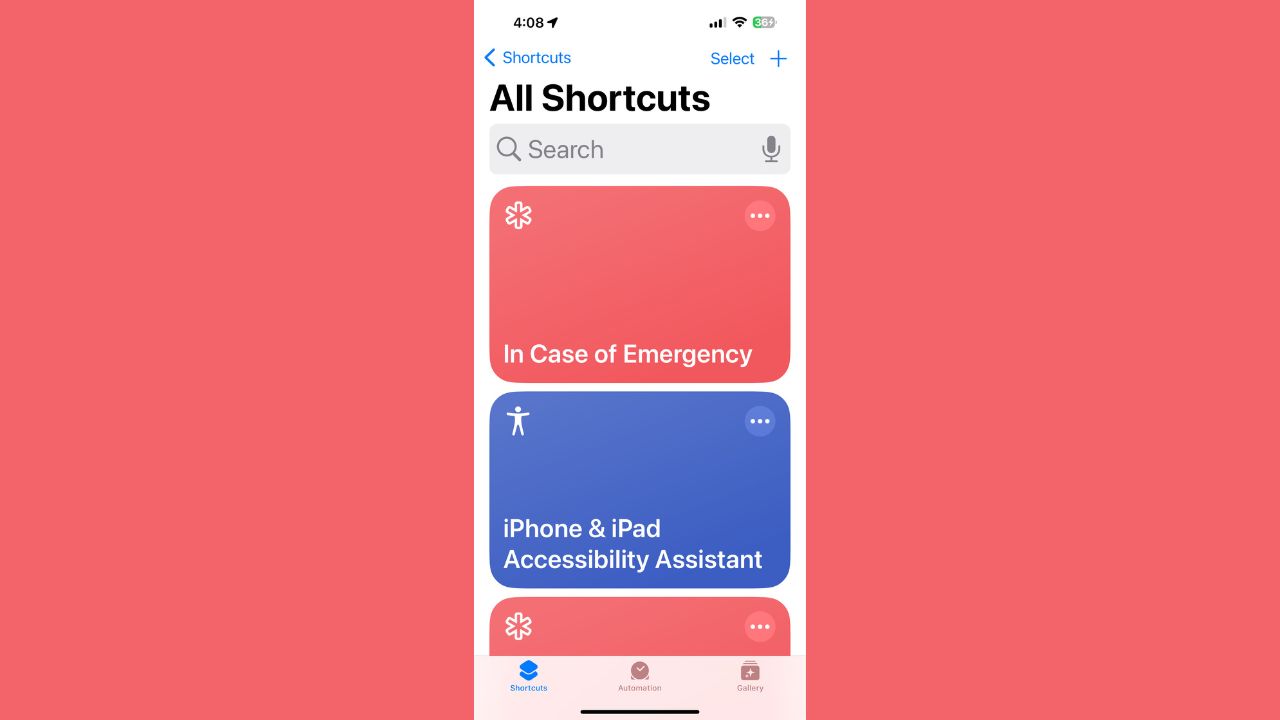
Fortunately, there is a shortcut called the ‘In Case of Emergency’ shortcut. This shortcut can send a message to your emergency contacts with your location and display a message on your screen with any relevant information. To learn a step-by-step guide to set it up, read our Emergency iPhone shortcut article, which could save your life.
More: How to stay connected on your phone while traveling abroad
Related Links:
- Best travel adapters
- 5 great tips for planning your next travel getaway
- How to protect an iPhone & iPad from malware
- 10 ways tech can make your vacation a whole lot better
- Best travel gear
- The app that lets you have a live conversation in any language even if you don’t speak a word of it
Kurt’s key takeaways
Your iPhone isn’t just for selfies and socials; it’s your trusty sidekick as you embark on your next international trip. Whether it’s keeping your travel must-haves in line with the Notes app or chatting up locals with the Translate app, your iPhone’s got your back. You already have your iPhone on you at all times, even when you’re going about your daily life. Why not use its features to make your travel adventures more organized, easier, and safer?
Are there any travel challenges you’ve faced that you wish your iPhone could solve? Share your ideas with us. Let us know by commenting below.
FOR MORE OF MY SECURITY ALERTS, SUBSCRIBE TO MY FREE CYBERGUY REPORT NEWSLETTER HERE
🎙 Now Streaming: My New Podcast: The CyberGuy Report
Kurt’s Top Deals
Deals move fast and inventory can be limited, so don’t wait too long.
| 🔥 Editor’s pick  Summer entertaining Ninja SLUSHi Machine (26% off) Frozen drinks and slushies at home in minutes. | |
| 💰 Top deal  Outdoor essential TYPEC Solar Bug Zapper (36% off) Solar-powered bug zappers for patios and camping. |


2 comments
How do I use my iPhone 14 internationally to make and receive calls, texts, emails, FaceTime, with family in the US and family friends in county I am in. Mainly Europe And how much does it cost?
Hi Kate, please see our article here on this topic.