



If you’ve updated to iOS 26, you might have noticed something new in the Photos app and on your Lock Screen: Spatial Scenes. It’s Apple’s way of giving flat photos a 3D-like effect, making them shift and move as you tilt your iPhone. The result feels alive, almost like you’re looking into a scene instead of just at a picture. And the best part? You don’t need the latest iPhone 17 or Apple Intelligence to try it. Spatial Scenes work on iPhone 12 and newer.

What are Spatial Scenes in iOS 26?
Think of Spatial Scenes as a way to give your photos new life. Instead of staying flat and static, your pictures gain depth and motion, almost like a moving diorama. Apple’s on-device AI analyzes the photo, separates the subject from the background, and then applies a parallax effect so the subject appears closer while the background shifts when you tilt your phone.
This isn’t the same as capturing a spatial photo with an iPhone 16 Pro Max, which uses special hardware. Spatial Scenes are AI-powered and work with almost any photo in your library. If you’ve tried other new iOS 26 features like Liquid Glass, this fits right in with Apple’s push to make your phone feel more dynamic and personal.
Apple iPhones that support Spatial Scenes
Spatial Scenes in the Photos app work on iPhone 12 and newer, and they do not require Apple Intelligence. Capturing spatial photos, however, is limited to the iPhone 16 and newer, though this feature also does not require Apple Intelligence. You can also set Spatial Scenes on your Lock Screen as long as you’re using an iPhone 12 or later, again with no Apple Intelligence needed.
How to use Spatial Scenes in the Photos App on iPhone
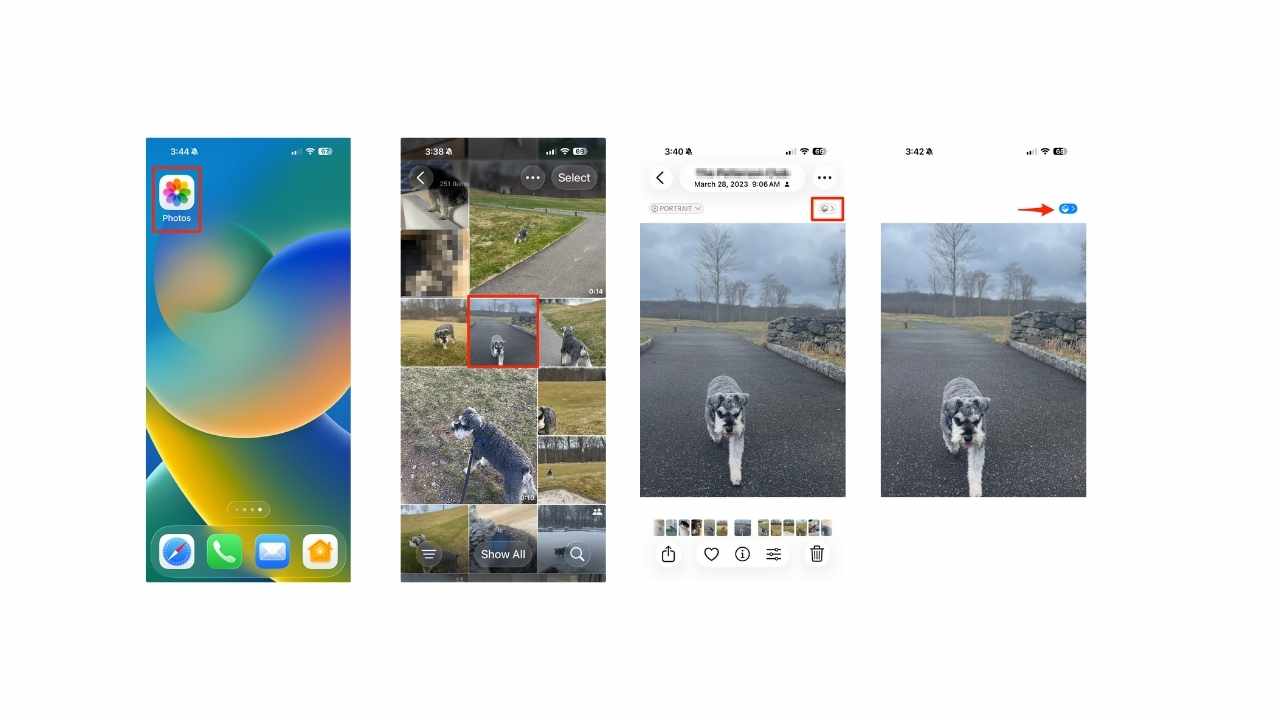
You can add depth to photos directly in the Photos app:
- Open Photos on your iPhone running iOS 26.
- Pick an image with a clear subject.
- Tap the hexagon icon in the top-right corner.
- Spatial Scenes will activate, giving the photo motion.
- Tilt or move your iPhone slightly to see the depth effect.
Pro tip: Portrait-style shots or photos with strong foreground subjects work best.
How to use Spatial Scenes on the Lock Screen on iPhone
Apple didn’t stop with Photos; you can also bring your Lock Screen to life.
- Press and hold (long-press) your current Lock Screen.
- Tap the “+” button to create a new Lock Screen.
- You’ll see wallpaper options, including ones labeled Spatial Scenes or showing photos suggested from your library that may be compatible.
- Select a photo. Before committing, look for the hexagon icon (often near the image preview tools or toolbar). Tapping that generates the Spatial Scene effect (“Generating Spatial Scene”).
- After the scene is generated, you can adjust cropping / positioning if needed.
- Then tap Add or Set as Wallpaper / Save (often in top right) to set it. Sometimes Apple offers “Set as Wallpaper Pair” to also include Home Screen.
Every time you wake your iPhone, your Lock Screen will display a subtle, moving effect.

Alternate option: Use Live Photo Motion on iPhone
If you prefer a short motion clip instead of the parallax effect, you can still use Live Photo wallpapers (supported since iOS 17).
- Go to Settings > Wallpaper > Add New Wallpaper.
- Tap Photos.
- Tap Live Photo, pick one from your library, and make sure the Play icon is enabled.
- Tap Add and set it as your Lock Screen.
When you wake your phone, the Live Photo animates briefly before settling.
Tips for better Spatial Scenes
- Avoid blurry photos: The AI works best with sharp edges.
- Choose strong subjects: People, pets, and buildings stand out more than flat landscapes.
- Keep it subtle: The effect shines with gentle tilts, not dramatic shakes.
Can you turn off Spatial Scenes?
Yes. Just tap the same hexagon icon in Photos or toggle off Spatial Scenes when customizing your Lock Screen. The photo will go back to a classic flat image.
How one convincing SSA scam nearly tricked a reader, and the five red flags to check before you click.

Join Kurt Saturday, June 13 at 10 AM ET for quick phone privacy and security fixes.
See Kurt’s 2026 picks for practical tech and everyday upgrades.
Related Links:
- Even with Trump’s tariff blessing, Apple hikes iPhone 17 prices
- Apple Watch gets FDA-approved hypertension alerts
- Apple issues new spyware threat alerts to users
Kurt’s key takeaways
Apple is leaning hard into personalization, from custom app icons to new Messages backgrounds. Spatial Scenes fit right in, giving you a way to make even old photos feel new again. If you plan to upgrade this year to the iPhone 17 or the ultra-thin iPhone Air, pairing those displays with Spatial Scenes could make your phone feel brand new.
What feature would you like Apple to introduce next? Let us know your thoughts in the comments below.
FOR MORE OF MY TECH TIPS & SECURITY ALERTS, SUBSCRIBE TO MY FREE CYBERGUY REPORT NEWSLETTER HERE
Copyright 2025 CyberGuy.com. All rights reserved. CyberGuy.com articles and content may contain affiliate links that earn a commission when purchases are made.
🎙 Now Streaming: My New Podcast: The CyberGuy Report
Kurt’s Top Deals
Deals move fast and inventory can be limited, so don’t wait too long.
| 🔥 Editor’s pick  Summer entertaining Ninja SLUSHi Machine (26% off) Frozen drinks and slushies at home in minutes. | |
| 💰 Top deal  Outdoor essential TYPEC Solar Bug Zapper (36% off) Solar-powered bug zappers for patios and camping. |


