



Some people seem to never sleep. They send texts at all hours, making it feel like they have a superpower. If you have ever wanted that same ability, there is an easy way to schedule a text message to send at a specific time.
Scheduling texts can be useful in everyday situations. Maybe it is too late at night to send a message. Or maybe you want to be the first person to wish someone a happy birthday. Follow the steps below to start scheduling your text messages with ease.
Table of Contents:
How to schedule a text on an iPhone
You must be using iMessage with iOS 18, iPadOS 18, macOS Sequoia, watchOS 11, visionOS 2, or later. Your recipient can use any device, and they won’t know that the message was scheduled. You need to be online to reschedule, edit, or delete a scheduled message.
- Open Messages.
- Choose the person you want to text by selecting their contact and opening your conversation thread.
- Tap the plus (+) icon on the left side of the keyboard to open extra messaging options.
- Tap “Send Later”.

- Type out your message just as you normally would.
- Tap the blue date and time shown above your message to set exactly when you want it delivered.

-
- Press send, your phone will queue it up and automatically deliver it at the scheduled time.
- If needed, tap Edit to choose Send Message, Edit Time, or Delete Message.

How to schedule a text on an Android
The ability to schedule a text message on an Android is built right into the phone’s Message app. However, to be able to access this function, you must have an Android 7 or newer.
Here are the steps for scheduling a text message on an Android.
Settings may vary depending on your Android phone’s manufacturer
- Open Messages
- Select a contact and start a conversation
- Type the text message
- Press down and hold the Send button
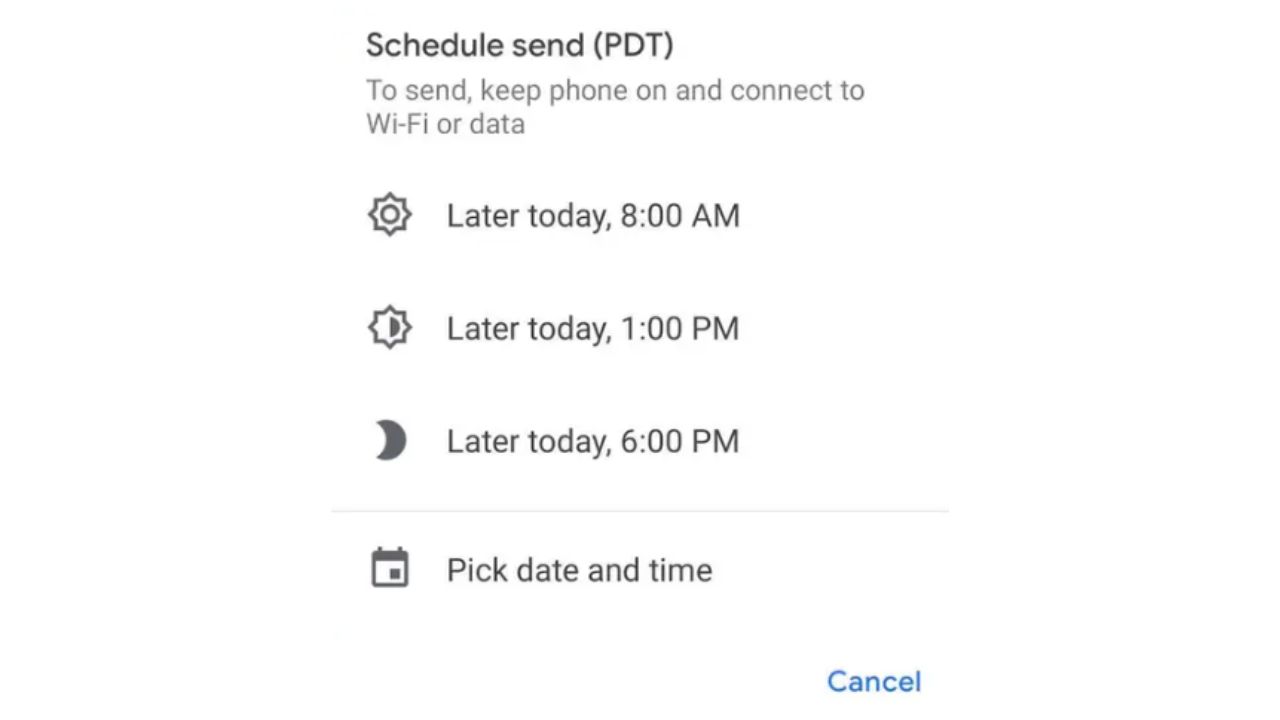
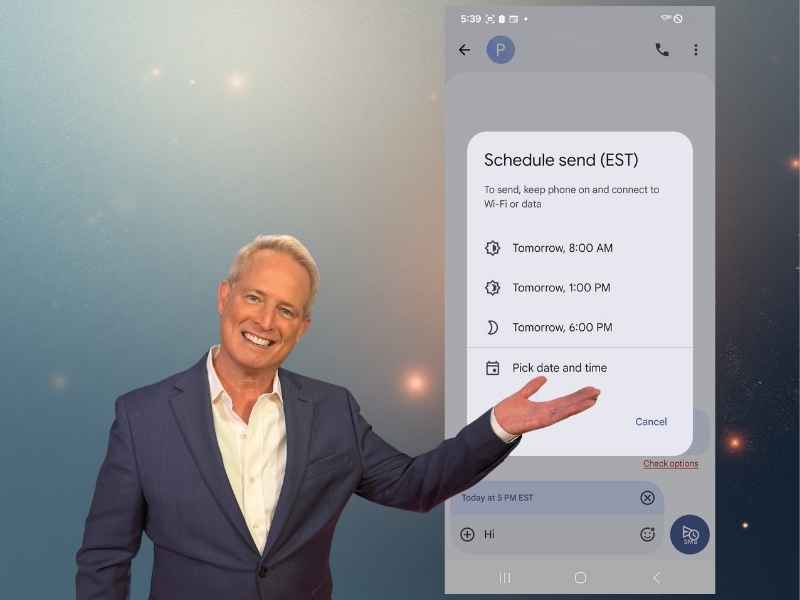
- The Schedule send box will appear, where you can choose a date and time for the text message to be sent
Related Links:
- How to change your privacy settings on an Android
- Send a fun message with these iPhone tricks
- 5 Phone settings to change right now for a safer smartphone
Kurt’s key takeaways
So now you know how to schedule your text messages on iPhone or Android with ease using these simple steps. Whether you want to send a message at a specific time or be the first to wish someone Happy Birthday, you can follow the instructions above to schedule your text messages and never miss a beat.
Have you ever wished you could schedule a text message on your phone? What would you use this feature for? Let us know by commenting below.
FOR MORE OF MY TECH TIPS, SUBSCRIBE TO MY FREE CYBERGUY REPORT NEWSLETTER HERE
Copyright 2026 CyberGuy.com. All rights reserved. CyberGuy.com articles and content may contain affiliate links that earn a commission when purchases are made.
🎙 Now Streaming: My New Podcast: The CyberGuy Report
Kurt’s Top Deals
Deals move fast and inventory can be limited, so don’t wait too long.
| 🔥 Editor’s pick  Summer entertaining Ninja SLUSHi Machine (26% off) Frozen drinks and slushies at home in minutes. | |
| 💰 Top deal  Outdoor essential TYPEC Solar Bug Zapper (36% off) Solar-powered bug zappers for patios and camping. |


2 comments
I’m concerned that when I press and hold the “send” the message might go before I set the schedule delivery (e.g. get bumped while texting or not pressing firmly can get a “bounce”). Is there a way to set the schedule before typing the message to avoid this accident? If I try to send an empty message by mistake, will the app (Google Messages in this case) prevent this?
Hi Glenn, in Google Messages, you can only schedule a text after you’ve typed it and long‑pressed the send button, so there’s no way to set the schedule in advance before writing. If your press is too quick or gets bumped, the app may send the message right away instead of bringing up the scheduling menu, so it’s worth being deliberate when you press. One workaround is to type your message and leave it in draft until you’re fully ready to schedule, which avoids rushing the press. On the plus side, Google Messages won’t send an empty text — the app blocks blank messages – so if you accidentally press without typing anything, nothing will be sent.