



Welcome back to Beyond Connected! Thanks for listening in, and if you like what you hear, come back every Wednesday for a new episode.
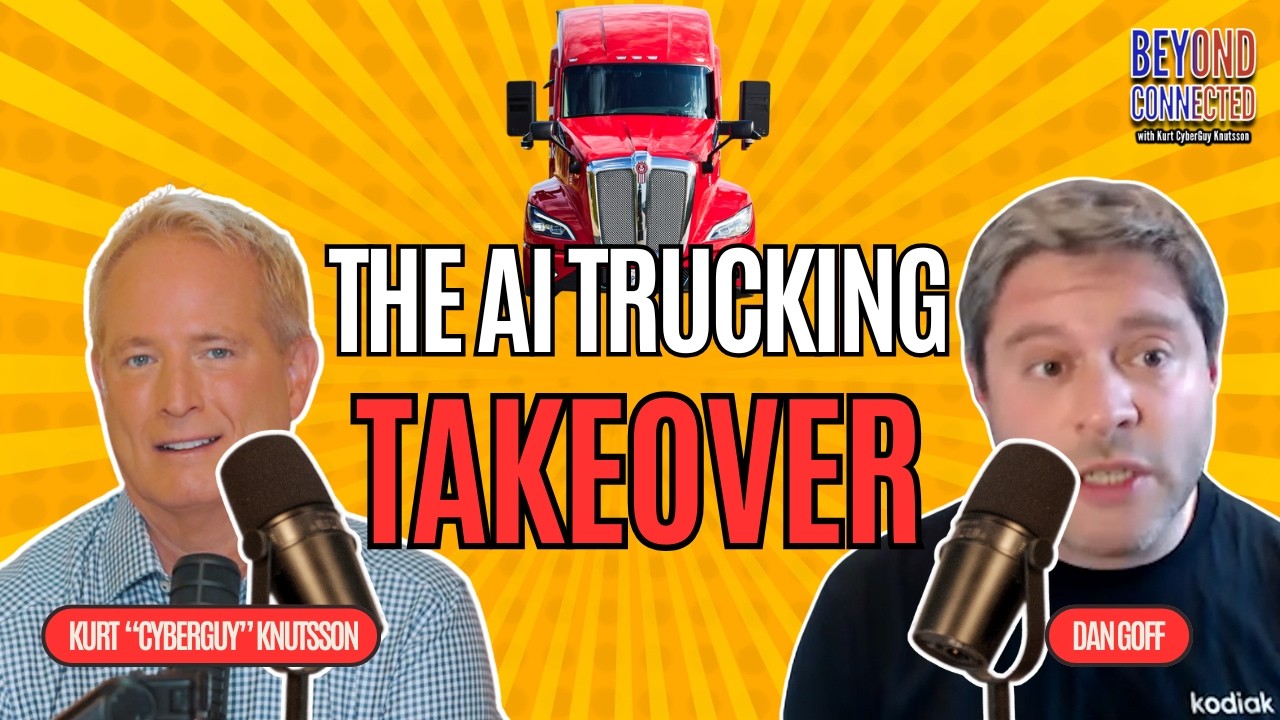
Trucking is a tough job. Driving 10+ hours a day by yourself through long stretches of empty highways. Being away from your family and friends for weeks at a time. It’s no wonder that the trucking industry is facing some of the worst turnover rates in any sector. To make matters worse, trucking companies are struggling to find new recruits more than ever before. Now, I know this is certainly a hot-button topic. And I know there are plenty of truckers out there who love what they do. But the future of this industry seems rocky to say the least, and that’s why I find myself increasingly interested in AI trucking. I sat down with Dan Goff, the Vice President of External Affairs for Kodiak AI, one of the tech companies leading the AI trucking charge. As he explains it, AI is going to change trucking jobs, but not take them away. And considering the current state of the industry, it might be the exact kind of change it needs! Let me know what you think in the comments!
Enjoying the show? Take a moment to rate, review, and subscribe. Head over to www.getbeyondconnected.com to find the show on other platforms.
Have a question for Kurt? Call 877-655-KURT and leave a voicemail with your email address.
Check out the links below, or scroll down for tutorials on each platform, and don’t forget to drop a comment with what you want to hear next – we’re building this together.
Apple | Spotify | YouTube – (Plus, subscribe to my channel to stay up to date on the latest episodes)
Articles referenced in this podcast:
New to podcasts?
Think of them like on-demand radio shows you can listen to anytime-while driving, walking, cooking, or relaxing. You can stream episodes straight from our website or listen through apps like Apple Podcasts, Spotify, or Google Podcasts. Just tap Follow to get new episodes automatically, no subscription needed.
How to Listen on Apple Podcasts
On iPhone / iPad (iOS)
- Open the Podcasts app (it comes pre-installed on iPhones).
- Use the Search tab to find your podcast by name.
- Tap the show in the results to go to its page.
- Browse episodes and tap Play on the episode you want.
- Tap Follow (or Subscribe) to add the podcast to your library.
- To adjust playback (speed, skip intervals, etc.), tap the mini player and expand to full screen.
- You can download episodes for offline listening.
On Web / Other Devices
- You can also listen on the Apple Podcasts web player by visiting podcasts.apple.com in a browser. Search for your podcast and play episodes directly.
- On Apple’s site, there are browse and chart sections for discovering new shows.
How to Listen on Spotify
On Mobile / Tablet
- Open the Spotify app on your phone or tablet.
- Tap the Search tab (🔍).
- Type the name of your podcast in the search bar and select it from the results.
- On the podcast’s page, browse the episode list.
- Tap an episode to open its detail screen.
- Tap Play to start listening.
- (Optional) Tap Follow (or “+”) on the podcast page to subscribe. That way new episodes show up in Your Library or Home under “Podcasts & Shows.”
- You can also download episodes (tap the download arrow) to listen offline.
Tip: In your Spotify settings under Data Saver / Streaming, you can switch to Audio-only mode (if a video podcast is available) to save data.
On Desktop / Web
- Go to the Spotify website or open the Spotify desktop app.
- From the left sidebar, click Browse (or “Podcasts & Shows”).
- Select a podcast, then click its cover art to view episodes.
- Hover over an episode and click the play button (or click the episode title, then click Play).
How to Listen on YouTube
On YouTube (Video Podcast)
- Open the YouTube app (mobile or tablet) or go to youtube.com in your browser.
- In the search bar, type your podcast’s name (or your show’s YouTube channel name).
- Find the video for the episode and tap to play.
- If you want to be notified of new episodes, tap Subscribe on the channel and click the Bell icon to turn on notifications.
- While watching, you can pause, skip ahead, rewind, and adjust volume just like any video.
Tip: Some listeners like to switch off the screen and just listen. But unless the podcast is uploaded as an audio-only format or you have YouTube Premium, the app may stop playback when the screen is off.
Copyright 2026 CyberGuy.com. All rights reserved. CyberGuy.com articles and content may contain affiliate links that earn a commission when purchases are made.
🎙 Now Streaming: My New Podcast: The CyberGuy Report
Kurt’s Top Deals
Deals move fast and inventory can be limited, so don’t wait too long.
| 🔥 Editor’s pick  Summer entertaining Ninja SLUSHi Machine (26% off) Frozen drinks and slushies at home in minutes. | |
| 💰 Top deal  Outdoor essential TYPEC Solar Bug Zapper (36% off) Solar-powered bug zappers for patios and camping. |


