



- A fake Chrome and Edge extension called NexShield pretended to be a legitimate ad blocker to lure users.
- Once installed, it intentionally crashes the browser to create panic and a sense of urgency.
- The extension then tricks users into running dangerous system commands that install malware.
- The attack exploits trust and social engineering, not a browser flaw, making it especially deceptive.
Fake browser extensions are nothing new, but this one takes things a step further by deliberately breaking your computer to scare you into infecting it. Security researchers have uncovered a malicious Chrome and Edge extension called NexShield that pretends to be a fast, privacy-friendly ad blocker. Once installed, it crashes your browser on purpose and then tricks you into “fixing” the problem by running dangerous commands on your own PC.

How the NexShield ad blocker scam works
NexShield was promoted as a lightweight ad blocker supposedly created by Raymond Hill, the real developer behind the popular uBlock Origin extension. That claim was false, but it helped the extension look legitimate enough to spread through online ads and search results before it was taken down from the Chrome Web Store.
Once installed, NexShield immediately starts abusing Chrome or Edge in the background. Researchers at Huntress found that it opens endless internal browser connections until your system runs out of memory (via Bleeping Computer). Tabs freeze, CPU usage spikes, RAM fills up, and the browser eventually hangs or crashes completely.
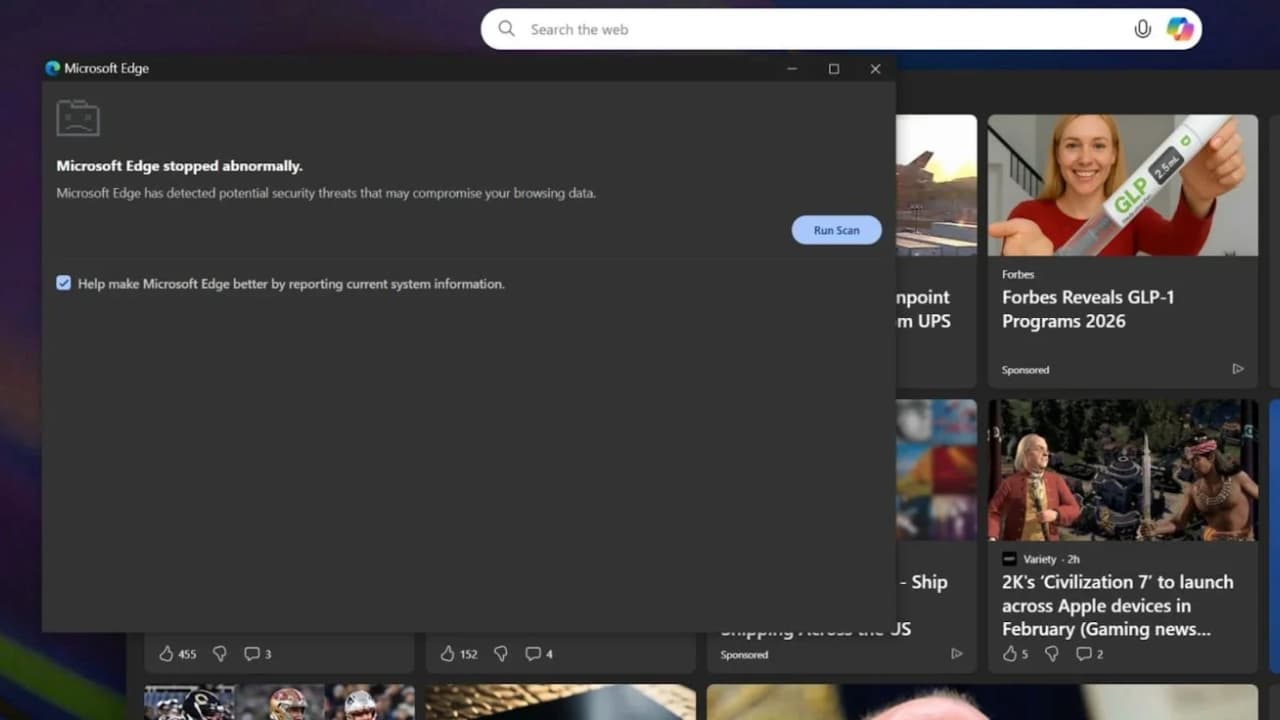
After you restart the browser, NexShield displays a scary pop-up warning that claims your system has serious security problems. When you click to “scan” or “fix” the issue, you’re shown instructions telling you to open Command Prompt and paste a command that’s already been copied to your clipboard.
That single paste is the trap. The command launches a hidden PowerShell script that downloads and runs malware. To make detection harder, the attackers delay the payload execution for up to an hour after installation, creating distance between the extension and the damage it causes.

Huntress
Why this fake browser extension attack is especially dangerous
This campaign is a new variation of the well-known ClickFix scam, which relies on convincing you to run commands yourself. Huntress calls this version CrashFix because instead of faking a system failure, it causes a real one.
In corporate environments, the attack delivers a Python-based remote access tool called ModeloRAT. This malware allows attackers to spy on systems, run commands, change system settings, add more malware, and maintain long-term access. Researchers say the threat group behind it, tracked as KongTuke, appears to be shifting focus toward enterprise networks where the payoff is higher.
Home users weren’t the primary target in this campaign, but that doesn’t mean they’re safe. Even if the final payload was unfinished for consumer systems, uninstalling the extension alone is not enough. Some malicious components can remain behind. The biggest danger here isn’t a browser bug. It’s trust. The attack works because it looks like a helpful fix from a trusted tool, and it pressures you to act quickly while your system feels broken.
We reached out to Google and Microsoft for comment. A representative from Microsoft provided CyberGuy with the following statement,
“Microsoft Defender provides built in protections to help identify and stop malicious or unwanted browser extensions and the harmful behaviors associated with them. Our security technologies are designed to detect and mitigate tactics like the ones described in this campaign, and they are continuously updated to help keep customers safe. We encourage consumers and organizations to follow our security best practices for reducing exposure to social engineering based threats. Guidance on strengthening your security posture against techniques like this can be found in our blog, Think Before You Click(Fix): Analyzing the ClickFix Social Engineering Technique, on the Microsoft Security blog.” – Tanmay Ganacharya, VP of Microsoft Threat Protection.
Huntress
7 steps you can take to stay safe from malicious browser extensions
A few smart habits and the right tools can dramatically reduce your risk, even when malicious extensions slip past official app stores.
Watch the latest episode of The CyberGuy Report.

Missed this event? Sign up via the registration form and see our live recording.
See Kurt’s latest Amazon picks for useful gadgets, smart home upgrades and everyday tech worth grabbing while the deals last.
1) Only install extensions from trusted publishers
Before installing any browser extension, check the publisher name, official website, and update history. Reputable tools clearly identify their developer and have years of user reviews. Be cautious of “new” extensions that claim to come from well-known creators, especially if the name or branding looks slightly off.
2) Never run unknown commands
No legitimate browser extension will ever ask you to open Command Prompt or paste a command to fix an issue. That’s a massive red flag. If something breaks your browser and then tells you to run system commands, close it and seek help from a trusted source.
3) Use a strong antivirus
Strong antivirus software can detect malicious scripts, suspicious PowerShell activity, and remote access tools like ModeloRAT. This is especially important because these attacks rely on delayed execution that basic defenses might miss.
The best way to safeguard yourself from malicious links that install malware, potentially accessing your private information, is to have strong antivirus software installed on all your devices. This protection can also alert you to phishing emails and ransomware scams, keeping your personal information and digital assets safe.
- Strong real-time protection against viruses, malware, ransomware and hacking attempts
- AI-powered scam protection to help identify suspicious emails, texts and websites
- Built-in password manager to securely store and manage logins
- 2 GB PC cloud backup to help protect important files from ransomware or hardware failure
- Smart firewall and phishing protection
- Protects 1, 3 or 5 devices
- Available for Windows, macOS, Android and iOS
- Includes real-time threat protection, smart firewall and phishing protection to guard against online attacks
4) Use a password manager to limit fallout
If malware gains access to your system, stored browser passwords are often the first target. A password manager keeps credentials encrypted and separate from your browser, reducing the risk of account takeover even if something slips through.
Next, see if your email has been exposed in past breaches. Our #1 pick, NordPass, includes a built-in breach scanner that checks whether your email address or passwords have appeared in known leaks. If you discover a match, immediately change any reused passwords and secure those accounts with new, unique credentials.
- Unlimited password storage
- Secure sharing
- Password health reports
- Auto-fill and emergency access
- Data breach monitoring to alert you if your credentials have been exposed
- A Security Dashboard with tools like the Data Breach Scanner and Password Health Checker to identify weak, reused, or compromised passwords
CyberGuy Exclusive Deal: Save 52% now with CyberGuy’s exclusive NordPass offer – Get 1 extra month FREE with a 2-year plan. Try 30 days risk-free for only $1.43 per month!
5) Keep Windows, Chrome, and Edge fully updated
Security updates don’t just patch bugs. They also improve protection against malicious extensions, script abuse, and unauthorized system changes. Turn on automatic updates so you’re not relying on memory to stay protected.
6) Consider an identity theft protection service
If malware ever runs on your system, assume personal data could be at risk. Identity protection services can monitor for misuse of your information, alert you early, and help with recovery if fraud occurs.
Identity Theft companies can monitor personal information like your Social Security Number (SSN), phone number, and email address, and alert you if it is being sold on the dark web or being used to open an account. They can also assist you in freezing your bank and credit card accounts to prevent further unauthorized use by criminals.
Exclusive CyberGuy deal: Save up to 68% today: Get Aura’s award-winning identity theft protection and credit monitoring for as low as $9/month when billed annually.
7) Reduce your online footprint with a data removal service
Many attacks become more effective when criminals already have your personal details. Data removal services help pull your information from broker sites, making it harder for attackers to craft convincing follow-up scams or targeted phishing.
While no service can guarantee the complete removal of your data from the internet, a data removal service is really a smart choice. They aren’t cheap, and neither is your privacy. These services do all the work for you by actively monitoring and systematically erasing your personal information from hundreds of websites. It’s what gives me peace of mind and has proven to be the most effective way to erase your personal data from the internet. By limiting the information available, you reduce the risk of scammers cross-referencing data from breaches with information they might find on the dark web, making it harder for them to target you.
Incogni, a service I trust 100% and use myself, helps automate the process by submitting removal requests to hundreds of data brokers and people-search sites on your behalf.
Incogni automatically contacts data brokers on your behalf and requests the removal of your personal information. It also continues monitoring those sites and submits new removal requests if your data reappears.
- Incogni currently removes personal data from 420+ data broker and people-search websites, and its Unlimited plan allows you to request removals from as many additional sites as you need.
- Incogni has also received third-party assurance from Deloitte, validating its marketing claims.
- The goal is simple: make it much harder for strangers, scammers, and cybercriminals to find your personal information online.
CyberGuy readers get 60% off Incogni’s annual plans using the links in this article.
The service also includes a 30-day money-back guarantee, so you can try it risk-free and see how much of your information is exposed online.
Is your personal information exposed online?
Run a free scan to see if your personal info is compromised. Results arrive by email in about an hour.
Related Links:
- The fake refund scam: Why scammers love holiday shoppers
- Understanding brushing scams and how to protect yourself
- Netflix suspension scam targets your inbox
Kurt’s key takeaway
Cybercriminals are getting better at blending technical tricks with psychological pressure. Instead of relying on exploits alone, they break things on purpose and wait for you to panic. If a browser extension crashes your system and then tells you to “fix” it by running commands, stop immediately. The safest response is not to fix the problem fast, but to question why you’re being asked to fix it at all.
How many browser extensions are installed on your computer right now? Let us know in the comments below.
FOR MORE OF MY TECH TIPS & SECURITY ALERTS, SUBSCRIBE TO MY FREE CYBERGUY REPORT NEWSLETTER HERE
Copyright 2026 CyberGuy.com. All rights reserved. CyberGuy.com articles and content may contain affiliate links that earn a commission when purchases are made.
🎙 Now Streaming: My New Podcast: The CyberGuy Report
Kurt’s Top Deals
Deals move fast and inventory can be limited, so don’t wait too long.
| 🔥 Editor’s pick  Summer entertaining Ninja SLUSHi Machine (26% off) Frozen drinks and slushies at home in minutes. | |
| 💰 Top deal  Outdoor essential TYPEC Solar Bug Zapper (36% off) Solar-powered bug zappers for patios and camping. |


