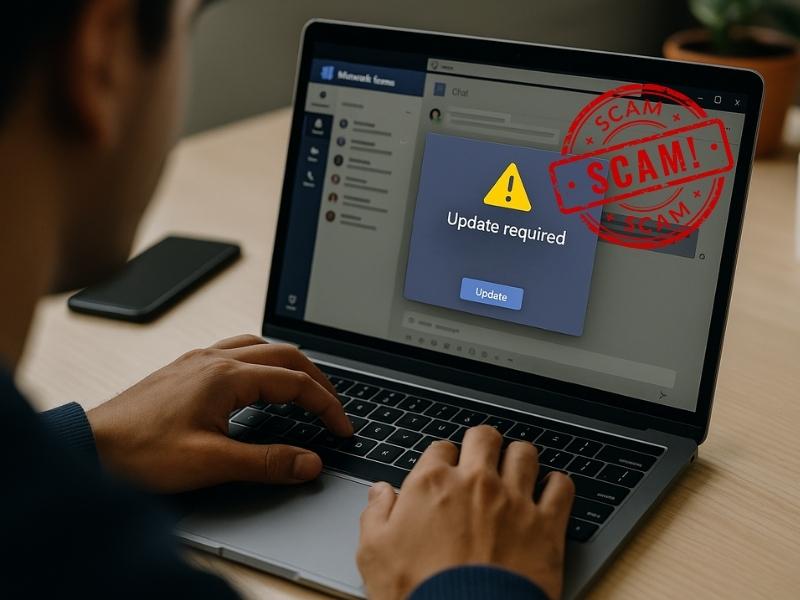
Microsoft is sounding the alarm, and this time, the warning hits home for everyday users. Hackers are now turning Microsoft Teams security threats into real-world dangers that go far beyond corporate networks. Using Teams, cybercriminals gather intel, pose as trusted contacts, trick people into sharing private data, and even spread malware that can steal passwords or lock up personal files. What was once a simple video chat and collaboration tool has become a high-value target for cybercriminals and even state-backed hackers. Whether you use Teams for work, school, or staying in touch, the risks are real and growing. We’ll break down how attackers abuse Teams, what Microsoft recommends, and the simple steps you can take to protect yourself at home or on the job.

How hackers use Teams to attack
Hackers exploit Microsoft Teams at every stage of an attack, using it to spy, impersonate, spread malware, and even control compromised systems, and consumers are now in their sights, too.
Reconnaissance via Teams
Attackers start by probing Teams environments to find weak spots. They look for users with open settings, public profiles, or external meeting links. Microsoft warns that “anonymous participants, guests, and external access users” can give hackers a way in. If your Privacy Mode is off, they can see when you’re online, send unwanted chats, or try to join meetings outside your group, even if you’re just using a free account.
Persona building & impersonation
Hackers often pretend to be someone you trust, like an IT admin, a coworker, or even a Microsoft representative. They create fake profiles and logos that look convincing to trick you into clicking a link or sharing credentials. Microsoft says attackers “take advantage of the same resources as legitimate organizations” to pull off their scams.
Initial access & malware delivery
Once they’ve earned your trust, hackers send a chat or call that includes a malicious link or file. You might get a message saying, “Your Teams account needs verification” or “Update required for better security.” It’s all bait. These links can install spyware, steal logins, or deliver ransomware that locks up your data, whether you’re on a company laptop or your personal PC at home.
Persistence & lateral movement
After breaking in, attackers try to stay hidden. They might add guest accounts, install shortcuts, or change permissions so they can come back later. In some cases, they use the same Microsoft tools meant for admins to move across Teams, OneDrive, or even your personal files stored in the cloud.
Command & control & data exfiltration
Once inside, hackers can send commands through Teams messages or hide malware in shared links. They’ve even been known to send ransom demands directly through Teams chat. Microsoft says one group, Octo Tempest, used Teams to taunt victims and pressure them into paying up, showing how personal these attacks can get.

Credit: Microsoft
Tips to stay protected
You don’t need to be a cybersecurity expert to stay safe on Microsoft Teams. A few smart tools and habits can go a long way in keeping hackers, scammers, and snoops from taking advantage of your information.
1) Enable privacy mode
Keep your online presence private. Turn on Privacy Mode in Teams to stop strangers from seeing when you’re active or trying to join meetings. It’s a simple setting that makes it harder for hackers to target you or your company.
2) Be careful with roles and permissions
If you share your Teams account with coworkers or family members, don’t give everyone full control. Keep admin access limited to one trusted person. This reduces the chance of someone accidentally approving a scam link or letting malware spread.’
3) Use a data removal service
Hackers often rely on personal details found online to make their scams more convincing, things like your job title, workplace, or even who you’ve video-chatted with. That information helps them build fake Teams profiles or send messages that look legitimate. Using a personal data removal service helps wipe your private details from data broker sites, cutting off one of the main sources hackers use to impersonate you. The less they can learn about you, the harder it is for them to trick you into trusting a fake message or clicking a malicious link.
While no service can guarantee the complete removal of your data from the internet, a data removal service is really a smart choice. They aren’t cheap, and neither is your privacy. These services do all the work for you by actively monitoring and systematically erasing your personal information from hundreds of websites. It’s what gives me peace of mind and has proven to be the most effective way to erase your personal data from the internet. By limiting the information available, you reduce the risk of scammers cross-referencing data from breaches with information they might find on the dark web, making it harder for them to target you.
Incogni, a service I trust 100% and use myself, helps automate the process by submitting removal requests to hundreds of data brokers and people-search sites on your behalf.
Incogni automatically contacts data brokers on your behalf and requests the removal of your personal information. It also continues monitoring those sites and submits new removal requests if your data reappears.
- Incogni currently removes personal data from 420+ data broker and people-search websites, and its Unlimited plan allows you to request removals from as many additional sites as you need.
- Incogni has also received third-party assurance from Deloitte, validating its marketing claims.
- The goal is simple: make it much harder for strangers, scammers, and cybercriminals to find your personal information online.
CyberGuy readers get 60% off Incogni’s annual plans using the links in this article.
The service also includes a 30-day money-back guarantee, so you can try it risk-free and see how much of your information is exposed online.
Is your personal information exposed online?
Run a free scan to see if your personal info is compromised. Results arrive by email in about an hour.
4) Double-check links and files, plus use strong antivirus software
Hackers love to send fake messages pretending to be support or IT help. Never open links or attachments from people you don’t recognize , even if the message looks official. Use strong antivirus software to automatically scan downloads and attachments before you open them.
The best way to safeguard yourself from malicious links that install malware, potentially accessing your private information, is to have strong antivirus software installed on all your devices. This protection can also alert you to phishing emails and ransomware scams, keeping your personal information and digital assets safe.
TotalAV is easy to set up and offers real-time protection for paid users, keeping your devices safe around the clock. It includes tools to block phishing scams, remove ransomware and spyware, and clean up adware and junk files. The software also features a browser manager, system tune-up tools, and protects across Windows, Mac, Android, and iOS devices.
GET MY EXCLUSIVE CYBERGUY TOTALAV DEAL:
Please note:
1) If you're having difficulty seeing either of the above deals, do this:
- If you're on a mobile device, hold down the link above, "Copy Link", and then paste it into a private or incognito browser.
- If you're on a laptop or desktop, right click the link, "Copy Link", and then paste it into a private or incognito browser.
2) During registration you may see optional upsells you can decline. Our top pick is the core antivirus product.
3) If you need help after your purchase, you can reach TotalAV directly through their official support page here.
5) Limit guest access
Only allow trusted guests into your Teams chats and meetings. If you invited someone for a one-time project, remove them afterward. Tight control over who can join helps prevent impersonators from slipping in unnoticed.
6) Turn on alerts
Activate Teams alerts to catch anything unusual, like sign-ins from new devices or unexpected permission changes. Pair that with your antivirus program’s real-time protection to get notified if malicious activity starts on your device.
7) Think “zero trust”
Zero Trust means verifying every user, every time. Don’t assume messages or calls are legitimate, especially if someone asks for a password or authentication code. If you’re unsure, contact your company’s IT team or verify the person’s identity through a separate channel.
8) Practice spotting phishing attempts
Hackers rely on panic and urgency to make you click. If you get a message claiming your account will be locked or that support needs your password, pause. Report suspicious messages to Microsoft or your security provider. Regular phishing awareness training helps you spot scams faster.
9) Keep everything updated
Always install the latest Teams and operating system updates. Patches fix security holes that hackers exploit to sneak in.

Related Links:
- Dark web phishing service hijacks Microsoft and Google accounts
- Microsoft SharePoint bug puts critical government agencies at risk
- How fake Microsoft alerts trick you into phishing scams
Kurt’s key takeaways
Microsoft’s warning about Teams is a reminder that hackers are always searching for new ways to reach you, even through apps you use every day. What makes these attacks so dangerous is their familiarity. Messages look normal, video calls seem real, and fake tech support chats can sound convincing. That’s why awareness, not fear, is your strongest defense. With privacy settings enabled, antivirus protection running, and a reliable personal data removal service scrubbing your info from the web, you’re already several steps ahead of scammers. Staying alert to phishing attempts and keeping your software up to date can turn Teams back into what it’s meant to be: a safe, helpful way to stay connected.
If attackers can weaponize your day-to-day communication platform, how confident are you that your Teams environment is truly safe? Let us know your thoughts in the comments below.
FOR MORE OF MY TECH TIPS & SECURITY ALERTS, SUBSCRIBE TO MY FREE CYBERGUY REPORT NEWSLETTER HERE
A Texas mom says she spent the night in jail after speaking up online about dirty water in her town. The case was later dropped, but her story raises a troubling question: could something you post online ever put you at risk?

Missed this event? Sign up via the registration form and see our live recording.
See Kurt’s 2026 picks for practical tech and everyday upgrades.
Copyright 2025 CyberGuy.com. All rights reserved. CyberGuy.com articles and content may contain affiliate links that earn a commission when purchases are made.
🎙 Now Streaming: My New Podcast: The CyberGuy Report
Kurt’s Top Deals
Deals move fast and inventory can be limited, so don’t wait too long.
| 🔥 Editor’s pick  Summer entertaining Ninja SLUSHi Machine (26% off) Frozen drinks and slushies at home in minutes. | |
| 💰 Top deal  Outdoor essential TYPEC Solar Bug Zapper (36% off) Solar-powered bug zappers for patios and camping. |