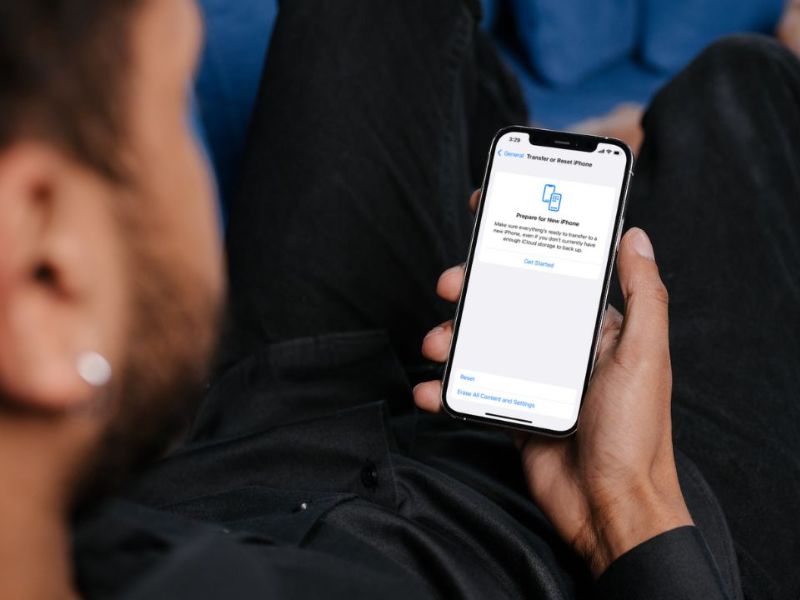
Factory resetting your iPhone and iPad is like pressing the “undo” button on the time machine of technology. It’s not just a simple restart; it’s a complete overhaul, a digital rebirth of sorts that wipes away the clutter and returns your device to its pristine, out-of-the-box state. While it may seem like a drastic measure, understanding the ins and outs of this process is essential.
Why would I want to reset my device?
The main reason for resetting your device is to keep other people from gaining access to the files and personal information you have stored on it. Even if you log out of all your accounts on your iPhone and iPad, including your iCloud, hackers can get back into accounts more easily than you may think.
A factory reset erases all the information and settings on your device and installs the latest version of iOS, iPadOS, or iPod software. So, whether you’re selling it to someone, giving it away, or simply getting an upgrade, you should always take this step first before handing your old device over.
Factory reset is also a good option if you ever become a victim of hacking, malware, or any other cyberattack. Or if you have a friend or family member who has passed on and you want to use or sell their old device, a factory reset would be helpful before you begin using it or selling it.
Backup before resetting your iPhone or iPad
Note: Doing a factory reset on your iPhone or iPad will completely wipe all your settings and data from the device. If you do not want to lose this information, do not try these steps unless you’re sure you want to. Also, always back up your devices so you can restore your data later. If you suspect malware on your device, do not back up and reinstall that backup. Instead, use an earlier backup.
MORE: HOW TO UNLOCK AN APPLE DEVICE WHEN ITS OWNER DIES
How to do a factory reset on an iPhone or iPad
- Open your Settings app
- Select General
- Scroll down and tap Transfer or Reset iPhone (or iPad)
- Tap Erase All Content and Settings

- If asked, enter your device passcode or Apple ID password
- You will be directed to a page that says Erase This iPhone (or iPad) and it will show the items that will be removed from your iPhone
- Scroll down and tap Continue
- Then tap Erase Now and confirm by tapping Erase iPhone

Once these steps are completed, your device will work just like new, and you’ll have to set up anything on it just like you did when you first took it out of the box.
MORE: HOW TO RECYCLE YOUR OLD ELECTRONICS INTO AMAZON GIFT CARDS
How do I get rid of my old iPhone or iPad once I reset it?
Once your old device is reset, there are many things you can do with your old iPhone or iPad once you no longer need it. Some possible options are:
Sell it
Instead of adding your old phone to your pile of unused tech, consider selling it now that it is wiped clean.
You try Amazon’s trade-in service to get an estimate of your old iPhone or iPad is worth. Send in the phone and Amazon gives you Amazon credit for the agreed-upon amount.
Pass it on to a friend or family member
Passing your iPhone or iPad on to a friend or family member can be an excellent way to share technology and ensure your device continues to be useful. Oh, and here’s a nifty tip: before you hand over that iPhone, make sure to remove the SIM card if your old phone has one.
MORE: HOW TO GET RID OF YOUR OLD CELLPHONE SECURELY
Recycle it
Because most cell phones contain hazardous materials such as heavy metals, avoid simply throwing them away. Many carriers, electronic stores, and other organizations have recycling or donation programs at no cost to you. The Environmental Protection Agency has a list of donation and recycling programs listed.
You can also stop by any Apple Store and drop off your Apple device for recycling.If you don’t live near an Apple Store, you can use Apple GiveBack online and Apple will send you a prepaid mailing label and you can mail it in. Apple guarantees to responsibly recycle all the materials in your phone.
MORE: JUST HOW NEW IS YOUR PHONE?
Watch the latest episode of The CyberGuy Report.

Missed this event? Sign up via the registration form and see our live recording.
See Kurt’s Prime Day picks for useful gadgets, practical upgrades and everyday tech while the deals last.
Trade it in
With Apple Trade In, you have the opportunity to receive an offer between $40.00 and $630.00 for your current device and use it as credit towards a new one. The best part is you can do it online or at an Apple Store. In the event that your device doesn’t qualify for credit, Apple will recycle it for free.
MORE: 5 BEST PORTABLE PHONE CHARGERS OF 2023
 MORE: HOW TO FIND YOUR LOST IPHONE
Kurt’s key takeaways
Resetting your device will help wipe it completely clean, and this is an essential step to take if you’re considering selling the device to someone else. The last thing you want is another person getting access to your old data, so make sure you follow the steps above to wipe your device of any private information. And remember, you should only be following these steps if you understand that this will get rid of everything, including important files and data, so make sure you back up the device before resetting it. Once it’s reset you can sell it, pass it on, recycle it, or trade it in.
What creative or unique ways have you found to repurpose or recycle your old electronic devices? Let us know by commenting below.
FOR MORE OF MY SECURITY ALERTS, SUBSCRIBE TO MY FREE CYBERGUY REPORT NEWSLETTER HERE
Related:
🎙 Now Streaming: My New Podcast: The CyberGuy Report
Kurt’s Top Deals
Deals move fast and inventory can be limited, so don’t wait too long.
| 🔥 Editor’s pick  Summer entertaining Ninja SLUSHi Machine (26% off) Frozen drinks and slushies at home in minutes. | |
| 💰 Top deal  Outdoor essential TYPEC Solar Bug Zapper (36% off) Solar-powered bug zappers for patios and camping. |