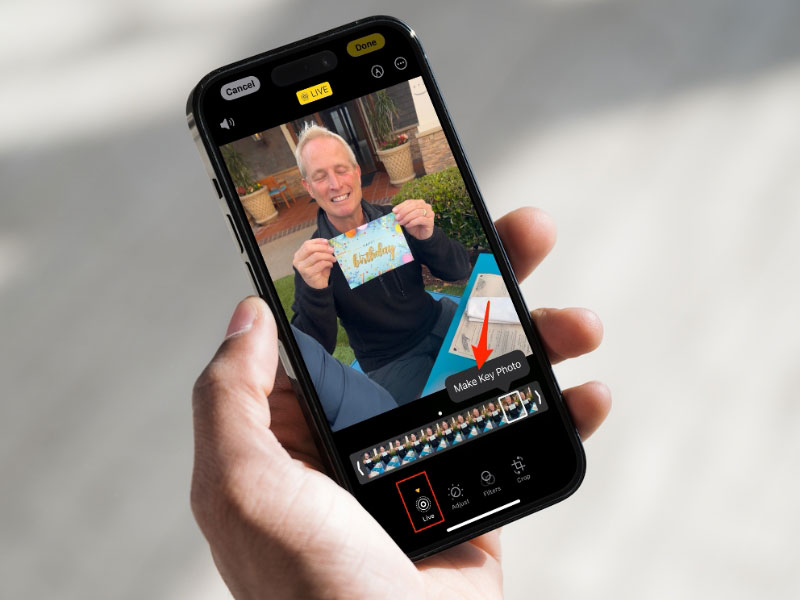
Have you ever taken a photo with a bunch of people where one or two of you are blinking? Here’s the perfect solution I always use on my iPhone (and on Google Photos for those with Androids) to make sure there are always options, and you take the perfect photos!
Table of Contents:
How can I select the perfect frame on my Apple Device?
The first thing to get the perfect shot is to know about this iPhone camera trick called Live Photo. You may have seen it before by long-pressing a thumbnail in your photos.
What is Live Photo?
A Live Photo captures about 1.5 seconds before and after you press the shutter. Instead of a single still image, you get a short clip with multiple frames to choose from. That means you can go back later, scroll through the moment, and pick the frame where everyone’s eyes are open.
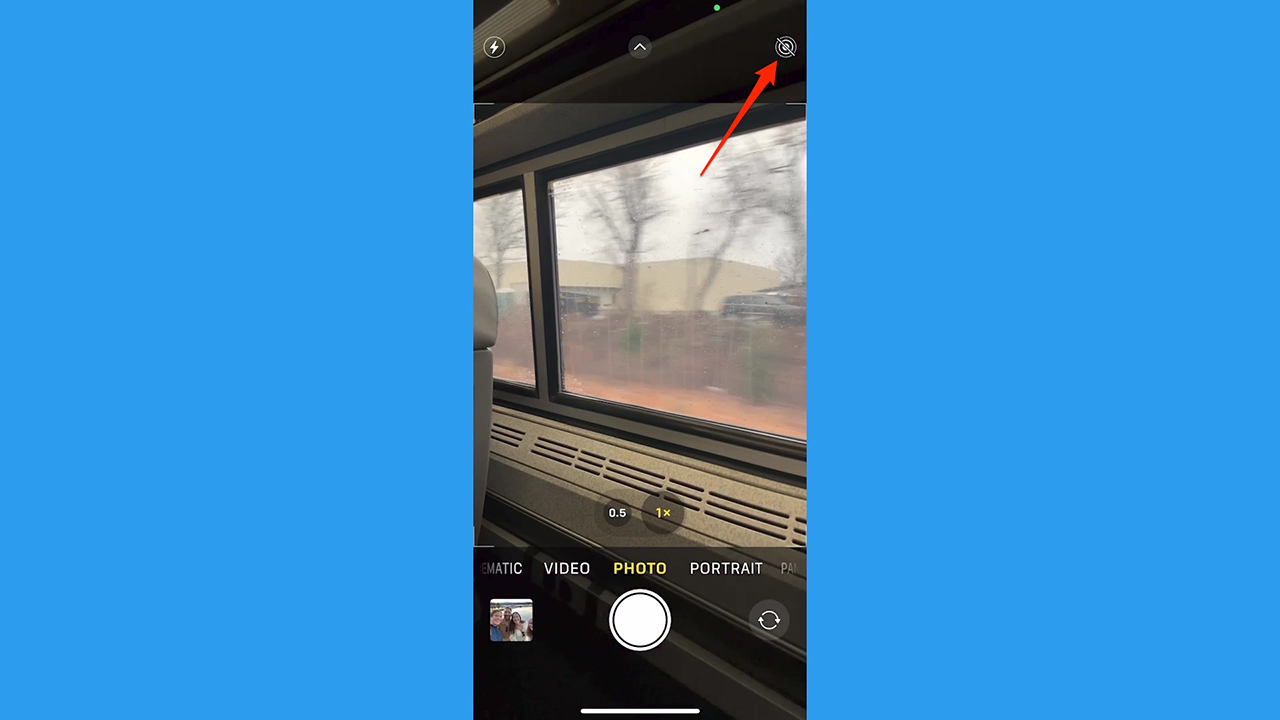
How to take a Live Photo on iPhone (iOS 26.2)
- Open the Camera app
- Make sure you’re in Photo mode
- Tap the Live Photo icon (the concentric circles) at the top of the screen. Yellow means Live Photo is on.
- Tap the shutter button to take the photo
Your iPhone will automatically capture the short clip around the shot.
How to select the perfect frame from a Live Photo (iOS 26.2)
- Open the Photos app
- Tap Collections
- Scroll to Media Types and select Live Photos
- Open the photo you want to fix
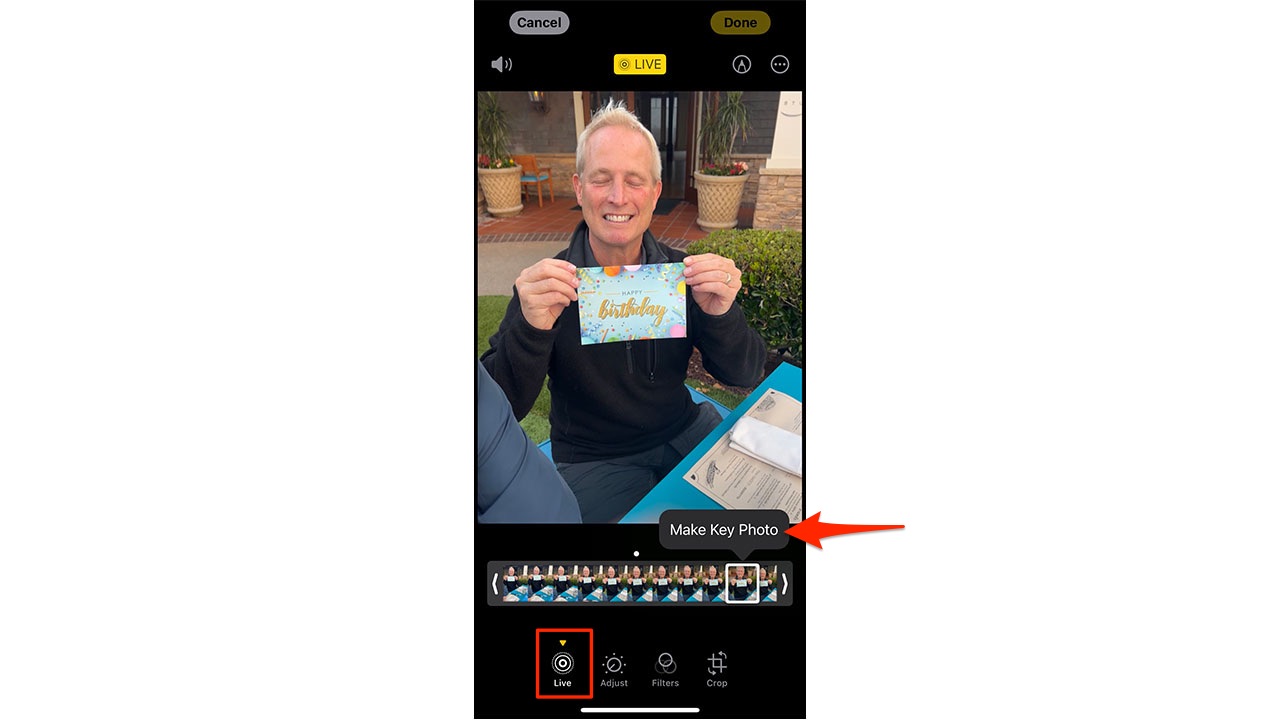
- Tap the sliders icon (Edit controls) at the bottom of the screen
- Tap the Live Photo icon in the editing toolbar
- Scrub through the timeline at the bottom
- Stop on the frame you like best
- Tap Make Key Photo, then tap Done
That frame is now the main photo that appears when you view or share it.
Important privacy note before you share
A Live Photo is still a short video, even after you set a key frame. If you share it as-is, someone can press and hold the image and see the full motion clip. If you only want to share the still image, follow the steps below.
How to share a Live Photo as a still image (iOS 26.2)
- Open the Live Photo in the Photos app
- Tap the Live badge (it may say Live near the top of the screen)
- Choose Live Off (or Turn Off Live Photo)
- Tap the Share button
- Pick Messages, Mail, AirDrop, etc.
That sends a single still image (no motion clip).
How to fix blinking faces in group photos on Android
If someone blinked in a group photo on your Android phone, you don’t have to retake the shot. Many Android phones capture Motion Photos, which let you go back and choose a better frame after the picture is taken. This works much like Live Photos on iPhone and is built directly into Google Photos on most Android devices.
What is a Motion Photo?
A Motion Photo captures a short moment of motion around your photo. Instead of saving just one still image, your phone keeps multiple frames from the same moment. That gives you a second chance to pick the frame where everyone looks their best.
How to take a Motion Photo on Android
Settings may vary depending on your Android phone’s manufacturer
- Open the Camera app
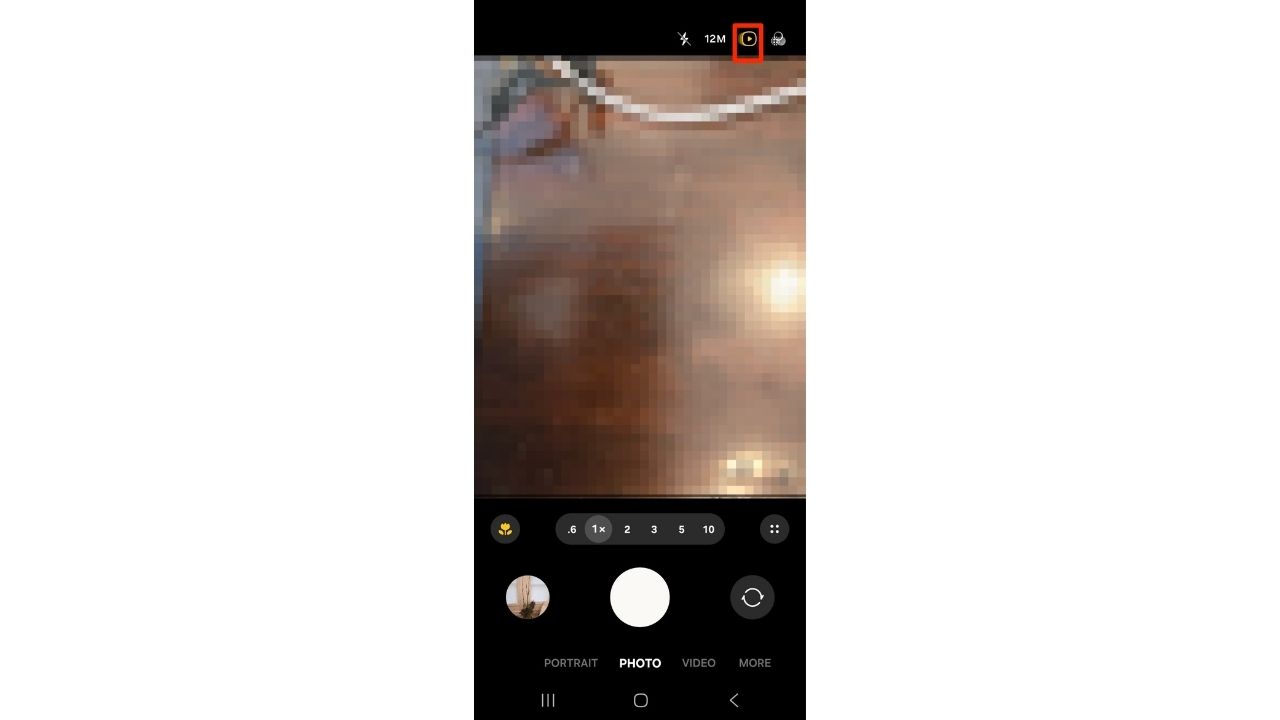
- Make sure Motion Photo (or Motion) is turned on. (The icon usually looks like a small play symbol or concentric circles)
- Take the photo as you normally would
Your phone automatically saves the motion clip along with the still image.
How to select the perfect frame from a Motion Photo
Settings may vary depending on your Android phone’s manufacturer
- Open Google Photos
- Find and open the Motion Photo
- Tap Edit
- Tap Frames or Select frame (On some phones, this may appear as Extract frame or Choose frame)
- Scrub through the frames at the bottom
- Stop on the frame where everyone’s eyes are open
- Tap Save copy or Set as photo
That frame is now saved as a still image you can share like any other photo.
Important sharing note
Motion Photos include short motion clips. If you share the original file, some apps may include the motion along with the still image. Saving a copy of the selected frame ensures you’re sharing only the photo, not the motion.
What if Motion Photo wasn’t turned on?
If you recorded a video instead of taking a photo, you can still grab the perfect moment:
Settings may vary depending on your Android phone’s manufacturer
- Open the video in Google Photos
- Tap Edit
- Scrub to the frame you want
- Tap Export frame or Save frame
The extracted image is saved to your photo library and can be shared like any regular photo.
Related Links:
- How to digitize old photos and slides
- Cloud Storage Full scam steals your photos and money
- How to remove unwanted photos invading your Facebook page
Kurt’s key takeaway
Blinking faces don’t have to ruin a great group photo. Whether you’re using an iPhone or an Android phone, modern smartphones capture more than a single moment. A few taps are often all it takes to rescue the shot and keep the memory – no retakes, no extra apps, no stress.
Do you usually retake group photos, or do you let your phone fix the problem for you?
FOR MORE OF MY TECH TIPS & SECURITY ALERTS, SUBSCRIBE TO MY FREE CYBERGUY REPORT NEWSLETTER HERE
Copyright 2025 CyberGuy.com. All rights reserved. CyberGuy.com articles and content may contain affiliate links that earn a commission when purchases are made.
🎙 Now Streaming: My New Podcast: The CyberGuy Report
Kurt’s Top Deals
Deals move fast and inventory can be limited, so don’t wait too long.
| 🔥 Editor’s pick  Summer entertaining Ninja SLUSHi Machine (26% off) Frozen drinks and slushies at home in minutes. | |
| 💰 Top deal  Outdoor essential TYPEC Solar Bug Zapper (36% off) Solar-powered bug zappers for patios and camping. |