



Voice notes are an incredibly convenient way to capture ideas, reminders, or important information without needing to type or write. Whether you’re using an iPhone or an Android device, we’ll walk you through the steps to record voice notes effortlessly.

Recording Voice Notes on your iPhone
Want to easily capture and organize voice notes on your iPhone? Here’s how you can do it in just a few simple steps using the Notes app. We captured the images below on an iPhone 15 Pro running iOS 18.3.1.
Step 1: Open the Notes App
- Swipe down from the top of your screen and type “Notes” in the search bar.
- Tap on the Notes app to open it.

Step 2: Create a new note
- Tap the compose icon (a square with a pencil) at the bottom right corner to create a new note.

Step 3: Start recording
- With your note open, tap the paperclip icon above the keyboard.
- From the menu that appears, select “Record Audio.”
- Press the large red button to begin recording your voice.

Step 4: Stop and save your recording
- Tap the red button again to stop recording.
- You can play back your recording using the play button.
- To view a transcript, tap the speech bubble icon at the bottom left corner of your screen.
Note: The live transcription feature in the Notes app is only available on iPhone 12 and later models. If you’re using an older device, this feature will not be accessible. Also, the transcription feature is currently supported in specific regions and languages, such as English (U.S., UK, Canada, Australia, Ireland, New Zealand, South Africa). If your device’s region or language settings are not set to one of these supported options, the feature may not appear.

- Words will be highlighted as they play, making it easy to review.

BEST ANTIVIRUS FOR MAC, PC, IPHONES AND ANDROIDS – CYBERGUY PICKS
Step 5: Edit and share
-
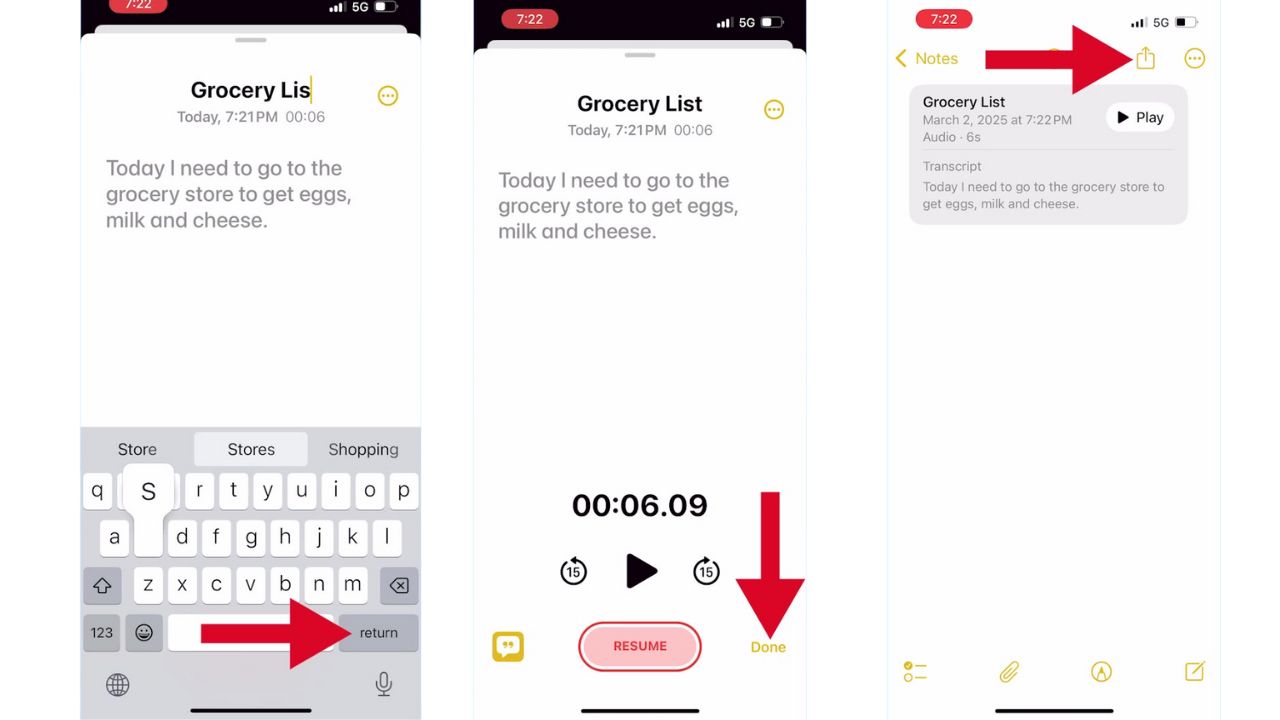
- To rename your recording, tap the three-dot menu in the upper-right corner.
- Select “Rename.
- Type a new name.

A Texas mom says she spent the night in jail after speaking up online about dirty water in her town. The case was later dropped, but her story raises a troubling question: could something you post online ever put you at risk?


Missed this event? Sign up via the registration form and see our live recording.
See Kurt’s 2026 picks for practical tech and everyday upgrades.
- Next, click return.
- Then, tap Done.
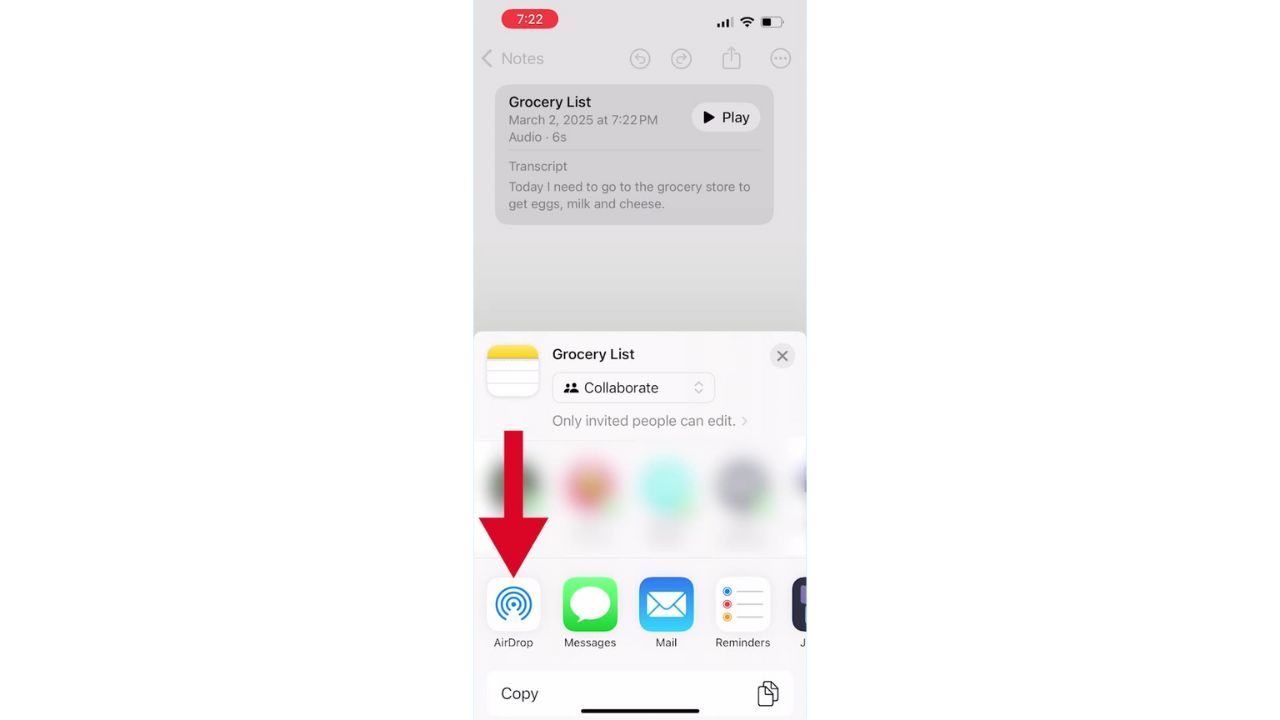
- Share your recording by tapping the share icon.
- Then, choose options like AirDrop, Messages, or Mail to share it.
This feature is especially useful for creating searchable transcripts directly within your notes, making it ideal for meetings or lectures.
THE HIDDEN COSTS OF FREE APPS: YOUR PERSONAL INFORMATION
Recording voice notes on your Android
Want to quickly capture your thoughts or important moments on your Android? Here’s how you can easily record voice notes using a simple voice recorder app. We captured the images below on a Galaxy S24 Ultra.
Settings may vary depending on your Android phone’s manufacturer
Step 1: Locate or install a Voice Recorder app
- Open your app drawer and search for “Voice Recorder.”
- Or click the search bar and type “Voice Recorder.”
- If it’s not pre-installed, download a voice recorder app from the Google Play Store.

Step 2: Start and stop recording
- Open the Voice Recorder app.
- Tap the red record button at the bottom of your screen to begin recording.
- Tap the stop button when you’re done speaking.

Step 3: Save your recording
- Then, next to the record button, tap the black square.
- Type a name for your recording
- Tap Save.

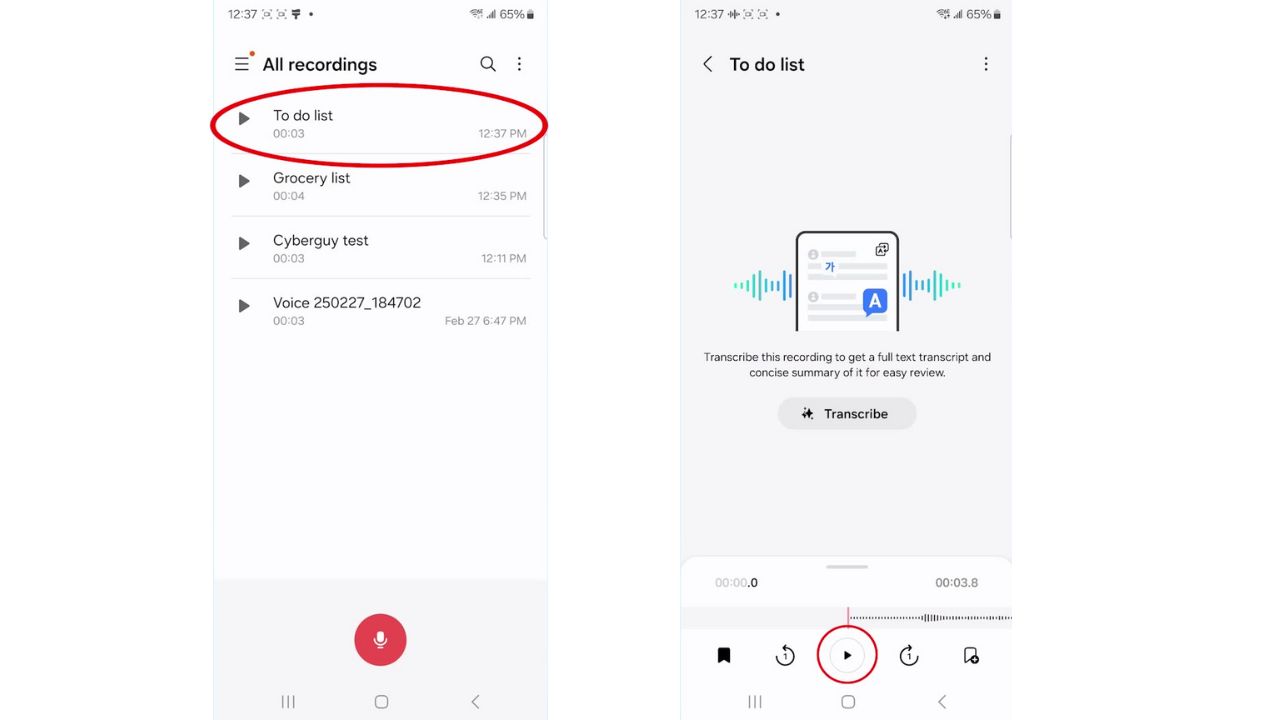
Step 4: Playback
-
- Tap it from the list of saved recordings to listen to your recording.
- Press play.
Step 5: Share
- To share it, tap on your recording.
- Then select the three-dot menu in the upper-right corner.
- Click the Share icon.
- Choose your preferred method of sharing, such as Messages, Email, or Google Drive.

HOW TO REMOVE YOUR PRIVATE DATA FROM THE INTERNET
Kurt’s key takeaways
Recording voice notes is a simple way to stay organized and capture ideas on the go. Whether you’re using an iPhone or an Android, these steps will ensure you never lose track of important thoughts. With just a few taps, you can save time and boost productivity while keeping all your notes easily accessible.
Do you prefer traditional written notes, or do you think voice notes are easier and more convenient for capturing ideas, reminders, or important information on the go? Let us know in the comments below.
FOR MORE OF MY TECH TIPS & SECURITY ALERTS, SUBSCRIBE TO MY FREE CYBERGUY REPORT NEWSLETTER HERE