



You don’t need to be a tech expert to keep your phone secure; you just need to know where to tap. From sneaky, data-hungry apps to overlooked settings that leak sensitive information, your iPhone or Android device may be exposing more than you realize.
The good news? Making just a few tweaks to your settings can instantly boost your privacy, reduce tracking, and give you more control over your digital life.
Here are 5 safety-boosting settings you can (and should) turn on today. No complicated apps or tools required, just smart, built-in features that protect your information behind the scenes.

This article is based on tests conducted using an iPhone 15 Pro Max running iOS 18.5 and a Samsung Galaxy S24 Ultra with One UI 7.0 on Android 15. Results and instructions may vary depending on your device model and software version.
1) Limit ad tracking
Because your phone shouldn’t sell your behavior
Apps love your data, especially when it helps them target ads. On iPhone and Android, apps can track what you do across other apps and websites unless you say otherwise. Here’s what to look for:
You keep seeing the same weirdly specific ad after searching for something once. Or you download a game and suddenly ads know your location, interests, and habits.
Here’s how to stop the tracking:
On iPhone:
Settings > Privacy & Security > Tracking → Toggle off “Allow Apps to Request to Track.”
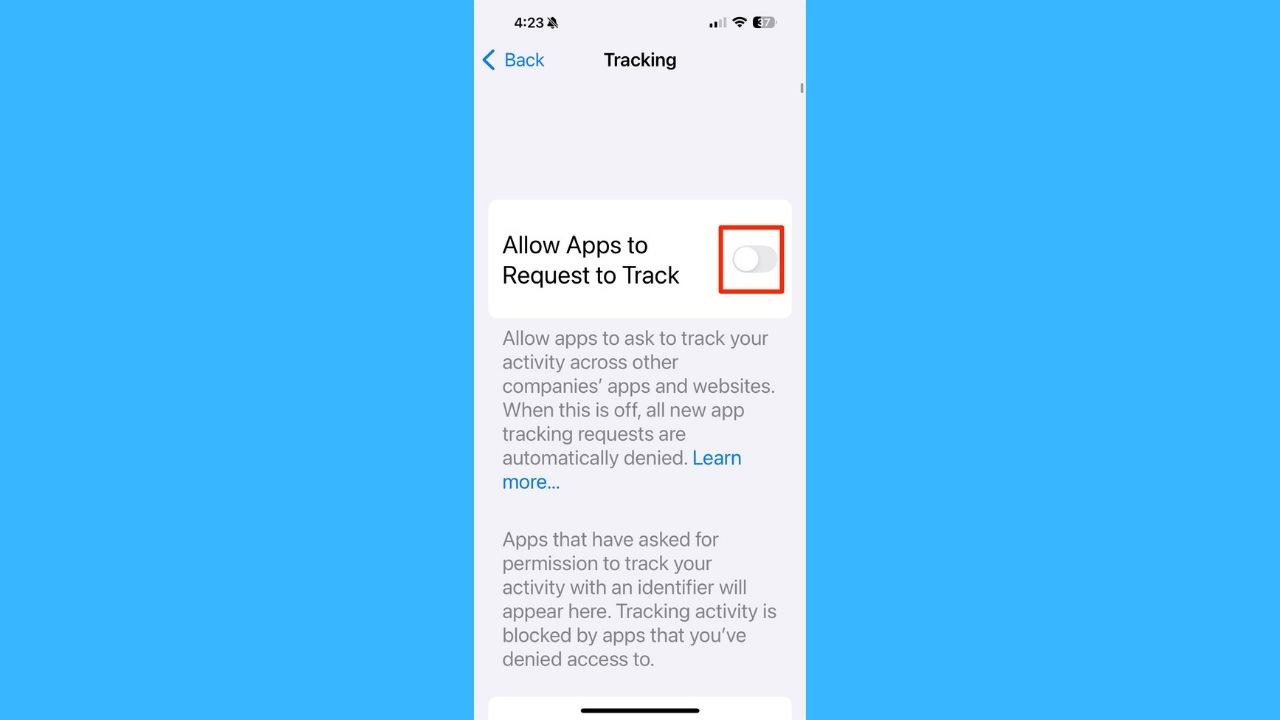
On Android:
Settings may vary depending on your Android phone’s manufacturer
Settings > Google > All services > Ads → Turn off “Ad personalization” or choose “Delete advertising ID” for more privacy.
This won’t block all ads, but it prevents apps from tracking your activity.

2) Turn off lock screen previews
Because anyone can see your texts, even when your phone is locked
| 🎙 Now Streaming [Ep. 34] Is that Social Security email in your inbox real? How one convincing SSA scam nearly tricked a reader, and the five red flags to check before you click |

| 📱 Lock down your phone in 30 minutes: Join Kurt “CyberGuy” Knutsson for a free live class on Saturday, June 13 at 10 AM ET and learn simple, real-time steps to protect your personal data and stay safer from scams. Register free: CyberGuyLive.com |
By default, many phones show message previews on the lock screen. Sounds convenient, until someone sees your two-factor authentication code, private message, or bank alert over your shoulder.
You’ll want to change this if:
- You leave your phone face-up at work
- You use SMS for 2FA
- You’ve had someone “casually” glance at your lock screen
Here’s how to hide those previews:
On iPhone:
Settings > Notifications > Show Previews → Set to “When Unlocked.”
On Android:
Settings may vary depending on your Android phone’s manufacturer
Settings > Notifications > Lock Screen notifications → Choose “Hide content” or, on some Android phones, it might say “Don’t show sensitive content” (which hides sensitive content like message previews on the lock screen).
You’ll still get alerts, but what’s inside stays private.
3) Audit app permissions
Because that flashlight app doesn’t need your location
Over time, apps can quietly collect more permissions than they need, accessing your camera, microphone, contacts, or even location without you noticing. You might be giving away too much if:
- An app you barely use still has mic access
- You’ve never checked which apps can track your location
- You’ve had the same apps since 2017 and never reviewed them
Here’s how to review and revoke apps:
On iPhone:
Settings > Privacy & Security → Tap Location Services, Camera, Microphone, etc. to see what apps have access.
On Android:
Settings may vary depending on your Android phone’s manufacturer
Settings > Security and privacy > More privacy settings > Permission Manager → Review permissions by category.
Revoke anything that doesn’t make sense. Your phone will still work just fine.

4) Keep Bluetooth off when not in use
Because hackers love an open connection
Bluetooth is great for headphones and smartwatches, but it’s also a known entry point for cybercriminals using “bluesnarfing” or other attacks to siphon data. The risk goes up if:
- You leave Bluetooth on 24/7
- You connect to public or rental car Bluetooth systems
- You don’t recognize every device paired with your phone
Here’s a quick fix:
Swipe down from the top right of your screen to access your Control Center (iPhone) or Quick Settings (Android), and toggle Bluetooth off (A blue stylized “B” symbol shaped by two angular runes resembling “ᛒ” joined vertically) when not in use. Less is more when it comes to open channels.
5) Enable automatic software updates
Because outdated phones are hacker magnets
Software updates don’t just bring new features; they patch critical vulnerabilities that hackers rely on to break into phones.
Red flags:
- You keep hitting “Remind Me Later” on updates
- Your phone is more than 1 version behind
- You’ve never checked if auto-updates are on
Here’s how to turn it on and forget it:
On iPhone:
Settings > General > Software Update > Automatic Updates → Enable both toggles.
On Android:
Settings may vary depending on your Android phone’s manufacturer
Settings > Software Update > Auto-download or Auto-install updates (may vary by device)
One of the simplest, strongest defenses you can set.
Bonus Tip: Install Antivirus Protection
Because built-in settings aren’t always enough
While iPhone and Android devices come with solid built-in security, they’re not bulletproof. Malicious apps, phishing links, and sneaky downloads can still slip through. Adding a trusted antivirus app gives you an extra layer of defense against malware, spyware, and dangerous links.
Here’s what to look for in a mobile antivirus:
- Real-time protection that stops threats before they spread
- Anti-phishing tools to block fake websites and texts trying to steal your info
- Identity theft alerts if your personal details are exposed in a data breach
- Device optimization to keep your phone running smoothly
I recommend checking out TotalAV for comprehensive protection. It’s easy to use, offers real-time threat detection, and is currently available with exclusive CyberGuy savings:
If you want to double up on security, pair antivirus with a VPN like Surfshark to keep your browsing private on public Wi-Fi:
Even with antivirus installed, continue following the settings above- together, they’ll give you the strongest shield for your phone.
Related Links:
- Send spam calls to voicemail on iPhone Android
- Which apps are draining your phone’s battery?
- How to easily print photos from your phone
Kurt’s key takeaways
You don’t need a tinfoil hat to take phone security seriously, just a few quick changes to how your device behaves. Small things, such as hiding message previews, checking app permissions, and disabling Bluetooth, can make a big difference in protecting your personal information. And remember: phone security isn’t a one-time deal. Stay curious, keep your software updated, and check in on your settings periodically, just as you would with your bank or email accounts.
Got questions about phone safety? Drop them below, I might feature yours next.
FOR MORE OF MY TECH TIPS & SECURITY ALERTS, SUBSCRIBE TO MY FREE CYBERGUY REPORT NEWSLETTER HERE
Copyright 2025 CyberGuy.com. All rights reserved. CyberGuy.com articles and content may contain affiliate links that earn a commission when purchases are made.
🎙 Now Streaming: My New Podcast: The CyberGuy Report
Kurt’s Top Deals
Deals move fast and inventory can be limited, so don’t wait too long.
| 🔥 Editor’s pick  Summer entertaining Ninja SLUSHi Machine (26% off) Frozen drinks and slushies at home in minutes. | |
| 💰 Top deal  Outdoor essential TYPEC Solar Bug Zapper (36% off) Solar-powered bug zappers for patios and camping. |


