



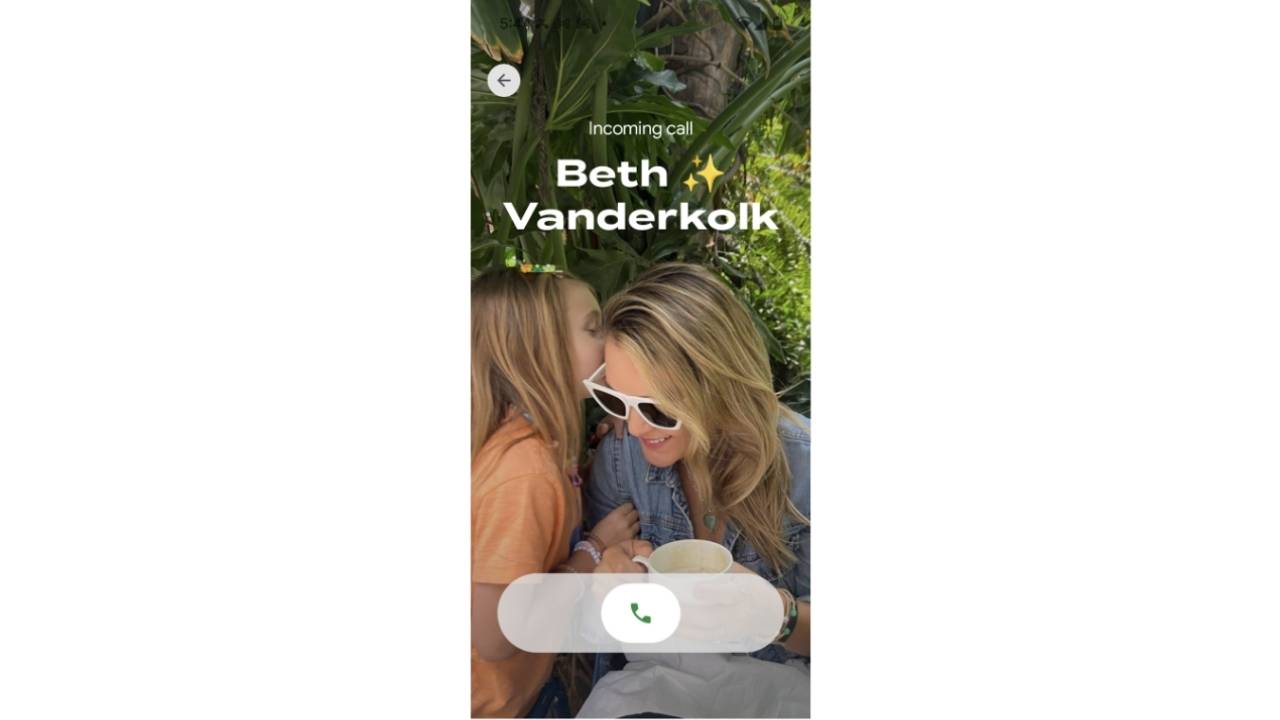
Google is rolling out a fresh way to make your calls more personal. The Google Phone app now features Calling Cards, a playful update that transforms how contacts appear when they call you. Instead of the small contact photos you’re used to, you’ll see full-screen images paired with stylized names. It’s a fun, visual upgrade that gives you more control over your call experience.
This feature is similar to Apple’s Contact Posters, which debuted for iPhone users in 2023. But Google’s version has its own spin. Let’s break down what Calling Cards are, how to use them, and what else is new in the Phone app.

Credit: Google
What are Google Phone Calling Cards?
Calling Cards let you design custom call screens for your contacts. Instead of the standard, tiny thumbnail image, you can create a bold, full-screen look when someone calls.
These cards include:
- Full-screen photos pulled from your gallery, camera, or Google Photos
- Stylized fonts and colors to display contact names
- Custom setups for each person on your device
Unlike Apple’s feature, your cards won’t show up when you call someone else. They’re only visible on your own phone, meaning you get complete freedom to design how you see each contact.
Credit: Google
How to set up Calling Cards in Google Phone
Here’s a step-by-step guide: First, update your Google Phone app to version v188 or newer.
Settings may vary depending on your Android phone’s manufacturer
- Open the Google Play Store on your Android phone.
- In the top search bar, type “Phone by Google” and tap Enter.
- Find the app in the results (it typically appears as ‘Phone by Google’ with a blue phone icon).
- Tap the app listing to open its detail page.
- If an Update button appears, tap it. (If you only see Open, your app is already up to date.)
- Wait for the update to finish downloading and installing.

Steps to Personalize Your Contacts
Settings may vary depending on your Android phone’s manufacturer
- Open the Phone app and check for a banner on the Home tab that says “Introducing Calling Card: Customize how you see your contact when they call you.”
- Tap the banner or navigate manually through your Contacts.
- Choose a contact you want to customize.
- Select a photo from your gallery, camera, or Google Photos.
- Pick a font and color for their name.
- Save the card and repeat the process for as many contacts as you like.
Whenever that person calls, your phone will light up with the personalized design you created.
Note: The full rollout may take days to weeks. Keep checking your Phone and Contacts apps for the “Introducing Calling Card” banner.
What else is new in the Google Phone app?
Calling Cards aren’t the only new feature. Google also introduced a Take a Message option. This tool acts like a modern voicemail assistant:
A Texas mom says she spent the night in jail after speaking up online about dirty water in her town. The case was later dropped, but her story raises a troubling question: could something you post online ever put you at risk?

Join Kurt this Saturday, June 13 at 10 AM ET for quick phone privacy and security fixes.
See Kurt’s 2026 picks for practical tech and everyday upgrades.
- Missed calls trigger an automatic message asking the caller to leave a note.
- Callers hear your custom greeting or one of Google’s presets.
- Their messages are transcribed instantly and stored privately on your device.
- You’ll find transcripts and recordings under the Recents tab in the Phone app.
The feature is available on Pixel 4 or newer, and Pixel Watch 2 when paired with a Pixel 6 or newer.
Why this matters
This update shows how Google is leaning into its Material 3 Expressive design language, giving Android users a sleeker and more playful interface. Between the bold visual Calling Cards and the practical Take a Message feature, the Phone app feels both more modern and more useful.
Related Links:
- Stop Google from following your every move
- Don’t be so quick to click that Google calendar invite. It could be a hacker’s trap
- Is Google Drive safe for backup? Pros and cons
Kurt’s key takeaways
Google’s new Calling Cards give you a fun way to personalize your calls while keeping everything simple and easy to set up. Combined with Take a Message, the Phone app is shaping up to be more than just a utility; it’s becoming an extension of your style and communication.
What kind of creative Calling Cards will you design for your favorite contacts? Let us know in the comments below.
FOR MORE OF MY TECH TIPS & SECURITY ALERTS, SUBSCRIBE TO MY FREE CYBERGUY REPORT NEWSLETTER HERE
Copyright 2025 CyberGuy.com. All rights reserved. CyberGuy.com articles and content may contain affiliate links that earn a commission when purchases are made.
🎙 Now Streaming: My New Podcast: The CyberGuy Report
Kurt’s Top Deals
Deals move fast and inventory can be limited, so don’t wait too long.
| 🔥 Editor’s pick  Summer entertaining Ninja SLUSHi Machine (26% off) Frozen drinks and slushies at home in minutes. | |
| 💰 Top deal  Outdoor essential TYPEC Solar Bug Zapper (36% off) Solar-powered bug zappers for patios and camping. |


