



This iPhone hacks brings a game-changing feature to your iPhone: the ability to hide and lock your apps. Whether you’re looking to keep certain apps private or simply declutter your home screen, this new functionality has got you covered. Let’s dive into how you can make the most of these cool new features.
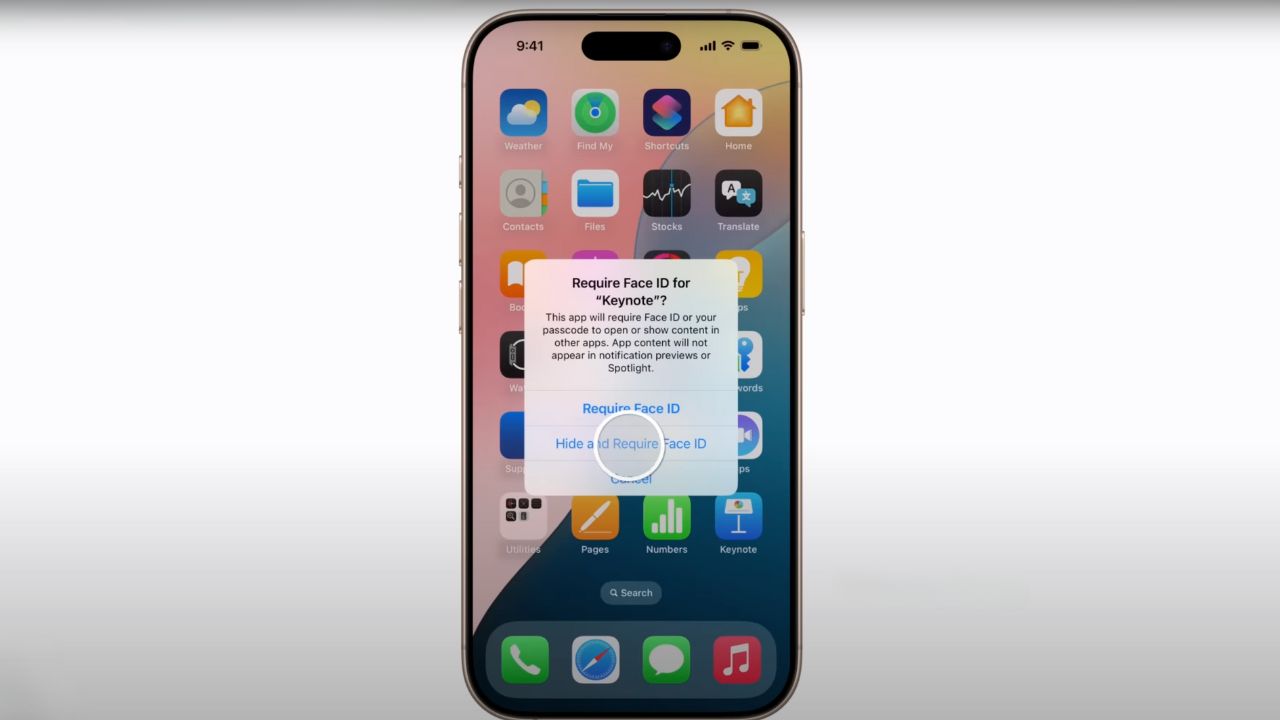
Credit: Apple
Check your iOS version and update
Before diving into app management, it’s essential to verify that your iPhone is updated to iOS 18. Here’s how to check and update your device:
- Tap on the Settings app on your home screen.
- Scroll down and tap on General.
- Tap Software Update. Your device will check for available updates.
- If iOS 18 or beyond is available, tap Download and Install. You may be prompted to enter your passcode.
- Agree to the terms and wait for the update to download and install. Your iPhone will restart once the installation is complete.
- Make sure your device is connected to Wi-Fi and has sufficient battery life before starting the update process.
Hiding apps: Out of sight, not out of mind
Hiding apps is perfect for keeping certain applications discreet while still having them accessible when needed. You can hide third party apps or Apple apps that were downloaded from the App Store. Here’s how to do it:
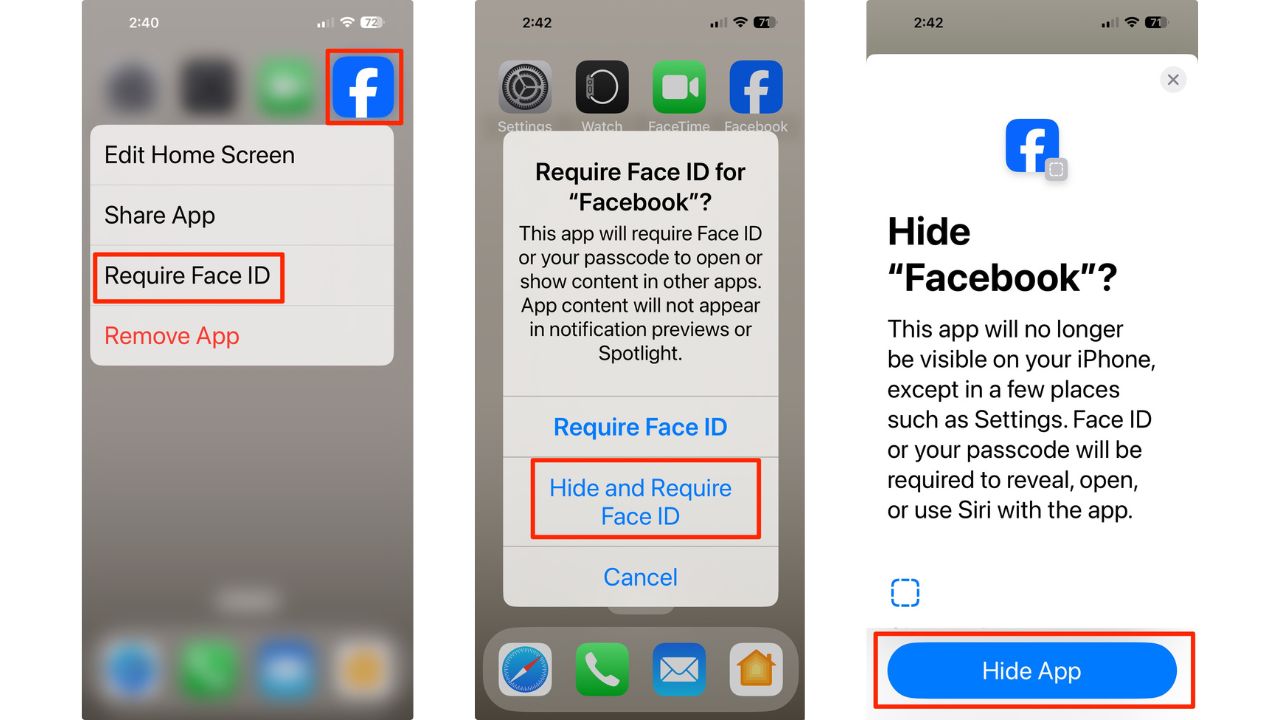
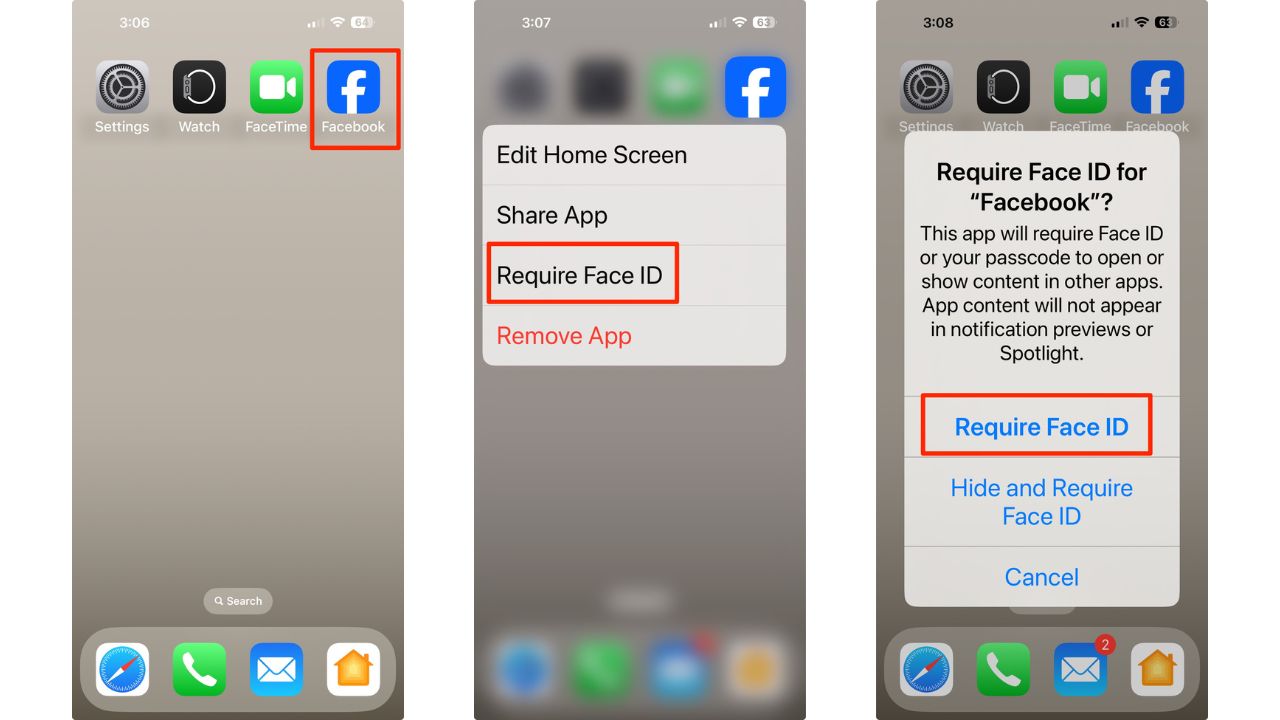
- Long-press on the app icon until the context menu appears. In this example we’ll use the Facebook app.
- Tap on Require Face ID.
- Select Hide and Require Face ID.
- A screen will appear explaining that your app will require Face ID, or your passcode to reveal, open or use Siri with the app.
- Tap Hide App at the bottom of the screen.
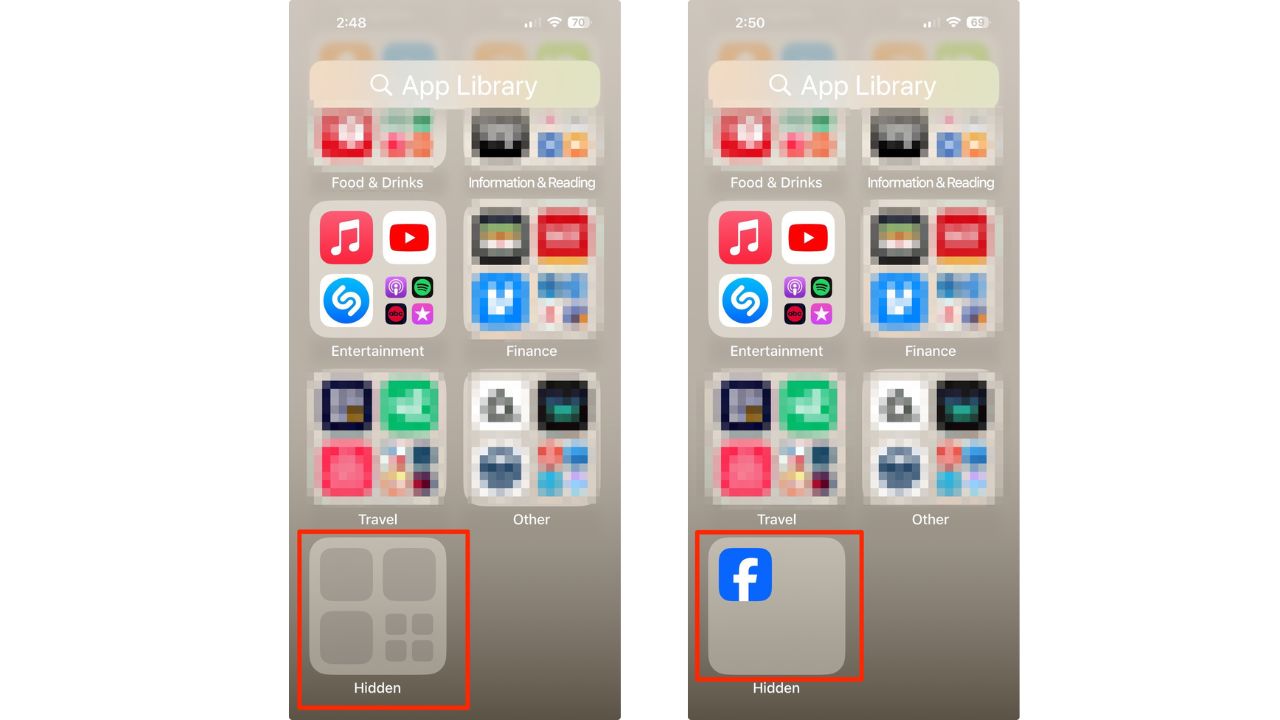
- The app is now hidden from your home screen and will be moved to a folder for hidden apps in app library.
Note: You will not receive notifications, calls or critical alerts from this app.
Accessing hidden apps
Need to use a hidden app? No problem:
- Swipe left on your iPhone’s home screen until you reach the App Library.
- Look for the Hidden Apps folder at the bottom of your screen.
- Tap on it and use Face ID to unlock.
- Tap on the app you want to access.
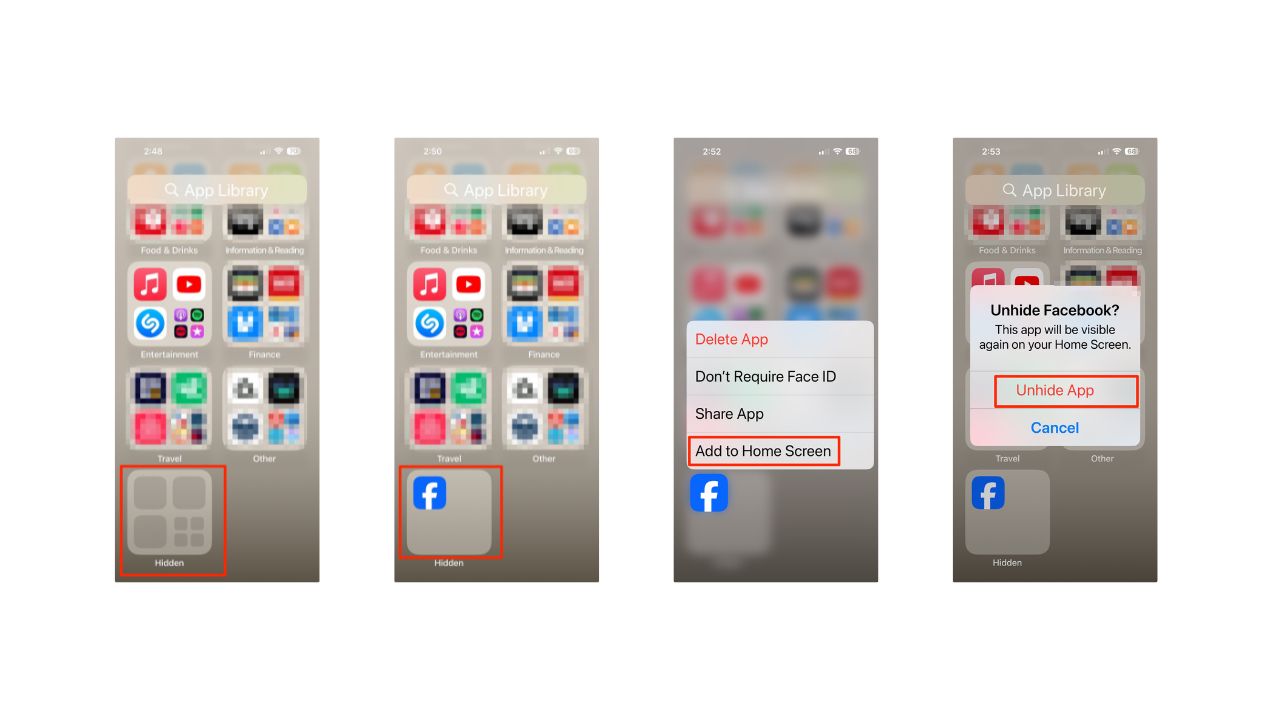
Unhiding apps: Bringing them back to light
Changed your mind about hiding an app? Here’s how to unhide it:
- Swipe left on your iPhone’s home screen until you reach the App Library.
- Look for the Hidden Apps folder at the bottom of your screen.
- Tap on it and use Face ID to unlock.
- Tap on the app you want to access.
- Click Add to Home Screen
- Then tap Unhide App and this app will now be visible again on your Home Screen.
Locking apps: Adding an extra layer of security
Let’s say you don’t want to hide the app and want to keep it visible on your home screen, but you want additional protection for sensitive apps. Here’s how to add an extra layer of security:
- Long-press on the app icon. In this example, we’ll use the Facebook app.
- Tap ‘Require Face ID’.
- Select ‘Require Face ID’ again.
Now, the app can only be opened with your Face ID.
Watch the latest episode of The CyberGuy Report.

Missed this event? Sign up via the registration form and see our live recording.
See Kurt’s latest Amazon picks for useful gadgets, smart home upgrades and everyday tech worth grabbing while the deals last.
Unlock apps: Removing Face ID from an app
To remove Face ID protection from an app on your iPhone, follow these steps:
- Long-press on the app icon you want to unlock. Let’s use Facebook as an example.
- In the context menu that appears, tap on “Remove Face ID.”
- You’ll be prompted to confirm. Tap “Remove” to confirm.
- The app will now be accessible without Face ID authentication.
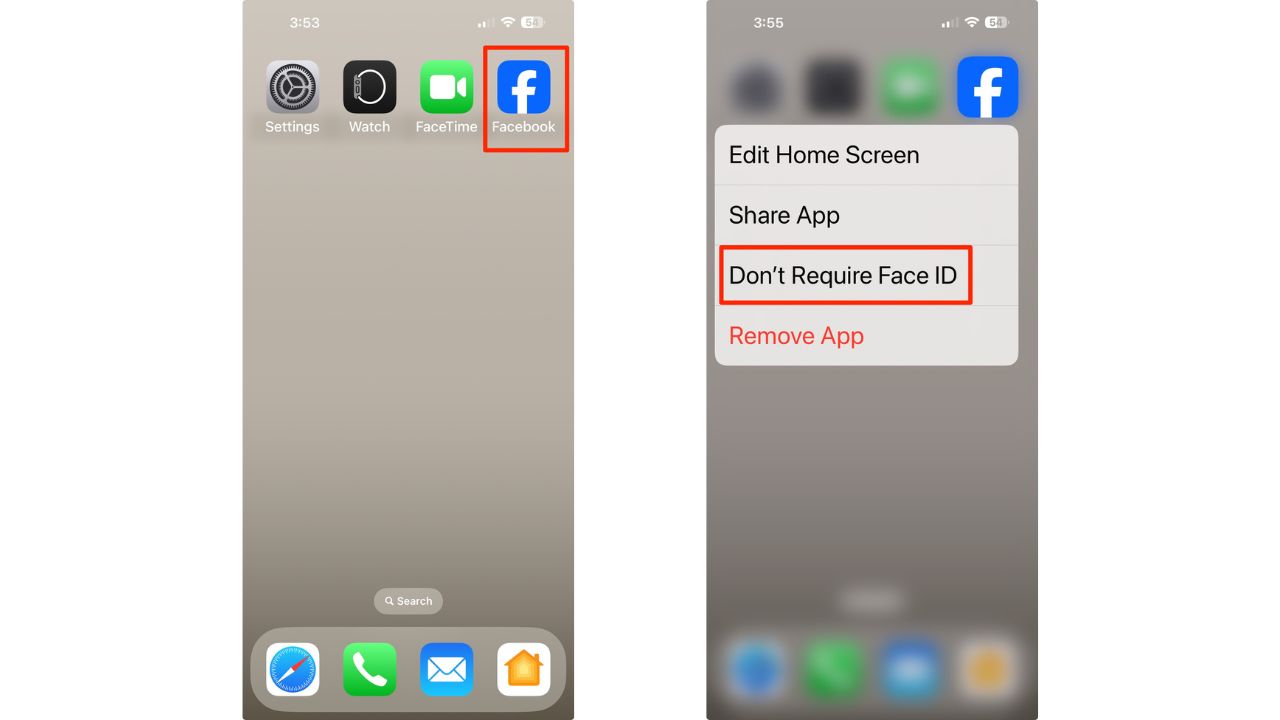
These steps remove the extra layer of security from the app, allowing it to be opened without Face ID verification. Remember, this only affects the individual app – your overall iPhone security settings remain unchanged. Keep in mind that removing Face ID protection from sensitive apps may compromise your privacy and security. Always consider the potential risks before making such changes.
Related Articles:
- How safe is it to play free game apps
- 6 cool iPhone hacks to get the most out of life
- 5 ways your iPhone can make international travel easier & safer
Kurt’s key takeaways
This iPhone feature allows you to hide and lock apps, offerng a simple yet effective way to enhance your iPhone’s privacy and security. Whether you’re keeping sensitive apps away from prying eyes or just tidying up your home screen, these tools put you in control of your digital space. With just a few taps, you can now customize your iPhone experience to suit your privacy needs and preferences.
Beyond hiding and locking apps, what other customization or privacy features would you like to see implemented in future iPhone operating systems? Let us know in the comments below.
FOR MORE OF MY SECURITY ALERTS, SUBSCRIBE TO MY FREE CYBERGUY REPORT NEWSLETTER HERE
Copyright 2025 CyberGuy.com. All rights reserved. CyberGuy.com articles and content may contain affiliate links that earn a commission when purchases are made.
🎙 Now Streaming: My New Podcast: The CyberGuy Report
Kurt’s Top Deals
Deals move fast and inventory can be limited, so don’t wait too long.
| 🔥 Editor’s pick  Summer entertaining Ninja SLUSHi Machine (26% off) Frozen drinks and slushies at home in minutes. | |
| 💰 Top deal  Outdoor essential TYPEC Solar Bug Zapper (36% off) Solar-powered bug zappers for patios and camping. |


5 comments
Thank you! I’m 89 years old and learn something new from you every day. Whomever said “ you can’t teach an old dog new tricks “ never read your daily column!
Love to hear this, John!
Hi Kurt, not trying to do John F, age wise, but I’m 95 and still learning a few things thanks to you. An awful lot younger folks think we older guys are done learning after reaching 65 or 70. A few of us do, but a whole lot us keep on trudging. I’m figuring on plodding along for, hopefully, another 5.Keep it up John,you’re getting there. And thank you, Kurt, for your website.
I updated my Apple iPad to iOS 18. I am seeing so many ads than before. I hate having to hide and unfollow every one. This is in Facebook. I hate having to spend time hitting g hide and unfollow to get rid of them. I am not seeing posts from friends only a certain few. Why is that? What can I do?
Hi Dianne, please see our article here on how to control what’s in your Facebook news feed.