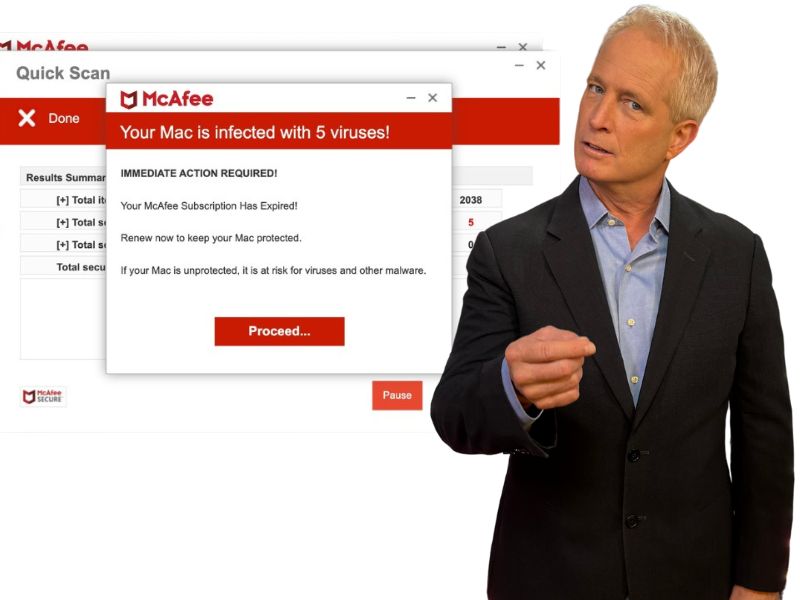
- Fake McAfee pop-ups use fear to push you into clicking, paying or downloading malware.
- Many alerts come from scam websites, malicious ads, shady extensions or Chrome notifications you accidentally allowed.
- Do not click the warning; close your browser and check Chrome’s notification permissions first.
- If you clicked, scan your device, change passwords from another device and monitor your accounts.
We want to warn you about a scam that you may encounter while browsing the web. A McAfee antivirus pop-up suddenly appears on your computer, claiming your device is infected, and your McAfee subscription has expired. While it might seem legitimate, it’s really a scam. Suzy from Loudon, TN, wrote to us saying she is experiencing the same thing, writing,
I am attempting to rid my new computer of a pesky McAfee Google Chrome Ad that keeps telling me I am infected with trojan viruses and I have an expired McAfee account with my new computer. I do not have their coverage. Per all my virus coverage, I show no infection; however, this menace keeps popping up even stating in full screen I shall lose my Windows 10 license and wipe my computer clean, etc. I shut my computer down completely… This pest has to go and I am ready to send this pest to its graveyard – ashes baby!
Luckily, Suzy, we have a solution to make sure you don’t put your information, finances, and security at risk.
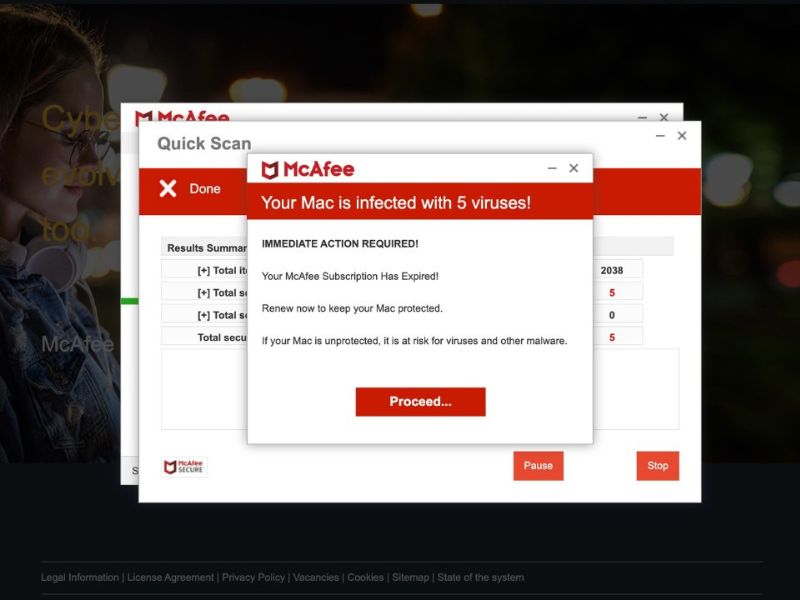
Breaking down the McAfee pop-up scam
The McAfee scam utilizes fear and panic to make you a victim. The goal is to make you act fast. Once you see the pop-up, you see that this pop-up is telling you your computer is infected with viruses and that your McAfee subscription has expired.
First, ask yourself if you even had McAfee software to begin with. This should be the first red flag. The scammers are preying on your fears and counting on you to fall into their trap and click anywhere on the screen. You’re tempted to click the button to proceed and subscribe to what seems like real antivirus software. After all, it uses the McAfee logo, which is synonymous with internet security.
This scam can take your information using two methods. Sometimes, when you click on a pop-up like the fake one above, it will direct you to a website, asking you to resubscribe. You enter your data, thinking you’re getting a real antivirus software. However, in reality, you have just given a scammer your credit or debit card information, address, and more.
The scam could also download malicious software once you click an option like “Proceed,” “Get Protection,” or “Scan.” That software is automatically downloaded onto your computer, and hackers can gain access.
There are several ways it can get onto your new computer. You might have downloaded a malicious file or browser extension. It can even get onto your computer if you visit a suspicious website and allow notifications.
That last part is important because many fake McAfee alerts now appear as Chrome notifications after someone accidentally clicks “Allow” on a scam website.
Is that a real pop-up on my computer?
No, these alerts are usually not real McAfee warnings or real system alerts. Many fake McAfee pop-ups come from scam websites, malicious ads or browser notifications you may have accidentally allowed. Others can come from adware, a bad browser extension or a malicious download.
If you click on them, you might end up downloading malware, giving away personal information or paying for a fake service. McAfee says one of the safest ways to check whether a warning is real is to avoid the pop-up and log in to your McAfee account directly. If the warning does not appear there, treat the pop-up as suspicious.
How to protect yourself from the McAfee pop-up scam
If you see these pop-ups appear in your browser, don’t be alarmed. Here’s what to do.
1) Don’t click on suspicious links or pop-ups.
First, whatever you do, don’t click on links or pop-ups that look like they are from legitimate sources like McAfee unless you are absolutely sure it’s legit. As mentioned, these links or pop-ups can lead you to malicious websites or to downloading harmful software onto your computer. To avoid this, you should always check the URL of the link or pop-up before you click on it. If it looks suspicious, do not click on it. You can also hover your mouse over the link or pop-up to see the actual URL. If it does not match the source, do not click on it.
2) Close down your browser
Second, the best way to avoid these pop-ups is to close your browser. You should also avoid reopening the same website or tab that triggered the pop-up, as it may still be compromised or malicious.
Watch the latest episode of The CyberGuy Report.

Missed this event? Sign up via the registration form and see our live recording.
See Kurt’s latest Amazon picks for useful gadgets, smart home upgrades and everyday tech worth grabbing while the deals last.
If the page takes over your screen or will not close, press Ctrl + Shift + Esc on Windows to open Task Manager, select Chrome and click End task. On a Mac, press Command + Option + Esc, select Chrome and click Force Quit. Then reopen Chrome without restoring the same tabs.
Sometimes, closing your browser is all you need to do. Other times, you may see that this pop-up page may come back, so let’s check your browser notification settings next.
3) Turn off scam site notifications in Chrome
Fake McAfee alerts often return because a scam website has permission to send notifications through Chrome. Removing that permission can stop the alerts from popping up again.
On your computer, open Chrome. At the top right, click the three-dot icon. Click Settings > Privacy and security > Site settings > Notifications. Look under sites allowed to send notifications. Remove or block any website you do not recognize. You can also add suspicious sites under “Not allowed to send notifications.”
You may also want to check pop-up permissions. In Chrome, go to Settings > Privacy and security > Site settings > Pop-ups and redirects. Make sure suspicious sites are not allowed to send pop-ups or redirects.
4) Clear Cache
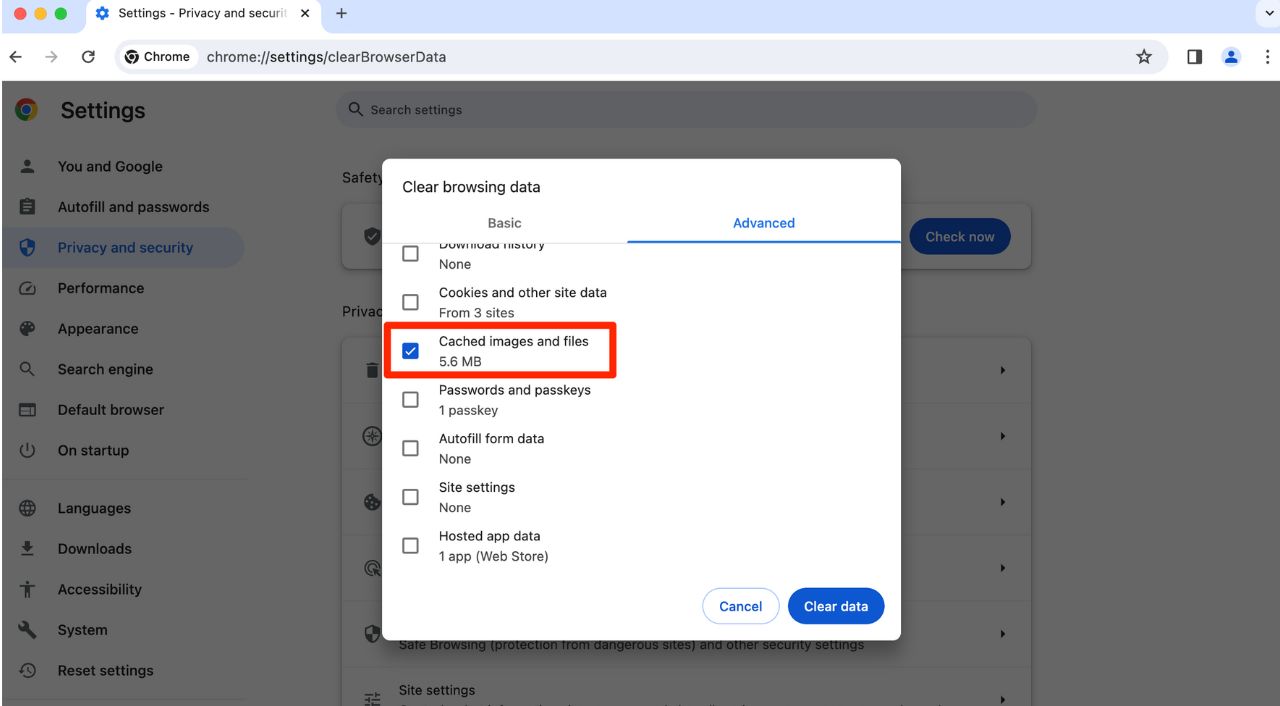
If you see these fake pop-up screens appear in your browser again over the course of the day or week, try clearing your cache. Here’s how to do it on your computer.
- On your computer, open Chrome
- At the top right, click the three dots icon
- Tap Clear browsing data
- In the Clear browsing data window, select a time range. To delete everything, select All time
- Next to “Cached images and Files,” check the box
- Click Clear data.
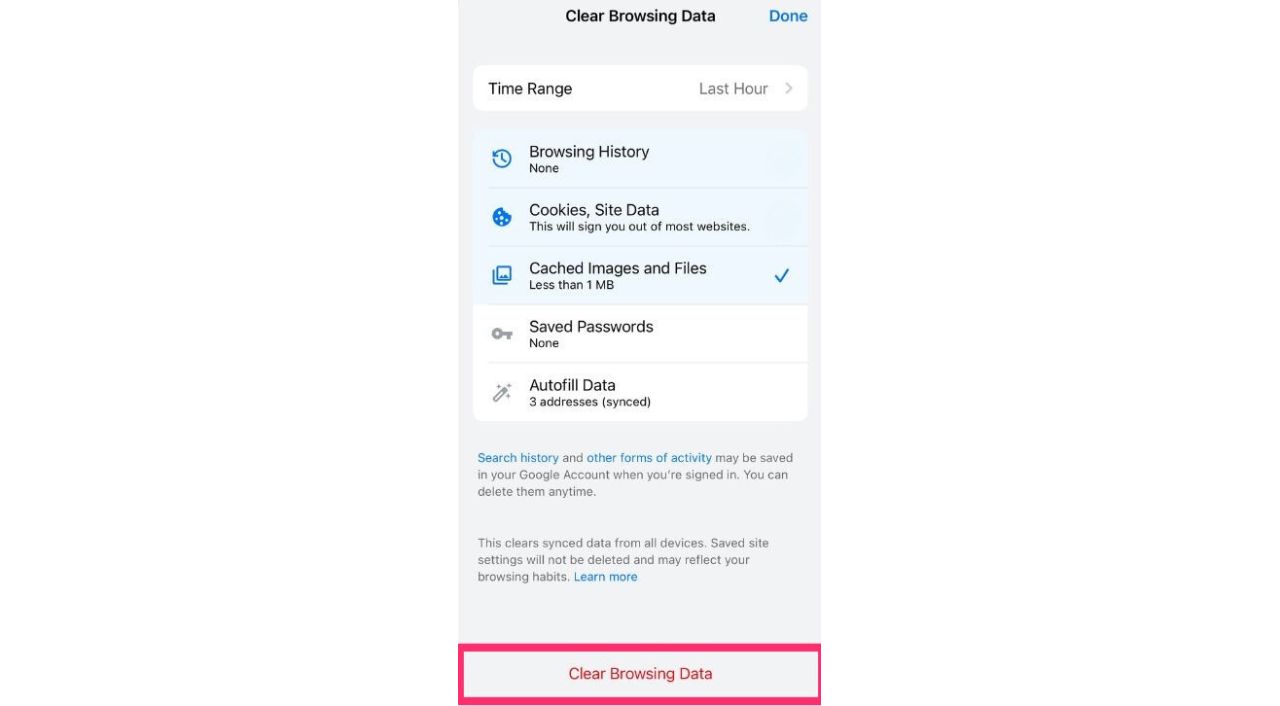
You can also clear the cache on your iPhone or Android.
5) Remove extensions
If you are seeing these fake pop-ups after you have already cleared your cache, let’s try disabling your browser extensions to see if it will solve the problem. Here’s how to do this.
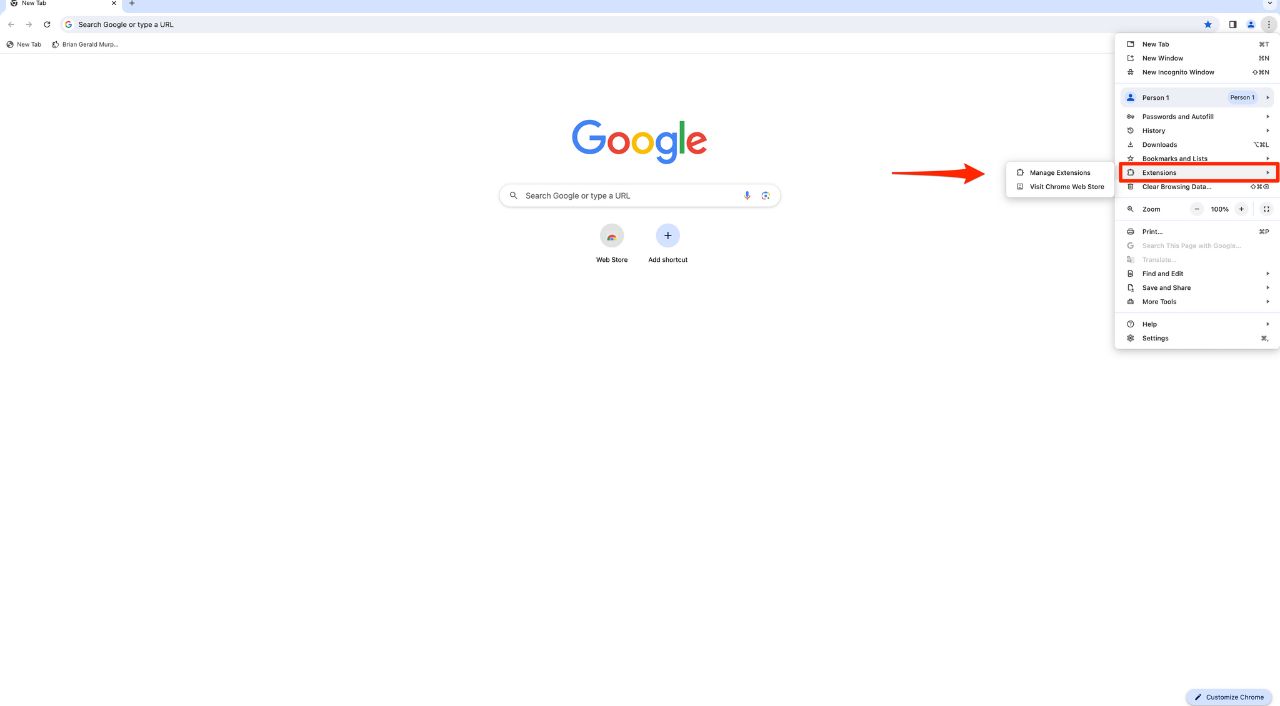
- Open your Chrome browser and click on the three dots icon at the top right corner of the screen. This will open a menu with various options
- From the menu, select Extensions
- Then click Manage Extensions. This will take you to a page where you can see all the extensions that are installed on your browser
- On the extensions page, you will see a toggle switch next to each extension. If the switch is blue, it means the extension is enabled. If the switch is gray, it means the extension is disabled.
- To disable an extension, simply click on the toggle switch and make it gray. You can also click on the Remove button below the extension to uninstall it completely from your browser. For now, let’s just try disabling the extension.
- Repeat this process for all the extensions that you want to disable or remove. You may need to restart your browser for the changes to take effect.
6) Reset Chrome if the pop-ups keep returning
If the alerts keep coming back after you check notifications, clear your cache and remove suspicious extensions, reset Chrome. This can remove unwanted settings caused by scam sites, adware or shady extensions.
On your computer, open Chrome. Click the three-dot icon > Settings > Reset settings > Restore settings to their original defaults > Reset settings. After the reset, only turn trusted extensions back on.
7) Use legitimate antivirus software
Keeping hackers out of your devices can be prevented if you have good antivirus software installed. Having antivirus software on your devices will make sure you are stopped from clicking on any potential malicious links that may install malware on your devices, allowing hackers to gain access to your personal information.
- Strong real-time protection against viruses, malware, ransomware and hacking attempts
- AI-powered scam protection to help identify suspicious emails, texts and websites
- Built-in password manager to securely store and manage logins
- 2 GB PC cloud backup to help protect important files from ransomware or hardware failure
- Smart firewall and phishing protection
- Protects 1, 3 or 5 devices
- Available for Windows, macOS, Android and iOS
- Includes real-time threat protection, smart firewall and phishing protection to guard against online attacks
8) Report the scam
If you encounter this scam or any other scam, you should report it to the authorities so they can take action against the scammers and warn other people. You can report the scam to the Federal Trade Commission (FTC). You can also report it to your local police department or consumer protection agency. By reporting the scam, you can help prevent others from falling victim to it.
You can also report fake emails or messages using the McAfee brand to McAfee. McAfee says suspicious messages using its name can be forwarded to scam@mcafee.com.
What should you do if you’ve clicked a link and installed malware on your device?
If you’ve been hacked, it’s not too late. There are several ways you can protect yourself from hackers, even when they have access to your information.
Scan your device
First, you’ll want to scan your computer with a reputable and legitimate antivirus program. See my expert review of the best antivirus protection for your Windows, Mac, Android & iOS devices.
Change your passwords immediately
If you’ve inadvertently given your information to hackers or malicious actors, they could have access to your social media or banking accounts. To prevent this, you should change your passwords for all your important accounts as soon as possible. However, you should not do this on your infected device, because the hacker might see your new passwords. Instead, you should use ANOTHER DEVICE, such as your laptop or desktop, to change your passwords. Make sure you use strong and unique passwords that are difficult to guess or break. You can also use a password manager to generate and store your passwords securely.
- Unlimited password storage
- Secure sharing
- Password health reports
- Auto-fill and emergency access
- Data breach monitoring to alert you if your credentials have been exposed
- A Security Dashboard with tools like the Data Breach Scanner and Password Health Checker to identify weak, reused, or compromised passwords
CyberGuy Exclusive Deal: Save 52% now with CyberGuy’s exclusive NordPass offer – Get 1 extra month FREE with a 2-year plan. Try 30 days risk-free for only $1.43 per month!
Monitor your accounts and transactions
You should check your online accounts and transactions regularly for suspicious or unauthorized activity. If you notice anything unusual, report it to the service provider or the authorities as soon as possible. You should also review your credit reports and scores to see signs of identity theft or fraud.
Use identity theft protection
The McAfee pop-up scam targets your personal information. Hackers can use this information to create fake accounts in your name, access your existing accounts, and pretend to be you online. This can cause serious damage to your identity and credit score.
To avoid this, you should use identity theft protection services. These services can track your personal information, such as your home title, Social Security Number (SSN), phone number, and email address, and notify you if they detect any suspicious activity. They can also help you freeze your bank and credit card accounts to stop hackers from using them.
Exclusive CyberGuy deal: Save up to 68% today: Get Aura’s award-winning identity theft protection and credit monitoring for as low as $9/month when billed annually.
Contact your bank and credit card companies
If hackers have obtained your bank or credit card information, they could use it to make purchases or withdrawals without your consent. You should contact your bank and credit card companies and inform them of the situation. They can help you freeze or cancel your cards, dispute any fraudulent charges, and issue new cards for you.
Alert your contacts
If hackers have accessed your email or social media accounts, they could use them to send spam or phishing messages to your contacts. They could also impersonate you and ask for money or personal information. You should alert your contacts and warn them not to open or respond to any messages from you that seem suspicious or unusual.
Restore your device to factory settings
If you want to make sure that your device is completely free of any malware or spyware, you can restore it to factory settings. This will erase all your data and settings and reinstall the original version. You should back up your important data before doing this, and only restore it from a trusted source.
Related Links:
- Fake CAPTCHA scam can hack your computer
- Geek Squad billing scam email warning
- Why scammers target veterans and how to fight back
Kurt’s key takeaways
The McAfee pop-up scam looks to prey on your fears and hopes you panic. It’s important to stay calm and avoid clicking anything inside the warning. In many cases, the fix starts with your browser settings, especially Chrome notifications, because scam sites can keep sending fake alerts after you accidentally allow them. Whenever you download software, make sure it’s from an actual software developer you trust. Don’t download any software or browser extensions from suspicious sources, or else you could be putting yourself at risk. While that’s easier said than done, you should always be vigilant when downloading anything or visiting dubious websites. Phishing scams like the McAfee pop-up scam are everywhere, but you can reduce your risk by slowing down, checking the source and cleaning up suspicious browser permissions.
Have you seen this scam? If not, how do you protect yourself when you’re using the web? We want to hear your thoughts in the comments below.
FOR MORE OF MY SECURITY ALERTS, SUBSCRIBE TO MY FREE CYBERGUY REPORT NEWSLETTER HERE
Copyright 2026 CyberGuy.com. All rights reserved. CyberGuy.com articles and content may contain affiliate links that earn a commission when purchases are made.
🎙 Now Streaming: My New Podcast: The CyberGuy Report
Kurt’s Top Deals
Deals move fast and inventory can be limited, so don’t wait too long.
| 🔥 Editor’s pick  Summer entertaining Ninja SLUSHi Machine (26% off) Frozen drinks and slushies at home in minutes. | |
| 💰 Top deal  Outdoor essential TYPEC Solar Bug Zapper (36% off) Solar-powered bug zappers for patios and camping. |