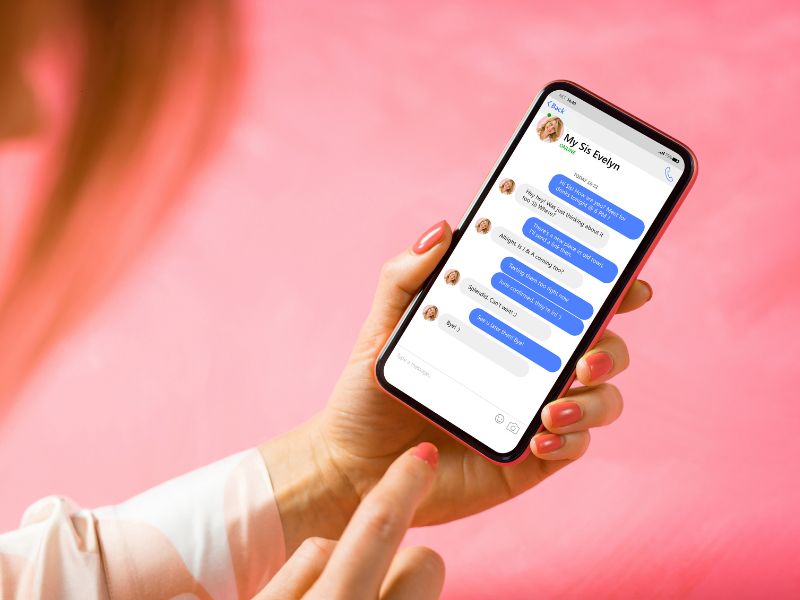
Have you ever wondered if someone else can see the text messages that you are receiving on your iPhone? Do you suspect that it might be a family member that is snooping on your conversations? If so, you are not alone. , G. from Corona, California is asking a great question:
Hi, please give me instructions for my iPhone. I believe someone in my family gets a copy of all my text messages received and texts I send. Kurt, is this even possible?
G., Corona, CA
As it turns out, it’s possible for someone else in your family to receive your texts if you’re on a Family Sharing plan with that other family member using the same Apple ID.
As accidental as this may have happened, it can also be fixed with a few simple steps. Let’s get this solved, go over what family sharing means, how to use separate Apple IDs, and how to stop this from happening to you.
How to share Apple services and save money with Family Sharing
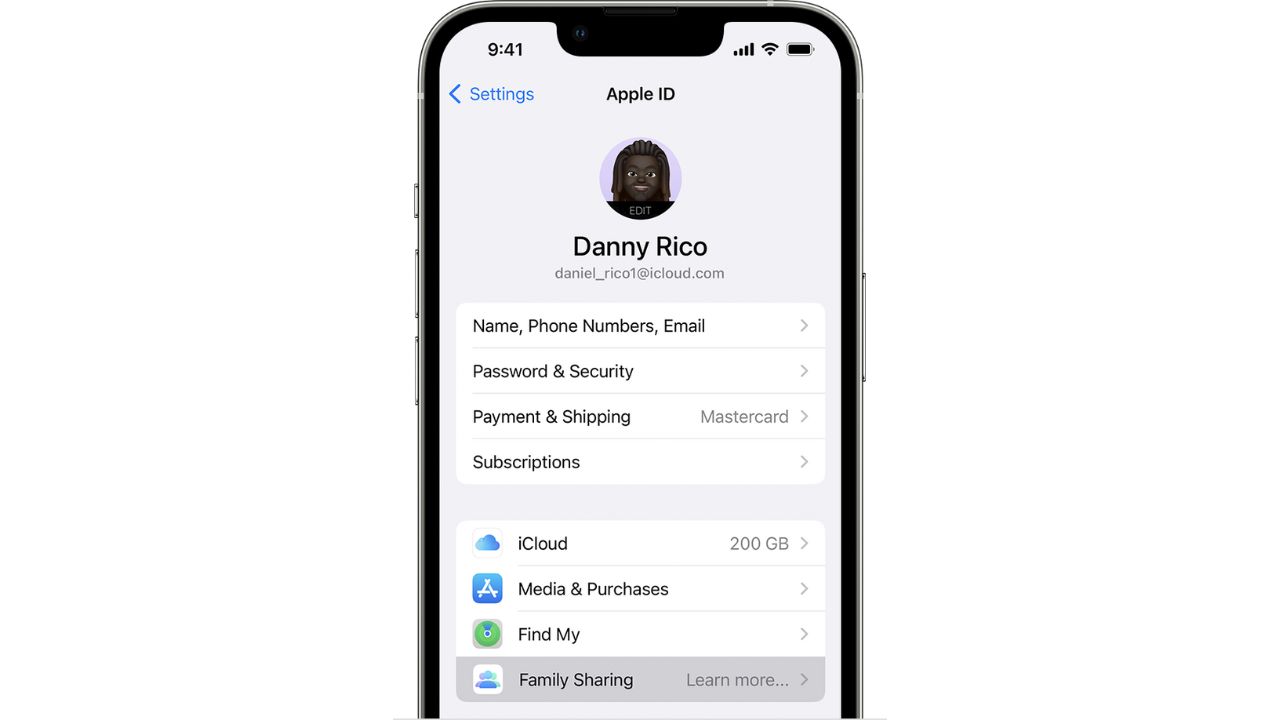
A Family Sharing plan is a feature that allows you to share certain features with other members of your family who are on that same plan often at a cost savings.
These features include iCloud storage, music, apps, and more, and it’s a great way for families to save money and share content. Apple Family sharing itself is free, but to share some paid-for services like Apple Music, you’ll need to have one of the offered subscription plans that fit you the best.
Credit: Apple
How would a Family Sharing plan affect my text messages?
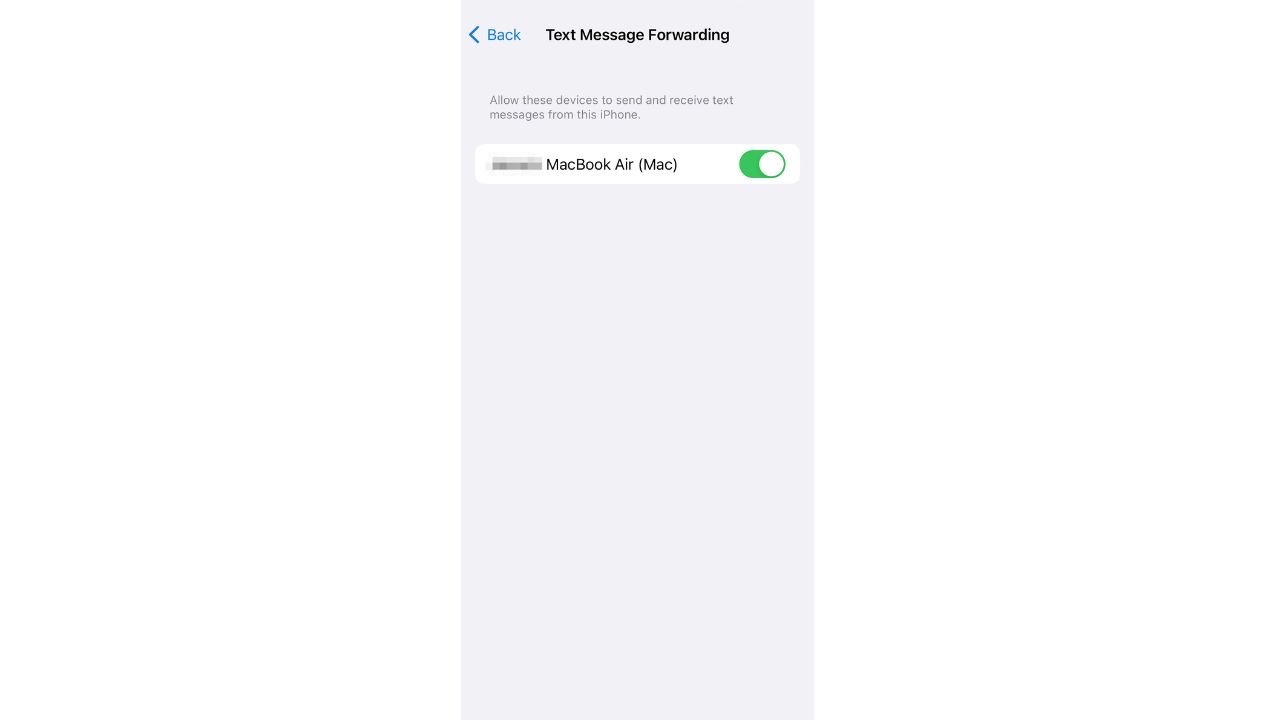
Sometimes a Family Sharing plan can get tricky and confusing when it comes to who has access to what. One example is what happened to G. when a family member on the plan received text messages that were not meant for them. This can happen when Text Message Forwarding is enabled.
MORE: HOW TO CHECK THAT YOU’RE NOT ACCIDENTALLY SHARING YOUR LOCATION
How to disable Text Message Forwarding
- Open your Settings app on your iPhone
- Scroll down and select Messages
- Tap Text Message Forwarding
- Any devices that you allow to receive your text messages will be listed here. If you want to disable this, toggle off each device listed
What about sharing an Apple ID with another family member?
Now, you might have asked yourself. Why don’t I just share the same Apple ID with a family member so that we can have everything on one account, like purchases, apps, and iCloud storage plans?
At first glance, this may seem easier and a good idea because you can have everything all in one place on one ID. However, sharing the same Apple ID will make things way more complicated than simply using a Family Sharing plan, and Apple does recommend that every person with an Apple device have their own Apple ID.
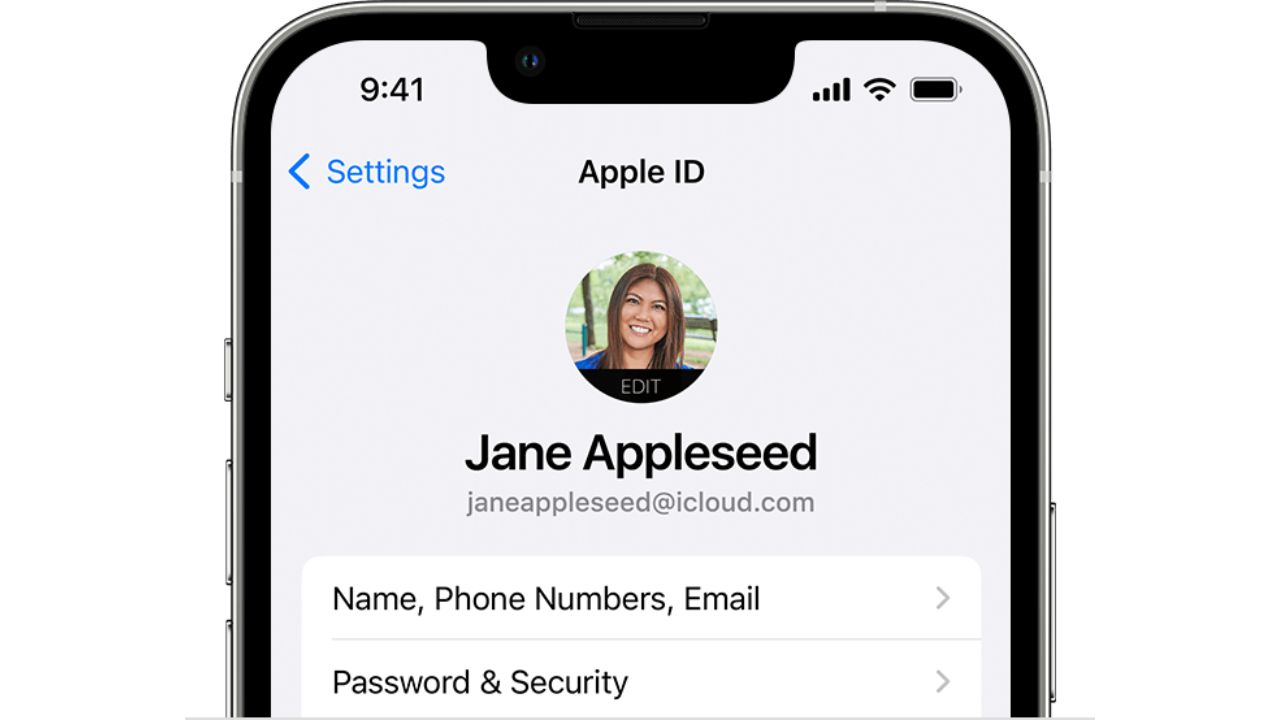
It can get confusing because sharing an Apple ID with another family member allows them to see your text messages. This is because iMessage is designed to work across all of your Apple devices, like your iPhone, Mac, and iPad.
Any text message you receive will be received on all devices that are signed in with your same Apple ID. So let’s say you and your spouse share one Apple ID – this means that any text message that is only meant to be sent to your phone will also go to your spouse’s phone because each of your iPhones is signed in with the same Apple ID.
MORE: HOW TO SCHEDULE TEXT MESSAGES ON YOUR IPHONE AND ANDROID
If you want your family members to stop receiving your text messages, you’ll have to stop sharing an Apple ID with them and create a different one for your text messages.
Credit: Apple
ARE YOU PROTECTED? SEE THE 2023 BEST ANTIVIRUS PROTECTION REVIEWED
How to create a new Apple ID for iMessage
- Open your Settings app on your iPhone
- Scroll down and select Messages
- Select Send & Receive
- Tap the Apple ID at the very bottom of your screen
- Select Sign Out
- Tap Use your Apple ID for iMessage
- Log in with your Apple ID and Password
- If you don’t have an Apple ID or if you want to create a new one. Go ahead and tap Create New Apple ID and follow the onscreen instructions. You will need to provide an email address, a password, a phone number, and some personal information. The email address that you provide will be your new Apple ID
- Tap Sign In and verify your email address by checking your email for a verification email from Apple. After you verify your email address, you can use your new Apple ID to sign in to iMessage and other Apple devices.
MORE: HOW TO IGNORE YOUR FRIEND’S TEXT MESSAGES AND PRETEND YOU NEVER SAW THEM
Kurt’s key takeaways
It can be frustrating and even embarrassing when someone receives a text message that was meant to go to you. However, as you can see from the steps above, the process of fixing this hiccup is relatively simple. Don’t panic if this happens to you, just follow the steps given, and you’ll have your issue sorted out in no time.
How one convincing SSA scam nearly tricked a reader, and the five red flags to check before you click.

Join Kurt Saturday, June 13 at 10 AM ET for quick phone privacy and security fixes.
See Kurt’s 2026 picks for practical tech and everyday upgrades.
Do you think people should be allowed to use the same Apple ID if it causes this much confusion? Let us know by commenting below.
FOR MORE OF MY TECH TIPS AND SECURITY ALERTS, SUBSCRIBE TO MY FREE CYBERGUY REPORT NEWSLETTER HERE
It can be frustrating and even embarrassing when someone receives a text message that was meant to go to you. There’s a simple solution to fix this privacy mess.
Don’t panic if this happens to you, just follow the steps given, and you’ll have your texts arriving only to you and no one else in no time.
Related:
- How to check that you’re not accidentally sharing your location
- How to schedule text messages on your iPhone and Android
- How to ignore your friend’s text messages and pretend you never saw them
🎙 Now Streaming: My New Podcast: The CyberGuy Report
Kurt’s Top Deals
Deals move fast and inventory can be limited, so don’t wait too long.
| 🔥 Editor’s pick  Summer entertaining Ninja SLUSHi Machine (26% off) Frozen drinks and slushies at home in minutes. | |
| 💰 Top deal  Outdoor essential TYPEC Solar Bug Zapper (36% off) Solar-powered bug zappers for patios and camping. |