



- An orange dot means an app is using your iPhone’s microphone.
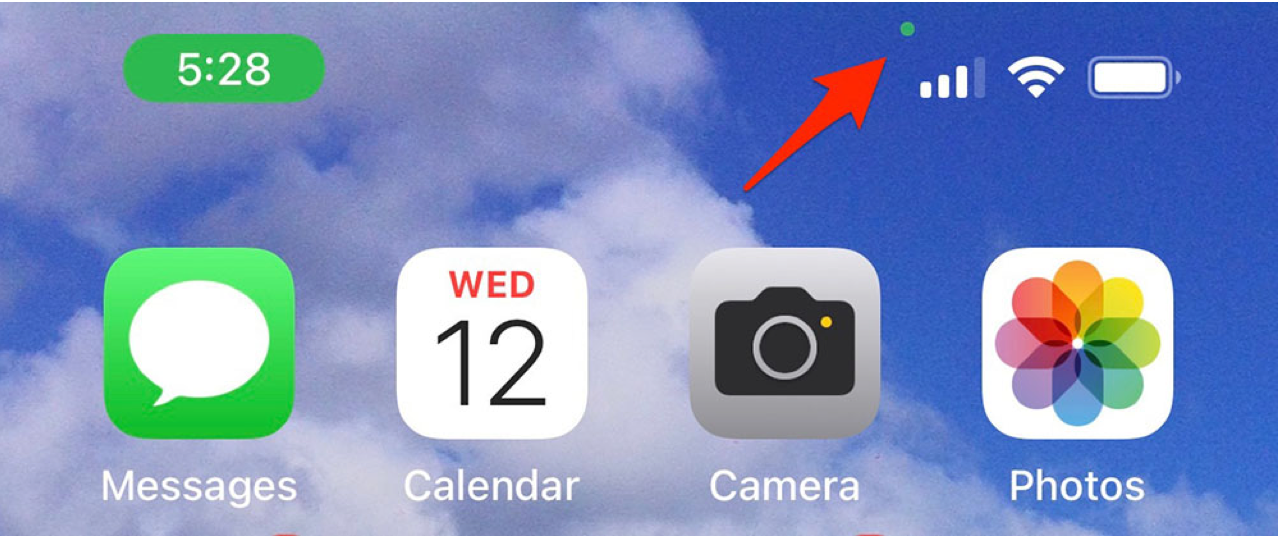
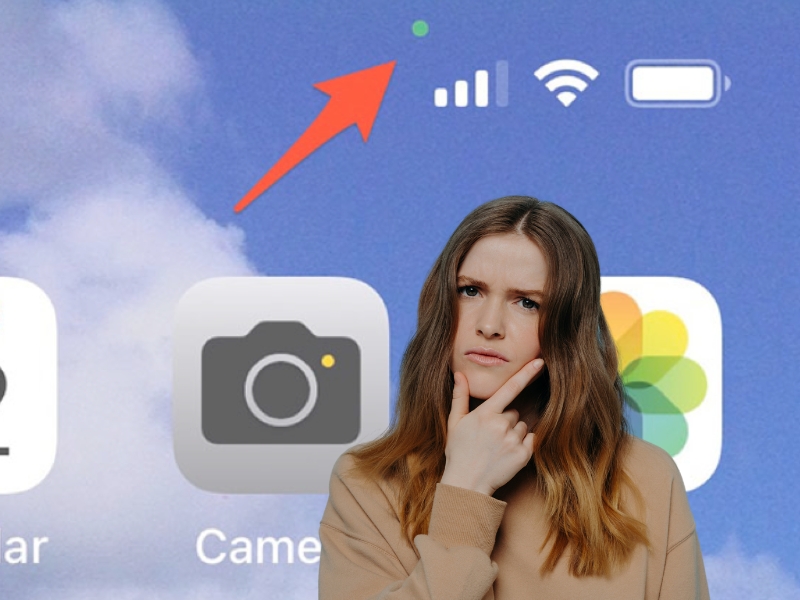
- A green dot means your camera or camera and microphone are in use.
- You can swipe down to see which apps are currently or recently using these features.
- Reviewing app permissions in settings helps you stay in control of your privacy.
Those tiny dots on your phone are not random. They are built-in privacy alerts that show when your camera or microphone is in use.
Recently, we received a question from Teresa, who emailed us asking:
“What does the little orange dot in the top-right corner of my iPhone?”
The orange and green dots you see at the top of your screen are part of an enhanced privacy and security feature. Learn more about what these notification dots mean below, not only for iPhones but also for Androids.
What does it mean if you see the orange dot on the top of your iPhone?
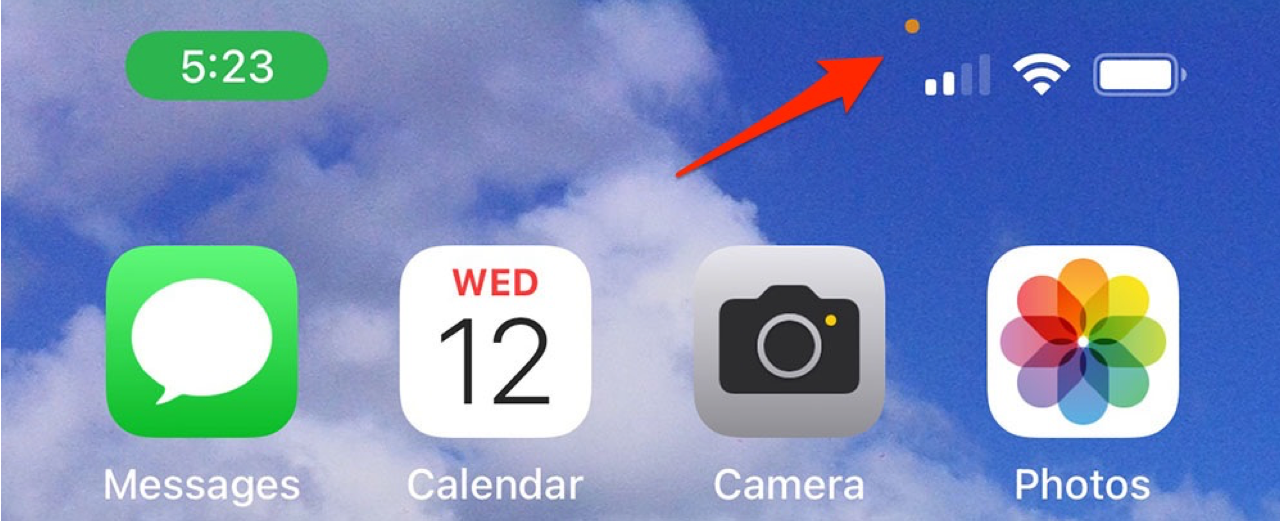
When an orange dot appears in the top-right corner of your screen — right above your cellular bars — this means an app is using your iPhone’s microphone.
It could be any third-party app, or even when you’re using built-in features like calls, Siri or voice dictation. In most cases, this is completely normal and part of how your iPhone protects your privacy.
Which iPhone apps are using your microphone?
If you see the orange dot, you can:
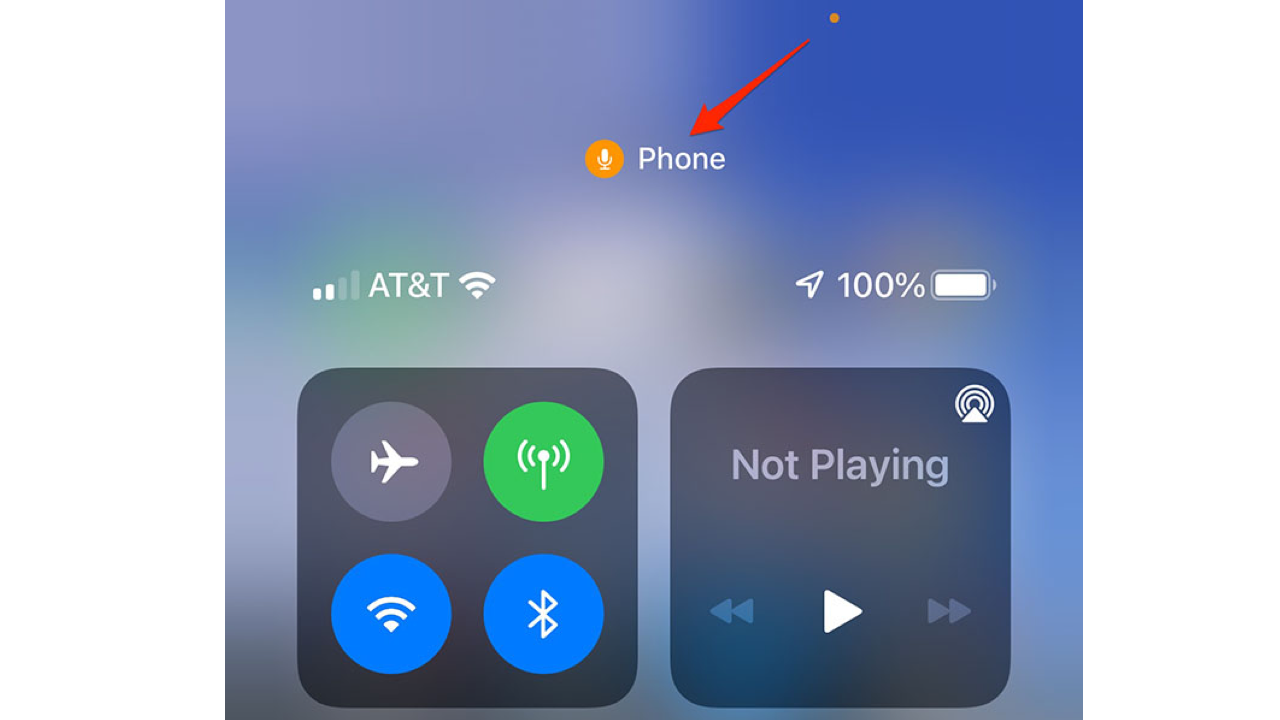
- Swipe down from the top right of your screen to reveal which apps are using your microphone
- You will now see both, which app is currently using your microphone and which app used it recently
- In the case below, the app that is using the microphone is the iPhone
What does it mean if you see the green dot on the top of your iPhone?
When a green dot appears in the top-right corner of your screen — right above your cellular bars — this means that an app is using either the camera or the camera with the microphone on your phone.
The indicator will stay visible for as long as the camera or microphone is in use and may briefly remain after, so you can identify the app.
Which iPhone apps are using your camera?
Like the orange dot, if you see the green dot, you can:
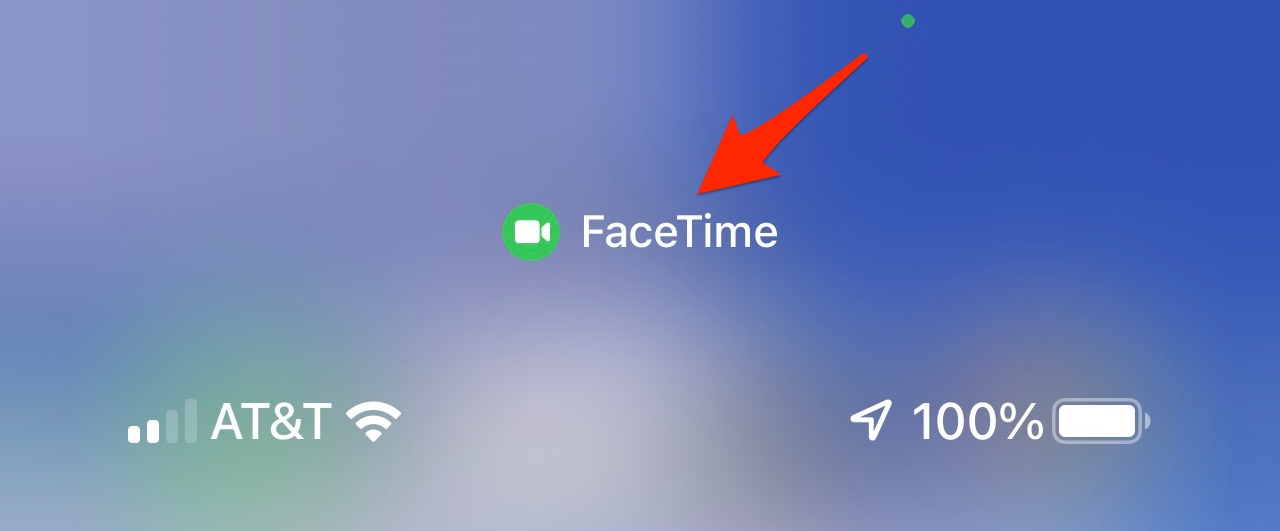
- Swipe down from the top right of your screen to reveal which apps are using your camera or camera with the microphone
- You’ll see the green icon at the top of your screen with the device next to it
- In the case below, the app that is using the camera is FaceTime
Watch the latest episode of The CyberGuy Report.

Missed this event? Sign up via the registration form and see our live recording.
See Kurt’s latest Amazon picks for useful gadgets, smart home upgrades and everyday tech worth grabbing while the deals last.
What does it mean if you see the green dot on the top of your Android device?
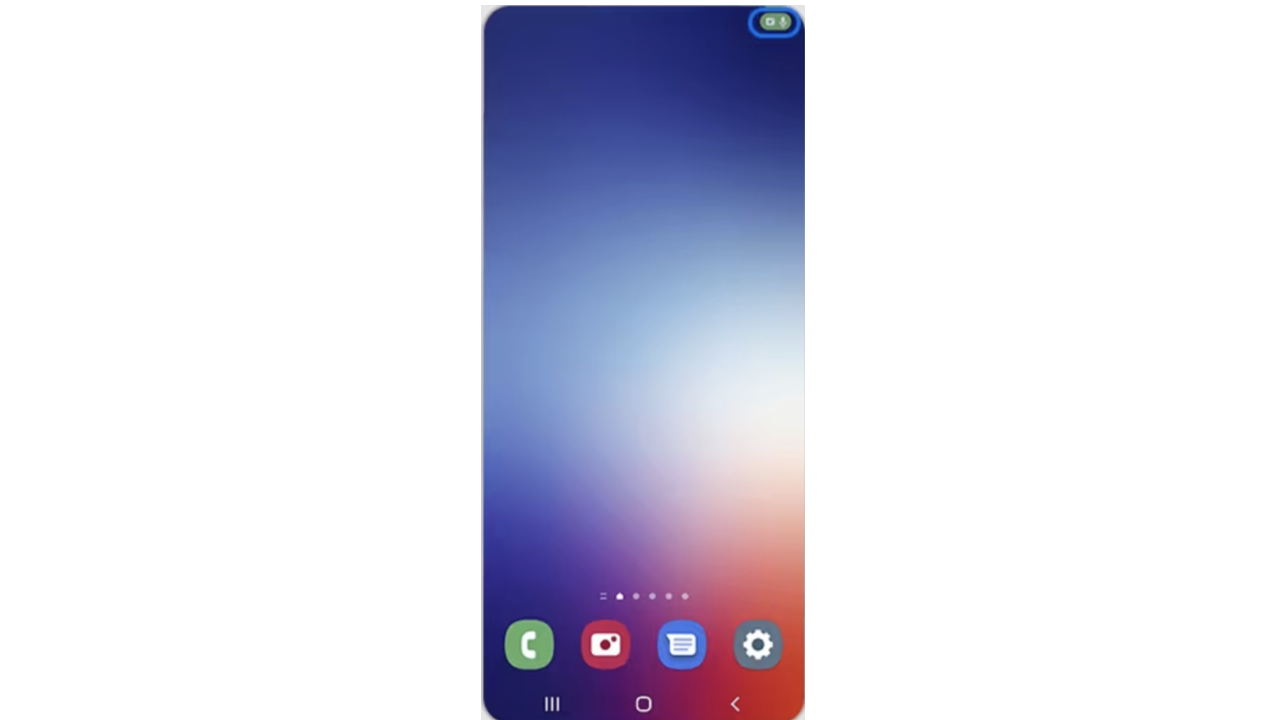
Credit: Samsung
If you’ve got an Android 12 or later (including newer versions like Android 14, 15 and 16), you’ll notice that there’s only a green dot indicator (no orange dot) in the top right corner of your screen that will inform you when the phone’s camera or microphone is being used by an app.
Some Android devices briefly show separate camera and microphone icons before switching to the green dot.
When an app first accesses your camera or microphone, you’ll see a camera icon and a microphone icon before it changes to simply a green dot. This dot will remain on for as long as the app uses your microphone or camera.
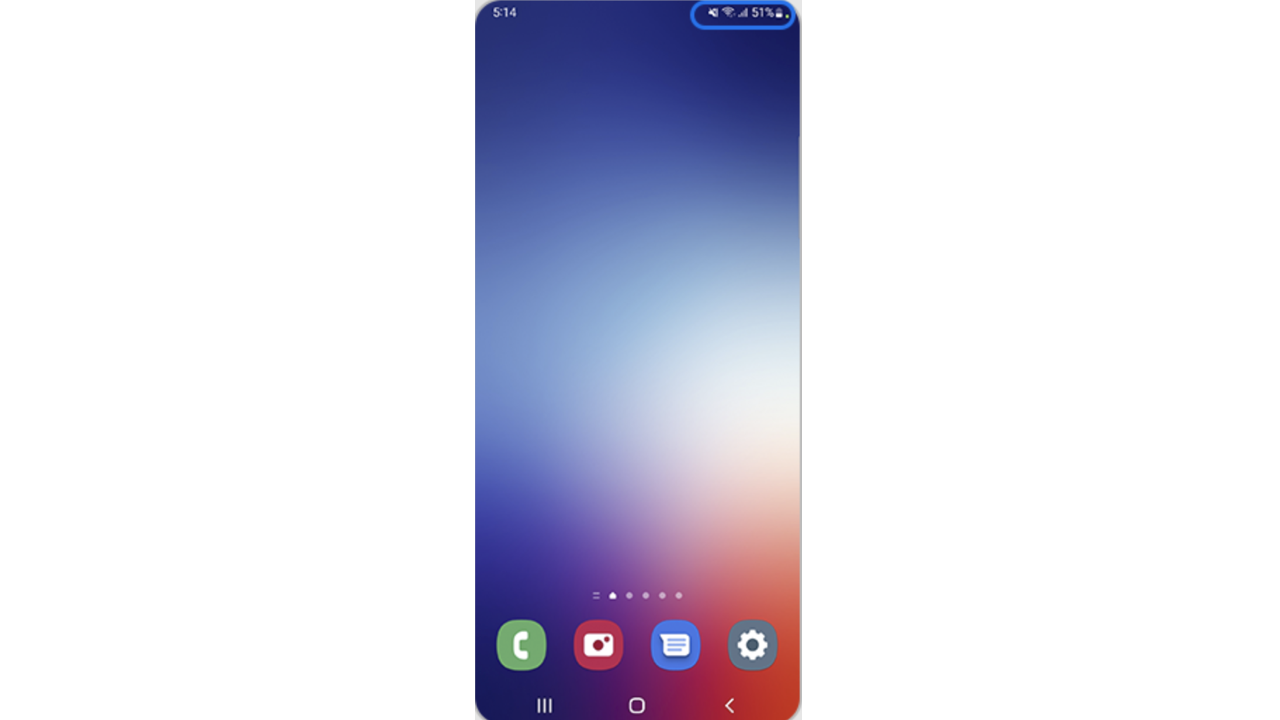
Credit: Samsung
Which Android apps are using your microphone or camera?
If you see the green dot, you can:
- Swipe down from the top of your screen to show the notification bar
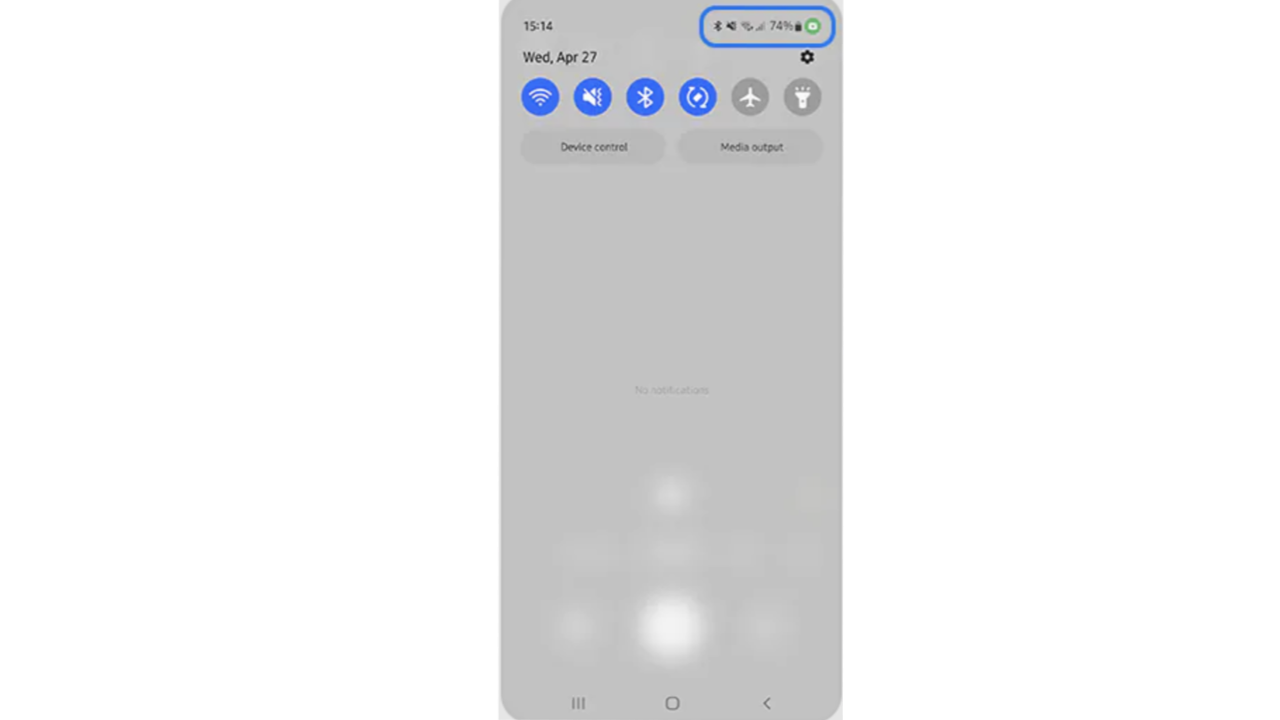
Credit: Samsung
- Click the green dot, and you will see which apps are using your camera or microphone
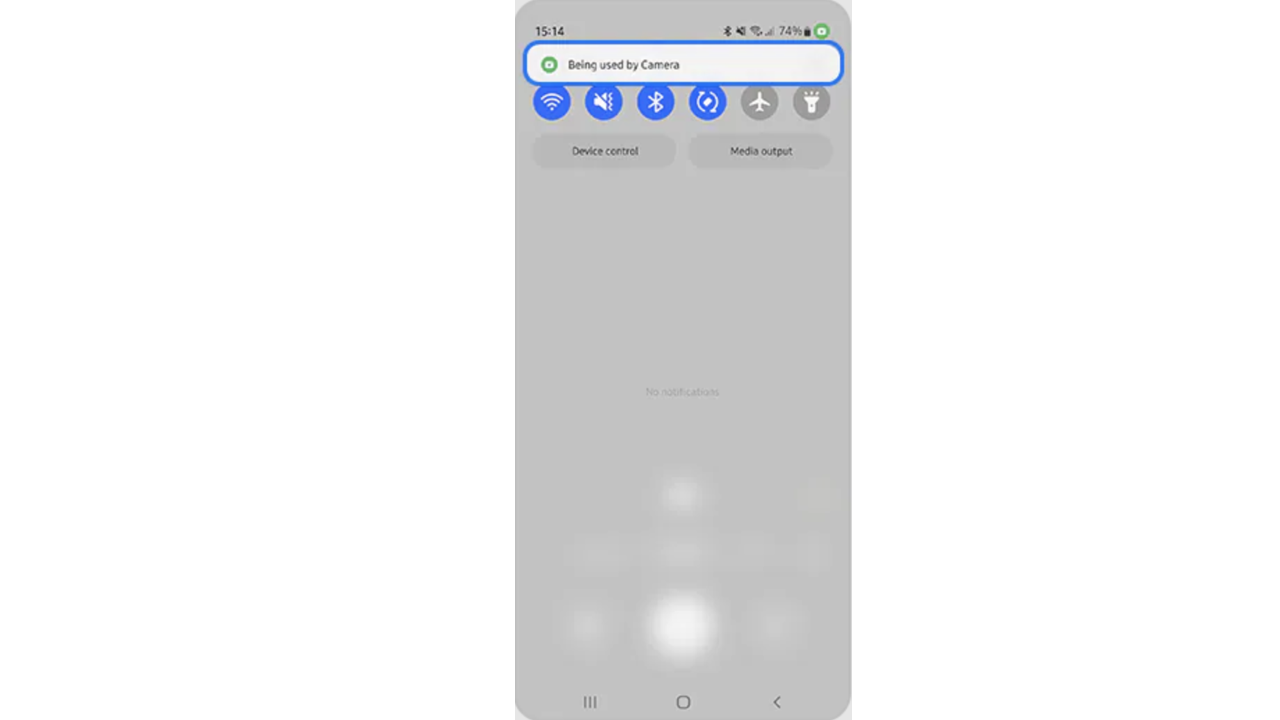
Credit: Samsung
What if an app is using my microphone or camera, and I can’t find it to delete the app?
If you see that your microphone and/or camera are in use even though you don’t have an app open, it likely means that an app has permission to use those features on your phone even when it isn’t being used, or your phone may have been hacked. In Is your device spying on you? you will find step-by-step instructions to see which apps have permission to access your microphone or camera and when.
If you’ve gone through your permission settings and your microphone and camera are being accessed without your consent, there is a chance that some malicious spyware may be using your device to spy. If you’re not sure your phone has been compromised, you can check for these additional signs outlined in How to tell if your phone has been hacked.
To avoid this altogether, consider adding antivirus software to your phone to ward off any malware.
Lock up your tech
My biggest desire is to educate and inform you about the increased real threat to each of our connected devices and encourage you to use strong antivirus security protection on everything in your life connected to the rest of the world. The best way to protect yourself is to install antivirus software on your devices.
- Strong real-time protection against viruses, malware, ransomware and hacking attempts
- AI-powered scam protection to help identify suspicious emails, texts and websites
- Built-in password manager to securely store and manage logins
- 2 GB PC cloud backup to help protect important files from ransomware or hardware failure
- Smart firewall and phishing protection
- Protects 1, 3 or 5 devices
- Available for Windows, macOS, Android and iOS
- Includes real-time threat protection, smart firewall and phishing protection to guard against online attacks
Related Links:
- Don’t ignore this urgent Apple security update
- Top 5 Routers for best security 2026
- 10 simple cybersecurity resolutions for a safer 2026
Kurt’s key takeaways
Those little orange and green dots might seem easy to ignore, but they are one of the simplest ways your phone helps protect your privacy. If you notice them when you expect it, everything is working as it should. If you see them when you don’t, it’s a signal to take a closer look. A quick check of your settings can give you peace of mind and help you stay in control of your device.
Have you ever noticed your camera or microphone being used when you didn’t expect it? What did you do next? Let us know in the comments below.
FOR MORE OF MY TECH TIPS & SECURITY ALERTS, SUBSCRIBE TO MY FREE CYBERGUY REPORT NEWSLETTER HERE
Copyright 2026 CyberGuy.com. All rights reserved. CyberGuy.com articles and content may contain affiliate links that earn a commission when purchases are made.
🎙 Now Streaming: My New Podcast: The CyberGuy Report
Kurt’s Top Deals
Deals move fast and inventory can be limited, so don’t wait too long.
| 🔥 Editor’s pick  Summer entertaining Ninja SLUSHi Machine (26% off) Frozen drinks and slushies at home in minutes. | |
| 💰 Top deal  Outdoor essential TYPEC Solar Bug Zapper (36% off) Solar-powered bug zappers for patios and camping. |


3 comments
Thanks
Nice article Kurt. I found out the hard way.
Thank you very much, I have tried to find out what the orange and green dots were, with no success. YOU told me!