



Amazon has introduced a new way of signing in to your Amazon account that does not require a password. It’s called a passkey. Amazon is an early adopter of this new authentication method.
With a passkey, you can sign in to your Amazon account using the same biometric methods you use to unlock your device, whether it’s through a fingerprint, facial recognition, or a lock screen PIN.
What is a passkey?
A passkey is designed to replace traditional passwords with a safer and more convenient alternative. Unlike passwords, which are often vulnerable to theft or guessing, passkeys offer enhanced security by linking your identity to a specific device.
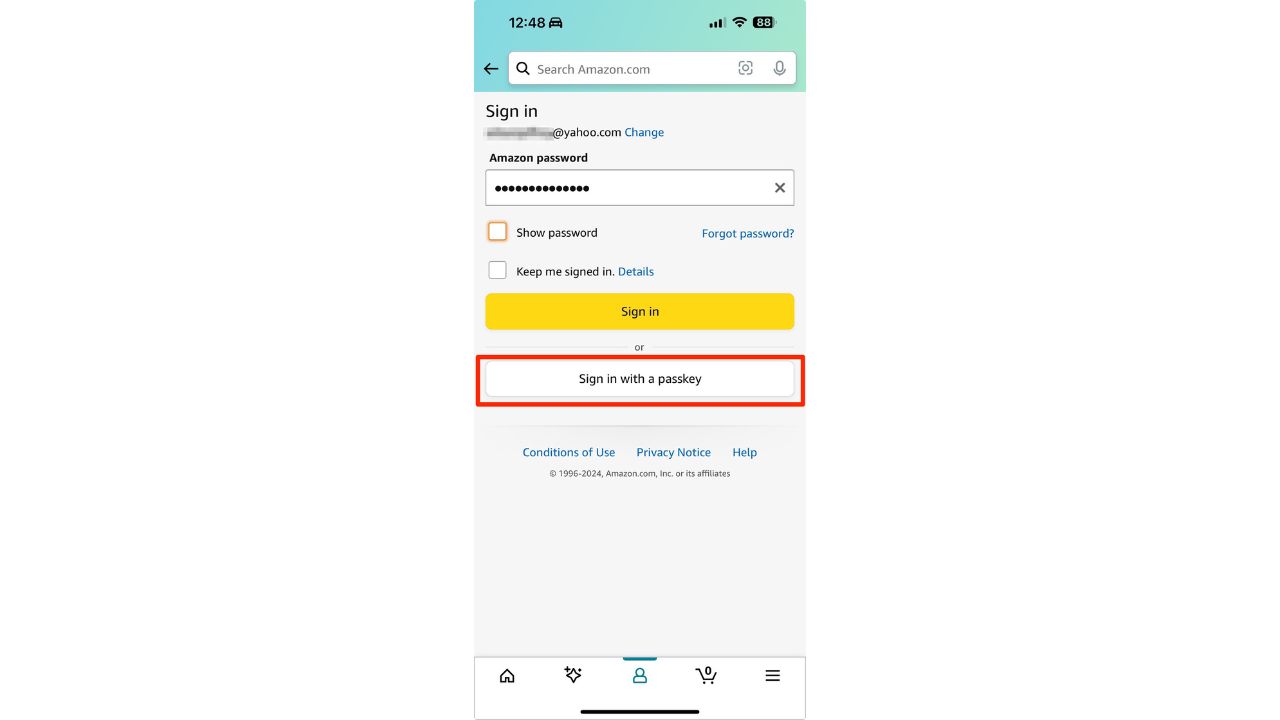
Essentially, a passkey proves that you have physical access to your device and can unlock it. This means you no longer have to rack your brain remembering complex passwords or resorting to easily guessable information like names or birthdays.
Additionally, passkeys are less susceptible to phishing attacks compared to traditional passwords or one-time codes sent via text messages, making them a more secure option for Amazon customers.
MORE: 10 INSIDER TIPS TO GET STUFF ABSOLUTELY FREE ON AMAZON
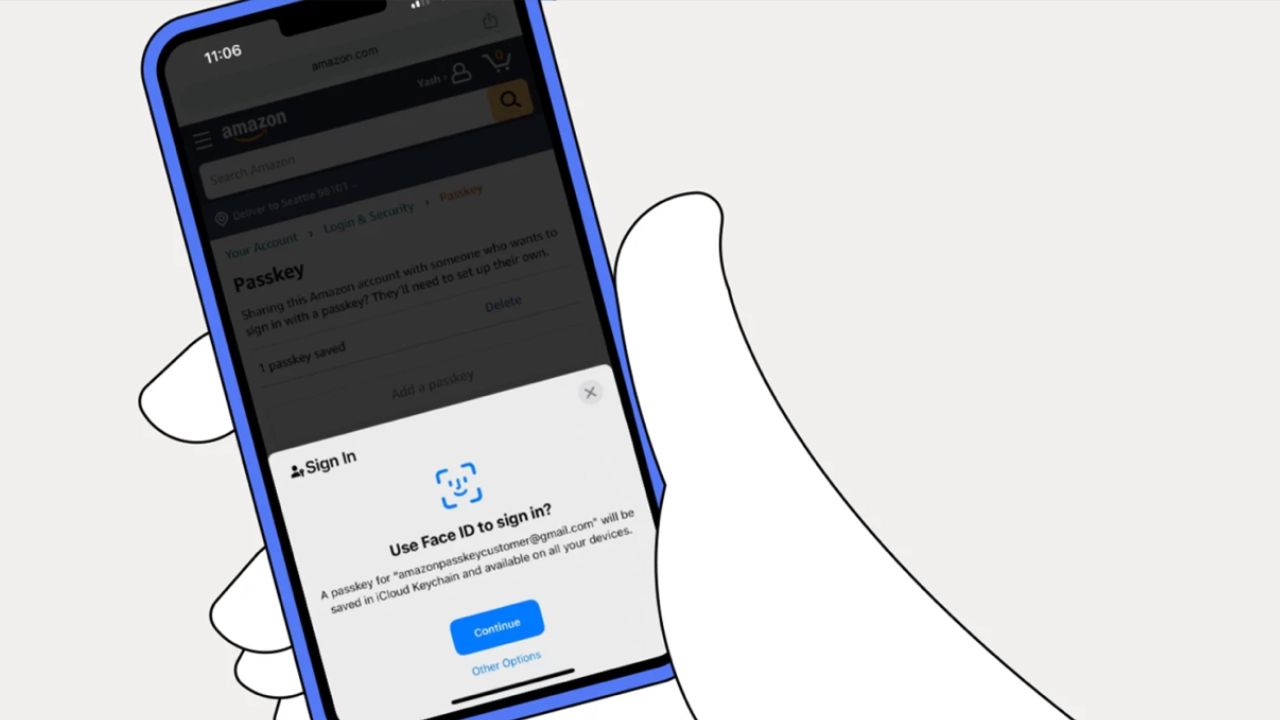
Credit: Amazon
MORE: A PRIVACY WIN: AMAZON LIMITS POLICE ACCESS TO YOUR RING CAMERA
3 important things to know about Amazon’s passkeys
Here are 3 key features of Amazon’s passkeys:
1) Cross-platform compatibility: Passkeys work seamlessly across various platforms and browsers, including iPhones, laptops, Android phones, and the Chrome browser.
2) End-to-End Encryption: Your passkeys and biometric data remain private, as they are never shared with Amazon, safeguarding your account against phishing attacks and data breaches.
3) Option to Use Password: If you prefer, you can still use your Amazon password to sign in even after enabling passkeys.
Requirements and additional information on Amazon’s passkeys
To enable passkeys, your device must meet specific software requirements:
- For iOS users: iOS 16 or later
- For macOS users: macOS Big Sur or later
- For Android users: Android 9 or later
Additionally, ensure that you are using the latest version of your web browser and have both screen lock and Bluetooth enabled on your device. In the event you need to sign in to another Amazon marketplace from your browser, you will either need to set up a new passkey or sign in using your Amazon password.
Watch the latest episode of The CyberGuy Report.

Missed this event? Sign up via the registration form and see our live recording.
See Kurt’s latest Amazon picks for useful gadgets, smart home upgrades and everyday tech worth grabbing while the deals last.
MORE: 6 IMPORTANT AMAZON PRIVACY SETTINGS TO CHANGE RIGHT NOW
How to set up an Amazon passkey for your Amazon account
Switching to a passkey is simple if you have an existing Amazon account along with either an iPhone, Android, or Mac with the latest software.
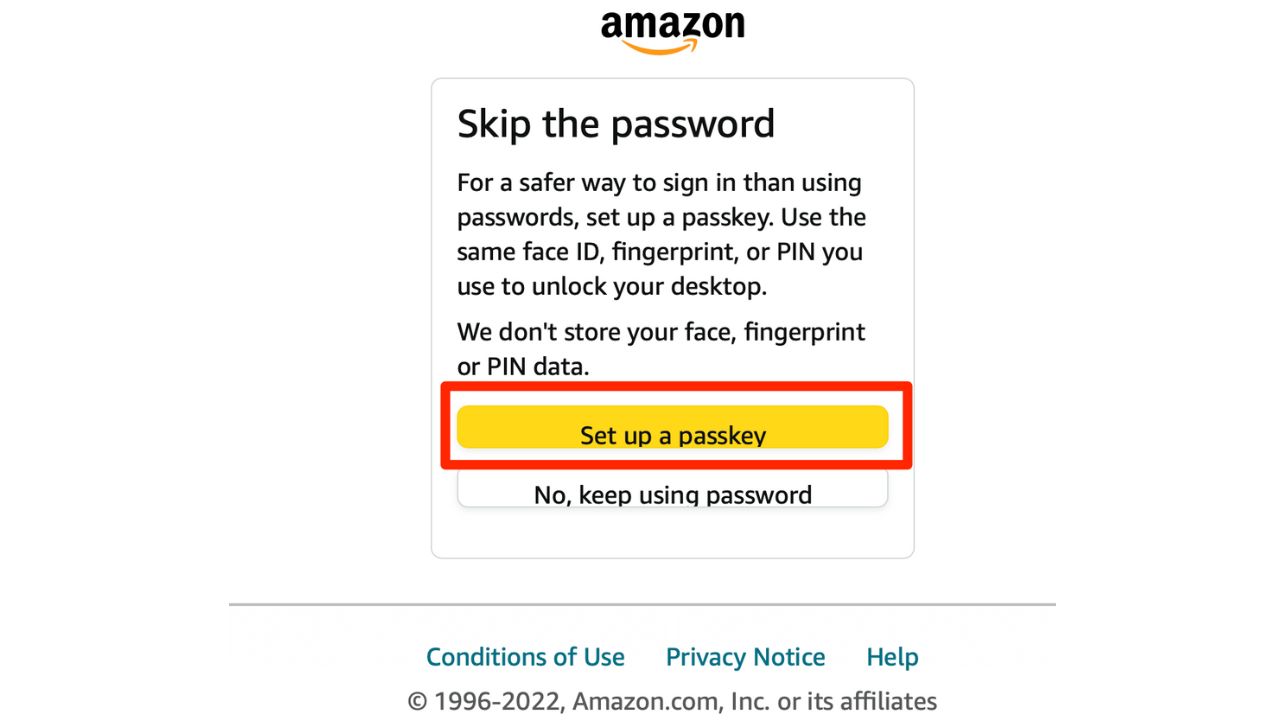
Setting up a passkey on the Amazon shopping app
If you don’t see that prompt when you sign in or you’re a new Amazon customer, here’s how to set up a passkey on the Amazon app. First, if you don’t already have the Amazon Shopping app, download it from the App Store or Google Play. Setting up a passkey is similar for iOS and Android devices, but you may see some variations in the screens and messages.
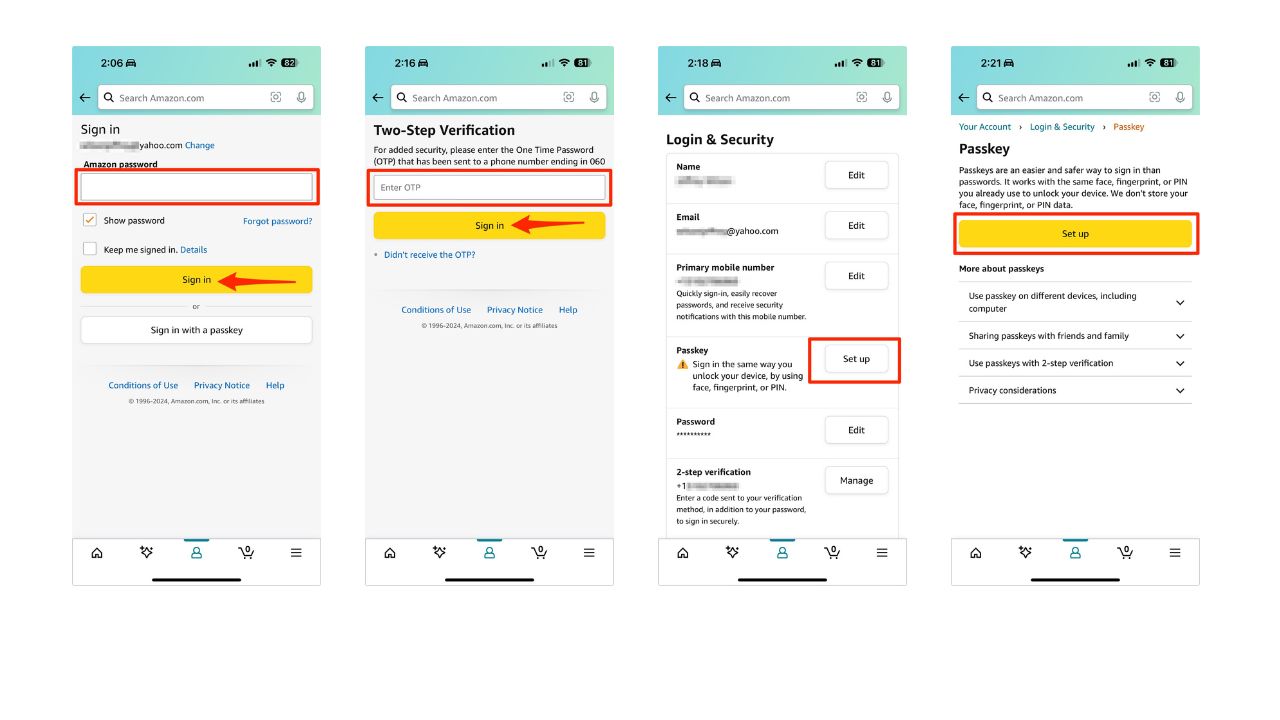
- Launch the Amazon shopping app and sign in with your Amazon account.
- Tap the profile icon on the bottom toolbar
- Tap Your Account
- Under Account settings, tap Login & security
- Enter your email and press continue
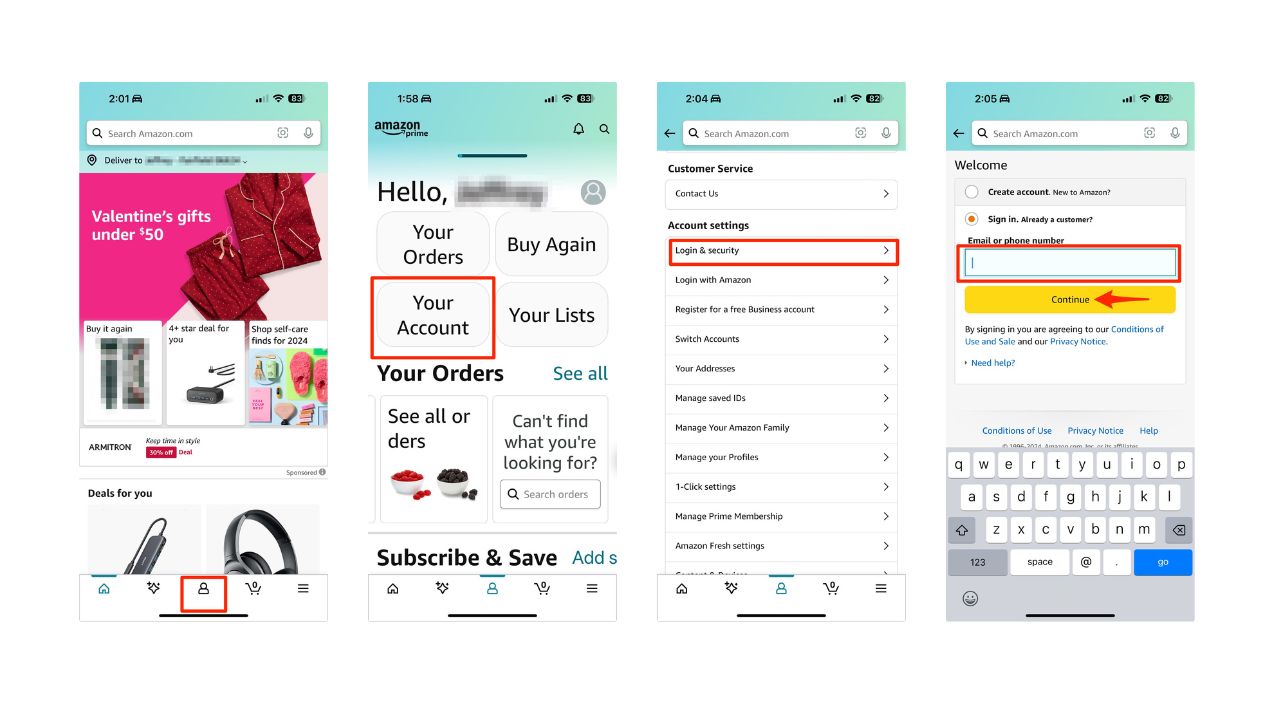
- Enter your password, then click Sign in
- You may need to enter a verification code that Amazon will send to your phone or email, then click Sign in
- Next to the word Passkey, click on Set up
- The next screen explains how passkeys work. Tap the Set up button.
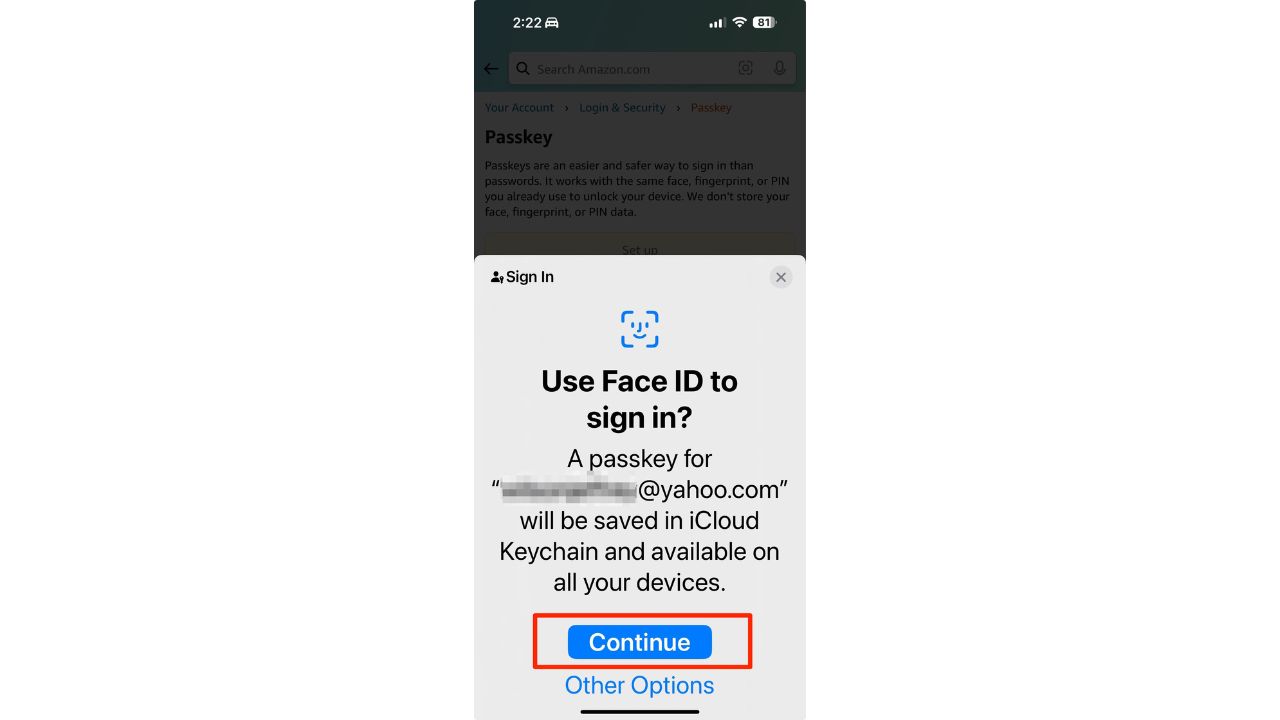
- Then, it will ask you, “Use your Face ID to sign in? Click on Continue
Setting up an Amazon passkey on your computer
If you don’t see a prompt when you first sign in or you’re a new Amazon customer, here’s how to set up a passkey on your computer.
- Log in to amazon.com with your existing account, then hover over “Account & Lists” in the upper right corner, scroll down, and click Account
- Click Login & Security and enter your password, then click Sign in
- You may need to enter a verification code that Amazon will send to your phone or email.
- Click on Set up next to the word Passkey
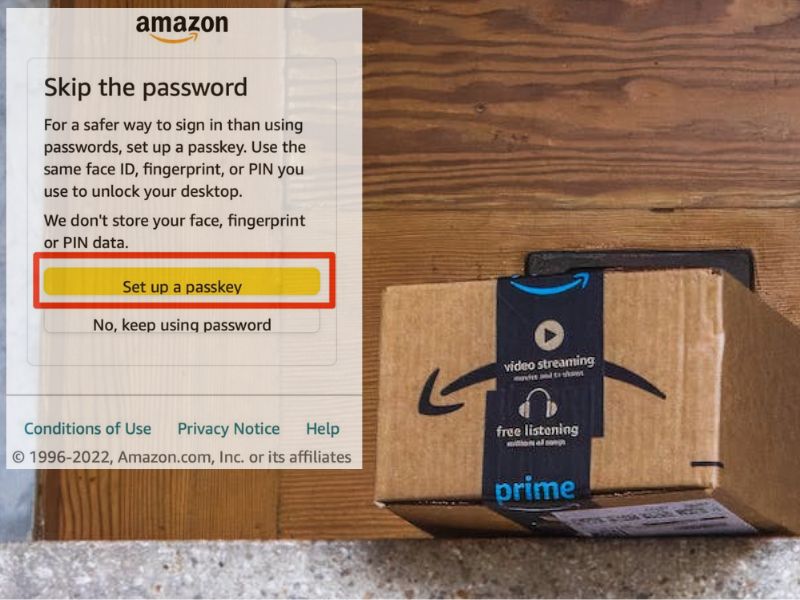
- Then click on Set up
- Then, it will ask you, “Use Face ID, or Touch ID to sign in? Use your face or thumb to finish the Set up
Now you can use your passkey to sign in to your Amazon account without a password. Just enter your email and choose Sign in with a passkey. your device will ask you to authenticate with your face, fingerprint, or PIN.
MORE: 9 BEST FEATURES OF AMAZON PRIME YOU MAY NOT KNOW ABOUT
Kurt’s key takeaways
Amazon’s passkey is a new way of signing in to your Amazon account that does not require a password. It is a safer and more convenient alternative to traditional passwords, as it uses your biometric data or lock screen PIN to verify your identity. Passkeys work across different platforms and browsers, and they are encrypted end-to-end, so your data is never shared with Amazon or anyone else.
What do you think of Amazon’s passkey? Are you going to make the switch or stick with using a password? Why or why not? Let us know in the comments below.
FOR MORE OF MY SECURITY ALERTS, SUBSCRIBE TO MY FREE CYBERGUY REPORT NEWSLETTER HERE
🎙 Now Streaming: My New Podcast: The CyberGuy Report
Kurt’s Top Deals
Deals move fast and inventory can be limited, so don’t wait too long.
| 🔥 Editor’s pick  Summer entertaining Ninja SLUSHi Machine (26% off) Frozen drinks and slushies at home in minutes. | |
| 💰 Top deal  Outdoor essential TYPEC Solar Bug Zapper (36% off) Solar-powered bug zappers for patios and camping. |


2 comments
I’ve set up passkey on amazon.
Now, how do i remove the password from amazon?
So i can use only passkey?
Currently, Amazon does not allow users to completely remove their passwords even if they have set up a passkey. Passkeys are designed to provide a more secure and convenient way to sign in, but the password remains as a fallback option.If you want to use passkeys exclusively, you can simply avoid using your password and rely on the passkey for signing in. However, the password will still exist in the background as a backup method. For more information on managing passkeys and passwords on Amazon, you can visit their Customer Service page.